
Convert Flac to Apple '.m4a' files (alac, aac)

Project description
Summary
A lightweight, high-performance CLI for managing audio libraries. Optimized for FLAC to Apple-friendly (ALAC/AAC) conversion with smart deduplication.
- Optimized for FLAC-to-Apple-friendly conversion, Audiotown scans large music folders quickly, summarizes what is in your collection, and converts
.flacfiles into .m4a using eitherALAC(lossless) orAAC(lossy). know more about the codec. - It preserves important metadata during conversion, including artist, album, track information, and embedded artwork.
- In practical use, it can scan a folder with roughly 13,000 files in about 50-60 seconds, making it suitable for large personal libraries.
whats new
- added video upgrade feature via
--to-videoflag. it trancodes (converts) legacyAVIandRMVBfiles into Apple safe MP4.- Output format: H264/AAC 192K
- Maximium compability with Apple Hardwares, including iPhone 4 or later.
audiotown convert '/my/path/to/video_folder/' --to-video=mp4
- improved terminal output.
- Bug fixing.
Prefer a Mac app instead?
If you are interested in a native macOS app for this workflow, check out Audiotown Pro.
It brings the same core idea into a dedicated desktop experience: scan your library, inspect what is in it, and convert .flac files into Apple-friendly .m4a audio with ALAC or AAC, while preserving metadata and artwork from the original files.
Learn more about Audiotown Pro
CLI Commands
audiotowncontains three commands:check,statsandconvert. This package requiresffmepginstalled in the system.- To run them, type
auditown checkoraudio statsoraudio convert. - Type
audiotown checkto runcheck. - The command checks if
ffmpegis installed.
- To run them, type
statsacts as an executive assisant for audio media management. Personal media library are often messy. This command starts by searching thefolderrecursively and laser focus ONLY on audio files (filtered by file suffix). It then prints out to the terminal a summary report based on what it finds:- numbers of songs by formats, by encoder types,
- storage usage details,
- what top artists, genres, albums are to me ,
- are they lossless or lossy, and
- detect potential unreadable or corrupt files.
statscan export scanned records into a JSON via--report-pathflag. Default value is.(current directory).convert. It converts all.flacfiles in a folder into lossless (alac) or lossy (aac) versions. An apple lossless encoded.m4afile can be recognized in Apple eco system but not usually for.flacfiles.--report-pathis available inconverttoo. To run itaudiocheck convert /path/to/flacs --encoder=alac --report-path=.. The converted will be exported to a new folderaudiotown_exportin the same folderpath/to/flacs.convertalso supports--dry-runas a tool to preview changes made in a conversion.convertsearches files recursively so I can specify a high-levelfolderlikeMediaormyMediaHub. Try with one ablum folder first.convertsupports--bitratewhen the--encoder=aacis specified. the default bitrate kbps is256k.128kand320kare the other valid inputs.convertby default tries to add artwork into files when converting. It searches forcover.jpgorlibrary.jpgat the root of the folder. if the source file does not contain an artwork, the command attempts to find such file and embed it into the output whenever possible.
convertnow supports a new video transcode flag--to-video=mp4. It tranforms the old AVI files into Apple ready MP4. Output files will be saved under a new subfolder namedaudiotown_exported.
Demo
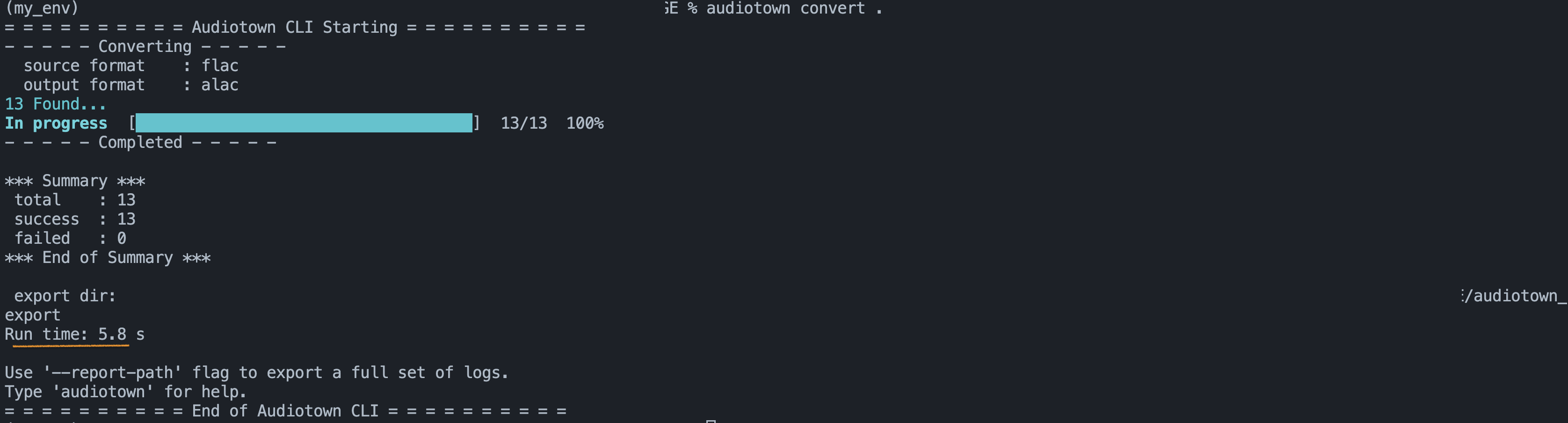
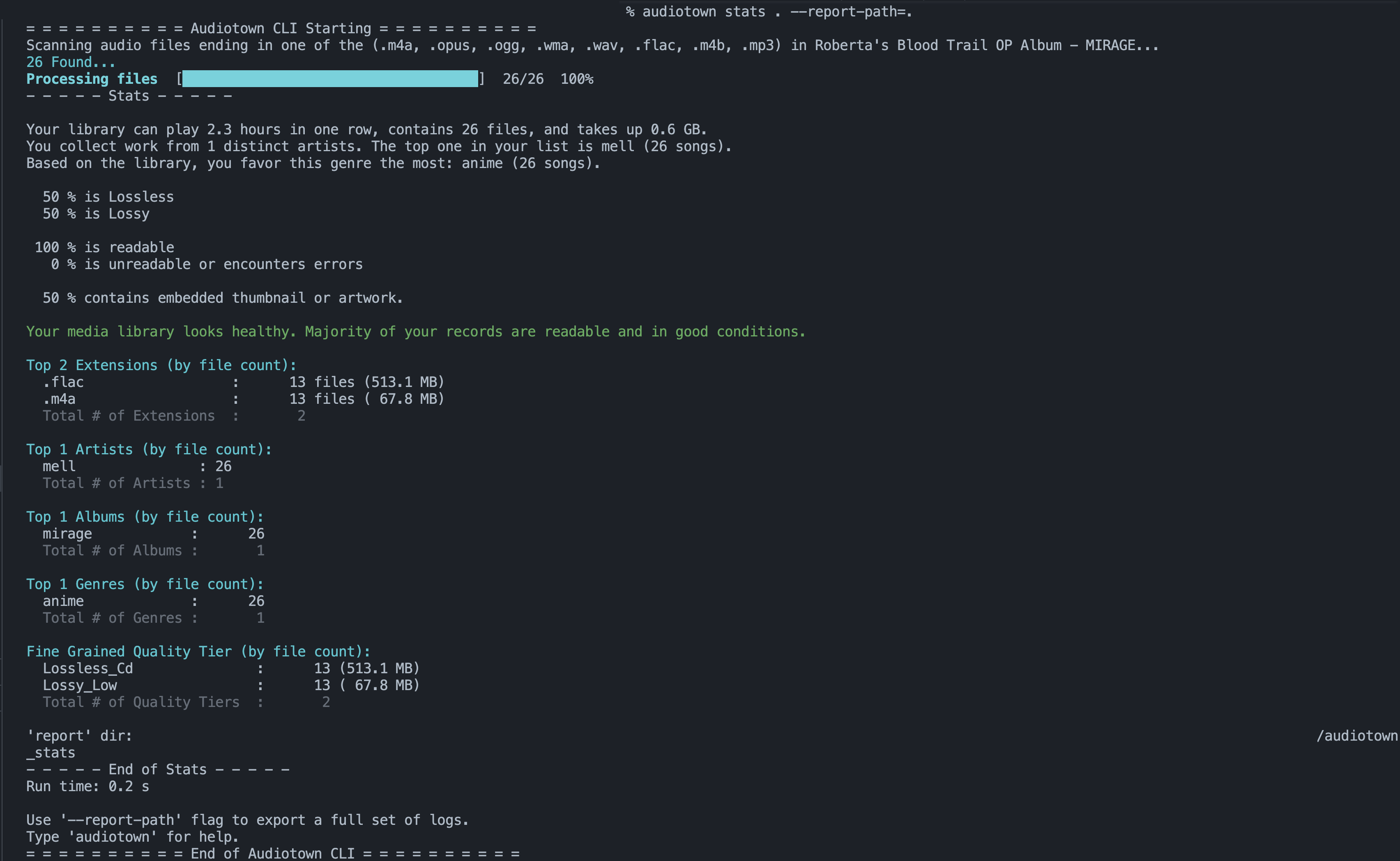

Installation
- Ensure I have FFmpeg installed on the system. It is the powerhouse that does the conversion and other heavy work like probing
ffprobe. Will need it installed and working. MacOS users can install it via homebrew:brew install ffmpeg. >=3.10.
- Requires
clickandwcwidthlibaries.

# [optional but recommended] set up a virutal env named `my_env`.
python3 -m venv my_env
source my_env/bin/activate
# check python version 3.10+
python --version

# udpate pip
pip install --upgrade pip

pip install audiotown

# help
audiotown
🛠 Usage
Usage: audiotown [OPTIONS] COMMAND [ARGS]...
Options:
  --version   Show the version and exit.
  -h, --help  Show this message and exit.

Commands:
  check    Verify that FFmpeg and dependencies are correctly installed.
  convert  Convert FLACs in FOLDER to Apple-friendly formats.
  stats    Stats Dashboard & Insight tool.
Examples
- The simplest way to use
AudioTownis to run it in a folder containing FLAC files:audiotown convert /path/to/album/folder --codec=alac --report-path=/path/to/report/folder --dry-run. The search is recursive.[=po-iu9o0[]\ - . the output files from
audio convertare under the subfolderaudiotown_export/within/path/to/album/folder. - The
/path/to/report/foldercan be.or any specified directories. - use
--dry-runto preview any perceived changes. - The
converttakes onlyflacfiles. It supports:flac --> alacorflac --> aac.--bitratecan be specified forflac --> aac(default:256k)
# 1. show additional help
audiotown
audiotown -h
audiotown --help

# 2. check ffmpeg installation
audiotown check

# 3. show stats of a media folder
cd /path/to/media/folder
audiotown stats .
# alternatively
audiotown stats  /path/to/media/folder
audiotown stats  /path/to/media/folder --report-path=.

# enable duplicating searching
audiotown stats  /path/to/media/folder --find-duplicate --report-path=.

# 4. convert all flac files  to alac (default) or aac based formats. logging is controlled by `--report-path`
# . means current directory
audiotown convert . --report-path=.
audiotown convert . --codec=alac --report-path=. --dry-run
audiotown convert . --codec=aac --bitrate=256k --report-path=. --dry-run


# 5. video upgrade. source formats: AVI, RMVB
audiotown convert '/my/path/to/video_folder/' --to-video=mp4 --report-path
Advanced Options
- overview
| Option | Description | Default |
|---|---|---|
--codec |
alac or aac. used with convert. |
alac |
--bitrate |
Bitrate for AAC (128k, 256k, 320k). only useful when --codec=aac |
256k |
--dry-run |
Preview conversion without writing files. used with convert |
disabled |
--find-duplicate |
finds potential duplicate files by parallel comparisions via arist, title and file_name. |
|
| disabled | ||
--report-path |
generates a full log, including a json. work with both convert and stats. |
disabled |
-
Examples
- Run a preview to see what would be converted:
# preview the conversion that will be done to any flac files in `AlbumFolder`.
audiotown convert ./AlbumFolder --dry-run
- use
codecand--bitrate. It means the desired codec used for the output.
audiotown convert . --codec=alac
audiotown convert . --codec=aac --bitrate=256k
audiotown convert . --codec=aac --bitrate=128k
- It does not make sense to specify
bitratefor losslessalacsobitratewill be ignored.
cd /my/media/folder
audiotown convert . --codec=alac --bitrate=128k
- find duplicates. the command looks at the metadata like aritst, title, file size and file name. it tries to find a unique key to create duplicate groups/sets.
cd /my/media/folder
audiotown stats . --find-duplicate
- video transcoding
🤝 Contributing
Audiotown is a labor of love built to handle my own 100GB+ library. If you find a file that crashes the scan, or if you have an idea to make the Apple-conversion even smoother, I’d love your input!
How to Help:
- Report Bugs: Open an Issue if a specific audio format causes a hiccup. Please include the output of your
meta.txt! - Feature Requests: Want a specific target bitrate or a new "Theme" for the progress bar? Let me know in the Issues.
- Code: Pull Requests are welcome!
- Fork the repo.
- Create a feature branch (
git checkout -b feature/AmazingFeature). - Commit your changes.
- Push to the branch and open a PR.
LICENSE
Licensed under the MIT License.
Release history Release notifications | RSS feed


Download files
Download the file for your platform. If you're not sure which to choose, learn more about installing packages.
Source Distribution
Built Distribution
Filter files by name, interpreter, ABI, and platform.
If you're not sure about the file name format, learn more about wheel file names.
Copy a direct link to the current filters
File details
Details for the file audiotown-1.11.0.tar.gz.
File metadata
- Download URL: audiotown-1.11.0.tar.gz
- Upload date:
- Size: 73.6 kB
- Tags: Source
- Uploaded using Trusted Publishing? No
- Uploaded via: twine/6.2.0 CPython/3.13.5
File hashes
| Algorithm | Hash digest | |
|---|---|---|
| SHA256 |
e5fa02d1bf89fb2b8d13e99f4fa995d798eff98811792dcd7cee9ba1974804cf
|
|
| MD5 |
870cfac902519607fdbab0b59218dda7
|
|
| BLAKE2b-256 |
eab52c10ffd5f2993f155c703c5d9bf4fc71e8b3599654eb476e1618d384e6bc
|
File details
Details for the file audiotown-1.11.0-py3-none-any.whl.
File metadata
- Download URL: audiotown-1.11.0-py3-none-any.whl
- Upload date:
- Size: 94.0 kB
- Tags: Python 3
- Uploaded using Trusted Publishing? No
- Uploaded via: twine/6.2.0 CPython/3.13.5
File hashes
| Algorithm | Hash digest | |
|---|---|---|
| SHA256 |
a668269b4a9a6a2490199de8c61466e9e805da86d3b8cb0d408f9f107222038f
|
|
| MD5 |
b956e8463fcbaae3ebfa7ff48320b46f
|
|
| BLAKE2b-256 |
8c34352118fe241b3129a4251ff5dc947502e6a81c9eed264e28d415412ee78b
|






