
MNE Qt Browser
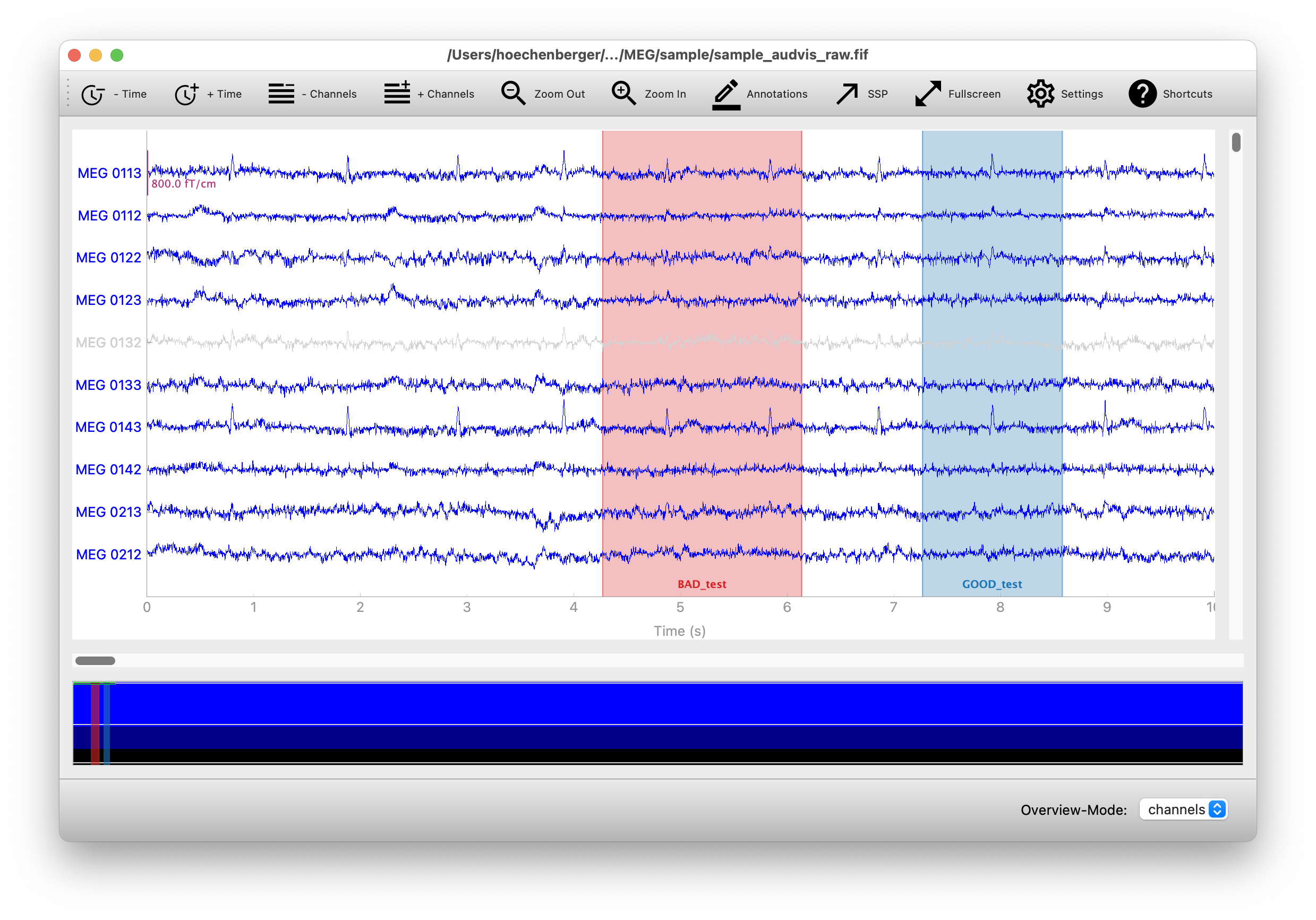
MNE Qt Browser is an alternative backend for plotting multichannel time series data (such as EEG or MEG) with MNE-Python. The backend is based on PyQtGraph, which in turn uses Qt under the hood.
About this fork
This repository is a customized fork maintained by the Cincinnati Brain Lab to integrate seamlessly with the AutoCleanEEG Pipeline. The fork tracks upstream mne-qt-browser while applying compatibility tweaks and packaging adjustments needed for deployment within the AutoCleanEEG ecosystem. Users looking for the canonical project should visit the mne-tools/mne-qt-browser repository.
Fork-specific changes
- Packaging and distribution adjustments (a4828f6): renamed the published distribution to
autocleaneeg-mne-qt-browser-fork, updated project URLs, and added runtime version fallback so the browser still reports a version when imported from either the fork or the upstream package. - Bad epoch interaction refinements (dbb0897): stabilized DataTrace colors when epochs are marked bad, limited overview-bar refreshes to the affected regions, tuned background handling to respect dark/light themes, and documented the modified click behaviour for future maintenance.
- Vertical guide controls (c8102a4): introduced an
allow_vlineflag that lets the AutoCleanEEG workflow enable or disable on-plot vertical guides, with matching updates to the help dialog and RawViewBox event handling. - Release maintenance (e0c5c2b, 0c61a03): tracks AutoCleanEEG-compatible release numbering and documents the fork context directly in this README.
Installation
MNE Qt Browser is not a standalone package—it requires MNE-Python to be installed. The easiest way to use it is by installing MNE-Python through the official installers, which include the browser by default.
The browser is also supported by MNELAB, a graphical user interface for MNE-Python. The recommended way to install MNELAB is via the official installers as well. In this case, MNE Qt Browser will be installed automatically—you just need to enable it in the settings by selecting Qt as the plot backend.
If you already have the mne package installed in your Python environment, you can also install mne-qt-browser separately (e.g., using pip, uv, or conda).
Usage
The backend supports plotting for the following MNE-Python methods:
mne.io.Raw.plot()mne.Epochs.plot()mne.preprocessing.ICA.plot_sources(raw)mne.preprocessing.ICA.plot_sources(epochs)
The following example demonstrates how to read and plot the MNE sample dataset:
import mne

raw = mne.io.read_raw(
    mne.datasets.sample.data_path() / "MEG" / "sample" / "sample_audvis_raw.fif"
)

raw.plot(block=True)
If the plot does not appear, check the troubleshooting section below for possible solutions.
MNE ≥ 1.0.0 will automatically use the Qt backend for plotting if it is available. If you want to set the backend explicitly, you can do so by calling:
mne.viz.set_browser_backend("qt") # or "matplotlib"
You can set the backend to "qt" or "matplotlib". If you want to make this setting permanent, you can modify your MNE configuration file by running:
mne.set_config("MNE_BROWSER_BACKEND", "qt") # or "matplotlib"
Troubleshooting
Running from a script
If you run a script containing raw.plot() as follows, the plot will close immediately after the script finishes:
python example_script.py
To keep the plot open, you can either use blocking mode:
raw.plot(block=True)
Alternatively, you can run the script in interactive mode:
python -i example_script.py
IPython
When using an interactive IPython console, calling raw.plot() in non-blocking mode may cause the plot window to freeze or become unresponsive. This happens because IPython must be configured to run the Qt event loop to handle plot interactions.
To fix this, you can either use blocking mode, which runs its own event loop:
raw.plot(block=True)
Alternatively, enable Qt event loop integration in your IPython session by running the following magic command before you plot:
%gui qt
Development and testing
You can run the included benchmarks locally with:
pytest -m benchmark mne_qt_browser
To run the PyQtGraph tests, use:
pytest mne_qt_browser/tests/test_pg_specific.py
You can also run additional tests from the MNE-Python repository. The following command assumes that you have cloned the MNE-Python repository in the parent directory of this repository:
pytest -m pgtest ../mne-python/mne/viz/tests
These tests require PyOpenGL to be installed. If OpenGL is not available on your system, you may encounter errors. To suppress these, add the following line to mne/conftest.py after the existing error:: line:
ignore:.*PyOpenGL was not found.*:RuntimeWarning
1 maintainer

Metadata
1 maintainer
Release files for autocleaneeg-mne-qt-browser-fork 0.8.2
For a detailed explanation of source distributions (sdists) and built distributions (wheels), please see the package formats documentation.
Source distribution (sdist)
| File | Size | Uploaded | Provenance | |
|---|---|---|---|---|
| autocleaneeg_mne_qt_browser_fork-0.8.2.tar.gz | 64.2 kB | Without provenance | Details |
Built distribution (wheel)
| File | Interpreter | ABI | Platform | Reset |
|---|---|---|---|---|
| autocleaneeg_mne_qt_browser_fork-0.8.2-py3-none-any.whl | Python 3 | none | any | Details |
Total release size: 145.6 kB
Release files / autocleaneeg_mne_qt_browser_fork-0.8.2.tar.gz
| Download URL | autocleaneeg_mne_qt_browser_fork-0.8.2.tar.gz |
|---|---|
| Size | 64.2 kB |
| Tags | Source |
|
SHA-256 checksum How to use checksums |
fec8ff6cee05b6509615a72474583fcebe656bdafb185a6cb9ebd67f22c7fe33
|
|
BLAKE2b-256 checksum How to use checksums |
a23c6b48848e8408b2cea1579dd06dcce6d4f76e9f9799c351faa2b7839a178c
|
| Upload date | |
|
Uploaded using Trusted Publishing? What is trusted publishing? |
No |
| Uploaded via |
uv/0.7.19
|
Release files / autocleaneeg_mne_qt_browser_fork-0.8.2-py3-none-any.whl
| Download URL | autocleaneeg_mne_qt_browser_fork-0.8.2-py3-none-any.whl |
|---|---|
| Size | 81.4 kB |
| Tags | Python 3 |
|
SHA-256 checksum How to use checksums |
8d6c1a036dd6f6fb06ae472347b7f925f4ec61b232ee45a1a28c876bccba0aa4
|
|
BLAKE2b-256 checksum How to use checksums |
ad9a24829e4681664b8cc68d1025daa5c27b68006ab440c835662b596a946e8e
|
| Upload date | |
|
Uploaded using Trusted Publishing? What is trusted publishing? |
No |
| Uploaded via |
uv/0.7.19
|
Security for autocleaneeg-mne-qt-browser-fork 0.8.2
Provenance
Provenance describes where a file came from. On PyPI, provenance is shared via attestations, which provide a verifiable record of the build or publishing details. View details, limitations and caveats.
No provenance found
None of the files in this release were uploaded with provenance metadata.
A note on package security
PyPI is a repository for distributing packages, not a service for auditing them. While third-party security researchers and our staff do their best to detect and remove malicious packages, PyPI cannot guarantee the quality, security or suitability of any given package.
To learn more about protecting yourself from malicious actors, visit our package security documentation.














