
Aye Chat: AI-powered terminal workspace 


Your terminal, but with AI. Edit files, run commands, chat with AI - all in one session.
Install in 30 seconds
$ pip install ayechat
$ aye chat          # Start in any project
macOS (Homebrew):
brew tap acrotron/aye-chat
brew install aye-chat
Windows (Installer):
Download and run aye-chat-setup.exe
NixOS/Nix:
# Run directly without installing
nix run github:acrotron/aye-chat

# Or install to your profile
nix profile install github:acrotron/aye-chat
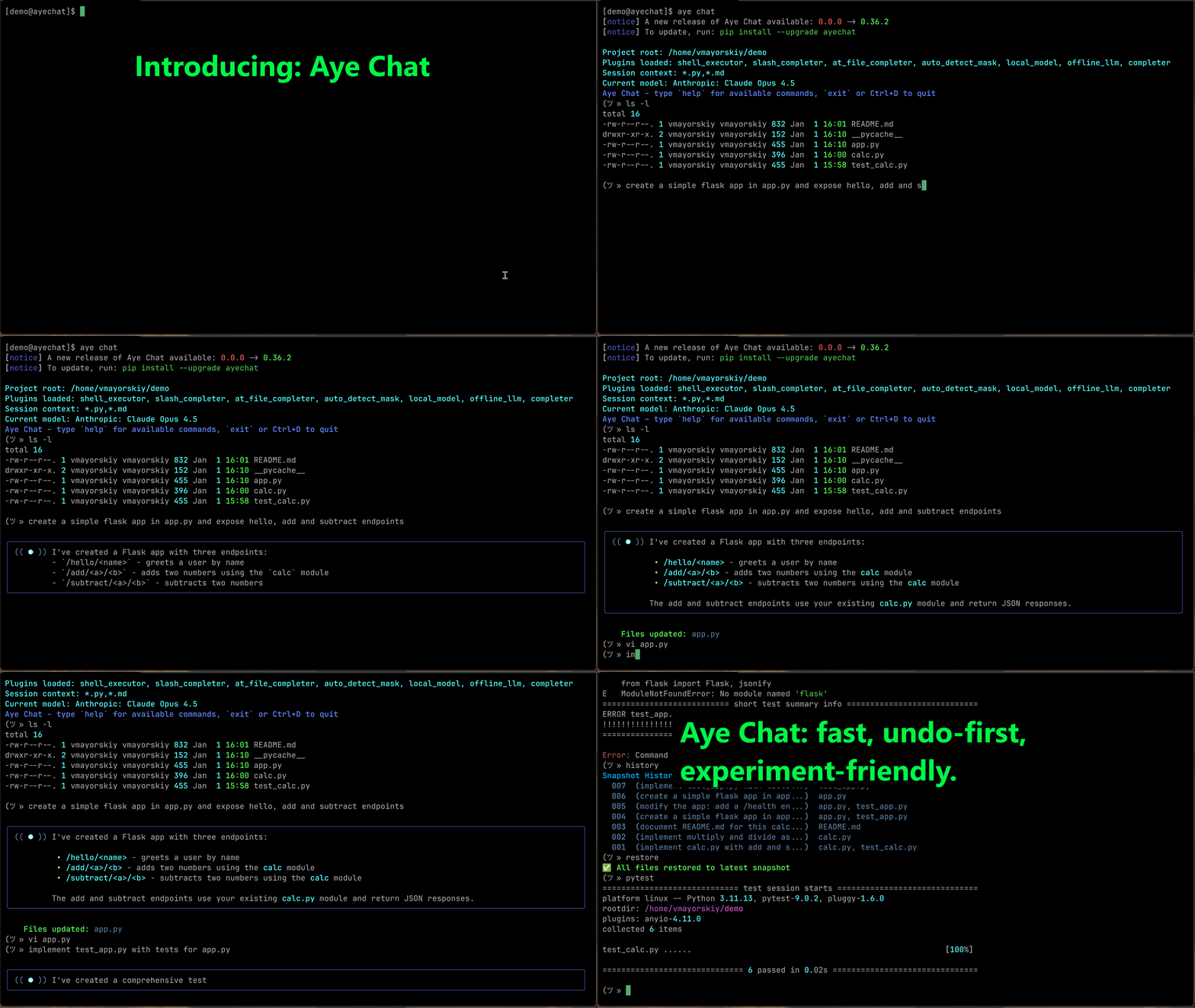
What it does
$ aye chat
> fix the bug in server.py
✓ Fixed undefined variable on line 42

> vim server.py
[opens real vim, returns to chat after]

> refactor: make it async
✓ Updated server.py with async/await

> pytest
✗ Tests fail

> restore
✓ Reverted last changes
No copy-pasting. No context switching. AI edits your files directly.
Why developers love it
- Zero config - Automatically reads your project files (respects .gitignore)
- Instant undo -
restorecommand reverts any AI changes immediately - Real shell - Run
git,pytest, evenvimwithout leaving the chat - 100% local backups - Your code is safe, changes stored in
.aye/ - No prefixes - Just type. Commands run, everything else goes to AI
Quick examples
# In your project directory:
aye chat

> refactor this to use dependency injection
> pytest
> fix what broke
> git commit -m "refactored DI"
Get started
- Install:
pip install ayechat - Start chatting:
aye chatin any project folder
Get started - Windows Installer
For Windows users, the recommended way to install Aye Chat is with the official installer. It provides a standalone application that requires no manual setup.
Installation
- Download the latest aye-chat-setup.exe from the GitHub Releases page.
- Run the downloaded installer.
- During setup, it is highly recommended to keep the following options enabled:
Add the application directory to your PATHAdd 'Open Aye Chat here' to folder context menu
Usage
After installation, you can launch Aye Chat by:
- Typing
ayein any terminal. - Right-clicking a project folder and selecting Open Aye Chat here.
📚 Full command reference
Core Commands
Authentication
Does not require authentication
Starting a Session
aye chat                          # Start chat with auto-detected files
aye chat --root ./src             # Specify a different project root
aye chat --include "*.js,*.css"   # Manually specify which files to include
In-Chat Commands
Your input is handled in this order:
- Built-in Commands (like
restoreormodel) - Shell Commands (like
ls -laorgit status) - AI Prompt (everything else)
Session & Model Control
new- Start a fresh chat sessionmodel- Select a different AI modelverbose [on|off]- Toggle verbose output on or offexit,quit,Ctrl+D- Exit the chathelp- Show available commands
Reviewing & Undoing AI Changes
restore,undo- Instantly undo the last set of changes made by AIhistory- Show the history of changes made by AIdiff <file>- Compare current version against last change
Shell Commands
- Run any command:
ls -la,git status,docker ps - Interactive programs work:
vim,nano,less,top
⚙️ Configuration & Privacy
Configuration
- Aye Chat respects
.gitignoreand.ayeignore- private files are never touched - Change history and backups stored locally in
.aye/folder - Configure default model and preferences in
~/.aye/config.yaml
Privacy & Security
- All file backups are local only
- API calls only include files you explicitly work with
- No telemetry or usage tracking
- Open source - audit the code yourself
🧩 Plugins & Extensions
Extensible via Plugins
The core experience is enhanced by plugins:
- Shell execution plugin
- Autocompletion plugin
- Custom command plugins
- Model provider plugins
Contributing
Aye Chat is open source! We welcome contributions.
- Report bugs: GitHub Issues
- Submit PRs: Fork and contribute
- Get help: Discord Community
License
MIT License - see LICENSE file
Disclaimer
review the DISCLAIMER before using this software.
Ready to code with AI without leaving your terminal?
pip install ayechat && aye chat
Metadata
Release files for ayechat-dev 0.33.2.20251215123825
For a detailed explanation of source distributions (sdists) and built distributions (wheels), please see the package formats documentation.
Source distribution (sdist)
| File | Size | Uploaded | Provenance | Actions |
|---|---|---|---|---|
| ayechat_dev-0.33.2.20251215123825.tar.gz | 590.1 kB | With provenance | Details for ayechat_dev-0.33.2.20251215123825.tar.gz |
Built distribution (wheel)
| File | Interpreter | ABI | Platform | Actions Reset |
|---|---|---|---|---|
| ayechat_dev-0.33.2.20251215123825-py3-none-any.whl | Python 3 | none | any | Details for ayechat_dev-0.33.2.20251215123825-py3-none-any.whl |
Total release size: 694.3 kB
Release files / ayechat_dev-0.33.2.20251215123825.tar.gz
| Download URL | ayechat_dev-0.33.2.20251215123825.tar.gz |
|---|---|
| Size | 590.1 kB |
| Tags | Source |
|
SHA-256 checksum How to use checksums |
05229e858f5037dc33b2834439de768f0e4f54b45f42ff8df71eb23784e39bf8
|
|
BLAKE2b-256 checksum How to use checksums |
bf0c6204a15443e2161af0d20b38e0f59d045973d833f4a68e2dc62718fc45b3
|
| Upload date | |
|
Uploaded using Trusted Publishing? What is trusted publishing? |
Yes |
| Uploaded via |
twine/6.1.0 CPython/3.13.7
|
Provenance
Provenance describes where a file came from. On PyPI, provenance is shared via attestations, which provide a verifiable record of the build or publishing details. View details, limitations and caveats.


PyPI Publish Attestation
PyPI verified that this artifact, at this checksum, originated from the publisher listed below.
Signed by GitHub Actions, verified by PyPI on Dec 15, 2025.
Transparency logRelease files / ayechat_dev-0.33.2.20251215123825-py3-none-any.whl
| Download URL | ayechat_dev-0.33.2.20251215123825-py3-none-any.whl |
|---|---|
| Size | 104.2 kB |
| Tags | Python 3 |
|
SHA-256 checksum How to use checksums |
42136c8f41a1a797dcf7f7298f68f5c374899cd6eabf83e5fc5c54e3cfa78b0c
|
|
BLAKE2b-256 checksum How to use checksums |
57a3f5ac2861ce25c89eaad8d3f29ab5993b7d8176c596d219030ea8b2b88799
|
| Upload date | |
|
Uploaded using Trusted Publishing? What is trusted publishing? |
Yes |
| Uploaded via |
twine/6.1.0 CPython/3.13.7
|
Provenance
Provenance describes where a file came from. On PyPI, provenance is shared via attestations, which provide a verifiable record of the build or publishing details. View details, limitations and caveats.
PyPI Publish Attestation
PyPI verified that this artifact, at this checksum, originated from the publisher listed below.
Signed by GitHub Actions, verified by PyPI on Dec 15, 2025.
Transparency logSecurity for ayechat-dev 0.33.2.20251215123825
Provenance
Provenance describes where a file came from. On PyPI, provenance is shared via attestations, which provide a verifiable record of the build or publishing details. View details, limitations and caveats.
Full provenance
Both files in this release have been uploaded with provenance metadata.
Attestation for ayechat_dev-0.33.2.20251215123825.tar.gz
PyPI Publish Attestation
PyPI verified that this artifact, at this checksum, originated from the publisher listed below.
Signed by GitHub Actions, verified by PyPI on Dec 15, 2025.
Transparency logA note on package security
PyPI is a repository for distributing packages, not a service for auditing them. While third-party security researchers and our staff do their best to detect and remove malicious packages, PyPI cannot guarantee the quality, security or suitability of any given package.
To learn more about protecting yourself from malicious actors, visit our package security documentation.














