
BandcampSync
BandcampSync is a Python module and command line script (also packed in a Docker container) which synchronises media purchased on a Bandcamp (https://bandcamp.com/) account with a local directory.
You may use this to download media you have purchased from Bandcamp to a local media server, such as Plex or Jellyfin.
Most media items purchased on Bandcamp have high quality download options
available and BandcampSync defaults to flac.
When called, bandcampsync will:
- Authenticate to bandcamp.com as you using your exported session cookies
- Scan your local media directory for existing downloaded items
- Index a list of all of your purchased items in your Bandcamp collection
- Download the archive of missing items not downloaded already from your collection
- Unzip the archive and move the contents to the local media directory
To avoid repeatedly scanning your full collection, BandcampSync writes a small checkpoint file at the root of your media directory:
/media/.bandcampsync-state.json
On the next run, purchase pagination stops as soon as this checkpoint is reached, so only new purchases are fetched. The checkpoint stays behind any unreleased pre-orders so they are downloaded once they are released.
Purchases older than the checkpoint are not checked again. Delete this file to make the next run scan your full collection, which you will need to do to:
- Download pre-orders that were missed by older versions
- Download an item again after deleting its
bandcamp_item_id.txtfile or removing it from your ignore file - Download an item that was skipped by
--skip-hiddenor an ignore pattern, after unhiding it or removing the pattern
Items you already have will not be downloaded again by a full scan.
The media directory will have the following format:
/media/
/media/Artist Name
/media/Artist Name/Album Name
/media/Artist Name/Album Name/bandcamp_item_id.txt (if no ignore file provided)
/media/Artist Name/Album Name/cover.jpg
/media/Artist Name/Album Name/Track Name.flac
The directory format of artist_name/item_title is not editable. If you have
multiple purchases with the same artist and title they are kept separate by adding the
item ID to the directory name, for example Album Name [123456]. This includes names
that only match once they're cleaned for use as a directory name, or that differ only by
case. Files in an album which would overwrite each other are numbered, for example
Track (2).flac. Names your filesystem can't use, such as those over its length limit,
are shortened and have a short hash added.
bandcamp_item_id.txt is a special file created in each item directory and
it contains the Bandcamp item ID as an integer. This file is used by BandcampSync
to track which media items have already been downloaded, when an ignore file is
not being used. You can rename the artist or album directories, but do not delete
the bandcamp_item_id.txt file or the media item will be re-downloaded the next
time your full collection is scanned.
The bandcamp_item_id.txt file method of tracking what items are synchronised
also means you can also use media managers such as Lidarr to rename artist,
album, and track names automatically without issues.
Installation
bandcampsync is pure Python and depends on the following
libraries:
beautifulsoup4curl-cffi
You can install bandcampsync via pip:
$ pip install bandcampsync
Any modern version of Python3 will be compatible.
Windows and macOS: fixes for temporary files, name handling and timezones are included, but support on these platforms is still being tested, so some problems may remain.
Alternatively, there's a batteries included Docker image available if you prefer.
Docker
The Docker image contains the bandcampsync Python module as well as a helper
script that runs the bandcampsync on a timer. Configuration variables are also
moved to environment variables
Each release has a versioned image tagged ghcr.io/meeb/bandcampsync:vX.Y.Z, which
is the best choice for most users. The latest tag is built from every push to the
main branch, so it contains unreleased code and may have bugs.
You can pull and run the image with the following commands:
# Pull image
$ docker pull ghcr.io/meeb/bandcampsync:latest
# Start the container using your user ID and group ID
$ docker run \
  -d \
  --name bandcampsync \
  -e TZ=Europe/London \
  -e PUID=1000 \
  -e PGID=1000 \
  -e RUN_DAILY_AT=3 \
  -v /some/directory/bandcampsync-config:/config \
  -v /some/directory/bandcampsync-media:/downloads \
  ghcr.io/meeb/bandcampsync:latest
Or an example Docker Compose entry:
version: '3.7'
services:
  bandcampsync:
    image: ghcr.io/meeb/bandcampsync:latest
    container_name: bandcampsync
    restart: unless-stopped
    volumes:
      - /some/directory/bandcampsync-config:/config
      - /some/directory/bandcampsync-media:/downloads
    environment:
      - TZ=Europe/London
      - PUID=1000
      - PGID=1000
      - RUN_DAILY_AT=3
In the above example you would save your cookies data into a file called
cookies.txt and save it at /some/directory/bandcampsync-config/cookies.txt.
BandcampSync will look for this location when it starts up.
In the config directory you will find an ignores.txt file. You may edit the
file to specify which items not to download. The downloader automatically
appends ids of the downloaded items during each run. The format is one bandcamp
id per line (same as bandcamp_item_id.txt files), optionally followed by a
comment that starts with #. For example:
1546934218  # Chrome Sparks / Sparks EP
1418240212  # Chrome Sparks / Goddess EP
The RUN_DAILY_AT environment variable is the hour the bandcampsync script
will run at. In this example, 3am local time. After running the container will
sleep until the following 3am. It will run daily. There is also a randomised
delay added to the hour to not dogpile bandcamp.com with requests on the hour
so the script won't run exactly on the hour.
RUN_DAILY_AT should be a number between 0 and 23 (specifying an hour).
PUID and PGID are the user and group IDs to attempt to run the download as.
This sets the UID and GID of the files that are downloaded.
TEMP_DIR variable can be set to a directory in the container. If set the
directory is used as the temporary download location.
IGNORE can be set to ignore bands, same as the --ignore CLI argument.
NOTIFY_URL can be set to a URL to send an HTTP GET request to when new
items have been loaded, same as the --notify-url CLI argument.
MAX_RETRIES can be set to the maximum number of download retry attempts, defaults to 3.
RETRY_WAIT can be set to the number of seconds to wait between download retries, defaults to 5.
CONCURRENCY can be set to the number of concurrent downloads, defaults to 1.
UNTIL_DATE can be set to process purchases down to a purchase date in
YYYY-MM-DD format, inclusive, same as the --until-date CLI argument.
DRY_RUN can be set to true to list items that would be downloaded without
downloading or writing files, same as the --dry-run CLI argument.
SKIP_ITEM_INDEX can be set to true to rely exclusively on the ignore file to determine which items
have been downloaded already, same as the --skip-item-index CLI argument.
SYNC_IGNORE_FILE can be set to true to add already downloaded items found in
the filesystem to the ignore file, same as the --sync-ignore-file CLI argument.
SKIP_HIDDEN can be set to true to skip items that have the hidden flag set, same as
the --skip-hidden CLI argument.
IMPERSONATE can be set to the curl_cffi browser to use for all requests, instead of
the default browser profiles and their automatic fallback, same as the --impersonate
CLI argument.
FORMAT can be set to the media format to download, defaults to flac, same as the
--format CLI argument.
COOKIES_FILE, IGNORES_FILE and DIRECTORY can be set to change where the cookies
file, ignore file and downloads are stored in the container. They default to
/config/cookies.txt, /config/ignores.txt and /downloads.
EXIT_AFTER_RUN can be set to 1 to exit after one synchronisation rather than running
daily. If that synchronisation fails the container exits with an error code. Without
this, a failed synchronisation is logged and tried again at the next scheduled run, so
check your logs if nothing seems to be downloading, for example if your cookies expire.
Configuration
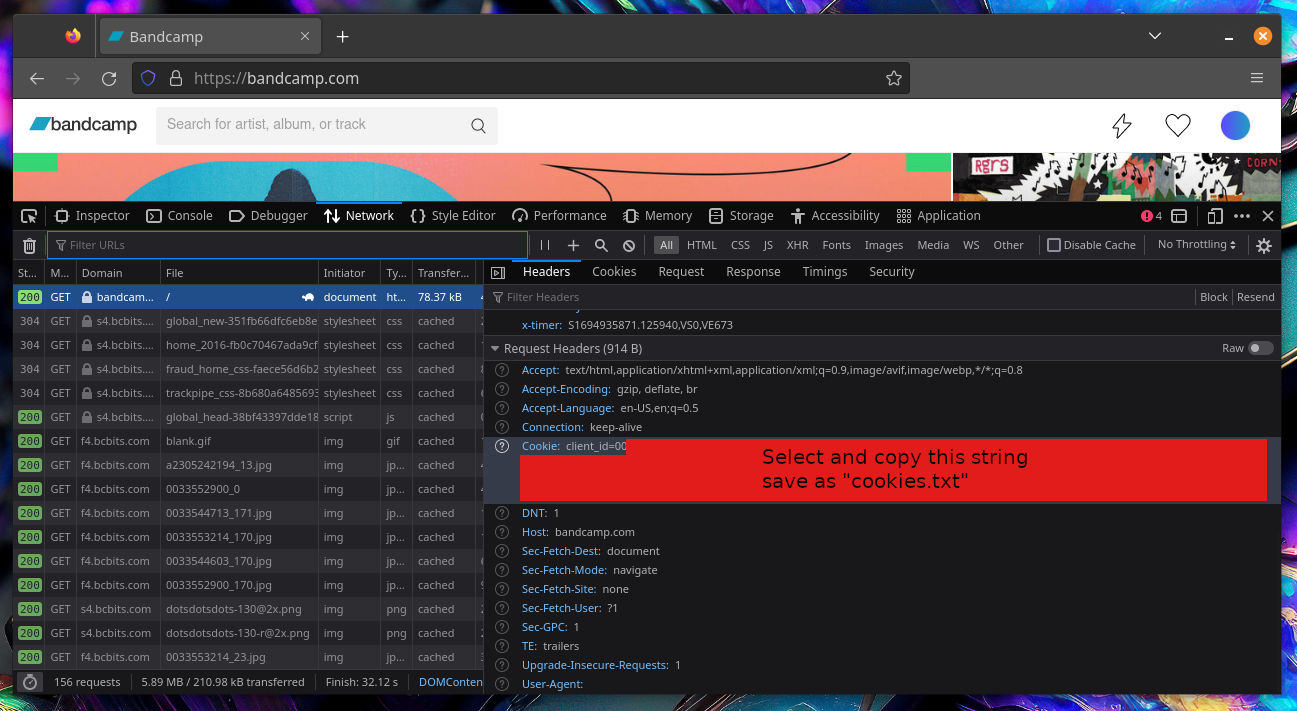
BandcampSync requires minimal configuration. First, it requires your session cookies from an authenticated Bandcamp account. The easiest way to get this is to go to https://bandcamp.com/ in your browser and log in with your account.
Next, open the developer tools in your browser (F12 button on most browsers, or select "developer tools" from the options menu).
Reload the index page and find the index page request in your network requests
tab of your browser. Go to the "Request Headers" section then select and copy
the string after the Cookie header. The string should look something like this:
client_id=00B1F3C8EB48E181A185CCD041E40C0E8F; session=1%0893C88%570EE405455%%8DEC37B5BC393983DB983DD%%BDFD46C3B8A0%%580DA466D5CD; identity=1%HhehuehUFEUiuebn%%2ADB72300DAE573%BEEF389A1B526EA35AC38019FA0A6F%11B4BD5FBC18B83F720; js_logged_in=1; logout=%7B%22username%22%3A%22someuser%22%7D; download_encoding=401; BACKENDID3=some-sever-name
Save this string to a file called cookies.txt.
You need to save your session ID from cookies manually because Bandcamp has a CAPTCHA on the login form so BandcampSync can't log in with your username and password for you.
IMPORTANT NOTE: Keep the cookies.txt file safe! Anyone with access to this file
can log into your Bandcamp account, impersonate you, potentially make purchases
and generally have total access to your Bandcamp account!
You can also use Netscape formatted cookie export files if you have exported your cookies using a cookie exporter plugin or similar tool.
CLI Usage
Once you have the Python bandcampsync module installed you can call it with the
bandcampsync command:
$ bandcampsync --cookies cookies.txt --directory /path/to/music
or in shorthand:
$ bandcampsync -c cookies.txt -d /path/to/music
You can use -t or --temp-dir to set the temporary download directory used.
You can use -i or --ignore to bypass artists that have data issues that
your OS can not handle.
See -h or --help for the full list of command line options.
$ bandcampsync --cookies cookies.txt --directory /path/to/music --ignore "badband"
--ignore supports multiple strings space separated strings, for example
--ignore "band1 band2 band3".
You can use -I or --ignore-file to specify the path to a file containing
bandcamp ids of each item to skip (see above).
If you do, the items downloaded will be appended to the file, so that the next time you run the script those items will not be re-downloaded. This means you can use media managers such as Lidarr to rename artist, album, and track names automatically, rename the directory, or even move the items out of the download directory without issues.
When --sync-ignore-file is passed, any downloaded items found in the filesystem that
are not already present in the ignore file will be appended to the ignore file. This
option requires that you pass a path to an ignore file with -I / --ignore-file.
When --skip-item-index is passed, only the ignore file will be used to determine which
items have been downloaded already; bandcampsync will not traverse your filesystem and
read the bandcamp_item_id.txt files. This option requires that you pass a path to an
ignore file with -I / --ignore-file.
When --skip-hidden is passed, any items in your Bandcamp collection that have the hidden
flag set will be skipped during sync. If you unhide an item later you will need to delete
the checkpoint file to download it.
When --impersonate is passed, the named curl_cffi browser (e.g. chrome146) is used
for all requests instead of the default browser profiles and their automatic fallback.
You can notify an external HTTP server when new items have been loaded with -n or
--notify-url.
You can set the maximum number of download retry attempts with --max-retries (defaults to 3) and the number of seconds to wait between retries with --retry-wait (defaults to 5).
You can set the number of concurrent downloads with -j or --concurrency (defaults to 1).
$ bandcampsync ... --notify-url "http://some.service.local/some-uri"
You can use this to call a "refresh" hook on media servers (for example re-scan a Plex
or Jellyfin library). The --notify-url parameter, if set, simply makes an HTTP GET
request to the specified URL and confirms it returns a 2XX response.
For advanced notify URLs you can use the following --notify-url format:
method url headers body
method must be one of GET or POST. url is any URL. headers are a comma
separated list of key=value pairs and body is a body string to send if the method
is POST. You can use - for header and body values to leave them unset. Some examples:
GET http://some.service.local/some-uri - -
GET http://some.service.local/some-uri header1=abc,header2=def -
POST http://some.service.local/some-uri auth-header=abc somedata
Formats
By default, BandcampSync will download your music in the flac format. You can specify
another format with the --format argument. Common Bandcamp download formats are:
| Name | Description |
|---|---|
mp3-v0 |
Variable bitrate MP3. Small file sizes. OK quality. |
mp3-320 |
High quality MP3. Medium file sizes. Good quality. |
flac |
Lossless audio. Large file sizes. Original Quality. |
aac-hi |
Apple variable bitrate format. Small file sizes. OK quality. |
aiff-lossless |
Uncompressed audio format. Biggest file size. Original quality. |
vorbis |
Open source lossy format. Small file sizes. OK quality. |
alac |
Apple lossless format. Large file sizes. Original quality. |
wav |
Uncompressed audio format. Biggest file size. Original quality. |
Contributing
All properly formatted and sensible pull requests, issues, and comments are welcome.
1 maintainer

Metadata
1 maintainer
Release files for bandcampsync 0.9.0
For a detailed explanation of source distributions (sdists) and built distributions (wheels), please see the package formats documentation.
Source distribution (sdist)
| File | Size | Uploaded | Provenance | Actions |
|---|---|---|---|---|
| bandcampsync-0.9.0.tar.gz | 53.9 kB | Without provenance | Details for bandcampsync-0.9.0.tar.gz |
Built distribution (wheel)
| File | Interpreter | ABI | Platform | Actions Reset |
|---|---|---|---|---|
| bandcampsync-0.9.0-py3-none-any.whl | Python 3 | none | any | Details for bandcampsync-0.9.0-py3-none-any.whl |
Total release size: 89.5 kB
Release files / bandcampsync-0.9.0.tar.gz
| Download URL | bandcampsync-0.9.0.tar.gz |
|---|---|
| Size | 53.9 kB |
| Tags | Source |
|
SHA-256 checksum How to use checksums |
3b3b4985f2338ee3f2a0bccddb5bae34715cfa97beac3ff017cc0b80ab8891cd
|
|
BLAKE2b-256 checksum How to use checksums |
e5a38a6c4786cf83b4e56bc64ea0cb9ab348d9f9588e444e5e4c188123e0e002
|
| Upload date | |
|
Uploaded using Trusted Publishing? What is trusted publishing? |
No |
| Uploaded via |
uv/0.13.7 {"installer":{"name":"uv","version":"0.13.7","subcommand":["publish"]},"python":null,"implementation":{"name":null,"version":null},"distro":{"name":"Ubuntu","version":"26.04","id":"resolute","libc":null},"system":{"name":null,"release":null},"cpu":null,"openssl_version":null,"setuptools_version":null,"rustc_version":null,"ci":true}
|
Release files / bandcampsync-0.9.0-py3-none-any.whl
| Download URL | bandcampsync-0.9.0-py3-none-any.whl |
|---|---|
| Size | 35.7 kB |
| Tags | Python 3 |
|
SHA-256 checksum How to use checksums |
269aec7d463904ff9d22b59ff887329e675a4bf4f3f11e41868d9f23d94863dd
|
|
BLAKE2b-256 checksum How to use checksums |
38b3d0f61737dd63443cb568dccc8927aa09998ba18796e632ea84a51d6fc8d7
|
| Upload date | |
|
Uploaded using Trusted Publishing? What is trusted publishing? |
No |
| Uploaded via |
uv/0.13.7 {"installer":{"name":"uv","version":"0.13.7","subcommand":["publish"]},"python":null,"implementation":{"name":null,"version":null},"distro":{"name":"Ubuntu","version":"26.04","id":"resolute","libc":null},"system":{"name":null,"release":null},"cpu":null,"openssl_version":null,"setuptools_version":null,"rustc_version":null,"ci":true}
|
Security for bandcampsync 0.9.0
Provenance
Provenance describes where a file came from. On PyPI, provenance is shared via attestations, which provide a verifiable record of the build or publishing details. View details, limitations and caveats.
No provenance found
None of the files in this release were uploaded with provenance metadata.
A note on package security
PyPI is a repository for distributing packages, not a service for auditing them. While third-party security researchers and our staff do their best to detect and remove malicious packages, PyPI cannot guarantee the quality, security or suitability of any given package.
To learn more about protecting yourself from malicious actors, visit our package security documentation.














