
Machine Learning app for the Kitware BatAI Project

Project description
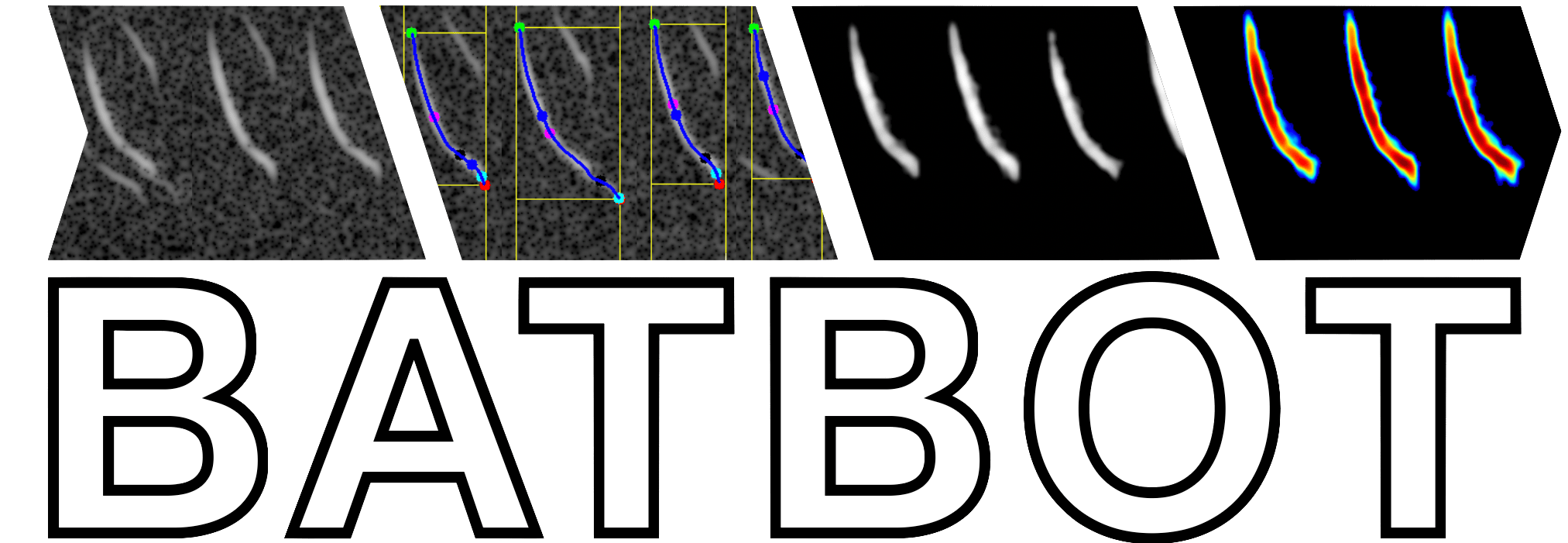
1 Kitware BatBot





1.1 Development Environment
# Find repo on host machine
cd ~/code/batbot

# Build Docker image
docker build -t kitware/batbot:latest .

# Start Docker container using image
docker run \
   -it \
   --rm \
   --entrypoint bash \
   --name batbot \
   -v $(pwd):/code \
   kitware/batbot:latest

########################
# Inside the container #
########################

# Activate Python environment
source /venv/bin/activate

# Install local version
pip install -e .

# Run batbot
batbot --help
1.2 Spectrogram Extraction
Here are the steps for extracting the compressed spectrogram:
Create the STFT
Load the original waveform at the original sample rate
Resample waveform to 250kHz
Convert to a STFT spectrogram (fft=512, method=blackmanharris, window=256, hop=16)
Convert complex power STFT to amplitude STFT (dB)
Normalize the STFT
Trim STFT to minimum and maximum frequencies (5kHz to 120kHz)
Subtract the per-freqency median dB (reduce any spectral bias / shift)
Set global dynamic range to -80 dB from the global maximum amplitude
Calculate the global median non-minimum dB (greater than -80dB)
Calculate the median absolute deviation (MAD)
Autogain the dynamic range to (5 * MAD) below the global amplitude median, if necessary
Quantize the STFT
Quantize the floating-point amplitude STFT to a 16-bit integer representation spanning the full dynamic range (65,536 bins)
Vertically flip the spectrogram (low frequencies on bottom) and convert to a C-contiguous array
Find Candidate Chirps
Create a 12ms sliding window with a 3ms stride
Keep the time windows that show a substantial right-skew across 10% of the frequency range
Add any user-provided time windows (annotations) to the found candidates windows
Merge any overlapping time windows into a set of contiguous time ranges
Tighten the candidate time ranges (and separate as needed) by repeating the same skew-based filter with a smaller sliding window and stride
Extract Chirp Metrics
for each candidate chirp
Start: First, find the peak amplitude location.
Step 1 - Normalize the chirp to the full 16-bit range. Calculate a histogram and identify the most common dB and standard deviation. Scale the amplitude values using an inverted PDF, weighting each value by its inverse probability of being noise (values below the most common dB are set to zero)
Step 2 - Apply a median filter and re-normalize
Step 3 - Apply a morphological open operation
Step 4 - Blur the chirp (k=5) and re-normalize
Step 5 - Find contours using the “marching squares” algorithm and select the one that contains the peak amplitude. Extract the convex hull of the contour and smooth the resulting outline
Step 6 - Extract a segmentation mask for the contour
Step 7 - Locate the harmonic (doubling the frequency) and echo (right edge of the contour to the end of the chirp time range) regions. Remove any overlapping noise from the chirp contour.
Step 8 - Locate the start, end, and characteristic frequency points (peak amplitude) and calculate an optimization cost grid for the contour using the masked amplitudes.
Step 9 - Solve a minimum distance optimization using A* that also maximizes the amplutide values from start to end points.
Step 10 - Smooth the contour path, extract the contour’s slope, then identify the knee, heel, and other defining attributes.
End: Finally, if any of the above steps fails, or the chirp’s attributes do not make semantic sense, then skip the candidate chirp.
Create Output
Collect all valid chirps regions and metadata, create a compressed spectrogram
Write the 16-bit spectrogram as a series of 8-bit JPEGs image chunks (max width per chunk 50k pixels)
Write the file and chirp metadata to a JSON file.
1.3 How to Install
pip install batbotor, from source:
git clone https://github.com/Kitware/batbot
cd batbot
pip install -e .
To then add GPU acceleration, you need to replace onnxruntime with onnxruntime-gpu:
pip uninstall -y onnxruntime
pip install onnxruntime-gpu
1.4 How to Run
You can run the Gradio demo with:
python app.pyTo run with Docker:
cd batbot
docker run \
  -it \
  --entrypoint bash \
  --rm \
  --name batbot \
  -v $(pwd):/code \
  kitware/batbot:latest
or to run the Gradio app:
docker run \
  -it \
  --rm \
  -p 7860:7860 \
  --gpus all \
  --name batbot \
  kitware/batbot:latest \
  python3 app.py
To run with Docker Compose:
version: "3"

services:
  batbot:
    image: kitware/batbot:latest
    command: python3 app.py
    ports:
      - "7860:7860"
    environment:
      CLASSIFIER_BATCH_SIZE: 512
    restart: unless-stopped
    deploy:
      resources:
        reservations:
          devices:
            - driver: nvidia
              device_ids: ["all"]
              capabilities: [gpu]
and run docker compose up -d.
1.5 How to Build and Deploy
2 Docker Hub
The application can also be built into a Docker image and is hosted on Docker Hub as kitware/batbot:latest. Any time the main branch is updated or a tagged release is made (see the PyPI instructions below), an automated GitHub CD action will build and deploy the newest image to Docker Hub automatically.
To do this manually, use the code below:
docker login

export DOCKER_BUILDKIT=1
export DOCKER_CLI_EXPERIMENTAL=enabled
docker buildx create --name multi-arch-builder --use

docker buildx build \
    -t kitware/batbot:latest \
    --platform linux/amd64 \
    --push \
    .
3 PyPI
To upload the latest BatBot version to the Python Package Index (PyPI), follow the steps below:
Edit batbot/__init__.py:65 and set VERSION to the desired version
VERSION = 'X.Y.Z'Push any changes and version update to the main branch on GitHub and wait for CI tests to pass
git pull origin main
git commit -am "Release for Version X.Y.Z"
git push origin main
Tag the main branch as a new release using the SemVer pattern (e.g., vX.Y.Z)
git pull origin main
git tag vX.Y.Z
git push origin vX.Y.Z
Wait for the automated GitHub CD actions to build and push to PyPI and Docker Hub.
3.1 Tests and Coverage
You can run the automated tests in the tests/ folder by running:
pip install -r requirements/optional.txt
pytest
You may also get a coverage percentage by running:
coverage htmland open the coverage/html/index.html file in your browser.
3.2 Building Documentation
There is Sphinx documentation in the docs/ folder, which can be built by running:
cd docs/
pip install -r requirements/optional.txt
sphinx-build -M html . build/
3.3 Logging
The script uses Python’s built-in logging functionality called logging. All print functions are replaced with log.info(), which sends the output to two places:
the terminal window, and
the file batbot.log
3.4 Code Formatting
It’s recommended that you use pre-commit to ensure linting procedures are run on any code you write. See pre-commit.com for more information.
Reference pre-commit’s installation instructions for software installation on your OS/platform. After you have the software installed, run pre-commit install on the command line. Now every time you commit to this project’s code base the linter procedures will automatically run over the changed files. To run pre-commit on files preemtively from the command line use:
pip install -r requirements/optional.txt
pre-commit run --all-files
The code base has been formatted by Black. Furthermore, try to conform to PEP8. You should set up your preferred editor to use flake8 as its Python linter, but pre-commit will ensure compliance before a git commit is completed. This will use the flake8 configuration within setup.cfg, which ignores several errors and stylistic considerations. See the setup.cfg file for a full and accurate listing of stylistic codes to ignore.
Release history Release notifications | RSS feed


Download files
Download the file for your platform. If you're not sure which to choose, learn more about installing packages.
Source Distribution
Built Distribution
Filter files by name, interpreter, ABI, and platform.
If you're not sure about the file name format, learn more about wheel file names.
Copy a direct link to the current filters
File details
Details for the file batbot-0.1.2.tar.gz.
File metadata
- Download URL: batbot-0.1.2.tar.gz
- Upload date:
- Size: 3.9 MB
- Tags: Source
- Uploaded using Trusted Publishing? No
- Uploaded via: twine/6.1.0 CPython/3.13.7
File hashes
| Algorithm | Hash digest | |
|---|---|---|
| SHA256 |
92476da8ff3e55abc03c06ee9c2f72100b6efdbbf45e60c62612a71aa2b8c0c7
|
|
| MD5 |
3c4716f68cdfdae640e1154f62efcd2f
|
|
| BLAKE2b-256 |
bc41f1702fa58ab8207e6b3f6059ee5e42e868c5b861059db1abafdc7786f390
|
File details
Details for the file batbot-0.1.2-py3-none-any.whl.
File metadata
- Download URL: batbot-0.1.2-py3-none-any.whl
- Upload date:
- Size: 35.8 kB
- Tags: Python 3
- Uploaded using Trusted Publishing? No
- Uploaded via: twine/6.1.0 CPython/3.13.7
File hashes
| Algorithm | Hash digest | |
|---|---|---|
| SHA256 |
56bc086784deb60af3f9649d0798ee7abb776116a5f24cb8bad1e643c9aa9c85
|
|
| MD5 |
dbf50e6b7bdbbe4e926862e6be03fe7d
|
|
| BLAKE2b-256 |
94a0216db39b5c6cfb4a00bb244419951830454b723c1d097038526f7dd5f840
|






