
Bitácora
English · Español
A local monitor for coding agents. Follow background runs and interactive sessions from Codex and Claude Code.
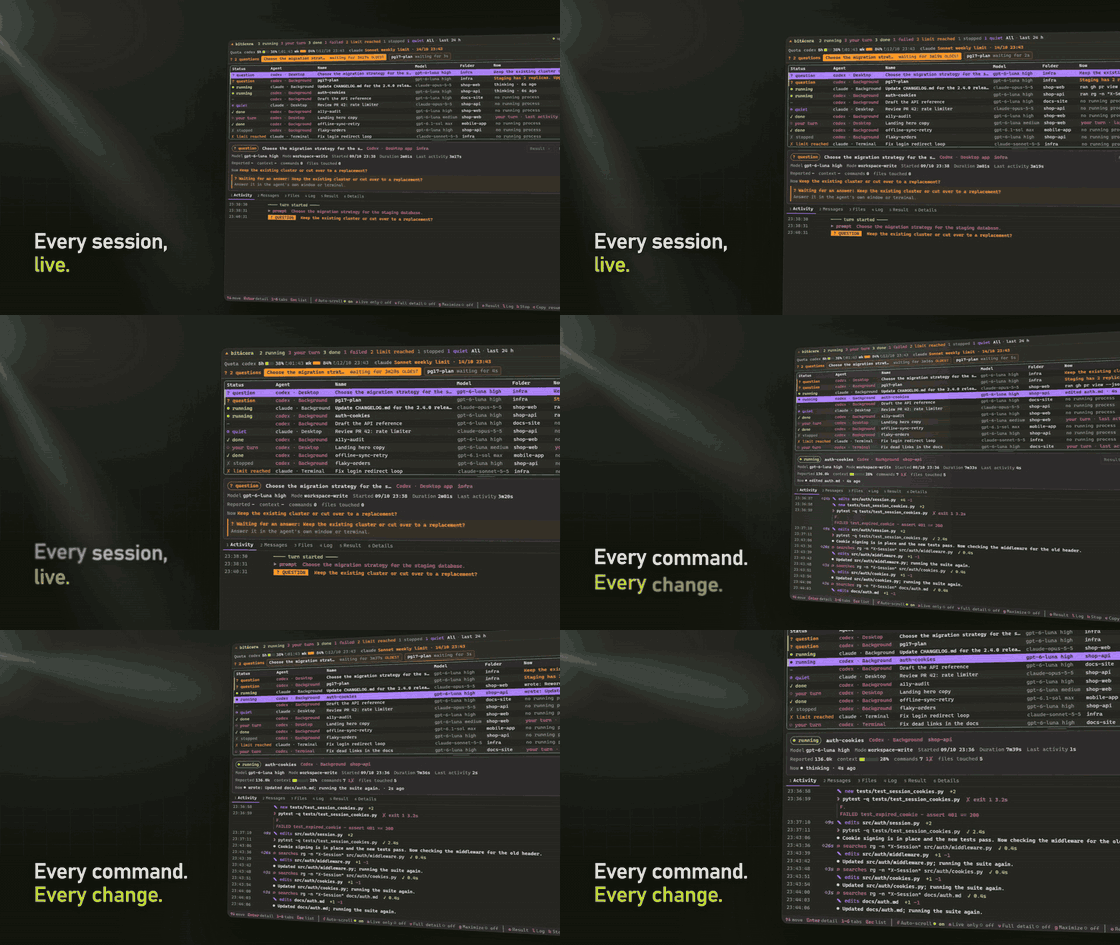
Bitácora has a Windows desktop app and a terminal interface for Windows, Linux and macOS. Both use the same session reader and keep the same activity, messages, files, logs, results, quotas and preferences.
Why
Handing work to agents in the background raises questions the agents will not answer for you:
- Did it do what it says? A run ends with "tests pass". Bitácora shows the commands it ran with their exit codes and the files it edited, so you audit the trace, not the summary.
- Is it still inside its context window? Long runs get compacted or cut off before they fail. Each run shows the size of its latest model call against its window.
- Is it waiting for me? A run that asks a question at 2 a.m. sits idle until you notice. Questions sort to the top and trigger a notification.
- Which of the five is stuck? An orchestrator that launches parallel runs leaves you with five processes and five prompts. Bitácora pairs each process with its session and marks the ones that went quiet.
- Did it hit a limit? You see the session's status and quota window, not a truncated result file.
- Is it safe to stop? Stop checks that the process is still the one the session belongs to, so a reused PID never kills something else.
Bitácora reads the files the agents already write. It is not a launcher and not a history search tool. It is the panel you keep open while your agents work.
Install
uvx bitacora
Or install it for good with pipx install bitacora or uv tool install bitacora. You need Python 3.11 or newer.
To try it without any agent installed:
uvx bitacora --demo
The 1.1 Windows build ships one public executable, bitacora.exe, which opens the desktop app without Python or a console. Download it from the latest release page. It requires Microsoft Edge WebView2 Runtime. It is not code-signed, so SmartScreen may warn you the first time.
From a Python install, add pip install "bitacora[window]" and run bitacora --window. Desktop support in 1.1 targets Windows; the terminal interface remains available on all three systems.
What it shows
- Every session with its status: question, starting, running, quiet, your turn, done, failed, limit reached, stopped or unknown.
- An activity feed per session: commands with their exit codes, file edits with lines added and removed, messages, and how long the agent thought before each step.
- Tabs for messages, touched files, the run's log, its result file and the full session details.
- Context for the latest model call, as a percentage when the model window is known and otherwise as a token count. Total is cumulative: Claude Code counts processed prompt and output tokens, including cache use; Codex shows its reported total. Quota windows show their used percentage or reset state, and unknown values stay unknown.
- A notification when a run finishes, stops or asks you something.
- Actions on the selected run: stop it (it asks first), open its result or log (supported text formats open in your system application), copy the command that resumes it.
A completed interactive turn reads your turn even after its process closes; an unfinished turn without recent activity reads quiet. Questions remain pending while a process runs or for six hours after the last transcript activity. Monokai is the default theme.
Use
bitacora                      # live sessions plus the last 24 hours
bitacora --view background    # start in a view, skipping the setup screen
bitacora --live               # live sessions only
bitacora --hours 72           # a longer history window
bitacora --lang es            # Spanish interface
bitacora --window             # Windows desktop app (optional dependencies)
bitacora --window --demo      # desktop app with generated sample sessions
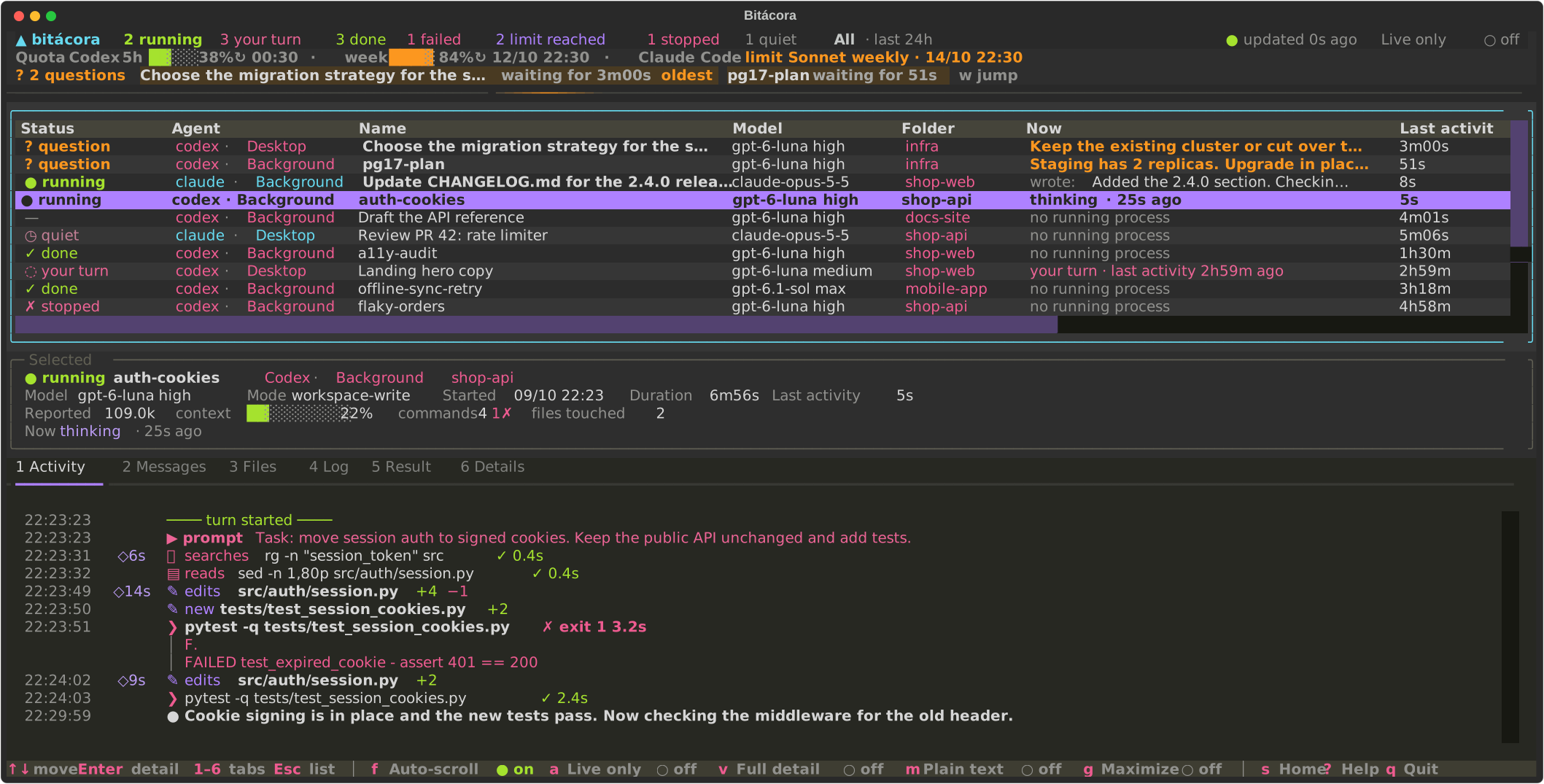
The first time you open it, Bitácora shows its home screen: a lighthouse sweeping its beam over a sea of falling code, under a sky that follows your local time, with an approximate lunar phase at night and the sun crossing during the day. Each view there comes with the number of sessions it would show from your own machine, so you can tell at a glance what you are choosing. You can come back to that screen anytime with s to change the view, language, history window, notifications or theme. The header adapts to the available width. Very short terminals hide the quota line automatically; its full details remain in Details. The setup scene shrinks before the settings need to scroll.
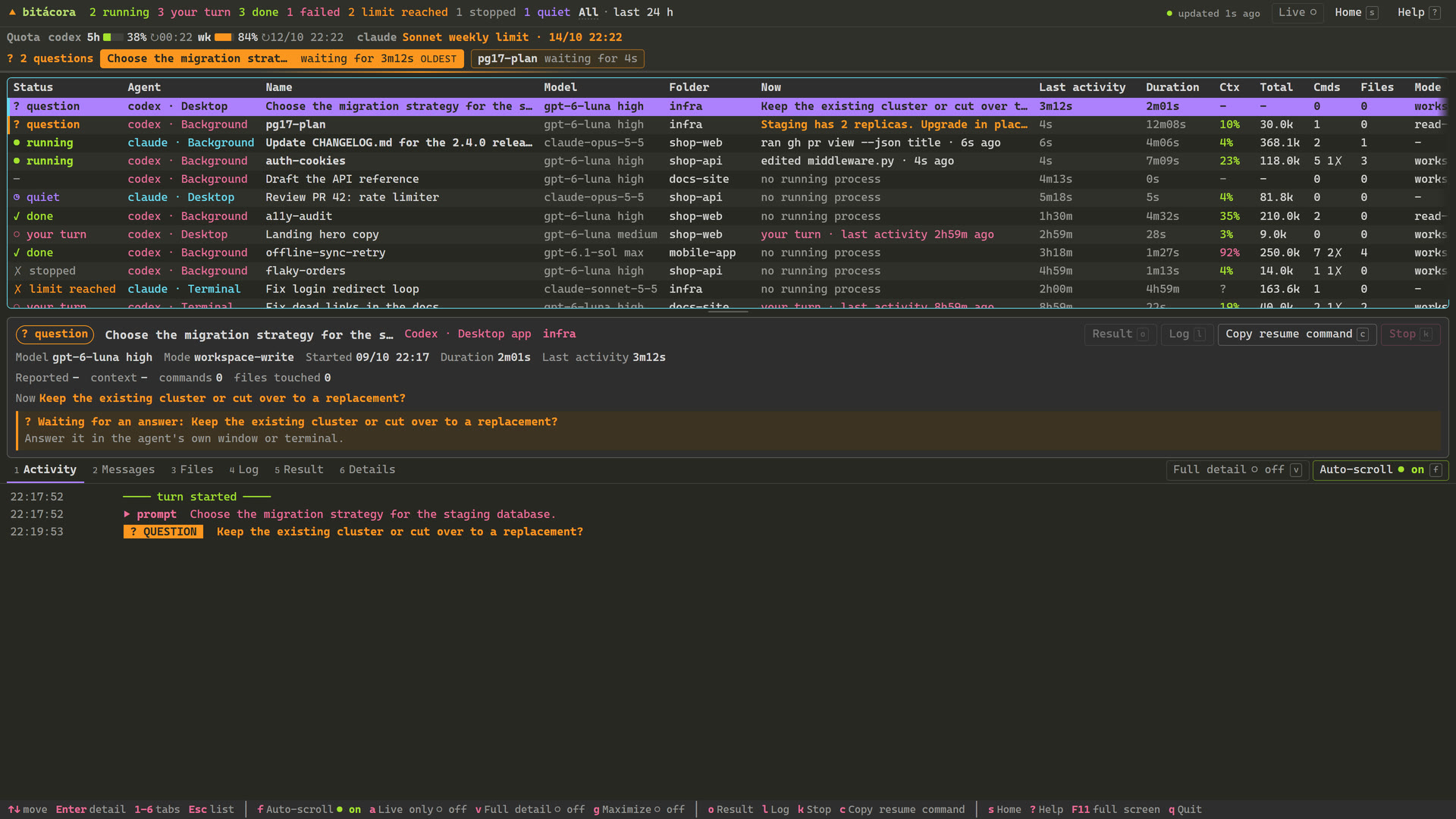
In the desktop app, questions have a direct shortcut above the session list. Select a session to use its Result, Log, Copy resume command and Stop buttons, or switch between the six detail tabs. Stop remains visible; secondary actions move into the ⋯ menu when space is short. The minimum window is 800×560, and a compact selected-session panel preserves the list at small sizes. Help lists the shortcuts. Settings also include text size. r and F5 refresh desktop data; Ctrl+R resets sorting. The table headings are keyboard-focusable buttons that cycle ascending, descending and default order, with the direction announced to assistive technology. Status and Name stay pinned during horizontal scrolling, and full labels remain available in tooltips. The lighthouse uses the same scene as the terminal interface, rendered directly in the window. Copy resume command copies a command for a terminal; it does not automatically reopen or answer the agent.
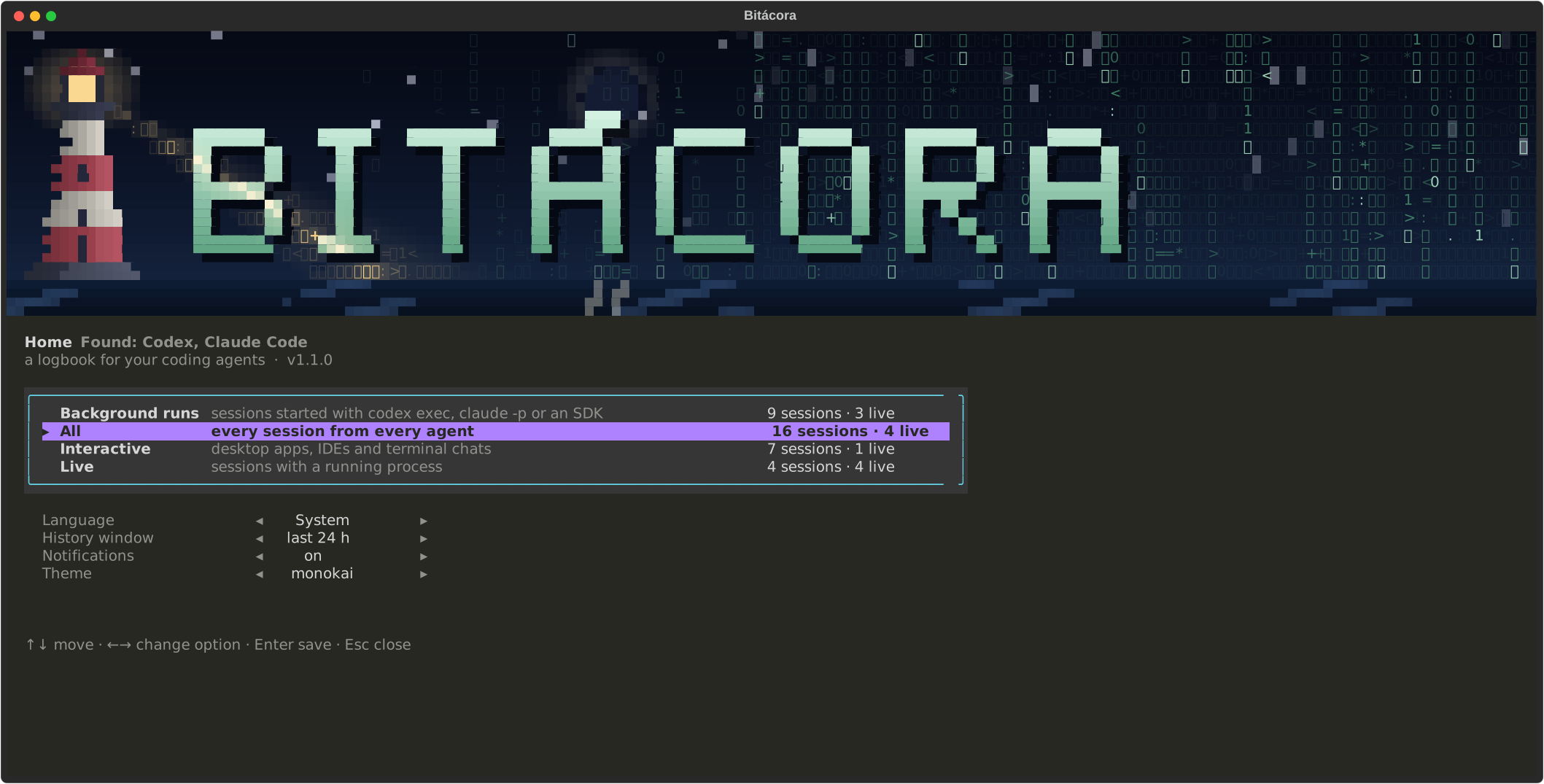
Both interfaces sort by question first, then live sessions, then newest starts. Both tables keep all fourteen columns with horizontal scrolling. Details keeps the full technical inspection, including whether a running status comes from a process or a transcript. m toggles Plain text in Messages and Result in both interfaces.
| Key | Action |
|---|---|
↑ ↓ |
Move through sessions |
Enter / Esc |
Go into the detail pane / back to the list |
1–6 |
Activity, Messages, Files, Log, Result, Details |
PgUp PgDn, Shift+↑↓ |
Scroll the detail pane from anywhere |
v |
Full detail: command output, file changes and full prompts |
a |
Live sessions only |
r |
Refresh session data |
f |
Pause or resume auto-scroll |
s |
Home: views and preferences |
m |
Plain text in Messages and Result |
w |
Jump to the oldest question |
g |
Maximize the list; press again to restore the selected run and detail panes |
Ctrl+P |
Terminal command palette: switch view or language, sort columns, toggle filters |
Ctrl+R |
Reset the table sorting to the default order |
| Click a column heading | Sort ascending, then descending, then back to the default order |
< > |
Sort by the previous or next column, ascending |
? / F1 |
Help |
k |
Stop the selected run and its children (asks first) |
o / l |
Open the result file / the log |
c |
Copy resume command |
t |
Next theme |
q |
Quit |
Views
| View | Shows |
|---|---|
| Background runs | Sessions started with codex exec, claude -p or an SDK |
| All | Every session from every agent |
| Interactive | Desktop apps, IDEs and terminal chats |
| Live | Sessions with a running process, recent transcript activity or a question within that six-hour window |
You can add your own in config.toml. bitacora --paths prints where that file lives.
lang = "en"          # en, es, or leave it out to follow the system
hours = 24           # history window, up to 72 hours; live sessions are shown whatever their age
notify = true        # toast and bell when a run finishes, stops or asks

[views.codex-bg]
name = "Codex in the background"
providers = ["codex"]          # codex, claude
kind = "background"            # background, interactive or all
live_only = false
What you save in the setup screen takes precedence over config.toml, and command line flags take precedence over both.
How it works
Bitácora only reads files the agents already write.
- Codex: rollouts in
~/.codex/sessions(or$CODEX_HOME), thread names fromsession_index.jsonl, and thecodex exec/codexprocesses with their flags (-m,-c,-C,-s,-o,resume <id>). - Claude Code: transcripts in
~/.claude/projects(or$CLAUDE_CONFIG_DIR) and theclaudeprocesses with--resume,--session-id,--model,-p.
A live process is matched to its session by id when the command line has one, and otherwise by working directory and start time. The log comes from a > run.log redirect in the parent shell's command line. Bitácora remembers each session's label, result and log paths in its own file, so a finished run still shows them.
Both interfaces read sessions in a separate process. The desktop app uses packaged local HTML, CSS and JavaScript with a narrow Python bridge; it does not run a terminal server. Reader failures and stale data are shown, and changed events are synchronized without duplicating the feed.
Privacy
Everything stays on your machine. Bitácora itself makes no requests to external services. The desktop interface and its assets are embedded locally, without an HTTP or WebSocket application server. It never writes to the agents' files. Stopping an agent requires confirmation and checks that the process identity still matches. Its own files hold your preferences, session labels, file paths and observed command lines; bitacora --paths shows where.
Limits
- Neither format is documented, and both change between versions. This release was tested with Codex CLI 0.161 and Claude Code 2.1.
- The CI matrix covers the terminal app on Windows, Linux and macOS with Python 3.11 and 3.13. The Windows build also has a frozen-app smoke check using generated sessions. Desktop Linux/macOS support is outside the 1.1 support scope.
- Reasoning is stored encrypted or not at all, so the activity feed shows how long the agent thought rather than what it thought (Codex includes summaries if
model_reasoning_summaryis on). - Claude Code's context window is inferred from known model IDs and marked as assumed in Details. Unknown models show the context token count instead of a percentage.
- Subagent sessions are not grouped under their parent yet.
Development
git clone https://github.com/baltazarandersson/bitacora
cd bitacora
python -m venv .venv && .venv/bin/pip install -e ".[dev]"   # .venv\Scripts\pip on Windows
pytest
ruff check .
python -m bitacora --demo
python scripts/screenshot.py en    # regenerates docs/*.svg from the demo
Release builds validate the tag against the package version and wait for the test matrix and both package/Windows artifacts before publishing. Run python scripts/app_entry.py --demo to develop the desktop presentation. The optional window dependencies are needed for that command.
Adding an agent means writing a provider in bitacora/providers/: where its sessions live, how its processes look and how to turn its records into events. The demo generator in bitacora/demo.py doubles as the test fixture.
License
MIT. Bitácora is an independent project, not affiliated with OpenAI or Anthropic.
1 maintainer

Metadata
1 maintainer
Release files for bitacora 1.1.1
For a detailed explanation of source distributions (sdists) and built distributions (wheels), please see the package formats documentation.
Source distribution (sdist)
| File | Size | Uploaded | |
|---|---|---|---|
| bitacora-1.1.1.tar.gz | 219.1 kB | Details |
Built distribution (wheel)
| File | Interpreter | ABI | Platform | Reset |
|---|---|---|---|---|
| bitacora-1.1.1-py3-none-any.whl | Python 3 | none | any | Details |
Total release size: 399.9 kB
Release files / bitacora-1.1.1.tar.gz
| Download URL | bitacora-1.1.1.tar.gz |
|---|---|
| Size | 219.1 kB |
| Tags | Source |
|
SHA-256 checksum How to use checksums |
f59d923aacffc1087c66fab84472b45f4a94c964028030fb15609fbf6775f218
|
|
BLAKE2b-256 checksum How to use checksums |
91783a0ca4889656125efa707d9fed966146c7cf2c3e448ad0ae44557022d5de
|
| Upload date | |
|
Uploaded using Trusted Publishing? What is trusted publishing? |
Yes |
| Uploaded via |
twine/7.0.0 CPython/3.13.14
|
Provenance
Provenance describes where a file came from. On PyPI, provenance is shared via attestations, which provide a verifiable record of the build or publishing details. View details, limitations and caveats.


PyPI Publish Attestation
PyPI verified that this artifact, at this checksum, originated from the publisher listed below.
Signed by GitHub Actions, verified by PyPI on Oct 10, 2026.
Transparency logRelease files / bitacora-1.1.1-py3-none-any.whl
| Download URL | bitacora-1.1.1-py3-none-any.whl |
|---|---|
| Size | 180.9 kB |
| Tags | Python 3 |
|
SHA-256 checksum How to use checksums |
55f12c2aed46a6279e39587aceaac3063bdb49bfbefbdf3c1ace6421ea126259
|
|
BLAKE2b-256 checksum How to use checksums |
53ecee9341596b9d4db4e7ab956e28a6a1c4ff3a78073c0eec8087564389029f
|
| Upload date | |
|
Uploaded using Trusted Publishing? What is trusted publishing? |
Yes |
| Uploaded via |
twine/7.0.0 CPython/3.13.14
|
Provenance
Provenance describes where a file came from. On PyPI, provenance is shared via attestations, which provide a verifiable record of the build or publishing details. View details, limitations and caveats.
PyPI Publish Attestation
PyPI verified that this artifact, at this checksum, originated from the publisher listed below.
Signed by GitHub Actions, verified by PyPI on Oct 10, 2026.
Transparency log













