
Tools for BitBake/Yocto projects

Project description
bitp
A CLI tool for managing BitBake/Yocto/OpenEmbedded layer repositories.
The command is bit for quick typing.
Overview
bit helps developers working with Yocto/OpenEmbedded projects by providing tools to:
- Update git repos backing BitBake layers from a
bblayers.conf - Explore commits interactively with fzf-based navigation
- Export patches with cover letters for upstream submission
- Manage branches across multiple layer repositories
- Search the OpenEmbedded Layer Index for layers
- Bootstrap new projects by cloning core repositories
- Manage projects - switch between multiple Yocto builds from anywhere
Features
- Automatic layer discovery - finds layers by searching for
conf/layer.conffiles - Multi-layer repo support - handles repos containing multiple layers (e.g., meta-openembedded)
- Interactive fzf menus - fast navigation with preview panes and keyboard shortcuts
- Tab completion - bash completion via argcomplete
- Background refresh - upstream status checks run in background for fast startup
- Per-repo configuration - custom display names, update defaults, push targets
Quick Start
# Browse configs and create a new project (one-step)
bit clone

# Clone into a specific directory or remote host
bit clone ./my-project
bit clone user@host:/opt/yocto

# Or step by step
bit create -b scarthgap --execute
bit setup

# Check status of all layer repos
bit status

# Interactively explore repos and commits
bit explore

# Update all repos (interactive)
bit update

# Update all repos non-interactively (apply saved defaults)
bit update -y

# Search for layers in the OE Layer Index
bit layer-index security
Screenshots
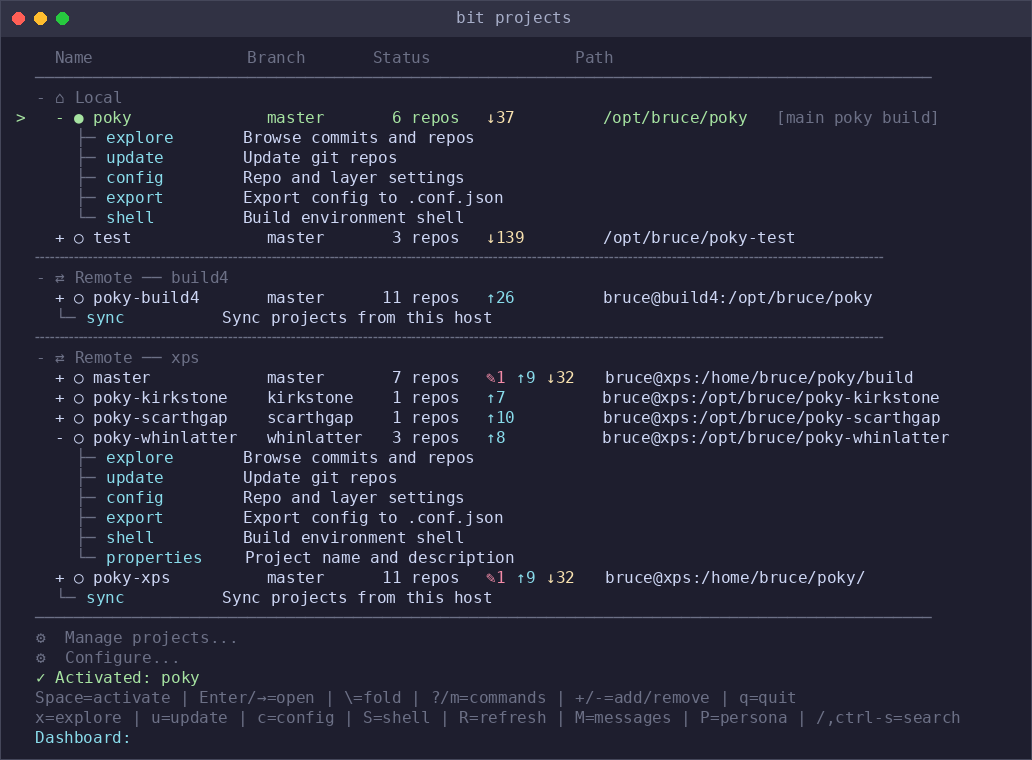
Project Dashboard
Manage multiple Yocto/OE builds from a single interface. Switch between projects, launch explore/update/config, or open a build shell.
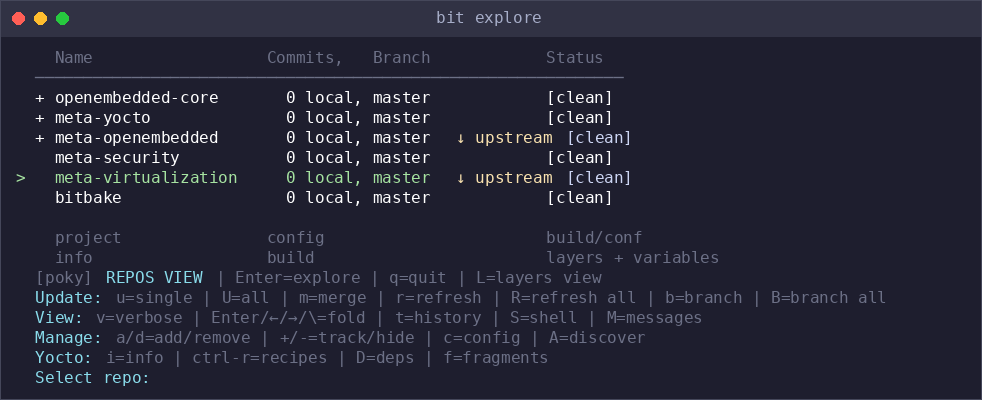
Explore Repos
Browse layer repositories with upstream status, branch info, and dirty/clean indicators. Yocto projects get extra keybindings for recipes, deps, fragments, and build info.
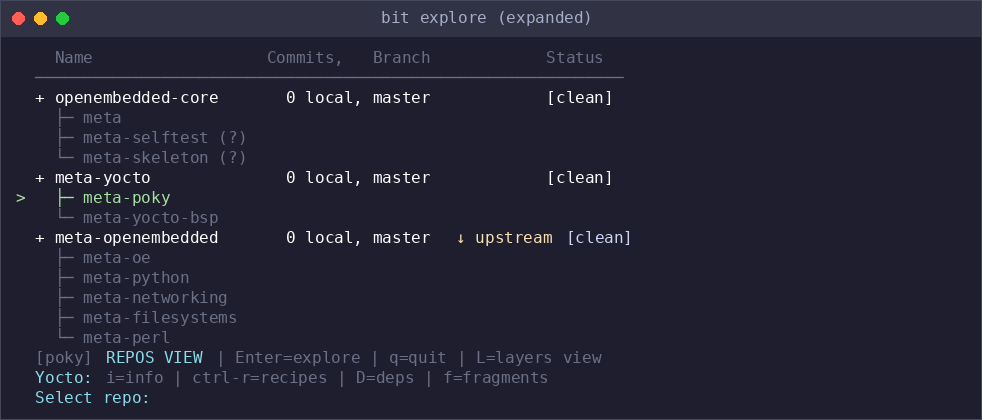
Expand multi-layer repos to see individual layers:
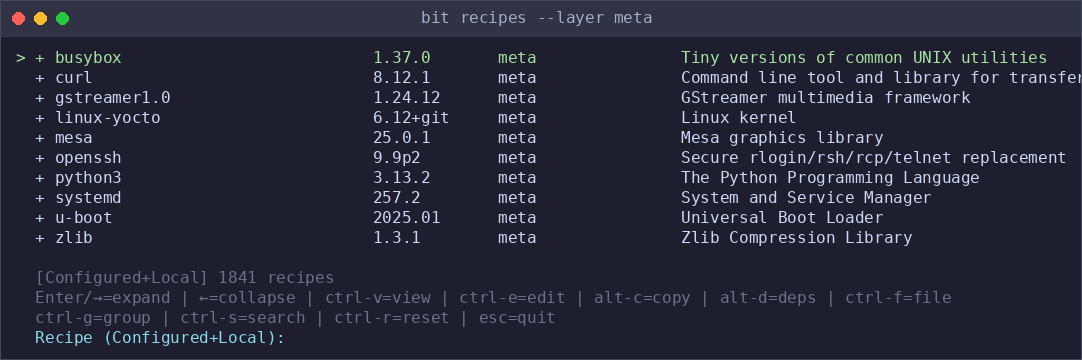
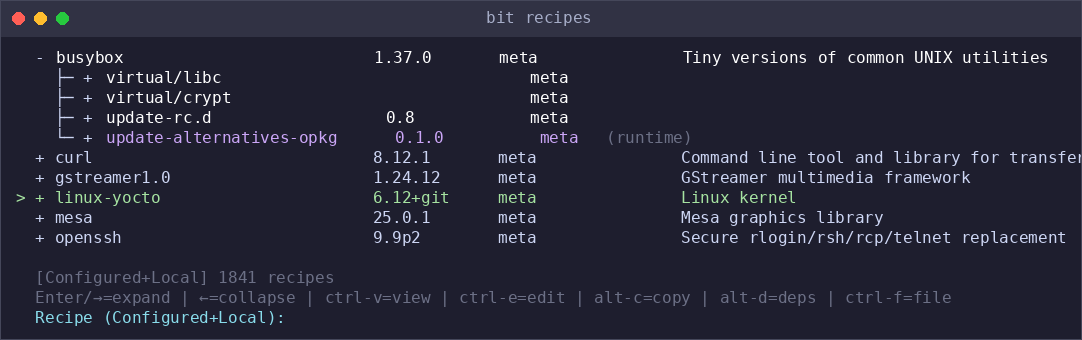
Recipe Browser
Search and browse BitBake recipes across layers. Expand recipes to see dependencies inline.
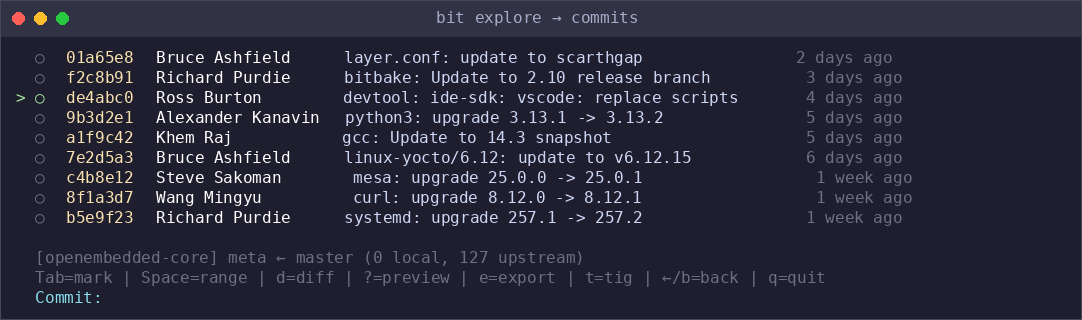
Commit Browser
Drill into a repo to browse commits with preview panes, mark ranges for export, and launch git tools.
Web Dashboard
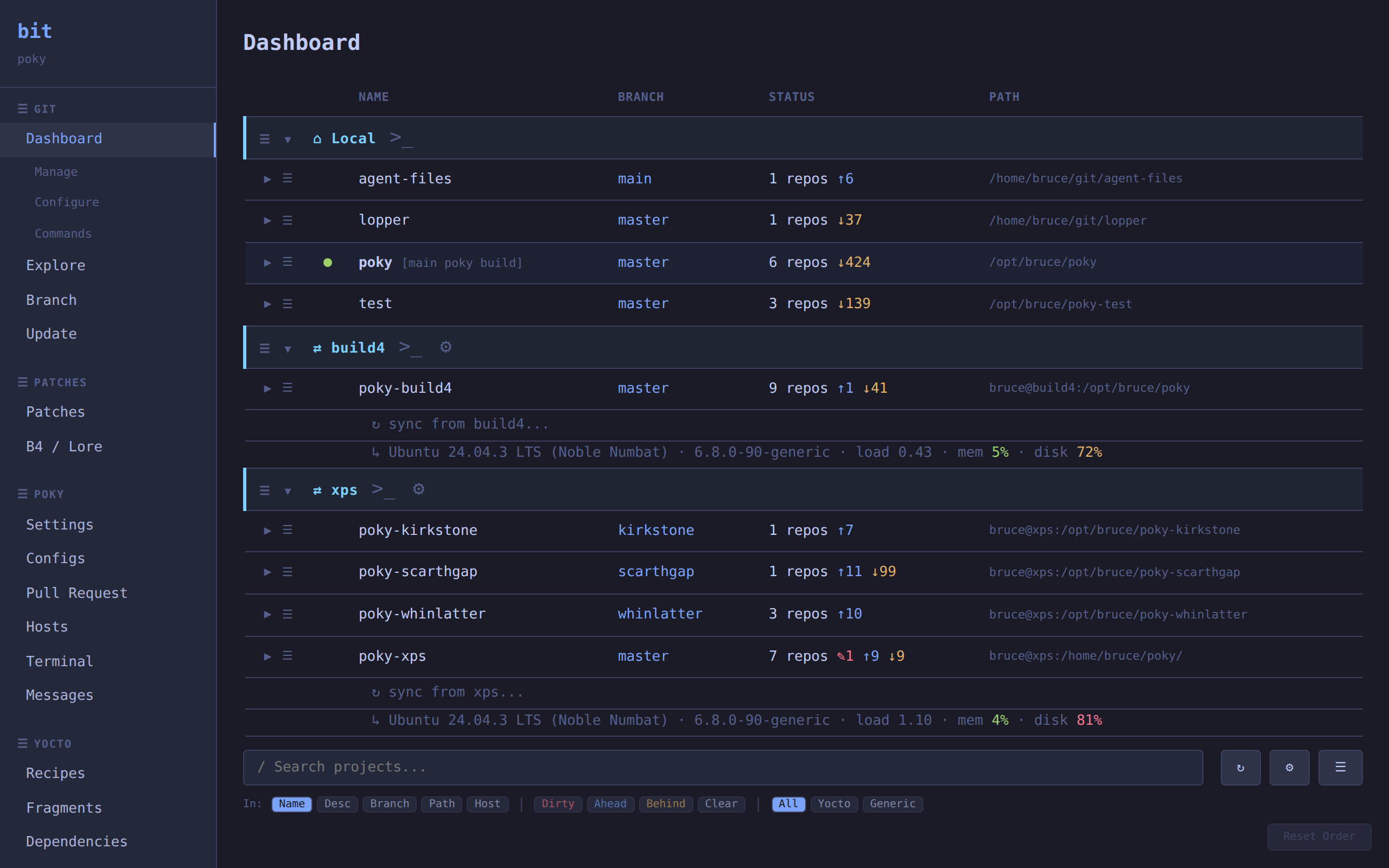
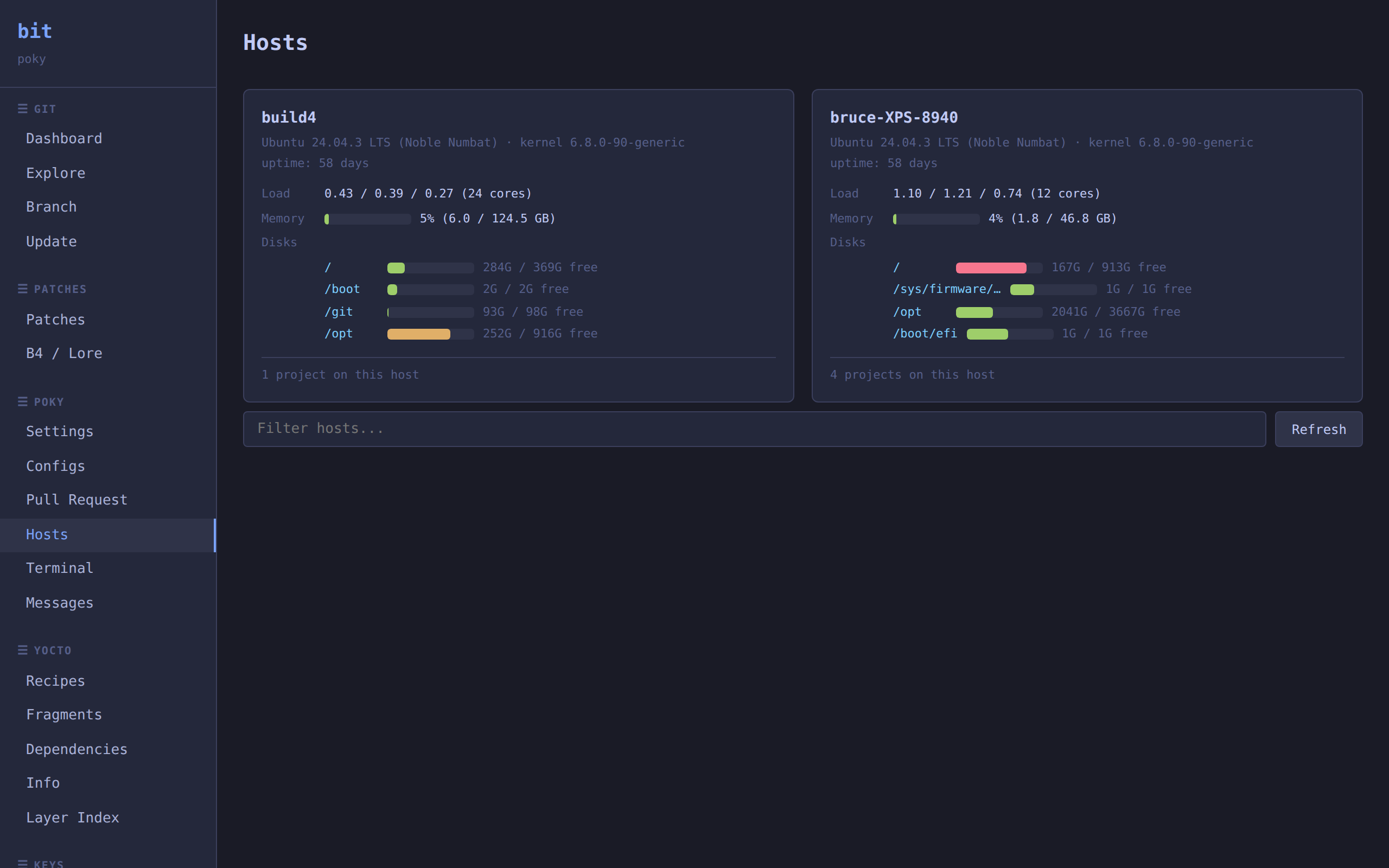
bit serve launches a web dashboard and auto-update daemon. Dark theme with 6 alternatives, keyboard navigation, integrated terminal, and real-time updates via SSE. Projects tagged with auto-update are periodically fetched and updated.
Dashboard — project overview with inline host metrics for remote builds:
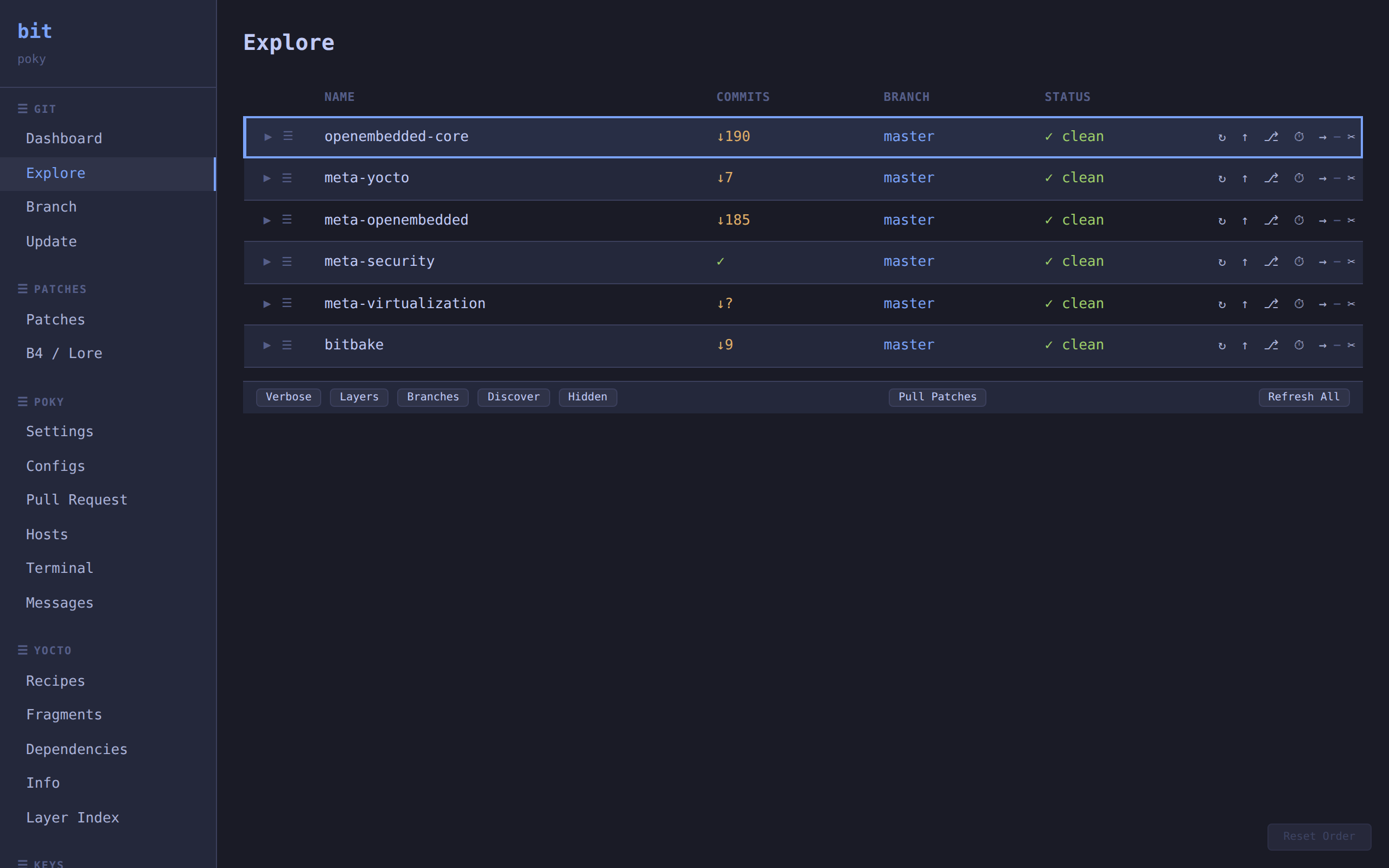
Explore — repository browser with upstream status, commit counts, and per-repo actions:
Hosts — system metrics (CPU, memory, disk) for remote build hosts:
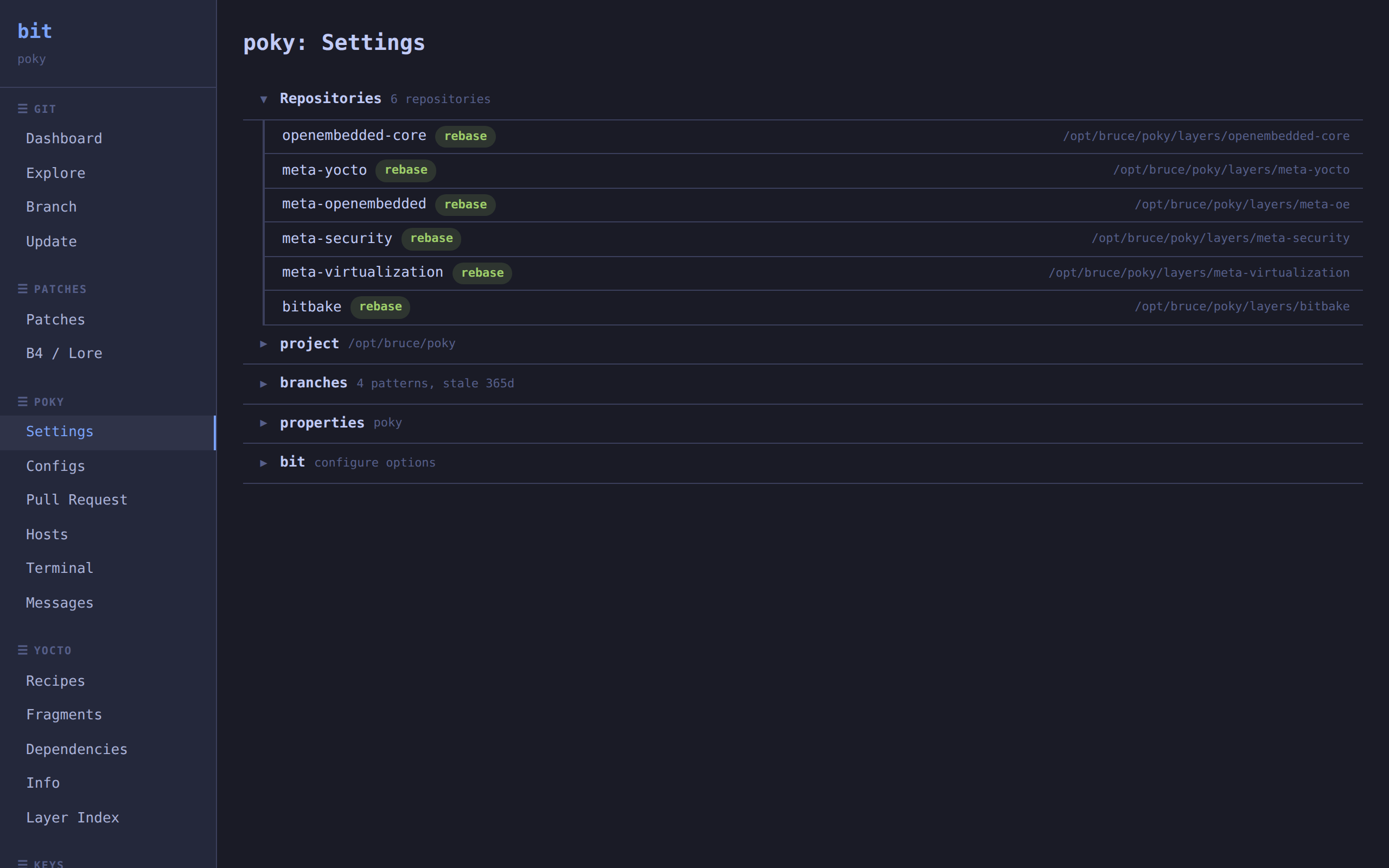
Config — project settings tree with repo actions, branches, and properties:
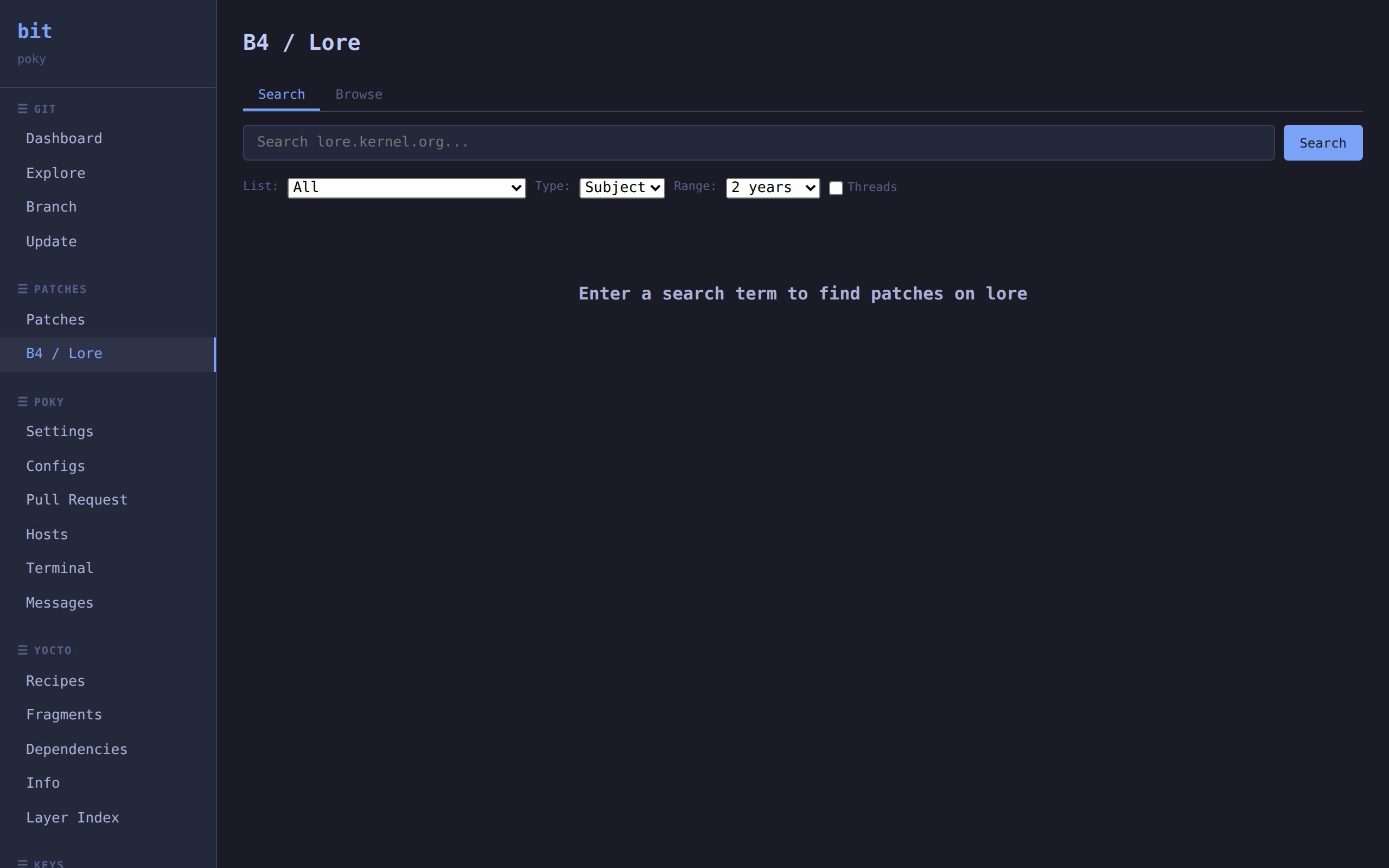
B4 / Lore — search and browse upstream mailing list patches:
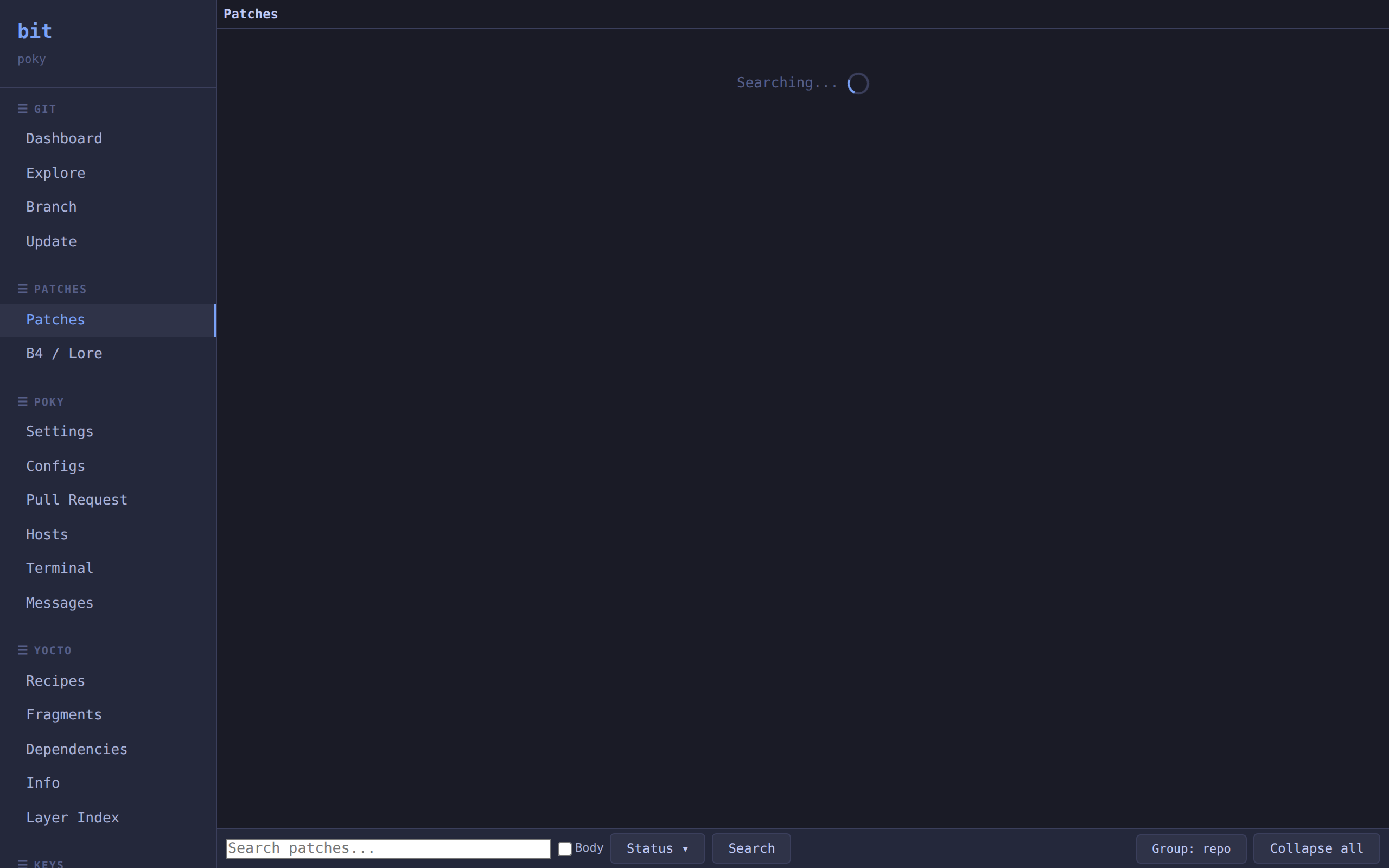
Patches — patch browser grouped by repo with inline preview:
Commands
| Command | Alias | Description |
|---|---|---|
explore |
x |
Interactively explore commits in layer repos |
update |
u |
Update git repos referenced by layers |
status |
- | Show local commit summary for layer repos |
info |
i |
Show build configuration and layer status |
config |
c |
View and configure repo/layer settings |
branch |
b |
View and switch branches across repos |
export |
- | Export patches from layer repos |
repos |
- | List layer repos |
clone |
- | Browse configs and create a new project (shortcut for setup configs) |
create |
- | Create a new Yocto/OE project (clone core repos) |
setup |
- | Show OE/Yocto build environment setup command |
setup shell |
- | Start shell with OE build environment pre-sourced |
setup clone |
- | Clone repos from a .conf.json config or registry |
setup apply |
- | Apply layers and fragments from saved config |
setup configs |
- | Browse and manage saved build configurations |
setup export |
- | Export current build state as .conf.json |
setup registry-copy |
- | Copy a .conf.json file to the user registry |
b4 |
- | Mail-based patch management using b4 and lore.kernel.org |
patches |
- | Explore and manage patches across layers |
deps |
- | Show layer and recipe dependencies |
recipes |
- | Search and browse BitBake recipes |
fragments |
- | Browse and manage OE configuration fragments |
layer-index |
- | Search OpenEmbedded Layer Index for layers |
projects |
p |
Manage and switch between multiple project directories |
serve |
daemon |
Web dashboard and auto-update daemon |
Run bit with no arguments for an interactive command menu, or bit --help for detailed usage.
Common Workflows
Starting a New Project
There are several ways to create a new project, depending on whether you have a saved build configuration.
Basic clone (no config file)
Clone the three core repos (bitbake, openembedded-core, meta-yocto) and set up the build environment:
# Clone core repos at a release branch
bit setup clone -b scarthgap --doit

# Show the environment setup command
bit setup

# Or jump straight into a sourced shell
bit setup shell
Clone from a saved configuration
Build configurations (.conf.json files) capture repos, layers, branches, and OE fragments. The fastest way to create a project:
# One-step: browse configs, pick one, clone, apply, browse fragments
bit clone

# Pre-set the target directory (local or remote)
bit clone ./my-build
bit clone user@host:/opt/yocto

# Or use the full form
bit setup configs
bit setup configs ./my-build

# Step-by-step alternative
bit setup clone --config poky.conf.json --doit
bit setup apply
bit clone (shortcut for bit setup configs) opens a registry browser showing all available configs from the built-in and user registries (~/.config/bit/registry/). Each entry shows its type ([Built-in], [User]) and a preview of included repos, layers, and fragments. An optional target argument pre-fills the directory prompt and shows in the header.
When you select a config and choose Clone, the full flow runs automatically: clone repos → apply layers → apply fragments → open fragment browser for fine-tuning. If the directory prompt receives a user@host:/path, the entire flow runs on the remote host via SSH.
setup apply creates build/conf/ if missing, adds layers to bblayers.conf, and applies OE configuration fragments. For one-of fragment categories (e.g., machine, distro where only one choice makes sense), an interactive picker prompts you to choose which fragment to enable. If a different config was previously applied, a warning is shown.
From the dashboard
The dashboard detects empty or new directories and offers to create a project:
- Open
bit projects - Press
+to add a directory (browse, enter a path, or use current directory) - If the directory is empty or doesn't exist, a config registry picker opens:
- Shows all saved configs with
[Built-in],[User], and[Basic]labels - Preview pane shows config details (repos, layers, fragments)
- Select a config to clone its repos into the new project
- Or choose "Basic clone" to get the three core repos (bitbake, oe-core, meta-yocto) without a config file
- Esc skips config selection and registers an empty project
- Shows all saved configs with
- After cloning,
setup applychains automatically:- Creates
build/conf/if missing (with confirmation prompt) - Adds layers from the config to
bblayers.conf - Fragment selection: OE configuration fragments from the config are applied. For one-of categories (e.g., machine, distro), an interactive picker prompts you to choose which fragment to enable
- Validates the setup and marks the config as applied
- Creates
- If apply is declined or interrupted, the project shows
⚠ setupin the dashboard — expand it and select "setup" to resume later
If the directory already has content, it's added as an existing project (no config picker).
Saving and Sharing Build Configurations
Export current build state
# Export to a .conf.json file in the current directory
bit setup export

# Export with a custom filename
bit setup export my-build.conf.json

# Export and save to the user registry for reuse
bit setup export --registry

# Export a different registered project
bit setup export --project my-other-build
The export captures git remotes, branches, layer paths, and enabled OE fragments.
The dashboard also supports export: expand a project and select "export" to open an inline dialog with fragment checkboxes ([x]/[ ]) to toggle which fragments are included, an optional description field, and actions to export to a file or save to the registry.
Manage the config registry
# Copy a config file into the registry
bit setup registry-copy poky.conf.json

# Copy with a custom name
bit setup registry-copy poky.conf.json --as my-custom-build

# Browse and manage all saved configs
bit setup configs
The registry browser (bit setup configs / bit clone) provides:
- Preview pane showing config details (repos, layers, fragments)
- Actions: Clone, Apply, Fragments, Copy, Describe, Edit, Rename, Delete
- Built-in configs are read-only (Clone, Apply, Fragments, Copy only)
- User configs support all actions including inline rename and describe
- ctrl-f or "Browse Fragments" menu item jumps to the fragment browser (when inside a project)
- Target header shows where clones will land when a target is specified
Build Environment Shell
# Show the source command for oe-init-build-env
bit setup

# Start a shell with the build environment pre-sourced
bit setup shell
setup shell starts a new shell with the OE build environment already sourced, so bitbake and related tools are immediately available.
Daily Development
# Check what's changed upstream
bit status

# Update repos (interactive)
bit update

# Update all repos non-interactively (apply saved defaults)
bit update -y

# Or update a specific repo
bit update OE-core
Exploring Commits
# Interactive two-level browser
bit explore

# Jump directly to a repo
bit x OE-core
Keybindings in explore mode (repo list):
Enter- explore commits in selected repou- pull --rebasem- pull (merge)r- refresh repo (fetch)R- refresh all reposB- switch all repos to branch (common branches first, partial dimmed)t- launch git history viewer (tig/lazygit/gitui/gitk)v- toggle verbose display (HEAD commit per repo/layer)\- expand/collapse all multi-layer reposc- open config menuP- pull patches from remote project (browse remote commits, import)X- prune all backup branches in selected repo (with confirmation)M- open message log viewer (see Status Messages)q- quit
Yocto-specific keybindings (explore mode, Yocto projects only):
i- show build info (same asbit info)Ctrl-R- browse recipes (scoped to selected repo's layers, or single layer if expanded)D- show dependencies (scoped to selected layer)f- browse configuration fragments
Keybindings in commit browser:
Tab- mark commit for selectionSpace- select range of commits?- toggle preview paned- toggle diff view in preview (stat ↔ full patch)g- toggle graph view in preview (git log --graph branch topology)a- toggle blame view in previewf- switch to file/tree view (browse files, expand commit history per file)c- copy commit hashe- export selected commitsi- interactive rebase (select range, then squash/reword/reorder)t- launch git history viewerl- browse commits grouped by layer (multi-layer repos)p- find patch source on lore.kernel.orgPgUp/PgDn- scroll commit listAlt-Up/Alt-Down- scroll preview pageCtrl-U/Ctrl-D- scroll preview half-page←orb- go backq- quit
Keybindings in file/tree view (f from commit browser):
Enter/→- expand directory or show file's commit history←- collapse directory/file or go to parent\- toggle expand/collapse directory or file commitsd- toggle diff view in previewa- toggle blame viewf- toggle raw file content view?- toggle preview paneb/Esc- go back to commit browserq- quit
Exporting Patches for Upstream
# Prepare commits (reorder for upstream)
bit export prep --branch zedd/feature

# Export patches
bit export --target-dir ~/patches

# Export with version number
bit export --target-dir ~/patches -v 2
Searching for Layers
# Interactive search
bit layer-index

# Search with query
bit layer-index virtualization

# Get layer info for scripting
bit layer-index -i meta-virtualization

# Clone a layer directly
bit layer-index -c meta-security -b scarthgap
Managing Branches
# Interactive branch management
bit branch

# Switch all repos to a release branch
bit branch --all scarthgap
Keybindings in branch management (bit branch):
Enter/→- expand repo to show branches / switch to selected branch←- collapse expanded repoB- switch all repos to branch (common branches first, partial dimmed)q- quit
Viewing Build Info
# Show build configuration (like BitBake summary)
bit info

# Show only layer info with branch:commit
bit info layers

# Show only key variables
bit info vars
Output format matches BitBake's build configuration:
Build Configuration:
  MACHINE = qemuarm64
  DISTRO  = poky

Layers:
  meta                = "master:01a65e8d5f73..."
  meta-selftest
  meta-poky           = "master:de4abc0a175a..."
The info entry is also available in the explore repo list menu for interactive browsing.
Managing Multiple Projects
# Open project manager (interactive)
bit projects

# Add a project directory
bit projects add /path/to/yocto-build

# List known projects
bit projects list

# Remove a project from tracking
bit projects remove /path/to/old-project
Keybindings in projects menu:
Space- activate selected project (all commands will operate on it)Enter/→- expand project; on already-expanded project, runs configurable default command (default: explore)?/m- open commands menu+- browse for a new directory to add-- remove selected project from trackingn- rename projectu- update repos in projectx- explore repos in projectc- open config menu with inline sub-pickers for dir browser, git viewer, preview layout, recipe scan, default action, and backup prune ageS- open shell in projectM- open message log viewer (see Status Messages)q- quit
Note: When no valid project context exists (no bblayers.conf found), the projects picker is automatically shown. Persona is auto-detected when adding projects (Yocto projects detected by bblayers.conf, layer.conf files, or poky directory; generic projects detected by .git directories without Yocto markers).
Web Dashboard
# Start the server (web dashboard + auto-update daemon)
bit serve

# Custom port and host
bit serve --port 9000 --host 0.0.0.0

# Don't open browser (e.g. for remote servers)
bit serve --no-browser

# Control the server
bit serve stop          # stop the running server
bit serve restart       # restart
bit serve status        # auto-update daemon health
bit serve pause/resume  # pause/resume auto-updates
bit serve interval 30   # set update interval (minutes)
bit serve starts a web dashboard and auto-update daemon. Projects tagged with auto-update are periodically fetched and updated. The server can also be launched from the TUI dashboard. bit daemon is an alias for bit serve.
Views and features:
- Dashboard — project overview with status, repo summaries, and quick actions
- Explore — discover, track/hide repos, add/remove layers, browse repo trees and file history
- Repos — branch management, commit browser with graph, diffs, cherry-pick, rebase, export patches
- Configs — edit bblayers.conf, local.conf, and per-repo settings; fragment/toolcfg manager
- Patches — browse, search, and filter patch files; view content and update status
- B4 / Lore — search lore.kernel.org with mailing list and time filters; browse lists; apply, diff, and mbox actions
- Recipes — scan and search recipes across layers
- Dependencies — layer dependency graph
- Layer Index — search the OpenEmbedded Layer Index by branch
- Settings — global preferences, themes, project properties
- Messages — project status message log
- Terminal — integrated xterm.js terminal with tmux session sharing (web and TUI share the same session)
- Pull Patches — pull commits from remote bit instances
Key capabilities:
- SSH remote project support — sync, browse, and pull from remote hosts
- Right-click context menus throughout
- Keyboard navigation (j/k, Enter, /, tab)
- Real-time SSE updates for long-running operations
- File editor for direct config editing
Configuration
Per-repo settings are stored in .bit.defaults (JSON):
{
  "/path/to/poky": "rebase",
  "/path/to/meta-oe": "skip",
  "__extra_repos__": ["/path/to/bitbake"],
  "__hidden_repos__": ["/path/to/unwanted-repo"],
  "__push_targets__": {
    "/path/to/oe-core": {
      "push_url": "ssh://git@push.openembedded.org/oe-core-contrib",
      "branch_prefix": "yourname/"
    }
  },
  "fzf_theme": "dark",
  "fzf_text_color": "light-gray",
  "fzf_custom_colors": {"pointer": "green"}
}
Configure interactively with bit config.
Theme Customization
The tool supports customizable options via Settings menu (bit config -> Settings):
Colors submenu:
- Mode - Color source: global (
~/.config/bit/colors.json), per-project (.bit.defaults), or built-in defaults - Theme - Base color scheme (default, dark, light, dracula, nord, etc.)
- Individual - Per-element color overrides with live preview
New projects default to global mode — changing colors in any project updates ~/.config/bit/colors.json, shared by all projects in global mode. Switch to custom for per-project overrides.
A color preview panel shows all themed elements (pointer, header, prompt, etc.) with current colors applied.
Directory Browser - Choose preferred file browser for project selection:
- broot (recommended)
- ranger
- nnn
- fzf (fallback)
Git Viewer - Choose preferred git history viewer:
- auto (detect first available: tig > lazygit > gitui > gitk)
- tig - ncurses git interface
- lazygit - terminal UI for git
- gitui - blazing fast terminal git UI (Rust)
- gitk - graphical git browser
Preview Layout - Configure commit browser preview pane position:
- Bottom (default) - preview below commit list
- Right (side-by-side) - preview beside commit list
- Top - preview above commit list
Default Action - Configure what Enter/→ does on expanded projects:
- Explore (default), Shell, Recipes, Update, Config
Backup Prune Age - Auto-prune old backup branches on commit browser entry:
- Always (0), 1/3/7/14/30 days, or Never (default: 7 days)
- Backup branches (
*-backup-YYYYMMDD-HHMMSS) are created by the drop commits feature
Editor - Preferred text editor for config file editing:
- auto (default - uses
$EDITOR/$VISUAL/ vi), vim, nvim, nano, emacs, code (VS Code)
NNN Colors - Color scheme for the nnn file manager integration:
- Preset schemes: cyan dirs (default), green dirs, yellow dirs, magenta dirs, etc.
Tmux Prefix - Prefix key for remote tmux sessions:
- Ctrl-A (screen-style, default), Ctrl-B (tmux default), Ctrl-S, Ctrl-Q
Web Autostart - Auto-start web server when dashboard opens:
- Off (default), Localhost (127.0.0.1), All interfaces (0.0.0.0)
Web Open Browser - Open browser tab when web server starts:
- On or Off (default: off)
Metrics Refresh - Auto-refresh interval for host metrics on the dashboard:
- Off, 1 min, 2 min, 5 min, 10 min
Graph Renderer - Renderer for dependency graph visualization:
- Auto-detect (default - Graph::Easy if installed, else ASCII), Graph::Easy, ASCII
Explore Load Size - Number of commits to load per page in the commit browser:
- 50, 100, 200 (default), 500, 1000
Terminal Colors - Configure output colors for:
- Upstream indicator (commits to pull)
- Local commit count
- Dirty/clean status
- Repo names (configured, discovered, external)
Visual Indicators
Repos are color-coded by source:
- Green - from bblayers.conf
- Magenta with
(?)- discovered layers (not in bblayers.conf) - Cyan with
(ext)- external repos (git repos without conf/layer.conf)
Status indicators:
5 local- commits ahead of upstream tracking ref↓ 3- commits to pull from upstream→ contrib- tracking a non-origin remote (shown when not tracking origin)[clean]/[DIRTY]- working tree status
Status Messages
Actions like activating a project, refreshing repos, or running updates produce
status messages (e.g. ✓ Activated: poky, Refreshing OE-core... done). These
are captured silently — they never print to the terminal — and are available in
two ways:
- Header indicator: The most recent message appears above the keybinding help for one fzf iteration, then disappears on the next redraw.
- Message log (
Mkey): Opens a scrollable popup showing all messages from the current session with timestamps (newest first). Available in both the dashboard and explore menus.
Remote SSH Projects
Remote projects on SSH-accessible build machines can be managed alongside local ones:
- Add via manage menu (
+→ Remote SSH) withuser@host:/pathURI format - Dashboard shows remote projects with
⇄ hostnameindicator - Remote summary (branch, dirty, ahead/behind) gathered via single batched SSH call
- Actions dispatch to remote bit (auto-deployed if not installed) with fallback to raw git
- SSH connection multiplexing (
ControlMaster=auto,ControlPersist=600) avoids repeated auth - All SSH calls suppress askpass prompts (
SSH_ASKPASS_REQUIRE=never,BatchMode=yes) to prevent password dialogs from interfering with the TUI - Interactive SSH sessions (explore, shell) are preceded by a connection pre-check; if auth fails, a clean error message is shown instead of hanging
- Pull patches (
Pkey in explore repos view): browse commits on a remote build machine and import them- Automatically finds matching repo on remote by basename
- Commit browser shows provenance tags:
[build4](remote-only),[upstream][build4](shared upstream),[upstream][build4][local](shared base) - Mark commits with Tab/Space, press
eto export tlaunches history viewer on local repo,gtoggles remote graph in preview- Import methods: apply patches (git am), fetch branch (git fetch), or save .patch files
Requirements
- Python 3.9+
- Git
- fzf (optional, but recommended for interactive features)
- argcomplete (optional, for tab completion)
- xclip or xsel (optional, for clipboard support)
Development
Installation for Development
# Clone the repository
git clone https://gitlab.com/bruce-ashfield/bitbake-project.git
cd bitbake-project

# Create a virtual environment
python3 -m venv .venv
source .venv/bin/activate

# Install with dev dependencies
pip install -e .[dev]
Running Tests
The project uses pytest with pytest-mock and pytest-cov:
# Activate virtual environment first
source .venv/bin/activate

# Run all tests
pytest tests/ -v

# Run with coverage report
pytest tests/ --cov=bitbake_project --cov-report=term-missing

# Run only unit tests
pytest tests/unit/ -v

# Run only integration tests
pytest tests/integration/ -v

# Run tests matching a pattern
pytest tests/ -k "test_colors" -v
Test Structure
tests/
├── conftest.py                    # Shared fixtures
├── unit/
│   ├── test_colors.py            # Colors class ANSI formatting
│   ├── test_helpers.py           # Pure functions (clean_title, dedupe, sort)
│   ├── test_state.py             # State management (defaults, prep, export)
│   ├── test_gitrepo.py           # GitRepo class
│   ├── test_fzf_menu.py          # FzfMenu class (mocked)
│   ├── test_bblayers_parser.py   # BblayersParser
│   ├── test_cli_parser.py        # CLI argument parsing
│   ├── test_info.py              # Info command parsing and formatting
│   └── test_update.py            # Update command (upstream tracking)
├── integration/
│   ├── test_cli_dispatch.py      # Command dispatch, --help, aliases
│   └── test_projects_command.py  # Projects add/remove/list
└── data/
    └── bblayers/                  # Test bblayers.conf files
Project Structure
The project is organized as a Python package with a commands subpackage:
bitbake_project/
├── core.py           # Core abstractions (Colors, GitRepo, FzfMenu)
├── cli.py            # Argument parsing and main()
├── tmux.py           # Shared tmux helpers (session naming, attach command)
├── commands/         # Command implementations
│   ├── common.py     # Shared utilities (BblayersParser, etc.)
│   ├── explore.py    # explore, status commands
│   ├── export.py     # export, export prep commands
│   ├── config.py     # config command
│   ├── branch.py     # branch command
│   ├── info.py       # info command (build configuration)
│   ├── update.py     # update command (upstream tracking support)
│   ├── b4.py         # b4 command (lore, mail-based patch management)
│   ├── patches.py    # patches command (patch browser, Upstream-Status)
│   ├── search.py     # layer-index command
│   ├── setup.py      # create, setup commands
│   ├── repos.py      # repos command
│   ├── projects.py   # projects command, dashboard, directory browser
│   └── ssh_remote.py # SSH transport for remote projects
└── web/              # Browser-based dashboard (stdlib http.server)
    ├── server.py     # HTTP server with WebSocket upgrade
    ├── api.py        # REST API endpoints
    ├── terminal.py   # PTY-to-WebSocket bridge (tmux sessions)
    └── static/       # Frontend (HTML, CSS, JavaScript)
Distribution options:
- Standalone: Single-file zipapp (
dist/bit) - Pip install:
pip install -e .for development
License
This project is licensed under the GNU General Public License v2.0 (GPL-2.0-only).
See COPYING for the full license text.
See Also
- INSTALL.md - Installation instructions
- Yocto Project
- OpenEmbedded
- OpenEmbedded Layer Index
Release history Release notifications | RSS feed


Download files
Download the file for your platform. If you're not sure which to choose, learn more about installing packages.
Source Distribution
Built Distribution
Filter files by name, interpreter, ABI, and platform.
If you're not sure about the file name format, learn more about wheel file names.
Copy a direct link to the current filters
File details
Details for the file bitp-1.4.3.tar.gz.
File metadata
- Download URL: bitp-1.4.3.tar.gz
- Upload date:
- Size: 2.9 MB
- Tags: Source
- Uploaded using Trusted Publishing? No
- Uploaded via: twine/6.2.0 CPython/3.12.13
File hashes
| Algorithm | Hash digest | |
|---|---|---|
| SHA256 |
62bd66854f413f85a4df2115f247a1ab421203f5df425a730c7c4fa4364673f2
|
|
| MD5 |
8358e1bcf778c48d2f2b7c1d90f28f55
|
|
| BLAKE2b-256 |
b20db0bf1ed223648e33fa0b33ed582906c995a643d07dd45c786184555060fb
|
File details
Details for the file bitp-1.4.3-py3-none-any.whl.
File metadata
- Download URL: bitp-1.4.3-py3-none-any.whl
- Upload date:
- Size: 1.2 MB
- Tags: Python 3
- Uploaded using Trusted Publishing? No
- Uploaded via: twine/6.2.0 CPython/3.12.13
File hashes
| Algorithm | Hash digest | |
|---|---|---|
| SHA256 |
9653753b16563fe0387c7887f7553a9f8fbb8beab9437b5aca08d579f1fcda75
|
|
| MD5 |
5e95ae9ca95f294aefd967153081315b
|
|
| BLAKE2b-256 |
b67fbf8549c906cd20ab6be0cdd9eb691e9aa1543ab50807f05b99a85bb67c3a
|






