
Synchronize recordings from BlackVue dashcams to a local directory
Verified details
These details have been verified by PyPIProject links
GitHub Statistics
Maintainers

Project description
BlackVue Sync









Synchronizes recordings from a BlackVue dashcam with a local directory over a LAN.
BlackVue dashcams expose an HTTP server that can be used to download all recordings. This project downloads only recordings that are not already downloaded, optionally limiting downloads in a local directory to a date range.
A typical setup would be a periodic cron job or a Docker container running on a local server.
Features
- Portable runtimes:
- A single, self-contained Python script with no third-party dependencies. It can be copied and run anywhere, either manually or periodically.
- A docker image that runs periodically via an internal cron job. Supports amd64 (Intel), arm64 (Apple Silicon, Raspberry Pi 4+) and armv7 (Raspberry Pi 2/3).
- Smart: Only downloads recordings that haven't already been downloaded.
- Resilient: If a download interrupts for whatever reason, the script resumes where it left off the next time it runs. This is especially useful for possibly unreliable Wi-Fi connections from a garage.
- Hands-off: Optionally retains recordings for a set amount of time. Outdated recordings are automatically removed.
- Cron-friendly: Only one process is allowed to run at any given time for a specific download destination.
- Safe: Stops executing if the destination disk is almost full.
- Friendly error reporting: Communicates a range of known error conditions with sensible verbosity.
Prerequisites
Software
- Python 3.9+ or Docker.
- Sufficient disk space on a file system local to the script. Plan for about 5GB/hr per camera.
- BlackVue Viewer or a media player to view the recordings.
Hardware
A cloud-enabled BlackVue dashcam must be connected via Wi-Fi to the local network with a static IP address.
The dashcam must be kept powered for some time after the vehicle is turned off. BlackVue offers hardwiring kits and batteries.
The camera should stay active for a period sufficiently long for recordings to be downloaded. Consult the dashcam manual for the bit rate for your chosen image quality, and compare it with the download speed reported by BlackVue Sync.
Example with a DR750S-2CH recording with two cameras at the highest quality setting and a good but conservative download speed:
# dashcam bitrates
dashcam_bitrate_front = 12Mbps
dashcam_bitrate_back = 10Mbps
dashcam_bitrate = dashcam_bitrate_front + dashcam_bitrate_back

download_speed = 20Mbps

# hours on the timer for every hour of recording
ratio = dashcam_bitrate / download_speed => 1.1
Verifying Connectivity
For illustration purposes, all examples assume that the camera is reachable at the dashcam.example.net address. A static numeric IP address works just as well.
A quick way to verify that the dashcam is online is by using curl.
$ curl http://dashcam.example.net/blackvue_vod.cgi
v:1.00
n:/Record/20181026_135003_PF.mp4,s:1000000
n:/Record/20181026_140658_PF.mp4,s:1000000
n:/Record/20181026_140953_PF.mp4,s:1000000
...
$
Another way is by browsing to: http://dashcam.example.net/blackvue_vod.cgi.
Usage
Installation
BlackVue Sync is a single script, and can be obtained in a number of ways:
- uv: Run with
uvx blackvuesync <args>, or install withuv tool install blackvuesyncand run withblackvuesync <args>. - Pip: Install with
pip install blackvuesyncand run withblackvuesync <args>. - Direct: Download from GitHub, save to the desired location, and either run it with
python3 blackvuesync.py <args>, or mark it executable and run it withblackvuesync.py <args>.
The interactive instructions assume a uv or Pip installation.
Manual Usage
The dashcam address is the only required parameter. The --dry-run option makes it so that the script communicates what it would do without actually doing anything. Example:
blackvuesync dashcam.example.net --dry-run
It's also possible to specify a destination directory other than the current directory with --destination:
blackvuesync dashcam.example.net --destination /data/dashcam --dry-run
A retention period can be indicated with the --keep option. Recordings prior to the retention period will be removed from the destination directory. Accepted units are d for days and w for weeks. If no unit is indicated, days are assumed.
blackvuesync dashcam.example.net --destination /data/dashcam --keep 2w --dry-run
A typical invocation would be:
blackvuesync dashcam.example.net --destination /data/dashcam --keep 2w
Other options:
--grouping: Groups downloaded recordings in directories according to different schemes. Grouping speeds up loading recordings in the BlackVue Viewer app. The supported groupings are:daily: By day, e.g. 2018-10-26;weekly: By week, with the directory indicating the date of that week's monday, e.g. 2018-10-22;monthly: By month, e.g. 2018-10;yearly: By year, e.g. 2018;none: No grouping, the default.
--priority: Downloads recordings with different priorities:datedownloads oldest to newest;rdatedownloads newest to oldest;typedownloads manual, event (all types), normal and (non-event) parking recordings in that order. Defaults todate.--max-used-disk: Downloads stop once the specified used disk percentage threshold is reached. Defaults to90(i.e. 90%.)--timeout: Sets a timeout for establishing a connection to the dashcam, in seconds. Defaults to10.0seconds.--quiet: Quiets down output messages, except for unexpected errors. Takes precedence over--verbose.--verbose: Increases verbosity. Can be specified multiple times to indicate additional verbosity.
Unattended Usage
Plain cron
The script can run periodically by setting up a cron job on UNIX systems.
Simple example with crontab for a hypothetical media user:
*/15 * * * * /home/media/bin/blackvuesync.py dashcam.example.net --keep 2w --destination /data/dashcam --cron
The --cron option changes the logging level with the assumption that the output may be emailed. When this option is enabled, the script only produces logs when it downloads recordings and when it encounters unexpected errors. One would typically see an email only after driving or when something goes wrong.
Note that if the dashcam is unreachable for whatever reason, in --cron mode no output is generated, since this is an expected condition whenever the dashcam is away from the local network.
If cron jobs overlap, the script recognizes that another instance is currently running via a lock file on the destination directory. For the lock to work correctly, the destination directory must be on a local filesystem relative to the script.
NAS
Many NAS systems allow running commands periodically at set intervals.
openmediavault
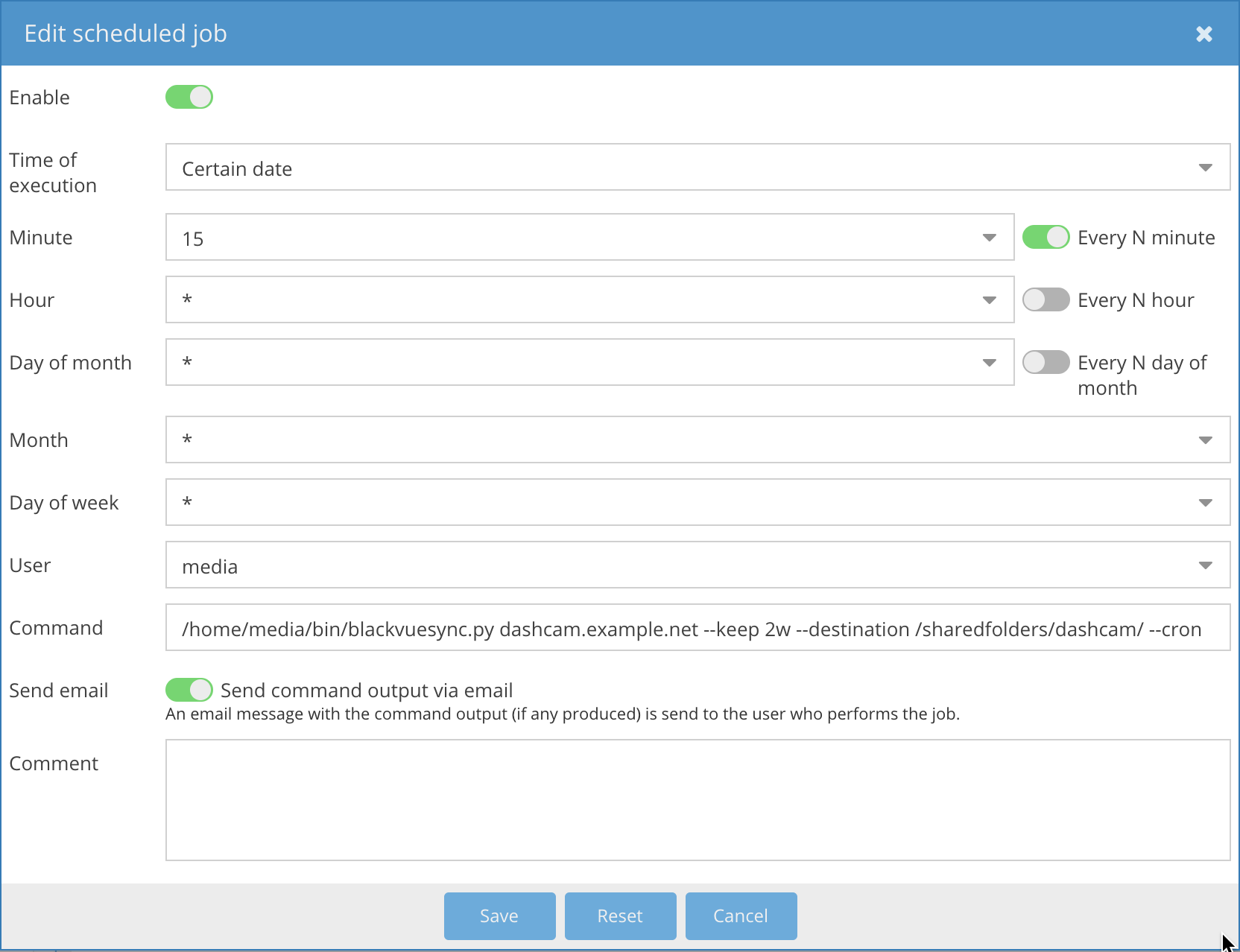
The openmediavault NAS solution allows running scheduled jobs with support for mail notifications.
Example:
Docker
Overview
The acolomba/blackvuesync docker image sets up a cron job internal to the container that runs the synchronization operation every 15 minutes.
Quick Start
It's a good idea to do a single, interactive dry run first with verbose logging:
docker run -it --rm \
    -e ADDRESS=dashcam.example.net \
    -v $PWD:/recordings \
    -e DRY_RUN=1 \
    -e VERBOSE=1 \
    -e RUN_ONCE=1 \
    --name blackvuesync \
acolomba/blackvuesync
Once that works, a typical invocation would be similar to:
docker run -d --restart unless-stopped \
    -v /data/dashcam:/recordings \
    -e ADDRESS=dashcam.example.net \
    -e PUID=$(id -u) \
    -e PGID=$(id -g) \
    -e TZ="America/New_York" \
    -e KEEP=2w \
    --name blackvuesync \
acolomba/blackvuesync
Docker Compose
Docker Compose may offer an easier, more repeatable and extensible option for running a BlackVueSync Docker container.
After downloading the Docker Compose file and editing its values as desired, BlackVueSync can be started with:
docker-compose up -d
OR, depending on the Docker version:
docker compose up -d
Reference
These options are required for the docker image to operate correctly:
- The
/recordingsvolume mapped to the desired destination of the downloaded recordings. - The
ADDRESSparameter set to the dashcam address. - The
PUIDandPGIDparameters set to the desired destination directory's user id and group id. - The
TZparameter set to the same timezone as the dashcam. Note that BlackVue dashcams do not respect Daylight Savings Time, so their clock needs to be adjusted periodically.
Other parameters:
GROUPING: Groups downloaded recordings in directories,daily,weekly,monthly,yearlyandnoneare supported. (Default:none.)KEEP: Sets the retention period of downloaded recordings. Recordings prior to the retention period will be removed from the destination. Accepted units aredfor days andwfor weeks. If no unit is indicated, days are assumed. (Default: empty, meaning recordings are kept forever.)PRIORITY: Sets the priority to download recordings. Pickdateto download from oldest to newest; pickrdateto download from newset to oldest; picktypeto download manual, event (all types), normal and (non-event) parking recordings in that order. Defaults todate.MAX_USED_DISK: If set to a percentage value, stops downloading if the amount of used disk space exceeds the indicated percentage value. (Default:90, i.e. 90%.)TIMEOUT: If set to a float value, sets the timeout in seconds for connecting to the dashcam. (Default:10.0seconds.)VERBOSE: If set to a number greater than zero, increases logging verbosity. (Default:0.)QUIET: If set to any value, quiets down logs: only unexpected errors will be logged. (Default: empty.)CRON: Set by default, makes it so downloads of normal recordings and unexpected error conditions are logged. Can be set to""to disable.DRY_RUN: If set to any value, makes it so that the script communicates what it would do without actually doing anything. (Default: empty.)RUN_ONCE: If set to any value, the docker image runs the sync operation once and exits without setting up the cron job. (Default: empty. Not supported in Docker Compose.)
License
This project is licensed under the MIT License - see the COPYING file for details
Copyright 2018-2026 Alessandro Colomba
Project details
Verified details
These details have been verified by PyPIProject links
GitHub Statistics
Maintainers
Release history Release notifications | RSS feed


Download files
Download the file for your platform. If you're not sure which to choose, learn more about installing packages.
Source Distribution
Built Distribution
Filter files by name, interpreter, ABI, and platform.
If you're not sure about the file name format, learn more about wheel file names.
Copy a direct link to the current filters
File details
Details for the file blackvuesync-2.0.tar.gz.
File metadata
- Download URL: blackvuesync-2.0.tar.gz
- Upload date:
- Size: 17.3 kB
- Tags: Source
- Uploaded using Trusted Publishing? Yes
- Uploaded via: twine/6.1.0 CPython/3.13.7
File hashes
| Algorithm | Hash digest | |
|---|---|---|
| SHA256 |
ee7b723533318fdbbc57097817670401e177f8fd2d0b5b5991faf1f036340b54
|
|
| MD5 |
817c89d38892e9852344844cd8181eed
|
|
| BLAKE2b-256 |
60f3a88a1f2cbdfa2ec98abee9a0f5f5e8664726f3ecb7bef0fadfcd544c71e4
|
Provenance
The following attestation bundles were made for blackvuesync-2.0.tar.gz:
Publisher:
ci.yml on acolomba/blackvuesync
-
Statement:
-
Statement type:
https://in-toto.io/Statement/v1 -
Predicate type:
https://docs.pypi.org/attestations/publish/v1 -
Subject name:
blackvuesync-2.0.tar.gz -
Subject digest:
ee7b723533318fdbbc57097817670401e177f8fd2d0b5b5991faf1f036340b54 - Sigstore transparency entry: 789819951
- Sigstore integration time:
-
Permalink:
acolomba/blackvuesync@ef2f24573f6ef3f4df0ffbe6fe9973e73fded270 -
Branch / Tag:
refs/heads/main - Owner: https://github.com/acolomba
-
Access:
public
-
Token Issuer:
https://token.actions.githubusercontent.com -
Runner Environment:
github-hosted -
Publication workflow:
ci.yml@ef2f24573f6ef3f4df0ffbe6fe9973e73fded270 -
Trigger Event:
push
-
Statement type:
File details
Details for the file blackvuesync-2.0-py3-none-any.whl.
File metadata
- Download URL: blackvuesync-2.0-py3-none-any.whl
- Upload date:
- Size: 16.2 kB
- Tags: Python 3
- Uploaded using Trusted Publishing? Yes
- Uploaded via: twine/6.1.0 CPython/3.13.7
File hashes
| Algorithm | Hash digest | |
|---|---|---|
| SHA256 |
f4de474c47e60d10e2ab8bddee5945335240693dfd0214adb38d0d1d6c766a0a
|
|
| MD5 |
60750769d03fa0a941d39cc67fae98ea
|
|
| BLAKE2b-256 |
27d24217c1ec3e03674702e9777b352373511d99d876b4042d4804096110fbb0
|
Provenance
The following attestation bundles were made for blackvuesync-2.0-py3-none-any.whl:
Publisher:
ci.yml on acolomba/blackvuesync
-
Statement:
-
Statement type:
https://in-toto.io/Statement/v1 -
Predicate type:
https://docs.pypi.org/attestations/publish/v1 -
Subject name:
blackvuesync-2.0-py3-none-any.whl -
Subject digest:
f4de474c47e60d10e2ab8bddee5945335240693dfd0214adb38d0d1d6c766a0a - Sigstore transparency entry: 789819953
- Sigstore integration time:
-
Permalink:
acolomba/blackvuesync@ef2f24573f6ef3f4df0ffbe6fe9973e73fded270 -
Branch / Tag:
refs/heads/main - Owner: https://github.com/acolomba
-
Access:
public
-
Token Issuer:
https://token.actions.githubusercontent.com -
Runner Environment:
github-hosted -
Publication workflow:
ci.yml@ef2f24573f6ef3f4df0ffbe6fe9973e73fded270 -
Trigger Event:
push
-
Statement type:






