
tools for communicating with Bronkhorst MFCs with the API for BM31

Project description
Repository for a client/server program for communicating with Bronkhorst MFCs remotely. Intended to be used with Pylatus or similar scripting environment. To install, clone the repository, then run 'pip install -e .' inside. This will create the bronkhorstServer program. Can also get from PyPi, 'pip install bronkhorstControlbm31'. Uses the Bronkhorst propar library. Also requires pandas, matplotlib and PyQt6.
Usage: On the PC connected to the MFCs run bronkhorstServer in a terminal. Options are -c/--com input the com number as an integer (default 1, but check com ports in Device Manager), this will save next time you run so you shouldn't need to input it again. -p/--port port number, (default is value in the script, probably unnecessary to change). A positional argument which can be 'local' ('localhost'), 'remote' (hostname), or remoteip (ip address) (default local). If remote the hostname will be displayed to connect from another computer, otherwise it will be 'localhost'. The port number will also be displayed.
The best way to run is to use the multi client server e.g.
bronkhorstServer remote -c 7
remoteip, the hostname/ hostname.domain (e.g. format: pcname.company.countrycode) or the IP address itself can be used instead of remote to help specify the hostname, sometimes it works better in cases where the PC has multiple connections.
Use ctrl+c to close the server. May take 5 s to take effect.
To send commands import the MFCclient class and connect function, then run it's methods. Initial arguments are MFC address (will be an integer), the IP address (default localhost) and the port (default is that in the script).
E.g.
from bronkhorstControlbm31 import MFCclient

MFCclient(3,'<hostname or ip address>').pollAll()
(this gives information about all MFCs that are connected in a dataframe, the MFC address isn't used and can be anything in this case).
To change setpoint on MFC address 3:
MFCclient(3,'<hostname or ip address>').writeSetpoint(value)
There is a gui called mfcgui (still must be used in conjuction with bronkhorstServer). Run in the terminal. There is one option: -m/--maxMFCs - the maximum number of MFCs that may be needed (sets the number of columns of widgets, doesn't matter if it's more than you have), by default this is 10, if you have more, or want to reduce it to make it cleaner, run with the specific number you want. e.g. for 15 MFCs:
mfcgui -m 15
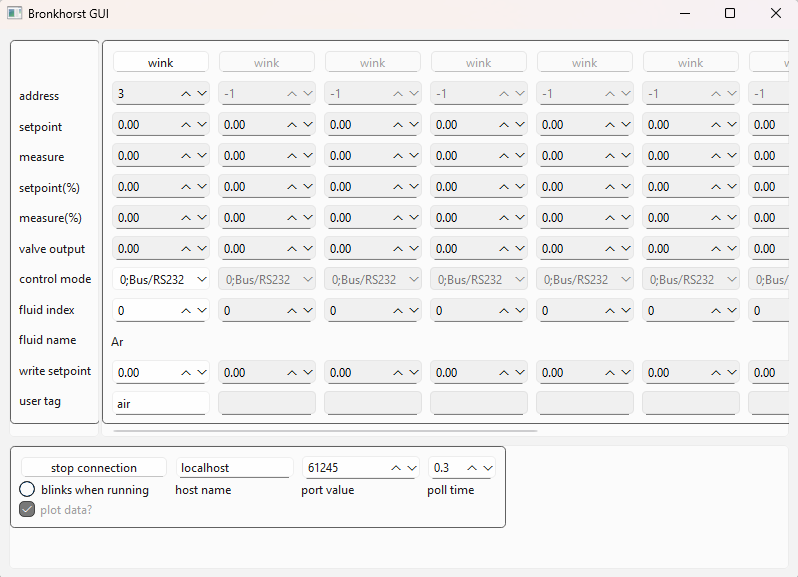
When plot data is checked, the following data will be plotted:
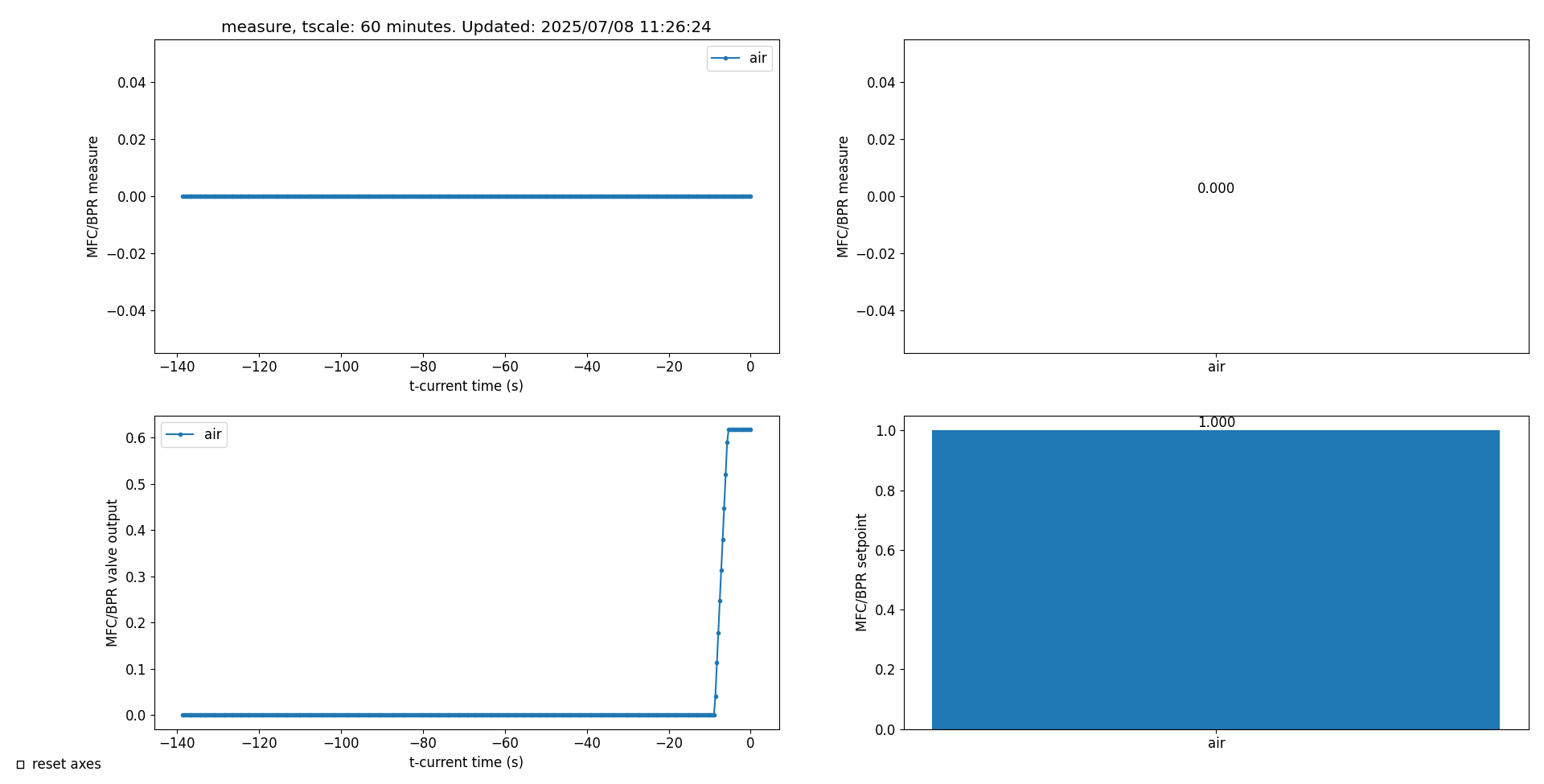
There is a 'reset axes' box on the plotter. If this is checked, the axes for the time plotters will always reset to show all the data. If unchecked, it allows you to zoom into a region, and it will stay there until the box is checked again. If the graph is not zoomed in, the axes will reset as more data comes in.
The GUI also logs the measure values and setpoints every 5 seconds. This is saved in the <home>/bronkhorstClientLog/ folder.
There are also 3 plotting programs which can be run independently of the GUI, called barPlot, timePlot, and mfcPlotAll which can be run in conjunction with the bronkhorstServer. Takes host as a positional argument (default 'localhost'). Run e.g. 'timePlot <hostname>'. Use --help to display options. mfcPlotAll plots the same data as the GUI. timePlot and mfcPlotAll also log the data.
Can also be controlled more directly, without the server, using the MFC class in the bronkhorst.py module, but the GUI and plotting programs won't work in that case, and it must be on the same PC as the MFCs. e.g.
from bronkhorstControlbm31 import MFC, startMfc

mfcmain = startMfc('COM3')
mfc1 = MFC(1,mfcmain)
mfc1.readName()
I should mention this article https://realpython.com/python-sockets/ and the associated repository which helped me to make this.
Release history Release notifications | RSS feed


Download files
Download the file for your platform. If you're not sure which to choose, learn more about installing packages.
Source Distribution
Built Distribution
Filter files by name, interpreter, ABI, and platform.
If you're not sure about the file name format, learn more about wheel file names.
Copy a direct link to the current filters
File details
Details for the file bronkhorstcontrolbm31-1.3.3.tar.gz.
File metadata
- Download URL: bronkhorstcontrolbm31-1.3.3.tar.gz
- Upload date:
- Size: 32.4 kB
- Tags: Source
- Uploaded using Trusted Publishing? No
- Uploaded via: twine/6.1.0 CPython/3.13.2
File hashes
| Algorithm | Hash digest | |
|---|---|---|
| SHA256 |
68fe26b154bee04f891600be8db46b850bdf57c04f51a2a3fd3c7b6e0950cb0e
|
|
| MD5 |
94573b928b7c3f329dba7749db8de1ac
|
|
| BLAKE2b-256 |
eab601cf1c8cc3f7a5707b7d2916c284a40fc482f5112b4703e91da4190d5988
|
File details
Details for the file bronkhorstcontrolbm31-1.3.3-py3-none-any.whl.
File metadata
- Download URL: bronkhorstcontrolbm31-1.3.3-py3-none-any.whl
- Upload date:
- Size: 33.2 kB
- Tags: Python 3
- Uploaded using Trusted Publishing? No
- Uploaded via: twine/6.1.0 CPython/3.13.2
File hashes
| Algorithm | Hash digest | |
|---|---|---|
| SHA256 |
cec258291f905ea4c57daa316f9c37368154797c2deb22de2672c5d08691fe63
|
|
| MD5 |
9d553f69b1cad307bc466c80725efca5
|
|
| BLAKE2b-256 |
7406ce835836a2ed740e9c06f8dda7f5c441d2bbfc8a23cf6e98dee08ba9911b
|






