
- Confirm the Repository Has a Proper Structure A typical Python library or package needs at least the following:
A top-level directory with the library code (often the repository root or inside src/). An init.py file in that directory indicating it’s a Python package. A pyproject.toml or setup.py that defines how the package should be built and installed. From your directory listing, you already have:
pyproject.toml — This is key for modern packaging with tools like Hatch or [Flit/Poetry]. browser_use/ folder with init.py and the other modules. So you’re in pretty good shape already! The pyproject.toml file has a [project] section that defines things like:
toml Copy code [project] name = "browser-use" version = "0.1.17" description = "Make websites accessible for AI agents" This means your package is recognized as browser-use.
- Build & Install Locally If you want to build the package and install it (locally for testing), you can do:
bash Copy code
1. (Optional) create a virtual environment
python -m venv .venv source .venv/bin/activate # or .venv\Scripts\activate on Windows
2. Install build tools
pip install build hatch
3. Build the wheel + sdist
python -m build
This will produce something like:
dist/browser_use-0.1.17.tar.gz
dist/browser_use-0.1.17-py3-none-any.whl
4. Install the built wheel
pip install dist/browser_use-0.1.17-py3-none-any.whl You can then do:
bash Copy code python -c "import browser_use; print(browser_use.version)" assuming you have a version or something similar (or just test any function). If it doesn’t have a direct version attribute, at least check that import browser_use works.
Using Hatch If you are using the Hatch build tool, you can do:
bash Copy code hatch build That will produce the distribution under dist/.
- Publish to PyPI (Optional) If you want to share your library publicly on PyPI, you can:
Create a PyPI account.
In pyproject.toml, make sure [project] name = "browser-use" (or something unique).
Build the project with the steps above.
Use twine or the GitHub Action to publish:
bash Copy code pip install twine
check distribution files locally first
twine check dist/*
upload
twine upload dist/* Make sure you have PYPI_API_TOKEN or credentials set. If you see [tool.pypi-releases] or [tool.pypi] in your pyproject.toml, you can configure it that way, too.




Make websites accessible for AI agents 🤖.
Browser use is the easiest way to connect your AI agents with the browser. If you have used Browser Use for your project feel free to show it off in our Discord.
Quick start
With pip:
pip install browser-use
(optional) install playwright:
playwright install
Spin up your agent:
from langchain_openai import ChatOpenAI
from browser_use import Agent
import asyncio

async def main():
    agent = Agent(
        task="Find a one-way flight from Bali to Oman on 12 January 2025 on Google Flights. Return me the cheapest option.",
        llm=ChatOpenAI(model="gpt-4o"),
    )
    result = await agent.run()
    print(result)

asyncio.run(main())
And don't forget to add your API keys to your .env file.
OPENAI_API_KEY=
ANTHROPIC_API_KEY=
Demos
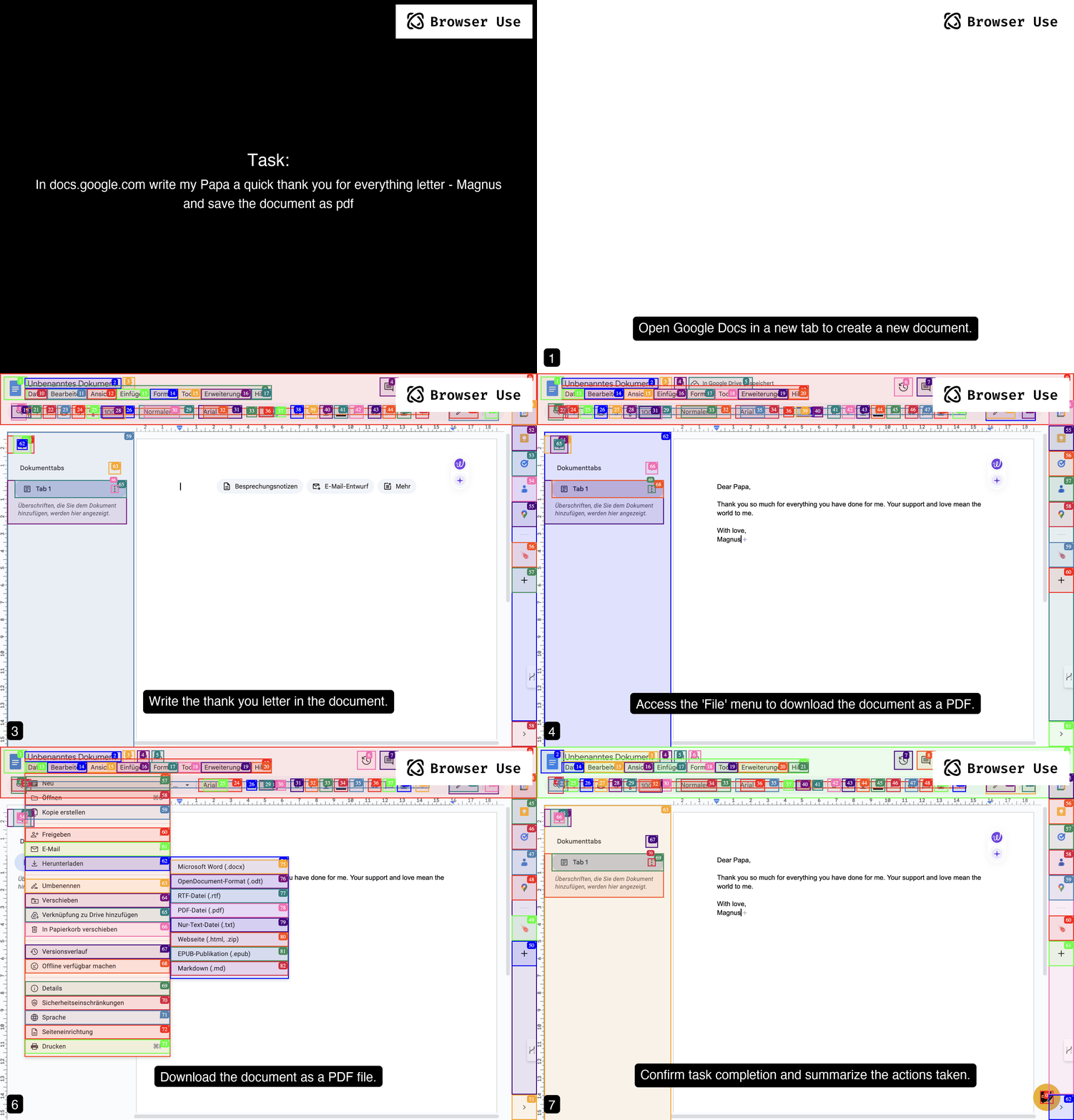
Prompt: Write a letter in Google Docs to my Papa, thanking him for everything, and save the document as a PDF.
Prompt: Read my CV & find ML jobs, save them to a file, and then start applying for them in new tabs, if you need help, ask me.'
https://github.com/user-attachments/assets/171fb4d6-0355-46f2-863e-edb04a828d04
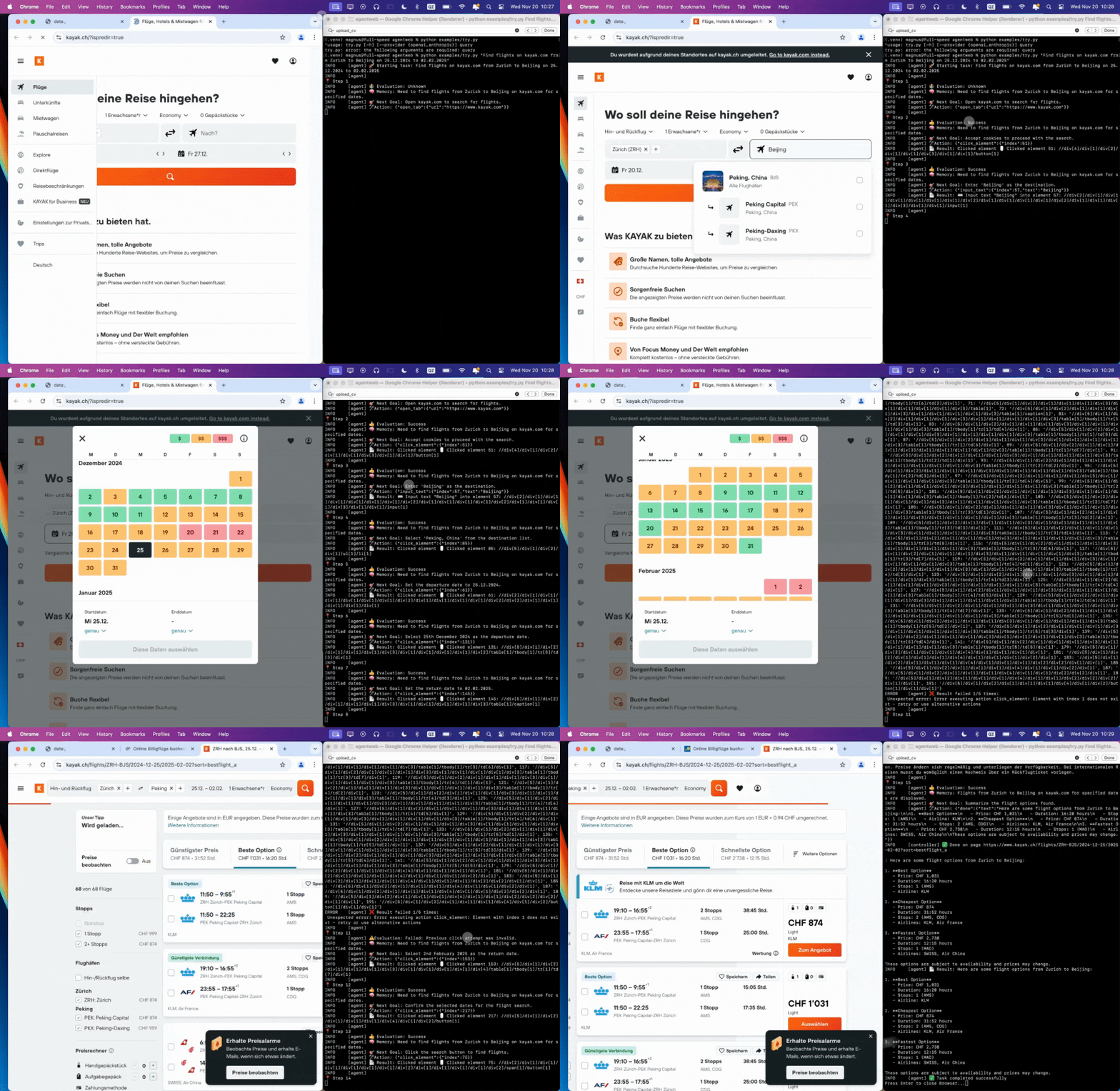
Prompt: Find flights on kayak.com from Zurich to Beijing from 25.12.2024 to 02.02.2025.
Prompt: Look up models with a license of cc-by-sa-4.0 and sort by most likes on Hugging face, save top 5 to file.
https://github.com/user-attachments/assets/de73ee39-432c-4b97-b4e8-939fd7f323b3
Features ⭐
- Vision + html extraction
- Automatic multi-tab management
- Extract clicked elements XPaths and repeat exact LLM actions
- Add custom actions (e.g. save to file, push to database, notify me, get human input)
- Self-correcting
- Use any LLM supported by LangChain (e.g. gpt4o, gpt4o mini, claude 3.5 sonnet, llama 3.1 405b, etc.)
- Parallelize as many agents as you want
Register custom actions
If you want to add custom actions your agent can take, you can register them like this:
You can use BOTH sync or async functions.
from browser_use.agent.service import Agent
from browser_use.browser.service import Browser
from browser_use.controller.service import Controller

# Initialize controller first
controller = Controller()

@controller.action('Ask user for information')
def ask_human(question: str, display_question: bool) -> str:
	return input(f'\n{question}\nInput: ')
Or define your parameters using Pydantic
class JobDetails(BaseModel):
  title: str
  company: str
  job_link: str
  salary: Optional[str] = None

@controller.action('Save job details which you found on page', param_model=JobDetails, requires_browser=True)
async def save_job(params: JobDetails, browser: Browser):
	print(params)

  # use the browser normally
  page = browser.get_current_page()
	page.go_to(params.job_link)
and then run your agent:
model = ChatAnthropic(model_name='claude-3-5-sonnet-20240620', timeout=25, stop=None, temperature=0.3)
agent = Agent(task=task, llm=model, controller=controller)

await agent.run()
Parallelize agents
In 99% cases you should use 1 Browser instance and parallelize the agents with 1 context per agent. You can also reuse the context after the agent finishes.
browser = Browser()
for i in range(10):
    # This create a new context and automatically closes it after the agent finishes (with `__aexit__`)
    async with browser.new_context() as context:
        agent = Agent(task=f"Task {i}", llm=model, browser_context=context)

        # ... reuse context
If you would like to learn more about how this works under the hood you can learn more at playwright browser-context.
Context vs Browser
If you don't specify a browser or browser_context the agent will create a new browser instance and context.
Get XPath history
To get the entire history of everything the agent has done, you can use the output of the run method:
history: list[AgentHistory] = await agent.run()

print(history)
Browser configuration
You can configure the browser using the BrowserConfig and BrowserContextConfig classes.
The most important options are:
headless: Whether to run the browser in headless modekeep_open: Whether to keep the browser open after the script finishesdisable_security: Whether to disable browser security features (very useful if dealing with cross-origin requests like iFrames)cookies_file: Path to a cookies file for persistenceminimum_wait_page_load_time: Minimum time to wait before getting the page state for the LLM inputwait_for_network_idle_page_load_time: Time to wait for network requests to finish before getting the page statemaximum_wait_page_load_time: Maximum time to wait for the page to load before proceeding anyway
More examples
For more examples see the examples folder or join the Discord and show off your project.
Telemetry
We collect anonymous usage data to help us understand how the library is being used and to identify potential issues. There is no privacy risk, as no personal information is collected. We collect data with PostHog.
You can opt out of telemetry by setting the ANONYMIZED_TELEMETRY=false environment variable.
Contributing
Contributions are welcome! Feel free to open issues for bugs or feature requests.
Local Setup
- Create a virtual environment and install dependencies:
# To install all dependencies including dev
pip install . ."[dev]"
- Add your API keys to the
.envfile:
cp .env.example .env
or copy the following to your .env file:
OPENAI_API_KEY=
ANTHROPIC_API_KEY=
You can use any LLM model supported by LangChain by adding the appropriate environment variables. See langchain models for available options.
Building the package
hatch build
Feel free to join the Discord for discussions and support.
Made with ❤️ by the Browser-Use team
1 maintainer

Metadata
1 maintainer
Release files for browser-use-akimoto 1.0.1
For a detailed explanation of source distributions (sdists) and built distributions (wheels), please see the package formats documentation.
Source distribution (sdist)
| File | Size | Uploaded | |
|---|---|---|---|
| browser_use_akimoto-1.0.1.tar.gz | 241.6 kB | Details |
Built distribution (wheel)
| File | Interpreter | ABI | Platform | Reset |
|---|---|---|---|---|
| browser_use_akimoto-1.0.1-py3-none-any.whl | Python 3 | none | any | Details |
Total release size: 308.9 kB
Release files / browser_use_akimoto-1.0.1.tar.gz
| Download URL | browser_use_akimoto-1.0.1.tar.gz |
|---|---|
| Size | 241.6 kB |
| Tags | Source |
|
SHA-256 checksum How to use checksums |
51408c63695e3538879d510868de5031fead9bc8516a7c88ca128ac72136c062
|
|
BLAKE2b-256 checksum How to use checksums |
d7ef99bf8eac71a1c4223c61f518634c6d80dfa9b26653135d30f49fbff5cf77
|
| Upload date | |
|
Uploaded using Trusted Publishing? What is trusted publishing? |
No |
| Uploaded via |
twine/6.0.1 CPython/3.11.11
|
Release files / browser_use_akimoto-1.0.1-py3-none-any.whl
| Download URL | browser_use_akimoto-1.0.1-py3-none-any.whl |
|---|---|
| Size | 67.3 kB |
| Tags | Python 3 |
|
SHA-256 checksum How to use checksums |
b464bb0c209141c881e1cf8ca556a9317831d5be8a3bde4fe5bd06b487cadaed
|
|
BLAKE2b-256 checksum How to use checksums |
9f405afaaa5328efffff137436ce0fd7e5d89b4d938fa78d045784d74217622d
|
| Upload date | |
|
Uploaded using Trusted Publishing? What is trusted publishing? |
No |
| Uploaded via |
twine/6.0.1 CPython/3.11.11
|














