
CACTUS Client
This is a set of tools for evaluating CSIP-Aus server test procedures defined at CACTUS Test Definitions.
Development
pip install -e .[dev,test]
Quickstart
Installing
CACTUS requires Python 3.12+
Install the latest version from pypi with:
pip install cactus-client
If you're looking to update to the latest version:
pip install --upgrade cactus-client
To ensure it's installed properly
cactus --help
Working Directory Configuration
CACTUS requires two things:
- A configuration file - stored either in your home directory or elsewhere (will be created below).
- A working directory - Where all run outputs will be stored.
Portable Installation
If you're trying to keep CACTUS to a single working directory (and want all of your CACTUS operations to run out of that working directory):
- Create a new empty directory (eg
mkdir cactus-wd) cd cactus-wdcactus setup -l .
Please note - all CACTUS commands will now require you to operate out of the ./cactus-wd/ directory
cd cactus-wdcactus server
Global Installation
If you'd like your CACTUS commands to work from any directory (but still have the results all stored in the working directory):
- Create a new empty directory (eg
mkdir cactus-wd) cactus setup -g cactus-wdcactus server
Client/Server Config
Setup the server connections details (dcap refers to your DeviceCapability URI)
cactus server dcap https://your.server/dcapcactus server verify truecactus server serca path/to/serca.pemcactus server notification https://cactus.cecs.anu.edu.au/client-notifications/- Please note - this will utilise the shared, ANU hosted client-notifications service
- If you wish to self host - please see client-notifications
Setup your first client - You will be prompted to populate each field (like below)
cactus client myclient1You should see output like the following
Would you like to create a new client with id 'myclient1' [y/n]: y
What sort of client will this act as? [device/aggregator]: device
File path to PEM encoded client certificate: ./testdevice.crt
File path to PEM encoded client key: ./testdevice.key.decrypt
Auto calculate lfdi/sfdi from certificate? [y/n]: y
lfdi=0F3078CFDDAEE28DC20B95635DC116CC2A6D877F
sfdi=40773583337
Client Private Enterprise Number (PEN) (used for mrid generation): 12345
Client PIN (used for matching EndDevice.Registration): 111115
The DERSetting.setMaxW and DERCapability.rtgMaxW value to use (in Watts): 5000
.cactus.yaml has been updated with a new client.
                         myclient1
┏━━━━━━━━━━━━━━━━━━┳━━━━━━━━━━━━━━━━━━━━━━━━━━━━━━━━━━━━━━━━━━━━━━━┓
┃ key              ┃ value                                         ┃
┡━━━━━━━━━━━━━━━━━━╇━━━━━━━━━━━━━━━━━━━━━━━━━━━━━━━━━━━━━━━━━━━━━━━┩
│ type             │ device                                        │
│ certificate_file │ ./testdevice.crt ✓                            │
│ key_file         │ ./testdevice.key.decrypt ✓                    │
│ lfdi             │ 0F3078CFDDAEE28DC20B95635DC116CC2A6D877F      │
│ sfdi             │ 40773583337                                   │
│ max_watts        │ 5000                                          │
│ pen              │ 123455                                        │
│ pin              │ 111115                                        │
│ user_agent       │ null                                          │
└──────────────────┴───────────────────────────────────────────────┘
To update individual client settings (eg to add a User-Agent header to requests) just specify the parameter to update and new value:
cactus client myclient1 user_agent "cactus client myclient1"
Discovering available tests
The command cactus tests will print out all available test cases...
                                                     Available Test Procedures
┏━━━━━━━━━━┳━━━━━━━━━━━━━━┳━━━━━━━━━━━━━━━━━━━━━━━━━━━━━━━━━━━━━━━━━━━━━━━━━━━━━━━━━━━━┳━━━━━━━━━━━━━━━━━━━━━━━━━━━━━━━━━━━━━━━━━━┓
┃ Id       ┃ Category     ┃ Description                                                ┃ Required Clients                         ┃
┡━━━━━━━━━━╇━━━━━━━━━━━━━━╇━━━━━━━━━━━━━━━━━━━━━━━━━━━━━━━━━━━━━━━━━━━━━━━━━━━━━━━━━━━━╇━━━━━━━━━━━━━━━━━━━━━━━━━━━━━━━━━━━━━━━━━━┩
│ S-ALL-01 │ Registration │ Discovery with Out-Of-Band registration                    │ 1 client(s) with type(s): any            │
│ S-ALL-02 │ Registration │ Discovery with In-Band Registration for Direct Clients     │ 1 client(s) with type(s): device         │
...
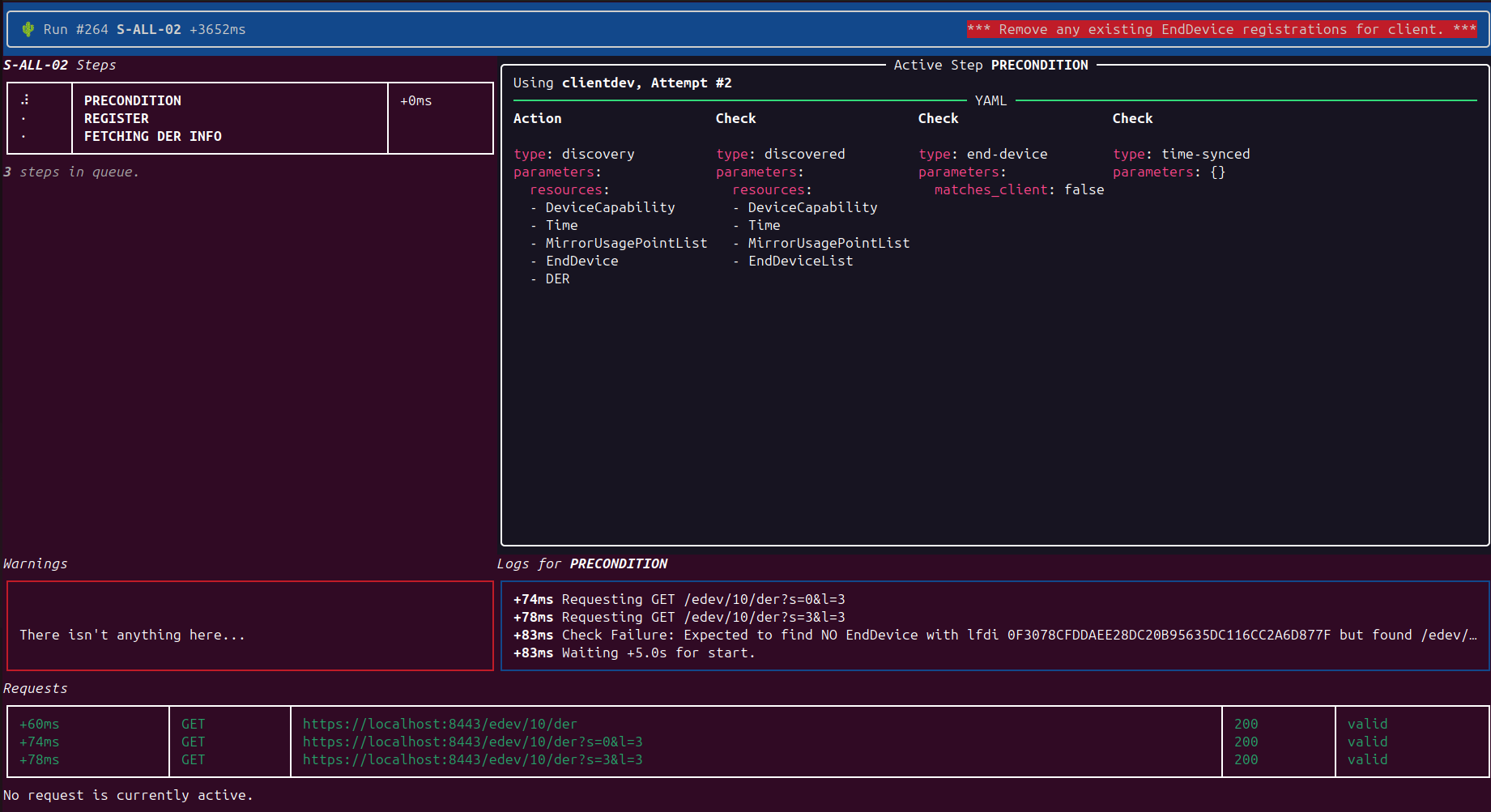
Running your first test
The following command will run the S-ALL-01 test with the client you created earlier:
cactus run S-ALL-01 myclient1
cactus run options
| Flag | Description |
|---|---|
--headless |
Disable the terminal UI — logs are written to stderr instead. Useful for CI/scripted environments. |
--timeout SECONDS |
Abort and fail the test if it exceeds this many seconds. |
--strict |
Treat warnings as failures. The test will be marked FAIL if any warnings were emitted, even if all steps passed. |
--allow-skips |
Permit admin plugins to waive individual steps that can't be set up in this environment (see Admin plugins). A run that only passed because of a waived step is reported as PASS*, not a clean pass. |
-c PATH |
Override the config file location (defaults to ./.cactus.yaml then ~/.cactus.yaml). |
Running all tests automatically
cactus autorun runs all (or a selected subset of) test procedures sequentially, assigning configured clients to each test automatically. It stops at the first failure.
cactus autorun
cactus autorun --include S-ALL-01 S-ALL-02
cactus autorun --include-file my-tests.txt --exclude S-DER-09
cactus autorun --strict --headless --timeout 120
cactus autorun options
| Flag | Description |
|---|---|
--include ID [ID ...] |
Only run these test procedure IDs (in the order given). |
--include-file PATH |
Path to a text file listing test IDs to run, one per line (# lines are treated as comments). Merged with --include. |
--exclude ID [ID ...] |
Skip these test procedure IDs. Applied after --include/--include-file. |
--timeout SECONDS |
Per-test timeout in seconds. A test that times out is marked as failed and the run stops. |
--strict |
Treat warnings as failures for every test in the run. |
--allow-skips |
Permit admin plugins to waive individual steps for every test in the run. Overrides runner.allow_skips from config. |
--headless |
Disable the terminal UI for all tests. |
--quiet |
Only print the full result panel for failed tests — passed tests still get their per-test HTML report, just not the console panel. Useful for large suites where dozens of passed-test panels bury the failures. |
-c PATH |
Override the config file location. |
Persistent autorun config
All autorun options (except --headless and -c) can be stored in .cactus.yaml under the runner key so you don't need to pass them on every invocation. CLI flags always take precedence over the file.
runner:
  include: []          # list of test IDs to include (empty = all)
  include_file: null   # path to an include-file
  exclude: []          # list of test IDs to skip
  timeout: null        # per-test timeout in seconds
  strict: false        # treat warnings as failures
  allow_skips: false   # permit admin plugins to waive individual steps
  quiet: false          # only show the result panel for failed tests
Viewing the compliance report
After running tests, print a summary of the latest result for each test procedure:
cactus report
This scans the configured output_dir and shows a table of every test procedure with its most recent PASS/FAIL result and timestamp. The same report is printed automatically at the end of cactus autorun.
Admin plugins
Some test procedures include admin_instruction steps — directives for an out-of-band admin agent to perform setup on the server under test (e.g. registering end devices, issuing DER controls). These are handled by plugins loaded at runtime.
Plugins are built using apluggy, a simple async wrapper around pytest's pluggy. See plugins.py for the hookspecs your plugin can implement:
| Hook | When called |
|---|---|
admin_setup |
Once before any test steps run |
admin_teardown |
Once after all steps complete (or on failure) — always runs |
admin_instruction |
Once per admin instruction, before the first attempt of the owning step |
Plugins are discovered automatically via setuptools entry points — no code changes to cactus-client required:
# pyproject.toml
[project.entry-points."cactus_client.admin"]
my-plugin = "my_package.plugin:MyServerPlugin"
Install your plugin alongside cactus-client (pip install -e .) and it will be loaded on next invocation.
Waiving steps your plugin can't set up: You may want to skip certain test steps based on different server use cases
(difficulty with state in certain environments like CI/CD). If admin_instruction returns
ActionResult.skip_step("reason"), the step's action still runs, but its pass/fail judgement is waived — provided the
run was started with --allow-skips / runner.allow_skips. Without that flag, a requested skip is treated as a normal
step failure. A run containing waived steps is reported as PASS*, and the reason strings are recorded in .skips in
the run's output directory. See the admin_instruction hookspec docstring in
plugins.py for the full contract, including why skipping only makes sense on
terminal/leaf steps.
Runs with --allow-skips set will not be considered suitable for compliance testing.
Reference implementation: cactus-client-envoy is a full worked example — it implements all three hooks against a local Envoy CSIP-Aus server via direct database access, and includes setup scripts and a complete quickstart guide.
2 maintainers


Download files
Download the file for your platform. If you're not sure which to choose, learn more about installing packages.
Source Distribution
Built Distribution
Filter files by name, interpreter, ABI, and platform.
If you're not sure about the file name format, learn more about wheel file names.
Copy a direct link to the current filters
File details
Details for the file cactus_client-1.2.0.tar.gz.
File metadata
- Download URL: cactus_client-1.2.0.tar.gz
- Upload date:
- Size: 151.1 kB
- Tags: Source
- Uploaded using Trusted Publishing? No
- Uploaded via:
twine/7.0.0 CPython/3.13.13
File hashes
| Algorithm | Hash digest | |
|---|---|---|
| SHA256 |
8dc655ffe8bf7b7c56dfa73a55073c516aef1a3dbcba24c141763640601bb681
|
|
| MD5 |
811608fec57d2fbd6defa600ba04bf1e
|
|
| BLAKE2b-256 |
e6a5aa3bf7a01b2a063113a3585a7ea41e6e928b4dd597fcfdca830af7c8f8b1
|
File details
Details for the file cactus_client-1.2.0-py3-none-any.whl.
File metadata
- Download URL: cactus_client-1.2.0-py3-none-any.whl
- Upload date:
- Size: 177.1 kB
- Tags: Python 3
- Uploaded using Trusted Publishing? No
- Uploaded via:
twine/7.0.0 CPython/3.13.13
File hashes
| Algorithm | Hash digest | |
|---|---|---|
| SHA256 |
eeea87038be4c1b4958e8920e30cd1a4dbec2eac789e278964e151ce2f88907d
|
|
| MD5 |
f5333f4728ae08d822418388b8c5b7a5
|
|
| BLAKE2b-256 |
7a94f4f95a2fa44ad819f1c002fc7f11ba7aa951134111051fe178b8f8d54cff
|














