
Calendar Widget for use with python tkinter
INSTALLATION
Install the calendar widget using the following commands
pip install calendar_widget
USAGE
First, Import the calendar widget along with tkinter
import tkinter
from calendar_widget import Calendar
Define the tkinter window into which the widget will be placed. EXAMPLE:
root = tkinter.Tk()
root.geometry('600x600')
The Calendar Widget can then be created as follows:
Calendar = Calendar(root)
To pass a command to the Calendar, specify the command option when it is created
Calendar = Calendar(root, command=user_command, ...)
To retrieve a selected date on the calendar, use the getdate() command:
Calendar.getdate()
To retrieve the current date as specified by the operating system, use the getdate_today() command:
Calendar.getdate_today()
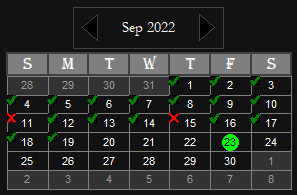
To create a checkbox on the calendar, the command is as follows:
checkbox = Calendar.checkboxes(10, 10, 2022, status=True, ...)

#to remove a chcekbox that has already been created specify the delete option as follows:

Calendar.checkboxes(10, 10, 2022, delete=True)
To destroy the calendar widget, call the destroy method:
Calendar.destroy()
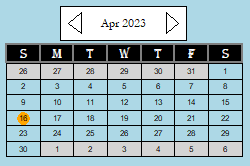
Example 1 - Basic Setup
# import tkinter and the calendar widget
import tkinter
from calendar_widget import Calendar

# define the main window into which the widget will be placed
root = tkinter.Tk()
root.geometry('600x600')  # the geometry function defines the size of the tkinter window
                          # - in this case, we are using a window that is 600px by 600px

# create the calendar widget
Calendar = Calendar(root, # specify the tkinter window into which the widget will be placed
	pos_x = 0, # set the x position of the calendar widget within the tkinter window
	pos_y = 0, # set the y position of the calendar widget within the tkinter window
	background = 'lightblue', # set the background of the calendar to light blue
	)

# Note: images of the type 'png', 'gif', 'ppm', and 'pgm' can be set as the background.
# However, these images will not scale with the size of the calendar.

# remember to call your mainloop function so that the tkinter window is persistent
root.mainloop()
Note: if no 'pos_x' or 'pos_y' parameters are given, the Calendar widget will default to using the standard pack function.
Example 2 - Binding a command to the calendar
# the 'Calendar_Click' function retrives the date selected on the Calendar by the user, and prints the date to the console
def Calendar_Click():
	print(Calendar.getdate())

# create the calendar widget
Calendar = Calendar(root,
	pos_x = 0,
	pos_y = 0,
	background = 'lightblue',
	command = Calendar_Click  # link the 'Calendar_Click' function to the widget
	)
Note: Only a single command can be linked to the calendar widget.
Widget Parameters - functionality and styling
The table below specifies opitons availiable for styling and other operations associated with the calendar widget
| options | description |
|---|---|
| width= | Sets the width of the widget in pixels. The default width is 300px. Example: Calendar = Calendar(root, width=350) |
| height= | Sets the height of the widget in pixels. The default height is 200px. Example: Calendar = Calendar(root, height=200) |
| padding= | Sets the internal padding of the calendar widget. The default padding is set to 10px. Example: Calendar = Calendar(root, padding=15) |
| pos_x= | Sets the x coordinate position of the widget within the window. Note: In tkinter, this is always the top left corner. Example: Calendar = Calendar(root, pos_x=0) |
| pos_y= | Sets the y coordinate position of the widget within the window. Note: In tkinter, this is always the top left corner. Example: Calendar = Calendar(root, pos_y=0) |
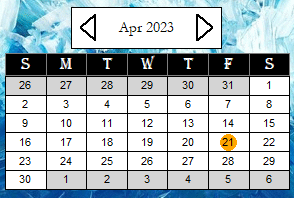
| style= | Set the style="Dark" for the dark theme. If no styling is specified the Calendar will inherit its default white theme. Example: Calendar = Calendar(root, style='Dark') |
| command= | A function to be called when the widget is clicked. Example: Calendar = Calendar(root, command=my_function) |
| background= | Sets the background of the Calendar to a valid tkinter colour or image (png, gif, ppm, pgm). Example: Calendar = Calendar(root, background='sky.png') |
| img_pos_x= | Set the x coordinate of the background image if specified (by default, this is the top left corner). Example: Calendar = Calendar(root, background='sky.png', img_pos_x=0) |
| img_pos_y= | Set the y coordinate of the background image if specified (by default, this is the top left corner). Example: Calendar = Calendar(root, background='sky.png', img_pos_y=0) |
| img_anchor= | Set the anchor of the background image if specified (by default, this is set to 'nw' - the top left corner). Example: Calendar = Calendar(root, background='sky.png', img_pos_x=0, img_pos_y=0, img_anchor='ne') |
| arrow_box_border= | Sets the border colour of the box containing the arrows for selecting previous and following months. Example: Calendar = Calendar(root, arrow_box_border='blue') |
| arrow_box_fill= | Sets the background of the box containing the arrows for selecting previous and following months. Example: Calendar = Calendar(root, arrow_box_fill='red') |
| arrow_box_width= | Sets the line width of the box containing the arrows for selecting previous and following months. Example: Calendar = Calendar(root, arrow_box_width=3) |
| date_box_fill= | Sets the colour inside of the boxes that make up the monthly calendar grid. Example: Calendar = Calendar(root, date_box_fill='purple') |
| date_box_width= | Sets the width of the line used to create the grid for the monthly calendar. Example: Calendar = Calendar(root, date_box_width=5) |
| date_boxes_outline= | Sets the colour of the box outline for the boxes that make up the monthly claendar grid. Example: Calendar = Calendar(root, date_boxes_outline='lime') |
| arrow_outline= | Sets the colour for the outline of the polygon (i.e - triangle) that represents the calendar arrows. Example: Calendar = Calendar(root, arrow_outline='lightblue') |
| arrow_fill= | Sets the colour of the calendar arrows. Example: Calendar = Calendar(root, arrow_fill='navy') |
| arrow_thickness= | Sets the thickness of the calendar arrows. Example: Calendar = Calendar(root, arrow_thickness=5) |
| arrow_active= | Sets the colour for the active highlight when the mouse hovers over the calendar arrows. Example: Calendar = Calendar(root, arrow_active='magenta') |
| weekday_border= | Sets the colour for the outline of the boxes that hold the weekday headings. Example: Calendar = Calendar(root, weekday_border='blue') |
| weekday_fill= | Sets the colour for the background of the boxes that hold the weekday headings. Example: Calendar = Calendar(root, weekday_fill='gray') |
| weekday_width= | Sets the width of the boxes that hold the weekday headings. Example: Calendar = Calendar(root, weekday_width=3) |
| weekday_font_fill= | Sets the colour of the text associated with the weekday headings. Example: Calendar = Calendar(root, weekday_font_fill='red') |
| weekday_font_family= | Sets the type of font used to create the weekday headings. (Accepts any of the valid native tkinter fonts). Example: Calendar = Calendar(root, weekday_font_family='Georgia') |
| weekday_font_weight= | Sets the weight of the font used to create the weekday headings. Valid options are 'normal' or 'bold'. Example: Calendar = Calendar(root, weekday_font_family='bold') |
| weekday_font_slant= | Sets the slant of the font used to create the weekday headings. Valid options are 'roman' or 'italic'. Example: Calendar = Calendar(root, weekday_font_slant='italic') |
| weekday_font_underline= | Sets the underline of the font used to creates the weekday heading. Valid options are True or False. Example: Calendar = Calendar(root, weekday_font_underline=True) |
| weekday_font_size= | Sets the font size of the weekday headings. Note: this overrides the default size and scaling of the font. Example: Calendar = Calendar(root, weekday_font_size=10) |
| calendar_date_title= | Sets the colour of the text associated with the calendar title (ex: Aug 2020). Example: Calendar = Calendar(root, calendar_date_title='red') |
| date_heading_font_family= | Sets the font type for the Calendar date heading. (Accepts any of the valid native tkinter fonts). Example: Calendar = Calendar(root, date_heading_font_family='Helvetica') |
| date_heading_font_weight= | Sets the weight of the font used to create the Calendar date heading. Valid options are 'normal' or 'bold'. Example: Calendar = Calendar(root, date_heading_font_weight='bold') |
| date_heading_font_slant= | Sets the slant of the font used to create the Calendar date heading. Valid options are 'roman' or 'italic'. Example: Calendar = Calendar(root, date_heading_font_slant='italic') |
| date_heading_font_underline= | Sets the underline of the font used to create the Calendar date heading. Valid options are True or False. Example: Calendar = Calendar(root, date_heading_font_underline=True) |
| date_heading_font_size= | Sets the font size used to create the Calendar heading. Note: This overrides the default size and scaling of the font. Example: Calendar = Calendar(root, date_heading_font_size=15) |
| date_text_fill= | Sets the colour of the text numbers associated with the month dates. Example: Calendar = Calendar(root, date_text_fill='green') |
| date_text_font_family= | Sets the font type used to create the month dates. (Accepts any of the valid native tkinter fonts). Example: Calendar = Calendar(root, date_text_font_family='Georgia') |
| date_text_font_weight= | Sets the weight of the font used to create the month dates. Valid options are 'normal' or 'bold'. Example: Calendar = Calendar(root, date_text_font_weight='bold') |
| date_text_font_slant= | Sets the slant of the font used to create the month dates. Valid options are 'roman' or 'italic'. Example: Calendar = Calendar(root, date_text_font_slant='italic') |
| date_text_font_underline= | Sets the underline of the font used to create the month dates. Valid options are True or False. Example: Calendar = Calendar(root, date_text_font_underline=True) |
| date_text_font_size= | Sets the font size of the dates on the Calendar month grid. Note: this overrides the default size and scaling of the font. Example: Calendar = Calendar(root, date_text_font_size=10) |
| trail_box_fill= | Sets the colour of the background of the date boxes that trail into the previous and following months. Example: Calendar = Calendar(root, trail_box_fill='lime') |
| trail_text_fill= | Sets the colour of the text numbers associated with the trailing date boxes. Example: Calendar = Calendar(root, trail_text_fill='blue') |
| current_date_highlight= | Toggles the current date highlight on/off. This parameter accepts a True or False value. Example: Calendar = Calendar(root, current_date_highlight=False) |
| date_highlight= | Sets the colour of the permanent date highlight associated with the current date retrieved from the OS. Example: Calendar = Calendar(root, date_highlight='red') |
| text_highlight_fill= | Sets the colour of the text associated with the permanent date highlight. Example: Calendar = Calendar(root, text_highlight_fill='pink') |
| user_highlight_colour= | Sets the colour of the highlight that is created when the user clicks on a month date. Example: Calendar = Calendar(root, user_highlight_colour='magenta') |
| user_highlight_text= | Sets the colour of the text associated with the user highlight. Example: Calendar = Calendar(root, user_highlight_text='blue') |
1 maintainer

Metadata
1 maintainer
Release files for calendar-widget 1.0.11
For a detailed explanation of source distributions (sdists) and built distributions (wheels), please see the package formats documentation.
Source distribution (sdist)
| File | Size | Uploaded | |
|---|---|---|---|
| calendar_widget-1.0.11.tar.gz | 208.4 kB | Details |
Built distribution (wheel)
| File | Interpreter | ABI | Platform | Reset |
|---|---|---|---|---|
| calendar_widget-1.0.11-py3-none-any.whl | Python 3 | none | any | Details |
Total release size: 296.9 kB
Release files / calendar_widget-1.0.11.tar.gz
| Download URL | calendar_widget-1.0.11.tar.gz |
|---|---|
| Size | 208.4 kB |
| Tags | Source |
|
SHA-256 checksum How to use checksums |
352afb63e146440a5c0e7840fc5269ee80d29c24c8a747e370ac7e625075f4af
|
|
BLAKE2b-256 checksum How to use checksums |
0ff05c4d646dafd6109ac65c826e0b11a8afad86581fbd0020567524816ca15e
|
| Upload date | |
|
Uploaded using Trusted Publishing? What is trusted publishing? |
No |
| Uploaded via |
twine/5.1.0 CPython/3.12.3
|
Release files / calendar_widget-1.0.11-py3-none-any.whl
| Download URL | calendar_widget-1.0.11-py3-none-any.whl |
|---|---|
| Size | 88.5 kB |
| Tags | Python 3 |
|
SHA-256 checksum How to use checksums |
cda2ffe64fa0d1b959201cc75d53c12ed149a398d5fda68a4a7c99ae4ecbdcb9
|
|
BLAKE2b-256 checksum How to use checksums |
15f40ac3f637a8980a9cddf37ef245d8c1221878613bc6ee1ed004e790ca60fe
|
| Upload date | |
|
Uploaded using Trusted Publishing? What is trusted publishing? |
No |
| Uploaded via |
twine/5.1.0 CPython/3.12.3
|














