
CamTools: Camera Tools for Computer Vision.

Project description

CamTools: Camera Tools for Computer Vision
Docs | Repo | Installation





CamTools is a collection of tools for handling cameras in computer vision. It can be used for plotting, converting, projecting, ray casting, and doing more with camera parameters. It follows the standard camera coordinate system with clear and easy-to-use APIs.
What can you do with CamTools?
-
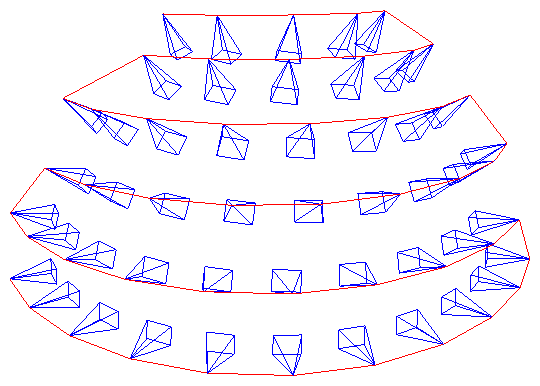
Plot cameras. Useful for debugging 3D reconstruction and NeRFs!
import camtools as ct
import open3d as o3d
cameras = ct.camera.create_camera_frustums(Ks, Ts)
o3d.visualization.draw_geometries([cameras])
-
Convert camera parameters.
pose = ct.convert.T_to_pose(T)     # Convert T to pose
T    = ct.convert.pose_to_T(pose)  # Convert pose to T
R, t = ct.convert.T_to_R_t(T)      # Convert T to R and t
C    = ct.convert.pose_to_C(pose)  # Convert pose to camera center
K, T = ct.convert.P_to_K_T(P)      # Decompose projection matrix P to K and T
                                   # And more...
-
Projection and ray casting.
# Project 3D points to pixels.
pixels = ct.project.points_to_pixel(points, K, T)

# Back-project depth image to 3D points.
points = ct.project.im_depth_to_points(im_depth, K, T)

# Ray cast a triangle mesh to depth image given the camera parameters.
im_depth = ct.raycast.mesh_to_im_depth(mesh, K, T, height, width)

# And more...
-
Image and depth I/O with no surprises.
Strict type checks and range checks are enforced. The image and depth I/O APIs are specifically designed to solve the following pain points:
- Is my image of type
float32oruint8? - Does it have range
[0, 1]or[0, 255]? - Is it RGB or BGR?
- Does my image have an alpha channel?
- When saving depth image as integer-based
.png, is it correctly scaled?
ct.io.imread()
ct.io.imwrite()
ct.io.imread_detph()
ct.io.imwrite_depth()
- Is my image of type
-
Command-line tools
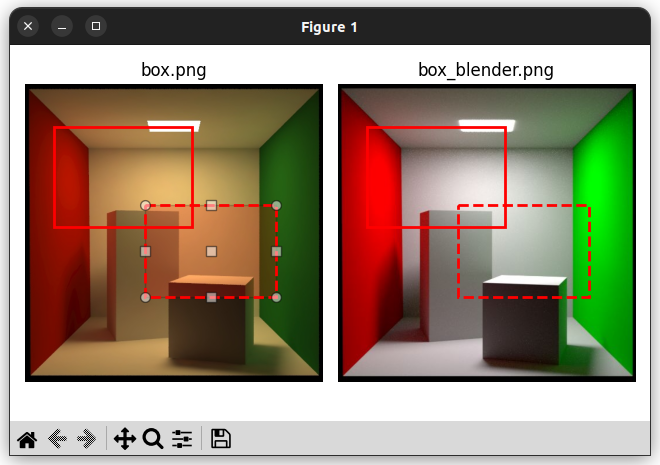
ct(runs in terminal).# Crop image borders. ct crop-borders *.png --pad_pixel 10 --skip_cropped --same_crop # Draw synchronized bounding boxes interactively. ct draw-bboxes path/to/a.png path/to/b.png # For more command-line tools. ct --help
-
And more.
- Solve line intersections.
- COLMAP tools.
- Points normalization.
- ...
Installation
To install CamTools, simply do:
pip install camtools
Alternatively, you can install CamTools from source with one of the following methods:
git clone https://github.com/yxlao/camtools.git
cd camtools

# Installation mode, if you want to use camtools only.
pip install .

# Editable mode, if you want to modify camtools on the fly.
pip install -e .

# Editable mode and dev dependencies.
pip install -e .[dev]

# Help VSCode resolve imports when installed with editable mode.
# https://stackoverflow.com/a/76897706/1255535
pip install -e .[dev] --config-settings editable_mode=strict

# Enable torch-related features (e.g. computing image metrics)
pip install camtools[torch]

# Enable torch-related features in editable mode
pip install -e .[torch]
Camera coordinate system
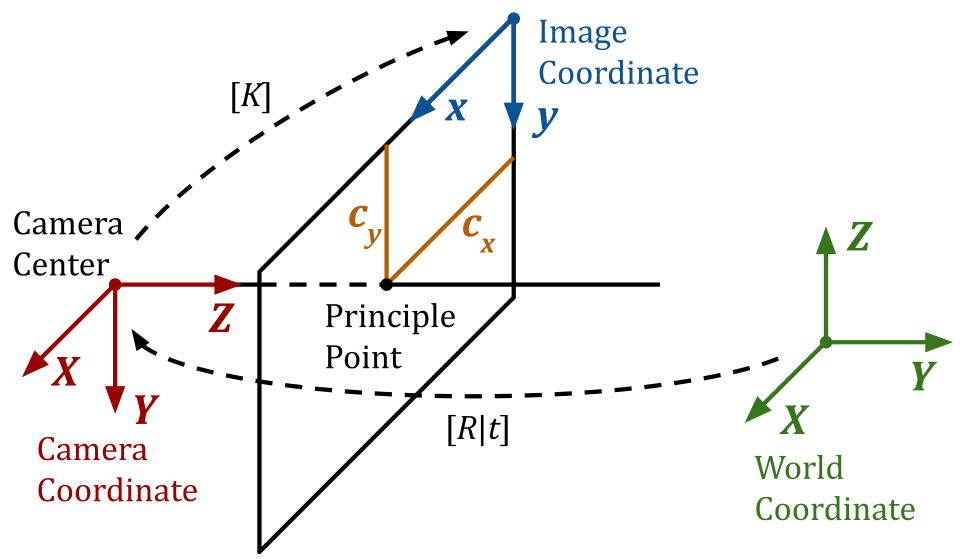
A homogeneous point [X, Y, Z, 1] in the world coordinate can be projected to a
homogeneous point [x, y, 1] in the image (pixel) coordinate using the
following equation:
$$ \lambda \left[\begin{array}{l} x \ y \ 1 \end{array}\right]=\left[\begin{array}{ccc} f_{x} & 0 & c_{x} \ 0 & f_{y} & c_{y} \ 0 & 0 & 1 \end{array}\right]\left[\begin{array}{llll} R_{00} & R_{01} & R_{02} & t_{0} \ R_{10} & R_{11} & R_{12} & t_{1} \ R_{20} & R_{21} & R_{22} & t_{2} \end{array}\right]\left[\begin{array}{c} X \ Y \ Z \ 1 \end{array}\right]. $$
We follow the standard OpenCV-style camera coordinate system as illustrated at the beginning of the README.
- Camera Coordinates: right-handed, with $Z$ pointing away from the camera
towards the view direction and $Y$ axis pointing down. Note that the OpenCV
convention (camtools' default) is different from the OpenGL/Blender
convention, where $Z$ points towards the opposite view direction, $Y$ points
up and $X$ points right. To convert between the OpenCV camera coordinates and
the OpenGL-style coordinates, use the conversion functions:
ct.convert.T_opencv_to_opengl()ct.convert.T_opengl_to_opencv()ct.convert.pose_opencv_to_opengl()ct.convert.pose_opengl_to_opencv()
- Image Coordinates: starts from the top-left corner of the image, with $x$
pointing right (corresponding to the image width) and $y$ pointing down
(corresponding to the image height). This is consistent with OpenCV. Pay
attention that the 0th dimension in the image array is the height (i.e., $y$)
and the 1st dimension is the width (i.e., $x$). That is:
- $x$ <=> $u$ <=> width <=> column <=> the 1st dimension
- $y$ <=> $v$ <=> height <=> row <=> the 0th dimension
K:(3, 3)camera intrinsic.K = [[fx, s, cx], [ 0, fy, cy], [ 0, 0, 1]]
TorW2C:(4, 4)camera extrinsic.T = [[R | t = [[R00, R01, R02, t0], 0 | 1]] [R10, R11, R12, t1], [R20, R21, R22, t2], [ 0, 0, 0, 1]]
Tis also known as the world-to-cameraW2Cmatrix, which transforms a point in the world coordinate to the camera coordinate.T's shape is(4, 4), not(3, 4).Tis the inverse ofpose, i.e.,np.linalg.inv(T) == pose.- The camera center
Cin world coordinate is projected to[0, 0, 0, 1]in camera coordinate.
R:(3, 3)rotation matrix.R = T[:3, :3]
Ris a rotation matrix. It is an orthogonal matrix with determinant 1, as rotations preserve volume and orientation.R.T == np.linalg.inv(R)np.linalg.norm(R @ x) == np.linalg.norm(x), wherexis a(3,)vector.
t:(3,)translation vector.t = T[:3, 3]
t's shape is(3,), not(3, 1).
poseorC2W:(4, 4)camera pose. It is the inverse ofT.poseis also known as the camera-to-worldC2Wmatrix, which transforms a point in the camera coordinate to the world coordinate.poseis the inverse ofT, i.e.,pose == np.linalg.inv(T).
C: camera center.C = pose[:3, 3]
C's shape is(3,), not(3, 1).Cis the camera center in world coordinate. It is also the translation vector ofpose.
P:(3, 4)the camera projection matrix.Pis the world-to-pixel projection matrix, which projects a point in the homogeneous world coordinate to the homogeneous pixel coordinate.Pis the product of the intrinsic and extrinsic parameters.# P = K @ [R | t] P = K @ np.hstack([R, t[:, None]])
P's shape is(3, 4), not(4, 4).- It is possible to decompose
Pinto intrinsic and extrinsic matrices by QR decomposition. - Don't confuse
Pwithpose. Don't confusePwithT.
- For more details, please refer to the following blog posts: part 1, part 2, and part 3.
Building Documentation
To build and view the documentation locally:
# Install documentation dependencies
pip install -e .[docs]

# Build the documentation
make -C docs clean && make -C docs html

# (Optional) Build the documentation with warnings as errors
make -C docs clean && make -C docs html SPHINXOPTS="-W --keep-going"

# Start a local server to view the documentation
python -m http.server 8000 --directory docs/_build/html
Then open your browser and navigate to http://localhost:8000 to view the documentation.
The documentation is also automatically built by GitHub Actions on pull requests and pushes to main. After merging to main, you can view:
- Public documentation at https://camtools.readthedocs.io/en/latest/
- Admin panel at https://app.readthedocs.org/projects/camtools/
Contributing
- Follow Angular's commit message convention for PRs.
- This applies to PR's title and ultimately the commit messages in
main. - The prefix shall be one of
build,ci,docs,feat,fix,perf,refactor,test. - Use lowercase.
- This applies to PR's title and ultimately the commit messages in
- See :doc:
contributing <contributing>for code formatting and pre-commit setup.
Build with CamTools
If you use CamTools in your project, consider adding one of the following badges to your project.


Release history Release notifications | RSS feed


Download files
Download the file for your platform. If you're not sure which to choose, learn more about installing packages.
Source Distribution
Built Distribution
Filter files by name, interpreter, ABI, and platform.
If you're not sure about the file name format, learn more about wheel file names.
Copy a direct link to the current filters
File details
Details for the file camtools-0.1.8.tar.gz.
File metadata
- Download URL: camtools-0.1.8.tar.gz
- Upload date:
- Size: 76.8 kB
- Tags: Source
- Uploaded using Trusted Publishing? No
- Uploaded via: twine/6.2.0 CPython/3.9.25
File hashes
| Algorithm | Hash digest | |
|---|---|---|
| SHA256 |
1369edfd9a763a37b871b48f5f98fdc6fb0290b0c3e48929a86193cd4674c33c
|
|
| MD5 |
9637a7e4a29c54f6cbc4a3131156288c
|
|
| BLAKE2b-256 |
e58f512c0900f04be7250cbb154cf1d1e631d38b2bfc25a2178d021fdaf4bb10
|
File details
Details for the file camtools-0.1.8-py3-none-any.whl.
File metadata
- Download URL: camtools-0.1.8-py3-none-any.whl
- Upload date:
- Size: 73.3 kB
- Tags: Python 3
- Uploaded using Trusted Publishing? No
- Uploaded via: twine/6.2.0 CPython/3.9.25
File hashes
| Algorithm | Hash digest | |
|---|---|---|
| SHA256 |
101cea66baa00adfbf23a297a1b029c62b4e65587cd9076dc4ba536bfb7c3ff1
|
|
| MD5 |
c4a6532e628882048f05d0016b47ac2b
|
|
| BLAKE2b-256 |
12cec4ed3af8068270d8b5a06f79a1a27d081ffc499f4b1316694916e58e6d4b
|






