
cc-calendar

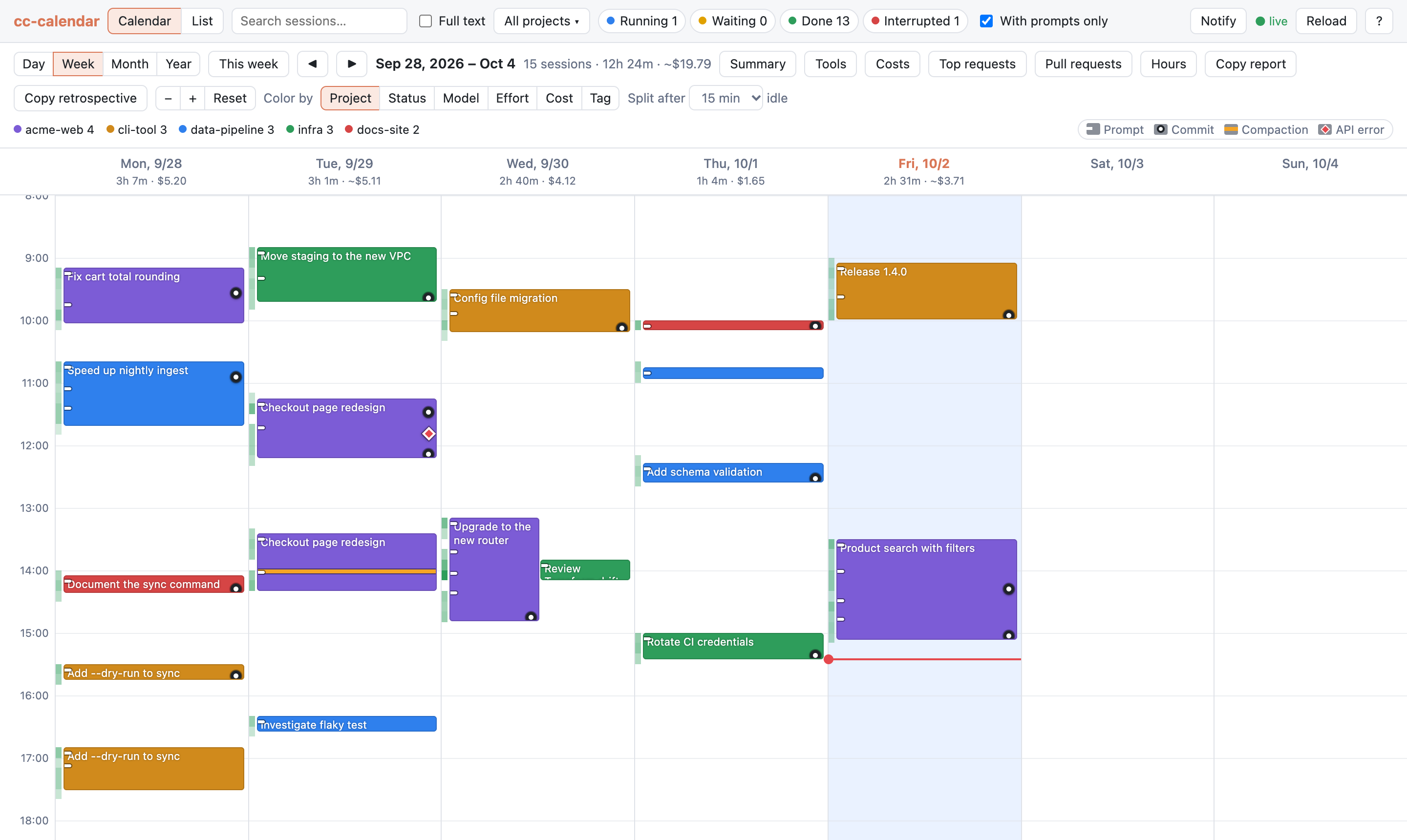
A Google Calendar-style weekly view of your Claude Code sessions.
cc-calendar reads the transcripts Claude Code already writes to ~/.claude/projects/ and shows
when you worked, on what, what it cost, and what came out of it — commits, changed files and pull
requests — in a local web UI that updates live while sessions run.
Project site: https://atinfinity.github.io/cc-calendar/
Install
With uv (Python 3.12+ is fetched automatically):
uv tool install cc-calendar
cc-calendar
Or try it without installing: uvx cc-calendar.
With Python 3.12+ already installed, pipx install cc-calendar works too.
Installed v0.3.0 or earlier from GitHub? Switch to the PyPI package once with
uv tool install --force cc-calendar; uv tool upgrade works from then on.
Update with uv tool upgrade cc-calendar, then restart cc-calendar. See
Update for uvx, pipx and other installs.
To run it from a checkout:
uv run cc-calendar
The server binds to 127.0.0.1 on a free port and opens your browser.
| Option | Description |
|---|---|
--port N |
Listen on a specific port instead of a free one |
--no-browser |
Do not open a browser window |
--claude-dir [NAME=]PATH |
Read logs from another Claude Code config directory (default ~/.claude). Repeat it to show several directories in one calendar |
--notes PATH |
File that keeps your session notes and tags (default: see Notes and tags) |
--search-index PATH |
File that keeps the full-text search index (default: see Full-text search) |
--version |
Print the version and exit |
Windows
Windows is supported and covered by CI; sessions are read from %USERPROFILE%\.claude\projects\.
One limitation: Copy resume command joins two commands with &&, which cmd and PowerShell 7
accept but Windows PowerShell 5.1 does not — there, replace the && with ;.
Several config directories
Pass --claude-dir more than once to see sessions from several places together, such as
~/.claude directories synced from other machines or separate configs used with
CLAUDE_CONFIG_DIR. Only the directories you list are read, so include ~/.claude to keep
your local sessions:
cc-calendar --claude-dir ~/.claude --claude-dir ~/sync/laptop/.claude --claude-dir work=~/.claude-work
Each directory gets a name: the one you give with NAME=, otherwise local for ~/.claude, the
parent folder for a path ending in .claude (laptop above), or the folder itself. Sessions show
where they came from in the list (Source column and filter), the detail pane, the calendar
tooltip and the CSV/JSON export (source), and Color by → Source colors them by directory.
A session found in more than one directory is shown once, from the copy with the latest activity.
Notes and tags
Notes, tags and ratings you add to sessions are saved in one JSON file, keyed by session ID:
| Platform | Default location |
|---|---|
| macOS | ~/Library/Application Support/cc-calendar/notes.json |
| Linux | $XDG_DATA_HOME/cc-calendar/notes.json (~/.local/share/… when unset) |
| Windows | %APPDATA%\cc-calendar\notes.json |
Point --notes at another file to keep it somewhere else, such as a synced folder to share notes
between machines; changes made to the file elsewhere are picked up. One file serves every
--claude-dir. Notes stay in the file after Claude Code deletes a session's old log.
Full-text search
Tick Full text next to the search box to also search what Claude wrote: assistant replies, tool inputs (commands, file paths, edits), tool output, background task results and subagent transcripts. Thinking is not searched. Queries need at least 3 characters, ignore case and line breaks, and work for Japanese and other languages without spaces. Matching sessions show a snippet of the first hit in the list, the calendar tooltip and the detail pane; Open ↗ opens the transcript at that hit, and Matches in the transcript steps through the others.
The text is kept in a SQLite index, built in the background on first start and updated as logs grow, so later starts only read new lines. Until it is complete, the status in the search box says so and results fill in as it goes. The index is a cache and safe to delete:
| Platform | Default location |
|---|---|
| macOS | ~/Library/Caches/cc-calendar/search.db |
| Linux | $XDG_CACHE_HOME/cc-calendar/search.db (~/.cache/… when unset) |
| Windows | %LOCALAPPDATA%\cc-calendar\search.db |
Point --search-index at another file to keep it elsewhere. It takes a little under half the space of
the logs it covers.
Features
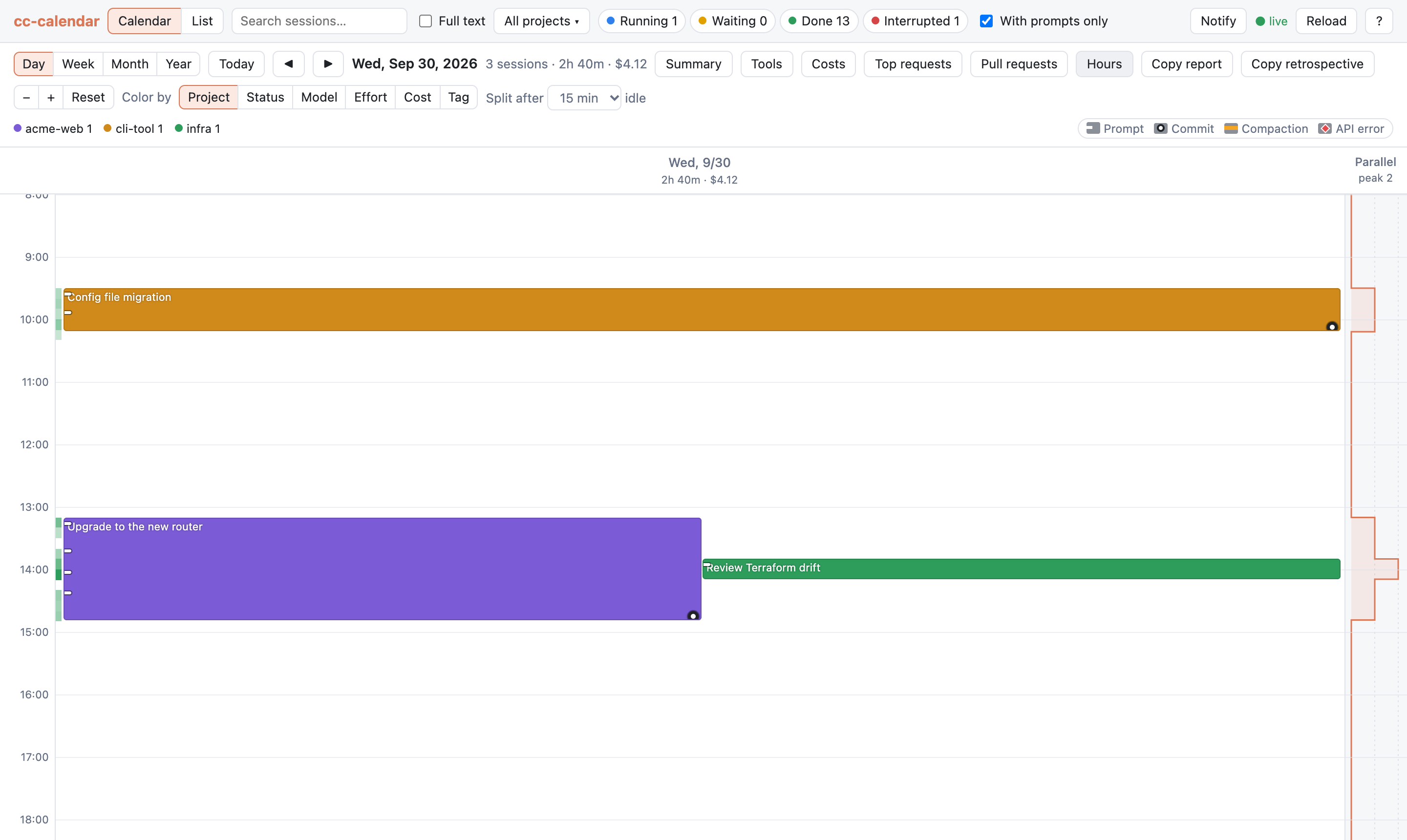
- Week and day calendar — each session is drawn as bars covering its active periods; a session is split wherever it sat idle longer than the Split after threshold (15 minutes by default). Overlapping sessions sit side by side. Click a date in the week view to open that day on its own; the day view adds a line of how many sessions were active at once. Zoom with the − / + buttons or Ctrl/⌘ + mouse wheel.
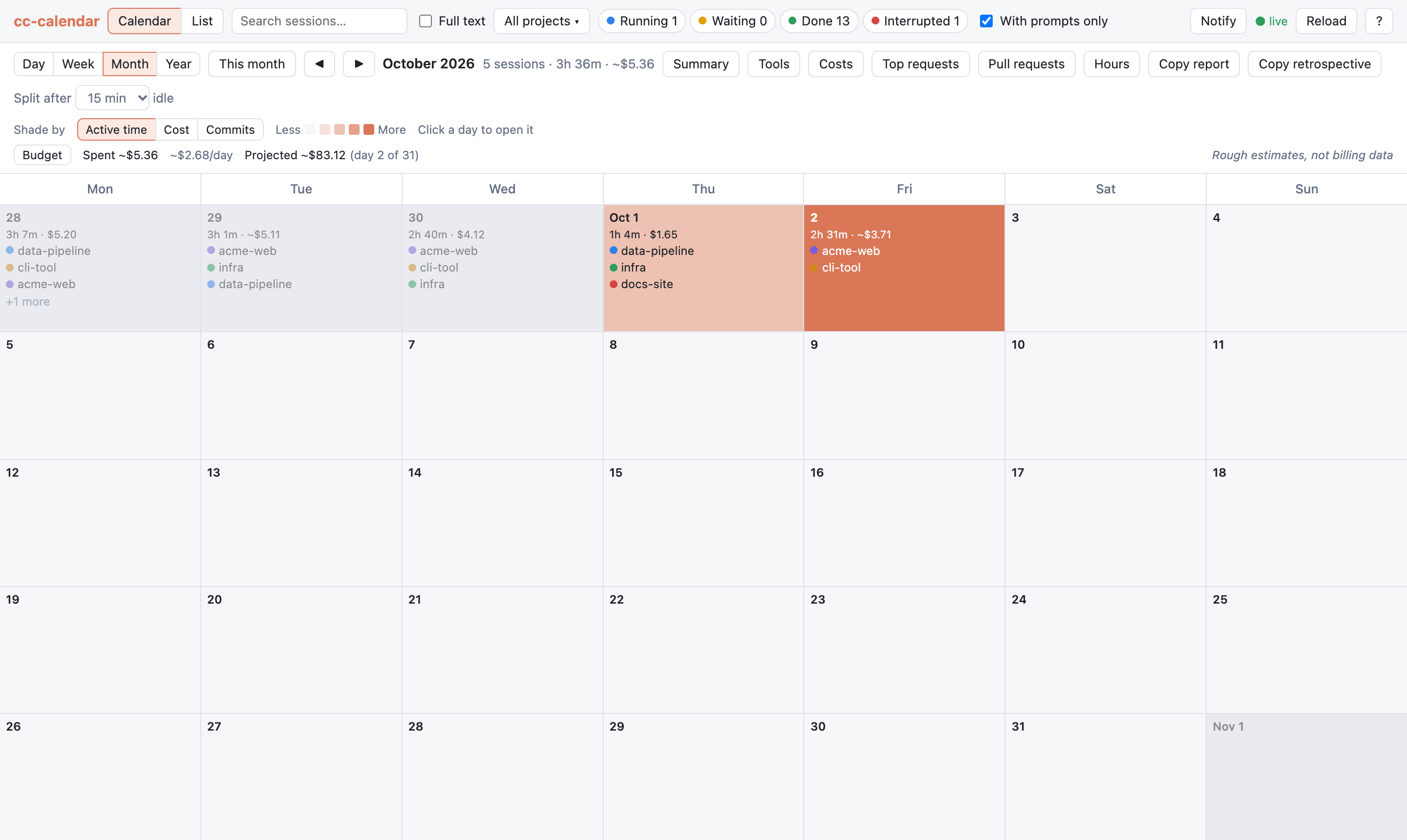
- Month and year views — a month calendar and a GitHub-style yearly heatmap, one cell per day shaded by active time, cost or commits (switch with "Shade by"). Month cells list the day's busiest projects; the year view adds per-month totals. Click a day to open it in the day view, or a month total to open that month.
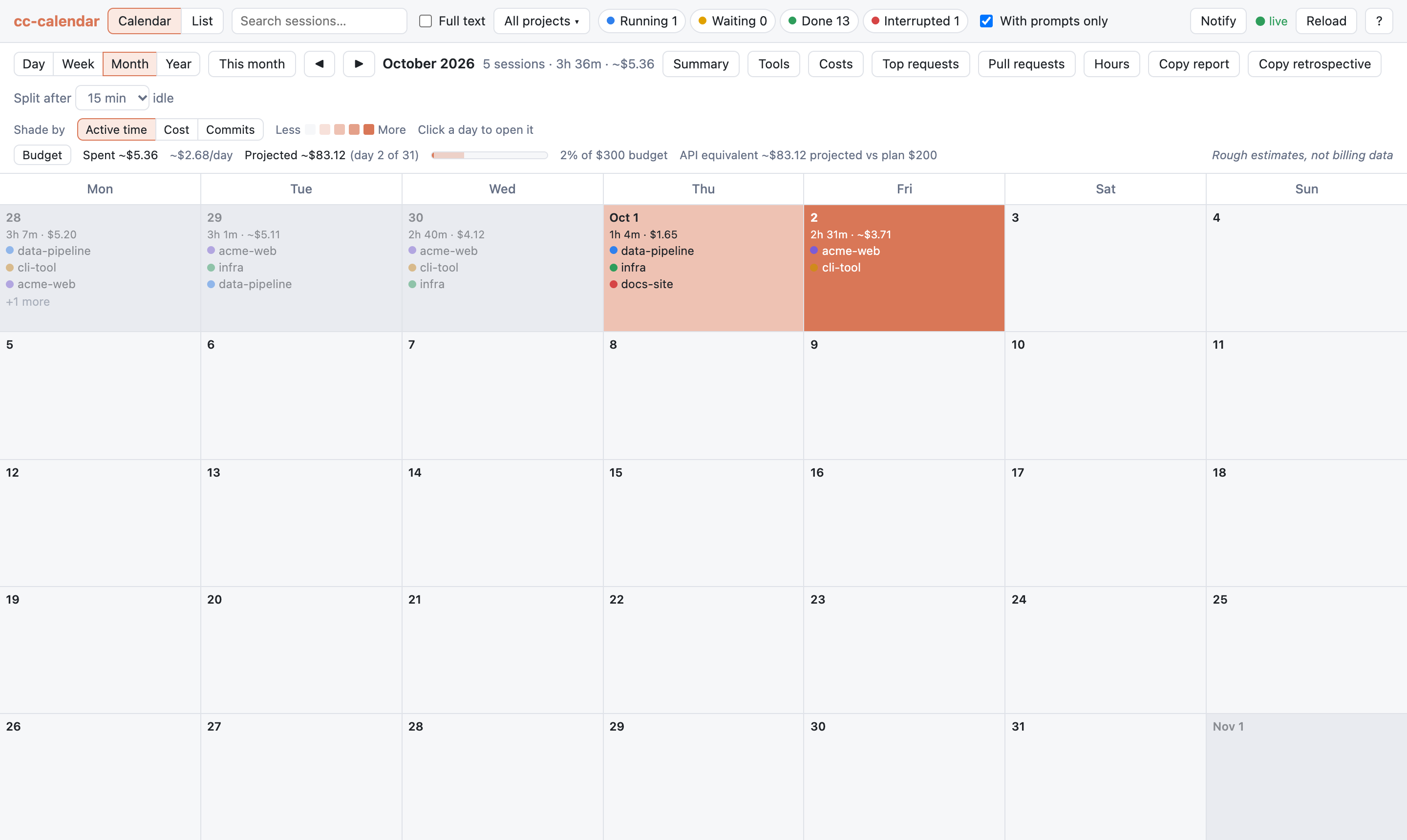
- Monthly budget — the month view shows the spend so far, the daily average and the projected month-end total, against a monthly budget and an optional plan price ("API equivalent $X vs plan $Y") kept in the browser. Rough estimates, not billing data.
- Time and cost totals — each date shows that day's active time and cost, and the Summary table breaks the displayed range down by project. Active time is the drawn bars; a session's cost is split across days by when its requests ran. Totals follow the current filters.
- Working vs waiting — the Summary table and the detail pane split active time into the time Claude spent on its turns (prompt to end of turn, plus waits for its own background tasks) and the time it waited for your next prompt, with the median time you took to reply. Waits longer than the Split after threshold count as neither.
- Cost per output — the Summary table counts commits and pull requests per project and shows cost per commit; the list has a $/commit column and an Output filter, so No output plus a minimum cost finds sessions that cost a lot and produced nothing. The project page adds cost per commit and per changed line.
- Compare with previous — the Summary table can show each project's active time, cost, sessions, commits and pull requests next to the previous day, week, month or year, with the change. Projects active in only one of the two ranges are marked new or absent.
- Markdown report — "Copy report" copies the displayed day, week, month or year as Markdown:
active time and cost per project, each session's title and tags (not notes) and the commits made in the range. Ready
to paste into a standup note or a daily report; it follows the current filters. Issue and PR
numbers such as
#12become links to the repository'soriginremote. - Retrospective prompt — "Copy retrospective" copies the displayed range's totals, the change from the previous range, the most expensive sessions, sessions with no output and friction signals as Markdown, followed by a request to draft a Keep / Problem / Try retrospective. Paste it into Claude; cc-calendar itself sends nothing. Notes are left out, as in the report.
- Tool usage — the Tools pane aggregates tool calls in the displayed range: most used tools, error counts and rates (10% or more is highlighted), calls made inside subagents, MCP servers, and subagent runs by type with their tool calls, tokens and cost. It follows the current filters.
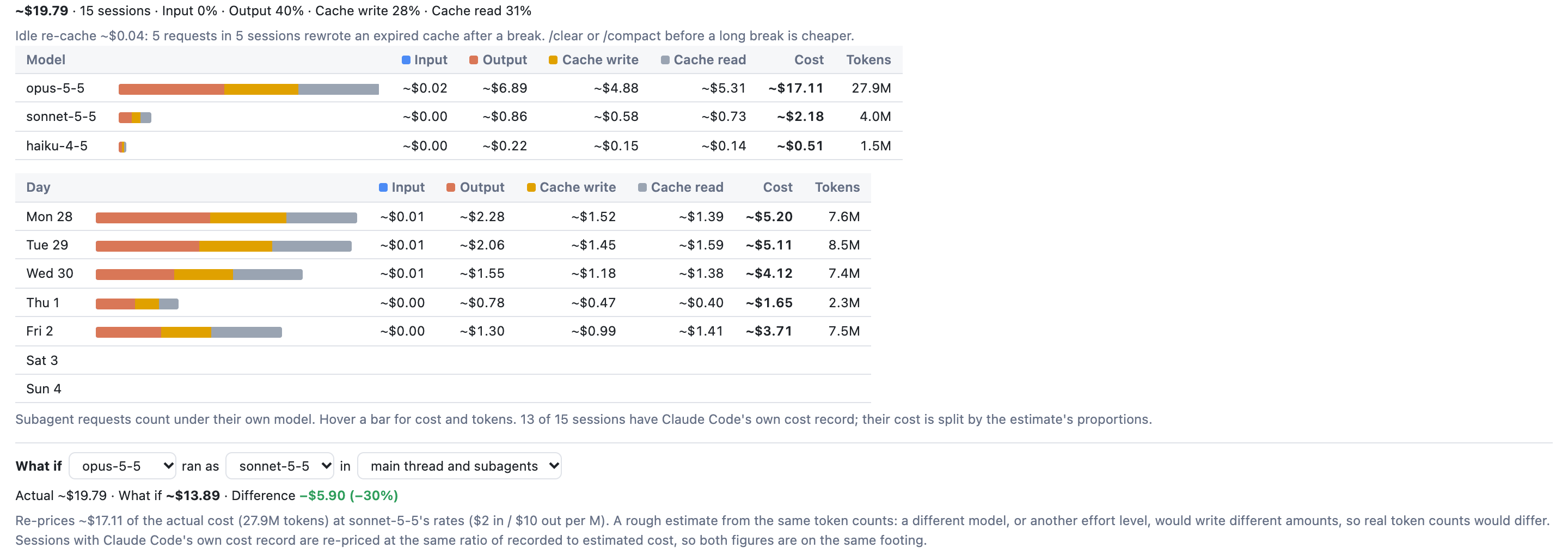
- Cost breakdown — the Costs pane splits the displayed range's cost by model into input, output, cache write and cache read (hover a bar for cost and tokens), with subagents counted under their own model. The week and month views add a row per day, so a spike can be traced to one token type. It follows the current filters; sessions with Claude Code's own cost record are split by the estimate's proportions.
- What-if cost — the Costs pane's What if section re-prices the range as if one model (or all) had run on another, for the main thread, subagents or both, next to the actual cost and the difference. Token counts stay the same, so it is a rough estimate: another model or effort level would write different amounts.
- Most expensive requests — the Top requests pane ranks the prompts sent in the displayed range by the cost of the requests that ran until the next prompt, subagents included, with project, session, time and tokens. Click a row to open the transcript at that prompt. It follows the current filters.
- Cost per pull request — the Pull requests pane and the project page list the PRs your sessions worked on, with repository, sessions involved, active time, cost and commits over all their sessions. Work up to a PR goes to it, and later work on its branch (review fixes, continued sessions) is added; the rest is shown as unattributed. Export the table as CSV or JSON.
- Hours of the week — the Hours pane shades a weekday × hour-of-day grid of the displayed range by active time, cost or commits, so late-night sessions and the busiest weekday stand out. Hover a cell for its totals. Hours are in the browser's time zone; it follows the current filters.
- Cache efficiency — each session shows its cache hit rate (cache reads as a share of input tokens) and roughly how much caching saved. Sort the list by Cache to find sessions with poor reuse; rates below 90% are highlighted (Claude Code usually reuses well over 90%).
- Idle re-cache — the prompt cache expires after a break (5 minutes, or 1 hour when Claude
Code asks for it), so the next request writes the whole context again. The detail pane and the
Costs pane estimate what that cost, subagents included.
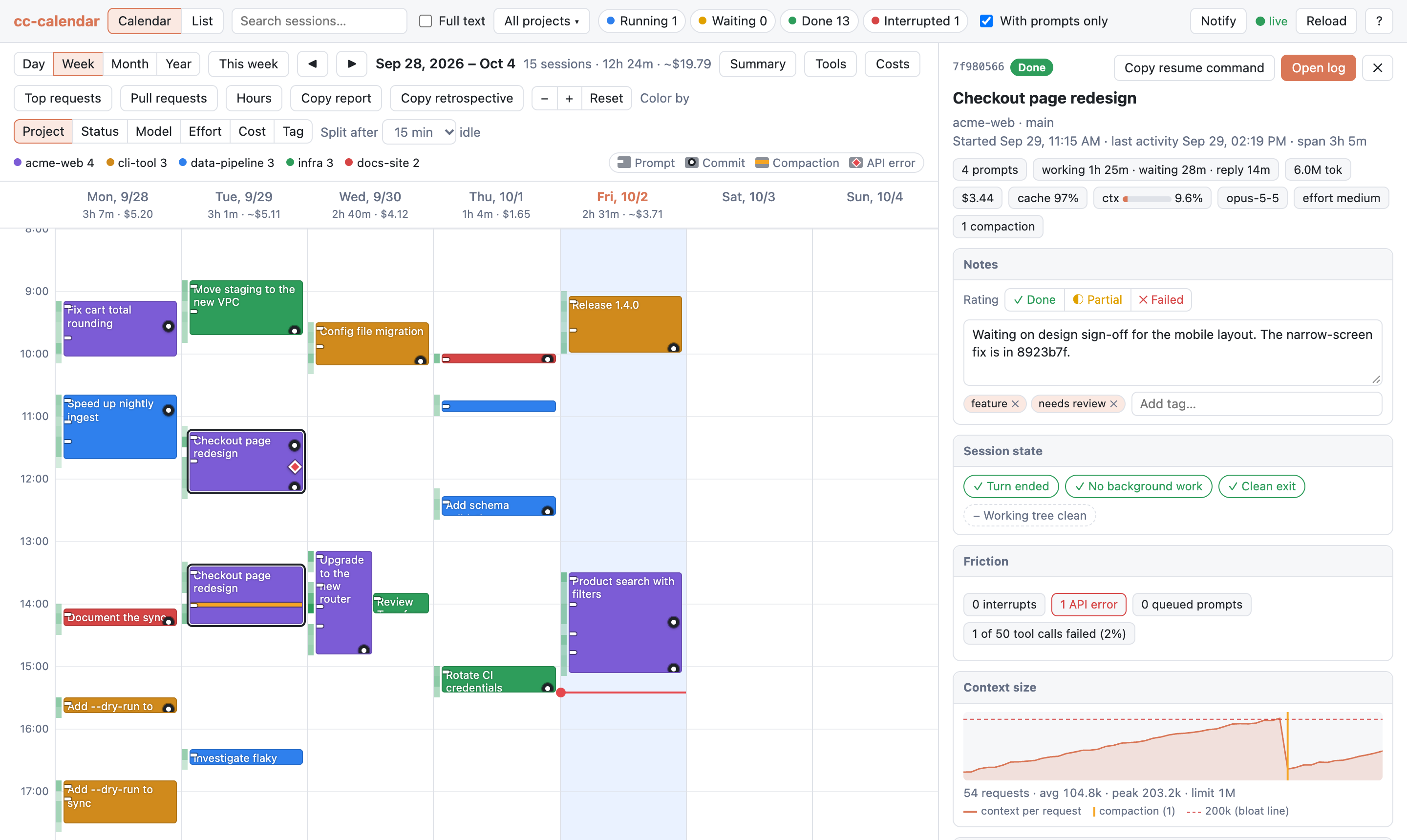
/clearor/compactbefore a long break is cheaper. - Friction — the detail pane counts interrupts, API errors, prompts sent while Claude was still working, and failed tool calls with their error rate. The list's Friction column adds them up, so sorting by it brings the roughest sessions to the top.
- Event marks — marks on each bar show when prompts, commits, compactions and API errors happened, and the tooltip counts them for that block. Click a mark (or a request or commit time in the detail pane) to open the transcript at that point; the transcript has ‹ › buttons to step through each kind of event. Click the key next to the legend to hide the marks.
- Activity density — a heat strip behind each day shows prompts and responses per 10 minutes.
- Colors by project, status, model, effort (the level most requests ran at), source (with several config directories), tag (the first tag of each session) or cost (< $1 / $1–5 / $5–20 / $20–50 / ≥ $50).
- Effort and compactions — the detail pane and transcript stats show the share of requests
per effort level, and each compaction shows its trigger and context size before → after
(e.g.
auto · 168k → 32k tokens) in the mark tooltip, the transcript and the detail pane. - Context size — the detail pane charts the context each request resent, with compactions marked. The list has Avg ctx and Peak ctx columns; Peak ctx is highlighted for bloated sessions, where at least 20 requests each resent more than 200k tokens and so cost a few times more than on a compacted context.
- Status — Running and Waiting for live sessions, Done or Interrupted for finished ones, with the underlying checks (turn ended, no background work left, clean exit, working tree clean).
- Notifications — turn on "Notify" in the top bar to get a desktop notification when a live session goes from Running to Waiting for your input, or ends Interrupted, while the tab is in the background. Off by default; clicking the notification opens the session.
- Detail pane — tokens, cost, context usage, every request you made with the commits that followed it, files changed, pull requests, subagents and background tasks, and links between a session and the one it was continued in.
- Resume — "Copy resume command" in the detail pane copies
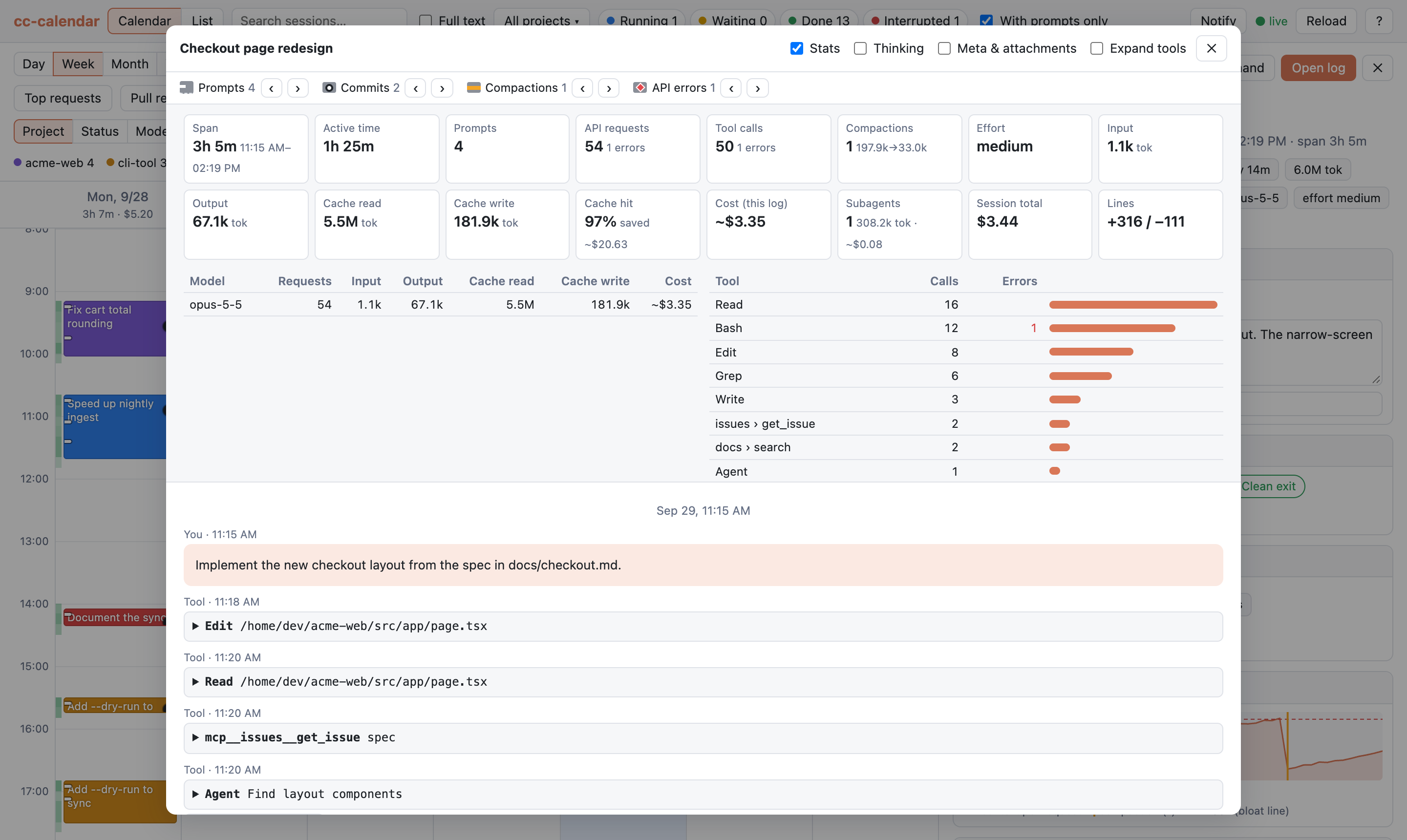
cd <project dir> && claude --resume <session id>, so you can pick a session up again from a terminal. - Transcript viewer — Markdown rendering, collapsible tool calls, optional thinking and metadata, drill-down into subagent transcripts, and a stats panel per transcript (active time, requests, tokens and cost by model, tool calls and errors by tool). The panel's active time counts gaps of up to 5 minutes, whatever the calendar's Split after setting.
- Notes and tags — add a note and tags to a session in the detail pane to find it again
later. The note saves when you leave the box (or with ⌘/Ctrl+Enter);
Enteror a comma adds a tag, with suggestions from tags already in use. Tags that differ only in case count as one. Tags show in the list (Tags column and filter) and the calendar tooltip, and a 📝 marks sessions with a note. See where they are saved. - Rating — rate a session Done, Partial or Failed with one click in the detail pane (click again to clear). The rating shows in the list (Rating column and filter), the calendar tooltip and exports, and the Summary adds the active time and cost per rating, so you can see what failed sessions cost.
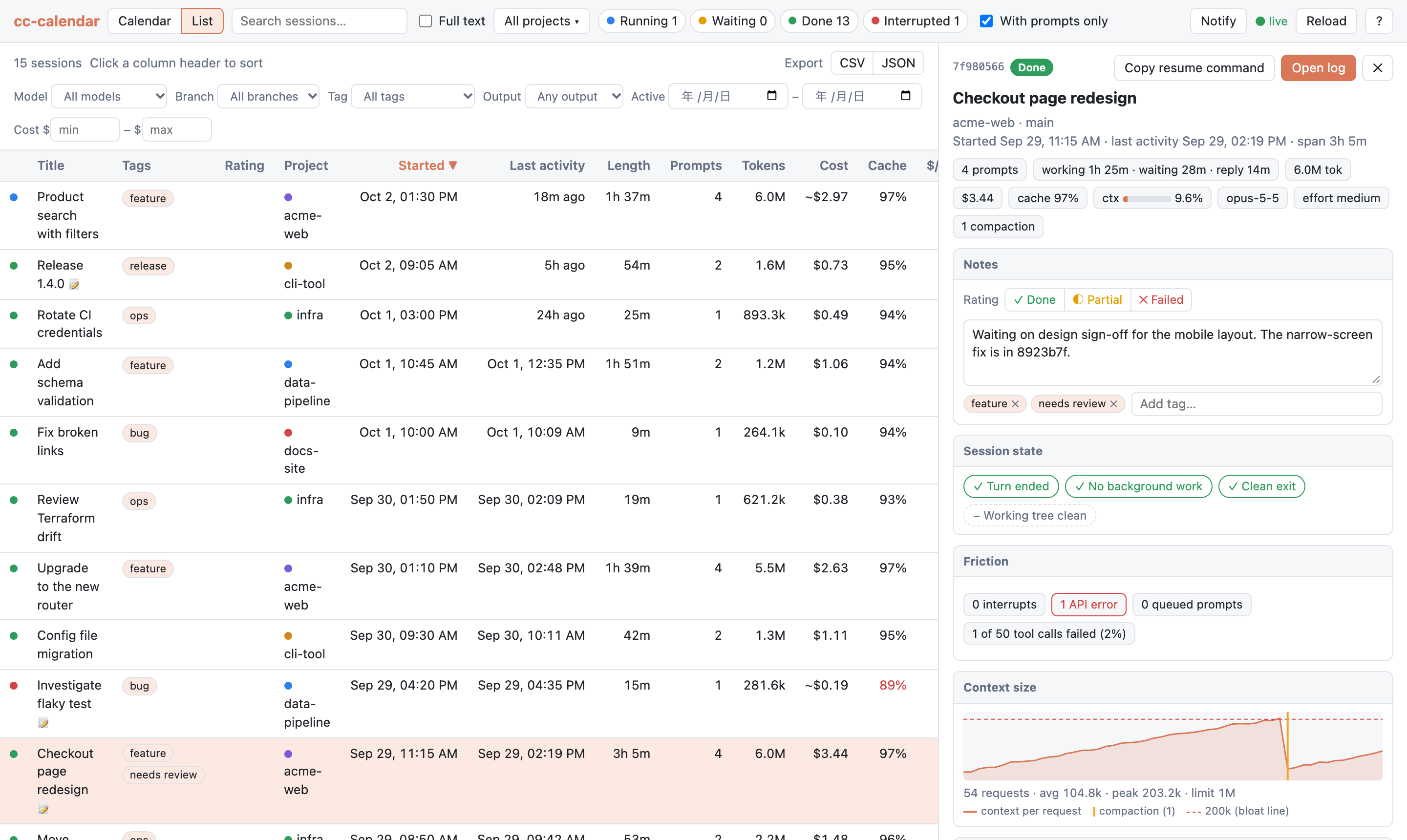
- List view with search over titles, the start of each prompt, notes and tags (a match inside a prompt or note is shown under the title), optional full-text search over the whole transcripts, project and status filters, and sorting by any column (click a header; click again to reverse). List-only filters narrow it down further by model, git branch, source (with several config directories), tag, output, date range (sessions active on any day in the range) and cost range.
- Project page — click a project name (in the list, the Summary table, the detail pane or the project menu) to see the project over all time: total active time and cost, activity by month, every session, and its commit history with links to the repository.
- Export — download the sessions shown in the list view as CSV or JSON, in the current filter and sort order: start, end, active time, project, source directory, branch, status, prompts, tokens, cost, cache hit rate, idle re-cache cost, model, effort, Claude Code version, commits, pull requests, files changed, lines added and removed, cost per commit, friction counts, average and peak context, tags and note. Times are ISO 8601 with your UTC offset. See the export format.
- Keyboard shortcuts —
←/→previous / next range,ttoday,d/w/m/yspan,c/lcalendar / list,/search,j/knext / previous session,Enteropen its transcript,Escclose. In a transcript,n/pstep through events,]/[through prompts,s/etoggle Stats / Expand tools, andbgoes back to the parent session. Press?(or click ? in the top bar) for the full list. - Views in the URL — the address keeps the view, span, date, selected session and project page, so reloading keeps your place, Back and Forward step through range and view changes, and views can be bookmarked.
- Live updates — new log lines are picked up within a second.
| Session detail | Transcript with stats |
|---|---|
 |
 |
| List view | Month view |
 |
 |
| Day view with Parallel column | Month view with a budget |
 |
 |
| Costs and what-if | Friction and context size |
 |
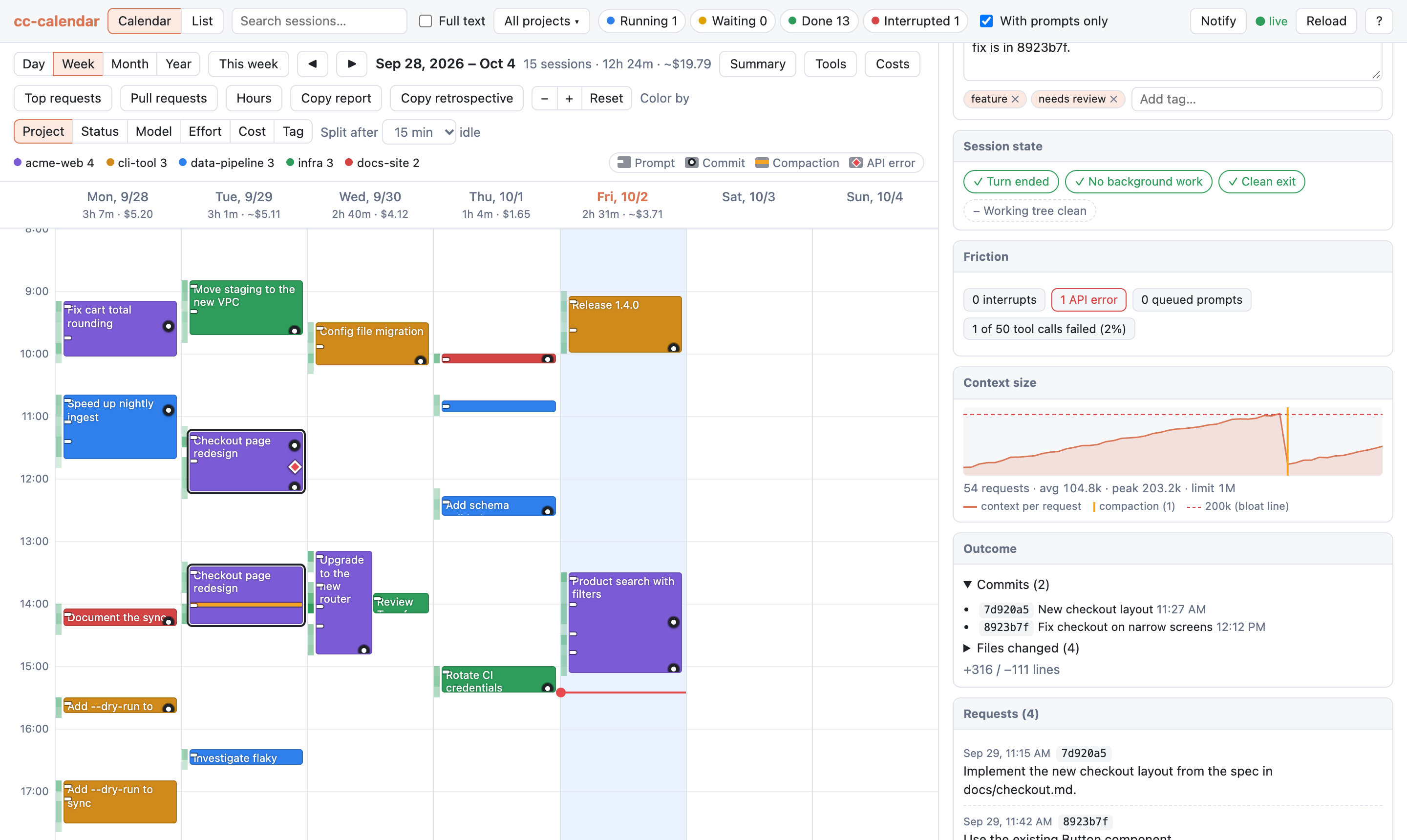 |
Screenshots show fictional demo data.
Cost comes from Claude Code's own cost record when the session wrote one. Otherwise it is estimated
from token usage and a built-in price table, and shown with a ~ prefix. A continued session
counts only its own share of the cost record, which carries over the previous session's total.
It also leaves out the copy of the previous session that its log starts with. A resumed session's
cost record covers only its last run, so its earlier runs are estimated and added, with a ~
prefix.
Treat all costs as rough figures, not billing data. The price table in
src/cc_calendar/pricing.py uses Anthropic API list prices as of when it was last updated. It does
not know about subscription plans, discounts or price changes. Models missing from the table count
as $0, so it needs updating when new models ship.
Privacy
Everything stays on your machine. The server listens only on localhost, reads your logs read-only,
and makes no network requests; images linked in transcripts are shown as links, not loaded. It writes two files: the notes file
(Notes and tags), only when you add or change a note, tag or rating, and the
full-text search index, a cache built from your logs. Requests from other
websites cannot change either. Commit hashes that do not appear in the
logs are looked up with git log in the session's working directory.
Development
uv sync
uv run pytest
uv run ruff check . && uv run ruff format --check .
The frontend is plain HTML, CSS and ES modules in src/cc_calendar/static/ — no build step.
Tests use synthetic logs only; never commit real transcripts.
Releases are published to PyPI by pushing a version tag; see Releasing.
The README screenshots are rendered from fictional data generated by scripts/demo_data.py, using
your installed Google Chrome:
uv run --with playwright python scripts/screenshots.py
The project site is built with Zensical from docs/ and zensical.toml,
and deployed to GitHub Pages on every push to main. Preview it locally:
uv run --group docs zensical serve
Acknowledgements
Inspired by the tool shown in this post by @tokkyo. This is an independent reimplementation and is not affiliated with the original.
License
MIT. Bundles marked (MIT) and DOMPurify (Apache-2.0 / MPL-2.0).
1 maintainer

Metadata
1 maintainer
Release files for cc-calendar 0.6.1
For a detailed explanation of source distributions (sdists) and built distributions (wheels), please see the package formats documentation.
Source distribution (sdist)
| File | Size | Uploaded | Provenance | |
|---|---|---|---|---|
| cc_calendar-0.6.1.tar.gz | 148.5 kB | Without provenance | Details |
Built distribution (wheel)
| File | Interpreter | ABI | Platform | Reset |
|---|---|---|---|---|
| cc_calendar-0.6.1-py3-none-any.whl | Python 3 | none | any | Details |
Total release size: 319.3 kB
Release files / cc_calendar-0.6.1.tar.gz
| Download URL | cc_calendar-0.6.1.tar.gz |
|---|---|
| Size | 148.5 kB |
| Tags | Source |
|
SHA-256 checksum How to use checksums |
0a8c83cc79ffad94c82271805ba82366a8ebb40ccd8c091da83d643586c47629
|
|
BLAKE2b-256 checksum How to use checksums |
489b412a1564d03a92cb9596012063a628354488c585ccc25bef486164f0f342
|
| Upload date | |
|
Uploaded using Trusted Publishing? What is trusted publishing? |
Yes |
| Uploaded via |
uv/0.12.24 {"installer":{"name":"uv","version":"0.12.24","subcommand":["publish"]},"python":null,"implementation":{"name":null,"version":null},"distro":{"name":"Ubuntu","version":"24.04","id":"noble","libc":null},"system":{"name":null,"release":null},"cpu":null,"openssl_version":null,"setuptools_version":null,"rustc_version":null,"ci":true}
|
Release files / cc_calendar-0.6.1-py3-none-any.whl
| Download URL | cc_calendar-0.6.1-py3-none-any.whl |
|---|---|
| Size | 170.8 kB |
| Tags | Python 3 |
|
SHA-256 checksum How to use checksums |
337aa8c1c15aa92acd3b35b5601c1e0a1e8b9a4ba09a2d62c8f6f0db02e8c396
|
|
BLAKE2b-256 checksum How to use checksums |
02308564a1fb9a5a077281eea9bd076e69d9158a9e4088a7ffe4d7cdb6cc96b3
|
| Upload date | |
|
Uploaded using Trusted Publishing? What is trusted publishing? |
Yes |
| Uploaded via |
uv/0.12.24 {"installer":{"name":"uv","version":"0.12.24","subcommand":["publish"]},"python":null,"implementation":{"name":null,"version":null},"distro":{"name":"Ubuntu","version":"24.04","id":"noble","libc":null},"system":{"name":null,"release":null},"cpu":null,"openssl_version":null,"setuptools_version":null,"rustc_version":null,"ci":true}
|
Security for cc-calendar 0.6.1
Provenance
Provenance describes where a file came from. On PyPI, provenance is shared via attestations, which provide a verifiable record of the build or publishing details. View details, limitations and caveats.
No provenance found
None of the files in this release were uploaded with provenance metadata.
A note on package security
PyPI is a repository for distributing packages, not a service for auditing them. While third-party security researchers and our staff do their best to detect and remove malicious packages, PyPI cannot guarantee the quality, security or suitability of any given package.














