
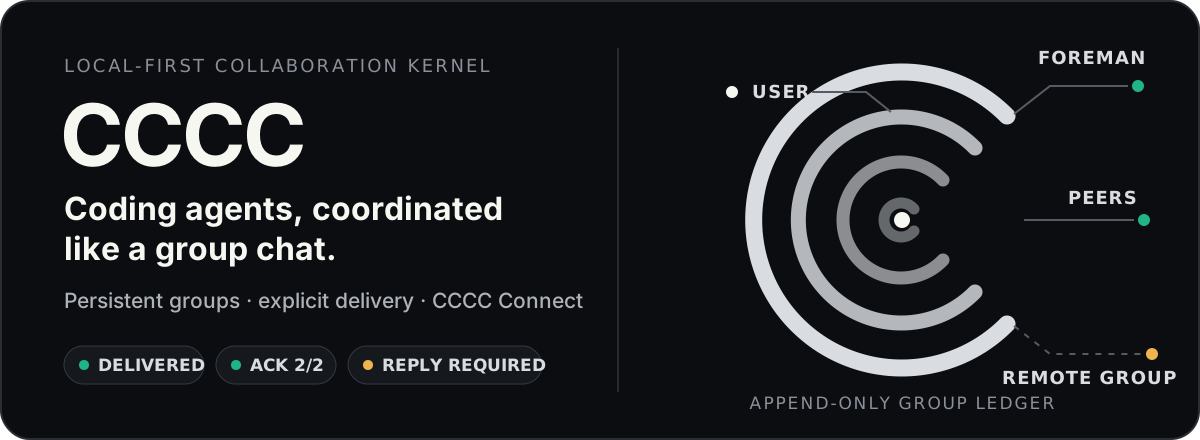
CCCC
Coordinate your coding agents like a group chat
Local-first coordination for coding agents: durable Group history, explicit message status, cross-instance collaboration, and access from the Web, the terminal and IM.
Connect the Claude Code, Codex, Pi and OpenCode sessions you already run, or let CCCC run agents for you, as one persistent team.
One install command. No Rust toolchain, database server, message broker or Docker required.





What CCCC does
When several coding agents share work, you need to know who owns a task, whether a message reached its recipient, and what survives a restart. CCCC keeps that in one place:
- A durable Group chat. Each Group records messages and events in an append-only ledger; tasks and shared context are stored as well.
- Explicit delivery. Messages go out as Send, Send + Reply or Mail, and delivery, read and reply are recorded as separate facts.
- Your sessions or CCCC's. Connect sessions you already run, or let CCCC manage agents on many CLI and Web runtimes, in the same Group.
- One control plane. The Web UI, the terminal interface, the CLI, MCP tools and IM bridges share the daemon's state.
- Chet, a global assistant you can write or talk to.
- CCCC Connect links Groups across machines and teams; each instance keeps its own state.
- Local-first. Runtime state stays in
CCCC_HOME(default~/.cccc/), outside your repository.
What's new in 0.4.52
- Tabs come back after a refresh. Refreshing a browser tab restores each Group's resource panel: the tabs you had open, the selected one, a Side by side comparison, and whether the panel was collapsed or maximized. A Group keeps its side-by-side layout when you switch away and back. Only which files, attachments and Presentation slots were open is kept, in that browser tab's session storage; their contents are read again with your current permissions, and unsaved edits and reading positions are not restored.
- Steadier Group switching. Switching Groups no longer flashes the connection symbol as reconnecting, or makes a member's unread mail mark disappear and come back.
- Less work in the background. To find messages for Chet, the Web no longer reads the whole history of every Group every 30 seconds; it reads only what was written since. Idle Claude, Pi and OpenCode sessions ask the daemon for their next message less often, and the actions on each message no longer make every visible message re-render when a new one arrives.
- Memory goes back after busy periods. On Linux with glibc, the daemon asks the allocator every five minutes to return unused pages to the system, so memory it freed need not stay with the process. This is not a memory limit.
- Ctrl-C while the Web starts. A Ctrl-C after the daemon was ready and while the Web was starting, including just as its Local: address appeared, ended
cccc web,cccc --headlessandccccwithout the terminal interface at once. It now starts the usual stop, and a second one still forces the exit.
Upgrade notes. Before upgrading, let sends and recordings finish, restore or discard waiting sends, then send or copy every unsent draft and save unsaved edits in Files: all of these live only in the open page. Check whether a message already arrived before sending it again. Then restart the daemon and Web and reload open pages. That first reload still starts with an empty resource panel, because the earlier page did not save its tabs. Sessions that are already connected keep asking at the earlier interval until they are started again.
Details: 0.4.52 release notes.
Quick start
Install
# macOS / Linux
curl -fsSL https://chesterra.github.io/cccc/install.sh | sh

# Windows CMD or PowerShell
powershell.exe -NoProfile -ExecutionPolicy Bypass -Command "[Net.ServicePointManager]::SecurityProtocol = [Net.ServicePointManager]::SecurityProtocol -bor [Net.SecurityProtocolType]::Tls12; Invoke-RestMethod 'https://chesterra.github.io/cccc/install.ps1' | Invoke-Expression"

# Or through pip: the same native executable in a platform wheel
python -m pip install -U "cccc-pair>=0.4.36"
CCCC runs on Linux x86-64 (glibc 2.28+), Apple Silicon macOS 11+ and Windows x86-64. See Installation and upgrades for more.
Launch
cccc
cccc starts the daemon and the Web UI. In an interactive terminal it also opens a status panel; type / for its commands, and /quit or Ctrl+C stops what this launch started. Open http://127.0.0.1:8848 for the full Web UI; local use needs no password.
On servers, in containers and in scripts, use cccc --headless (the same as cccc web). If port 8848 is in use, choose another with cccc --port 9000. cccc doctor checks the installation and the agent CLIs it detects.
Choose how agents join
| Sessions you already run | Agents CCCC runs | |
|---|---|---|
| Who starts it | You, in Codex, Claude Code, Pi or OpenCode V2 | CCCC, with the Runtime you choose |
| Who owns it | The app keeps its process, conversation, account, model, approvals and terminal | CCCC starts, stops and restarts it; most runtimes show their terminal in the Web UI |
| Approval prompts | The app's own prompts still apply | Many runtimes start with them bypassed |
| Set up with | /setup or cccc sessions enable, then Connect sessions |
New and Add an agent in the Web UI, or cccc attach and cccc actor add |
Both kinds can work in the same Group. Steps: Connect the sessions you already run or Let CCCC run agents.
Connect the sessions you already run
Codex, Claude Code, Pi and OpenCode V2 sessions that you started yourself can join Groups and contact each other through the local daemon. CCCC imports no history and needs no provider API key. This is experimental: it was tested on Linux and WSL, and macOS and native Windows still need acceptance testing. Antigravity sessions cannot connect this way yet.
Requirements. Codex 0.163.0, Claude Code 2.1.306, Pi 1.4.0 or OpenCode V2 2.1.4, or later, on the machine running CCCC, as the same OS user and with the same CCCC_HOME as the daemon. Enable this only if your local sessions may receive work from each other and from this instance's administrator. Codex also needs its shared app-server: add this to $CODEX_HOME/config.toml (normally ~/.codex/config.toml), inside the existing [features] table if there is one:
[features]
daemon_auto_start = true
- Enable each app once. In the
ccccstatus panel, type/setup, tick the apps with Enter, choose Continue, then Connect. Or runcccc sessions enable --runtime codex(orclaude,pi,opencode). - Load it in the app.
- Codex: restart it, approve the CCCC hooks when asked (
/hooks), then send any message. - Claude Code: restart it (
claude --resumepicks the conversation to continue), then send any message. Plugin Monitor must be enabled. - Pi: run
/reload, or start Pi. - OpenCode V2: reopen the original session; a blank new session needs a first message.
- Codex: restart it, approve the CCCC hooks when asked (
- Check with
cccc sessions list. Add--include-offlineto also see registered sessions that cannot receive right now. - Connect them to a Group. In the Web UI, choose Connect sessions above the Group list (an icon under New when the sidebar is collapsed). In Connect existing sessions, pick a Target Group and choose Connect to Group, or pick + New Group and choose Create & connect. For a new Group with several sessions, choose the Foreman under New Group defaults. Setup steps for each app are under App to connect, and when a session is marked Unavailable to receive, the dialog offers See troubleshooting.
You can also ask from inside a session; CCCC creates or reuses a Group for both:
Use CCCC to contact the Codex session in /path/to/project about the current task. Use Send + Reply and ask it to reply through CCCC using Send. If several sessions match, ask me to choose.
The app keeps its tool approvals, so a CCCC tool call can wait for you in its terminal. Only what a session sends through CCCC reaches the Group, not its ordinary terminal output. Pause CCCC access and Resume CCCC access change one Group membership without touching the app. cccc sessions disable --runtime codex (or claude, pi, opencode) removes only what this CCCC installation registered.
After upgrading CCCC, reload the integration in each app. The native sessions guide also covers the CLI commands, resuming conversations, recovery and limits.
Let CCCC run agents
Install and sign in to the agent CLIs you want to use first. In the Web UI:
- Choose New in the sidebar, pick the Project Directory on the machine running CCCC (Browse helps), then Create Group.
- Choose + (Add an agent) in the members' row above the message box, pick a detected Runtime, enter an Agent ID and choose Add Agent. The first agent becomes the foreman; later ones are peers.
- Open the Group status button in the header and choose Start Group.
- Write in Messages and choose Send (Ctrl+Enter, or Cmd+Enter on a Mac).
From the command line, with CCCC running (for example cccc in another terminal):
cd /path/to/your/repo
cccc attach .                                # create a Group for this folder and make it active
cccc actor add lead --runtime claude         # the first agent becomes the foreman
cccc actor add implementer --runtime codex   # a peer
cccc group start                             # start the Group's enabled agents
cccc send "Please inspect the repo and propose the first safe task." --to "@foreman"
cccc tracked-send "Please take the first concrete task and reply with validation evidence." \
  --to implementer \
  --title "First concrete task" \
  --outcome "The change and validation evidence are reported"
Claude Code and Codex receive CCCC's MCP tools when CCCC starts them, so no cccc setup step is needed. The CLI calls agents actor. In PowerShell, keep "@foreman" in quotes, since a bare @ starts splatting, and enter tracked-send on one line: the trailing \ continues a line only in POSIX shells.
On first launch, Claude may ask you to trust the workspace or accept its --dangerously-skip-permissions disclaimer, and the agent shows Awaiting your confirmation in the terminal. Answer in its terminal in the Web UI (Open confirmation terminal takes you there); CCCC never answers for you. If you decline, choose Launch or Relaunch to try again.
Approvals. Many runtimes start with approval prompts bypassed, for example claude --dangerously-skip-permissions. Review each agent's command in its settings and the autonomy defaults.
You should see both agents in the members' row, the foreman's reply in Messages and the tracked request with a linked task. If an agent does not start, open it to read the error, check that its CLI is installed and signed in, and run cccc doctor; see also the FAQ.
Chet, the global assistant
Chet is one assistant for the whole CCCC instance, outside every Group's member list. Open it with the Chet control below the Group list and type, or choose Start voice beside it for a live call. A Group selected when you send is included as context, not as a permission boundary.
- Runtime: set it under Settings → This instance → Voice → Chet → Runtime. CCCC keeps Chet's history of inputs, transcripts and results on the machine running CCCC; what you send still goes to the model and voice providers you configure.
- Voice (experimental): Codex Voice uses
codex login; Grok Voice usesgrok loginand needsgrokon CCCC's PATH. Neither needs an extra API key. Reported Grok Voice pitch and timbre drift is not confirmed fixed. - In Groups: members reach Chet by choosing
@chetas the only recipient, with Send or Send + Reply but not Mail. - Limits: messages from every Group enter Chet's one session, and keeping them apart is an instruction to the model, not isolation. Chet does not forward between Groups or send through CCCC Connect.
Voice Secretary, under Settings → This instance → Voice → Voice Secretary, is a separate global service that turns recordings into documents, prompt drafts or answers for each Group; all Groups share its conversation. See Chet and the Voice Secretary guide.
Key ideas
| Term | Meaning |
|---|---|
| Group | A shared conversation with its own ledger, tasks and context; it can span several project folders |
| Agent | A Group member that runs or is connected to an agent runtime. The CLI keeps cccc actor, and APIs keep fields such as actor_id |
| Foreman and peers | The first agent is the foreman, who coordinates; the others are peers. @foreman, @peers and @all address them |
| Send, Send + Reply, Mail | Send delivers now; Send + Reply also tracks a reply; Mail waits in an agent's Inbox without interrupting. A message goes to you or to agents, not both |
| Waiting for you | Requests from agents that need your answer |
CCCC_HOME |
Where runtime state lives, ~/.cccc/ by default |
| Connect sessions, CCCC Connect | Connect sessions adds sessions on this machine to a Group; CCCC Connect links Groups across instances |
Use Mail for updates that can wait, Send when the recipient should know now, and Send + Reply when you need an answer. Use tracked-send for delegated work that needs an owner, an outcome and evidence.
Working in the Web UI
- Messages.
@mentions agents and#mentions Groups. Point at a message for Reply, Forward and copy; its More menu adds quick replies, Pin message and Copy link. On touch screens, More holds every action. - Tabs. Waiting for you (requests you can answer in place), All, Pinned and User-related. In a filtered view, Show in chat opens a message in the whole conversation.
- Messages and Terminals in the Group header switch views. The terminal view shows up to four agents per page and takes keyboard input.
- Files, Presentation (four pinned slots) and Project Context (Tasks, AGENTS.md, Coordination log, Agent State, Skills).
- Settings and more, then All settings: This group includes Guidance, Automation, Delivery, Messaging and IM Bridge; This instance includes Account, Web Access, Notifications and Voice.
- Appearance. Theme is Light, Dark or Auto (follows the light or dark setting of your system), and the language is English, Chinese or Japanese. More appearance settings has Body font, Message area width (Medium, Wide or Full, on screens 768px and wider), Motion, ‘Waiting for you’ indicators and Text Size (70%, 90%, 100% or 125%).
- Notifications. Settings → This instance → Notifications → Enable notifications, in each browser, over HTTPS or on localhost. On iPhone or iPad (iOS or iPadOS 16.4 or later), add CCCC to the Home Screen first.
- Automation sends bounded reminders for unread Mail, open replies, idle agents and quiet Groups, and runs your interval, recurring or one-time rules.
- Copy Groups exports and imports a Group's durable state. It leaves out workspace files and the credential files CCCC keeps, but the history and attachments it carries can still hold sensitive content.
Supported runtimes
Each agent can use a different runtime:
| How CCCC runs it | Runtimes (--runtime id) |
|---|---|
| Native terminal plus a CCCC-managed session | Claude Code (claude), Codex CLI (codex), Grok Build (grok), OpenCode V2 2.1.4+ (opencode), Kilo Code (kilo) |
| Native terminal or official ACP | GitHub Copilot (copilot), Cursor (cursor), Devin (devin), Kiro (kiro), Antigravity (antigravity), Droid (droid), Auggie (auggie), Hermes (hermes), Kimi Code (kimi) |
| Native terminal | Cline (cline), Amp (amp) |
| Structured, no terminal | Pi 1.1.0+ (pi), DeepSeek Harness (deepseek, developer preview) |
| Web models | ChatGPT Web (web_model), ChatGPT Dots (chatgpt_dots), Grok Bot Web Model (grok_web_model) |
| Any command | custom |
CCCC sets up MCP for these runtimes itself, with three exceptions: for Cursor's terminal, cccc setup --runtime cursor prints a prompt to run inside Cursor; the Web models use a remote MCP connector; and custom is configured by hand. Antigravity's ACP mode needs a separate login once: cccc setup --runtime antigravity --runtime-mode acp --login. cccc runtime list shows which runtimes are available here (--all adds custom).
The Web models need their own setup. ChatGPT Web uses browser delivery and a remote MCP connector at a public HTTPS URL; its experimental GPT Pro mode attaches a tiny blank PNG. ChatGPT Dots uses ChatGPT's event-triggered tasks. Grok Bot Web Model uses a Webhook Routine on an existing https://grok.com/bot/<UUID>. See the Supported Runtimes guide, ChatGPT Web, Dots and Grok Bot.
Reach CCCC from anywhere
Remote access
Direct local use needs no Access Token. Before you open the Web UI to other machines, create an Admin Access Token in Settings → This instance → Web Access.
- LAN:
cccc --host 0.0.0.0 --port 8848, or the binding saved in Web Access. Under WSL2's default NAT, also enable mirrored networking or add a Windows forwarding rule. - Your tunnel or reverse proxy: serve it over HTTPS, for example with
cloudflared tunnel --url http://127.0.0.1:8848, and protect forwarding headers as the Web UI guide describes. - Managed Remote Access (Linux and macOS): link the instance in Settings → This instance → Account and turn on Remote Access in Web Access, or run
cccc loginandcccc reach on. It installs a pinnedcloudflaredunderCCCC_HOMEand uploads neither your repository nor your ledger.
A changed binding applies after Apply now, or after you restart your own supervisor. --host and --port override the saved binding, which overrides CCCC_WEB_HOST and CCCC_WEB_PORT.
IM bridges
cccc im set telegram --token-env TELEGRAM_BOT_TOKEN
cccc im start
Telegram, Slack, Discord, Mattermost, Feishu/Lark, DingTalk, WeCom and Weixin (direct bot chats only) are supported. In the chat, write plain text or /send @foreman <message>; /status shows Group health, and /pause and /resume control that chat's subscription. See the IM bridge guide.
CCCC Connect
CCCC Connect links Groups across CCCC instances; it is separate from Connect sessions. "Account" means your CCCC account, not a provider login. With an account, each instance also needs a reachable HTTPS address, such as the one Remote Access sets up; linking the account alone does not make it reachable.
| Method | Scope and setup |
|---|---|
| Same account | Link instances in Settings → This instance → Account; their Groups and agents can then message each other. |
| Different members | Open Group connections from the Group's sidebar ⋮ menu or Group settings and invite a Member ID; both members confirm on the account website. |
| Direct, no account | Open Group connections → Direct connection, exchange an invitation over a trusted channel and approve the Group pair. One instance must be reachable over a LAN, VPN or other route. |
Connections carry messages, replies and small files between the selected Groups, not terminals or workspace access, and each instance keeps its own state. Agents find targets with cccc_connect and address them with dst_instance_id and dst_group_id. See the CCCC Connect guide.
Security
- The Web UI is high-privilege. Create an Admin Access Token before any non-local exposure, and use HTTPS for public access.
- Daemon IPC is a trusted local interface without application authentication (a Unix socket or loopback TCP). Do not expose it or share the runtime home with untrusted users.
- Native sessions trust this OS user. Enabled sessions can receive work from each other and from this instance's administrator; source IDs are not credentials.
- Managed agents often run with approval prompts bypassed. Review their commands before giving them sensitive work.
- IM credentials can be environment-variable references or literal values; prefer references.
- Connection scope is explicit. Opening another instance's workspace needs that instance's administrator Access Token.
- Capability allowlists control optional MCP tools. They are not a sandbox for agent processes.
Report vulnerabilities as described in SECURITY.md.
CLI cheat sheet
cccc                         # daemon + Web UI with the status panel (cccc --headless: without it)
cccc doctor                  # installation and environment checks
cccc daemon status           # also: start, stop

cccc attach .                # create a Group for this folder
cccc groups                  # list Groups; cccc use <group_id> makes one active
cccc group start             # start the Group's agents (also: stop)

cccc actor add <agent_id> --runtime <runtime>   # agents are "actor" in the CLI
cccc actor restart <agent_id>                   # also: start, stop; cccc actor list

cccc sessions enable --runtime codex            # or claude, pi, opencode
cccc sessions list
cccc sessions join --group <group_id> --sources <source_id>

cccc send "Please coordinate the next step." --to "@foreman"
cccc tracked-send "Implement the feature." --to <agent_id> --title "Feature" --outcome "Done and validated"
cccc reply <event_id> "Thanks, that looks good."
cccc tail -n 50 -f           # follow the Group's ledger
cccc inbox --actor-id <agent_id>   # read and consume an agent's next Mail batch

cccc runtime list            # runtimes available here (--all adds custom)
cccc setup --runtime <id>    # prepare a runtime's MCP setup explicitly
cccc im start                # also: stop, status
cccc --help describes every command; see also the CLI reference.
For integrators
MCP tools. Agents always see a compact core: cccc_bootstrap, cccc_help, capability search and use, Inbox, messaging, files, cccc_context_get, cccc_coordination, cccc_task, cccc_agent_state and cccc_connect. Other built-in tools, such as cccc_tracked_send, cccc_group, cccc_actor, cccc_repo, cccc_terminal and cccc_automation, are available through cccc_capability_use. Native sessions also get cccc_session to list, message and group other sessions.
SDK. The Python, TypeScript and Rust clients connect to a running cccc; they contain no daemon.
pip install -U cccc-sdk
npm install cccc-sdk
cargo add cccc-sdk
Architecture.
graph TB
    M["Agents CCCC runs<br/>Claude Code · Codex · Grok Build · ... · custom"]
    N["Sessions you run<br/>Codex · Claude Code · Pi · OpenCode"]
    W["Web models<br/>ChatGPT Web · Grok Bot"]
    D["ChatGPT Dots"]
    Daemon["CCCC daemon · single writer<br/>ledger · tasks · context · agent lifecycle"]
    Ports["Web UI · terminal interface · CLI · MCP"]
    IM["IM bridges"]
    Remote["Connected CCCC Groups"]

    M <-->|Terminal / runtime protocols<br/>MCP| Daemon
    N <-->|MCP + native hooks,<br/>plugin or extension| Daemon
    W <-->|Browser delivery or Webhook<br/>Remote MCP| Daemon
    D <-->|MCP Events<br/>Remote MCP| Daemon
    Daemon <--> Ports
    Ports <-->|Web-hosted bridges| IM
    Daemon <-->|CCCC Connect / Direct<br/>approved connections| Remote
The daemon owns agent lifecycle, delivery and collaboration changes, and the ledger is append-only. The Web UI, terminal interface, CLI, MCP and IM bridges all go through the daemon; the Web process also hosts browser, voice, Chet and IM integrations. See Architecture.
Is CCCC a fit?
CCCC fits several agents sharing a codebase, mixed runtimes such as Claude + Codex + Kimi, long-running Groups supervised from a phone or IM, and Groups that span machines or teams. It works for a single helper, but most of its value comes with several participants, and it is not a DAG workflow orchestrator. It complements native agent teams, parallel task runners and IM assistant gateways rather than replacing them; see the FAQ comparison and Positioning.
Installation and upgrades
Website installer. It downloads a checksum-verified executable from GitHub Releases: the latest stable release, or the one named in CCCC_VERSION. It refuses to overwrite a cccc command it does not own (uninstall that command or set CCCC_INSTALL_DIR), and for the default directory it puts the new command first in your user PATH. In a new terminal, cccc doctor shows which cccc your PATH selects and any conflicts.
pip (cccc-pair>=0.4.36) installs the same executable in a platform wheel. The lower bound stops pip from picking an old Python-only release; there is no Python package or fallback.
Upgrade with cccc update for the website installer, or the pip command for pip. cccc update --check shows the latest release and the installation owner without changing anything. Before a pip upgrade, run cccc daemon stop and close foreground CCCC processes. To switch from pip to the website installer, run python -m pip uninstall cccc-pair first. If an older cccc update stays on 0.4.35, see the upgrade FAQ; the Operations Runbook has a full checklist.
From source, with Rust 1.88+, Node.js 24 with npm, and Python 3.11+ for the archive helper only:
git clone https://github.com/ChesterRa/cccc
cd cccc
./scripts/build_package.sh
./target/release/cccc --version
On Windows, use the x86_64-pc-windows-msvc toolchain and run powershell.exe -NoProfile -ExecutionPolicy Bypass -File .\scripts\build_package.ps1. For a debug build, run cargo run --locked --features standalone -p cccc --bin cccc -- --port 0.
Docker. Run docker compose up -d in docker/, then create an Admin Access Token in Settings → This instance → Web Access before exposing it beyond localhost. The image includes Claude Code, Codex CLI and Factory CLI.
Older versions. CCCC v0.4.37 is the last release for Intel Macs. The tmux-first 0.3.x line is archived at cccc-tmux; uninstall it through its package manager before installing 0.4.x, and keep your data, because reinstalling does not convert 0.3.x sessions into Groups. cccc python, cccc rust and the ccccd alias are retired; use cccc daemon ….
Documentation
| Section | Description |
|---|---|
| Getting Started | Install, launch, create your first Group |
| Native sessions | Connect your own Codex, Claude Code, Pi and OpenCode V2 sessions |
| Web UI Guide | The Web UI, Chet, notifications and remote access |
| Supported Runtimes | Setup, defaults and behavior of each runtime |
| Use Cases and Best Practices | Practical scenarios and patterns |
| CCCC Connect | Account and Direct connections, delivery and permissions |
| Voice Secretary | Dictation, documents and live voice |
| IM Bridge Setup | Telegram, Slack, Discord, Mattermost, Feishu, DingTalk, WeCom, Weixin |
| Group Space | NotebookLM knowledge integration |
| Capability Allowlist | MCP capability governance |
| FAQ and Operations Runbook | Questions, recovery, troubleshooting, upgrades |
| CLI Reference | Complete command reference |
| Release notes | Changes in each release |
| Architecture and Features | Design decisions and features in detail |
| CCCS Standard and Daemon IPC Standard | Protocol specifications |
Community
Share workflows, ask questions, and connect with other CCCC users:
- Discord: Join the CCCC server
- Telegram: t.me/ccccpair
- Bug reports and feature requests: GitHub Issues
Contributing
Contributions are welcome. Please:
- Check existing Issues before opening a new one
- For bugs: include
cccc --version, OS, exact commands, and reproduction steps - For features: describe the problem, proposed behavior, and operational impact
- Keep runtime state in
CCCC_HOME— never commit it to the repo
See CONTRIBUTING.md for development setup, quality gates, and the pull request process.
License
1 maintainer

Metadata
1 maintainer
Release files for cccc-pair 0.4.52
For a detailed explanation of source distributions (sdists) and built distributions (wheels), please see the package formats documentation.
Built distributions (wheels)
| File | Interpreter | ABI | Platform | Actions Reset |
|---|---|---|---|---|
| cccc_pair-0.4.52-py3-none-win_amd64.whl | Python 3 | none | Windows x86-64 | Details for cccc_pair-0.4.52-py3-none-win_amd64.whl |
| cccc_pair-0.4.52-py3-none-manylinux_2_28_x86_64.whl | Python 3 | none | Linux glibc 2.28+ x86-64 | Details for cccc_pair-0.4.52-py3-none-manylinux_2_28_x86_64.whl |
| cccc_pair-0.4.52-py3-none-macosx_11_0_arm64.whl | Python 3 | none | macOS 11.0+ ARM64 | Details for cccc_pair-0.4.52-py3-none-macosx_11_0_arm64.whl |
Total release size: 143.5 MB
Release files / cccc_pair-0.4.52-py3-none-win_amd64.whl
| Download URL | cccc_pair-0.4.52-py3-none-win_amd64.whl |
|---|---|
| Size | 48.0 MB |
| Tags | Python 3 Windows x86-64 |
|
SHA-256 checksum How to use checksums |
fb5742408f6d85beba3aa56c9e16cde6f12f990af65c3d1c4d90486b68dc6d7b
|
|
BLAKE2b-256 checksum How to use checksums |
ae7c7f06dce42d3807d59e79bf32a128670aa5efc873345fa39c1b29f8874911
|
| Upload date | |
|
Uploaded using Trusted Publishing? What is trusted publishing? |
No |
| Uploaded via |
twine/7.0.0 CPython/3.14.10
|
Release files / cccc_pair-0.4.52-py3-none-manylinux_2_28_x86_64.whl
| Download URL | cccc_pair-0.4.52-py3-none-manylinux_2_28_x86_64.whl |
|---|---|
| Size | 52.3 MB |
| Tags | Linux glibc 2.28+ x86-64 Python 3 |
|
SHA-256 checksum How to use checksums |
0ba9e3645a4adecbba7fc5a45caec90a93f6deff44c7144adfc9a0dbf8f6070c
|
|
BLAKE2b-256 checksum How to use checksums |
9934b2a2bbf7c4dafd0b3ed9b069022346eb30589e85e2865821d6f833dd82d1
|
| Upload date | |
|
Uploaded using Trusted Publishing? What is trusted publishing? |
No |
| Uploaded via |
twine/7.0.0 CPython/3.14.10
|
Release files / cccc_pair-0.4.52-py3-none-macosx_11_0_arm64.whl
| Download URL | cccc_pair-0.4.52-py3-none-macosx_11_0_arm64.whl |
|---|---|
| Size | 43.2 MB |
| Tags | Python 3 macOS 11.0+ ARM64 |
|
SHA-256 checksum How to use checksums |
d5ea3745a9fb9a851a5b3063b2dfd32a0390ccbae347e40914fe3a1e71d96d1f
|
|
BLAKE2b-256 checksum How to use checksums |
bd3737fea25e30ef3b8ab814d697988c639b38f468fa715e5e0f499048084519
|
| Upload date | |
|
Uploaded using Trusted Publishing? What is trusted publishing? |
No |
| Uploaded via |
twine/7.0.0 CPython/3.14.10
|
Security for cccc-pair 0.4.52
Provenance
Provenance describes where a file came from. On PyPI, provenance is shared via attestations, which provide a verifiable record of the build or publishing details. View details, limitations and caveats.
No provenance found
None of the files in this release were uploaded with provenance metadata.
A note on package security
PyPI is a repository for distributing packages, not a service for auditing them. While third-party security researchers and our staff do their best to detect and remove malicious packages, PyPI cannot guarantee the quality, security or suitability of any given package.
To learn more about protecting yourself from malicious actors, visit our package security documentation.














