
ccpaste
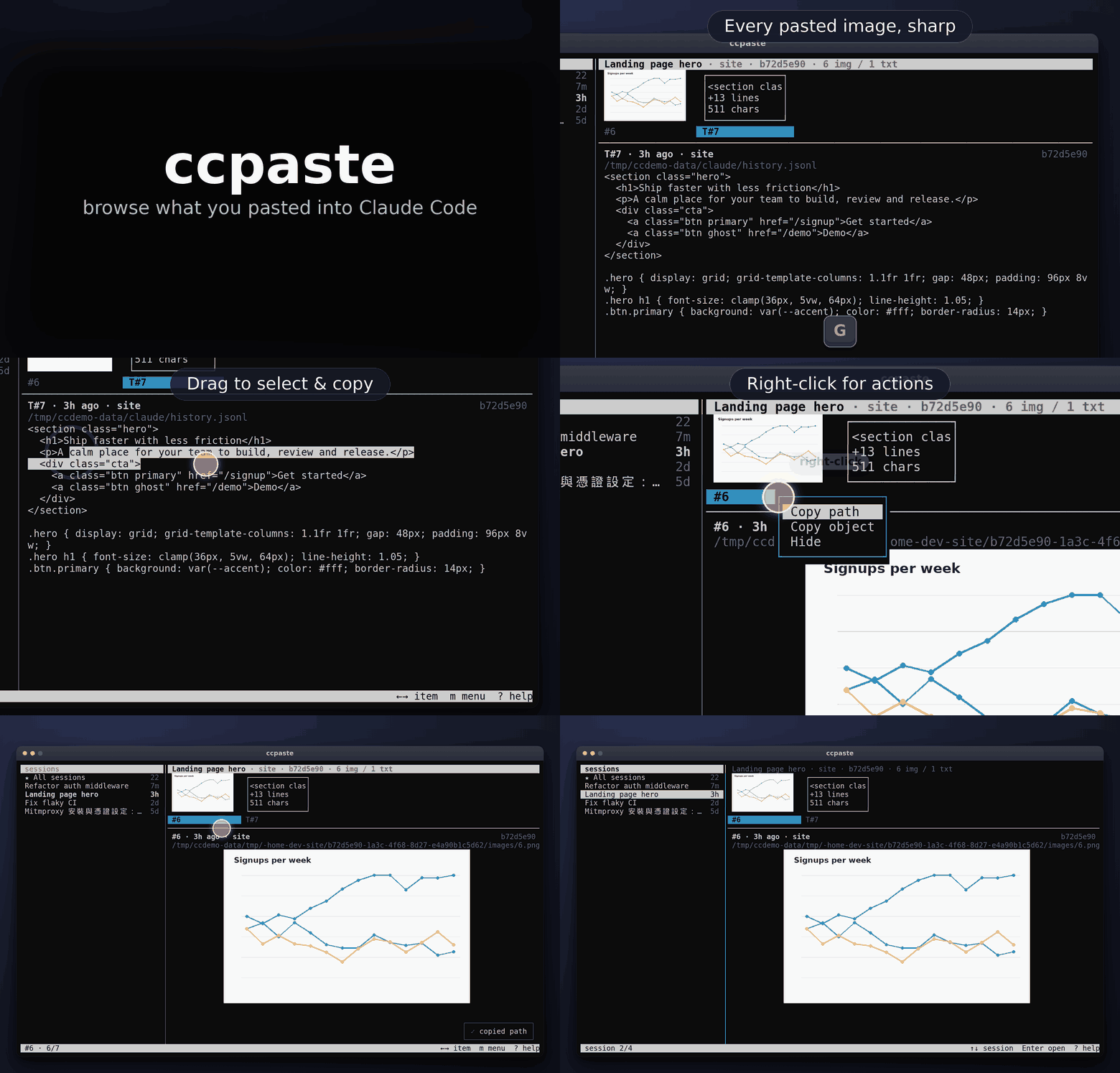
Sharp previews of everything you paste into Claude Code: images and text, every session, in your terminal via Sixel.
English | 繁體中文
Why
Claude Code only draws real pictures in terminals that speak the kitty graphics protocol, Ghostty or iTerm2. Elsewhere, for example Windows Terminal under WSL, pasted images show up as blurry half-block thumbnails. ccpaste is a small TUI you run in a second pane next to Claude Code. It lists your sessions on the left and draws the selected session's pasted images sharply via Sixel, plus the long text pastes, labelled like Claude Code labels them (#1, #2 for images, T#5 for text pastes).
Features
- Sharp Sixel previews of pasted images: a thumbnail strip plus a large preview.
- Long text pastes shown as plain wrapped text, scrollable, with the same
T#Nlabels Claude Code uses. - A session sidebar (newest first, with an "All sessions" view); new items and sessions appear automatically.
- Keyboard and mouse: vim-style keys, clicks, wheel, drag-to-copy, and a right-click context menu.
- Copy a path, a text paste, or the image itself to the clipboard (see Context menu and toasts for backends).
- Non-destructive hide and optional auto-hide of old sessions; Claude Code's files are never modified.
- Never modifies Claude Code's files and keeps no copies of your pastes; the only thing it writes is its own
hidden.json. - A single Python file with one dependency (Pillow).
Install
You need a terminal that speaks Sixel, for example Windows Terminal 1.22 or newer. macOS and Linux are supported as long as the terminal speaks Sixel; no other terminals have been verified. Run ccpaste in a second pane next to Claude Code.
Recommended: from PyPI (all platforms)
uv tool install ccpaste
Alternatives:
pipx install ccpaste
pip install --user ccpaste
Need uv? Official installer (docs):
# macOS / Linux
curl -LsSf https://astral.sh/uv/install.sh | sh

# Windows (PowerShell)
powershell -ExecutionPolicy ByPass -c "irm https://astral.sh/uv/install.ps1 | iex"
Standalone binary (no Python needed)
Download from the Releases page. Assets:
| Platform | Asset |
|---|---|
| Windows x86_64 | ccpaste-windows-x86_64.zip (contains ccpaste-windows-x86_64.exe) |
| Linux x86_64 | ccpaste-linux-x86_64 |
| Linux aarch64 | ccpaste-linux-aarch64 |
| macOS Apple silicon | ccpaste-macos-aarch64 |
| macOS Intel | ccpaste-macos-x86_64 |
Windows (PowerShell):
Invoke-WebRequest https://github.com/louiswu1110/ccpaste/releases/latest/download/ccpaste-windows-x86_64.zip -OutFile ccpaste.zip
Expand-Archive ccpaste.zip -DestinationPath .
.\ccpaste-windows-x86_64.exe
macOS / Linux (swap in your platform's asset name):
curl -L -o ccpaste https://github.com/louiswu1110/ccpaste/releases/latest/download/ccpaste-linux-x86_64
chmod +x ccpaste
./ccpaste
The binaries are unsigned. Windows SmartScreen may warn on first run (More info, then Run anyway). If you downloaded a binary with a browser, macOS quarantines it; clear the flag once with xattr -d com.apple.quarantine ccpaste-macos-aarch64 (or the file name you downloaded). Binaries fetched with curl are not quarantined, so this is not needed for them.
From source
Needs Python 3 and Pillow. The program is the single file ccpaste:
pip install --user pillow
python3 ccpaste
Or put it on your PATH: ln -s "$PWD/ccpaste" ~/.local/bin/ccpaste.
Screenshots
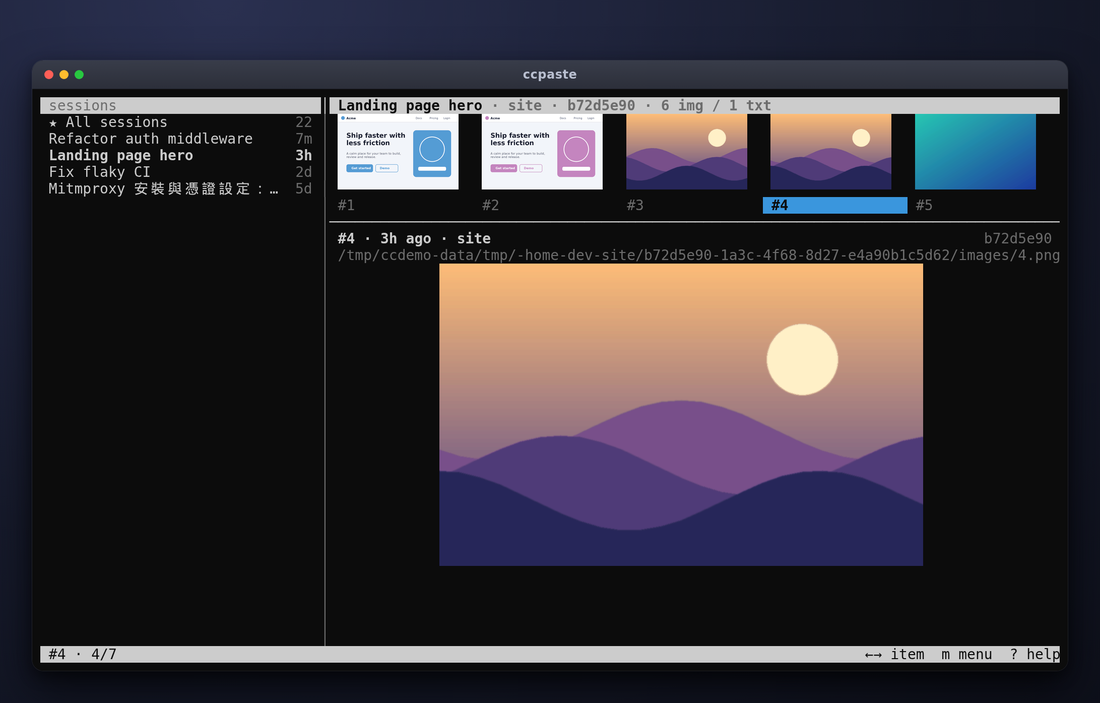
Sessions on the left; a thumbnail strip and a large preview of the selected image on the right.
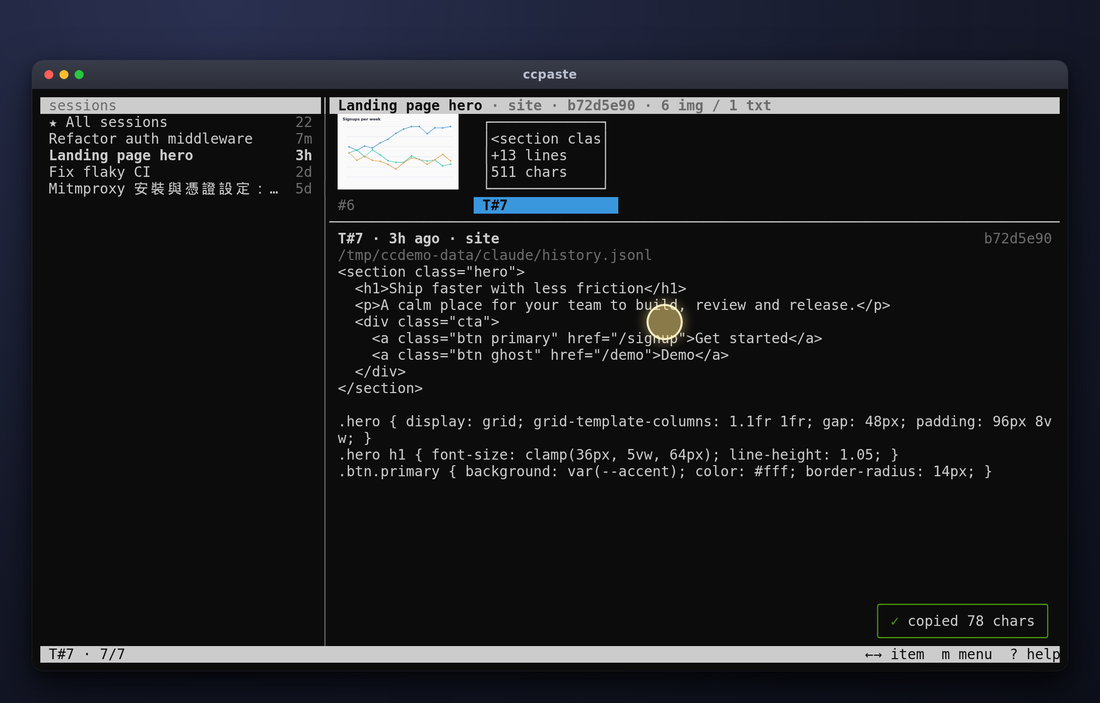
A text paste (T#7) shown as text; selecting text copies it and a green "copied N chars" toast confirms.
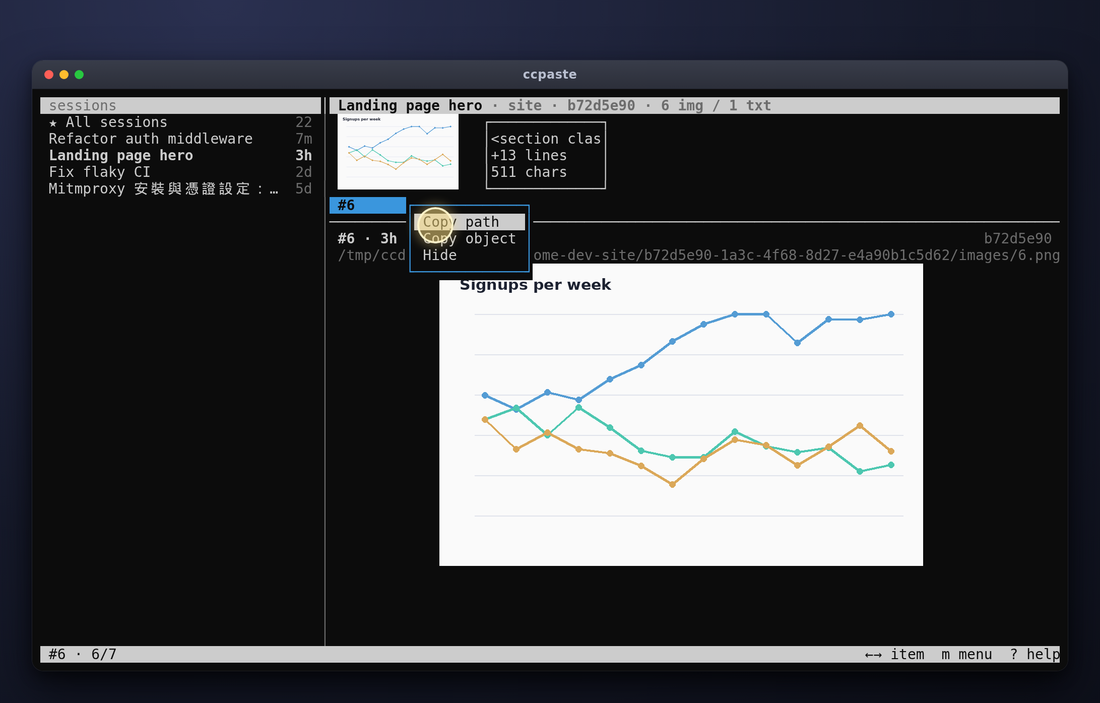
Right-click (or m) opens a context menu: Copy path, Copy object, Hide.
Usage
ccpaste                  # sidebar of sessions, newest first
ccpaste -s <id-prefix>   # open one session directly (ambiguous prefix lists candidates and exits 1)
ccpaste --list           # print the sessions (title, id, project, time, counts) and exit
ccpaste --list -s <id>   # print that session's item labels and exit
The screen is split: a sidebar of sessions on the left (first row "All sessions", then one two-line row per session: title with the 8-character id, then project, age and counts) and the selected session's content on the right (thumbnail strip, info line, large preview). Without -s the sidebar starts focused on the newest session; with -s the right pane starts focused. New items and sessions appear automatically (polled about once a second); a newly arrived item in the shown session becomes the selection.
| Focus | Key | Action |
|---|---|---|
| Sidebar | Up / Down, k / j | previous / next session (right pane updates live) |
| Sidebar | g / G | first / last row |
| Sidebar | Enter, Right, l, Tab | focus the right pane |
| Right pane | Left / Right, h / l | previous / next item |
| Right pane | Up / Down, k / j | move one thumbnail row |
| Right pane | g / G | first / last item |
| Right pane | PgUp / PgDn | scroll a text paste by a page |
| Right pane | K / J | scroll a text paste by 3 lines |
| Right pane | Tab, Esc, s | focus the sidebar |
| Both | b | show / hide the sidebar |
| Both | r | force redraw |
| Both | d / u / H | hide or un-hide the selection / undo the last hide / show hidden items |
| Both | ? | help overlay: the main keys and mouse actions, plus the cell size in use (any key closes it) |
| Both | m | open the context menu for the selection (same as right-click) |
| Both | y | copy the selected item's path to the clipboard |
| Both | [ / ] | shrink / grow the assumed terminal cell size by 10% (calibration if images overflow) |
| Both | q, Ctrl+C | quit |
Hide
Hiding is non-destructive: ccpaste never modifies or deletes Claude Code's files. It keeps its own list in ~/.config/ccpaste/hidden.json ($XDG_CONFIG_HOME/ccpaste/hidden.json if set; %APPDATA%\ccpaste\hidden.json on Windows):
{"version": 1, "sessions": ["<sessionId>"], "items": ["<sid>:img:<n>", "<sid>:txt:<id>"], "auto_hide_days": null}
dhides the selected session when the sidebar is focused, or the selected item (image or text paste) when the right pane is focused. "All sessions" cannot be hidden. Hidden things disappear from the sidebar, the All view, the counts and the thumbnail strip.- Right after hiding, a toast says "hidden ... · u to undo";
urestores the most recent hide (repeat for older ones, for this run).donly toggles the selection: it hides, or un-hides something that is already hidden and shown viaH. Htoggles "show hidden": hidden sessions and items then appear dimmed with a marker, anddun-hides the selected one.- Auto-hide: set
auto_hide_daysin the json, or passccpaste --hide-older N, to hide sessions whose last activity is older than N days. This is computed on the fly and never written to the file;Hshows them too, andddoes not un-hide them (change the setting instead). - The file is written atomically. A missing or corrupt file is treated as empty (a corrupt one is copied to
hidden.json.bak).
The footer is deliberately short: your position on the left (#10 · 376/376; in the All view the item label also carries its 4-character session prefix) and at most three hints plus ? help on the right.
Mouse
Mouse tracking is enabled while ccpaste runs (button-event tracking with SGR coordinates) and switched off again on exit. Hold Shift while dragging to use the terminal's own selection instead (terminal-dependent).
| Action | Effect |
|---|---|
| Click a sidebar row | select that session, focus the sidebar |
| Click a thumbnail | select that item, focus the right pane |
| Click the divider | show / hide the sidebar |
| Right-click a thumbnail, the preview or the info / path lines | select that item and open the context menu (Copy path, Copy object, Hide / Unhide) |
| Right-click a sidebar session row | context menu (Hide / Unhide session, Copy session id) |
| Wheel over the sidebar | scroll the session list |
| Wheel over the thumbnails | previous / next item |
| Wheel over a text paste | scroll the text (over an image: previous / next item) |
| Drag over a text paste or the path line | highlight; the selected text is copied on release |
| Double-click | select the word under the pointer and copy it |
| Drag past the top / bottom edge of a text paste | autoscroll while selecting |
Copying uses the native clipboard where possible (Windows: Win32 API; macOS: pbcopy; Linux: wl-copy, xclip or xsel) and otherwise hands the text to the terminal (the OSC 52 escape; this is the normal route over SSH and under WSL; confirmed working in Windows Terminal under WSL, other terminals unverified). A green toast "copied N chars" confirms it either way. Over a remote editor terminal that carries neither SSH variables nor a WSL kernel but does have DISPLAY/WAYLAND_DISPLAY set (e.g. a VS Code tunnel into a desktop Linux box), a local tool is chosen and the text lands on the remote machine's clipboard.
Windows (native)
ccpaste also runs in Windows Terminal from cmd or PowerShell, without WSL: install Python 3 and Pillow (pip install pillow), use Windows Terminal 1.22 or newer (for Sixel), then run python ccpaste (or python ccpaste -s <id>). It reads Claude Code's files from %USERPROFILE%\.claude and .claude-* and the pasted images from <CLAUDE_CODE_TMPDIR or %TEMP%>\claude; the images location is based on a third-party plugin's description of Claude Code and is unverified. Windows support is untested on real hardware: the console setup (VT input and output modes, raw input, quick-edit off), input reader, native clipboard and path handling are implemented but only their pure logic is covered by tests that run on Linux. Please report what breaks.
Context menu and toasts
Right-click (or m) opens a small bordered menu at the pointer; it flips left or up near the window edges and never covers the footer. Hover with the mouse (motion tracking is only enabled while a menu is open) or use Up / Down / j / k and Enter; Esc, q or a click outside closes it. Every item, image or text, gets the same menu:
- Copy path: an image's file path; for a text paste the paste-cache file path if it has one, otherwise the
history.jsonlit came from. - Copy object: a text paste's full text, or the image itself on the clipboard (so it can be pasted into other apps, including Claude Code). Image backends: Windows native (
CF_DIBplus aPNGformat), WSL (powershell.exewithSystem.Windows.Forms), macOS (osascript), Linux (wl-copyorxclip). If no backend works you get "couldn't copy image — copied its path instead". The WSL backend is confirmed working (Windows Terminal, pasting back into Claude Code); the other image backends are implemented but unverified on real systems. - Hide / Unhide: see Hide.
Sidebar rows get "Hide session" / "Unhide session" and "Copy session id". Every action confirms with a toast (a rounded box at the bottom right, just above the footer, green; yellow only for real problems such as an image that could not be copied): "copied path", "copied image", "copied N chars", "hidden ... u to undo". Toasts and menus are drawn over the image preview; when they go away the Sixel underneath is re-placed from the cache.
Environment variables
CLAUDE_CONFIG_DIR: Claude Code config directory (default~/.claude).CLAUDE_CODE_TMPDIR: Claude Code temp root; images are looked up under${CLAUDE_CODE_TMPDIR:-/tmp}/claude-<uid>.CCPASTE_CONFIG_DIRS: config directories to read, separated by:(;on Windows); by default$CLAUDE_CONFIG_DIR,~/.claudeand every~/.claude-*withprojects/orhistory.jsonl.CCPASTE_TMP_ROOT: override that images root directly (used by the tests).CCPASTE_CELL=WxH: terminal cell size in pixels, for example10x20. Normally ccpaste asks the terminal (window pixel size, thenCSI 16t) and falls back to a conservative 10x20 guess; the help overlay (?) shows the size in use and where it came from.
Where data comes from
ccpaste only reads Claude Code's files, never modifies them, and keeps no copies; the only file it writes is its own hidden list.
- Images:
<tmp root>/<project-slug>/<sessionId>/images/<N>.<ext>, where N is the number in[Image #N]. Any extension is accepted; files that Pillow cannot decode show a text placeholder. - Text pastes:
$CLAUDE_CONFIG_DIR/history.jsonl(pastedContentsof each entry), resolvingcontentHashentries from$CLAUDE_CONFIG_DIR/paste-cache/<hash>.txt. Entries appear only after the prompt is submitted. - Session titles: the last
ai-title(acustom-titletakes priority) in$CLAUDE_CONFIG_DIR/projects/<slug>/<sessionId>.jsonl, read incrementally; falls back to the first prompt, then "(untitled)". Nothing else from transcripts is read out.
Limitations
- Only sessions with at least one pasted image or text appear (or the one named with
-s). Pastes whose cached text Claude Code has already pruned frompaste-cachecannot be recovered and are not listed. - Rendering was developed against the Sixel behaviour of Windows Terminal; other terminals are untested. Image quality is limited to a 256-colour palette per image.
- Images are decoded and encoded in a background thread, so a very large image shows a placeholder for a moment.
- Pasted text is shown as plain wrapped text; there is no search.
License
MIT © 2026 Louis Wu
1 maintainer

Metadata
1 maintainer
Release files for ccpaste 0.1.0
For a detailed explanation of source distributions (sdists) and built distributions (wheels), please see the package formats documentation.
Source distribution (sdist)
| File | Size | Uploaded | Provenance | |
|---|---|---|---|---|
| ccpaste-0.1.0.tar.gz | 65.8 kB | With provenance | Details |
Built distribution (wheel)
| File | Interpreter | ABI | Platform | Reset |
|---|---|---|---|---|
| ccpaste-0.1.0-py3-none-any.whl | Python 3 | none | any | Details |
Total release size: 105.3 kB
Release files / ccpaste-0.1.0.tar.gz
| Download URL | ccpaste-0.1.0.tar.gz |
|---|---|
| Size | 65.8 kB |
| Tags | Source |
|
SHA-256 checksum How to use checksums |
33c59764b254357eb2e31d5ca668a6444caf99ed95f2bb15d2684786ac2cb784
|
|
BLAKE2b-256 checksum How to use checksums |
1c1ca08d3b082507936a1852dcc9675904e206fbb228a099a057606e7ae5701d
|
| Upload date | |
|
Uploaded using Trusted Publishing? What is trusted publishing? |
Yes |
| Uploaded via |
twine/7.0.0 CPython/3.13.16
|
Provenance
Provenance describes where a file came from. On PyPI, provenance is shared via attestations, which provide a verifiable record of the build or publishing details. View details, limitations and caveats.


PyPI Publish Attestation
PyPI verified that this artifact, at this checksum, originated from the publisher listed below.
Signed by GitHub Actions, verified by PyPI on Oct 22, 2026.
Transparency logRelease files / ccpaste-0.1.0-py3-none-any.whl
| Download URL | ccpaste-0.1.0-py3-none-any.whl |
|---|---|
| Size | 39.5 kB |
| Tags | Python 3 |
|
SHA-256 checksum How to use checksums |
29e1bdc08774de57d277faa58e9bf9a0257a8c57dd77ff1583efb679ce0b3f94
|
|
BLAKE2b-256 checksum How to use checksums |
6adf674227168d2053e119e814fb840e730527976798a2446995513edf2a94ed
|
| Upload date | |
|
Uploaded using Trusted Publishing? What is trusted publishing? |
Yes |
| Uploaded via |
twine/7.0.0 CPython/3.13.16
|
Provenance
Provenance describes where a file came from. On PyPI, provenance is shared via attestations, which provide a verifiable record of the build or publishing details. View details, limitations and caveats.
PyPI Publish Attestation
PyPI verified that this artifact, at this checksum, originated from the publisher listed below.
Signed by GitHub Actions, verified by PyPI on Oct 22, 2026.
Transparency logSecurity for ccpaste 0.1.0
Provenance
Provenance describes where a file came from. On PyPI, provenance is shared via attestations, which provide a verifiable record of the build or publishing details. View details, limitations and caveats.
Full provenance
All 2 files in this release have been uploaded with provenance metadata.
Attestation for ccpaste-0.1.0.tar.gz
PyPI Publish Attestation
PyPI verified that this artifact, at this checksum, originated from the publisher listed below.
Signed by GitHub Actions, verified by PyPI on Oct 22, 2026.
Transparency logA note on package security
PyPI is a repository for distributing packages, not a service for auditing them. While third-party security researchers and our staff do their best to detect and remove malicious packages, PyPI cannot guarantee the quality, security or suitability of any given package.
To learn more about protecting yourself from malicious actors, visit our package security documentation.














