
charmd
Debug console scripts in PyCharm directly from the terminal, avoiding manual Run Configurations or temporary code imports.
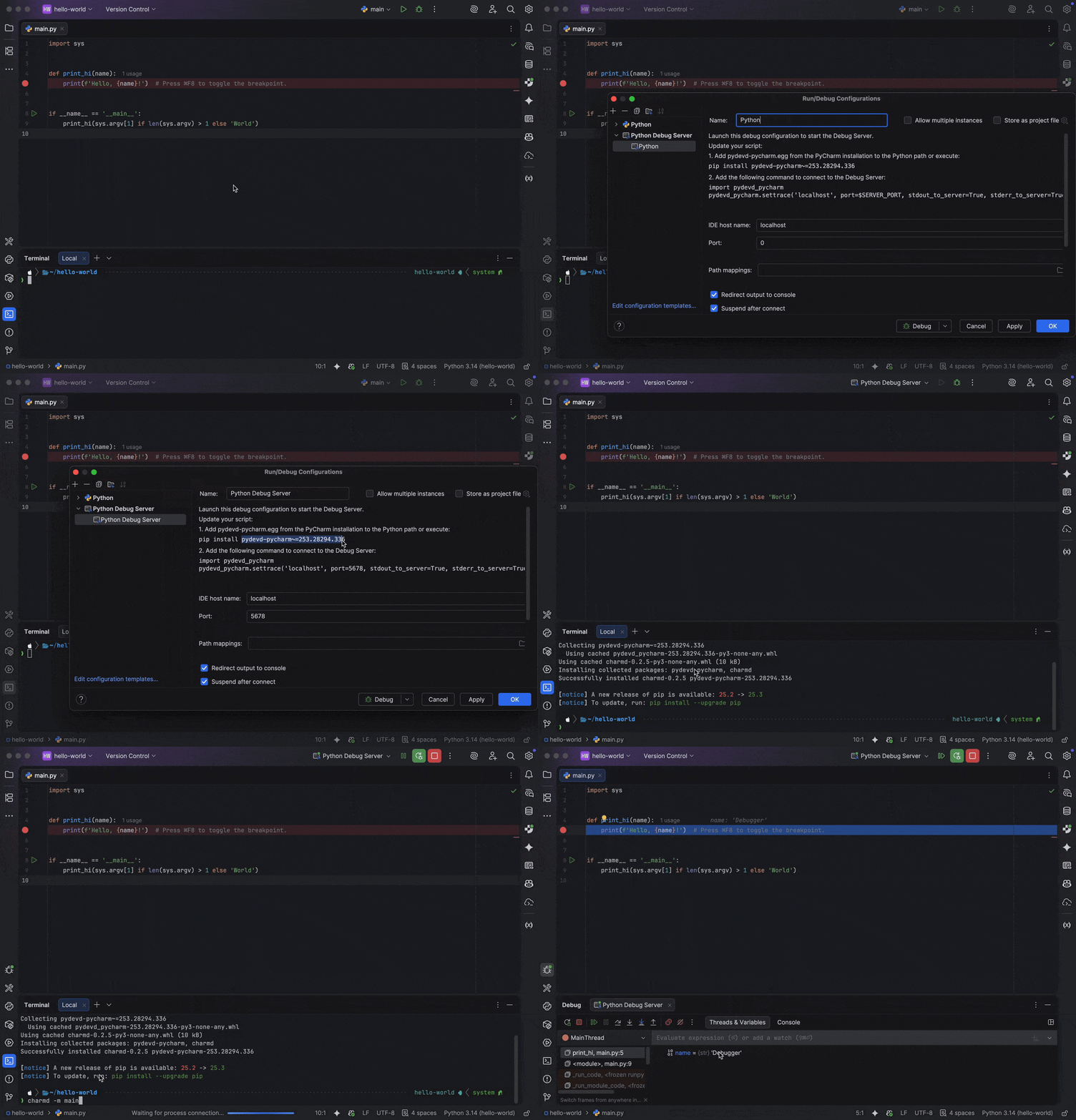
start the debugger, set some breakpoints, and run your script!
Why charmd?
PyCharm's debugger is powerful, but debugging console scripts with varying arguments typically means editing Run Configurations through the IDE. This becomes cumbersome when:
- You need to debug a one-off set of unique arguments
- You need to rapidly debug varying command line options
- You want the simplicity of CLI-iniated debugging (like
pdbordebugpy) with PyCharm's full IDE debugging experience
charmd eliminates this friction by letting you initiate debug sessions of console scripts directly from the terminal, making it trivial to debug against varying command-line arguments.
TOC
- Requirements
- Quick Start
- Locating or Installing pydevd-pycharm
- Configuration File
- Installation
- Troubleshooting
Requirements
- Python 3.8 or higher
- pydevd-pycharm package (see Locating or Installing pydevd-pycharm below)
Note: charmd does not automatically install pydevd-pycharm as a dependency. This is intentional, as PyCharm installations ship with their own preferred version of the library that should be used for debugging. See Locating or Installing pydevd-pycharm below.
Quick start
⚠️ Important: Before running any charmd command, ensure that:
- PyCharm's Python Debug Server is running and listening on the configured host and port (default: localhost:5678)
- You set breakpoints in your code where you want to pause execution
See PyCharm's Debug Documentation for more information.
usage
charmd [debug-options ...] [--] (-m module | -c command | pyfile) [args ...]
Note: charmd is good at distinguishing debug options from the target specification. In cases where they may be ambiguity, you can use -- to clearly specify the start of the target specification.
examples
charmd -m mypkg.mymod arg1
charmd -c "print('hello')"
charmd -- script.py arg1 arg2
debug options
  -h, --help             Show this help message and exit
  --version              Show program's version number and exit

  --host HOST            PyCharm debug server host (default: localhost)
  --port PORT            PyCharm debug server port (default: 5678)
  --suspend              Suspend on start (default: False)

  --stdout-to-server     Redirect stdout to debug server (default: True)
  --no-stdout-to-server  Do not redirect stdout to debug server

  --stderr-to-server     Redirect stderr to debug server (default: True)
  --no-stderr-to-server  Do not redirect stderr to debug server

  --pydevd-path PATH     Path to the pydevd-pycharm module directory.

  --conf-init            Create a charmd.conf file with current settings and exit.
Locating or Installing pydevd-pycharm
charmd requires the pydevd-pycharm library to communicate with PyCharm's debug server. You can either locate an existing installation (if PyCharm is installed) or install a compatible version via pip.
Option 1: Use the library from your PyCharm installation
If you have PyCharm installed, you can point charmd to the bundled pydevd-pycharm.egg file in your PyCharm installation directory:
Linux/Windows:
<PyCharm directory>/debug-egg/pydevd-pycharm.egg
MacOS:
<PyCharm directory>/Contents/debug-eggs/pydevd-pycharm.egg
alternative:
<PyCharm directory>/Contents/plugins/python-ce/helpers/pydev
For example, on MacOS:
/Applications/PyCharm.app/Contents/debug-eggs/pydevd-pycharm.egg
Configure charmd to use this path via the pydevd_path setting in your configuration file or the --pydevd-path command-line option.
Option 2: Install using pip
If PyCharm is not installed on your system, install the pydevd-pycharm package matching your PyCharm version:
pip install pydevd-pycharm~=<version of PyCharm on the local machine>
For example, if your PyCharm version is 242.20224.428:
pip install pydevd-pycharm~=242.20224.428
To find your PyCharm version, go to PyCharm → About PyCharm (or Help → About on some platforms).
For more information, see the JetBrains Remote Debugging documentation.
Configuration File
charmd supports a configuration file for setting default debug options on a per-project basis. This eliminates the need to specify common options on the command line for every invocation.
File Location
The configuration file must be named charmd.conf and placed in the current working directory (the directory from which you run charmd).
Creating the Configuration File
Option 1: Automatic Generation
Use the --conf-init flag to generate a configuration file with your current settings:
charmd --host 192.168.1.100 --port 5679 --suspend --conf-init
This creates a charmd.conf file in the current directory with the specified settings.
Option 2: Manual Creation
Create a charmd.conf file manually with your preferred text editor:
# charmd configuration file
# Lines starting with '#' are comments.

host = localhost
port = 5678
suspend = false
stdout_to_server = true
stderr_to_server = true
#pydevd_path = /path/to/pydevd_pycharm
Configuration Options
All command-line debug options can be configured in the file:
| Option | Type | Default | Description |
|---|---|---|---|
host |
string | localhost |
PyCharm debug server host |
port |
integer | 5678 |
PyCharm debug server port |
suspend |
boolean | false |
Suspend execution on start |
stdout_to_server |
boolean | true |
Redirect stdout to debug server |
stderr_to_server |
boolean | true |
Redirect stderr to debug server |
pydevd_path |
string | (none) | Path to pydevd-pycharm module directory |
File Format
- Key-value pairs: Use
key = valuesyntax - Comments: Lines starting with
#are ignored - Whitespace: Leading and trailing whitespace is trimmed
- Quotes: Values can be quoted with single or double quotes to preserve internal whitespace
host = "my host with spaces" pydevd_path = '/Applications/PyCharm.app/Contents/debug-eggs' - Boolean values: Accepted values are
true,false,1,0,yes,no,y,n,on,off(case-insensitive)
Configuration Precedence
Settings are applied in the following order (later sources override earlier ones):
- Built-in defaults (e.g.,
host=localhost,port=5678) - Configuration file (
charmd.confin current directory) - Command-line arguments (highest priority)
This allows you to set project-wide defaults in charmd.conf and override them on a per-invocation basis when needed.
Example Workflow
# Set up project-specific debug configuration
cd /path/to/myproject
charmd --host 192.168.1.100 --port 5679 --conf-init

# Now run with config file defaults
charmd -- myscript.py

# Override specific settings when needed
charmd --suspend -- myscript.py
Installation
From PyPI (Recommended)
Install the latest stable version from PyPI using pip:
pip install charmd
To install for the current user only:
pip install --user charmd
To upgrade an existing installation:
pip install --upgrade charmd
From Wheel File
Wheel (.whl) files are available as release assets on the GitHub releases page. Download the desired version and install it directly:
pip install charmd-*.whl
Replace * with the specific version number, or use the exact filename.
From Source (Clone Repository)
Standard Installation
Clone the repository and install using pip:
git clone https://github.com/tekwizely/python-charmd.git
cd python-charmd
pip install .
Editable/Development Installation
For development work, install in editable mode so changes take effect immediately:
git clone https://github.com/tekwizely/python-charmd.git
cd python-charmd
pip install -e .
This allows you to modify the source code and test changes without reinstalling.
Running Without Installation
You can also run charmd directly from the cloned repository without installing:
git clone https://github.com/tekwizely/python-charmd.git
cd python-charmd
python charmd.py [options]
# or
python -m charmd [options]
Verifying Installation
After installation, verify that charmd is properly installed:
charmd --version
Or:
python -m charmd --version
Uninstalling
To remove charmd:
pip uninstall charmd
Troubleshooting
MacOS: pydevd attach.dylib missing when invoking a .py script
Issue
Expected: <PyCharm directory/.../pydevd-pycharm.egg/pydevd_attach_to_process/attach.dylib to exist.
This error can occur when running a Python script (for example charmd -- myscript.py).
On MacOS the packaged pydevd-pycharm.egg layout may not expose the bundled attach.dylib at the path pydevd-pycharm expects.
Solution
Point charmd at PyCharm's pydev helpers directory instead of the egg. You can pass the path via the --pydevd-path command-line option or set pydevd_path in charmd.conf:
<PyCharm directory>/Contents/plugins/python-ce/helpers/pydev
Example
charmd --pydevd-path "/Applications/PyCharm.app/Contents/plugins/python-ce/helpers/pydev" -- myscript.py
License
The tekwizely/python-charmd project is released under the MIT License. See LICENSE file.
1 maintainer

Metadata
1 maintainer
Release files for charmd 0.2.6
For a detailed explanation of source distributions (sdists) and built distributions (wheels), please see the package formats documentation.
Source distribution (sdist)
| File | Size | Uploaded | Provenance | Actions |
|---|---|---|---|---|
| charmd-0.2.6.tar.gz | 15.5 kB | With provenance | Details for charmd-0.2.6.tar.gz |
Built distribution (wheel)
| File | Interpreter | ABI | Platform | Actions Reset |
|---|---|---|---|---|
| charmd-0.2.6-py3-none-any.whl | Python 3 | none | any | Details for charmd-0.2.6-py3-none-any.whl |
Total release size: 26.3 kB
Release files / charmd-0.2.6.tar.gz
| Download URL | charmd-0.2.6.tar.gz |
|---|---|
| Size | 15.5 kB |
| Tags | Source |
|
SHA-256 checksum How to use checksums |
b01cfe3095e579049fb49e3a69f88ddf0f8c6d69e65cbfd06912de37d8788e2b
|
|
BLAKE2b-256 checksum How to use checksums |
bbb9c738f16dad93590a8438818f14cd3bc18fd16856b88bb3fd074ea9329afd
|
| Upload date | |
|
Uploaded using Trusted Publishing? What is trusted publishing? |
Yes |
| Uploaded via |
twine/6.1.0 CPython/3.13.7
|
Provenance
Provenance describes where a file came from. On PyPI, provenance is shared via attestations, which provide a verifiable record of the build or publishing details. View details, limitations and caveats.


PyPI Publish Attestation
PyPI verified that this artifact, at this checksum, originated from the publisher listed below.
Signed by GitHub Actions, verified by PyPI on Dec 11, 2025.
Transparency logRelease files / charmd-0.2.6-py3-none-any.whl
| Download URL | charmd-0.2.6-py3-none-any.whl |
|---|---|
| Size | 10.8 kB |
| Tags | Python 3 |
|
SHA-256 checksum How to use checksums |
fc00e1117146d24970fa274757cc6a9bbd7da82336c007237fb6f98453bba5e5
|
|
BLAKE2b-256 checksum How to use checksums |
6db7988e8181482e2426a79cbae398f3f3ac7921fa6b838180307fb6c7dd8eaa
|
| Upload date | |
|
Uploaded using Trusted Publishing? What is trusted publishing? |
Yes |
| Uploaded via |
twine/6.1.0 CPython/3.13.7
|
Provenance
Provenance describes where a file came from. On PyPI, provenance is shared via attestations, which provide a verifiable record of the build or publishing details. View details, limitations and caveats.
PyPI Publish Attestation
PyPI verified that this artifact, at this checksum, originated from the publisher listed below.
Signed by GitHub Actions, verified by PyPI on Dec 11, 2025.
Transparency logSecurity for charmd 0.2.6
Provenance
Provenance describes where a file came from. On PyPI, provenance is shared via attestations, which provide a verifiable record of the build or publishing details. View details, limitations and caveats.
Full provenance
Both files in this release have been uploaded with provenance metadata.
Attestation for charmd-0.2.6.tar.gz
PyPI Publish Attestation
PyPI verified that this artifact, at this checksum, originated from the publisher listed below.
Signed by GitHub Actions, verified by PyPI on Dec 11, 2025.
Transparency logA note on package security
PyPI is a repository for distributing packages, not a service for auditing them. While third-party security researchers and our staff do their best to detect and remove malicious packages, PyPI cannot guarantee the quality, security or suitability of any given package.
To learn more about protecting yourself from malicious actors, visit our package security documentation.














