
Convert WhatsApp chat exports to HTML format

Project description
chat-export: Convert WhatsApp Chats to HTML
This tool converts a WhatsApp chat export into two HTML formats: one with inline media (such as images, videos, and audio files) and a compact version with media links.
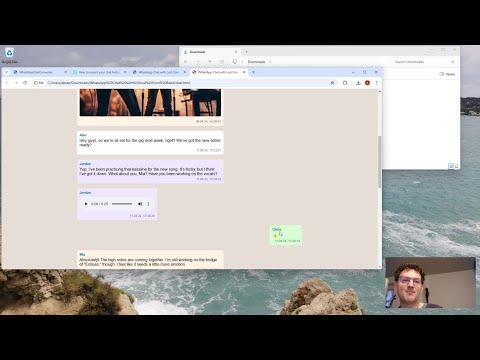
Video Tutorial (still refers to the previously used tool name instead of chat-export):
Binary Release Downloads
- Windows: chat-export.exe
- Mac: chat-export-installer.pkg
Why is this useful?
The HTML export is:
- Printable: You can print the chat or save as a PDF.
- Searchable: You can search for specific messages in the browser.
- Shareable: You can share the chat with others, but make sure to get consent from all other participants first.
- Durable: You can keep the chat as a record for years to come. Apps come and go. Plain HTML is here to stay.
- Automatable: With the non-interactive CLI mode, you can script batch processing of multiple chat exports or integrate the tool into other workflows.
Maybe you want to:
- keep a record of a conversation with a former loved one, friend, or business partner. You want to delete the chat from your phone, but you don’t want to lose the memories.
- save a chat with important information, such as addresses, phone numbers, or other data.
- keep a chat with a person who has passed away.
- export just an excerpt of a chat from a specific date range.
- archive a chat before freeing up space on your phone by deleting photos, videos, and other documents that were part of the chat.
- ask another chat participant who still has a complete version of the chat (including all pictures) on his or her phone to send you a chat export, so you can convert and archive it.
- batch process multiple chat exports automatically using the CLI mode.
- integrate chat conversion into backup or archival scripts.
- process chat exports on headless servers or in automated workflows.
Furthermore, the tool is open-source and runs offline on your computer, so you can be sure that your data is not being sent to any server.
And by the way, it’s free! If you find it useful, you can donate.
Instructions
-
Export the Chat: Begin by exporting a chat from the WhatsApp app, preferably with media included. For detailed instructions, refer to WhatsApp FAQ. You can for example save it on Google Drive or Dropbox or send it to yourself with WhatsApp.
-
Transfer the File: Move the exported ZIP file to your computer. If you have sent it to yourself with WhatsApp, you can download it with WhatsApp Web or with the WhatsApp App on your computer. Delete the WhatsApp message afterwards to save space.
-
Install and Run the Tool:
Option 1: Install via pip (Recommended)
If you have Python installed, you can install chat-export as a command-line tool:
pip install chat-exportOptional: Install with platform-specific dependencies for native file dialogs
For better user experience with native file picker dialogs, you can install platform-specific dependencies:
On macOS:
pip install chat-export[macos]On Windows:
pip install chat-export[windows]Note: Without these optional dependencies, the tool will fall back to command-line input for file selection or use tkinter (if available) for file dialogs. If you're planning to use the tool in non-interactive mode, you don't need to install these dependencies.
After installation, you can run it from anywhere in your terminal:
chat-export
chat-export --help
To uninstall:
pip uninstall chat-exportOption 2: Download Binary Executables
- For Windows, download chat-export.exe.
Because the .exe is unsigned, you will see a warning, but after clicking on "More Information" you should have the option to run it anyway. An EV code signing certificate for Windows costs a lot. If I get enough donations, I will buy one, so I can release signed exe files.
- For Mac, download chat-export-installer.pkg
Once installed on Mac:
- Open the Terminal app (e.g. by typing "terminal" in Spotlight Search).
- Type:
chat-export
This will start the chat export tool from anywhere in the terminal.
To uninstall
chat-exportfrom Mac, open the Terminal and run:sudo rm /usr/local/bin/chat-exportThe executables have been built with pyinstaller.
Option 3: Run Directly (No Installation)
If Python is installed on your Windows, Mac or Linux computer, run the tool directly (no installation required) with the following command:
python -c "import urllib.request; exec(urllib.request.urlopen('https://raw.githubusercontent.com/mtln/chat-export/refs/heads/main/main.py').read().decode())"or
python3 -c "import urllib.request; exec(urllib.request.urlopen('https://raw.githubusercontent.com/mtln/chat-export/refs/heads/main/main.py').read().decode())"
Usage
The tool supports both interactive and non-interactive modes:
Interactive Mode (Default)
CLI Parameters:
-o, --output-dir: Base directory where the chat folder will be created (optional, default: current directory)
- After starting the tool, a file picker dialog will open. Select the ZIP file of the chat export you want to convert. If your installation does not support file dialogs, you will be prompted for the path to the ZIP file.
- You can enter start and end dates to export only a specific date range. If you leave the fields empty, the entire chat will be exported. If the terminal window doesn't accept your keyboard input, click with your mouse right after the colon in
Enter the number corresponding to your name:to set the focus to the terminal window. - A list of chat participants will appear. Select your name so that your messages are displayed in green chat bubbles, just like on WhatsApp.
- Once the conversion completes, you can choose to open the HTML files immediately in your browser (just hit enter). From there, you can save the chat as a PDF or print it if needed.
Command Line Interface (Non-Interactive Mode)
For automation, scripting, or when you know all parameters in advance, you can use the non-interactive CLI mode. This mode processes the chat without any prompts and is perfect for batch processing or integration into other tools.
Basic Usage:
chat-export -n -z "path/to/chat.zip" -p "Your Name"
CLI Parameters:
-n, --non-interactive: Enable non-interactive mode (required)-z, --zip-file: Path to WhatsApp chat export ZIP file (required)-p, --participant: Your name exactly as it appears in the chat (required)--from-date: Optional start date for filtering (formats: DD.MM.YYYY, MM/DD/YYYY, DD.MM.YY, MM/DD/YY)--until-date: Optional end date for filtering-o, --output-dir: Base directory where the chat folder will be created (default: current directory)
Examples:
Basic conversion:
chat-export -n -z "WhatsApp Chat with John.zip" -p "Your Name"
With absolute path to ZIP file (Windows):
chat-export -n -z "c:\temp\WhatsApp Chat with John.zip" -p "Your Name"
With date filtering:
chat-export -n -z "chat.zip" -p "Your Name" --from-date "01.01.2024" --until-date "31.12.2024"
Custom output directory (creates chat folder in /tmp instead of current directory):
chat-export -n -z "chat.zip" -p "Your Name" -o "/tmp"
Windows paths (important: no trailing backslash):
chat-export -n -z "chat.zip" -p "Your Name" -o "C:\temp"
Important Notes:
- The participant name must match exactly as it appears in the chat (case-sensitive)
- If the participant name is not found, the tool will display all available participants and exit
- When printing an HTML page, most web browsers are set by default to exclude background colors to save ink or toner. If you want to include them, you need to enable background graphics in your browser settings. See the section below for instructions.
- In Google Chrome: Go to
Print→More settings→ CheckBackground graphics. - In Mozilla Firefox: Go to
File→Print→Page Setup→ CheckPrint Background (colors & images). - In Microsoft Edge: Go to
Print→More settings→ CheckBackground graphics.
- In Google Chrome: Go to
Supported languages
WhatsApp chat exports vary depending on your phone’s system language.
chat-export has been tested with many languages and regional settings.
If it doesn't work for your language, please let me know.
Supported Operating Systems
- Windows
- Mac
- Linux
Limitations
There is information in chats, that is not included in the export.zip created by WhatsApp. As a consequence, this information cannot be rendered by chat-export.
This includes:
- Reactions (thumbs up and other emojis that are not a stand-alone message, but created by long tapping a previous message)
- Message relations (in WhatsApp, you can right-swipe a previous message and then write a message in relation to this)
- Chat group metadata (e.g. list of all members, admins, ...)
Disclaimer
chat-export comes with no warranty. Use it responsibly and respect the privacy of other chat participants. The tool is not affiliated with WhatsApp or Meta.
Release history Release notifications | RSS feed


Download files
Download the file for your platform. If you're not sure which to choose, learn more about installing packages.
Source Distribution
Built Distribution
Filter files by name, interpreter, ABI, and platform.
If you're not sure about the file name format, learn more about wheel file names.
Copy a direct link to the current filters
File details
Details for the file chat_export-0.9.2.tar.gz.
File metadata
- Download URL: chat_export-0.9.2.tar.gz
- Upload date:
- Size: 18.6 kB
- Tags: Source
- Uploaded using Trusted Publishing? No
- Uploaded via: twine/6.2.0 CPython/3.12.6
File hashes
| Algorithm | Hash digest | |
|---|---|---|
| SHA256 |
782959cebe3f806c1a61ba8f1ac751d3612de940b24ecac0d48a575e100a658e
|
|
| MD5 |
07a9f6cb1cdb7ca16da21103039443a0
|
|
| BLAKE2b-256 |
30da32ffd057de72b7f168a0b856d3ce492b18e193573ec62e2d9038421e9f5c
|
File details
Details for the file chat_export-0.9.2-py3-none-any.whl.
File metadata
- Download URL: chat_export-0.9.2-py3-none-any.whl
- Upload date:
- Size: 19.0 kB
- Tags: Python 3
- Uploaded using Trusted Publishing? No
- Uploaded via: twine/6.2.0 CPython/3.12.6
File hashes
| Algorithm | Hash digest | |
|---|---|---|
| SHA256 |
ad80e587c41cdf0f75cfd801d4071ba8019f22f24d157da64a9dbc66158f9d69
|
|
| MD5 |
a3e89b70686763a3e7052cbd52bd9bdb
|
|
| BLAKE2b-256 |
1b34dff93b0f5d0a5c683191614bc95a0eee5410d166c706ac8cc9854d6d44e9
|






