
chebai-NL2FOL
AI workflow for natural language to First-Order Logic (FOL) translation for ChEBI.
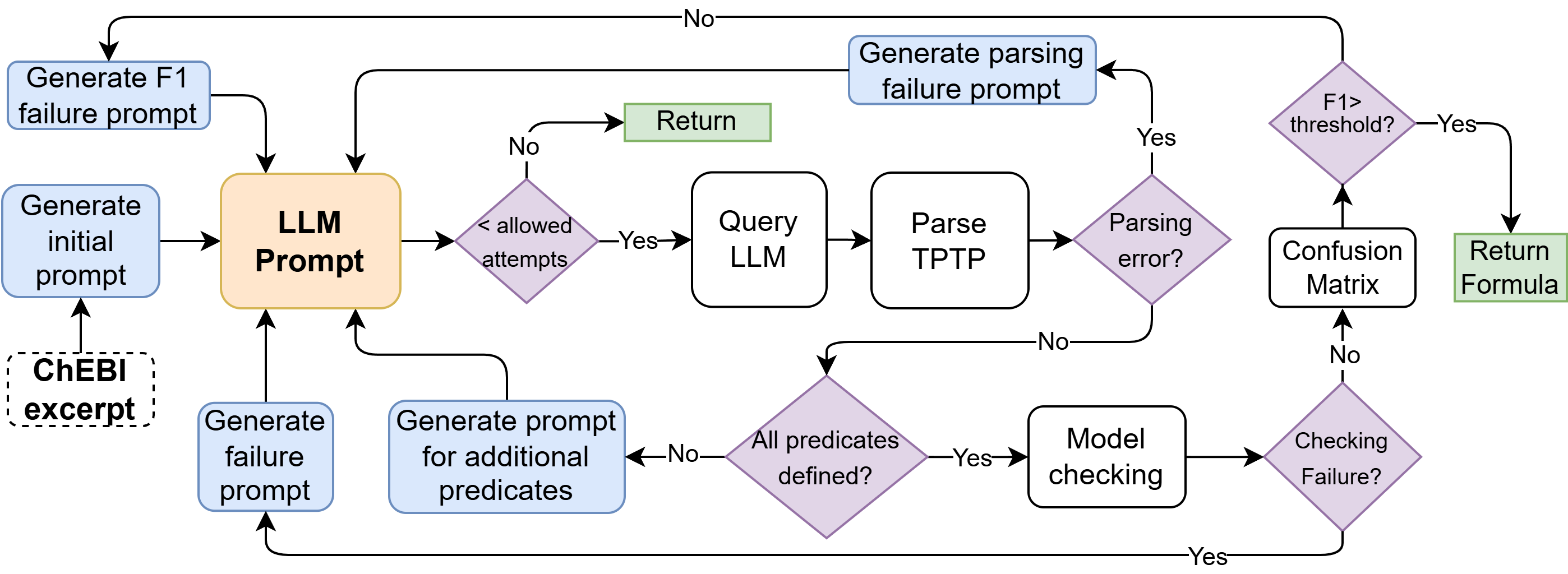
Data Files
The learning and validation pipelines expect the C3PO slim dataset files under data/ by default:
data/classes_slim.csv
data/structures.csv
dataset.json
Download them from the C3PO dataset on Hugging Face: https://huggingface.co/datasets/MonarchInit/C3PO/tree/main
These are the same source links referenced in nl_2_fol/inference/cli.py and nl_2_fol/inference/preprocessing/c3po_slim_data.py. The C3PO dataset is associated with https://github.com/chemkg/c3p.
If your files live somewhere else, pass explicit paths to the learning or validation commands:
python nl_2_fol/inference/cli.py learn \
  --slim_dataset_path "/path/to/classes_slim.csv" \
  --structures_data_path "/path/to/structures.csv"
python nl_2_fol/inference/cli.py validate \
  --defs_file_path "nl_2_fol/inference/learner/learned/claude-opus-4-6/learned_definitions_a3.pkl" \
  --class_name "all" \
  --slim_dataset_path "/path/to/classes_slim.csv" \
  --structures_data_path "/path/to/structures.csv"
The C3P comparison utilities also expect score JSON files from the C3P train/validation score output referenced in the utility help text: https://github.com/chemkg/c3p/pull/23
Start the Learning Pipeline
Run commands from the repository root so the default data/ and prompt-template paths resolve correctly.
To learn definitions with the default Anthropic configuration:
python nl_2_fol/inference/cli.py learn
To learn definitions with the local Ollama Mistral configuration:
python nl_2_fol/inference/cli.py learn_mistral
To learn a single ChEBI class instead of all classes:
python nl_2_fol/inference/cli.py learn --class_name "ethanol"
python nl_2_fol/inference/cli.py learn_mistral --class_name "ethanol"
Useful options:
python nl_2_fol/inference/cli.py learn \
  --api_platform "anthropic" \
  --model_name "claude-opus-4-6" \
  --max_attempts 3 \
  --f1_threshold 0.8
Learning output is saved under:
nl_2_fol/inference/learner/learned/<model_name>/learned_definitions_a<max_attempts>.pkl
For example, with model_name="claude-opus-4-6" and max_attempts=3, the definitions file is:
nl_2_fol/inference/learner/learned/claude-opus-4-6/learned_definitions_a3.pkl
Start the Validation Pipeline
After learning has produced a definitions pickle, validate the learned definitions with:
python nl_2_fol/inference/cli.py validate \
  --defs_file_path "nl_2_fol/inference/learner/learned/claude-opus-4-6/learned_definitions_a3.pkl" \
  --class_name "all"
To validate only one class:
python nl_2_fol/inference/cli.py validate \
  --defs_file_path "nl_2_fol/inference/learner/learned/claude-opus-4-6/learned_definitions_a3.pkl" \
  --class_name "ethanol"
Single-class validation writes a small result pickle named after the resolved class in the current working directory, for example ethanol.pkl.
For HPC or long validation runs, split the work across jobs by passing a text file with one class name per line. Use a unique file_save_index for each job:
python nl_2_fol/inference/cli.py validate \
  --defs_file_path "nl_2_fol/inference/learner/learned/claude-opus-4-6/learned_definitions_a3.pkl" \
  --class_names_txt_file_path "classes_0.txt" \
  --file_save_index 0
Full or split validation writes a new definitions pickle next to the input file, for example:
nl_2_fol/inference/learner/learned/claude-opus-4-6/learned_definitions_a3_with_val_file_idx_None_.pkl
When class_names_txt_file_path is used, the index appears in the file name, for example:
nl_2_fol/inference/learner/learned/claude-opus-4-6/learned_definitions_a3_with_val_file_idx_0_.pkl
Use --help to inspect the full set of options:
python nl_2_fol/inference/cli.py learn --help
python nl_2_fol/inference/cli.py learn_mistral --help
python nl_2_fol/inference/cli.py validate --help
Utility Scripts
Helper scripts for inspecting, editing, merging, and comparing learned definitions live in:
nl_2_fol/inference/utils/
Most scripts expect paths to learned definition pickles produced by the learning or validation pipeline.
Inspect or Edit Learned Definitions
Use show_learned_content.py to inspect a learned definitions pickle:
python nl_2_fol/inference/utils/show_learned_content.py \
  --pickle-file "nl_2_fol/inference/learner/learned/claude-opus-4-6/learned_definitions_a3.pkl" \
  show
Show one class:
python nl_2_fol/inference/utils/show_learned_content.py \
  --pickle-file "nl_2_fol/inference/learner/learned/claude-opus-4-6/learned_definitions_a3.pkl" \
  show \
  --class-name "ethanol"
Include prompt history while inspecting a class:
python nl_2_fol/inference/utils/show_learned_content.py \
  --pickle-file "nl_2_fol/inference/learner/learned/claude-opus-4-6/learned_definitions_a3.pkl" \
  show \
  --class-name "ethanol" \
  --system-prompt \
  --conversation-history
Merge Validation Metrics
Use merge_validation_metrics.py to merge validation metrics from one validated pickle into another definitions pickle:
python nl_2_fol/inference/utils/merge_validation_metrics.py \
  "nl_2_fol/inference/learner/learned/claude-opus-4-6/learned_definitions_a3.pkl" \
  "nl_2_fol/inference/learner/learned/claude-opus-4-6/learned_definitions_a3_with_val_file_idx_0_.pkl" \
  "nl_2_fol/inference/learner/learned/claude-opus-4-6/learned_definitions_a3_merged.pkl"
The first path is the target/base pickle, the second path is the source pickle containing validation metrics, and the third path is the output pickle.
Compare With C3P
Use compare_with_c3p.py to compare validated learned definitions against C3P score JSON files and export a CSV:
python nl_2_fol/inference/utils/compare_with_c3p.py \
  --ensemble-c3p-json "c3p_ensemble_train_val_scores.json" \
  --o3-mini-c3p-json "c3p_o3_mini_train_val_scores.json" \
  --learned-pickle "nl_2_fol/inference/learner/learned/claude-opus-4-6/learned_definitions_a3_with_val_file_idx_0_.pkl" \
  --output-csv "comparison_with_c3p_ensemble_o3_mini.csv"
Guide: Run a custom model with Ollama on a computing cluster
This example uses the Mistral FOL model: https://huggingface.co/fvossel/Mistral-Small-24B-Instruct-2501-nl-to-fol
1. Prepare model weights for conversion
Convert the Mistral model to a merged format by calling convert_mistral_to_gguf from:
nl_2_fol/prompting/custom_api/_to_gguf.py
Why this step matters:
- Hugging Face checkpoints are often split across multiple files.
- The conversion pipeline expects a clean merged model directory as input.
What this step does:
- Collects and organizes model artifacts into a local
mistral-mergedfolder. - Ensures the tokenizer/config/weights are in a format that
llama.cppconversion can read.
Expected result:
- A
mistral-mergeddirectory exists in your workspace and is ready for GGUF conversion.
2. Build tools and install local Ollama (no root required)
This step prepares two required components:
llama.cpp, which provides theconvert_hf_to_gguf.pyconversion script.- A user-local Ollama installation, useful on clusters where you do not have
sudoaccess.
git clone https://github.com/ggerganov/llama.cpp
cd llama.cpp
pip install -r requirements.txt
If you do not have root access on the HPC cluster, install Ollama in your home directory:
mkdir -p "$HOME/ollama"
cd "$HOME/ollama"
curl -L -o ollama-linux-amd64.tar.zst https://ollama.com/download/ollama-linux-amd64.tar.zst
unzstd ollama-linux-amd64.tar.zst
tar -xf ollama-linux-amd64.tar

echo 'export PATH=$HOME/ollama/bin:$PATH' >> ~/.bashrc
source ~/.bashrc
ollama --version
Expected result:
ollama --versionprints a version string.- You can run
ollamacommands without system-wide installation.
3. Convert model to GGUF
From inside llama.cpp:
python convert_hf_to_gguf.py ../mistral-merged --outfile mistral.gguf
Why this step matters:
- Ollama loads local models through GGUF files.
- This command translates the merged Hugging Face model into a runtime format Ollama can serve.
Expected result:
- A file named
mistral.ggufis created. - The conversion may take time and use significant CPU/RAM depending on model size.
4. Start Ollama server
Run the Ollama server in background using below command, so it keeps running while you execute your script or commands in same terminal.
export OLLAMA_HOST=http://localhost:<your_custom_port>
export OLLAMA_TIMEOUT=180 # in seconds
ollama serve > ollama.log 2>&1 &
OLLAMA_PID=$!
After you are done with ollama, cleanly stop ollama server using below commands
kill $OLLAMA_PID 2>/dev/null
wait $OLLAMA_PID 2>/dev/null
5. Register the model in Ollama
Create a Modelfile in the directory containing mistral.gguf with:
FROM ./mistral.gguf
Then run:
ollama create my-mistral -f Modelfile
ollama list
Why this step matters:
ollama createregisters your GGUF file under a model name (my-mistral).- After registration, you can refer to the model by name in CLI calls.
Expected result:
ollama listshowsmy-mistral.- You only need to run
ollama create ...once per model build.
6. Run NL-to-FOL inference with Ollama
This final step sends requests from your project CLI to the locally running Ollama server. On some clusters, proxy variables can interfere with localhost routing, so unset them first if needed.
export NO_PROXY=127.0.0.1,localhost,.local
export no_proxy=127.0.0.1,localhost,.local
Then run:
python nl_2_fol/inference/cli.py --api_platform="ollama" --model_name="my-mistral"
IMPORTANT: Ensure ollama serve and the inference command run on the same compute node or same allocated job/session if applicable.
For example, if ollama serve started on hpc3-52 but the inference command runs on hpc3-54, the connection might fail.
Expected result:
- The CLI connects to your local Ollama instance.
- The
my-mistralmodel is used for NL-to-FOL inference.
1 maintainer

Metadata
1 maintainer
Release files for chebai-nl2fol 0.0.1
For a detailed explanation of source distributions (sdists) and built distributions (wheels), please see the package formats documentation.
Source distribution (sdist)
| File | Size | Uploaded | |
|---|---|---|---|
| chebai_nl2fol-0.0.1.tar.gz | 85.6 kB | Details |
Built distribution (wheel)
| File | Interpreter | ABI | Platform | Reset |
|---|---|---|---|---|
| chebai_nl2fol-0.0.1-py3-none-any.whl | Python 3 | none | any | Details |
Total release size: 174.9 kB
Release files / chebai_nl2fol-0.0.1.tar.gz
| Download URL | chebai_nl2fol-0.0.1.tar.gz |
|---|---|
| Size | 85.6 kB |
| Tags | Source |
|
SHA-256 checksum How to use checksums |
bfe14c2f196de2f098df9014b9de6d78dd06b42c6b66d611ab93d4755820da0b
|
|
BLAKE2b-256 checksum How to use checksums |
36e1f0c4ee2009adb1295d9316ab827e150f7e6ce53635e95575bb84c7c65d2e
|
| Upload date | |
|
Uploaded using Trusted Publishing? What is trusted publishing? |
Yes |
| Uploaded via |
twine/6.1.0 CPython/3.13.12
|
Provenance
Provenance describes where a file came from. On PyPI, provenance is shared via attestations, which provide a verifiable record of the build or publishing details. View details, limitations and caveats.


PyPI Publish Attestation
PyPI verified that this artifact, at this checksum, originated from the publisher listed below.
Signed by GitHub Actions, verified by PyPI on Jun 30, 2026.
Transparency logRelease files / chebai_nl2fol-0.0.1-py3-none-any.whl
| Download URL | chebai_nl2fol-0.0.1-py3-none-any.whl |
|---|---|
| Size | 89.3 kB |
| Tags | Python 3 |
|
SHA-256 checksum How to use checksums |
f2ea0b8be53f94e0634d1264791038e0c509dc944e9a59ea0fecd0ed69264a0d
|
|
BLAKE2b-256 checksum How to use checksums |
5d9c787d7692ac715cb6bd2bf714d11689d5122e64bc6df679d6177970a28b4d
|
| Upload date | |
|
Uploaded using Trusted Publishing? What is trusted publishing? |
Yes |
| Uploaded via |
twine/6.1.0 CPython/3.13.12
|
Provenance
Provenance describes where a file came from. On PyPI, provenance is shared via attestations, which provide a verifiable record of the build or publishing details. View details, limitations and caveats.
PyPI Publish Attestation
PyPI verified that this artifact, at this checksum, originated from the publisher listed below.
Signed by GitHub Actions, verified by PyPI on Jun 30, 2026.
Transparency log












