
claude-accounts-dash




A local dashboard for people who use more than one Claude account.
See every account's usage limits at a glance, browse all your Claude Code sessions, and when one account hits its limit, export the conversation so you can paste it into a new session on another account and keep going.
- Private: reads files that are already on your computer. Nothing is uploaded, and
the server only listens on
127.0.0.1. - Lightweight: pure Python standard library, with no dependencies. It starts in a few seconds.
- Cross-platform: Windows, macOS and Linux, Python 3.9+.
Unofficial community tool. Not affiliated with or endorsed by Anthropic.
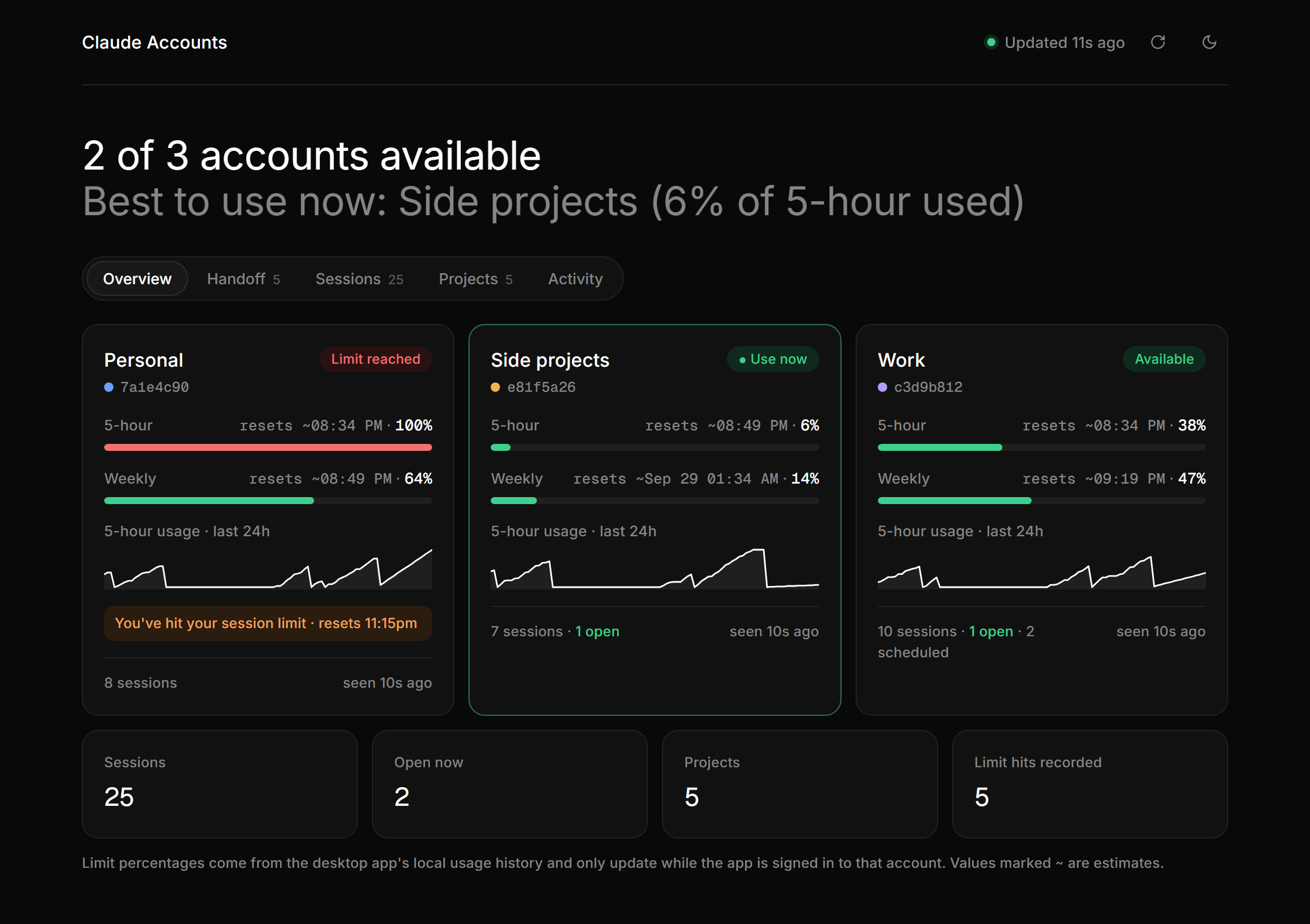
Screenshots use generated demo data.
Contents
- Install
- Usage
- What's in the dashboard
- Screenshots
- Continuing a session on another account
- Platform support
- Where the data comes from
- Configuration
- Troubleshooting
- Development
Install
With pipx (recommended: it installs the command in its own isolated environment):
pipx install claude-accounts-dash
Or with pip:
pip install claude-accounts-dash
Install the latest version straight from GitHub:
pipx install git+https://github.com/erenkarakoc/claude-accounts-dash.git
Upgrade later with pipx upgrade claude-accounts-dash or pip install -U claude-accounts-dash.
Usage
claude-accounts-dash
The first start indexes your local transcripts, which takes a few seconds for hundreds of
sessions. It then opens http://127.0.0.1:8765 in your browser. The page refreshes itself
every 30 seconds, and only re-reads files that changed. Stop it with Ctrl+C.
| Option | Description |
|---|---|
--port 9000 |
Listen on another port (default 8765) |
--no-browser |
Don't open the browser automatically |
--paths |
Print which local folders it reads and whether they exist, then exit |
--version |
Print the version |
-h, --help |
Show help |
python -m claude_accounts_dash does the same thing as claude-accounts-dash.
What's in the dashboard
Overview
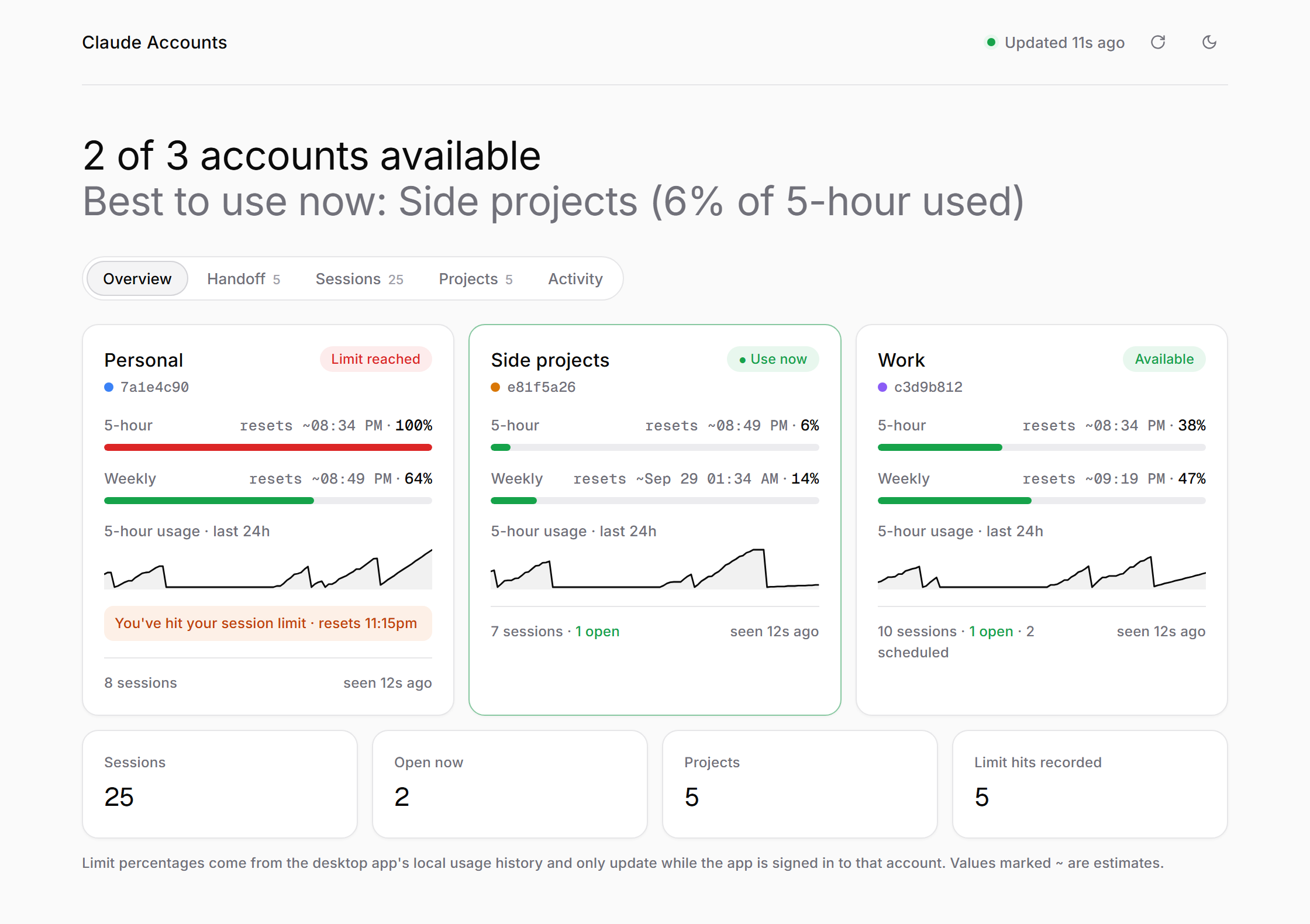
- One card per account with its 5-hour and weekly usage, estimated reset times, and a chart of the last 24 hours.
- A "Use now" badge on the account with the most room left, and a warning when an account is currently blocked by a limit, showing the reset time Claude reported.
- How many sessions are open on each account, and its desktop scheduled tasks.
- Click an account's name to give it a nickname (for example "Pro #2 – work"). Accounts show a short ID until you do.
Handoff
- Every session that hit a usage limit, newest first, with an Export chat button. See below.
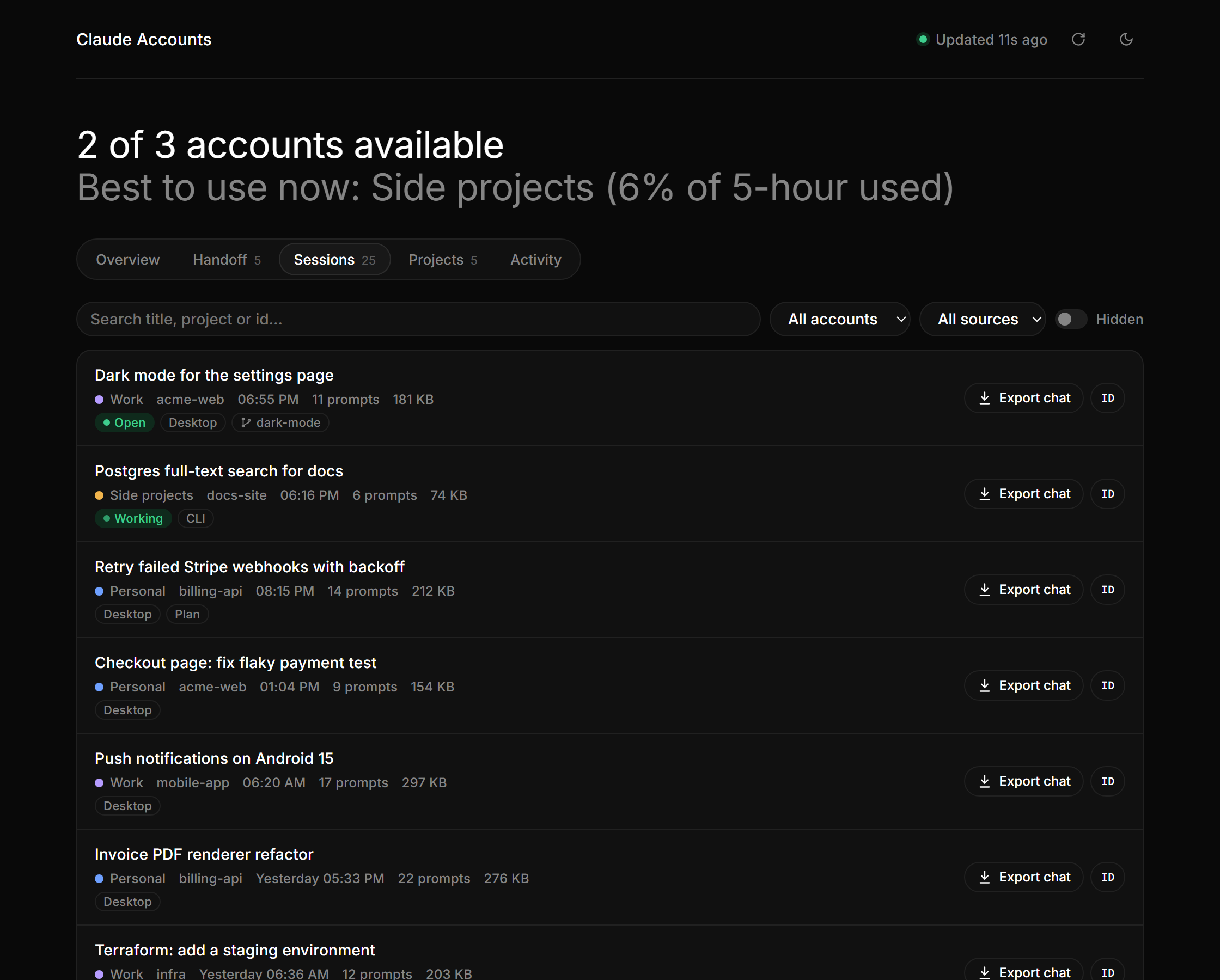
Sessions
- All sessions from all accounts: desktop app, CLI, SDK and IDE. Search by title, folder or ID, and filter by account or source.
- Sessions that are open right now are listed first, marked Open, or Working while Claude is busy.
- Tags show the source, background jobs, git worktrees, archived sessions and sessions that have a plan.
- Sessions you deleted in the desktop app, and background sessions created by plugins, are hidden unless you turn on Hidden.
Projects
- Every project folder with its sessions, prompts, tokens, disk size and the accounts that worked on it. Sessions in git worktrees are grouped under their main project. Open shows the folder in Explorer, Finder or your file manager.
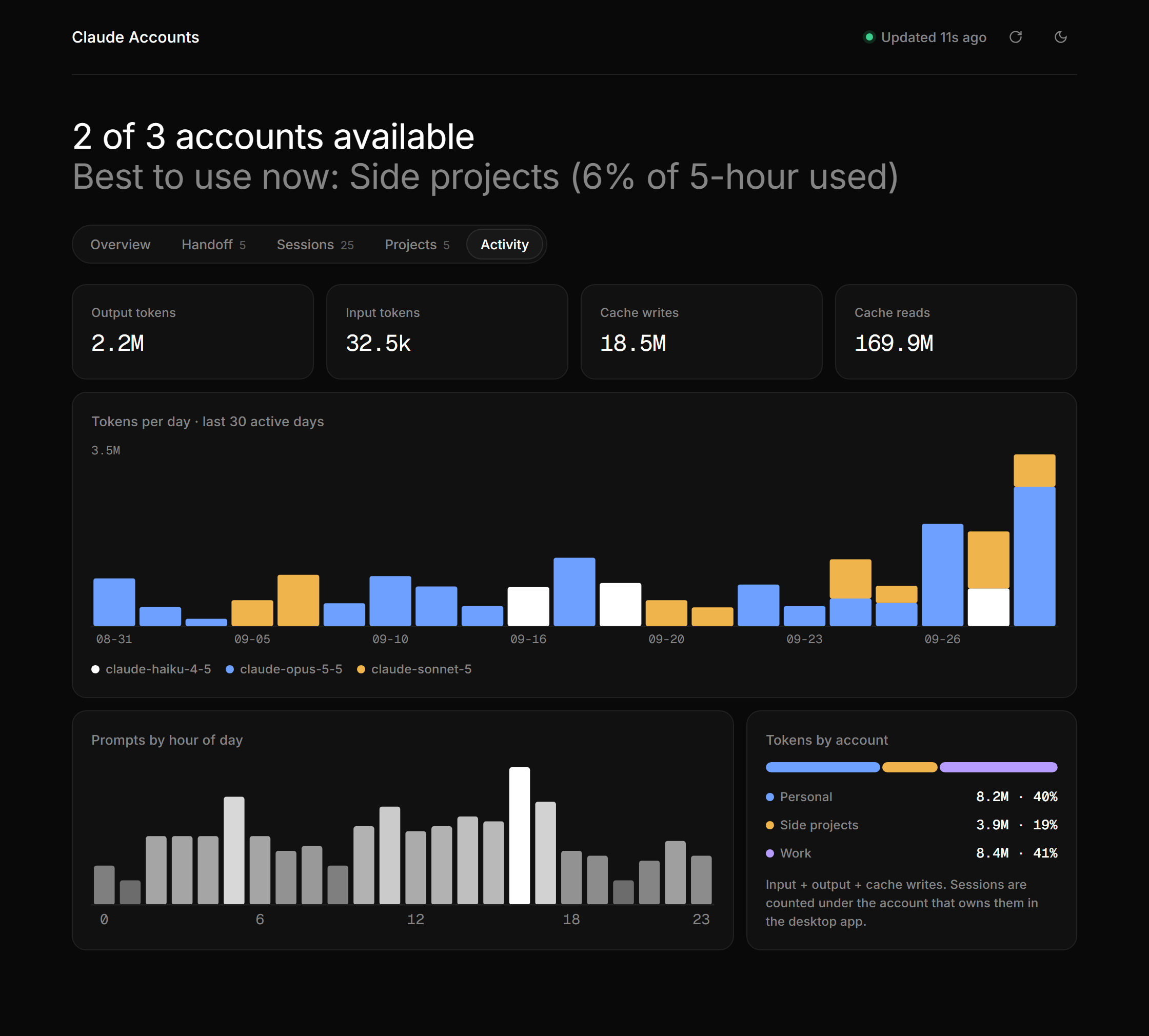
Activity
- Output, input and cache token totals, tokens per day split by model, prompts by hour of day, and each account's share of tokens.
Light and dark themes are available with the moon button.
Links like http://127.0.0.1:8765/#/activity open a tab directly, and #/handoff/export
opens the export for the newest session that hit a limit.
Screenshots
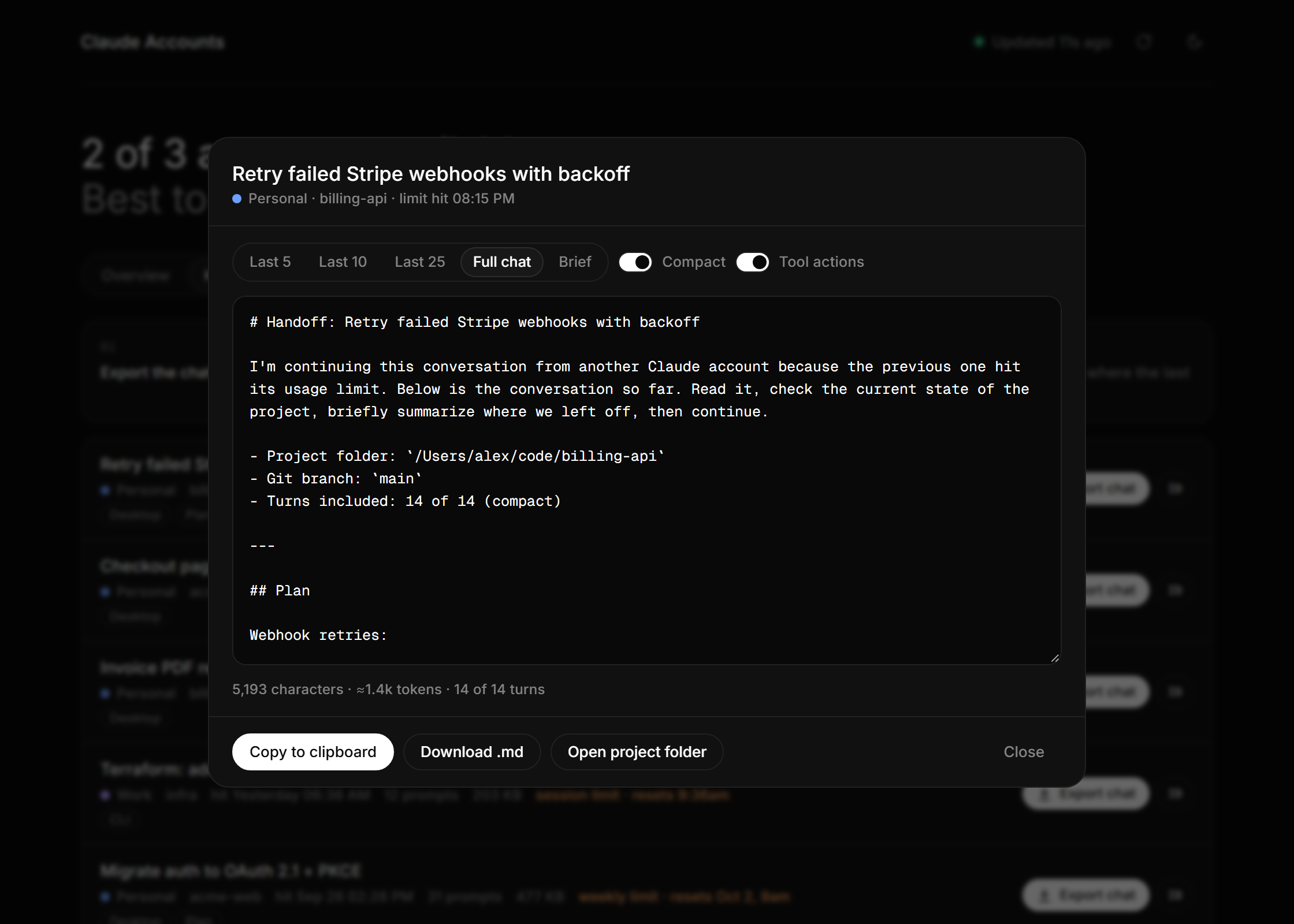
Export a session that hit its limit, ready to paste into another account
Every session from every account
Activity: tokens per day by model, prompts by hour, tokens per account
Light theme
Continuing a session on another account
-
Open the Handoff tab and click Export chat on the session that hit its limit.
-
Choose what to export:
Option What you get Typical size Full chat + Compact (default) Every turn. Very long pasted prompts are trimmed, Claude's final reply for each turn is kept, and tool calls are summarized as "edited a.ts,b.ts; used 12x Bash".Small to medium Last 5 / 10 / 25 Only the most recent turns, plus the summary Claude wrote when the chat was compacted, so the older part isn't lost. Small Compact off Everything, including every tool call. Can be very large Brief A short note: project folder, git branch, files touched, the plan, your last 5 requests, Claude's earlier summary, its last reply, and the path to the full transcript. About 1k tokens If the session has a plan (from plan mode or a file in
~/.claude/plans), it is included too. The size (characters and approximate tokens) is shown under the preview. -
Click Copy to clipboard, or Download .md.
-
In the Claude desktop app, switch to the other account and start a new session in the same project folder. The Open project folder button helps you find it.
-
Paste. The export starts with instructions telling Claude to check the project state, summarize where you left off, and continue.
The brief and exports are built locally from the saved transcript. Creating them uses no tokens.
Platform support
| Windows | macOS | Linux | |
|---|---|---|---|
Sessions, projects, activity, export (from ~/.claude) |
✅ | ✅ | ✅ |
| Account limits and desktop session ownership (Claude desktop app) | ✅ | ✅ | ⚠️ only if a desktop app data folder exists |
| Open project folder | Explorer | Finder | xdg-open |
Account limits come from files written by the Claude desktop app. If you only use the Claude Code CLI (for example on Linux), the dashboard still shows sessions, projects, activity and exports. The limit cards will say No data, and sessions are grouped under the account recorded in the transcript where possible.
Where the data comes from
| Data | Location |
|---|---|
| Limit % per account | <app data>/plan-usage-history.json |
| Which account owns each desktop session | <app data>/claude-code-sessions/<account>/<org>/local_*.json |
| Sessions deleted or archived in the desktop app | <app data>/claude-code-sessions/**/deleted_*, archived-sessions.idx |
| Desktop scheduled tasks | <app data>/claude-code-sessions/**/scheduled-tasks.json |
| Git worktrees created by the desktop app | <app data>/git-worktrees.json |
| Transcripts: messages, tokens, limit hits, compaction summaries, source (desktop, CLI, SDK, IDE) | ~/.claude/projects/**/*.jsonl |
| Sessions open right now (CLI and desktop) | ~/.claude/sessions/*.json (checked against running processes) |
| Background jobs | ~/.claude/jobs/*/state.json |
| Plans | ~/.claude/plans/*.md |
| Signed-in CLI account (email shown on its card) | ~/.claude.json |
| Your nicknames (written by claude-accounts-dash) | <config>/nicknames.json |
<app data> |
<config> |
|
|---|---|---|
| Windows | %APPDATA%\Claude, or for the Microsoft Store / MSIX app %LOCALAPPDATA%\Packages\Claude_<id>\LocalCache\Roaming\Claude (the most recently used one is picked) |
%APPDATA%\claude-accounts-dash |
| macOS | ~/Library/Application Support/Claude |
~/.config/claude-accounts-dash |
| Linux | $XDG_CONFIG_HOME/Claude (default ~/.config/Claude) |
$XDG_CONFIG_HOME/claude-accounts-dash |
claude-accounts-dash never modifies Claude's files. The only file it writes is nicknames.json.
About the limit numbers: the desktop app records usage only while it is signed in to that
account, so an account you haven't opened for a while shows its last known value. When the
estimated reset time has passed, the dashboard assumes the window has reset and marks the value
with ~. Reset times are estimated from the recorded samples; the exact reset time from Claude's
"You've hit your limit" message is shown when one exists.
Configuration
Environment variables, all optional:
| Variable | Purpose |
|---|---|
CLAUDE_ACCOUNTS_DASH_APP_DIR |
Use a different Claude desktop app data folder |
CLAUDE_CONFIG_DIR |
Use a different .claude folder (same variable Claude Code uses) |
CLAUDE_ACCOUNTS_DASH_CONFIG_DIR |
Where to store nicknames.json |
Troubleshooting
- "Port 8765 is in use": the dashboard is probably already running in another terminal.
Open
http://127.0.0.1:8765, or start another one with--port 8766. - No accounts or limits shown: run
claude-accounts-dash --pathsto see which folders were found. On Windows, the Microsoft Store (MSIX) version of the Claude app stores its data in a private package folder, which is detected automatically since 0.1.4. If it still isn't found, point to it withCLAUDE_ACCOUNTS_DASH_APP_DIR. Limits need the Claude desktop app. Sign in to each account in the app at least once. - An account's numbers look old: open the desktop app signed in to that account. It updates the usage history in the background.
claude-accounts-dash: command not foundafter pipx install: runpipx ensurepathand open a new terminal.- Unicode shows incorrectly in exports: exports are UTF-8. Open the downloaded
.mdin an editor that uses UTF-8.
Development
git clone https://github.com/erenkarakoc/claude-accounts-dash.git
cd claude-accounts-dash
python -m venv .venv
# Windows: .venv\Scripts\activate    macOS/Linux: source .venv/bin/activate
pip install -e .
claude-accounts-dash
Run the tests (they use a fake data folder, not your real one):
python -m unittest discover -s tests -v
Try it with demo data instead of your own (this is how the screenshots are made):
python scripts/demo_data.py demo-data
Then run the dashboard with these environment variables set:
CLAUDE_ACCOUNTS_DASH_APP_DIR=demo-data/app, CLAUDE_CONFIG_DIR=demo-data/claude and
CLAUDE_ACCOUNTS_DASH_CONFIG_DIR=demo-data/config.
Project layout:
src/claude_accounts_dash/
  server.py          reads local files, builds the data, serves the page and API
  static/index.html  the dashboard (plain HTML/CSS/JS, no build step)
tests/               smoke tests with fixture data
scripts/demo_data.py generates fake accounts and sessions for demos
docs/screenshots/    images used in this README
Releasing
- Bump
__version__insrc/claude_accounts_dash/__init__.py. - Create a GitHub release. The Publish to PyPI workflow builds and uploads it.
One-time setup: on PyPI, add a trusted publisher
for this repository with workflow
publish.ymland environmentpypi.
Or publish manually:
pip install build twine
python -m build
twine upload dist/*
License
1 maintainer

Metadata
1 maintainer
Release files for claude-accounts-dash 0.1.5
For a detailed explanation of source distributions (sdists) and built distributions (wheels), please see the package formats documentation.
Source distribution (sdist)
| File | Size | Uploaded | Provenance | Actions |
|---|---|---|---|---|
| claude_accounts_dash-0.1.5.tar.gz | 34.7 kB | With provenance | Details for claude_accounts_dash-0.1.5.tar.gz |
Built distribution (wheel)
| File | Interpreter | ABI | Platform | Actions Reset |
|---|---|---|---|---|
| claude_accounts_dash-0.1.5-py3-none-any.whl | Python 3 | none | any | Details for claude_accounts_dash-0.1.5-py3-none-any.whl |
Total release size: 67.8 kB
Release files / claude_accounts_dash-0.1.5.tar.gz
| Download URL | claude_accounts_dash-0.1.5.tar.gz |
|---|---|
| Size | 34.7 kB |
| Tags | Source |
|
SHA-256 checksum How to use checksums |
d844cf7296129e1a792c978b78ab335af0c528ec6b965bb4b11b2e5325d2291e
|
|
BLAKE2b-256 checksum How to use checksums |
ce92246a272a1402f22757ac623575715189f2d06f11972abc6ff6b9a9307942
|
| Upload date | |
|
Uploaded using Trusted Publishing? What is trusted publishing? |
Yes |
| Uploaded via |
twine/7.0.0 CPython/3.13.14
|
Provenance
Provenance describes where a file came from. On PyPI, provenance is shared via attestations, which provide a verifiable record of the build or publishing details. View details, limitations and caveats.


PyPI Publish Attestation
PyPI verified that this artifact, at this checksum, originated from the publisher listed below.
Signed by GitHub Actions, verified by PyPI on Sep 28, 2026.
Transparency logRelease files / claude_accounts_dash-0.1.5-py3-none-any.whl
| Download URL | claude_accounts_dash-0.1.5-py3-none-any.whl |
|---|---|
| Size | 33.0 kB |
| Tags | Python 3 |
|
SHA-256 checksum How to use checksums |
8af869a3c5ccc96e83829b3da1b28e961a917ecd873ad8410db560a02723ae71
|
|
BLAKE2b-256 checksum How to use checksums |
ec623a76771080f65a7fe1a23620a1ebbbdff4fbb122e35746773a705993a7d4
|
| Upload date | |
|
Uploaded using Trusted Publishing? What is trusted publishing? |
Yes |
| Uploaded via |
twine/7.0.0 CPython/3.13.14
|
Provenance
Provenance describes where a file came from. On PyPI, provenance is shared via attestations, which provide a verifiable record of the build or publishing details. View details, limitations and caveats.
PyPI Publish Attestation
PyPI verified that this artifact, at this checksum, originated from the publisher listed below.
Signed by GitHub Actions, verified by PyPI on Sep 28, 2026.
Transparency logSecurity for claude-accounts-dash 0.1.5
Provenance
Provenance describes where a file came from. On PyPI, provenance is shared via attestations, which provide a verifiable record of the build or publishing details. View details, limitations and caveats.
Full provenance
All 2 files in this release have been uploaded with provenance metadata.
Attestation for claude_accounts_dash-0.1.5.tar.gz
PyPI Publish Attestation
PyPI verified that this artifact, at this checksum, originated from the publisher listed below.
Signed by GitHub Actions, verified by PyPI on Sep 28, 2026.
Transparency logA note on package security
PyPI is a repository for distributing packages, not a service for auditing them. While third-party security researchers and our staff do their best to detect and remove malicious packages, PyPI cannot guarantee the quality, security or suitability of any given package.
To learn more about protecting yourself from malicious actors, visit our package security documentation.














