
Auto Generated MCP Server & UI For All of Your Python Scripts
For example, when in a repo containing the following files:
$ tree
.
...
├── scripts
│   ├── hello_world_script.py    # <-- Script containing a @click.command()
│   ├── options_test.py          # <-- Script containing a @click.command()
│   ├── not_a_click_cmd.py
│   └── test
│       └── sup.py               # <-- Script containing a @click.command()
...
...and run the following commands:
$ source .venv/bin/activate
$ pip install click-clack  # Or wtv pip/uv command you use to setup your virtualenv.
$ click-clack

        Running ClickClack.py ⚡

        ➜  URL: http://localhost:2718
...you'll get a minimalist UI that looks like this:
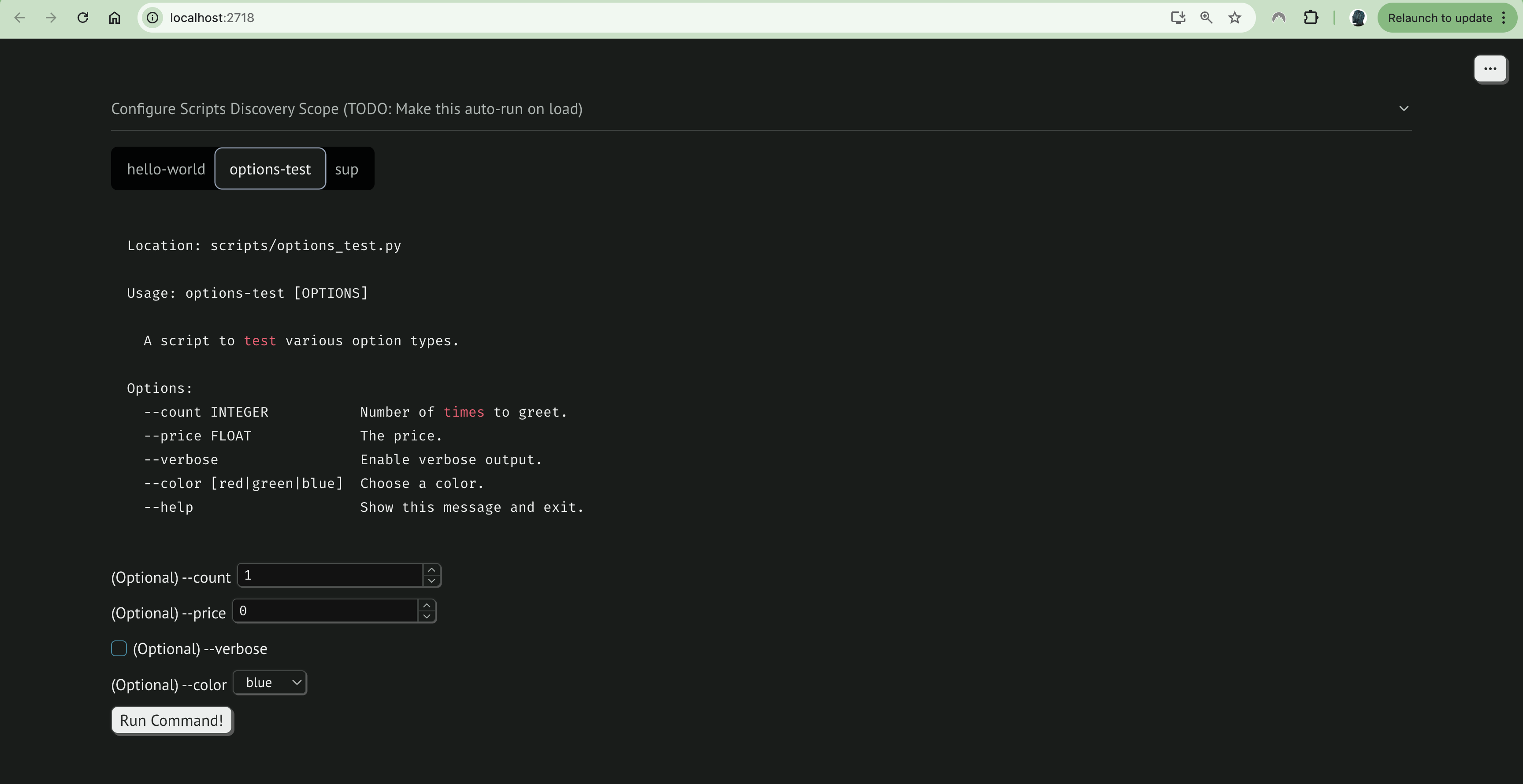
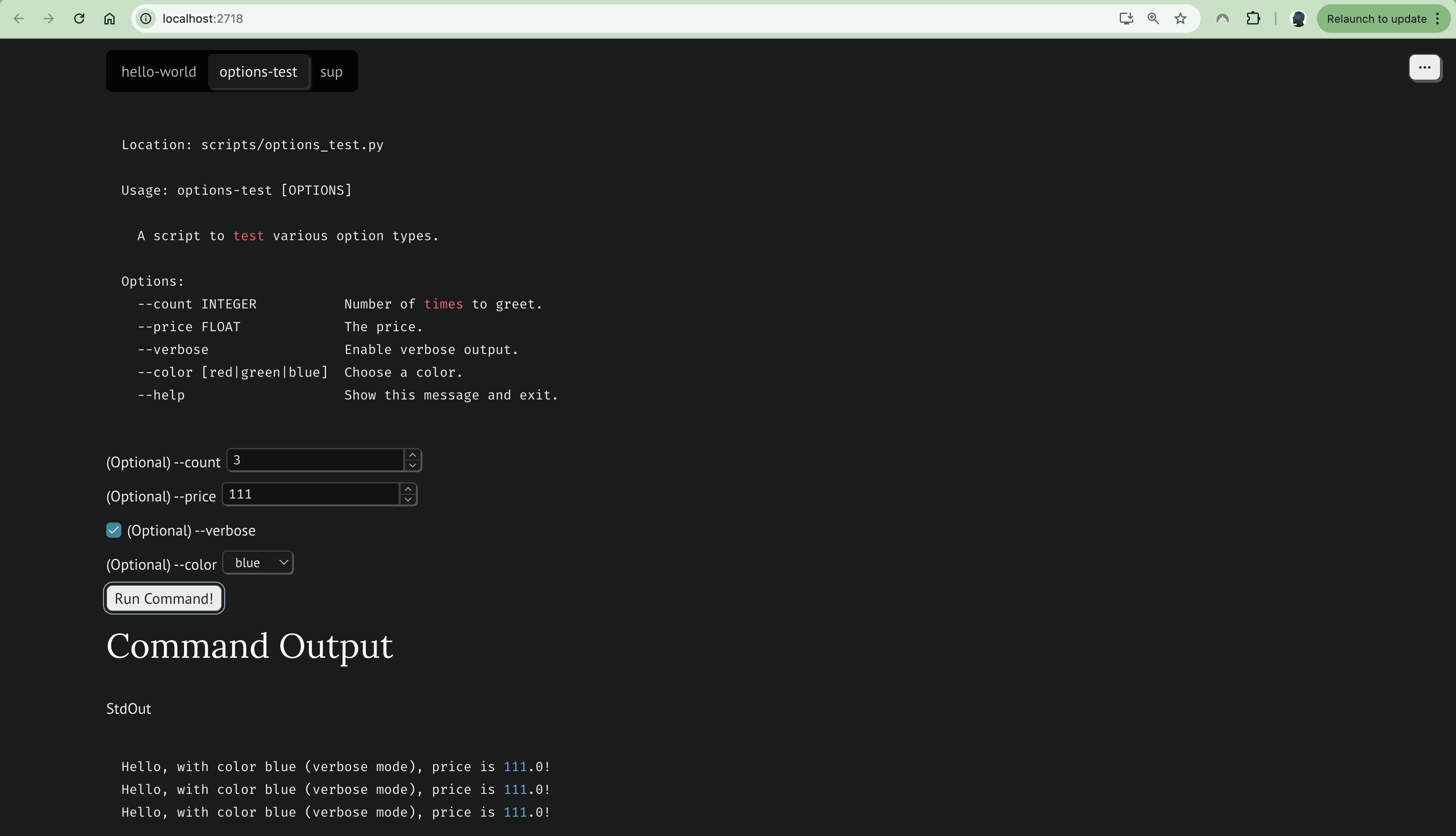
...simply enter any values, and click Run Command!:
Auto Generated MCP Server
If you'd like to make your click commands accessible to MCP Clients such as Claude Desktop, simply add the following config to claude_desktop_config.json (see https://modelcontextprotocol.io/quickstart/user for more info):
{
    "mcpServers": {
        "click_clack": {
            "command": "uv",
            "args": [
                "run",
                "--directory",
                "/path/to/directory/with/your/click/commands"
                "--",
                "click-clack",
                "--mcp",
                "--module-path",
                "/path/to/directory/with/your/click/commands"
            ]
        }
    }
}
Note that for this to work as documented above, you'll need to install uv globally first and the /path/to/directory/with/your/click/commands directory must be a valid uv project (i.e. you ran uv init there and uv added the dependencies your commands need).
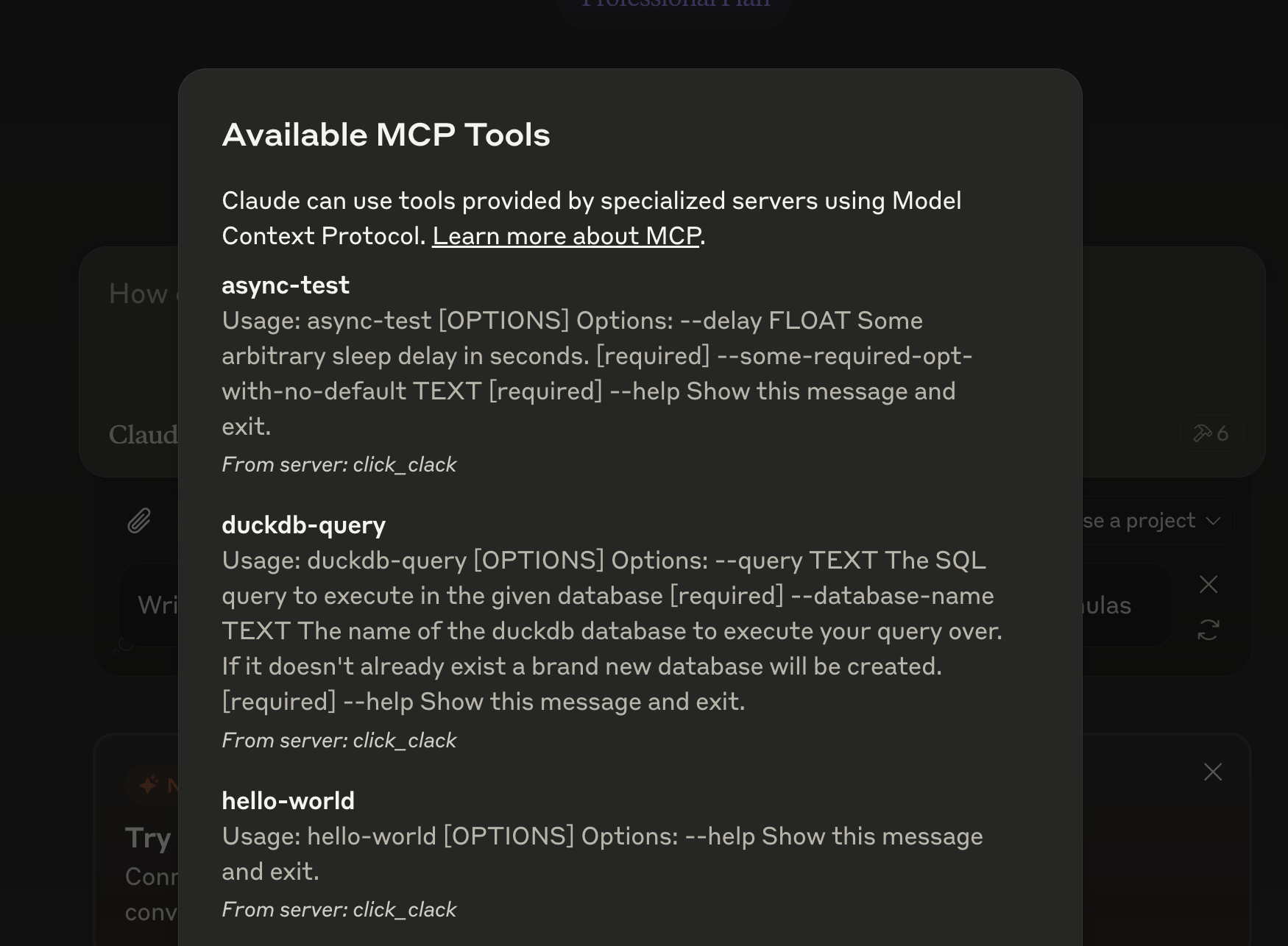
For example, in Claude Desktop once properly configured you'll be able to see the available tools provided by the click-clack MCP server.
Note on MCP Tool Outputs!
Click commands don't generally return values, so instead when running your commands as an MCP tool, Click Clack will capture all stdout/stderr output that your command emits, and redirect that to the MCP client as your tool's reponse. So, instead of returning your final tool response, use print(response) instead.
How It Works
This project crawls all .py files at and below the directory where the click-clack command is run. It then automatically traverses the Python AST looking for the @click.command() decorator, and imports the decorated commands and generates a minimalist UI for them.
Support for click and asyncclick
Whether you're writing basic click commands, or using asyncclick to write async commands, click-clack seamlessly supports your command by auto-detecting the command type.
UI Generation via Marimo
Marimo fundamentally underpins this package by providing an extremely simple framework for generating interactive UIs in pure python.
MCP Server Generation via FastMCP
MCP Server generation is entirely based on FastMCP, which does almost all of the heavy lifting. Click Clack just performs auto-discovery and does a bit of clever wrapping of your Click commands to be able to pass them off to FastMCP as tools.
Command Parameter Discovery
The UI will generate an input for each command parameter, and will forward the data from the input to the command.
Supported Command Parameter Types
Currently this project only supports automatically discovering the following command parameter types:
strintfloatbool(includingis_flag=True)click.Choiceclick.File(via a file browser UI element: TODO - support stdout via click's magic"-"file arg support)click.Pathclick.DateTimeclick.IntRangeclick.FloatRange- ...literally everything else is a TODO...
1 maintainer

Metadata
1 maintainer
Release files for click-clack 0.2.1
For a detailed explanation of source distributions (sdists) and built distributions (wheels), please see the package formats documentation.
Source distribution (sdist)
| File | Size | Uploaded | Provenance | Actions |
|---|---|---|---|---|
| click_clack-0.2.1.tar.gz | 16.9 kB | With provenance | Details for click_clack-0.2.1.tar.gz |
Built distribution (wheel)
| File | Interpreter | ABI | Platform | Actions Reset |
|---|---|---|---|---|
| click_clack-0.2.1-py3-none-any.whl | Python 3 | none | any | Details for click_clack-0.2.1-py3-none-any.whl |
Total release size: 38.7 kB
Release files / click_clack-0.2.1.tar.gz
| Download URL | click_clack-0.2.1.tar.gz |
|---|---|
| Size | 16.9 kB |
| Tags | Source |
|
SHA-256 checksum How to use checksums |
44ab4aa3bd4e0c0af27dc02378846d6bdabae56e9c719389b7c3dbb3217c92d1
|
|
BLAKE2b-256 checksum How to use checksums |
fce43dcfff3f1244941c5034812b8594e32b65f20e8aa415f97dec342ff98846
|
| Upload date | |
|
Uploaded using Trusted Publishing? What is trusted publishing? |
Yes |
| Uploaded via |
twine/6.1.0 CPython/3.12.9
|
Provenance
Provenance describes where a file came from. On PyPI, provenance is shared via attestations, which provide a verifiable record of the build or publishing details. View details, limitations and caveats.


PyPI Publish Attestation
PyPI verified that this artifact, at this checksum, originated from the publisher listed below.
Signed by GitHub Actions, verified by PyPI on Mar 11, 2025.
Transparency logRelease files / click_clack-0.2.1-py3-none-any.whl
| Download URL | click_clack-0.2.1-py3-none-any.whl |
|---|---|
| Size | 21.8 kB |
| Tags | Python 3 |
|
SHA-256 checksum How to use checksums |
d49faa9270d38449f39e9ee4e44725a4facdadfe2c595f46929df8164c4f87e4
|
|
BLAKE2b-256 checksum How to use checksums |
f4f9aa78180dfbaec7cb3e6e217ca266315882b1fdb7919c328ab0b36cda30c6
|
| Upload date | |
|
Uploaded using Trusted Publishing? What is trusted publishing? |
Yes |
| Uploaded via |
twine/6.1.0 CPython/3.12.9
|
Provenance
Provenance describes where a file came from. On PyPI, provenance is shared via attestations, which provide a verifiable record of the build or publishing details. View details, limitations and caveats.
PyPI Publish Attestation
PyPI verified that this artifact, at this checksum, originated from the publisher listed below.
Signed by GitHub Actions, verified by PyPI on Mar 11, 2025.
Transparency logSecurity for click-clack 0.2.1
Provenance
Provenance describes where a file came from. On PyPI, provenance is shared via attestations, which provide a verifiable record of the build or publishing details. View details, limitations and caveats.
Full provenance
All 2 files in this release have been uploaded with provenance metadata.
Attestation for click_clack-0.2.1.tar.gz
PyPI Publish Attestation
PyPI verified that this artifact, at this checksum, originated from the publisher listed below.
Signed by GitHub Actions, verified by PyPI on Mar 11, 2025.
Transparency logA note on package security
PyPI is a repository for distributing packages, not a service for auditing them. While third-party security researchers and our staff do their best to detect and remove malicious packages, PyPI cannot guarantee the quality, security or suitability of any given package.
To learn more about protecting yourself from malicious actors, visit our package security documentation.














