
Clicker4AI
An independent open-source project, not affiliated with Anthropic.
Formerly “Better Claude RC” (better-claude-rc), then briefly
Clicker4Claude — until someone read the trademark guidelines (see
Authentication and trademarks).
A self-hosted PWA (a web app you can add to the home screen like an app) that turns your phone, tablet or laptop into a proper remote control for Claude Code running on your own Linux machine.
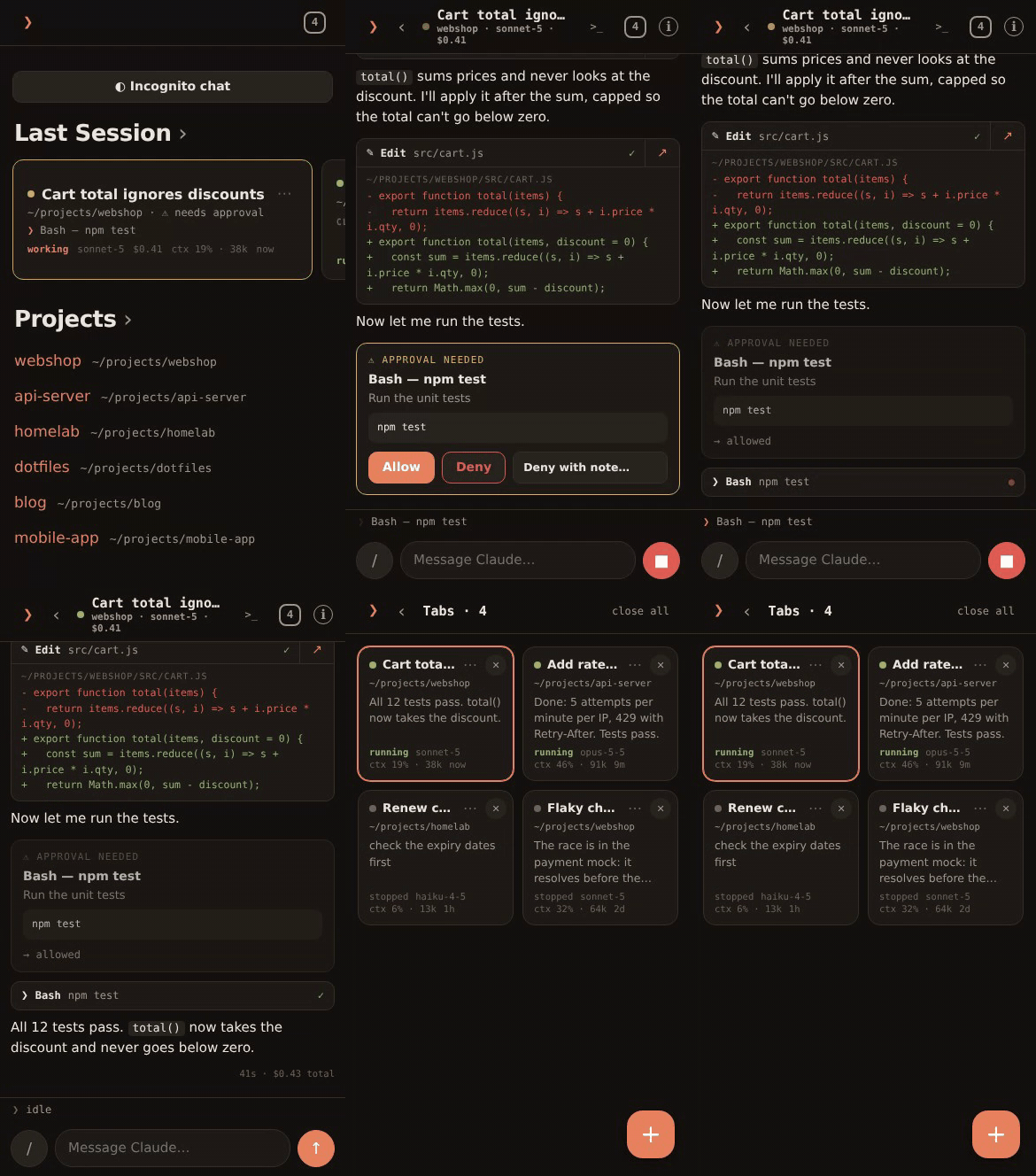
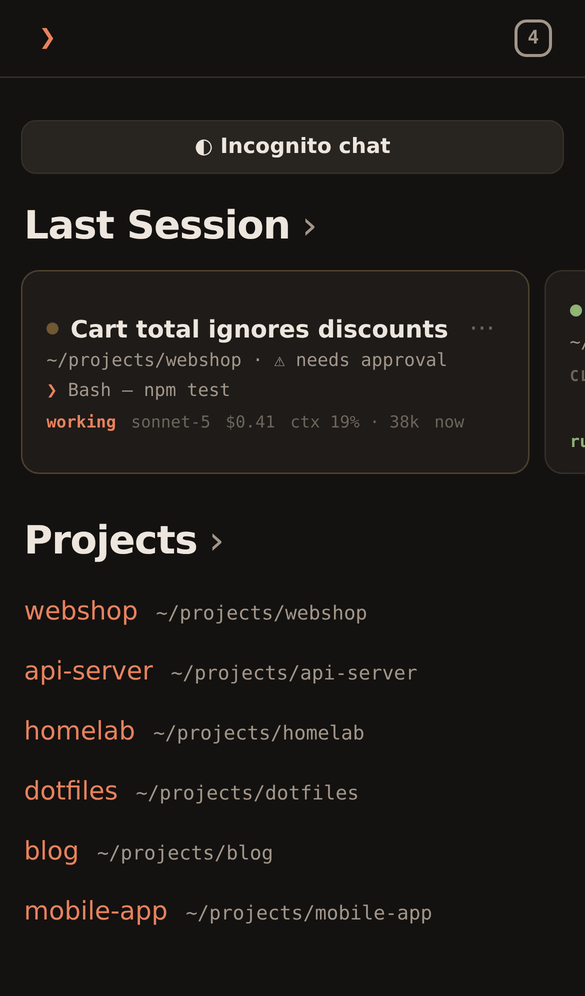
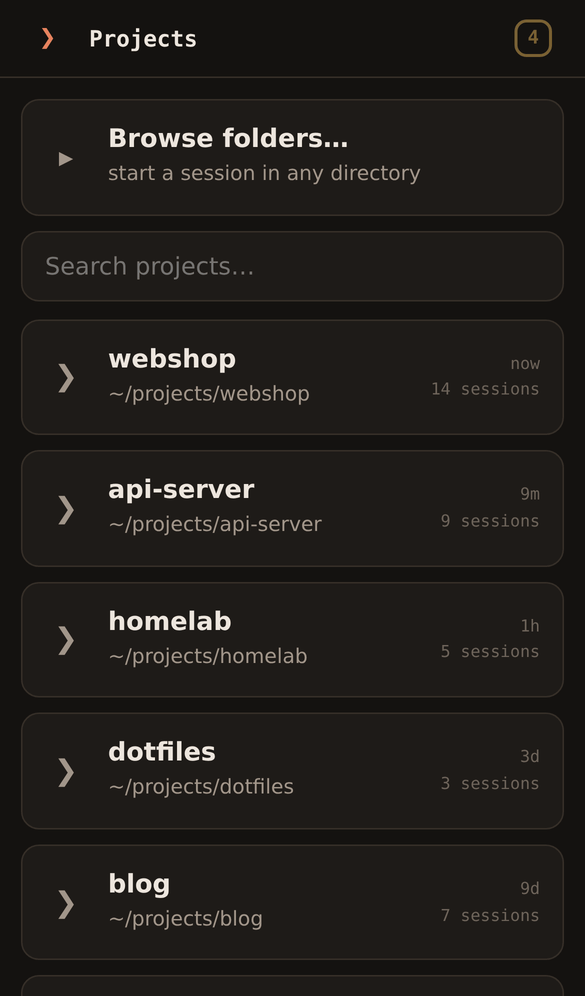
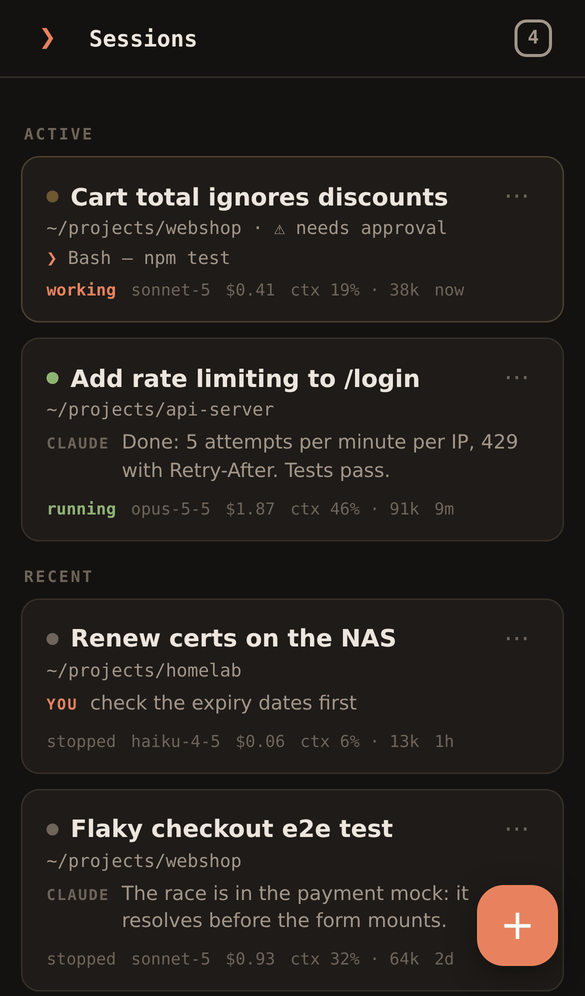
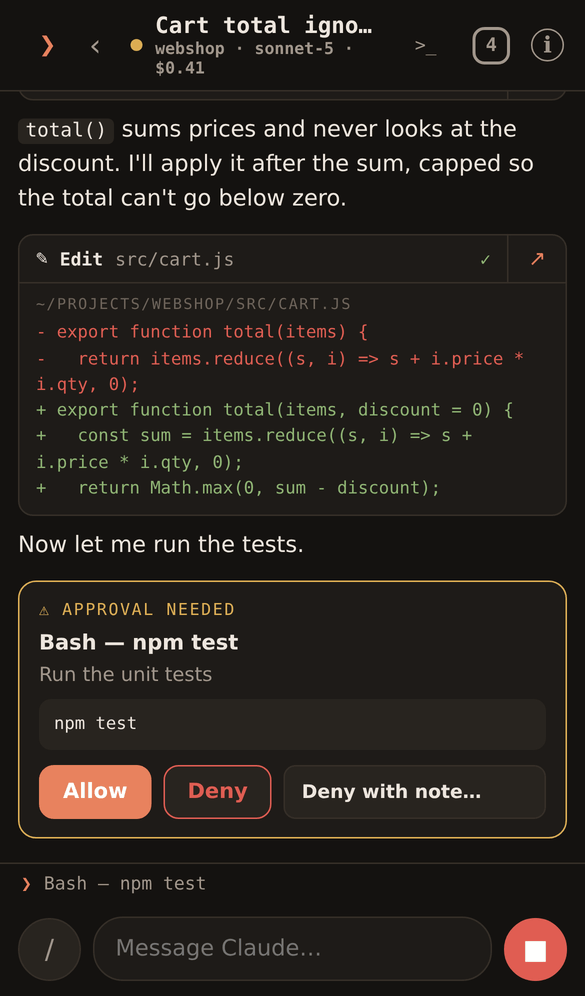
Start, resume, and drive real Claude Code sessions from any device with a browser — with a structured event stream (tool cards, diffs, thinking), tap-to-approve permissions, and live two-way sync with the terminal on the server. It's a small FastAPI + claude-agent-sdk (Anthropic's Agent SDK, the library that drives Claude Code) backend and a dependency-free vanilla-JS frontend. No build step, no hosted service, no sign-up — it runs on a computer you control, and your devices connect to it directly (over a local network or a VPN), with no third-party service in between. Several devices can watch and drive the same session; switch from the phone to the laptop mid-task without stopping anything.
Built for driving Claude Code away from the keyboard: new sessions from any device, structured (not terminal-scraped) output, and a UI that works on a phone screen first and scales up to a tablet or desktop browser.
Contents: Works well with · Requirements · Quickstart · Features · Clicker4AI and Remote Control · Running the server · Configuration · Devices and grants · Passkeys · True View · Reverse proxy · Authentication and trademarks · Security model · Development · Changes
Works well with
Tablet + code-server. Run code-server (VS Code in the browser) on the same machine and a tablet becomes a complete workstation. Claude works in Clicker4AI while the editor shows each change the moment it lands — browse the tree, read the whole diff, commit, open a terminal. Nothing lives on the tablet: put it down, pick up the laptop or the phone, and the session and the editor are exactly where you left them.
Or skip the editor. If you don't want to read code and prefer "vibe-coding", Clicker4AI alone is enough: say what you want, and Claude writes the code, runs the tests and, for a website or web app, starts a preview you simply check in your browser. You judge the result, not the diff — and when you do want to see a file, Project files opens it right in the app.
One small server is enough. A modest VPS runs it all: Clicker4AI and your projects with their previews (plus code-server, if you want an editor). Put it behind a VPN and that one server becomes your whole development and test environment, reachable from any device you own.
Or just run it on your own Linux or macOS workstation. No VPS and no proxy needed: connect your devices to it over Tailscale or any other VPN, and your phone reaches it from anywhere (see Your own computer with Tailscale).
A warning: this is hard to put down. You will find yourself adding features
at the bus stop, on the sofa and in the dentist's waiting room. Your back,
your sleep and your family will not be happy — take breaks. We expected
this: c4ai quiet-hours 00:30-08:00 lets the last turn finish and then says
goodnight, and only the c4ai command on the server can turn it off.
Requirements
The computer that will run Clicker4AI needs:
- Linux (tested on Debian; macOS should work but is untested).
- Python 3.13 or newer (if pipx uses an older one, add
--python python3.13topipx install). - pipx, or uv (then use
uv tool installin place ofpipx install). - Claude Code, installed and signed in — with a claude.ai account, an API key or a cloud provider (see Authentication and trademarks).
Quickstart
Run the steps below as the user who uses Claude Code (the one signed in),
not as root: Clicker4AI starts claude as that user, with their sign-in and
their ~/.claude.
-
Install Clicker4AI, choose its folder and address, and start it:
pipx install clicker4ai            # takes minutes
c4ai config roots add ~/work       # the folder with your projects
c4ai config set host 192.168.1.10  # this computer's address
c4ai serve --no-pair               # leave it running
- The install downloads about 100 MB and may print nothing for a few
minutes; it has not hung. It gives you the
c4aicommand, the CLI this README refers to. - No device can reach anything outside the folder; it may not be your home directory itself or anything above it.
- The address is the one your devices can reach (local or VPN); without
it the server listens only on
127.0.0.1, which no other device can reach.
- The install downloads about 100 MB and may print nothing for a few
minutes; it has not hung. It gives you the
-
In a second terminal, connect (pair) your first device:
c4ai pair --no-passkey --all-roots
It prints a code, a link and a QR code, valid once and for 2 minutes. Scan the QR code with the phone's camera and the app opens, already signed in. On a laptop, open the link instead, or type the code on the app's sign-in page.
--all-rootsgives the device the folder from step 1; without it the device gets no folders.--no-passkeylets it in without a passkey (a Face ID or fingerprint login): passkeys work only over https, which this quickstart does not set up.
Plain http is fine on a local network or over a VPN. For a setup reachable from the internet, see Reverse proxy and Security model.
What next:
- Keep it running after you log out: Keeping it running.
- More devices and what each may do: Devices and grants.
- Daily use: put the server behind https (Reverse proxy) and add a passkey in the app (menu → Devices).
Clicker4AI keeps its data (settings, devices, passkeys, session logs,
incognito chats) in ~/.clicker4ai; C4AI_DATA_DIR moves it. Restarts,
upgrades and reinstalls keep it. To wipe it:
Uninstall and starting over.
Features
- Start & pick projects from any device — recent projects from
~/.claudeplus a directory browser; "New session" spawns a real Claude Code session in any working directory, with model and permission-mode choice. - Resume & fork with terminal parity — open any past session and see its full history loaded from the transcript; resume keeps the same Claude session id (or fork into a new one) and appends to the same transcript file the terminal reads.
- Your Claude Code setup — sessions use your
~/.claudesettings: CLAUDE.md, MCP servers, hooks and custom commands work as in the terminal. - Search past sessions — Search in the menu finds sessions by their
name, your prompts and Claude's replies (not tool output), in every
project the device may reach, newest first, with the matching line.
All words must occur in one paragraph;
"a phrase",?for one character,*for any text within a line and[nń]for one of several; words match from their start (*ilealso finds "file"). Opening a result finds the text in the chat. Every search reads the transcripts afresh — no index is kept. - Structured event stream — text streamed as deltas, tool-call cards (Bash output, Edit diffs, TodoWrite checklists), thinking blocks, compact boundaries, and cost/context meters. Not terminal scraping — real structured messages from the SDK.
- Tap-to-approve permissions — remote permission prompts wait on the server and show up in the app as Allow / Deny (with "always allow" suggestions), plan-mode approval, and AskUserQuestion option buttons.
- Commands under
/— the/button next to the message box lists the app's own commands first (/btwfor a side question,/compact,/files, model, permission mode and more), then the session's Claude Code commands, your own from~/.claude/commandsincluded; a filter narrows the list./btw,/files,/files-upload(or/upload),/compact,/clear,/model,/mode,/info,/findand/collapsealso work typed and sent as a message. - Live terminal ↔ webapp sync — turns typed in the terminal
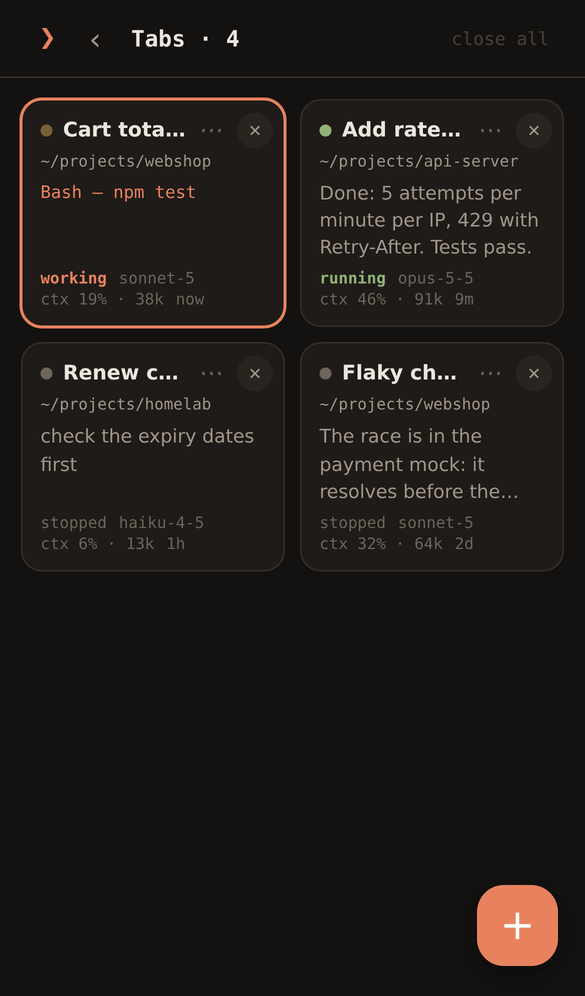
claudeappear in the webapp in real time; the app's next message resumes the session, so both sides share the same context on one session id. - Multi-session tabs — browser-style open-session switcher; jump between live sessions, see per-session status, stop a process or rename a session without opening it, close individually or all at once (closing a tab asks first and leaves the session running). Pinned tabs stay first and "close all" skips them; projects and a project's past sessions can be pinned to the top too (pins are kept per device).
- Plan usage always in sight — the rate-limit reading the SDK returns with every request: "21% (5h) · 82% (7d)" at the end of the chat's status line, and per window with its reset time and a bar in session info. The chat itself mentions limits only when a request is refused: which limit ran out and when it resets.
- Reconnect with replay — events are numbered and saved per session, so when you leave the app on a phone and come back, it replays exactly what you missed.
- Incognito chat — one per device, from Home: a discussion that leaves nothing behind on the server once it ends. Web search and fetch only (no files, shell, MCP or True View), seen only by the device that started it, and erased with its transcript when you end it, sign out, or after 24 h without a message.
- Library screens — browse Skills, Slash commands, Agents, and MCP servers
(global + per-project) read from
~/.claude/*and~/.claude.json/.mcp.json, with live MCP status from the session init message. - Project files — browse a project folder without Claude and without
tokens: text and images open in a viewer, any file downloads, and ↗ on a
Read/Edit/Write card opens that file. Upload (several files at once, up
to 50 MB each, never overwriting; from the chat with
/files-upload, straight into a folder of the project) is a separate per-device grant; both are off by default. - Collapsed turns —
/collapse,cor ⓘ → Collapse turns folds every turn but the last two to your prompt and the end of the answer (its last paragraph, and the list before a short closing question); tap one to open it. The setting is remembered on the device. - Physical keyboard — ↑/↓ (or j/k) and ⏎ through lists, menus and
sheets,
/to search, ⌘F to find in a chat,g h/s/p/tto jump,1–4/y/non approval cards and digits on questions and plans;?lists everything. In a chat every character goes into the message box, wherever you clicked; Esc (⌘. on an iPad) first turns the keys into shortcuts until the next click or tap (note: while a turn runs, the first Esc stops it). With a mouse or trackpad (also an iPad's trackpad keyboard) ⏎ sends the message and ⇧⏎ starts a new line, and key hints show; on a phone ⏎ is a new line and the ↑ button sends. - Installable PWA — add to the home screen of a phone or tablet for a full-screen, app-like experience with icons and manifest. An open page notices when the frontend on the server has changed and offers a one-tap reload, so you never keep using an old version unaware. Tested on iOS/iPadOS Safari and desktop browsers; Android uses the same web APIs but is untested.
Clicker4AI and Claude Code Remote Control
Claude Code has its own Remote Control, which carries a session over to claude.ai/code or the Claude app. It is official and needs no server of your own — if it fits, use it. Clicker4AI is for a different setup:
- No service in between. Remote Control routes the session through
the Anthropic API; here your devices connect straight to your server,
over a local network or a VPN. What reaches Anthropic is only what the
claudeCLI itself sends. - Any sign-in. Remote Control needs a claude.ai Pro, Max, Team or
Enterprise login; API keys, Amazon Bedrock, Google Cloud and Microsoft
Foundry are not supported. Clicker4AI runs whatever
claudeis signed in with (see Authentication and trademarks). - Pick the folder on the device. Remote Control works in the directory
where you started
claude(the server mode can add git worktrees of it); here a device browses the folders you granted it and starts or resumes a session in any of them. - Grants per device. Each phone, tablet or laptop gets its own folders and, only if you say so, True View (Claude Code's own terminal interface, the TUI), project files and upload — set from the server's CLI, all off by default. A passkey unlocks a device after it locks.
- More around the session: browsing project files without spending tokens, an incognito chat, quiet hours, your plan usage always in view.
Running the server
c4ai serve with no options starts with what ~/.clicker4ai/config.json
says, and with the defaults for anything it leaves out (127.0.0.1, port
8780, no public URL). Options on the command line apply to that one run
only and are never written anywhere; to keep a setting, store it with
c4ai config set (see Configuration).
To reach it from other devices, either let it listen on a LAN or VPN
address (--host), or keep it on 127.0.0.1 behind your own reverse proxy
(see Reverse proxy) or an SSH tunnel. On your own
computer, Tailscale does both without a proxy (see
Your own computer with Tailscale). Behind
a proxy, --public-url is the address your devices use: the one-tap login
link and QR point there (scheme + host[:port] only, no path).
c4ai serve --host 192.168.1.10   # listen on this IP
c4ai serve --host 0.0.0.0        # all interfaces (see Security)
c4ai serve --port 9000           # custom port
c4ai serve --public-url https://rc.example.com   # behind a reverse proxy
c4ai serve --no-qr               # skip the QR code
c4ai serve --no-pair             # no pairing code at start (use `pair`)
c4ai config set host 192.168.1.10  # --host, kept for every start
Keeping it running
Start c4ai serve --no-pair under a supervisor of your choice (systemd, pm2,
monit, …) and pair devices with c4ai pair.
An example with a systemd user unit. Log in directly as the user who runs
Claude Code (e.g. over SSH): the commands below will not work if you switch
from another account with su -.
-
Create the unit's folder:
mkdir -p ~/.config/systemd/user -
Save this as
~/.config/systemd/user/clicker4ai.service:[Unit] Description=Clicker4AI After=network-online.target [Service] ExecStart=%h/.local/bin/c4ai serve --no-pair # where `claude` lives (`command -v claude`); systemd's own PATH # leaves out ~/.local/bin Environment=PATH=%h/.local/bin:/usr/local/bin:/usr/bin:/bin # SIGTERM to the server only; it stops its `claude` processes itself KillMode=mixed Restart=on-failure [Install] WantedBy=default.target
Without the
PATHline the server does not findclaude: sessions fall back to the copy bundled with the Agent SDK (it may be a different version), True View does not start, and ended incognito chats are not erased from~/.claude. -
Start it now and at every boot:
systemctl --user daemon-reload && systemctl --user enable --now clicker4ai -
Keep it running with nobody logged in:
loginctl enable-linger(if it is refused, an admin can runsudo loginctl enable-linger <user>). -
Logs:
journalctl --user -u clicker4ai -f
Upgrading Clicker4AI
Stop the server, upgrade, start it again:
systemctl --user stop clicker4ai     # or however you run it
pipx upgrade clicker4ai
systemctl --user start clicker4ai
Settings, devices and passkeys in ~/.clicker4ai stay; open apps show "new
version" and reload with a tap.
Updates and telemetry
Claude Code processes started by the server get
CLAUDE_CODE_DISABLE_NONESSENTIAL_TRAFFIC=1 (no telemetry, error reporting
or auto-updater traffic) unless the variable is already set in the
server's environment.
To update the Agent SDK and the claude CLI (or in the app: menu → Agent
SDK, on a device paired with --manage-devices; it asks for a passkey):
c4ai sdk                            # Agent SDK vs the claude CLI, newest on PyPI
c4ai sdk update                     # install the newest SDK, then restart the server
c4ai sdk update-cli                 # `claude update` when npm has a newer CLI
Configuration
~/.clicker4ai/config.json holds the server's settings — never devices or
passkeys, which live in files of their own. Only allowed_roots is required;
config.example.json
lists every key with its default (null = off). JSON has no comments, so here
is what each one does:
allowed_roots— the folders devices may be given (required; see below).host,port— where the server listens (127.0.0.1,8780);--hostand--portonc4ai servewin for that run only.public_url— the https address your devices use behind a reverse proxy;--public-urlwins the same way. Passkeys need it (orlocalhost).max_runners— how many sessions may hold a liveclaudeprocess (6; see below).lock_idle_minutes— a device with a passkey locks after this long without a request (15;0= never).log_level—error,warning(default),infoordebug(see below).quiet_hours,quiet_tz— the nightly window and its time zone; set them withc4ai quiet-hoursrather than by hand.
You don't need to edit the file by hand. c4ai config checks each value as the
server does and changes only the key you name, leaving the rest of the file as
you wrote it:
c4ai config                               # every key, and which are defaults
c4ai config set host 192.168.1.10         # listen on this IP from now on
c4ai config set public_url https://rc.example.com
c4ai config set log_level info            # a bad value never reaches the file
c4ai config unset log_level               # back to the default
c4ai config roots add ~/projects          # lists the devices that gain it
c4ai config roots remove ~/projects       # lists the devices that lose it
The server reads the file at start, except the quiet hours, which apply at
once. It keeps keys it does not know, so a typo in a name is silently
ignored (c4ai config lists such keys as unused).
allowed_roots is the ceiling for every device's folders, e.g.
"allowed_roots": ["~/work"]. It must not be ~ (nor /, /home or
anything else above your home directory): a device with that root could read
~/.ssh and ~/.claude.json (MCP URLs and tokens) through its sessions and
browse the whole home directory. The server and the CLI refuse to start with
such a root, with a root inside ~/.clicker4ai or ~/.claude, or with none. A
root that contains either of them is fine: devices never reach them.
"max_runners" in ~/.clicker4ai/config.json (default 6) caps how many
sessions may hold a live claude process at once — each costs roughly 300 MB of
RAM, so set it from the memory you have. Stopped and detached sessions are free
and don't count; an open True View terminal is a claude process of its own and
does (opening it on a running chat swaps one process for the other). At the
limit the server refuses to start another one and lists the sessions you
could stop, the ones idle longest first. Each shows the size of the context
it would have to rebuild when you return to it and the model it runs on:
the same context costs several times more to rebuild on Opus than on Haiku.
Pick one in the app and it tries again. Sessions that are working, waiting
for your approval, or outside the device's folders are never offered.
Only what is used takes a slot. Resuming a past session shows its history (read from the transcript) without starting a process; it starts with the first message. A new session starts at once, but one nobody wrote to is stopped after 15 minutes, and at the limit such empty sessions are stopped first — from any folder, since nothing is lost — before the "stop one" list is offered.
"log_level" in ~/.clicker4ai/config.json (read at start) sets what the
server writes to stderr — with the systemd unit above that is journalctl --user -u clicker4ai, under pm2 pm2 logs <name> --err:
"warning"(default) — a messageclaudegave no reaction to within 60 s (also shown in the chat), a process that died or failed to start, each with the last lines of its stderr;"info"— plus every start and stop, every message sent (and how long writing it took) and every finished turn;"debug"— plus every SDK event, every stderr line, and theclaudeprocess's own debug log in~/.clicker4ai/logs/cli-<sid>.log(--debug-file; grows without limit, delete it by hand);"error"— nothing of the above.
Devices and grants
Pair more devices with c4ai pair; list / sign out devices with
c4ai devices and c4ai revoke <id> (or in the app: menu → Devices).
Devices carry a name (yours at pairing time, or guessed from the browser)
which you can change later in the app — its own name always, another
device's with --manage-devices — or with devices rename. Names are
unique, so a second iPhone is stored as "iPhone 2".
Folder scope and device management are granted per device, from the CLI only (never from the app):
c4ai pair                            # no folders yet (the default)
c4ai pair --root ~/work/web --root ~/work/lab  # only these folders
c4ai pair --all-roots                # every folder in allowed_roots
c4ai pair --manage-devices          # may list/revoke other devices in the app
c4ai pair --terminal                # may open True View
c4ai pair --no-passkey              # do not make it register a passkey first
c4ai pair --files                   # may view/download project files
c4ai pair --files-upload            # …and upload them
c4ai pair --quiet-exempt            # quiet hours do not apply to it
c4ai devices set <id> --all-roots --manage-devices --terminal  # change later
c4ai devices set <id> --root ~/work/web         # only these folders
c4ai devices set <id> --add-root ~/work/lab     # add to the current folders
c4ai devices set <id> --no-roots                # no folders (a passkey login)
c4ai devices set <id> --no-terminal --no-manage-devices
c4ai devices set <id> --no-passkey              # stop requiring a passkey (CLI only)
c4ai devices set <id> --quiet-exempt            # this device ignores quiet hours
c4ai devices set <id> --files                   # browse, view, download project files
c4ai devices set <id> --files-upload            # …and upload (implies --files)
c4ai devices rename <id> "Work Phone"           # names are unique
c4ai devices lock <id>                          # sleep, keep grants
c4ai devices                                    # list devices and their grants
c4ai revoke <id>                                # sign out and delete it
devices set takes the flags of pair plus their --no- opposites and
--add-root; whatever you leave out stays as it is, and it prints the device's
grants afterwards. <id> may also be the device's name (devices set mac-mini --add-root ~/work/lab, quoted when it has spaces). Names are unique and never
equal another device's id, and an exact id wins.
A device only reaches sessions, projects and files inside its folders. A freshly
paired device has none until you give it some (--root, --all-roots, or
devices set later) — the same way a passkey login starts empty, so access is
always a deliberate step. Without --manage-devices it sees and signs out only
itself. bypassPermissions and dontAsk are never available remotely — use
claude in a terminal on the server for those; auto is. A folder scope
limits the app, not Claude: a session may still touch files outside its
directory within the permissions you approve.
Passkeys
Passkeys are set up from the app (menu → Devices → Add a passkey).
They need an https address, so they work behind a TLS reverse proxy (or on
localhost) and are switched off everywhere else; pairing with a code
always works.
A device paired with a code, or signed in with a passkey, must carry a
passkey: until it registers one the app shows only Add a passkey (the
server answers everything else with 428, the socket closes with 4428).
c4ai pair --no-passkey skips this for a machine that cannot hold one; the app
can switch the requirement on (menu → Devices → this device), and only
c4ai devices set <id> --no-passkey switches it off, so a stolen cookie cannot
remove it. Removing the last passkey of such a device warns first — it then
has to add a new one before it can do anything else. pair warns when the
server has no https address, since the requirement could never be met.
A device with a passkey is locked after lock_idle_minutes (in
~/.clicker4ai/config.json, default 15, 0 = never) without a request, and the
passkey unlocks it. An open app counts as active (it checks in every 25 s),
so the lock applies when you come back to the app later — or when someone
tries a stolen cookie. A passkey does three things:
- signs you in without a pairing code — the session it creates is empty: no folders, no True View, no device management. A passkey proves who you are; it grants nothing. Folders and grants come from the CLI afterwards, exactly as for a device paired with a code, so a key made on a device with True View cannot carry True View to a Mac that signs in with it.
- confirms risky actions — on a device that has a passkey, opening True
View, choosing "Always" on a permission card and signing out another device
ask for Face ID / Touch ID first. One confirmation counts for 5 minutes.
Actions that reach the whole server — updating the Agent SDK or the
claudeCLI and restarting the server — ask for one on every device, also one without a passkey of its own (a key synced to it from another device works). A device without one holds only a cookie, the weakest login there is. With no key registered on the server they stay CLI-only. - wakes a locked session — the menu offers lock next to sign out.
Locking keeps the cookie and the device's folders, and refuses every request
until a passkey unlocks it, so getting back in needs the cookie and you.
Signing out still removes the device for good. A locked session does not slide
its 30-day idle expiry, and
c4ai devices lock|unlock <id>does the same from the CLI — handy for a lost phone. If the passkey itself is gone (deleted from the keychain),c4ai passkeys remove <passkey-id>andc4ai devices unlock <id>on the server let the device add a new one and keep its folders; the lock screen says so.
Removing a passkey here cannot delete it from the phone's keychain — the server never holds the private key. The app therefore tells the browser which credentials it still accepts (WebAuthn Signal API: Safari 18.4+, Chrome 132+), and the system prunes the rest by itself; on older browsers you remove the leftover entry in the password manager (iOS Settings → Passwords, Google Password Manager).
A passkey is not a device: iCloud Keychain or Google Password Manager syncs
one credential to all your phones, tablets and computers, so grants stay on
the device record and widening them stays CLI-only. A credential remembers
only which device sessions have signed in with it; those devices see it in
the app and may rename or remove it, as may a device with
--manage-devices (renaming another device's key then asks for a passkey
confirmation). Revoking a device leaves the credential
alone — it opens nothing but an empty session. c4ai passkeys
lists them and c4ai passkeys remove <id> deletes one; removing a credential,
in the app or the CLI, clears the passkey mark on every device left without
one, so none of them keeps asking for a key that no longer exists.
c4ai passkeys                       # list registered passkeys
c4ai passkeys remove <passkey-id>
c4ai passkeys rename <passkey-id> "Shared key"   # the label, not the keychain
Quiet hours
Quiet hours (quiet-hours, stored as "quiet_hours" in
~/.clicker4ai/config.json, may cross midnight) stop every device from
starting a new turn inside the window. The window is in the server's local time
unless --tz names a zone ("quiet_tz", e.g. Europe/London, which follows
summer time); never in the device's zone, which a phone could change to shift
the window. A turn already running
finishes and its approval cards still work, but the next message or side
question is refused (the app puts the text back in the box); /compact still
works, as a last step while the cache is warm. In True View a hook added to the
claude it starts refuses the prompt the same way, judged by the device that
typed last. Changes apply without a restart. Only the CLI sets the window or
exempts a device (c4ai devices set <id> --quiet-exempt) — the app cannot, so
a phone at 1 a.m. cannot either. A terminal on the server itself is not
affected.
c4ai quiet-hours 00:30-08:00        # no new prompts at night (`off` removes it)
c4ai quiet-hours --tz Europe/London # window in this zone, not the server's
Project files
A plain view of a project's folder, with no Claude and no tokens involved.
Two per-device grants, both off by default: --files (browse and download)
and --files-upload (upload too), on c4ai pair or c4ai devices set <id>.
Where it opens:
- Files on a project's screen, below "Start new session";
- Files in a session's ⋯ menu (on Home, Sessions and Tabs);
/filesin the chat (from the/list next to the message box, or typed and sent);- ↗ on a Read, Edit or Write card in the chat opens that file.
From a session it starts in the session's folder; "‹ up" goes on above it as far as the device's folders reach.
Viewing a file:
- text as plain text (the first 1 MB); Find (
/, ⌘F or Ctrl+F) highlights the matches, ⏎ and ⇧⏎ (or ↓ ↑) go from one to the next, Esc closes the search; - images whole on the screen, never above 1:1 with their pixels (a tap shows 1:1);
- any file can be downloaded;
- with a keyboard: ↑ ↓ scroll, ← → the next file,
ddownloads, ⏎ closes; back closes just the viewer.
Uploading (only devices with the --files-upload grant): several files at
once, up to 50 MB each, into the folder on screen, or straight from the chat
with /files-upload. An existing name is never overwritten: the app asks for
another one or cancels. + New folder on both screens makes a folder there
and opens it (n in the chat's upload sheet).
What it shows: everything in the device's folders, hidden files too (except
.git, node_modules, .venv, this server's data and ~/.claude). Nothing
from a project runs in the app: images are only displayed, every other file
is only downloaded.
True View
True View (the >_ button in a chat) streams the real Claude Code TUI.
It is off unless the device was paired with --terminal. In the chat every
tool call goes through Claude and your approval card in the app; in True
View !command runs shell commands directly and /permissions can add
allow rules, so it is effectively a shell with the rights of the user
running the server — regardless of --root, which only decides which
sessions it can open.
It opens in a new session too, before the chat's first message: the TUI
then starts the Claude session under an id the server gives it, and the
chat continues that conversation. Closed with nothing typed, it leaves no
conversation, and the chat's first message starts one of its own.
"chat" in True View's header shows the chat while the terminal keeps
running. A message typed there is either pasted into the TUI's input (you
send it with ⏎ there) or, if you choose, closes the terminal and goes to
the chat; /clear, /compact and stopping the session warn that they close
it too.
Your own computer with Tailscale
No VPS needed: Clicker4AI can run on your own Linux or macOS machine, and
Tailscale (a WireGuard VPN with a free personal
plan) lets your phone and tablet reach it from anywhere. There is no port
forwarding or routing to set up: install Tailscale on the computer and on
each device, sign in to the same account, and every one of them gets a
100.x.y.z address that the others can reach. Traffic between them is
encrypted by WireGuard. The computer has to stay on and awake while you use
it.
Plain http, no passkeys. Let Clicker4AI listen on the computer's Tailscale address and follow the Quickstart with it:
tailscale ip -4                       # e.g. 100.101.102.103
c4ai config set host 100.101.102.103
c4ai serve --no-pair
c4ai pair --no-passkey --all-roots    # in a second terminal
The address exists only while Tailscale is up; if Clicker4AI starts at boot
before it, it cannot listen there. Start it after Tailscale, or listen on
0.0.0.0 and firewall the port (see Security model).
https with passkeys, still no proxy. tailscale serve gives the
computer an https address with a real certificate,
https://<machine>.<tailnet>.ts.net, and passes requests to a local port,
reachable only from your tailnet. Keep Clicker4AI on 127.0.0.1 (the
default) and point the public URL there:
tailscale serve --bg 8780             # https://<machine>.<tailnet>.ts.net
c4ai config set public_url https://<machine>.<tailnet>.ts.net
c4ai serve --no-pair
c4ai pair --all-roots                 # the device adds a passkey first
tailscale serveneeds HTTPS certificates switched on for your tailnet (admin console → DNS → HTTPS Certificates) and MagicDNS, which new tailnets have on by default.- The machine name becomes public: certificates are logged in Certificate Transparency. Rename the machine first if its name says too much.
--bgkeeps serving after a reboot;tailscale serve statusshows it,tailscale serve resetremoves it.- Serve keeps the original
Hostheader and passes WebSockets, which the app's Origin check and live connection need.
See Tailscale's Serve and HTTPS pages for details.
Reverse proxy
Recommended setup: a proxy on the same host (Caddy or nginx) terminates TLS
and proxies to 127.0.0.1:8780; your devices reach it over a VPN. Store the
address with c4ai config set public_url https://rc.example.com so pairing
links point there and the session cookie becomes Secure + __Host-
prefixed. --public-url does the same for one run only.
Caddy
rc.example.com {
	# Optional: listen only on the interface VPN traffic arrives on.
	# bind 192.168.1.10

	# Only VPN clients may reach the app. Adjust to your VPN subnet —
	# see the NAT note below before relying on this.
	@outside not remote_ip 10.8.0.0/24
	respond @outside 403

	header {
		Strict-Transport-Security "max-age=31536000"
		Content-Security-Policy "default-src 'self'; script-src 'self'; style-src 'self' 'unsafe-inline'; img-src 'self' data: blob:; connect-src 'self' wss://rc.example.com; frame-ancestors 'none'; base-uri 'none'; form-action 'self'"
		X-Content-Type-Options "nosniff"
		Referrer-Policy "no-referrer"
		-Server
	}

	reverse_proxy 127.0.0.1:8780
}
Optional mTLS: require a client certificate on top of the device session (Caddy ≥ 2.8 syntax):
tls {
	client_auth {
		mode require_and_verify
		trust_pool file /etc/caddy/rc-client-ca.pem
	}
}
Install the client certificate on each device (on iOS/iPadOS as a profile). Test the home-screen PWA as well as Safari — client-certificate prompts in standalone web apps have been unreliable on iOS.
nginx
The same setup with nginx. Unlike Caddy it needs to be told three things:
keep the Host header (nginx sends 127.0.0.1:8780 otherwise, and the
server's Origin check then refuses every WebSocket and browser /api/ call),
pass WebSocket upgrades, and accept bodies larger than 1 MB (file uploads).
# In the http {} block: the Connection header for WebSocket upgrades.
map $http_upgrade $connection_upgrade {
    default upgrade;
    ''      close;
}

server {
    listen 443 ssl;
    server_name rc.example.com;
    ssl_certificate     /etc/ssl/rc.example.com/fullchain.pem;
    ssl_certificate_key /etc/ssl/rc.example.com/privkey.pem;

    # Only VPN clients may reach the app (see the NAT note below).
    allow 10.8.0.0/24;
    deny  all;

    add_header Strict-Transport-Security "max-age=31536000" always;
    add_header Content-Security-Policy "default-src 'self'; script-src 'self'; style-src 'self' 'unsafe-inline'; img-src 'self' data: blob:; connect-src 'self' wss://rc.example.com; frame-ancestors 'none'; base-uri 'none'; form-action 'self'" always;
    add_header X-Content-Type-Options "nosniff" always;
    add_header Referrer-Policy "no-referrer" always;
    server_tokens off;

    client_max_body_size 51m;   # file uploads go up to 50 MB

    location / {
        proxy_pass http://127.0.0.1:8780;
        proxy_http_version 1.1;
        proxy_set_header Host $host;   # the Origin check compares against it
        proxy_set_header Upgrade $http_upgrade;
        proxy_set_header Connection $connection_upgrade;
        proxy_read_timeout 1h;
    }
}
Notes for both
- TLS: any certificate your devices trust (e.g. Let's Encrypt).
remote_ipand NAT:remote_ip(and nginx'sallow) matches the TCP peer. If the VPN gateway NATs VPN clients, every VPN request arrives with the gateway's address (and so may LAN traffic routed through it), which makes the filter much weaker. Check the Caddy access log (logdirective, fieldrequest.remote_ip; in nginx$remote_addr) while connected over the VPN and set the matcher to what you actually see; prefer a routed (non-NAT) VPN subnet.- CSP:
'unsafe-inline'for styles is needed because the UI and xterm.js set inlinestyleattributes; scripts stay'self'only.
Uninstall and starting over
The server's data in ~/.clicker4ai (or C4AI_DATA_DIR) survives restarts,
upgrades and reinstalls. To wipe it or remove Clicker4AI:
- End open incognito chats in the app. Their transcripts live in
~/.claudeand only the server erases them; a chat still open when its data is deleted stays there for good. - Stop the server (and take it out of your supervisor, if you are removing it).
- Delete
~/.clicker4ai/config.jsonto reset only the settings, or the whole~/.clicker4aidirectory to also sign out every device and delete passkeys and session logs. Your Claude Code sessions stay in~/.claude. - To remove the program as well:
pipx uninstall clicker4ai(or delete the clone). Passkeys saved on your devices no longer work anywhere — remove them from the password manager.
Authentication and trademarks
- Clicker4AI never signs in to Anthropic. It holds no Anthropic
credentials and proxies no login; it starts the
claudeCLI on your machine, which uses whatever authentication you gave Claude Code — an API key, a cloud provider, or a claude.ai account. - With a claude.ai subscription, compliance is yours. Anthropic does not allow third-party products to offer claude.ai login or subscription rate limits unless previously approved (see the note in the Agent SDK overview and Legal and compliance). Check the terms that apply to your account; an API key is the safe choice.
- One owner. Pairing is meant for your own phones, tablets and laptops, not for sharing your Claude access with other people.
- Not an Anthropic product. Clicker4AI is not made, endorsed or supported by Anthropic. "Claude" and "Claude Code" are trademarks of Anthropic and are used here only to describe what this software works with.
Security model
This server exposes control of Claude Code sessions on your machine. Treat it accordingly:
-
Per-device sessions, no master token. A device logs in once with a one-time pairing code (
XXXXX-XXXXX, 2 minutes, single use) issued byc4ai pair; the server then sets an HttpOnly session cookie (Secure+__Host-prefix behind an httpspublic_url,SameSite=Lax). Sessions expire after 30 idle days;c4ai revoke <id>(or logout) ends one at once, including its open WebSockets (close 4401 on the next message). Only SHA-256 hashes of cookies and codes are stored. -
Grants per device, set only from the CLI, and empty by default: folders (
--root/--all-roots, insideallowed_roots), managing other devices (--manage-devices), True View (--terminal— effectively a shell) and project files (--files,--files-upload). A new device, however it signed in, reaches nothing until the CLI says otherwise.allowed_rootsitself may not be the home directory or above, so no grant can reach~/.sshor~/.claude.jsonunless you make a folder inside them a root yourself. -
Project files never run on the app's origin. Images come with
Content-Security-Policy: sandboxandnosniff, every other file only as a download; nothing is served from.git,node_modulesor.venv. -
Passkeys (WebAuthn), where https allows them. Registered from a signed-in device, stored as public keys only, bound to the RP ID of your
public_url. A credential carries no grants: signing in with one creates a device with no folders at all, so a synced key can never widen access on another machine. They add a login path, and a step-up confirmation (user verification required, 5 minutes) in front of "always allow" and signing out another device, and every time True View starts a new terminal (joining one that already runs asks nothing) — so these need you, not just an unlocked phone. Challenges are single-use and held in memory only. A revoked device's passkeys are deleted with it. -
Incognito chats are confined, not just hidden. Their session has only the WebSearch and WebFetch tools (Bash, Read, Edit… do not exist in it) and no MCP servers; "always allow" stays in the session; True View is refused by the server. The folder lives in the server's data directory (
~/.clicker4ai/incognito/<device>/<sid>) and only the owning device's scope reaches it. -
Folder trust, as in the terminal. Claude Code skips its "Do you trust the files in this folder?" question when it runs non-interactively, as the chat's
claudedoes, yet still loads the folder's project settings: hooks run on their own,permissions.allowpre-approves tools, and a command withallowed-tools: Bash(...)runs its!`…`lines when typed. So before aclaudeprocess starts (new session, first message,/compact,/clear, True View) in a folder that holds.claude/settings*.json,.claude/commands,skillsoragents, or.mcp.json(there or in a parent below the home directory), the app lists what it found and asks the device to trust the folder, behind a passkey confirmation. Only this exact folder counts: trusted in the terminal (~/.claude.json) or from the app (~/.clicker4ai/trusted.json).c4ai trustlists both,trust addandtrust removechange the app's list; the terminal's trust is taken back in~/.claude.json. A trusted parent does not count, so a repository cloned under a folder trusted long ago still asks; the question names that parent. Empty and new folders never ask.c4ai trust # folders whose project settings run c4ai trust add ~/work/web/site # as "Trust and continue" in the app c4ai trust remove ~/work/web/site # take the app's trust back
-
Permission modes remotely:
default,acceptEdits,planandauto(Claude Code's classifier approves instead of you and asks again after repeated blocks; not on Haiku, where the session says so and runs indefault).bypassPermissionsanddontAskcan't be selected from the app. True View starts in the session's mode,defaultincluded. -
Hardening: failed logins throttled (10/min → 429), state-changing
/api/requests must beapplication/json(CSRF), WebSocket Origin allowlist, validated model/mode/session ids,~/.clicker4ai0700 with 0600 files (looser modes are put back, with a warning on stderr), out of every device's reach (as is~/.claude) even under an allowed root. -
The server binds
127.0.0.1by default. Expose it through a TLS reverse proxy restricted to your VPN (see Reverse proxy). Do not port-forward the server itself; if it must face the internet, put it behind an https proxy and keep passkeys required — a VPN is safer still. -
No outbound traffic from the server itself, except the update check. Once a day it asks PyPI and npm for the newest Agent SDK and
claudeCLI (a plain download of their version lists; nothing about you is sent). Theclaudeprocesses it starts talk to the Anthropic API only, withCLAUDE_CODE_DISABLE_NONESSENTIAL_TRAFFIC=1(no telemetry/auto-update). -
Nothing sensitive is in the repository. Devices, codes, config and session logs live in
~/.clicker4ai, outside the checkout.
Handoff semantics
Three things called a "session"
Keeping these apart answers most questions about what may run where:
- Claude session — a
claude_session_idand its transcript file under~/.claude/projects. This is the conversation itself. - Server session (runner) — this server's record (
sid) and the oneclaudeprocess driving that conversation. The runner is what appends to the transcript. - Device session — a phone, tablet or laptop signed in with a pairing code or a passkey. Authentication and folder scope; it drives nothing.
Several device sessions may watch and drive one runner at the same time:
they are viewers of a single process, so nothing can fork. Switching from the
phone to the tablet and back needs no stopping, closing or handing over — just
start typing. What must not overlap is two processes on one Claude session:
the runner and a claude --resume in a terminal.
One driver per turn
A turn runs from sending a message until the reply is complete, tool calls
included — the app's status line returns to "Ready", the terminal gets its
prompt back. Inside that window the runner is busy and its transcript tailer
pauses (clicker4ai/sessions.py), so anything a second process appends is
invisible to it and the parent chain forks.
Between turns you may switch freely. Type in the terminal, then answer from the
app: the tailer mirrors the terminal's rows into the app, marks the context
stale, and the app's next message silently rotates the session through
--resume so both sides share one context on one session id.
The terminal claude and the webapp mirror one transcript file (the single
source of truth both append to):
- The webapp can mirror a live terminal session and vice versa; opening a session on either side backfills its history and stays in sync.
- One driver at a time. Two processes actively driving the same session id
simultaneously would fork the parent chain — so hand off, don't co-drive. The
webapp mirrors a live terminal, but both typing at once is unsupported by
design. An already-open terminal TUI can't live-refresh mid-session (a CLI
limitation); it picks up the app's turns on the next
--resume/--continue.
Development
The backend is a normal FastAPI app under clicker4ai/; the frontend is a
single vanilla-JS SPA under clicker4ai/web/ (no build step — edit and
reload).
From a clone, with venv (Debian: python3.13-venv; it brings the pip
wheel used inside .venv, so no system python3-pip is needed):
python3 -m venv .venv                     # create the venv
.venv/bin/pip install -e .                # install deps; the CLI is .venv/bin/c4ai
.venv/bin/pip install httpx               # dev dependency of the test scripts
.venv/bin/python scripts/smoke_api.py     # REST smoke suite
.venv/bin/python scripts/passkey_test.py  # WebAuthn register/login/step-up (software authenticator)
.venv/bin/python scripts/search_test.py   # past-session search on made-up transcripts
.venv/bin/python scripts/e2e_live.py      # live end-to-end (text / Bash / compact / resume / sync / hooks)
node scripts/kbd_test.js <pairing code>   # keyboard shortcuts (Playwright; test server on 8781)
The scripts/e2e_*.py files each exercise one slice end-to-end against a live
server (resume parity, permission approve/deny, terminal↔webapp sync, Stop-hook
status feedback).
Changes
Coming in 1.1.0: the app in German, Spanish, French, Italian and Polish; MCP tools and auto mode in incognito chats; images pasted into messages; a tab pulses when a turn ends with a question to you; Markdown files open rendered in the file viewer.
1.0.0 (2026-10-15)
- Fix: back from a sleeping phone, a locked app shows the lock screen at once instead of swallowing the first tap.
- Fix: a running turn can be stopped while the message box has text (■ next to ↑), and with Esc or ⌘. from a keyboard (the iPad's has no Esc).
- Fix: a quick second ⏎ or tap on ↑ after sending no longer stops the reply.
- Fix: no Check now button while an update installs (the page refreshes itself).
- Fix: Claude puts answers in the visible reply, not only in thinking, which the app shows collapsed.
/uploadworks typed, like/files-upload.- Fix: a message sent after the computer slept with the app open no longer vanishes; it goes out on a fresh connection or back into the box. Back from the background, the app reconnects by itself.
- When Claude Code on the host is logged out, the chat says so and offers True View with /login typed in; /login in the chat does the same.
- Fix: on an iPad with a keyboard, typing in a chat no longer stops at random, also back from another app: a key typed outside the message box goes into it; Esc (⌘. on an iPad) first turns the keys into shortcuts until the next click.
- Uploading can make a new folder (+ New folder).
- Fix: an approval card shows the whole command or file, not a shortened one, and every other field of the call (e.g. a sandbox switch).
- Fix: after the lock screen, the app no longer reconnects on every message, losing replies on the way.
- Fix: the first tap after coming back to the app (Allow, Stop, a message) is no longer refused while it reconnects.
- Fix: a message that may not have arrived goes back into the box even when the box already has text.
1.0.0rc4 (2026-09-30)
- Search past sessions.
- Pinning of sessions and projects.
- Auto permission mode from the app.
- Upload several files straight from the chat (
/files-upload). - Collapsed turns (
/collapse). - One button updates both the Agent SDK and the claude CLI.
- A copy button (⧉) on every code block in the chat.
- Fix: the top bar is no longer blurred in the iPad home-screen app (iPadOS 27).
1.0.0rc3 (2026-09-28)
- Licence notices in the app, as AGPL-3.0 requires, and the link to the source code.
- A stopped session shows its context size in the chat header and the info sheet, read from its transcript.
- A session's last-activity time is green while its prompt cache is likely still warm (under an hour).
- A tab waiting for an approval now pulses in Tabs and among its project's sessions too.
- Find in the chat: ⌘F (or
/find) searches your messages and Claude's replies, newest match first.
1.0.0rc2 (2026-09-27)
- The "/" command list scrolls on a phone again (so do the folder browser and a past session's preview).
- Chat ↔ True View: "chat" in True View's header shows the chat while the
terminal keeps running; a message sent from the chat meanwhile can be pasted
into True View instead of closing it; stop,
/clearand/compactwarn that they close the terminal. - Find in the file viewer: Find,
/, ⌘F or Ctrl+F on a text file. - CLI: device names starting with "-" work in
devices rename|lock|unlockandrevoke.
1.0.0rc1 (2026-09-27)
First public release.
License
AGPL-3.0-only © 2026 Kosio. Kosio is also the proxy (license section 14) who can accept a future version of the AGPL for the project.
Based on better-claude-rc 0.1.0 © 2026 Rafa Rayes, released under the MIT
License, and reworked into a local-only server; its notice is kept in
NOTICE.
1 maintainer

Metadata
1 maintainer
Release files for clicker4ai 1.0.0
For a detailed explanation of source distributions (sdists) and built distributions (wheels), please see the package formats documentation.
Source distribution (sdist)
| File | Size | Uploaded | |
|---|---|---|---|
| clicker4ai-1.0.0.tar.gz | 381.4 kB | Details |
Built distribution (wheel)
| File | Interpreter | ABI | Platform | Reset |
|---|---|---|---|---|
| clicker4ai-1.0.0-py3-none-any.whl | Python 3 | none | any | Details |
Total release size: 727.3 kB
Release files / clicker4ai-1.0.0.tar.gz
| Download URL | clicker4ai-1.0.0.tar.gz |
|---|---|
| Size | 381.4 kB |
| Tags | Source |
|
SHA-256 checksum How to use checksums |
8288214a614278b26683203c7d70c6c5e03e02b343bcad45bb37f9da18110554
|
|
BLAKE2b-256 checksum How to use checksums |
569ca226561d6148af829cdf54a35b88ea4d9d13f6a48a27634f79923449a6b9
|
| Upload date | |
|
Uploaded using Trusted Publishing? What is trusted publishing? |
Yes |
| Uploaded via |
twine/7.0.0 CPython/3.13.14
|
Provenance
Provenance describes where a file came from. On PyPI, provenance is shared via attestations, which provide a verifiable record of the build or publishing details. View details, limitations and caveats.


PyPI Publish Attestation
PyPI verified that this artifact, at this checksum, originated from the publisher listed below.
Signed by GitHub Actions, verified by PyPI on Oct 15, 2026.
Transparency logRelease files / clicker4ai-1.0.0-py3-none-any.whl
| Download URL | clicker4ai-1.0.0-py3-none-any.whl |
|---|---|
| Size | 345.9 kB |
| Tags | Python 3 |
|
SHA-256 checksum How to use checksums |
f15183519816732ebfe480ad3c63b27b0fee334a24c5145d7f006780365f8b2e
|
|
BLAKE2b-256 checksum How to use checksums |
fe93278e1975b6deed72a510ef199ff8a0cbaa9fff7d6669b00d51fb3131d8ef
|
| Upload date | |
|
Uploaded using Trusted Publishing? What is trusted publishing? |
Yes |
| Uploaded via |
twine/7.0.0 CPython/3.13.14
|
Provenance
Provenance describes where a file came from. On PyPI, provenance is shared via attestations, which provide a verifiable record of the build or publishing details. View details, limitations and caveats.
PyPI Publish Attestation
PyPI verified that this artifact, at this checksum, originated from the publisher listed below.
Signed by GitHub Actions, verified by PyPI on Oct 15, 2026.
Transparency log













