

Clipman
A clipboard history manager for Ubuntu/GNOME on Wayland
Like Windows Win+V — but for Linux.

















Press Super+V to view your clipboard history, search entries, pin favorites, and instantly paste previous copies.
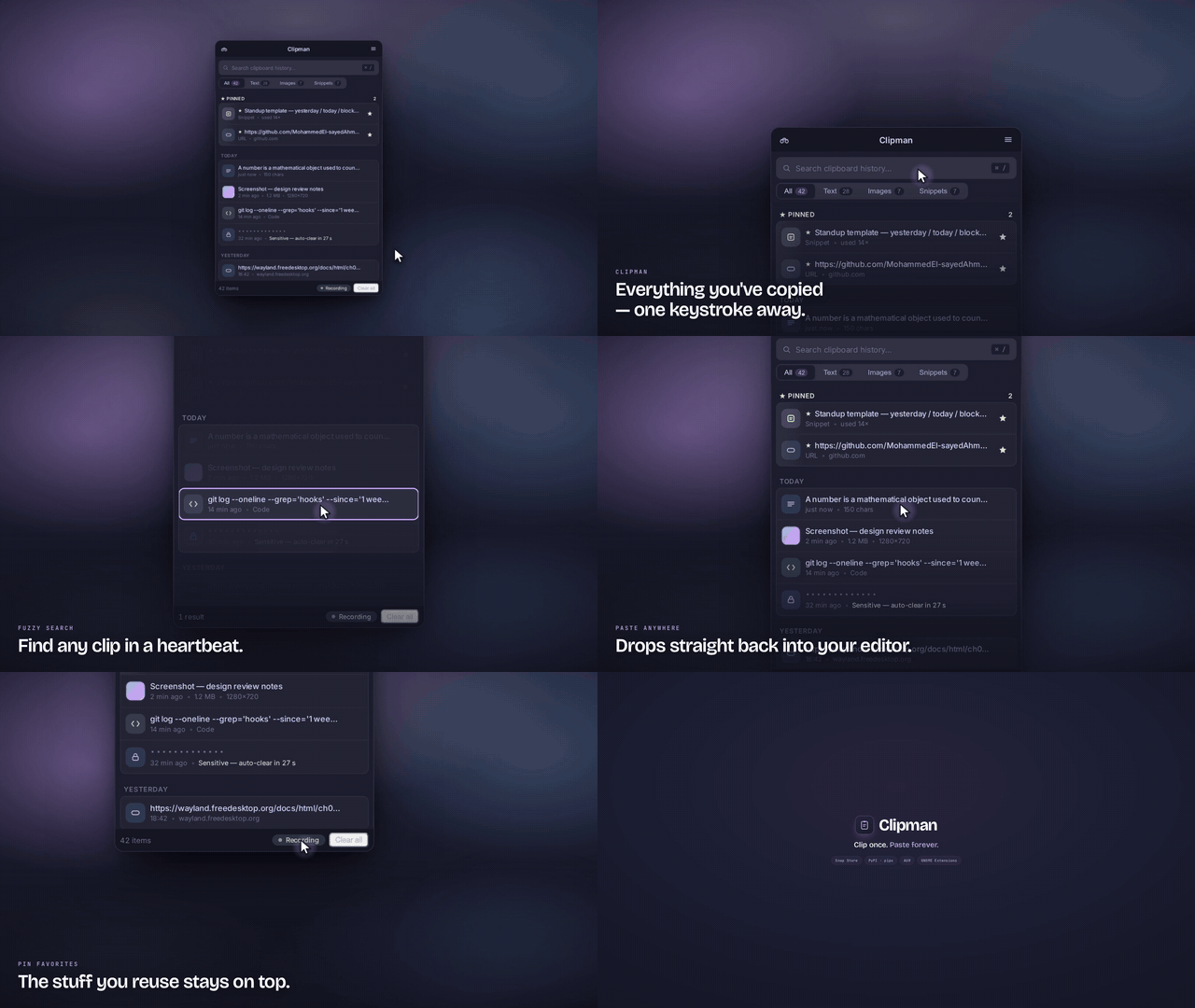
▶ Watch the full-quality video
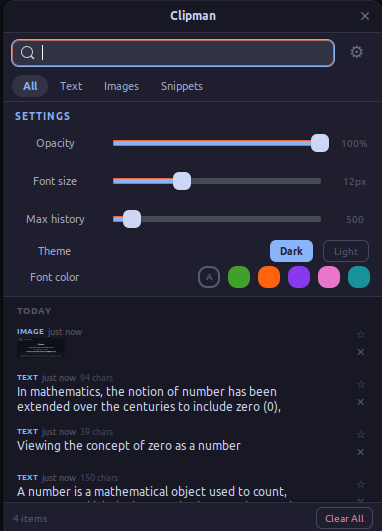
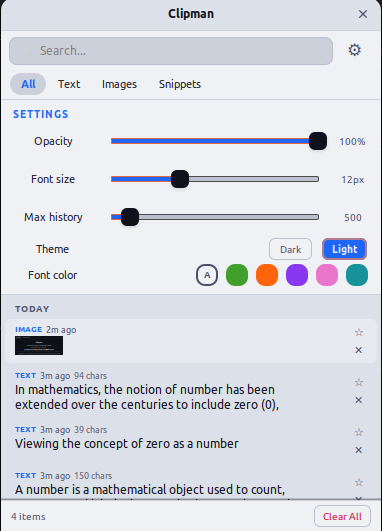
Above: the shipped GTK 4 + libadwaita popup. The full settings surface is a sidebar Adw.Dialog, the snippets editor is an Adw.NavigationSplitView dialog, and the edge states (empty, no results, sensitive clips cleared, first run, errors…) render as Adwaita StatusPage / Banner / AlertDialog with a shared Catppuccin overlay. Browse the mockups · project page.
Clipman is a Wayland-native clipboard manager for GNOME. A GNOME Shell extension reports every copy to the daemon over D-Bus, from Meta.Selection signals: no polling and no screen flicker. (Tools built on wl-paste --watch cannot do this on GNOME, which lacks the data-control protocol they need.) Privacy is built in: incognito mode, detection of labelled passwords, tokens, keys and card numbers (masked, and removed from the history after 30 seconds), and private file permissions. The whole app is Python + GTK 4 + libadwaita — no Electron, no heavy frameworks.
Features
Clipboard
- Text and image support — stores both content types with SHA256 deduplication
- Search — type to filter your text clips by content
- Pin favorites — keep important entries permanently, exempt from pruning
- Filter tabs — switch between All, Text, Images, and Snippets views
- Snippet templates — save reusable text blocks for quick pasting, with
${date},${time}and${clipboard} - Date grouping — entries organized into ★ Pinned, Today, Yesterday, Earlier this week, and Older sections
- Link and code recognition — link clips show their domain, and code clips are marked as code
- Length at a glance — text rows show their length in characters
- Auto-pruning — history capped at a configurable limit (pinned entries exempt)
Keyboard
| Key | Action |
|---|---|
| Super + V | Toggle the popup |
| Arrow keys | Navigate entries |
| Enter | Paste selected entry |
| P | Pin / unpin selected entry |
| Delete | Delete selected entry |
| Escape | Close popup |
Appearance
- Dark and light themes — Catppuccin Mocha (dark), a warm-stone light palette, or follow the system scheme
- Font customization — adjustable size (8–20px) plus free-form font and accent color pickers
- Window opacity — configurable transparency from 30% to 100%
Privacy and Security
- Incognito mode — pause clipboard recording entirely
- Sensitive data detection — labelled passwords, API tokens and keys, credential URLs and card numbers are detected, masked, and removed from the history after a configurable delay (default 30 s). The auto-clear can be switched off, and pinned clips are kept. A bare password with no label is not detected (#313), and the system clipboard itself is not cleared (#314).
- Restrictive permissions — data directory
0o700, database and image files0o600 - Path traversal protection — all image paths validated before file operations
- Safe restore — a backup is checked (integrity, schema, no triggers or views) in a copy before it replaces your history, and your current history is kept as a safety copy
- Parameterized SQL — no injection vectors
- No shell execution — all subprocesses use argument lists, never
shell=True - Update notifications without telemetry — when enabled, the daemon does a single anonymous
GETtoapi.github.com/repos/.../releases/latestonce per day (no body, no params, no cookies, no identifiers). Default ON for source / PyPI / AUR installs, OFF for Snap and Flatpak (they auto-refresh). Settings → Updates to toggle. See ADR 0007.
Integration
- Terminal-aware paste — sends Ctrl+Shift+V to terminal apps (GNOME Console, Ptyxis, GNOME Terminal and many others), Ctrl+V elsewhere
- XWayland support — clipboard detection for VSCode, Electron, and other XWayland apps via MIME type fallback
- Autostart —
install.shsets up a systemd user service that starts the daemon at login and restarts it if it crashes - Backup and restore — export and import your clipboard database from settings
- GNOME Shell extension — sees each copy from inside GNOME Shell, and types the paste keystroke
Performance
- Zero polling — event-driven via
Meta.Selectionsignals and D-Bus - SHA256 deduplication — copying the same content bumps it to the top without creating duplicates
- Configurable history — 50 to 5,000 entries (the popup lists the newest 200 for now: #322)
- Lightweight — Python + GTK 4 + libadwaita, no Electron or heavy frameworks
Planned
These are wanted but not built yet. Each issue says what "done" means, and help is welcome.
- Open a link clip in the browser from its row — #310
- Read a long clip or a large image in full — #311
- Edit a clip before pasting it — #312
- Treat what password managers mark as secret as sensitive — #313
- Clear the system clipboard when a sensitive clip times out — #314
- Typo-tolerant search — #315
- Accent colour presets — #316
- Search the text inside images — #317
- KDE Plasma, Sway and Hyprland — #318
- A working AppImage — #319
- Show the remaining designed banner states (paused, incognito on, update check failed…) — #320
- Translations — #321
- The whole history in the popup, not just the newest 200 clips — #322
- One
clipman setupcommand for package installs — #323 - The Super+V shortcut bound by the GNOME Shell extension, for every install — #334
- Stricter image checks, also on restore — #335
- Keep sensitive clips out of search results — #336
Requirements
- Ubuntu 24.04+ with GNOME 46–51 and Wayland
- Python 3.10–3.14 (newer versions are not blocked, but CI does not test them)
- GTK 4 + libadwaita 1.5+
Dependencies are installed automatically by the install script.
Quick Start
# Clone the repo
git clone https://github.com/MohammedEl-sayedAhmed/clipman.git
cd clipman

# Install the packages, the extension, the Super+V shortcut and the service
./install.sh

# Log out and back in: the extension and the daemon start at your next login
The systemd service auto-restarts on crash and starts automatically on login.
If you cloned the repo and Clipman is useful to you, please star it on GitHub — source installs aren't counted anywhere else, and stars are how the project gets visibility.
Alternative Installation
The packages below install the app. Unlike install.sh, they do not yet set up the GNOME Shell extension, the shortcut or the autostart: after installing, follow Finish the setup. #323 tracks a single command for this.
Snap (Ubuntu, auto-refreshes)
sudo snap install clipman
Then finish the setup. Known snap problems: #283 (the shortcut) and #284 (removing the snap can leave its daemon running).
PyPI
# System packages (pip can't install these)
sudo apt install python3-gi python3-dbus \
    gir1.2-gtk-4.0 gir1.2-adw-1 libadwaita-1-0 \
    wl-clipboard pipx

pipx install --system-site-packages clipman-clipboard
--system-site-packages lets pipx's environment see the GTK bindings from your distribution. Plain pip install is refused on Ubuntu 24.04 and later (PEP 668). Then finish the setup.
.deb (Debian/Ubuntu)
Download clipman_<version>_all.deb from the latest release and install:
sudo apt install ./clipman_*_all.deb
The package installs /usr/bin/clipman, the Python module, the .desktop file, the icon, and a copy of the extension in /usr/lib/clipman/extension/. Then finish the setup.
.rpm (Fedora/RHEL)
Download clipman-<version>-1.noarch.rpm from the latest release and install:
sudo dnf install ./clipman-*-1.noarch.rpm
It installs the same files as the .deb. Then finish the setup.
AUR (Arch Linux)
yay -S clipman-clipboard
Or with paru: paru -S clipman-clipboard. The package installs the app in /opt/clipman, the extension in /usr/share/gnome-shell/extensions/, and a systemd user service. Then finish the setup.
GNOME Shell Extension (installed automatically by install.sh)
The companion extension lets Clipman see what you copy on GNOME, and types the paste for it. It does not bind the Super+V shortcut yet (#334). Clipman needs it: GNOME offers no other way to watch the clipboard, so wl-paste --watch does not work there. install.sh sets it up. Otherwise, get it from GNOME Extensions, or install the zip attached to each release:
gnome-extensions install clipman-extension-vX.Y.Z.zip
Finish the setup
For the packages above. install.sh does all of this for you.
1. The GNOME Shell extension. Log out and back in after the step for your package, so GNOME finds the extension, then turn it on.
| Package | Step |
|---|---|
| .deb, .rpm | Copy the packaged extension: mkdir -p ~/.local/share/gnome-shell/extensions/clipman@clipman.com && cp /usr/lib/clipman/extension/* ~/.local/share/gnome-shell/extensions/clipman@clipman.com/ |
| AUR | Nothing to copy: the package installed it. |
| Snap, PyPI | Install it from GNOME Extensions. |
# After logging back in:
gnome-extensions enable clipman@clipman.com
2. Start Clipman at every login.
# AUR: the package ships a user service
systemctl --user enable --now clipman.service

# Snap, PyPI, .deb, .rpm: an autostart entry
mkdir -p ~/.config/autostart
printf '[Desktop Entry]\nType=Application\nName=Clipman\nExec=%s\n' "$(command -v clipman)" \
    > ~/.config/autostart/clipman.desktop
3. The shortcut. GNOME uses Super+V for its notification list, so free it first. In Settings → Keyboard → View and Customize Shortcuts:
- Under System, change Show the notification list to another key.
- Under Custom Shortcuts, add one named Clipman, with the command
clipman toggle(AUR:/opt/clipman/launcher.sh toggle) and the shortcut Super+V.
Usage
| Action | How |
|---|---|
| Open clipboard history | Super + V |
| Paste an entry | Click on it or press Enter |
| Pin / unpin an entry | Click the star icon or press P |
| Delete an entry | Click the trash icon or press Delete |
| Jump to search | / or Ctrl + F |
| Navigate entries | ↑ / ↓ |
| Filter by type | Click All, Text, Images, or Snippets tabs |
| Create a snippet | Switch to the Snippets tab, then click the + button in the header bar or press Ctrl + N |
| Search history | Type in the search bar |
| Toggle incognito | Click the eye icon in the header bar |
| Clear all unpinned | Click Clear all |
| Close popup | Escape or click outside |
Settings
Click the gear icon to open the preferences dialog (an Adw.Dialog with a
left sidebar). It carries six panes:
| Pane | Setting | Description |
|---|---|---|
| Appearance | Color scheme | Follow system / Dark (Catppuccin Mocha) / Light (warm stone) |
| Catppuccin theme | On: the Catppuccin Mocha and warm-stone palettes. Off: follow your system GNOME theme and accent color | |
| Font size | Text size for entries (8–20px) | |
| Accent color & font color | Free-form color pickers with one-tap reset to theme defaults | |
| Window opacity | Window transparency (30%–100%) | |
| Show count badges on filter tabs | Show the per-filter item count on the All / Text / Images / Snippets tabs | |
| Privacy | Incognito mode | Pause recording now and on every launch |
| Auto-clear sensitive clips | Delete detected secrets after the delay below; when off they stay masked (on by default) | |
| Auto-clear delay | Seconds before detected sensitive entries are purged (default 30) | |
| Purge sensitive entries now | Remove every stored sensitive entry, even when auto-clear is off | |
| Shortcuts | Toggle clipboard popup | Change the popup shortcut (default Super+V) with an in-app capture dialog. This changes the shortcut install.sh set up; #283 tracks the other installs |
| When I select a clip | How Clipman pastes: Auto-paste (best effort) (the default: Ctrl+Shift+V in terminal apps, Ctrl+V elsewhere), Simulate Ctrl+V, Simulate Ctrl+Shift+V, or Simulate Shift+Insert | |
| Storage | Maximum entries to keep | Number of entries to keep (50–5,000) |
| Database location | Path to the SQLite database | |
| Export backup / Restore from backup | Export and import your clipboard database | |
| Updates | Check for updates automatically | Toggle the daily anonymous check against GitHub Releases. Default: ON for source / PyPI / AUR, OFF for Snap and Flatpak (they auto-refresh). See ADR 0007 |
| Last checked / Latest known version | When the last check ran and the newest version seen, with a link to its release notes | |
| About | Version + links | Version string (sourced from clipman/_version.py), license, homepage, and acknowledgements |
Settings are saved automatically and persist across sessions.
Snippets get their own surface: the + button in the header bar,
shown only on the Snippets tab, opens an
Adw.NavigationSplitView master-detail dialog (clipman/snippets_dialog.py)
with a searchable list on the left and an editor form on the right —
template variables (${date}, ${time}, ${clipboard}) included.
How It Works
- A GNOME Shell extension detects clipboard changes natively via
Meta.Selection'sowner-changedsignal — no polling and no screen flicker - The extension reads the content using a MIME type fallback chain (
text/plain;charset=utf-8→UTF8_STRING→text/plain→STRING) and sends it to the daemon over D-Bus. It reads at most 10 MB, the daemon's limit, and gives up on an app that does not send its data within 5 seconds - The daemon stores entries in an SQLite database (WAL mode) at
~/.local/share/clipman/ - Duplicates are detected via SHA256 hashing — copying the same content updates the timestamp and bumps it to the top
- Pressing Super+V sends a D-Bus toggle to the daemon, which shows the popup window near the cursor
- Clicking an entry copies it via
wl-copy, hides the popup, and the extension simulates a paste keystroke using a Clutter virtual keyboard
Architecture
Clipman is split into a GNOME Shell extension that detects clipboard changes natively and a Python + GTK 4 + libadwaita daemon that stores history in a local SQLite database. The two halves talk over D-Bus on the session bus; there is no polling, no telemetry, and only one network call (the daily anonymous update check, opt-out — see ADR 0007).
See ARCHITECTURE.md for the full process model, data model, D-Bus contract, trust boundaries, and decision-record backlinks.
Project structure
clipman/
├── clipman.py                     # Entry point (start daemon / toggle popup)
├── clipman/
│   ├── __init__.py                # i18n/gettext setup; re-exports __version__
│   ├── __main__.py                # `python -m clipman`
│   ├── _version.py                # Single source of truth for __version__
│   ├── cli.py                     # Command line: dependency check, daemon, toggle
│   ├── app.py                     # Adw.Application lifecycle
│   ├── clipboard_monitor.py       # Receives clips from the extension, stores them
│   ├── database.py                # SQLite storage with dedup/search/pin/snippets
│   ├── dbus_service.py            # D-Bus IPC for toggle and clipboard events
│   ├── edge_states.py             # Declared edge states (empty, no results,
│   │                              #   sensitive clips cleared, first run, errors…)
│   ├── keybindings.py             # gsettings helpers for Super+V customization
│   ├── preferences.py             # Sidebar Adw.Dialog (Appearance, Privacy,
│   │                              #   Shortcuts, Storage, Updates, About)
│   ├── sensitive.py               # Sensitive-data detection
│   ├── shell_bridge.py            # Calls into the GNOME Shell extension
│   ├── snippets_dialog.py         # Adw.NavigationSplitView master-detail editor
│   ├── updates.py                 # Anonymous update-check against GitHub Releases
│   ├── window.py                  # Adw.ApplicationWindow + Adw.HeaderBar +
│   │                              #   virtualized Gtk.ListView history list
│   └── style.css                  # libadwaita @-token overrides + palette
│                                  #   overlay (Catppuccin Mocha / warm stone)
├── extension/
│   ├── extension.js               # GNOME Shell extension (clipboard detection + paste)
│   └── metadata.json              # Extension metadata
├── data/                          # Desktop entries, icon, AppStream metadata,
│                                  #   systemd user service
├── po/                            # Translation template (po/clipman.pot)
├── tests/                         # Unit tests, and tests/e2e: a headless GNOME
│                                  #   Shell run of install, copy and uninstall
├── docs/                          # ADRs, design mockups, the project page
├── snap/                          # Snap packaging
├── aur/                           # AUR packaging
├── scripts/                       # dev.sh task runner, release and install helpers
├── .github/workflows/             # CI: tests, lint, CodeQL, Scorecard, secret scan,
│                                  #   release, snap refresh, dependency review, …
├── launcher.sh                    # Environment wrapper for snap terminals
├── install.sh
└── uninstall.sh
Troubleshooting
Extension not loading after install
Log out and back in: GNOME Shell only loads a new extension at login. If it is still off, run gnome-extensions enable clipman@clipman.com.
Super+V doesn't open Clipman The install script reassigns Super+V from GNOME's message tray. Check for conflicts:
gsettings get org.gnome.shell.keybindings toggle-message-tray
If it still shows <Super>v, the keybinding wasn't reassigned. Re-run ./install.sh, which keeps a shortcut you chose yourself. For package installs, see Finish the setup.
XWayland apps (VSCode, Electron) not detected Verify the extension is enabled:
gnome-extensions list --enabled | grep clipman
If missing, enable it with gnome-extensions enable clipman@clipman.com.
Pasting shows ^V in a terminal inside an editor
Auto-paste sends Ctrl+Shift+V only to terminal apps. A terminal inside an editor (VS Code, Cursor) is part of the editor's window, so it gets Ctrl+V. For those, open Preferences → Shortcuts and set When I select a clip to Simulate Ctrl+Shift+V.
Daemon not starting Check the service status:
systemctl --user status clipman.service
journalctl --user -u clipman.service -n 20
Contributing
Contributions are welcome. See CONTRIBUTING.md for setup instructions, project structure, coding guidelines, and how to run the test suite.
Contributors
The following people have contributed code to Clipman.
 Josie Ng Pull request #5 |
 Thomas Roder Pull request #297 |
 jendermine Pull request #354 |
The list is generated from the merged pull requests. See Recognition in CONTRIBUTING.md.
Uninstall
./uninstall.sh
This stops the service and a running daemon, and removes the GNOME Shell extension, the shortcut, the service and the app icon. It asks before removing your clipboard history, and keeps it when there is no terminal to ask in.
License
Copyright 2025–2026 Mohammed El-sayed Ahmed
Licensed under the Apache License, Version 2.0. You may use, modify, and distribute this software, provided you:
- Include the original LICENSE and NOTICE files
- Give appropriate credit to the original author
- State any changes you made
See the LICENSE and NOTICE files for full details.
Star History
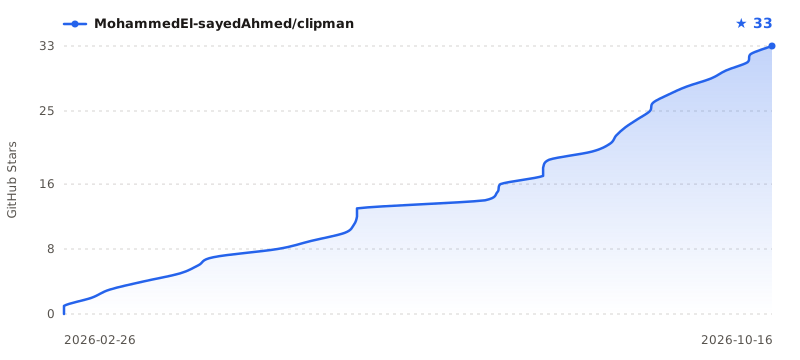
Chart and download history are regenerated daily from the GitHub API by the stats workflow, onto the stats branch — no third-party chart service.
Acknowledgements
- Theme palette by Catppuccin
- CI powered by GitHub Actions
1 maintainer

Metadata
1 maintainer
Release files for clipman-clipboard 1.3.0
For a detailed explanation of source distributions (sdists) and built distributions (wheels), please see the package formats documentation.
Source distribution (sdist)
| File | Size | Uploaded | |
|---|---|---|---|
| clipman_clipboard-1.3.0.tar.gz | 175.8 kB | Details |
Built distribution (wheel)
| File | Interpreter | ABI | Platform | Reset |
|---|---|---|---|---|
| clipman_clipboard-1.3.0-py3-none-any.whl | Python 3 | none | any | Details |
Total release size: 283.2 kB
Release files / clipman_clipboard-1.3.0.tar.gz
| Download URL | clipman_clipboard-1.3.0.tar.gz |
|---|---|
| Size | 175.8 kB |
| Tags | Source |
|
SHA-256 checksum How to use checksums |
698c927ef498c62791e4b3c1edafc4e67c0ad789046a7cf3962f0e31e709253d
|
|
BLAKE2b-256 checksum How to use checksums |
4159d80bd24e4a23978dcbe64a4917a9f50ec9700c418f3a60fcb699b93bd1bd
|
| Upload date | |
|
Uploaded using Trusted Publishing? What is trusted publishing? |
Yes |
| Uploaded via |
twine/7.0.0 CPython/3.13.14
|
Provenance
Provenance describes where a file came from. On PyPI, provenance is shared via attestations, which provide a verifiable record of the build or publishing details. View details, limitations and caveats.


PyPI Publish Attestation
PyPI verified that this artifact, at this checksum, originated from the publisher listed below.
Signed by GitHub Actions, verified by PyPI on Oct 12, 2026.
Transparency logRelease files / clipman_clipboard-1.3.0-py3-none-any.whl
| Download URL | clipman_clipboard-1.3.0-py3-none-any.whl |
|---|---|
| Size | 107.4 kB |
| Tags | Python 3 |
|
SHA-256 checksum How to use checksums |
0fdfbbab13b44eecb3fa8319988f0972417cf64fac47736ac832a9f90960fa18
|
|
BLAKE2b-256 checksum How to use checksums |
ec675c8f78ccd5fc6d9751718ed3b53f979f20422dc599e065ed8fab10972238
|
| Upload date | |
|
Uploaded using Trusted Publishing? What is trusted publishing? |
Yes |
| Uploaded via |
twine/7.0.0 CPython/3.13.14
|
Provenance
Provenance describes where a file came from. On PyPI, provenance is shared via attestations, which provide a verifiable record of the build or publishing details. View details, limitations and caveats.
PyPI Publish Attestation
PyPI verified that this artifact, at this checksum, originated from the publisher listed below.
Signed by GitHub Actions, verified by PyPI on Oct 12, 2026.
Transparency log













