
cloudofficeprint-python
This project provides a Python interface for Cloud Office Print.
Installation
To install the Cloud Office Print Python package, you can type in your terminal:
pip install cloudofficeprint
Usage
- Create a template (docx, xlsx, pptx, HTML, md, txt, csv), for the possible tags, click here.
- Create the input data with this Python SDK
- Send template and data to a Cloud Office Print server and save the response to a file with this Python SDK
To see the JSON-data that is sent to the Cloud Office Print server, you can turn on verbose-mode by setting the argument cop_verbose to True when creating a PrintJob.
Quickstart: Hello World example
Template (docx)
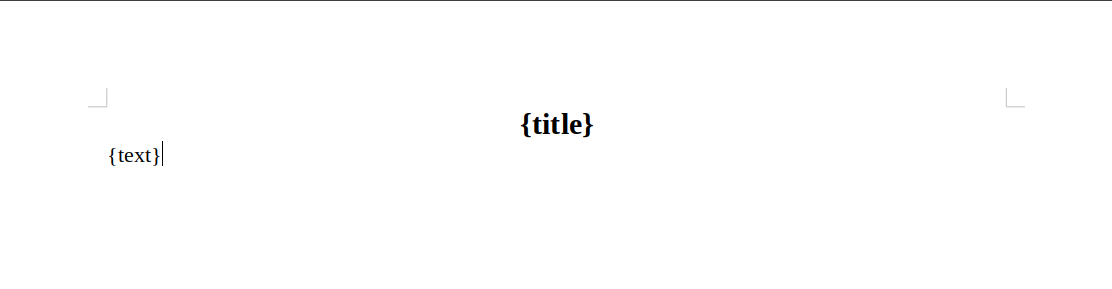
Data
The data can be generated by the Python SDK:
import cloudofficeprint as cop

# Main object that holds the data
collection = cop.elements.ElementCollection()

# Create the title element and add it to the element collection
title = cop.elements.Property(
    name='title',
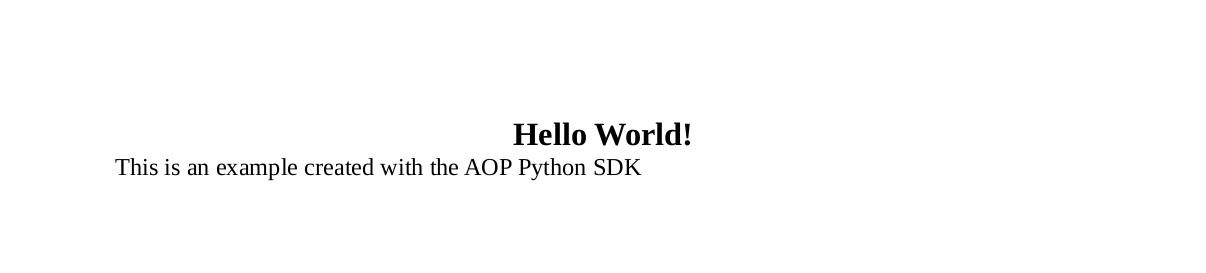
    value='Hello World!'
)
collection.add(title)

# Create the text element and add it to the element collection
text = cop.elements.Property(
    name='text',
    value='This is an example created with the Cloud Office Print Python SDK'
)
collection.add(text)
...
Cloud Office Print server
The template and the data need to be sent to a Cloud Office Print server that merges both. This can be done by setting up the configuration for a Cloud Office Print server and passing it to the print job instance. You can get your API key by signing up at https://www.cloudofficeprint.com.
...
SERVER_URL = "https://api.cloudofficeprint.com/"
API_KEY = "YOUR_API_KEY"  # Replace by your own API key

# Add server
server = cop.config.Server(
    SERVER_URL,
    cop.config.ServerConfig(api_key=API_KEY)
)

# Create print job
printjob = cop.PrintJob(
    data=collection,
    server=server,
    template=cop.Resource.from_local_file('PATH_TO_TEMPLATE_FILE'),
)

# Execute print job and save response to file
response = printjob.execute()
response.to_file('PATH_OF_OUTPUT_FILE')
where PATH_TO_TEMPLATE_FILE is the (relative) path to your template file (e.g. ./data/template.docx) and PATH_OF_OUTPUT_FILE is the (relative) path where you want the output file to be stored (e.g. ./output/output_file).
Result
Other examples
Going through the other examples is also recommended as this gives you a good idea on how to use the SDK. The current examples are:
- order_confirmation_example.py
- pdfsignature_example.py
- solar_system_example.py
- spacex_example.py (the most extensive example)
- multiple_request_merge_example.py
The examples can be found in the parent directory of the project on Github. Each example also has its own folder containing the used templates, the generated output files and a markdown file with explanation.
Documentation
The documentation for this SDK can be found inside the docs/cloudofficeprint/ folder on Github. Open the index.html file in a browser.
The documentation for Cloud Office Print can be found at the Cloud Office Print docs.
Development
Documentation
To generate the documentation, you can run the following command (after installing pdoc: pip install pdoc3) in the project directory:
pdoc --html --force --output-dir docs/ cloudofficeprint/
pdoc is used for documentation generation. Things to keep in mind when writing docs (some of these are non-standard):
- Docstrings are inherited from
super(). - Instance variables (attributes) can have docstrings, start the docstring on the line underneath the attribute
- For
@propertyproperties, the setter's documentation is ignored. Make sure everything is in the getter. - You can use markdown in the docstrings, along with the generated google-style docs.
- Doing something like `
ClassName` (with backticks, which are generally for inline code) makes pdoc look for the reference and try to hyperlink it in the generated docs.
This works with any object, useful methods or instance variables of a class too.
- Doing something like `
Tests
There are tests for all classes and methods. The tests check if the JSON that needs to be sent to the server is as expected. To run the tests:
- Open a terminal in the parent directory of this project, which can be found on Github.
- Type in the terminal:
python test.py - The tests succeeded if nothing is printed to the terminal
Useful Visual Studio Code extensions
njpwerner.autodocstring: Python docstring generator, uses Google-style docs by default.
Publishing
To publish this project to PyPI, follow these steps:
- Create an account on PyPI.
- Install the Twine utility by typing in your terminal:
pip install twine
- In the parent directory, type in your terminal:
python setup.py sdist bdist_wheel
- Check if the building succeeded (PASSED):
twine check dist/*
- Upload to PyPI:
twine upload dist/*
More information can be found here.
1 maintainer

Metadata
1 maintainer
Release files for cloudofficeprint 26.1.1
For a detailed explanation of source distributions (sdists) and built distributions (wheels), please see the package formats documentation.
Source distribution (sdist)
| File | Size | Uploaded | |
|---|---|---|---|
| cloudofficeprint-26.1.1.tar.gz | 73.7 kB | Details |
Built distribution (wheel)
| File | Interpreter | ABI | Platform | Reset |
|---|---|---|---|---|
| cloudofficeprint-26.1.1-py3-none-any.whl | Python 3 | none | any | Details |
Total release size: 137.2 kB
Release files / cloudofficeprint-26.1.1.tar.gz
| Download URL | cloudofficeprint-26.1.1.tar.gz |
|---|---|
| Size | 73.7 kB |
| Tags | Source |
|
SHA-256 checksum How to use checksums |
36207abdcba6afb35d38271c14629eb561a38341c413151dc14a19c6312f5971
|
|
BLAKE2b-256 checksum How to use checksums |
678e426d8ee39c3651492cedeb12f0654f09e2065abe66682d3a172387c975a9
|
| Upload date | |
|
Uploaded using Trusted Publishing? What is trusted publishing? |
No |
| Uploaded via |
twine/6.2.0 CPython/3.13.3
|
Release files / cloudofficeprint-26.1.1-py3-none-any.whl
| Download URL | cloudofficeprint-26.1.1-py3-none-any.whl |
|---|---|
| Size | 63.6 kB |
| Tags | Python 3 |
|
SHA-256 checksum How to use checksums |
cc8fa2a831227e1f66e76ccc644e27d383ee6e5c15ff473f27062822d4d8e41e
|
|
BLAKE2b-256 checksum How to use checksums |
0dd5c164afaf9b4a337db4faf5ab8e81ff3651feeb9c3fbfa7be770fd1e5dbc6
|
| Upload date | |
|
Uploaded using Trusted Publishing? What is trusted publishing? |
No |
| Uploaded via |
twine/6.2.0 CPython/3.13.3
|














