
Codex Reset Watch

Published on PyPI as codex-reset-watch —
uv tool install codex-reset-watch (see §2).
Cross-platform (macOS/Linux/Windows) monitor for codex-resets.com, with Telegram notifications sent directly via the Bot API. The Telegram layer is telegram_kit, a separate stdlib-only package this project depends on and other projects can too.
Tip:
crwis a short alias forcodex-reset-watch— every command works with either name (crw check=codex-reset-watch check). This README usescrw.
Unofficial. Not affiliated with codex-resets.com — an independent client built on its public API. All reset data and forecasts come from there.
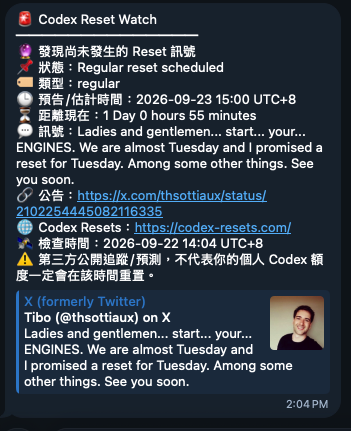
When a public reset signal is found, crw check sends its status and type, estimated reset time
and countdown, source message and announcement link, Codex Resets link, and check time. The
notification also makes clear that this is a third-party public forecast: an individual Codex
quota may reset at a different time.
New-reset and upcoming-reset notices arrive as one photo message: the text is the caption of an
image picked at random from src/codex_reset_watch/assets/reset/ or assets/upcoming/. To add
more images, drop .jpeg/.jpg/.png files into those folders. Other notices stay text-only.
Example reset-signal notification:
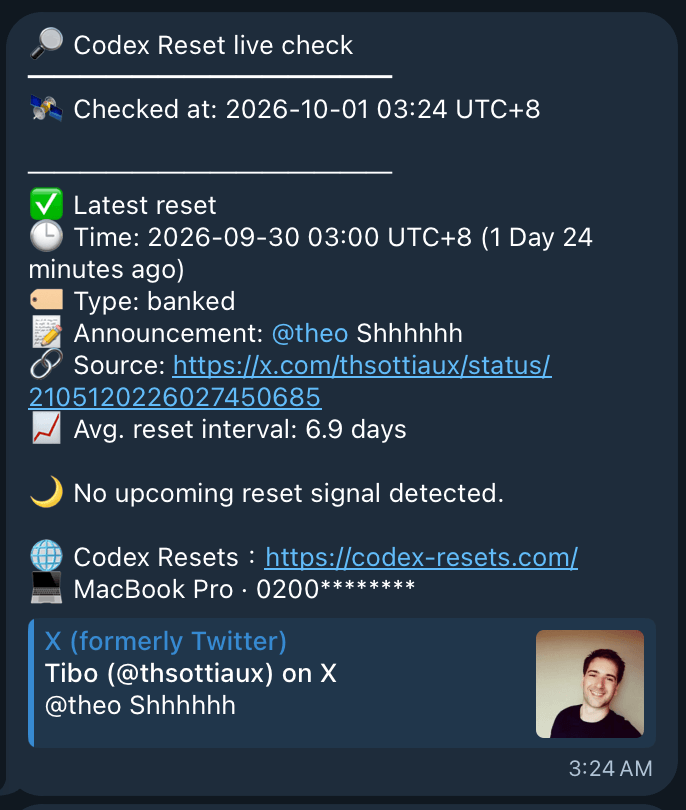
Example Telegram configuration (crw --config):
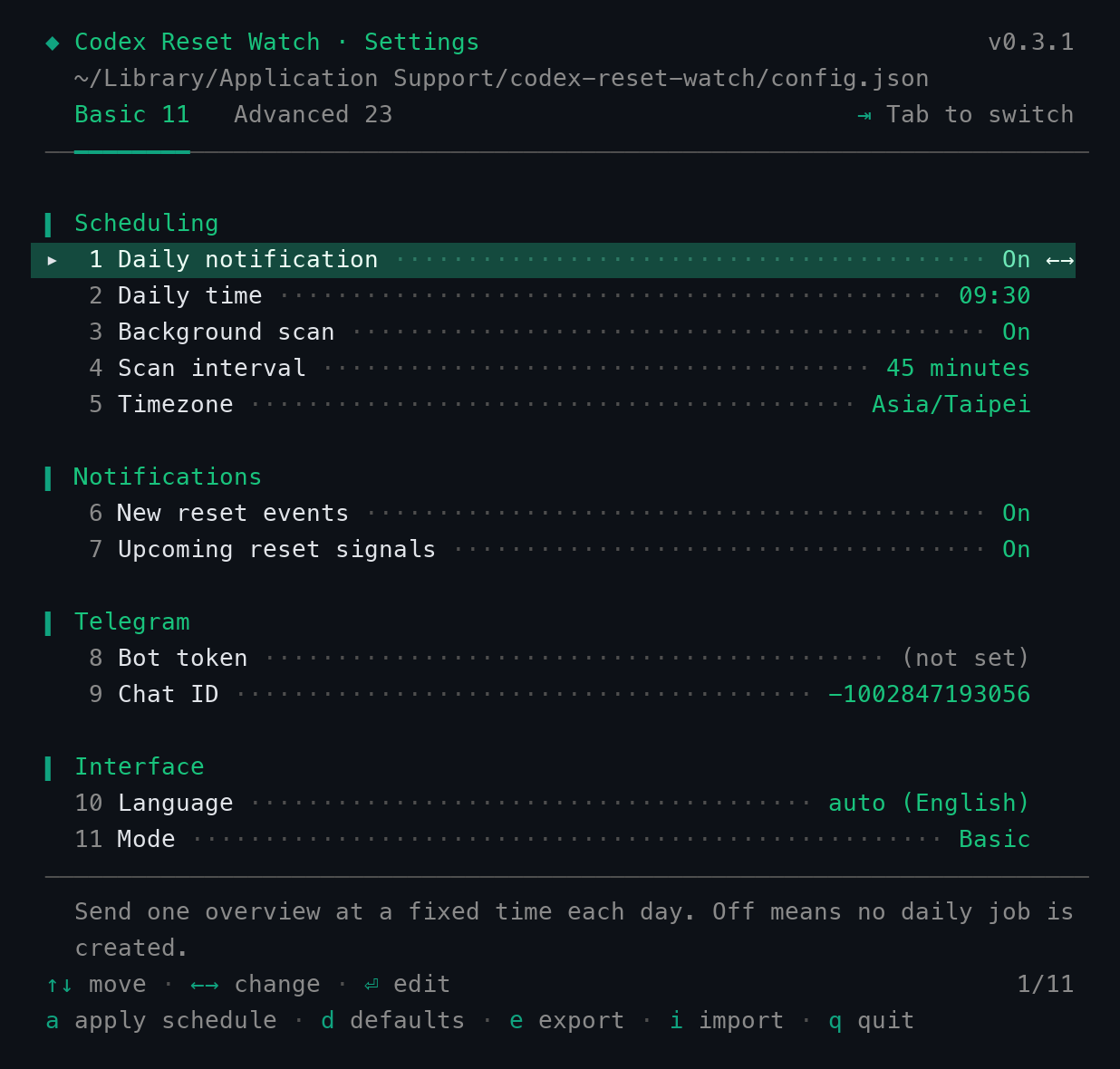
Everything is tuned through one keyboard-driven menu, crw config. It opens on the Basic
tab (the settings most people touch); Tab switches to Advanced (every setting). Both tabs
are always on screen with their row counts, and the rule underlines the one you are on.
Full reference: §4.
Windows PowerShell and cmd use plain signs such as [OK], [ERROR], *,
ASCII arrows and separators in all console messages and menus. This also works
with legacy console code pages; unsupported text is escaped rather than crashing.
macOS/Linux keep the original emoji and symbols. Telegram messages and JSON
exports keep their original Unicode on every platform. Powerline glyphs in your
shell prompt are controlled by your shell theme, outside crw.
This version is uv-native:
- project/dependency metadata:
pyproject.toml - locked resolution:
uv.lock - preferred Python:
.python-version(3.13) - runtime: uv-managed Python
- installed CLI:
uv tool install codex-reset-watchfrom PyPI - CLI entry points:
codex-reset-watchandcrw—crwis a short alias that works exactly the same (crw check=codex-reset-watch check), and--helpsays so - the OS scheduler calls the installed uv-tool executable directly; it does not depend on shell activation or
.venv
Native OS scheduling backend, chosen automatically by scripts/install.py:
| OS | Scheduler | Renderer |
|---|---|---|
| macOS | launchd |
scripts/render_launchd.py |
| Linux | systemd --user timers |
scripts/render_systemd.py |
| Windows | Task Scheduler (schtasks) |
scripts/schtasks.py |
Installed paths
| Purpose | macOS | Linux | Windows |
|---|---|---|---|
| Config | ~/Library/Application Support/codex-reset-watch/config.json |
$XDG_CONFIG_HOME/codex-reset-watch/config.json (default ~/.config/...) |
%APPDATA%\codex-reset-watch\config.json |
| State | ~/Library/Application Support/codex-reset-watch/state.json |
$XDG_STATE_HOME/codex-reset-watch/state.json (default ~/.local/state/...) |
%LOCALAPPDATA%\codex-reset-watch\state.json |
| Logs | ~/Library/Logs/codex-reset-watch/ |
$XDG_STATE_HOME/codex-reset-watch/log/ |
%LOCALAPPDATA%\codex-reset-watch\Logs\ |
| Scheduler units | ~/Library/LaunchAgents/codex-reset-watch.{daily,monitor}.plist |
~/.config/systemd/user/codex-reset-watch-{daily,monitor}.{service,timer} |
Task Scheduler tasks CodexResetWatchDaily / CodexResetWatchMonitor |
| CLI | ~/.local/bin/{codex-reset-watch,crw} |
~/.local/bin/{codex-reset-watch,crw} |
%USERPROFILE%\.local\bin\{codex-reset-watch,crw}.exe |
Every Telegram notice names the device that sent it (e.g. 🖥️ Mac mini · a1b2********;
the id is derived from the MAC address, so only its first 4 hex chars are shown;
replace the whole line with your own text via the device_label setting).
On macOS/Linux, the device-label editor accepts Unicode text and emoji, such as
💻 Work laptop or 👩🏽💻 Workstation, up to 64 Unicode code points (a combined emoji
can count as several code points).
Scheduled notices then end with the job that sent them and the absolute path to
events.jsonl in the configured log folder — launchd: codex-reset-watch.monitor on macOS,
systemd: codex-reset-watch-monitor.timer on Linux, Task Scheduler: CodexResetWatchMonitor
on Windows (or the daily equivalent).
Resolution logic lives in src/codex_reset_watch/paths.py (defaults) and config.py (overrides).
Override any of the three with the env vars CRW_CONFIG, CRW_STATE_DIR, CRW_LOG_DIR, or set
state/log folder via crw config (the state_dir/log_dir settings — env vars win if both are
set). CRW_CONFIG has no config-file equivalent, since it names the config file itself.
~is used in documentation and user-facing output. Scheduler job files/tasks contain expanded absolute paths — none oflaunchd/systemd/Task Scheduler expand~.
1. Install uv
If uv is already installed, skip this section.
macOS (Homebrew):
brew install uv
Linux/macOS (Astral's official installer):
curl -LsSf https://astral.sh/uv/install.sh | sh
Windows (PowerShell):
powershell -ExecutionPolicy ByPass -c "irm https://astral.sh/uv/install.ps1 | iex"
Verify:
uv --version
2. Install Codex Reset Watch
From PyPI (recommended)
The distribution is codex-reset-watch on
PyPI; it installs both commands, codex-reset-watch and crw. The same commands work on
macOS, Linux and Windows:
uv tool install codex-reset-watch            # latest release
uv tool install codex-reset-watch==X.Y.Z     # pin to a specific version
uv tool update-shell                         # first install only: put ~/.local/bin on PATH
Replace X.Y.Z with the release version you want; re-running either install command switches
an existing install to that version. Then open a new terminal and finish the setup the
source installer below would otherwise do for you:
crw config           # Telegram bot token + chat id (Basic tab), schedule, language
crw apply-schedule   # register the launchd / systemd --user / Task Scheduler jobs
crw doctor           # every line should be ✅
crw check            # first real run
crw config re-applies the schedule by itself when you change a schedule setting there;
crw apply-schedule is the explicit step for a first install that keeps the defaults.
From source (installer script)
One command, identical on macOS, Linux and Windows — run it from a clone of the repository (or the extracted source archive of a GitHub release). The installer asks for your Telegram bot token and chat id interactively partway through (see below); nothing needs to be exported beforehand.
uv run python scripts/install.py
That single command installs the CLI from that folder, puts it on your PATH, stores the
Telegram credentials and registers the OS scheduler — there is no separate step to forget. Then
open a new terminal (the PATH entry only applies to shells started afterwards) and verify:
crw doctor      # every line should be ✅
crw check       # first real run
make install / make test are thin wrappers over the same script, available on macOS and
Linux if you prefer them; Windows has no make and does not need it.
Step 3: the Telegram prompt
Set up Telegram notifications now?
  You'll need a bot token from @BotFather and the chat id it should message.
  Set up now? [Y/n]: y
  Telegram chat id: -1001234567890
  Telegram bot token (hidden):
  ✅ Saved. Bot token stored in macOS Keychain; chat id in ~/Library/Application Support/codex-reset-watch/config.json.
The token is typed with echo off — nothing appears on screen as you type it, the same way a
terminal hides a sudo password. This works identically on macOS, Linux and Windows because
it's one call to Python's standard getpass module rather than a hand-rolled stty -echo /
read -s script: getpass already knows how to suppress terminal echo on all three (via
termios on POSIX, msvcrt on Windows) and always restores it afterward, Ctrl-C included, with
no trap/cleanup code of our own to get wrong.
The prompt is skipped automatically — silently, so re-running the installer is a no-op here —
when either credential is already reachable (stored from a previous install, or set as
TG_BOT_TOKEN/TG_CHAT_ID in the environment) or when stdin isn't a terminal (CI, a piped
install: there's no one to answer it). Configure or change it anytime afterward with
crw config (see §4) or §8 for the environment-variable
alternative.
scripts/install.py also:
- copies the project to
$CRW_INSTALL_DIR(default~/Documents/Workspace/codex-reset-watch) - runs
uv python install 3.13 - installs the package as a persistent isolated uv tool
- puts
codex-reset-watchandcrwin uv's own bin directory (~/.local/bin, or$UV_TOOL_BIN_DIR/$XDG_BIN_HOMEif you set either) and runsuv tool update-shellso that directory is on thePATHof new shells - creates config/state/log directories
- registers the native scheduler job for the current OS (launchd / systemd --user timers / Task Scheduler)
- warns if anything else already answers to the name
crw/codex-reset-watch— a shell alias or function in your startup files (.zshrc,.bashrc, fish config, PowerShell profile), or another executable earlier onPATH. Those win over step 4, so a leftover alias from an older setup makescrwfail with something likezsh: no such file or directory: …/crweven though the install succeeded. Delete the line the warning points at; don't add an alias of your own — step 4 already covers it.
Expected uv tool list entry:
codex-reset-watch v0.1.0
- codex-reset-watch
- crw
3. Common commands
Immediate API check + terminal output + Telegram notification:
crw check
Example output:
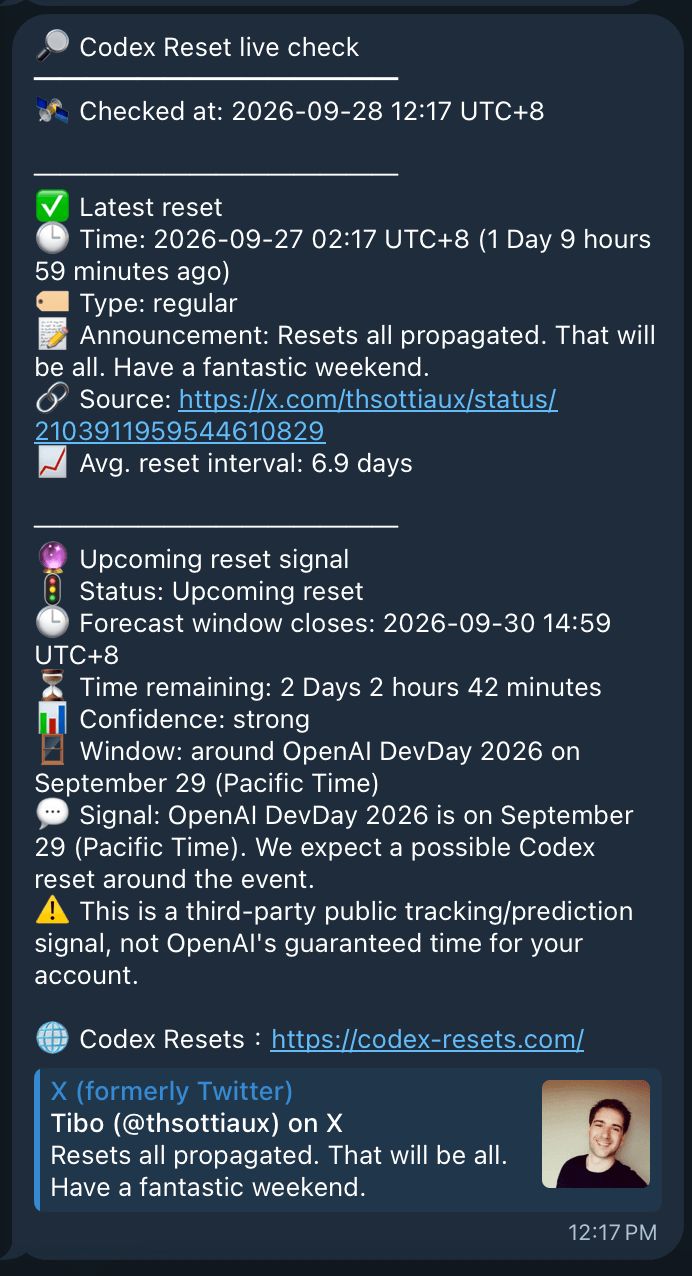
Alias of check:
crw update
Check without Telegram:
crw check --no-notify
Health check:
crw doctor
Recent logs:
crw logs -n 50
Force the daily path for testing:
crw daily --force
Run monitor path manually:
crw monitor
Adjust timing, notifications, Telegram, or paths (see §4):
crw config
Print the running version:
crw --version
-- is optional everywhere
Every subcommand may be written with or without leading dashes, and so may every one of its flags. These pairs are identical:
| Either | Or |
|---|---|
crw config |
crw --config |
crw config --list |
crw config list |
crw config --set daily_time=09:00 |
crw config set daily_time=09:00 |
crw config --export ~/crw.json |
crw config export ~/crw.json |
crw check --no-notify |
crw check no-notify |
crw daily --force |
crw daily force |
crw logs --lines 50 |
crw logs lines 50 |
crw config --token-stdin |
crw config token-stdin |
crw --help |
crw help (also crw config help) |
crw --version |
crw version |
A bare word is only read as a flag after the subcommand that actually declares it, so
crw config set export still sets a key literally named export, and anything after a bare
-- is passed through exactly as typed.
4. Configuration (crw config)
Every tunable value — whether the daily notification runs at all and at what time, how often the
background scan runs, notification toggles, Telegram credentials, API endpoints/timeouts,
interface language, and config/state/log folder locations — lives in one schema
(src/codex_reset_watch/config.py) and is editable without hand-editing JSON:
crw config                     # interactive menu (arrow keys)
crw config --list              # print current settings and exit
crw config --set scan_interval_minutes=45m --set daily_time=09:30
crw config --export ~/crw-settings.json    # portable backup, local identifiers excluded
crw config --import ~/crw-settings.json    # apply a backup, all-or-nothing
Remember that -- is optional: crw --config, crw config list and crw config export FILE
all work too (see §3).
The interactive menu
crw config with no flags opens a keyboard-driven menu on a real terminal. It adapts to the
window: the panel is as wide as the terminal allows (72–129 columns), a big
CODEX RESET WATCH banner shows on wide windows (≥ 131 columns, ≥ 30 rows), a compact 3-row
one on narrower ones (≥ 24 rows), and none on short ones. Resizing redraws the whole screen
rather than leaving a broken frame behind.
| Key | Does |
|---|---|
↑ ↓ |
move between rows |
← → |
change a toggle (On/Off) or step through a choice (Language) |
Enter |
toggle a switch, or open an inline editor for a typed value |
Esc |
cancel the current edit (or quit from the row list) |
Tab |
switch Basic ↔ Advanced mode (m in the numbered fallback menu) |
a |
apply the OS schedule now |
d |
reset the highlighted row to its default (asks y to confirm) |
D |
restore every default (asks y to confirm; d in the numbered fallback menu) |
e / i |
export / import settings — type a path, Enter |
q / Ctrl-C |
quit |
The selected row is a full-width highlighted band marked with a ▸ cursor, and it ends in the
key that acts on it — ←→ when the row cycles, ⏎ when it opens an editor. That column is
reserved on every row, so moving the cursor never shifts the value column. While the menu waits
for a key, that cursor breathes: the glyph stays put and only its colour ramps up and down, so
the animation cannot move a column. It runs on a real terminal only — piped or redirected
output never animates, and stays plain text. The row's help text
appears below the list, and the bottom-right counter (e.g. 4/11 in Basic mode, 4/23 in
Advanced) says where you are; on a short terminal the list scrolls with ▴ N more / ▾ N more
markers rather than silently hiding rows.
Each change saves immediately, and a schedule-relevant change re-applies the OS schedule on
quit automatically. "Change" means the value actually differs from the one the schedule was
built from — re-typing the same time, or toggling a row off and back on, re-applies nothing.
The same holds for crw config --set (use --apply-schedule to force one).
Basic and Advanced mode
The menu shows a curated Basic subset by default — the settings most people actually touch (scheduling, notification toggles, Telegram, language). Advanced adds everything else: the API/HTTP tuning and the storage-path rows.
Both modes sit in the header as two tabs, with how many rows each one holds, and the panel's hairline thickens under the active one — so which view you are in, what the other one would give you, and the key that gets you there are all on screen at once:
   Basic 11   Advanced 23                                ⇥ Tab to switch
 ──━━━━━━━━──────────────────────────────────────────────────────────────
Tab switches (m in the numbered fallback menu, which shows a badge instead — there is no
key to press there). The underline marks the active tab even with NO_COLOR or piped output.
The choice is just another setting (ui_mode), so it is remembered across runs; a fresh
install starts in Basic — see the screenshot at the top of this README.
Colour is dropped whenever stdout isn't a real terminal or NO_COLOR is set. On the classic
cmd.exe/conhost window it stays on: the first colour print flips that console into ANSI mode
via SetConsoleMode (ui._enable_windows_vt), one-time and best-effort, so codes render instead
of printing literally. Windows Terminal and PowerShell already do this on their own.
Input is constrained at the keystroke, not just validated on save
A field only accepts what it can legally hold, so an invalid value cannot be typed in the first place — the schema check on commit is the backstop, not the first line of defence:
| Field kind | What the editor accepts |
|---|---|
Time (daily_time) |
Digits only; the : is inserted after the hour; a lone 9 becomes 09:; an hour past 23 or a minute past 59 is refused as you type; stops at 4 digits |
Interval (scan_interval_minutes) |
Digits, then at most one unit (m/h/d) — 2h5 and 2hd are impossible |
| Integers | Digits only, capped to as many digits as the maximum needs and clamped to it live (99 in a 1–10 field shows 10) |
Choice (language) / toggles |
Not typed at all — ←→ steps through the allowed values |
Secret (telegram_bot_token) |
Any character; opens empty, and committing it empty keeps the stored token |
While an editor is open, the help line shows the accepted format rather than the setting's
description — HH:MM · digits only, the colon is added for you (00:00–23:59),
Digits, then a unit: 30m · 2h · 1d, Whole number, 1–10.
When stdin or stdout is not a terminal (a pipe, CI, a test), the same schema is served by a
numbered prompt instead — type the row number, Enter — so crw config never hangs waiting for
a keypress that cannot arrive.
crw config --list (values below are an example, not your real settings):
 ◆ Codex Reset Watch · Settings                    Advanced mode v0.19.1
   ~/Library/Application Support/codex-reset-watch/config.json
 ────────────────────────────────────────────────────────────────────────

 ▍ Scheduling
    1 Daily notification ········································· On
    2 Daily time ·············································· 09:30
    3 Background scan ············································ On
    4 Scan interval ······································ 45 minutes
    5 Timezone ·········································· Asia/Taipei

 ▍ Notifications
    6 New reset events ··········································· On
    7 Upcoming reset signals ····································· On
    8 Notify on unchanged scan ··································· On
    9 Notify on unchanged day ···································· On
   10 Device label ······················· 🖥️ Mac mini · a1b2********

 ▍ Telegram
   11 Bot token ··········································· (not set)
   12 Chat ID ········································ -1001234567890

 ▍ API
   13 API base ····························· https://codex-resets.com
   14 status path ···································· /api/v1/status
   15 resets path ················ /api/v1/resets?limit=20&order=desc
   16 Timeout (seconds) ·········································· 15
   17 Retries ····················································· 3
   18 Blind alert after ··········································· 3
   19 User-Agent ·· codex-reset-watch/1.0 (+https://codex-resets.com…

 ▍ Storage
   20 State folder ······························· (platform default)
   21 Log folder ································· (platform default)
   22 Log size cap ············································ 2 MiB
   23 Log backups ················································· 3

 ▍ Interface
   24 Language ············································· English
   25 Mode ···················································· Basic
   26 Check for updates ··········································· On

 Times shown in Asia/Taipei; the OS fires each job in its own local time.
--list always shows the full (Advanced) schema, regardless of the stored mode — the badge and
25 Mode row make that explicit.
Settings
| Setting | Meaning | Examples |
|---|---|---|
daily_enabled |
Run the daily notification at all | on / off |
daily_time |
Wall-clock time for the daily job | 10:00, 9:30 |
monitor_enabled |
Run the background scan at all | on / off |
scan_interval_minutes |
How often the background scan runs — min 1 minute, max 1 day | 30m, 2h, 1d, or a bare number of minutes |
timezone |
Timezone daily_time and rendered timestamps use |
UTC+8, UTC-05:30, UTC, local, or an IANA name (Asia/Taipei) |
notify_new_reset_events / notify_upcoming_reset |
Which event types trigger a Telegram push | on / off |
monitor_notify_when_unchanged / daily_notify_when_unchanged |
Push even when nothing changed since last check | on / off |
device_label |
Device line at the end of every notice — blank = automatic (emoji, computer name, masked id); max 64 characters; never exported. The menu shows the automatic label while blank, your text once set, and r names the label it resets to |
Office Mac, blank |
telegram_bot_token |
Bot API token — stored in the OS keychain, never in a file (see §8) | masked as ********WXYZ |
telegram_chat_id |
Chat that receives notifications | -1001234567890 |
api_base, status_path, resets_path |
codex-resets.com endpoints | — |
request_timeout_seconds, request_retries |
HTTP client tuning | — |
blind_alert_after |
Send one Telegram notice after this many scheduled scans in a row fail, or return a payload with no readable reset event; the next one only after a scan succeeds. 0 = off. At the default 2-hour scan, 3 means about 6 hours blind |
3, 0 |
state_dir, log_dir |
Override the platform-default state/log folders | blank = platform default |
max_log_bytes, log_backups |
Application log rotation | — |
language |
Menu, doctor, and Telegram notification language |
en, zh-TW |
ui_mode |
Which settings crw config shows — Basic (curated) or Advanced (everything) |
basic, advanced |
update_check |
After a command run in a terminal, ask whether to upgrade from PyPI when a newer release exists (see below) | on / off |
Update check. When a newer GitHub release exists, a command run on a keyboard-capable
terminal ends with a prompt — Update now (runs the uv tool install --force codex-reset-watch==X.Y.Z && crw apply-schedule steps, installing that release from PyPI — this
also moves an older git- or source-folder install over to PyPI), Skip (ask again next run), or
Skip until next version — drawn with the same cursor and selection style as crw config,
with a link to the release notes on GitHub. Off a keyboard terminal (piped output, CI) it stays
the old two-line hint on stderr, plus the release-notes link, instead. The
GitHub request runs in the background while the command works, at most once every 10 minutes
(cached as update-check.json in the state folder, 0.8 s timeout); offline, piped output and the
scheduled jobs stay silent, and the exit code never changes. Turn it off with
crw config --set update_check=off. Every way of running crw / codex-reset-watch gets
this — any subcommand, --help, --version, no arguments, or a mistyped command.
Language
The menu, help text, validation errors, the doctor summary, and Telegram/console notification
bodies are all available in English and Traditional Chinese — no third "auto" setting. The
default, until you pick one, follows the system locale at first use — zh_TW, zh_HK,
zh_Hant and zh_MO resolve to 繁體中文, everything else (including no match at all) to
English. Change it explicitly with:
crw config set language=zh-TW
CRW_LANG=zh-TW crw config --list overrides it for a single run without touching the config.
Export and import
crw config export ~/crw-settings.json   # or `-` for stdout, to pipe it somewhere
crw config import ~/crw-settings.json
An export contains portable settings only. It excludes the bot token, chat ID, local paths and
API endpoint settings. The output file is created with owner-only access; - writes JSON to
stdout, where the receiving command controls access. Set local values again after import.
An import is all-or-nothing and reports what it refused:
- Local values are never imported. This includes the token and chat ID, so importing a file cannot redirect notifications or replace the local API endpoint or filesystem paths.
- Control characters are rejected in setting values, including paths used by the scheduler.
- Unknown keys are left alone rather than stored back as an unvalidated blob.
- One invalid value aborts the whole import before the first write, so a half-applied config can never be the outcome.
crw config --set validates every value the same way the menu does (rejects an out-of-range
interval, a malformed HH:MM, etc.) and reports which key failed. Changing any setting that
affects the OS scheduler (daily_enabled, daily_time, monitor_enabled,
scan_interval_minutes, timezone, log_dir) automatically re-renders and re-registers the
scheduler job(s) for the current OS on exit/save — the same effect as running:
crw apply-schedule
which you can also run directly any time (e.g. after editing config.json by hand). This is the
config-driven counterpart to scripts/render_launchd.py / render_systemd.py / schtasks.py,
which scripts/install.py also calls on first install — see §7.
Config file location, in priority order: $CRW_CONFIG, else the platform default from the
Installed paths table above. config.example.json documents every
file-backed key with its default value — the bot token is deliberately absent from it.
5. uv project commands
For development inside the project:
cd ~/Documents/Workspace/codex-reset-watch
uv sync
uv run crw --help
uv run crw check --no-notify
uv run python -m unittest discover -s tests -v
Inspect uv-managed tool locations:
uv tool list
uv tool dir
uv tool dir --bin
uv python list --only-installed
The installer deliberately installs into uv's own default bin directory, so the stable paths used by launchd/systemd/Task Scheduler are:
~/.local/bin/codex-reset-watch
~/.local/bin/crw
It used to override UV_TOOL_BIN_DIR to a private ~/scripts instead, which silently broke the
scheduler: uv records each entrypoint's absolute path in its receipt and deletes the recorded
ones on every reinstall, so a later plain uv tool install/uv tool upgrade — run without that
same override — moved the CLI to ~/.local/bin and left the scheduler jobs invoking a path that
no longer existed. Matching uv's default keeps the two in sync no matter how the tool is
reinstalled. crw doctor's Scheduled CLI line asserts exactly this.
6. Upgrade or reinstall
PyPI install — upgrade to the latest release, then re-register the scheduler jobs:
uv tool upgrade codex-reset-watch
crw apply-schedule
uv tool upgrade keeps an install's original source, so an install made from a source folder
or git URL stays there; switch it to PyPI once with
uv tool install --force codex-reset-watch (the in-app Update now does the same).
Source install, after source changes — recommended:
cd ~/Documents/Workspace/codex-reset-watch
make install
Or reinstall only the uv tool executable/environment:
cd ~/Documents/Workspace/codex-reset-watch
make tool-reinstall
make install (or uv run python scripts/install.py on Windows) is preferred when scheduler configuration or installer files also changed.
7. Scheduler jobs
Both the daily time and the monitor interval are read from config at render time (see §4) —
defaults below are what ships in config.example.json. Either job can also be turned off entirely
(daily_enabled / monitor_enabled), which removes its scheduler entry instead of leaving a
disabled stub. All rendering lives in src/codex_reset_watch/scheduler.py, shared by
scripts/install.py (first install) and crw config / crw apply-schedule (re-apply after a
settings change) — the per-OS scripts under scripts/ are thin wrappers around it.
These are per-user scheduled jobs, not system daemons. To restart/re-register
them from current settings on macOS, Linux, or Windows, run crw apply-schedule.
From this checkout on macOS/Linux, make restart-schedule does the same thing.
The interactive update flow calls crw apply-schedule after a successful
upgrade; schedule-related crw --config changes also re-apply automatically.
Daily job
- default: 10:00, in the configured timezone (
timezonesetting; converted to the machine's own local time at render time, since every OS scheduler fires on system local time) - runs immediately at login/boot too (
RunAtLoad/Persistent), so a missed run (machine asleep/off) catches up - Python-side daily gate (
last_daily_datein state) prevents duplicate daily work even if the OS runs it more than once
Monitor job
Runs every scan_interval_minutes (default 120 = every 2 hours; min 1 minute, max 1440 = 1 day),
as a rolling interval from when the job last fired — not a fixed set of wall-clock minutes.
The program uses a cross-platform file lock (src/codex_reset_watch/filelock.py) so overlapping daily/monitor invocations do not corrupt state or duplicate work.
macOS — launchd
~/Library/LaunchAgents/codex-reset-watch.daily.plist(StartCalendarInterval)~/Library/LaunchAgents/codex-reset-watch.monitor.plist(StartInterval, in seconds)- installer/
crw apply-schedulerunslaunchctl bootout(both, to clear a disabled job) thenbootstrap/enablefor each enabled job
Linux — systemd --user timers
~/.config/systemd/user/codex-reset-watch-daily.{service,timer}(OnCalendar=*-*-* HH:MM:00)~/.config/systemd/user/codex-reset-watch-monitor.{service,timer}(OnBootSec=/OnUnitActiveSec=<N>min)- installer/
crw apply-schedulerunssystemctl --user daemon-reload, thenenableandrestarton each enabled timer (anddisable --nowa job that was just turned off), so a changed interval takes effect immediately - requires a systemd user instance (lingering, if you want jobs to run without an active login session:
loginctl enable-linger $USER)
Windows — Task Scheduler
CodexResetWatchDaily(/SC DAILY /ST HH:MM)CodexResetWatchMonitor:/SC HOURLY /MO <hours>when the interval is a whole number of hours (e.g. the 2-hour default),/SC MINUTE /MO <minutes>otherwise,/SC DAILYfor a full 1-day interval- Task arguments and the Windows user environment registry do not receive credentials; scheduled runs read the local config and DPAPI store
8. Telegram
Sends directly through the Telegram Bot API via telegram_kit,
a separate package (PyPI) — no external script
dependency. Other projects can use it with service="codex-reset-watch" to reuse the token
crw config stored; its API is documented in its own repository. There are two ways to supply the credentials, and what crw config stored wins.
The installer (§2) already walks through Option A on first
install with the token entered echo-off; this section is for setting it up later or changing it.
Option A — configure them once (recommended)
crw config # rows 10 and 11, under "Telegram"
or non-interactively:
crw config --token-stdin   # reads the token from stdin without a command-line argument
crw config set telegram_chat_id=-1001234567890
The bot token is never written in plaintext by this app. It goes into the operating system's credential store; on Windows the DPAPI-encrypted blob is in an owner-only file. The config file, exports and generated scheduler jobs never contain the token:
| OS | Where the token is kept | Via |
|---|---|---|
| macOS | Keychain (codex-reset-watch generic password) |
security |
| Linux | Secret Service — GNOME Keyring / KWallet | secret-tool (libsecret) |
| Windows | DPAPI, encrypted for your user account | PowerShell |
| none of the above | nothing is stored | — |
With no credential store available, crw refuses to persist the token. Environment variables
can still supply credentials to a manual run, but cannot be used for scheduled notifications;
set up a supported credential store for scheduled runs.
If the store is locked or refuses a token that someone hand-wrote into config.json, that run
keeps using it and the file is left untouched rather than failing every command. crw doctor
shows where the token came from. Saving other settings contacts the store only when the token
actually changed, so a locked keychain does not block unrelated edits.
Wherever it is displayed the token is masked (********WXYZ). The installer and terminal menu
hide input; --token-stdin supports automation. Passing a nonempty token through --set is
rejected because the shell and process list can retain command-line arguments. Credential
helpers read the value on stdin, and event logs do not contain it.
Saving never deletes it. Every other setting is persisted by rewriting the whole config, so
a save runs constantly — on each menu edit, each --set, each import. A save that is handed a
config without a token (a DEFAULTS dict, a briefly unreadable keychain, a partial config)
leaves the stored item exactly as it is; it is not read as "remove the credential". Restoring
defaults keeps the token for the same reason: a token has no default to restore to, only an
item to destroy. Removing one is an explicit act:
crw config --set telegram_bot_token= # names the key, asks for it to be empty
Until that distinction existed, make test was enough to wipe the stored token — the suite
saves real configs, and a save with no token in it deleted the developer's own keychain item, so
the token had to be retyped after every release. See §12.
If the token row is empty but notifications still work, TG_BOT_TOKEN is set in your
environment (Option B) and is being used; the row shows only what the keychain holds, and says
so.
To inspect or remove the stored item yourself on macOS:
security find-generic-password -s codex-reset-watch -a telegram_bot_token   # metadata only
security delete-generic-password -s codex-reset-watch -a telegram_bot_token
Option B — environment variables
export TG_BOT_TOKEN="..."
export TG_CHAT_ID="..."
These fill in whatever Option A has not stored for manual runs. They do not override a stored
value: a TG_BOT_TOKEN forgotten in a shell profile must not keep notifying through a bot you
already replaced in crw config.
Scheduled jobs never embed these variables in generated plist or unit files. crw apply-schedule
migrates credentials found in older app-owned jobs into the local credential store and replaces
those jobs. If the store refuses the migration, it attempts to stop the old jobs and removes the
credentials from their files. A failed stop is reported explicitly because a running job may
retain its old environment. Values supplied only by the current shell are not
persisted for scheduled runs. In that case the error is reported before any running job is
stopped, so the existing schedule keeps running.
Rotate a migrated token. Older installs wrote
TG_BOT_TOKENinto world-readable (0644) plist or unit files, and backups or other local users may have copied them. After migrating, revoke the old token with @BotFather (/revoke), then store the new one withcrw config --token-stdin.
Older Windows installs may have left TG_BOT_TOKEN in HKCU\Environment; crw doctor and the
installer detect this without printing it. After confirming other applications do not use that
variable, remove the legacy value in PowerShell:
[Environment]::SetEnvironmentVariable('TG_BOT_TOKEN', $null, 'User')
[Environment]::GetEnvironmentVariable('TG_BOT_TOKEN', 'User') -eq $null
crw doctor reports which store is in use and where each credential came from, showing the
token masked:
✅ Secret store: macOS Keychain
✅ Telegram bot token: ********QrSt (macOS Keychain)
✅ Telegram chat id: -1001234567890 (environment)
Then:
crw check
9. Timezone and countdown
Upcoming reset information is rendered in the configured timezone (default UTC+8 — see
§4) and includes remaining time with:
- maximum unit: Day
- minimum unit: minutes
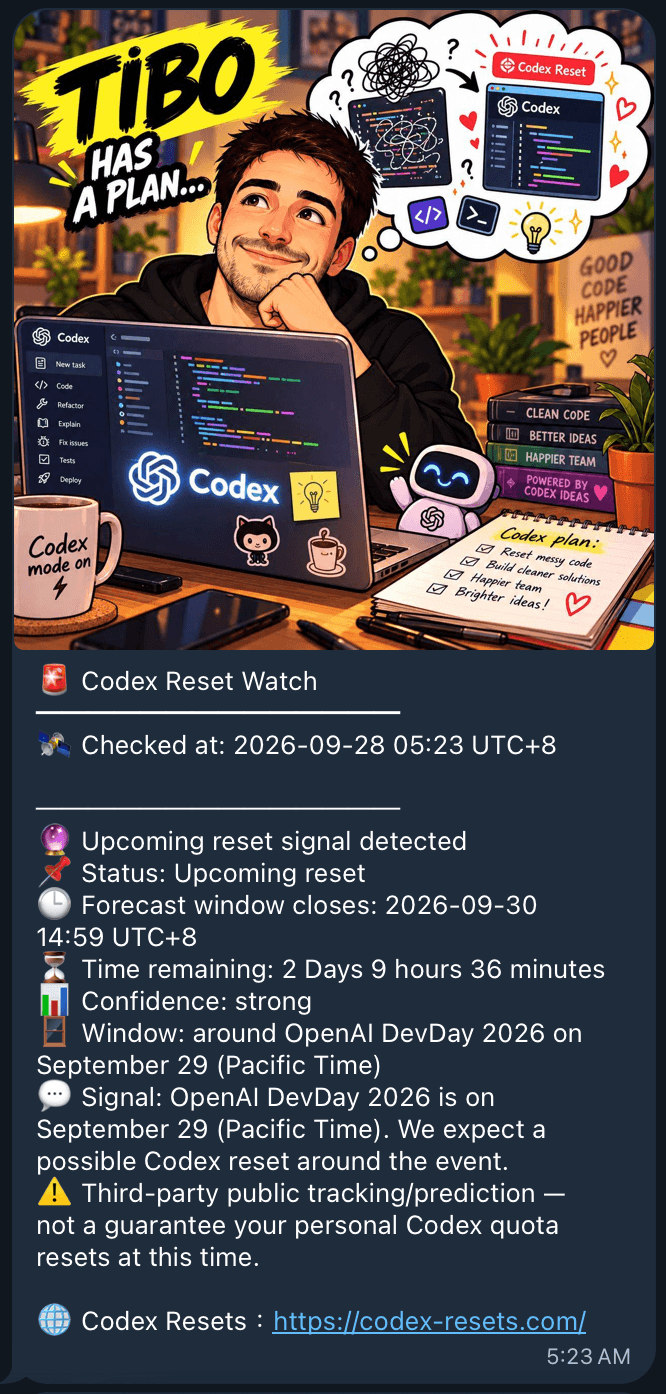
Example:
🕒 預測窗口截止:2026-09-21 23:09 UTC+8
⏳ 距離現在:2 Days 1 hour 35 minutes
Example upcoming-event result:
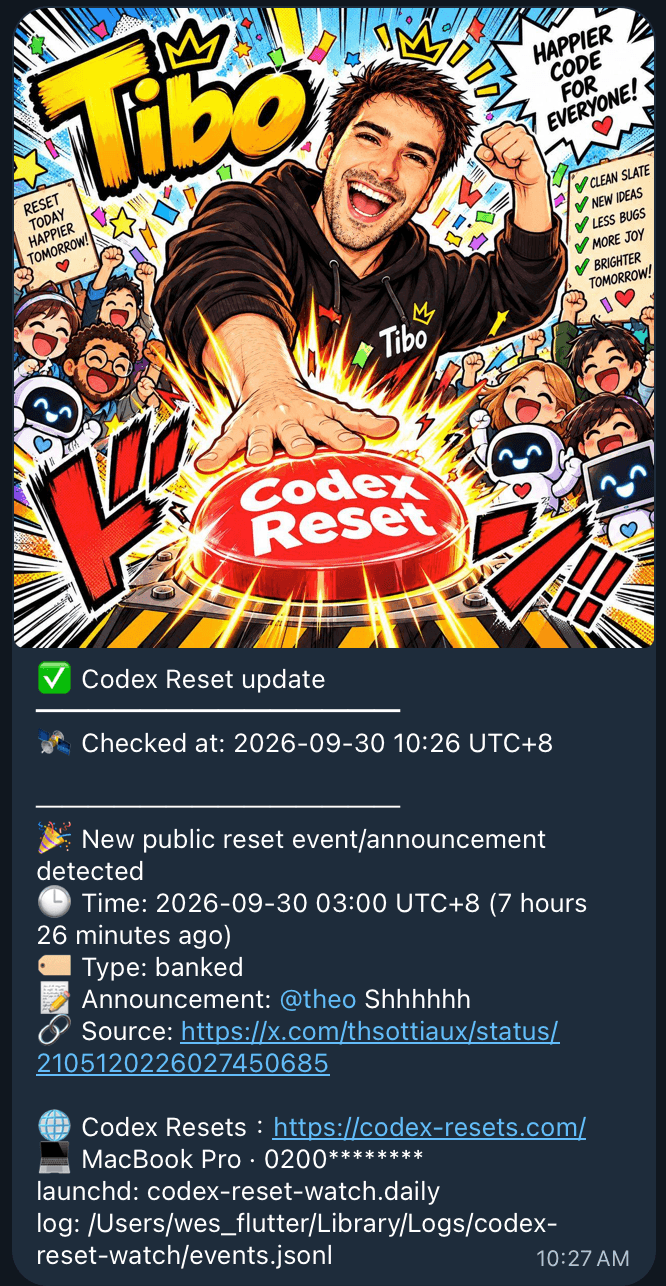
Reset times already past (latest reset, new-reset notice) add how long ago they were, largest unit Day, smallest unit the API's own precision — a date-only value shows days, an hour-only value hours, and anything finer is cut at minutes; zero-value units are left out:
🕒 Time: 2026-09-27 02:17 UTC+8 (23 hours 16 minutes ago)
Example current-reset-event result (new-reset notice):
10. Event parsing resilience
event_from_dict tolerates upstream API schema drift instead of assuming one fixed shape:
- Timestamp and source-URL keys match both
snake_caseandcamelCasevariants (created_at/createdAt,source_url/sourceUrl, etc.), searched up to 3 levels deep so a nestedsource: {url: ...}object resolves correctly. - If no timestamp field is present or parseable, the event ID or source URL is checked for an embedded X/Twitter Snowflake post ID, which encodes its own creation time. This keeps historical reset times available even if the upstream schema changes or omits its timestamp field. API-provided timestamps always take priority over this fallback.
- Upcoming signals come from any known container (
scheduled_reset,upcoming_reset,forecast, …) including the tracker'sactive_watch, whoseexpires_atis shown as the forecast window close and drops the signal once passed.crw checkalso printsstats.avg_interval_daysas "Avg. reset interval" when the API provides it. - An explicit
scheduled_reset(statusscheduled) always wins over a forecast oractive_watch, even while its time is still to be announced. Once itsscheduled_forpasses it stays on screen as "waiting for the reset to land" — per the API docs, a passed time does not mean it happened. - When tolerance runs out, the monitor says so instead of going quiet. A scheduled scan whose
status request fails, or whose payload yields no reset event at all, counts as blind. After
blind_alert_afterblind scans in a row, one "can't see the API" notice goes out; a healthy scan resets the count.
11. Logs and disk usage
Application logs:
~/Library/Logs/codex-reset-watch/events.jsonl
~/Library/Logs/codex-reset-watch/api.jsonl
Default config limits each rotated application/API log to roughly 2 MiB with 3 backups:
{
  "max_log_bytes": 2097152,
  "log_backups": 3
}
launchd stdout/stderr logs are separately trimmed to 256 KiB by the installer when they exceed 512 KiB (macOS only — install.trim_launchd_logs). systemd/journald and Windows Task Scheduler manage their own job-output retention.
12. Tests
Run everything through uv (macOS/Linux):
make test
Windows:
uv run python -m unittest discover -s tests -t . -v
uv run pytest runs the same suite with pytest, which is a dev dependency installed by
uv sync.
Individual groups (macOS/Linux):
make test-unit
make test-integration
The integration tests (tests/test_integration.py, tests/test_run_check.py, tests/test_cli_config.py, tests/test_cli_syntax.py, tests/test_install_telegram.py) start a local HTTP server and exercise the real HTTP client, response normalization, and run_check/crw config/installer-prompt flows without contacting the production API or a real terminal. The full suite runs unmodified on macOS, Linux, and Windows in CI (see .github/workflows/ci.yml).
Three families of side effect are mocked everywhere, for the same reason — a unit test must not touch what this machine actually has:
- The OS scheduler. Every test that exercises
crw config/crw apply-schedulemocksscheduler.apply(tests/test_ui.py,tests/test_ui_menu.py,tests/test_cli_config.py,tests/test_cli_syntax.py). The scheduler rendering logic itself (tests/test_scheduler.py,tests/test_launchd.py,tests/test_systemd.py) is exercised fully, always against a throwaway output directory. - The credential store.
tests/__init__.pycloses the OS boundary for the whole suite: the backend probe reports "no credential store" andsecrets_store._runraises if anything still tries to shell out. Nothing else in the suite can reach the machine's real keychain — which it used to, every run, deleting the developer's own bot token.tests/test_secrets_store.pyreplaces the single subprocess funnel, so the macOS, Linux and Windows code paths are all covered on whatever machine runs the suite.RoundTripTestsis the one deliberate exception: it lifts that fence (tests.real_credential_store) to store and re-read a throwaway_roundtrip_probeitem in the machine's real credential store — its own account name, never the real token — deleted again in cleanup, and skipped where there is no store. Mocking that funnel is precisely what once hid an inert write —add-generic-password -wprompts/dev/ttyrather than reading stdin, so it stored nothing and still exited 0 while every mocked assertion passed. A contract test cannot catch a tool ignoring the contract. - The terminal. The keyboard menu's brain (
ui.step) is a pure function of state and keypress, sotests/test_ui_menu.pydrives the whole interaction with syntheticKeyEvents, andtests/test_keys.pyfeeds raw escape-sequence bytes through a fake byte source — no TTY, no raw mode, nothing to restore.
Language-dependent assertions always pin the language explicitly (lang="en" / CRW_LANG=zh-TW), so the suite gives the same result on a machine with any locale.
13. Scheduler status
macOS:
make launch-status
# or
launchctl print gui/$(id -u)/codex-reset-watch.daily
launchctl print gui/$(id -u)/codex-reset-watch.monitor
Linux:
systemctl --user status codex-reset-watch-daily.timer codex-reset-watch-monitor.timer
systemctl --user list-timers 'codex-reset-watch-*'
Windows:
schtasks /Query /TN CodexResetWatchDaily /V /FO LIST
schtasks /Query /TN CodexResetWatchMonitor /V /FO LIST
14. Uninstall
PyPI install (any OS) — remove the scheduler jobs first, then the tool:
uvx --from codex-reset-watch python -c "from codex_reset_watch import scheduler; scheduler.remove()"
uv tool uninstall codex-reset-watch
The first line runs the same scheduler.remove() as scripts/uninstall.py, so no clone is
needed. Config, state, and logs are kept.
Source install, macOS/Linux:
cd ~/Documents/Workspace/codex-reset-watch
make uninstall
Windows:
uv run python scripts/uninstall.py
This removes the scheduler job(s) for the current OS and uninstalls the uv tool. Project files, config, state, and logs are intentionally retained (path printed by the uninstaller).
15. CI notifications
.github/workflows/ci.yml runs the test matrix (macOS/Linux/Windows) on every push and PR, then a separate notify-telegram job sends a Telegram message only when the test job fails on a push (never on green runs, never on pull_request, to avoid pinging on forks/external PRs). Configure it once per repo:
gh secret set TELEGRAM_BOT_TOKEN
gh secret set TELEGRAM_CHAT_ID
Both are independent of this project's own runtime TG_BOT_TOKEN/TG_CHAT_ID — the CI ones only ever see a failure alert with the repo/branch/commit and a link to the run; they never touch the app's monitoring data.
Releasing
.github/workflows/release.yml runs on a v* tag. It repeats the compile/test/build pass,
installs the wheel into a throwaway venv, and refuses to upload unless that wheel reports the
version being tagged — so a tag that disagrees with pyproject.toml fails before anything
reaches PyPI. It then publishes with Trusted
Publishing (OIDC — there is no API token stored in this repo; the job runs in the pypi
GitHub environment, whose required reviewer approves each upload) and attaches the wheel, sdist
and SHA256SUMS to the GitHub release.
The GitHub release is created after the PyPI upload on purpose: the in-app update check
reads the latest GitHub release and then installs that version from PyPI, so a release must
never be visible before it is installable. Checksums are generated after publishing too:
uv publish uploads everything in dist/, and SHA256SUMS is not a distribution.
A tag runs the workflow file as it existed at that tag, so a release that failed to publish can't be repaired by re-running the old tag — the fix isn't in that tree. Bump the version and tag again.
Why the installer does not call uv run for scheduled jobs
uv run is ideal for project development because it discovers the project, syncs the project environment when needed, and executes within that environment. For a long-running background setup, this project instead installs the CLI with uv tool install and lets the OS scheduler call the installed executable directly. That keeps each scheduled invocation small and avoids depending on the current working directory, shell startup files, PATH activation, or project .venv state.
Acknowledgements
Thanks to codex-resets.com for tracking Codex quota resets and publishing the public API this project is built on.
1 maintainer

Metadata
1 maintainer
Release files for codex-reset-watch 0.20.0
For a detailed explanation of source distributions (sdists) and built distributions (wheels), please see the package formats documentation.
Source distribution (sdist)
| File | Size | Uploaded | |
|---|---|---|---|
| codex_reset_watch-0.20.0.tar.gz | 6.7 MB | Details |
Built distribution (wheel)
| File | Interpreter | ABI | Platform | Reset |
|---|---|---|---|---|
| codex_reset_watch-0.20.0-py3-none-any.whl | Python 3 | none | any | Details |
Total release size: 12.6 MB
Release files / codex_reset_watch-0.20.0.tar.gz
| Download URL | codex_reset_watch-0.20.0.tar.gz |
|---|---|
| Size | 6.7 MB |
| Tags | Source |
|
SHA-256 checksum How to use checksums |
e6feb8580da1343712fd4aefc49ca30a383de68598e450171cae8746c3f2eaed
|
|
BLAKE2b-256 checksum How to use checksums |
20ccfac18b1cdb1a1eb455154f699fd4f52cfb64b9b89ab4366c2ff40e0210a1
|
| Upload date | |
|
Uploaded using Trusted Publishing? What is trusted publishing? |
Yes |
| Uploaded via |
uv/0.12.23 {"installer":{"name":"uv","version":"0.12.23","subcommand":["publish"]},"python":null,"implementation":{"name":null,"version":null},"distro":{"name":"Ubuntu","version":"24.04","id":"noble","libc":null},"system":{"name":null,"release":null},"cpu":null,"openssl_version":null,"setuptools_version":null,"rustc_version":null,"ci":true}
|
Release files / codex_reset_watch-0.20.0-py3-none-any.whl
| Download URL | codex_reset_watch-0.20.0-py3-none-any.whl |
|---|---|
| Size | 5.8 MB |
| Tags | Python 3 |
|
SHA-256 checksum How to use checksums |
855938c52ce7c3f243fc90bc907d5e1a484efd4db9f8ece5b764e69255f5ba60
|
|
BLAKE2b-256 checksum How to use checksums |
982abbeb06a892d5ad9b9b98055da75f8ae7a9baabc8060408d7a34ed0786160
|
| Upload date | |
|
Uploaded using Trusted Publishing? What is trusted publishing? |
Yes |
| Uploaded via |
uv/0.12.23 {"installer":{"name":"uv","version":"0.12.23","subcommand":["publish"]},"python":null,"implementation":{"name":null,"version":null},"distro":{"name":"Ubuntu","version":"24.04","id":"noble","libc":null},"system":{"name":null,"release":null},"cpu":null,"openssl_version":null,"setuptools_version":null,"rustc_version":null,"ci":true}
|













