
Console utility for working with command packages. Storage, execution, autorun.

Project description
commandman v1.0.0
Console command manager. Store your commands in one place for automatic or manual launch and execution at any time.










⚠️ Disclaimer
By using this software, you agree to the full disclaimer terms.
Summary: Software provided "AS IS" without warranty. You assume all risks.
Full legal disclaimer: See DISCLAIMER.md
Images:
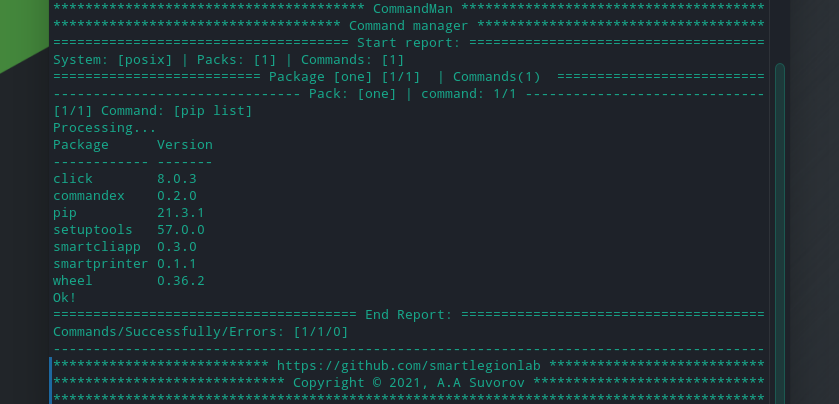
Description:
commandman - Cli command manager.
pip install commandman
The utility uses the package: commandex. The utility uses the package: smartcliapp. The utility uses the package: click by license.
Store your commands in one place for automatic or manual launch and execution at any time.
It is convenient to store and run many commands for automatic execution after system installation.
Recommended for use on *nix systems.
Possibilities:
- Storing named packages of commands in one file.
- Launching the execution of a batch or batch of commands from a file in automatic or manual mode.
- Add and run only certain packages.
- Exclusion of certain command packages from launch.
- Ability to run and skip command packets and individual commands in manual mode.
File - a file in format 1 or 2 with the correct structure.
A command package - name for grouping commands in a file.
Command - a command to be executed in the console or terminal.
Create one or several files and store the necessary commands
in them under names (in packages).
The file must have the correct structure.
At the moment, the simplest *.cfg and *.json are supported.
The file must have the correct structure.
*.cfg - The simplest file with command packages:
[package name 1]
    command 1
    command 2
    command N
    [package name 2]
    command 1
    command 2
    command N
*.json - The simplest file with command packages:
{
    "pack1":
      [
        "command1",
        "command2"
      ],
    "pack2":
      [
        "command1",
        "command2"
      ]
}
Packages:
Package names are placed in square brackets, below the name are the commands included in this package.
Commands:
The commands are grouped under the desired names in packages.
To run the file use the command:
python commandmanager.py [arguments] [file]
A warning! If the file name contains spaces or invalid characters, when typing a terminal, enclose it in quotation marks.
Arguments:
Using the -a option when starting the utility,
you can specify which command package to run using
the existing package name from the file. Use the option multiple
times to add multiple packages:
python commandmanager.py -a name1 -a name2 -a name3 file.cfg
Using the -e parameter, you can specify which command package
to exclude using the existing package name from the file.
Use the option multiple times to exclude multiple packages:
python commandmanager.py -e name1 -e name2 -e name3 file.cfg
A warning! If the command package name contains spaces or invalid characters, when typing a terminal, enclose it in quotation marks.
The --no-auto option will cancel autorun of commands from the package.
Before executing each package and each command the utility will ask for permission to execute.
The default is to autorun packages and commands --auto.
Install and Use:
Install:
pip install commandman
Use:
commandman [options] [path to the file with command packages]
Build your command packages using example files:
A warning! If the command package name or file name contains spaces or invalid characters, when typing a terminal, enclose it in quotation marks.
Try to name your packages and files with short, meaningful names.
Variant 1:
- Go to the project folder
python setup.py installcommandman -h
Variant 2:
- Go to the project folder
pip install -r requirements.txtpython3 commandmanager.py [options] [path to the file]
Termux support:
Variant 1:
- Install Termux
apt updatepkg install python- Go to the project folder
python setup.py installcommandman -horpip3 install -r requirements.txtpython3 commandmanager.py [options] [path to the file]
License
Copyright (©) 2026, Alexander Suvorov
Release history Release notifications | RSS feed


Download files
Download the file for your platform. If you're not sure which to choose, learn more about installing packages.
Source Distribution
Built Distribution
Filter files by name, interpreter, ABI, and platform.
If you're not sure about the file name format, learn more about wheel file names.
Copy a direct link to the current filters
File details
Details for the file commandman-1.0.0.tar.gz.
File metadata
- Download URL: commandman-1.0.0.tar.gz
- Upload date:
- Size: 7.4 kB
- Tags: Source
- Uploaded using Trusted Publishing? No
- Uploaded via: twine/6.2.0 CPython/3.14.3
File hashes
| Algorithm | Hash digest | |
|---|---|---|
| SHA256 |
2979dc2588b511288bbae811239be8e7c20e99cb193ce3110eaafd54278b83e9
|
|
| MD5 |
6d3451b86b6ee83899d3673d0390f6af
|
|
| BLAKE2b-256 |
ee521f5dfbcfde762c1092b0e55c97d275bf5584f5e0a8d35dc8d34476d6cb35
|
File details
Details for the file commandman-1.0.0-py3-none-any.whl.
File metadata
- Download URL: commandman-1.0.0-py3-none-any.whl
- Upload date:
- Size: 8.0 kB
- Tags: Python 3
- Uploaded using Trusted Publishing? No
- Uploaded via: twine/6.2.0 CPython/3.14.3
File hashes
| Algorithm | Hash digest | |
|---|---|---|
| SHA256 |
4619556d773d0e7b63d43d97b62b0d10e2eb14f002608a99a7f0d4f9b83c8378
|
|
| MD5 |
f88a1019fae4f3094737ff9ee4f0af45
|
|
| BLAKE2b-256 |
7c6ac436e0a03973ee240a186a51d5fb7c9085a9763f41bd14f58b7091cc1186
|






