
cortex





See your files as a graph. Read them. Open them in your editor — in the terminal you started from.
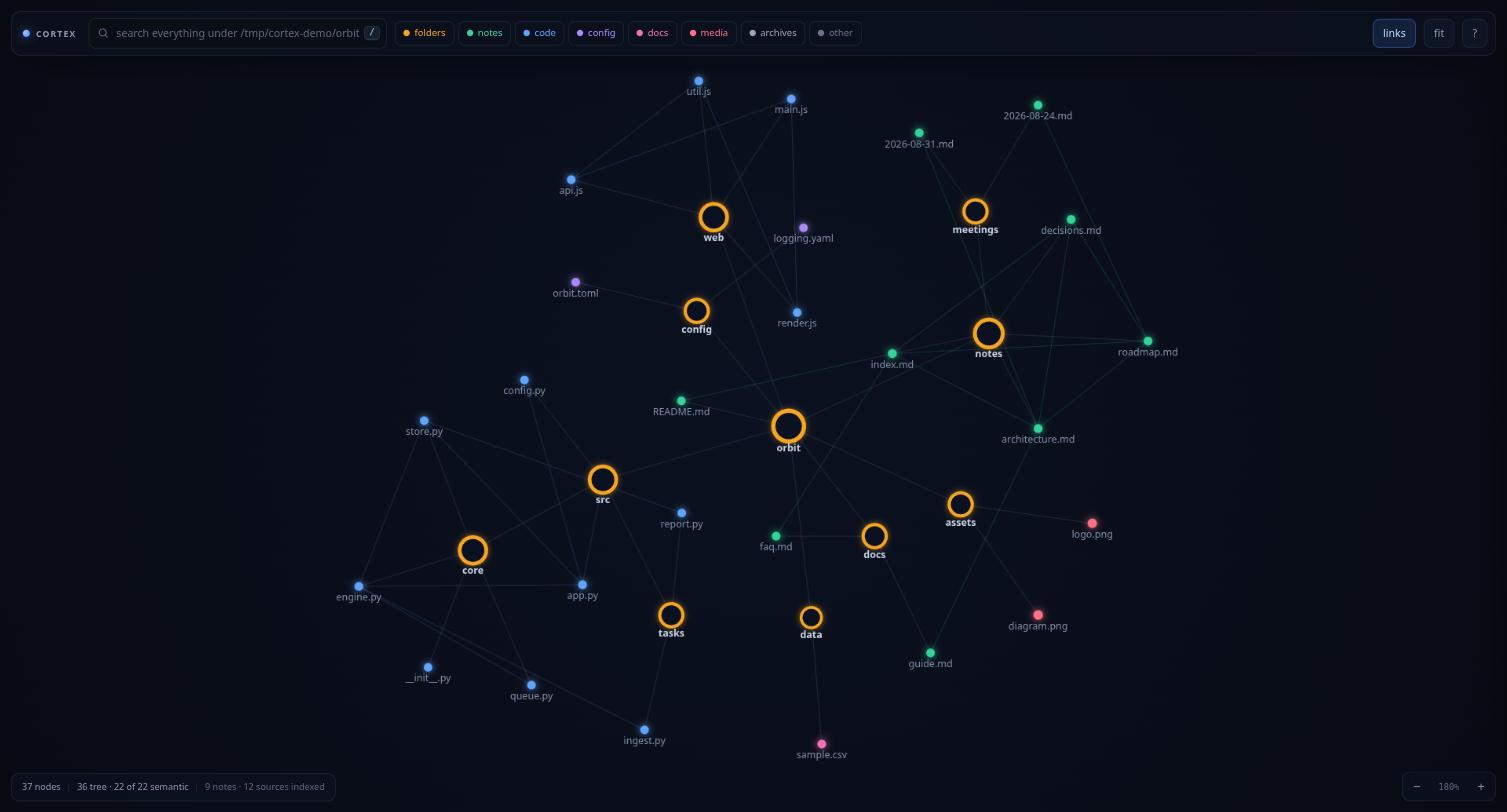
Point cortex at a folder and it draws everything inside as a living map:
folders, notes, code, PDFs, and the links between them. Click a node to read
the file. Press Enter and it opens in Neovim, in your terminal, right
where you were.
No dependencies. No database. No import step. It reads your disk directly, and it is about 5,200 lines of Python standard library and vanilla JavaScript.
Contents
- What problem it solves
- Install
- First run
- Reading files
- Following the links
- Searching
- Opening files in your editor
- Working on one project
- Reading the graph
- Every command and key
- How it works
- Tests
- FAQ
What problem it solves
Note apps like Obsidian, Logseq and Anytype draw a beautiful graph — of one vault you set up for them, containing only markdown. Your actual work is not in one vault. It is scattered across forty project folders, and half of it is code.
cortex maps what is really on your disk:
| Obsidian / Logseq / Anytype | cortex | |
|---|---|---|
| What it can see | one vault you curate | any folder, including your whole home directory |
| Understands code | no | yes — Python, JS/TS, Go, Rust, C, shell |
| Links it draws | [[wikilinks]] |
wikilinks and resolved code imports |
| Opens a file in Neovim | no | yes, in your real terminal |
| Reads PDFs | via a plugin | built in |
| Setup before first use | create and index a vault | none |
| Runtime | Electron | Python stdlib |
The part no note app can do: cortex is launched from a terminal and keeps
it. Clicking "Neovim" runs nvim on your TTY. You edit, you quit, and you are
back at the graph — still open, still where you left it.
Install
You need Python 3.9 or newer and a browser. That is all. Linux and macOS are both supported.
pipx install cortex-fs
Or from the source, which is the same thing without the packaging:
git clone https://github.com/Ayushsinha322/cortex.git ~/cortex
cd ~/cortex
./install.sh
install.sh writes a small cortex launcher into ~/.local/bin pointing back
at this folder. If that folder is not on your PATH, add it:
export PATH="$HOME/.local/bin:$PATH"
Prefer not to install anything? Run it straight from the clone:
python3 ~/cortex/cortex.py
First run
cortex
A window opens showing your home directory. On Chrome, Brave or Edge it is a real app window — no tabs, no address bar. Firefox gets a normal window.
Your terminal stays where it is and prints what it is doing:
   ___ ___  ___ _____ _____  __
  / __/ _ \| _ \_   _| ____|\ \/ /   your filesystem as a brain
 | (_| (_) |   / | | | _|    >  <    v0.1.0
  \___\___/|_|_\ |_| |___|  /_/\_\

  mapping   ~
  editors   Neovim, nano, vi, VSCodium
  url       http://127.0.0.1:41277/?t=...
  window    opened with google-chrome

  ready. click a node in the window; actions land here. ctrl-c to quit.
Leave that terminal alone — it is where your editor will appear. Ctrl-C when you are done.
Getting around the graph:
- Click a node to select it and open the reader
- Double-click a folder to grow it into the graph (again to collapse)
- Drag a node to move it; drag empty space to pan
- Scroll to zoom toward your cursor
- Arrow keys step from the selected node to the next one that way, following links first
- Press / to search everything, however deep
- Press 0 to fit the whole graph on screen
It opens where you left it. Positions are saved per folder, with the
camera, so a project you open every day is the same map every day instead of
re-settling somewhere new. That is a cache in ~/.cache/cortex/layouts;
deleting it costs one re-settle, and --no-layout turns it off.
Nothing is loaded until you ask for it. A home directory can be hundreds of gigabytes; cortex reads one folder per double-click, so it does not care how big yours is.
Reading files
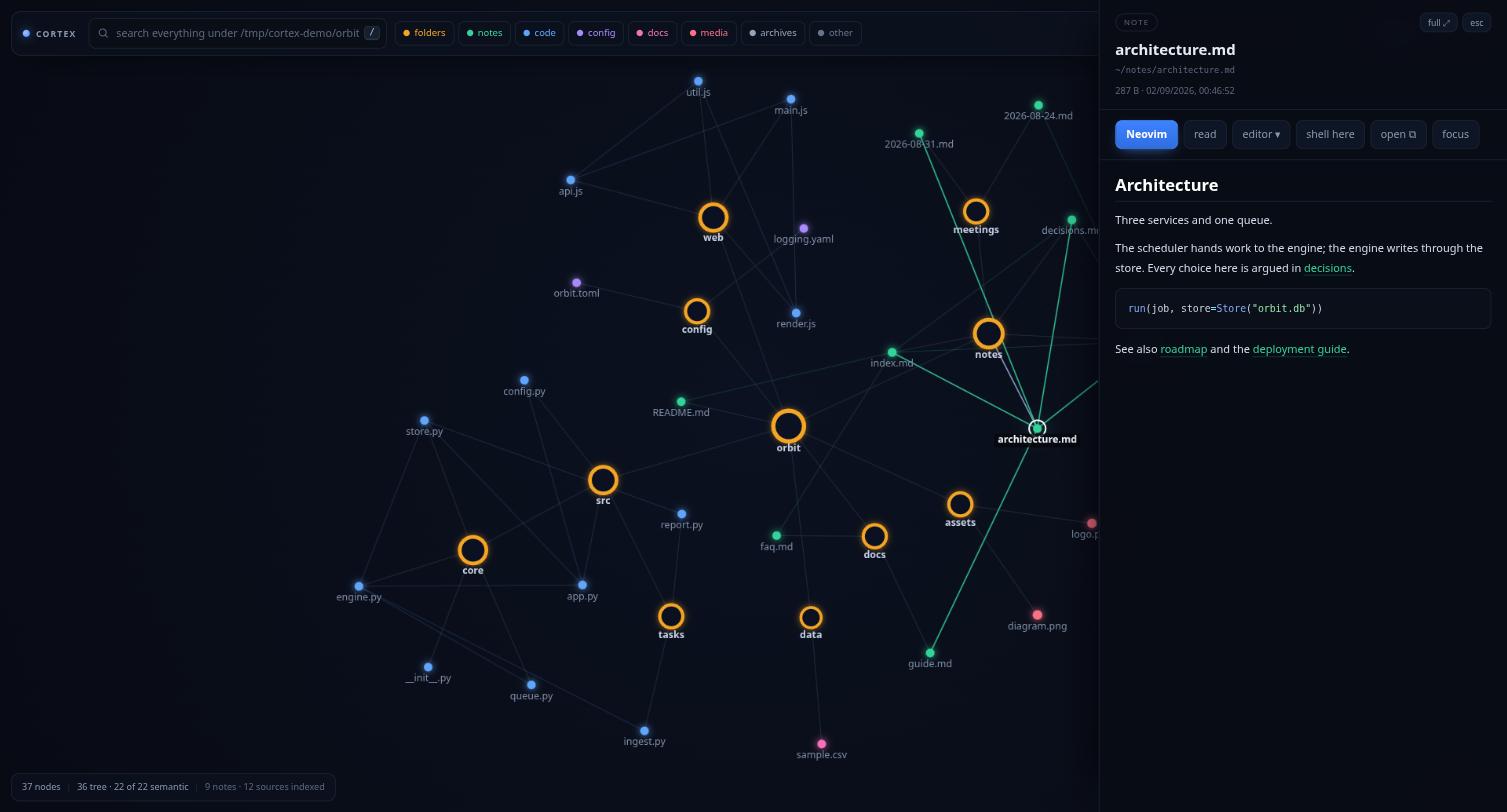
Select a file and it is rendered in the panel on the right.
| File type | What you get |
|---|---|
| Markdown | fully rendered — tables, task lists, code blocks, [[wikilinks]] |
| Code | syntax highlighted, with line numbers |
| your browser's own PDF viewer, inline | |
| Images | shown; video and audio play |
| CSV / TSV | a scrollable table |
| Notebooks | .ipynb flattened into readable markdown |
| Word | .docx text extracted, with no dependencies |
Clicking a [[wikilink]] grows the graph to that note and selects it. Same
for a relative markdown link. This is how you follow a train of thought without
ever touching a file manager.
Full screen
The panel is 520px, which is fine for a note and useless for a 500-page PDF. Press m, or the full ⤢ button, and the reader takes the whole window — the document gets about 91% of it. esc brings the graph back; a second esc closes the reader.
The file is not re-rendered when you switch, so a PDF keeps its page and scroll position, and at full width your browser's viewer regains its page thumbnails, outline and zoom controls.
Following the links
Under the actions in the reader is a list of every file connected to this one: what it links to, and what links back to it.
  4 connections                         3 out · 1 in
    →  lexer.rs        src/parser/
    →  util.rs         src/
    →  ast.rs          src/parser/
    ←  main.rs         src/
The arrow says which way the link runs. Green names are note links, blue ones are code imports, the same colours the graph draws them in.
The list is not limited to what is on screen. The index knows every link under the root, so a file can be listed here long before its folder has been grown into the graph. Click it and cortex opens the folders it needs to and selects it. That is the fastest way through a codebase you do not know: open one file, read what calls it, jump, repeat.
Press c to collapse the list when you want the height back. It is hidden in full screen, where you are there to read the file.
Searching
Press / and the box searches file names, anywhere under the root, however deep:
  plan.md                             notes/
  design.md                           notes/
  README.md                           ./
↑ and ↓ move through the results and enter goes to the highlighted one, opening the folders it needs to on the way. With nothing highlighted, enter takes the first, so typing a name and pressing enter simply gets you there. Focus leaves the box as you land, so the graph's own keys work straight away.
Matches are also grafted into the graph with their real folder lineage, so the list tells you which one you want and the graph tells you where it sits.
Press tab, or click the small names button in the box, and it searches inside files instead:
  plan.md:2       the budget is fixed
  old.md:7        an old budget note
  costs.py:41     BUDGET = 10
That is the question you usually have about your own notes — not "where did I put it" but "where did I say that". The same list, the same keys: arrow to one and press enter, and cortex opens the folders it needs to, selects the file, and remembers the line.
The line then follows you into your editor. With a hit selected,
Enter opens the file at that line rather than at the top —
nvim +41, hx file:41, code -g file:41, whichever you use. r
pages to it too. An editor cortex does not have a rule for is opened at the top
of the file, because guessing a flag would stop it opening at all.
Content search uses rg when you have it installed, and falls back to a plain
walk when you do not, so it is faster if you have ripgrep and still works if you
do not. Either way it reads only text files, and never anything .gitignore
excludes.
Opening files in your editor
This is the point of the whole thing.
With a file selected, press Enter or click the blue editor button.
Your terminal — the one you ran cortex in — becomes your editor:
┌─ nvim ~/myproject/DEPLOY.md  (quit to return to the graph)
...
└─ back at the graph
Quit the editor and the graph is still there, still live, still on the same node.
Other actions on every file:
| Button | What happens |
|---|---|
| Neovim (or your first editor) | opens it in your terminal |
| read | pages through it with bat or less |
| editor ▾ | any other editor you have installed |
| shell here | drops you into $SHELL in that folder; exit to return |
| open ⧉ | hands the file to your desktop's default app |
| focus | hides every node not linked to this one |
If you have set $EDITOR or $VISUAL, that is what Enter uses.
You have already told your system which editor you want; cortex is not going to
argue. $VISUAL wins over $EDITOR, and arguments are kept, so
EDITOR="emacs -nw" and EDITOR="code --wait" both work.
Failing that, editors are found on your PATH automatically. Terminal
editors — nvim, vim, nano, micro, helix, kakoune, emacs -nw — run
in the foreground on your TTY. Window editors — code, zed, subl, kate —
are launched detached and marked ⧉.
Working on one project
Pointing cortex at a single project opens the whole project at once — three folder levels deep, smallest folders first — instead of making you click through rings of folders:
cortex ~/myproject
cortex .                # just this folder
Name it once and it is a keystroke away forever:
cortex ~/myproject --save myproject   # save under a name, and open it
cortex -P myproject                   # open it again later
cortex --list                         # what have I saved?
cortex --forget myproject             # remove one
Saved as plain JSON in ~/.config/cortex/projects.json, so you can edit it by
hand.
How much opens on launch:
cortex -P myproject -d 5           # five levels deep
cortex -P myproject -d 0           # nothing; click in yourself
cortex ~/big-repo --max-nodes 300  # stop after 300 nodes
Default is 3 levels for a folder you name, and 0 for your home directory — a home directory is far too big to open eagerly.
What it leaves out
cortex skips caches, build output and dependency trees by name — node_modules,
__pycache__, target, .venv and the rest — because they are noise in a
graph of what you wrote.
That list cannot know your project writes to generated/, so cortex also
reads the project's .gitignore, the file where you already wrote that down.
Negation, directory-only patterns and nested .gitignore files all behave the
way git behaves, so a folder that is clean in git status is clean here.
Pass --no-gitignore when you want to see what git is hiding.
The directory sidebar
You do not have to decide up front. Click ☰ in the top left, or press s, and a sidebar lists every folder in the root. Click one and the graph is rebuilt around just that folder — everything else is not dimmed or filtered, it is gone:
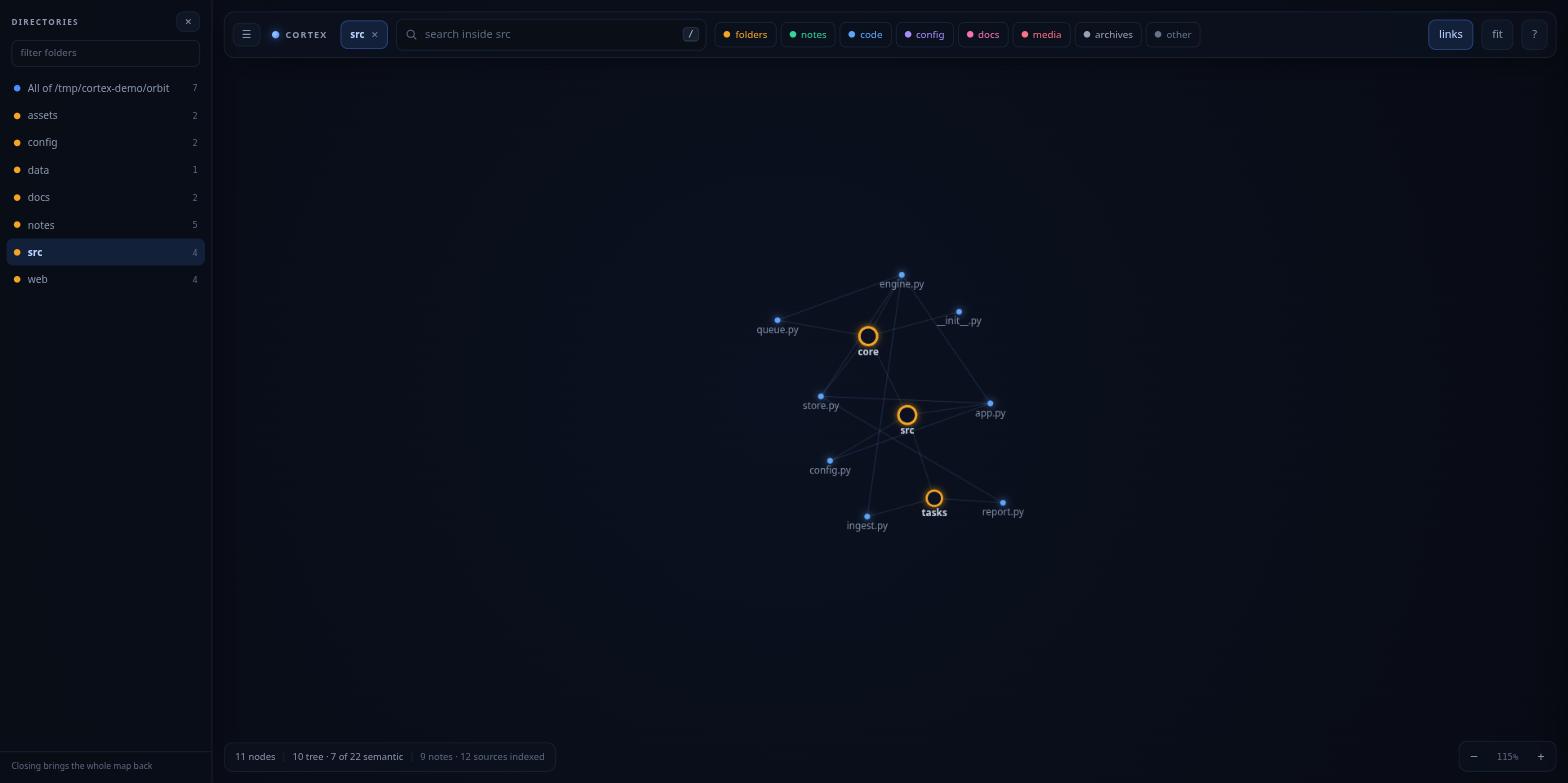
Click another folder to jump straight to it. Close the sidebar and the whole map comes back, exactly as it looked when you launched — closing is always the way out, so it is not a mode you can get stuck in.
There is a filter box for when the root has a lot of folders, and the row you are currently in is highlighted.
Narrowing from the graph itself
Same idea without the sidebar: select any folder node and press o, or click only this. A pill appears in the top bar with the folder's name — click it, or press b, for the whole map again.
Search narrows along with the view, and says so when a match exists but is out of
sight (0 matches for "roadmap" (1 outside this folder)), so a narrowed graph
never quietly hides results. Following a [[wikilink]] that points outside the
folder widens back out on its own.
This is a view, not a permission: the folder you launched on is still the security boundary, and narrowing never lets you reach outside it.
Single projects are where the graph pays off. Across a whole home directory most links have one end off-screen, so the graph looks like a plain tree. Inside one project nearly every link resolves at once. The screenshots above are a 26-file project: 37 nodes and 22 of 22 semantic links drawn.
Reading the graph
Colour is the kind of file — folder, note, code, config, document, media, archive — matching the chips along the top bar.
Click a chip to see only that kind. Click "notes" and the graph is your notes; click it again and everything comes back. Folders stay either way, because they are the skeleton the rest hangs from and a graph without them is a cloud of unconnected dots. Shift-click hides one kind on its own, for when a folder full of images is the only thing in the way.
Size is how much is inside: child count for a folder, file size for a file.
A ring instead of a dot means an open folder. A soft glow means the file changed in the last week.
A small dot on the shoulder of a node is what git thinks of it:
| Dot | Meaning |
|---|---|
| amber | modified, and not staged |
| green | staged |
| grey | untracked |
| red | conflicted |
| faint amber | a folder with one of the above somewhere inside it |
The glow is a guess at what you are working on; this is the answer. The selected file says the same thing in words at the top of the reader, next to the branch name in the corner. g turns the marks off for a clean screenshot.
Only the repository above the folder in view is consulted, so a home directory full of projects shows nothing until you narrow to one — the same moment the rest of the graph starts paying off. Nothing outside the folder you mapped is ever reported, even when the repository extends above it.
Edges come in four kinds:
| Edge | Meaning |
|---|---|
| faint grey-blue | the filesystem — a folder to what is inside it |
| green | a note link: [[wikilinks]] and relative markdown links |
| blue | a code import, resolved to a real file on disk |
| purple | a tag, joining every note that carries it |
Tags
A tag is a node in the graph, drawn as a purple ring. That is the point: two notes that never link to each other still meet, at the thing they are both about.
Both ways of writing one are read:
---
tags: [work, urgent]
---

Some thinking about #deep/focus.
Front matter takes an inline list, a comma-separated value or a YAML block
list. In the prose, a #tag is one only after whitespace or at the start of a
line, so # Heading is a heading and example.com/a#frag is a URL. Fenced and
inline code is skipped, because a shell script is not a tag list.
Select a tag and the reader lists the notes carrying it; click one to go there. A tag is not a file, so it has no editor button, no path and no size — there is nothing on disk to open. The tags chip in the top bar hides them all when you would rather see the folders.
Code links are found by actually resolving the import:
| Language | Read from |
|---|---|
| Python | import a.b, from .x import y |
| JS / TS | import … from './x', require('./x') |
| Go | import "yourmodule/pkg", resolved through go.mod |
| Rust | mod x;, use crate::a::b, use super::x |
| C / C++ | #include "x.h" |
| Shell | source ./x.sh, . ./x.sh |
Go and Rust are resolved the way their compilers see them, not by guessing at
filenames. A Go import names a package, so cortex reads go.mod for the module
path and links to every source file in the imported directory — third-party and
standard-library imports are left alone, because they are not on your disk under
this root. Rust is the opposite shape: mod declares a file and use walks a
path through those files, including foo.rs owning the foo/ beside it.
The index is built in the background as soon as you launch, and links appear as it goes. On a 133,000-file home directory it finishes in about three seconds.
Toggle semantic links with the links button or l.
A tag carried by only one note is not drawn: it labels that note but joins nothing to anything, and a graph full of them is harder to read, not richer. The reader still lists it, and clicking it there brings it in.
Every command and key
cortex [folder] [options]

  folder                  what to map (default: your home directory)

  -P, --project NAME      open a saved project
      --save NAME         save this folder under NAME, then open it
      --list              list saved projects
      --forget NAME       delete a saved project

  -d, --depth N           folder levels to open on launch
      --max-nodes N       stop auto-opening after N nodes (default 700)

  -a, --hidden            include dotfiles and dot-folders
      --ignore a,b,c      extra folder names to skip
      --no-gitignore      show what git hides, too
      --no-links          skip the semantic index (instant start)
      --no-watch          do not notice files changing while the window is open
      --no-layout         do not remember where the nodes were last time

  -w, --window MODE       app (default) | tab | none
  -b, --browser BIN       force a particular browser
  -p, --port N            pin the port
  -V, --version
| Key | Does |
|---|---|
| / | search everything under the root |
| tab | in the search box: file names, or inside files |
| ↑ ↓ | in the search box: move through the results |
| enter | in the search box: go to the highlighted result |
| Enter | open the selection in your editor, in the terminal |
| r | page through the selection in the terminal |
| m | full screen the reader |
| e | expand / collapse the selected folder |
| f | focus mode — hide everything not linked |
| c | collapse / expand the connections list |
| s | open / close the directory sidebar |
| o | only this folder — rebuild the graph around the selection |
| b | back to the whole map |
| l | show / hide semantic links |
| g | show / hide what git thinks of each file |
| 0 | fit the graph on screen |
| arrows | step to the next node that way, following links |
| x | save this view as a picture — shift for SVG |
| ? | the shortcut list |
| esc | leave full screen, then close the reader |
Optional extras, if you have them: rg for faster content search, bat for
nicer terminal reading, pdftotext to page a PDF in the terminal.
Saving a picture of it
Press x, or click save, and the view you are looking at becomes a PNG in your downloads. shift makes it an SVG instead, redrawn from the same numbers rather than captured, so it stays sharp on a slide or in print.
Either way it is the view as it stands — pan, zoom, whatever the chips are hiding, labels on or off. t first if you want the shape without the names.
How it works
you type `cortex`
        │
        ├─ a local HTTP server starts on 127.0.0.1, with a fresh random token
        ├─ a browser window opens pointing at it
        └─ your terminal waits, holding your TTY
                 │
        window ──┤ "open this file in nvim"
                 ▼
        the terminal runs nvim in the foreground, on your TTY
Four ideas worth knowing:
Nothing is read until you ask. One folder per expansion. Whether you point it at a 20-file project or a 140GB home directory, launch takes the same time.
The graph keeps up with the disk. Write a file in your editor and it
appears in the graph, in its folder, without a relaunch; delete one and it
leaves. The server remembers the folders the window has read and compares their
modification times when the window asks, every two and a half seconds, so an
idle cortex with no window attached does no work at all. The semantic index is
rebuilt on the same signal, but only for a folder that indexed in under a
couple of seconds and never more than once every fifteen — a home directory
takes long enough that it would spend its life re-indexing. --no-watch turns
the whole thing off.
The link index is separate from the graph. It walks the whole folder once in a background thread and the UI adds edges as both ends become visible. You never wait for it.
The layout settles and then stops. Force-directed graphs that simulate forever jitter, and jitter reads as flicker — labels sit right on the collision threshold and blink. cortex cools the simulation to a freeze and then stops drawing entirely, so an idle graph costs no CPU and no battery. Touching anything wakes it.
Security. This API can start editors and shells, so: it binds to
127.0.0.1 only, requires a random token regenerated every run, and resolves
every path with realpath to prove it is genuinely inside the folder you mapped
before touching it. Symlinks pointing out are refused.
The page is served under a strict Content-Security-Policy, because a markdown
file in a repository you cloned is untrusted input. The renderer escapes HTML;
the policy is the second lock, and it allows no script at all except the two
files cortex serves and one inline config blob carrying a nonce regenerated on
every request. All of that is asserted in the tests.
Layout
cortex/
├── cortex.py             run it without installing
├── install.sh
├── pyproject.toml        so `pipx install` works; no dependencies to declare
├── cortex/
│   ├── cli.py            arguments, saved projects, window launch, action loop
│   ├── scanner.py        lazy folder scanning, ignore rules, node building
│   ├── ignore.py         .gitignore parsing, the way git reads it
│   ├── links.py          the semantic index: wikilinks, imports and tags
│   ├── grep.py           content search, through ripgrep or a plain walk
│   ├── gitstatus.py      what git thinks of each file
│   ├── watch.py          noticing the disk change under an open window
│   ├── layout.py         where the nodes were, per mapped folder
│   ├── reader.py         per-filetype preview extraction
│   ├── actions.py        editor detection, terminal handoff
│   ├── server.py         local HTTP API, token check, path guards
│   └── ui/
│       ├── index.html
│       ├── style.css
│       ├── app.js        canvas force layout and the reader panel
│       ├── markdown.js   markdown renderer, no dependencies
│       └── highlight.js  syntax highlighter, no dependencies
└── tests/
    ├── run                  runs everything
    ├── test_cortex.py       scanner, links, reader, actions, HTTP surface
    ├── harness.js           the stub DOM the browser-side tests run against
    ├── markdown.test.js     the markdown renderer
    ├── render-loop.test.js  cooling and repaint gating
    ├── connections.test.js  backlinks, and following one into the graph
    ├── search.test.js       both searches, and the line reaching the editor
    ├── refresh.test.js      the graph keeping up with the disk
    ├── perf.test.js         opening a folder staying cheap as links pile up
    ├── tags.test.js         tag nodes, and their refusal to act like files
    └── view.test.js         remembered layout, arrow keys, saving a picture
Tests
tests/run                          # all of it
python3 tests/test_cortex.py       # python only
node tests/markdown.test.js
node tests/render-loop.test.js
node tests/connections.test.js
node tests/search.test.js
node tests/refresh.test.js
node tests/tags.test.js
node tests/view.test.js
node tests/perf.test.js
358 tests, no framework to install — unittest and plain node. They run on
every push against Python 3.9 and 3.13 on Linux, and 3.13 on macOS. tests/run
also byte-checks every source file, because raw NUL bytes once got into two UI
files and made git treat them as binary, silently breaking diffs and grep.
The browser-side suites drive the real app.js against a stub DOM
(harness.js) with a manual frame pump. That is not for speed: Chrome pauses
requestAnimationFrame in background tabs, so "has the layout stopped
repainting?" cannot be answered from an automated browser — it reports a frozen
canvas whether the code is right or not. Pumping frames by hand gives a real
answer.
FAQ
Does it change my files?
No. cortex only ever reads. The only thing it writes is
~/.config/cortex/projects.json when you use --save. Your editor can of
course write, but that is your editor.
Does anything leave my machine?
No. The server binds to 127.0.0.1, there are no external requests, and no CDN
— the CSS and JavaScript are served from the folder you cloned.
Can other users on this machine see it? No. It listens on loopback only and every request needs a token that is regenerated on each launch.
Why a browser window and not a terminal UI? Because the graph needs to be pretty and PDFs need to be readable, and neither survives being drawn in text. The browser is the renderer; the terminal is still the place work happens.
Which editor does Enter open?
Whatever $VISUAL or $EDITOR says, if either is set and names something
installed. Otherwise the first terminal editor found on your PATH. The
editor ▾ menu has the rest, and the reader's button always shows which one
Enter will use.
Does it work on macOS?
Yes. Terminal handoff, the graph and the reader all behave the same; open ⧉
uses open instead of xdg-open.
Can I use it over SSH?
Run cortex -w none, forward the port (ssh -L 41277:127.0.0.1:41277), and
open the printed URL locally. Editor actions run on the remote terminal, which
is usually what you want.
It says no browser found.
Use -w none and open the URL yourself, or point it at a binary with
-b firefox.
The graph is a plain tree with no green or blue links.
You are probably looking at your whole home directory, where most links have one
end off-screen. Open a single project (cortex ~/myproject) and they appear —
or select that project's folder in the graph and press o.
I opened my home directory but only want one project now. Press s for the sidebar and click the project, or select its folder in the graph and press o. No need to quit and relaunch. Closing the sidebar — or b — brings the full map back.
Can I map a folder outside my home directory? Yes — any folder you can read. That folder becomes the boundary, and nothing outside it can be opened.
Licence
MIT. Do what you like with it.
1 maintainer

Metadata
1 maintainer
Release files for cortex-fs 0.1.0
For a detailed explanation of source distributions (sdists) and built distributions (wheels), please see the package formats documentation.
Source distribution (sdist)
| File | Size | Uploaded | |
|---|---|---|---|
| cortex_fs-0.1.0.tar.gz | 102.6 kB | Details |
Built distribution (wheel)
| File | Interpreter | ABI | Platform | Reset |
|---|---|---|---|---|
| cortex_fs-0.1.0-py3-none-any.whl | Python 3 | none | any | Details |
Total release size: 186.8 kB
Release files / cortex_fs-0.1.0.tar.gz
| Download URL | cortex_fs-0.1.0.tar.gz |
|---|---|
| Size | 102.6 kB |
| Tags | Source |
|
SHA-256 checksum How to use checksums |
530d1fd2102b8d322e33bd5aa29a2c0da6212e384e7a3c66c1a4dd78102a9709
|
|
BLAKE2b-256 checksum How to use checksums |
4f0683f686a20b853c52950e602d82faf1f754d633206dd5b451af19bacf16a5
|
| Upload date | |
|
Uploaded using Trusted Publishing? What is trusted publishing? |
Yes |
| Uploaded via |
twine/7.0.0 CPython/3.13.14
|
Provenance
Provenance describes where a file came from. On PyPI, provenance is shared via attestations, which provide a verifiable record of the build or publishing details. View details, limitations and caveats.


PyPI Publish Attestation
PyPI verified that this artifact, at this checksum, originated from the publisher listed below.
Signed by GitHub Actions, verified by PyPI on Sep 16, 2026.
Transparency logRelease files / cortex_fs-0.1.0-py3-none-any.whl
| Download URL | cortex_fs-0.1.0-py3-none-any.whl |
|---|---|
| Size | 84.2 kB |
| Tags | Python 3 |
|
SHA-256 checksum How to use checksums |
d6f48f147fb2d9919b97fe10048591062ab73564a3e745604e19745dc5fd0428
|
|
BLAKE2b-256 checksum How to use checksums |
5308397a330fa4a27171e11ec4f0d8a16af28171aa76184162c35e1c02b87fe1
|
| Upload date | |
|
Uploaded using Trusted Publishing? What is trusted publishing? |
Yes |
| Uploaded via |
twine/7.0.0 CPython/3.13.14
|
Provenance
Provenance describes where a file came from. On PyPI, provenance is shared via attestations, which provide a verifiable record of the build or publishing details. View details, limitations and caveats.
PyPI Publish Attestation
PyPI verified that this artifact, at this checksum, originated from the publisher listed below.
Signed by GitHub Actions, verified by PyPI on Sep 16, 2026.
Transparency log












