
No project description provided

Project description
Client for CTA Data Download Service at Swiss CTA DC
Disclaimer
This is a prototype development only for Swiss CTA DC. Please report bugs here, and for any details please inquire the CTAO CH DC management.
Purpose
CTA data are/will be stored at CTAO-CH data center at CSCS. These data should be accessible for selected external users. In addition, these files should be available within interactive analysis platform at CSCS. This client presents an API access to these services and data.
Accessing dCache with tokens
The latest version of ctadata has direct_api module which implements direct download/upload mode without using downloadservice as proxy.
Installation
Currently the direct API uses oidc-agent tool for the token maintanance and davix tools for downloading and uploading the files. These tools can be either compiled locally and added to PATH environment variable or installed inside [micromamba] (https://mamba.readthedocs.io/en/latest/user_guide/micromamba.html) or [conda] (https://anaconda.org/anaconda/conda) environment. Below is the example of the installation using micromamba package manager.
$ micromamba create -n ctadata python oidc-agent davix  # create micromamba environment with python and required binaries
$ micromamba activate ctadata # activate the environment
$ pip install ctadata # install ctadata library in the same environment
Token maintanance
To get access to CTA-CSCS storage you need to generate OpenID Connect token. The token is temporary and needs to be updated on regular bases. This process is implemented by the token agent service which can be started by the command
$ cta-data-direct start-agent
When the command is started for the first time a client secret must be provided as optional argument:
$ cta-data-direct start-agent -s YOUR_SECRET
The token is being stored in the user's home directory, so the above command needs to be started only on a single machine. During the agent initialization process an account is created for the token maintanance. The user is being asked to authenticate the account creation by visiting the authentication page in a browser on any device.
Basic usage
As soon as the account creation process completes the token is created and one can start using other direct API functions.
Listing directory contents
from ctadata import direct as ctadata

for path in ctadata.list_dir("cta"):
    print(path)
Downloading files and directories
To download contents of some file or dir:
from ctadata import direct as ctadata

# downloading single file
ctadata.fetch_and_save_file_or_dir("lst/some-data-dir/some-data-file")

# recursively downloading a directory
ctadata.fetch_and_save_file_or_dir("lst/some-data-dir", recursive=True)
or, in bash:
cta-data-direct get lst/some-data-dir/some-data-file
cta-data-direct get --recursive lst/some-data-dir
Uploading files and directories
To upload a file:
from ctadata import direct as ctadata
ctadata.direct.upload_file("latest.txt", "your-folder/new-file-name.md")
ctadata.direct.upload_file("latest.txt", "your-folder/") # will autocomplete to `your-folder/latest.txt`
You can also use command line interface to do this:
$ cta-data-direct put latest-file-list latest-file-list-bla-bla
Usage from within CTA CSCS JupyterHub platform
From within CTA CSCS JupyterHub platform, selected authorized users are able to access the "data download service", like so:
import ctadata

for url in ctadata.list_dir("cta/DL1/20241114/v0.1/"):
    if 'datacheck' not in url and '.0100' in url and '11111' in url:
        print("stored", ctadata.fetch_and_save_file(url)/1024/1024, "Mb")
        print("found keys", h5py.File(url.split("/")[-1]).keys())
To download a file:
ctadata.fetch_and_save_file_or_dir("lst/some-data-dir", recursive=True)
or, in bash and recursively:
ctadata get --recursive lst/some-data-dir
Uploading files
To upload a file:
ctadata.upload_file("latest.txt", "your-folder/new-file-name.md")
ctadata.upload_file("latest.txt", "your-folder/") # will autocomplete to `your-folder/latest.txt`
The result is:
{
  "path": "lst/users/volodymyr_savchenko_epfl_ch/filelists/new-file-name",
  "status": "uploaded",
  "total_written": 60098730
}
Note that for every user, the file is uploaded to their own directory constructed from the user name. The path specified is relative to this directory. If you need to move the files to common directories, please ask for support. But you likely want to just share returned path to be used as so:
ctadata.fetch_and_save_file("lst/users/volodymyr_savchenko_epfl_ch/filelists/new-file-name")
You can also use command line interface to do this:
$ cta-data put latest-file-list latest-file-list-bla-bla
Beware that all the files written are accessible to all CTAO members and all platform users.
From outside (possibly another jupyterhub)
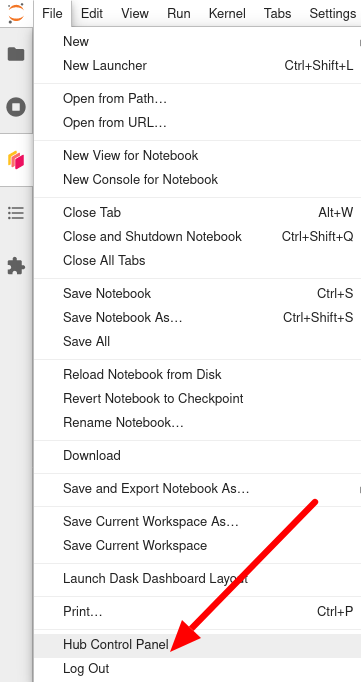
You need to get yourself a jupyterhub token, it will be used to authenticate to the download service.
If you are in the session, navigate to the hub control panel this way:
Request a token:

The rest is similar to the previous case:
import os
os.environ["CTADS_URL"] = "DATA-DISTRIBUTING-JUPYTERHUB/services/downloadservice/"
os.environ["CTACS_URL"] = "DATA-DISTRIBUTING-JUPYTERHUB/services/certificateservice/"
os.environ["JUPYTERHUB_API_TOKEN"] = "INSERT-YOUR-TOKEN-HERE"

for url in ctadata.list_dir("cta/DL1/20241114/v0.1"):
    if 'datacheck' not in url and '.0100' in url and '11111' in url:
        print("stored", ctadata.fetch_and_save_file(url)/1024/1024, "Mb")
        print("found keys", h5py.File(url.split("/")[-1]).keys())
Webdav Client
In order to make use of bare WebDAV interface of the storage, ctadata also provides a configured webdav4 client (see webdav4 for documentation).
client = ctadata.webdav4_client()
client.ls("/")
client.uploadFile("example.txt", "remote/example.txt")
Please see WebDAV4 documenation for details on it's wide range of features.
Delegating a proxy grid certificate to the Platform
In order to make use of your own grid certificate to access CTA-CSCS storage from within CTA interactive platform it is necessary to upload you short-term proxy certificate to the platform. cta-data provides an easy way to do this:
This tools also offers a way to upload your own time limited certificate to access the background webdav server.
import ctadata
ctadata.upload_certificate('yourcertificate.crt')
Note that if you do not upload your own certificate, you can ask to make use of a shared robot certificate used for data syncing.
Release history Release notifications | RSS feed


Download files
Download the file for your platform. If you're not sure which to choose, learn more about installing packages.
Source Distribution
Built Distribution
Filter files by name, interpreter, ABI, and platform.
If you're not sure about the file name format, learn more about wheel file names.
Copy a direct link to the current filters
File details
Details for the file ctadata-0.6.2.tar.gz.
File metadata
- Download URL: ctadata-0.6.2.tar.gz
- Upload date:
- Size: 11.6 kB
- Tags: Source
- Uploaded using Trusted Publishing? No
- Uploaded via: poetry/2.1.1 CPython/3.11.10 Linux/6.8.0-52-generic
File hashes
| Algorithm | Hash digest | |
|---|---|---|
| SHA256 |
a27b2ac66e1fb196910a5d067a8f0a80bf1bdf7ccc4487d3d60de4559e2990d8
|
|
| MD5 |
cf81041d553fc1fd25098ac37b71c868
|
|
| BLAKE2b-256 |
bdf251891852e6632422626276a52dda1cb4519e7da2c9dd92bbe73e4c7bf9fb
|
File details
Details for the file ctadata-0.6.2-py3-none-any.whl.
File metadata
- Download URL: ctadata-0.6.2-py3-none-any.whl
- Upload date:
- Size: 12.6 kB
- Tags: Python 3
- Uploaded using Trusted Publishing? No
- Uploaded via: poetry/2.1.1 CPython/3.11.10 Linux/6.8.0-52-generic
File hashes
| Algorithm | Hash digest | |
|---|---|---|
| SHA256 |
6bc52bbcb66f20f510fe42178091436c6ab342ac7a3c0d5d2760624296d0a6e2
|
|
| MD5 |
c9d355c5887166f239104fd06061bdd6
|
|
| BLAKE2b-256 |
b19b46d1ac4c54fd5fcdf0f03671924c55ed79d32f14372da7f8d0d32b7d7bcf
|






