
Library to help the drawing process with OpenCV. Thought to add labels to the images. Classification of images, etc.

Project description
cv2_tools
Library to help the drawing process with OpenCV. Thought to add labels to the images. Classification of images, etc.
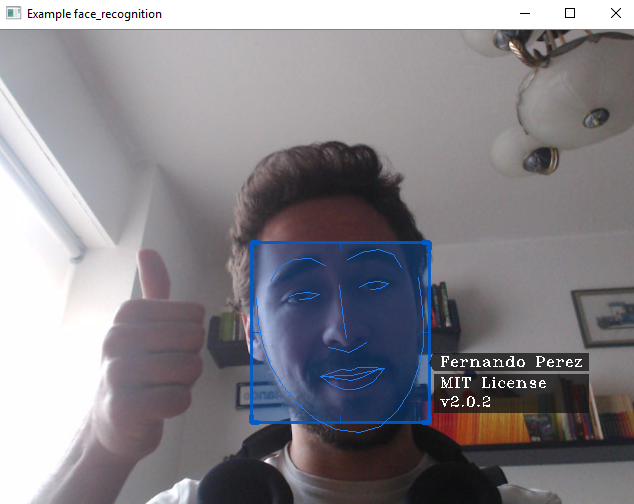
Image generated with face_recognition and drawed with cv2-tools version 2.0.2
Installation
Pre-requisites
You will need to install:
- opencv >= 3.6.2
- numpy >= 1.13.3
- python-constraint >= 1.4.0
You can simply execute:
pip install -r requirements.txt
Finally you can install the library with:
pip install cv2-tools
When you install cv2-tools, it will automatically download numpy but not opencv becouse in some cases you will need another version.
Test
import cv2_tools

print('Name: {}\nVersion:{}\nHelp:{}'.format(cv2_tools.name,cv2_tools.__version__,cv2_tools.help))
webcam_test()
Ussage and Important classes
ManagerCV2
from cv2_tools.Management import ManagerCV2
If you want to work with video or stream, this class will help you mantain your code cleaner while you get more features.
For example:
- Open a a stream (your webcam).
- Reproduce it on real time with max FPS equals to 24.
- Press
escto finish the program. - At the end print average FPS.
from cv2_tools.Managment import ManagerCV2
import cv2

# keystroke=27 is the button `esc`
manager_cv2 = ManagerCV2(cv2.VideoCapture(0), is_stream=True, keystroke=27, wait_key=1, fps_limit=60)

  # This for will manage file descriptor for you
  for frame in manager_cv2:
      cv2.imshow('Example easy manager', frame)
  cv2.destroyAllWindows()
  print(manager_cv2.get_fps())
If you want to use another button and you don't know the ID, you can check easily using the following code:
from cv2_tools.Managment import ManagerCV2
import cv2

# keystroke=27 is the button `esc`
manager_cv2 = ManagerCV2(cv2.VideoCapture(0), is_stream=True, keystroke=27, wait_key=1, fps_limit=60)

  # This for will manage file descriptor for you
  for frame in manager_cv2:
      # Each time you press a button, you will get its id in your terminal
      last_keystroke = manager_cv2.get_last_keystroke()
      if last_keystroke != -1:
        print(last_keystroke)
      cv2.imshow('Easy button checker', frame)
  cv2.destroyAllWindows()
SelectorCV2
Firstly create a SelectorCV2 object. You can pass it optional parameters to configure the output.
from cv2_tools.Selection import SelectorCV2
selector = SelectorCV2(color=(200,90,0), filled=True)
Also you can configure it later using the method (all optional parameters):
selector.set_properties()
Now, each time you want to add a selected zone call the method:
"""
Coordinates:

(x1,y1)____(x2,y1)
   |          |
   |          |
(x1,y2)____(x2,y2)

Tags (optional parameter):
* It could be a normal string
* A string with '\n'
* A list of strings
* None / '' / [] / False
"""
selector.add_zone((x1,y1,x2,y2),tags=tag)
Finally, when you want to draw all the rectangles execute:
edited_frame = selector.draw(frame)
If you want to use the same object multiple times you can easily change the content inside it:
# This method could help change rectangles to
selector.set_range_valid_rectangles( origin, destination)

# This method could help if you know exactly the indexes that you want to keep
# Default = [], so if you just want to clean the buffer call this method without parameters
set_valid_rectangles(indexes)
If you want, you can see the example detect_faces.py, it also use an open source library called face_recognition.
Release history Release notifications | RSS feed


Download files
Download the file for your platform. If you're not sure which to choose, learn more about installing packages.
Source Distribution
Built Distribution
Filter files by name, interpreter, ABI, and platform.
If you're not sure about the file name format, learn more about wheel file names.
Copy a direct link to the current filters
File details
Details for the file cv2_tools-2.3.3.tar.gz.
File metadata
- Download URL: cv2_tools-2.3.3.tar.gz
- Upload date:
- Size: 995.1 kB
- Tags: Source
- Uploaded using Trusted Publishing? No
- Uploaded via: twine/1.13.0 pkginfo/1.5.0.1 requests/2.18.4 setuptools/40.8.0 requests-toolbelt/0.9.1 tqdm/4.31.1 CPython/3.7.2
File hashes
| Algorithm | Hash digest | |
|---|---|---|
| SHA256 |
75d34fae1958a0865d59474ec6b2985de1065189c9f145a3e116020419be79fc
|
|
| MD5 |
66a85c8141dc9526960b0348908250c2
|
|
| BLAKE2b-256 |
73bbcbaf96e41fe42d3a328c165c9b9a132cbdb515a15665fc386a6f0f079eaf
|
File details
Details for the file cv2_tools-2.3.3-py3-none-any.whl.
File metadata
- Download URL: cv2_tools-2.3.3-py3-none-any.whl
- Upload date:
- Size: 1.5 MB
- Tags: Python 3
- Uploaded using Trusted Publishing? No
- Uploaded via: twine/1.13.0 pkginfo/1.5.0.1 requests/2.18.4 setuptools/40.8.0 requests-toolbelt/0.9.1 tqdm/4.31.1 CPython/3.7.2
File hashes
| Algorithm | Hash digest | |
|---|---|---|
| SHA256 |
f7cbce634bccc015f07d25c3ca919f38579c55ffdc4ee73cdbaf9ed28fee487a
|
|
| MD5 |
c28f8d229ac022e3eacac2bc56580381
|
|
| BLAKE2b-256 |
8f7b8398ac4b017ec0ffb8a3ec4fb6c1729ab71171fe76fa20bdc5e346661ca7
|






