





[ Control Claude Code from your phone ]
How It Works
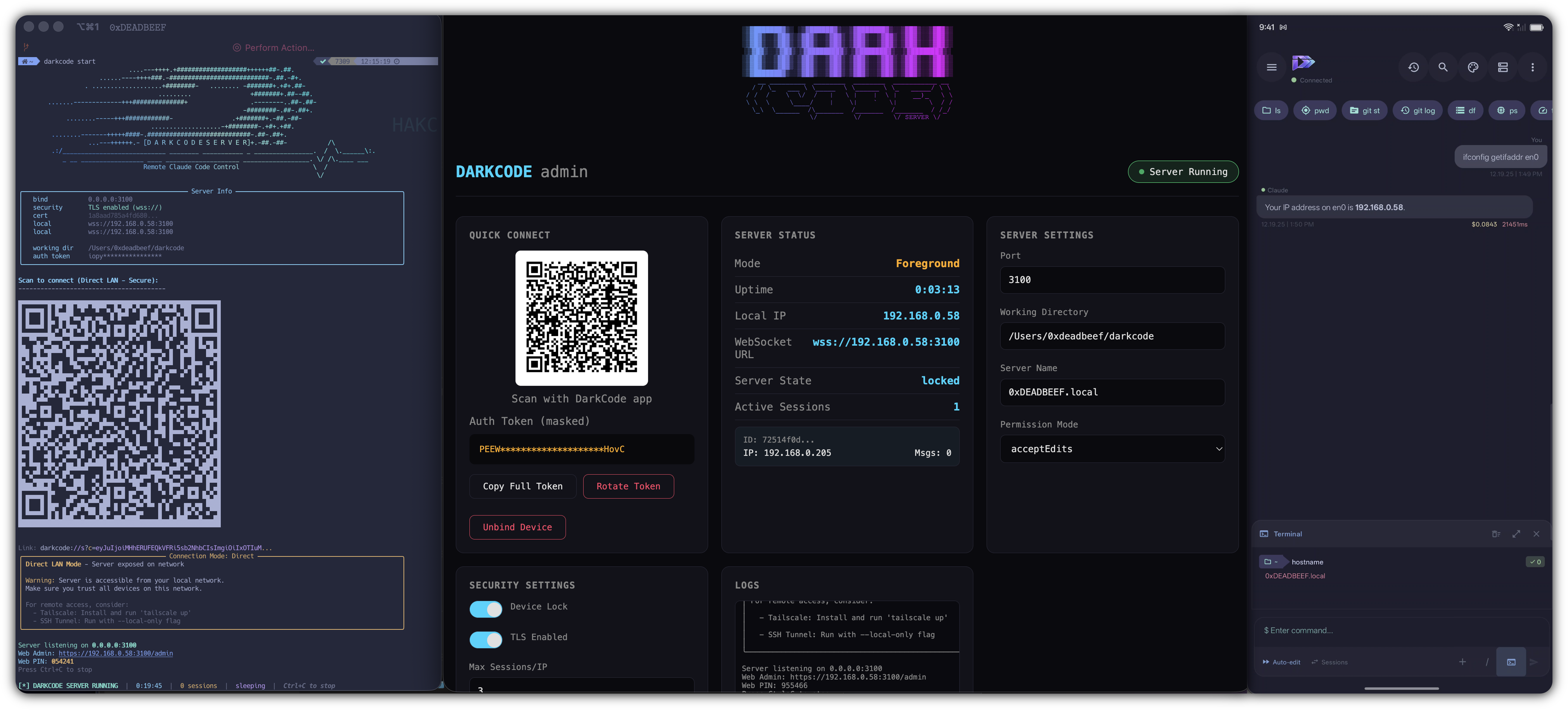
Quick Start - 3 Steps
Step 1: Install via pip
pip install darkcode-server
Step 2: Start the server
darkcode start
Step 3: Connect with the Android app
- Download DarkCode from Google Play
- Scan the QR code displayed in your terminal
- Start chatting with Claude Code from your phone
That's it! The QR code connects everything automatically.
Requirements
This is a companion server for the DarkCode Android app. The server is useless without the mobile app installed on your Android device.

Download the DarkCode app: Google Play Store
flowchart LR
    subgraph Required["Required Components"]
        APP["DarkCode Android App\n(Google Play)"]
        SERVER["DarkCode Server\n(this package)"]
        CLAUDE["Claude Code CLI\n(Anthropic)"]
    end

    APP <-->|WebSocket| SERVER
    SERVER <-->|stdin/stdout| CLAUDE

    style APP fill:#FF10F0,stroke:#333,color:#000
    style SERVER fill:#7928CA,stroke:#333,color:#fff
    style CLAUDE fill:#00FF41,stroke:#333,color:#000
What is DarkCode Server?
DarkCode Server is a secure WebSocket bridge that lets you remotely control Claude Code CLI from your Android device. Run Claude on your dev machine, interact from anywhere.
You need:
- The DarkCode Android app installed on your phone
- Claude Code CLI installed on your computer
- DarkCode Server (this package) running on your computer
flowchart LR
    A[Android App] <-->|WebSocket\nws/wss/ssh| B[DarkCode Server]
    B <-->|stdin/stdout| C[Claude Code CLI]

    style A fill:#FF10F0,stroke:#00D9FF,color:#000
    style B fill:#7928CA,stroke:#00D9FF,color:#fff
    style C fill:#00FF41,stroke:#00D9FF,color:#000
Features
- Multiple Connection Modes - Direct LAN, Tailscale VPN, or SSH Tunnel
- Enterprise Security - TLS encryption, mTLS device binding, token rotation
- Guest Access Codes - Share access with friends (time-limited, use-limited)
- Device Binding - Lock server to your phone, reject all others
- Sleep Mode - Auto-sleep after idle, wake on reconnect
- QR Code Setup - Scan to connect, zero manual config
- Daemon Mode - Background service with logging
- Rate Limiting - Brute-force protection with SQLite persistence
Architecture
flowchart TB
    subgraph Phone["Android Device"]
        APP[DarkCode App]
    end

    subgraph Network["Connection Layer"]
        direction LR
        LAN[Direct LAN]
        TS[Tailscale VPN]
        SSH[SSH Tunnel]
    end

    subgraph Server["DarkCode Server"]
        WS[WebSocket Handler]
        AUTH[Auth Manager]
        SEC[Security Layer]
        GUEST[Guest Codes]
        RATE[Rate Limiter]
    end

    subgraph Claude["Claude Code"]
        CLI[CLI Process]
        STDIN[stdin]
        STDOUT[stdout]
    end

    APP --> LAN & TS & SSH
    LAN & TS & SSH --> WS
    WS --> AUTH
    AUTH --> SEC
    SEC --> GUEST
    SEC --> RATE
    WS <--> STDIN
    STDOUT <--> WS
    STDIN <--> CLI
    CLI <--> STDOUT

    style APP fill:#FF10F0,stroke:#333,color:#000
    style WS fill:#7928CA,stroke:#333,color:#fff
    style CLI fill:#00FF41,stroke:#333,color:#000
Installation
Step 1: Get the Android App
Download from Google Play: DarkCode for Android
Step 2: Install Claude Code
Follow the instructions at github.com/anthropics/claude-code
Step 3: Install DarkCode Server
# via pip (recommended)
pip install darkcode-server

# via pipx (isolated environment)
pipx install darkcode-server

# from source
git clone https://github.com/haKC-ai/DarkCodeAgent.git
cd DarkCodeAgent/darkcode-server
pip install -e .
Quick Start
First Time Setup
Run the interactive setup wizard to configure everything:
darkcode setup
The wizard will:
- Generate a secure auth token
- Detect your network interfaces (LAN, Tailscale)
- Set your default working directory
- Display a QR code to scan with the Android app
Starting the Server
Scenario 1: Quick start (foreground)
darkcode start
Starts the server in your terminal. Press Ctrl+C to stop. A QR code is displayed for easy connection.
Scenario 2: Run in background (daemon mode)
darkcode daemon -b
Runs as a background service. Logs are saved to ~/.darkcode/logs/.
Scenario 3: Specific project directory
darkcode start --working-dir /path/to/your/project
Claude Code will operate in the specified directory.
Scenario 4: Local-only for SSH tunneling
darkcode start --local-only
Binds to localhost only. Connect via SSH tunnel for maximum security.
Scenario 5: Custom port
darkcode start --port 8080
After Starting
- Open the DarkCode app on your Android device
- Tap "Add Server"
- Scan the QR code displayed in your terminal (or enter details manually)
- Start chatting with Claude Code from your phone
Managing the Server
darkcode status    # Check if server is running
darkcode stop      # Stop the daemon
darkcode qr        # Show QR code again
darkcode config    # View current configuration
Configuration
All settings via environment variables or ~/.darkcode/.env:
| Variable | Default | Description |
|---|---|---|
DARKCODE_PORT |
3100 | WebSocket port |
DARKCODE_TOKEN |
(generated) | Auth token |
DARKCODE_WORKING_DIR |
cwd | Claude's working directory |
DARKCODE_LOCAL_ONLY |
false | Localhost only (SSH tunnel mode) |
DARKCODE_DEVICE_LOCK |
true | Lock to first device |
DARKCODE_IDLE_TIMEOUT |
300 | Seconds before sleep (0=disabled) |
DARKCODE_TLS_ENABLED |
false | Enable WSS encryption |
DARKCODE_MTLS_ENABLED |
false | Require client certificates |
Security
flowchart LR
    subgraph Client["Client"]
        REQ[Request]
    end

    subgraph Security["Security Pipeline"]
        RATE[Rate Limiter]
        TLS[TLS/mTLS]
        TOKEN[Token Auth]
        DEVICE[Device Lock]
        GUEST[Guest Code]
    end

    subgraph Server["Server"]
        ALLOW[Allow]
        DENY[Deny]
    end

    REQ --> RATE
    RATE -->|pass| TLS
    RATE -->|blocked| DENY
    TLS -->|valid| TOKEN
    TLS -->|invalid| DENY
    TOKEN -->|valid| DEVICE
    TOKEN -->|invalid| GUEST
    GUEST -->|valid| ALLOW
    GUEST -->|invalid| DENY
    DEVICE -->|bound| ALLOW
    DEVICE -->|unbound| DENY

    style DENY fill:#ff4444,stroke:#333,color:#fff
    style ALLOW fill:#00FF41,stroke:#333,color:#000
Security Commands
# Enable TLS encryption
darkcode security tls --enable

# Enable mTLS (client certificates)
darkcode security tls --enable --mtls

# Generate client cert for device
darkcode security client-cert my-phone

# View/unblock rate-limited IPs
darkcode security blocked
darkcode security blocked --unblock 192.168.1.100

# Manually rotate auth token
darkcode security rotate-token
Guest Access
Share access with friends using time-limited codes:
sequenceDiagram
    participant Owner
    participant Server
    participant Guest

    Owner->>Server: darkcode guest create "Friend"
    Server-->>Owner: Code: ABC123 (24h, unlimited uses)
    Owner->>Guest: Share code ABC123
    Guest->>Server: Connect with guest_code: ABC123
    Server->>Server: Verify code validity
    Server->>Server: Check expiration & use count
    Server-->>Guest: Access granted (read-only or full)
Guest Commands
# Create a guest code (expires in 24h)
darkcode guest create "John's phone"

# Create with limits
darkcode guest create "Demo" --expires 1 --max-uses 3

# Read-only access (view only, no commands)
darkcode guest create "Viewer" --read-only

# List all codes
darkcode guest list

# Revoke a code
darkcode guest revoke ABC123

# Generate QR for guest
darkcode guest qr ABC123
CLI Commands
darkcode              # Interactive menu
darkcode setup        # Setup wizard
darkcode start        # Start server (foreground)
darkcode daemon       # Start as daemon
darkcode daemon -b    # Start daemon in background
darkcode stop         # Stop daemon
darkcode status       # Show server status
darkcode qr           # Display connection QR code
darkcode config       # View configuration
darkcode unbind       # Unbind current device
darkcode security     # Security commands (tls, blocked, rotate-token)
darkcode guest        # Guest code commands (create, list, revoke, qr)
Connection Modes
flowchart TB
    subgraph Direct["Direct LAN"]
        D1[Phone] -->|WiFi| D2[Server]
        D3["Fastest, works offline"]
    end

    subgraph Tailscale["Tailscale VPN"]
        T1[Phone] -->|Mesh VPN| T2[Server]
        T3["Works anywhere, auto-detected"]
    end

    subgraph SSH["SSH Tunnel"]
        S1[Phone] -->|SSH -L| S2[localhost:3100]
        S2 -->|localhost| S3[Server]
        S4["Most secure, localhost-only"]
    end

    style D3 fill:none,stroke:none
    style T3 fill:none,stroke:none
    style S4 fill:none,stroke:none
Direct LAN
Connect over local WiFi. Fastest, works offline.
Tailscale
Connect via Tailscale mesh VPN. Works anywhere, auto-detected if installed.
SSH Tunnel
Most secure. Run server localhost-only, tunnel from phone:
darkcode start --local-only
# Then SSH tunnel from phone: ssh -L 3100:localhost:3100 user@host
Directory Structure
~/.darkcode/
├── .env              # Configuration
├── darkcode.pid      # Daemon PID file
├── security.db       # Rate limiting database
├── tokens.db         # Token rotation history
├── guests.db         # Guest access codes
├── certs/            # TLS certificates
│   ├── server.crt
│   ├── server.key
│   ├── ca.crt        # mTLS CA
│   └── clients/      # Client certificates
├── logs/
│   ├── server.log
│   └── connections.log
└── sessions/
Contributing
PRs welcome. Run tests before submitting:
pip install -e ".[dev]"
pytest
black src/
ruff check src/
[ Built by haKC.ai ]
signed, /dev/haKCORY.23
greets: SecKC | LEGACY CoWTownComputerCongress | ACiD | iCE | T$A
1 maintainer

Metadata
1 maintainer
Release files for darkcode-server 0.1.54
For a detailed explanation of source distributions (sdists) and built distributions (wheels), please see the package formats documentation.
Source distribution (sdist)
| File | Size | Uploaded | |
|---|---|---|---|
| darkcode_server-0.1.54.tar.gz | 81.4 kB | Details |
Built distribution (wheel)
| File | Interpreter | ABI | Platform | Reset |
|---|---|---|---|---|
| darkcode_server-0.1.54-py3-none-any.whl | Python 3 | none | any | Details |
Total release size: 163.1 kB
Release files / darkcode_server-0.1.54.tar.gz
| Download URL | darkcode_server-0.1.54.tar.gz |
|---|---|
| Size | 81.4 kB |
| Tags | Source |
|
SHA-256 checksum How to use checksums |
1048bea0e17004bf749253d8f06f9fe5c31e37f2d4be02f7a3d4444c89bda386
|
|
BLAKE2b-256 checksum How to use checksums |
c6e13b9772b097603f3ad2f7fef87aa68270fd0f73bbcbccf4748d34f79a923a
|
| Upload date | |
|
Uploaded using Trusted Publishing? What is trusted publishing? |
Yes |
| Uploaded via |
twine/6.1.0 CPython/3.13.7
|
Provenance
Provenance describes where a file came from. On PyPI, provenance is shared via attestations, which provide a verifiable record of the build or publishing details. View details, limitations and caveats.


PyPI Publish Attestation
PyPI verified that this artifact, at this checksum, originated from the publisher listed below.
Signed by GitHub Actions, verified by PyPI on Dec 20, 2025.
Transparency logRelease files / darkcode_server-0.1.54-py3-none-any.whl
| Download URL | darkcode_server-0.1.54-py3-none-any.whl |
|---|---|
| Size | 81.7 kB |
| Tags | Python 3 |
|
SHA-256 checksum How to use checksums |
c684438ecd6f6afe90227e64e14d98a477d768bb99f9740fd7aa8cbb343ffae1
|
|
BLAKE2b-256 checksum How to use checksums |
b12a260e23dd11442cb7c45e36fca64316ab08e95bd0c99b294cb1ab7d46e67d
|
| Upload date | |
|
Uploaded using Trusted Publishing? What is trusted publishing? |
Yes |
| Uploaded via |
twine/6.1.0 CPython/3.13.7
|
Provenance
Provenance describes where a file came from. On PyPI, provenance is shared via attestations, which provide a verifiable record of the build or publishing details. View details, limitations and caveats.
PyPI Publish Attestation
PyPI verified that this artifact, at this checksum, originated from the publisher listed below.
Signed by GitHub Actions, verified by PyPI on Dec 20, 2025.
Transparency log













