
Dataform Unit Tests
This Python package is designed to be executed as part of GitHub Actions CI/CD for Dataform-enabled GCP projects to perform unit tests on Dataform models:
- Asserts that any defined unit test validates the behaviour of any relevant Dataform models.
- Presents any issues with Dataform code identified.
- If any issues detected, fails the CI/CD pipeline.
Why unit test your Dataform Model?
Unit tests are a key aspect of any software engineering practice, including data engineering. It validates that your code behaves the way you intend it to, by allowing you to define various use cases your code should theoretically handle and seeing if it actually does.
This allows you to identify bugs quicker, and more importantly, in isolation in a non-production environment.
Dataform Unit Tests lets you do just that, by defining a unit test in JSON and it failing your GitHub Actions CI/CD workflow if any tests fail. Theoretically, it can be used in any CI/CD pipeline as long as you execute it as a module.
This will let you build more robust data models and transformations before releasing any models into production for anyone to consume.
How does it work?
It's designed to be executed as a Python module (i.e. python -m dataform_unit_testing) within a step of your GitHub Actions workflow. You set 2 OS environment variables containing your Dataform repo's latest compilation result and the GCP project ID your Dataform repository exists in. It will then discover any unit tests you have written and execute them one by one.
It will report to you in the GitHub Actions if any of your tests fail, and display the results on why it did, or if all your tests pass. If it fails, it will fail the GitHub Actions workflow, else it'll continue on to the next steps (whatever they may be.)
User Guide
Pre-requisites
- You need a GCP Service Account to authenticate to GCP with in your GitHub Actions Workflow (not covered by this user guide.)
- The same GCP Service Account needs to have
BigQuery Data Viewer,BigQuery Job User,BigQuery Resource Viewer, andDataform EditorIAM roles in the same GCP project as your Dataform repository. - You have experience with the Dataform API and are able to generate a compilation result through it based on your latest Dataform workspace (also not covered by this user guide, please refer to official Google Dataform API documentation.)
- You have a GitHub Actions workflow that executes as a
on: pull_requestevent.
Installing Dataform Unit Tests
In your GitHub Actions workflow, you need to have a step to install the Python package, something that looks like this:
- name: Setup Python
  uses: actions/setup-python@v5
  with:
    python-version: '3.11'
    cache: 'pip'
- name: Install Dataform Unit Tests
  run: pip install dataform-unit-tests
Using Dataform Unit Tests in GitHub Actions
After installing the package, you need to have a step to execute the package as a module, which will look something like this:
- name: Execute Dataform Unit Tests
  run: python -m dataform_unit_testing
  env:
    COMPILATION_RESULT: ${{ steps.compile_dataform.outputs.COMPILATION_RESULT }}
    GCP_PROJECT_ID: <your-gcp-project-id>
COMPILATION_RESULTshould be set as the compilation result string outputted from an earlier step (please refer to the Pre-requisites section). The format should look something likeprojects/<your-gcp-project-id>/locations/<your-dataform-gcp-region>/repositories/<your-dataform-repo-name>/compilationResults/<random hash>GCP_PROJECT_IDshould be set to the GCP Project ID your Dataform repository exists in.
The above code sample will execute all unit tests you have written. If one or more unit tests fail, this step will fail and your GitHub Actions workflow will fail. Otherwise, it will pass and the rest of your workflow will continue.
Your GitHub Actions YAML should look something like this:
name: Dataform CICD Checks

on:
  push:
    branches:
      - '*'
      - '!master'
  pull_request:
    branches:
      - '*'
      - '!master'

jobs:
  check-branch:
    runs-on: ubuntu-latest
    environment: preview
    concurrency: preview
    steps:
      - name: Checkout code into workspace directory
        uses: actions/checkout@v4
        with:
          fetch-depth: 10
      - name: Authenticate to Google Cloud
        uses: google-github-actions/auth@v2
        with:
          credentials_json: '${{ secrets.SERVICE_ACCOUNT_KEY }}'
      - name: Set up Cloud SDK
        uses: google-github-actions/setup-gcloud@v2
      - name: Change GCP project
        run: gcloud config set project <your-gcp-project-id>
      - name: Compile Dataform
        id: compile_dataform
        run: <whatever code compiles your Dataform>
      - name: Setup Python
        uses: actions/setup-python@v5
        with:
          python-version: '3.11'
          cache: 'pip'
      - name: Install Dataform Unit Tests
        run: pip install dataform-unit-tests
      - name: Execute Dataform Unit Tests
        run: python -m dataform_unit_testing
        env:
          COMPILATION_RESULT: ${{ steps.compile_dataform.outputs.COMPILATION_RESULT }}
          GCP_PROJECT_ID: <your-gcp-project-id>
How to write unit tests
All written tests are in JSON and have the following structure. The file name of your file should be test_<your_name_of_choice>.json. Any file with a test_ prefix and .json file extension makes your unit test "discoverable" by the Python package and it will be executed by it. You write your tests within the Dataform UI and can place it any directory you like.
{
 "name": "The name of your unit test",
 "description": "A descriptive text of your unit test",
 "model_to_test": "schema.your_dataform_model",
 "input_data": {
   "schema.input_table_1": [
     {
       "col_a": "col_a_value_1",
       "col_b": "col_b_value_1",
       "col_c": "col_c_value_1"
     },
     {
       "col_a": "col_a_value_2",
       "col_b": "col_b_value_2",
       "col_c": "col_c_value_2"
     }
   ],
   "schema.input_table_2": [
     {
       "col_x": "col_x_value_1",
       "col_y": "col_y_value_1",
       "col_z": "col_z_value_1"
     },
     {
       "col_x": "col_x_value_2",
       "col_y": "col_y_value_2",
       "col_z": "col_z_value_2"
     }
   ]
 },
 "expected_output": [
   {
     "col_a": "col_a_value_1",
     "col_b": "col_b_value_1",
     "col_c": "col_c_value_1",
     "col_x": "col_x_value_1",
     "col_y": "col_y_value_1",
     "col_z": "col_z_value_1"
   },
   {
     "col_a": "col_a_value_2",
     "col_b": "col_b_value_2",
     "col_c": "col_c_value_2",
     "col_x": "col_x_value_2",
     "col_y": "col_y_value_2",
     "col_z": "col_z_value_2"
   }
 ]
}
In practice, if you have a Dataform model called staging.customer that looks like this:
config {
  type: "table",
  schema: "staging",
  description: "A table containing customer data"
}

SELECT
  c.customer_id,
  c.customer_first_name,
  c.customer_last_name,
  a.address_1,
  a.address_2,
  a.city,
  a.post_code
FROM ${ref("customer", "customer_personal_details")} AS c
INNER JOIN ${ref("customer", "customer_address")} AS a
  ON a.customer_id = c.customer_id
You could write a unit test to verify the right address is associated to the right customer, called test_staging_customer.json.
{
  "name": "Test Staging Customer",
  "description": "Tests that personal details join their addresses correctly",
  "model_to_test": "staging.customer",
  "input_data": {
    "customer.customer_personal_details": [
      {
        "customer_id": "1",
        "customer_first_name": "John",
        "customer_last_name": "Doe"
      },
      {
        "customer_id": "2",
        "customer_first_name": "Jane",
        "customer_last_name": "Doe"
      }
    ],
    "customer.customer_address": [
      {
        "customer_id": "1",
        "address_1": "123 Fake Street",
        "address_2": "Fake Town",
        "city": "Fake City",
        "post_code": "F4 K3"
      },
      {
        "customer_id": "2",
        "address_1": "456 Another Fake Street",
        "address_2": "Another Fake Town",
        "city": "Another Fake City",
        "post_code": "FF4 KK3"
      }
    ]
  },
  "expected_output": [
    {
      "customer_id": "1",
      "customer_first_name": "John",
      "customer_last_name": "Doe",
      "address_1": "123 Fake Street",
      "address_2": "Fake Town",
      "city": "Fake City",
      "post_code": "F4 K3"
    },
    {
      "customer_id": "2",
      "customer_first_name": "Jane",
      "customer_last_name": "Doe",
      "address_1": "456 Another Fake Street",
      "address_2": "Another Fake Town",
      "city": "Another Fake City",
      "post_code": "FF4 KK3"
    }
  ]
}
The above unit test mocks the two input tables used in staging.customer under the input_data section:
customer.customer_personal_detailscustomer.customer_address
Each mocked table consists of 2 rows of test data. These mocked tables are used in placed of the real tables your Dataform model uses.
The expected_output section defines what you expect the Dataform model to produce, in this case 2 rows of data producing the columns and values defined.
The unit test framework will then execute the Dataform model with the input tables you have mocked, compare the actual results produced by the model against the expected results you defined.
How do you submit your unit test?
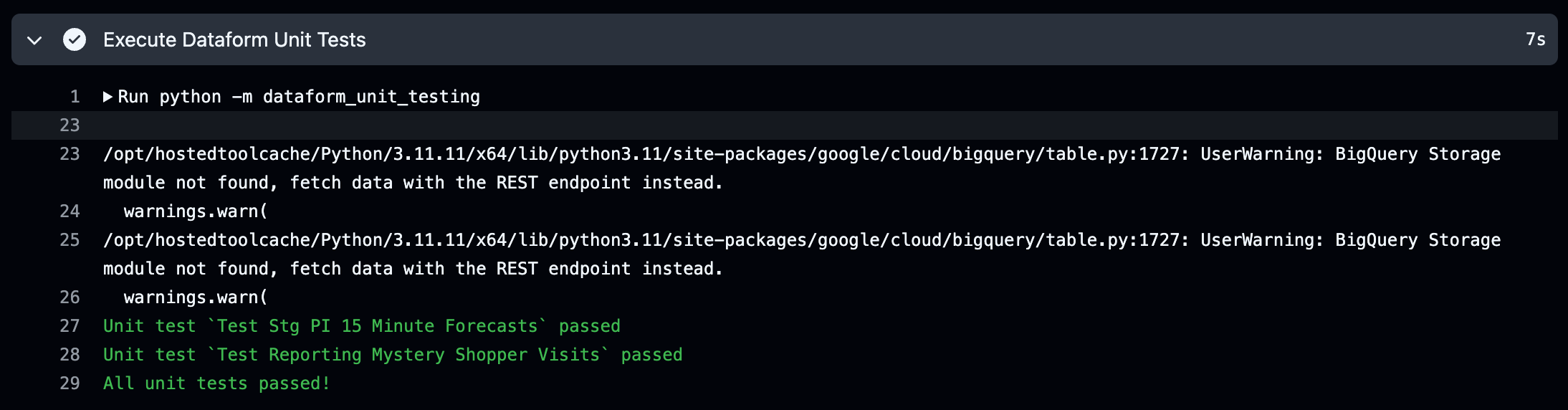
To submit your unit test, you simply create a Pull Request from Dataform and your GitHub Actions Workflow will execute all defined unit tests under the step Execute Dataform Unit Tests (or whatever name you called this step). It will execute each unit test found one by one, if all tests pass, this step will pass, for example:
If one or more tests fail, this step will fail and will fail the workflow. It will also produce messages on which unit tests failed and display to you which results were actually produced versus what results you were expecting, for example:
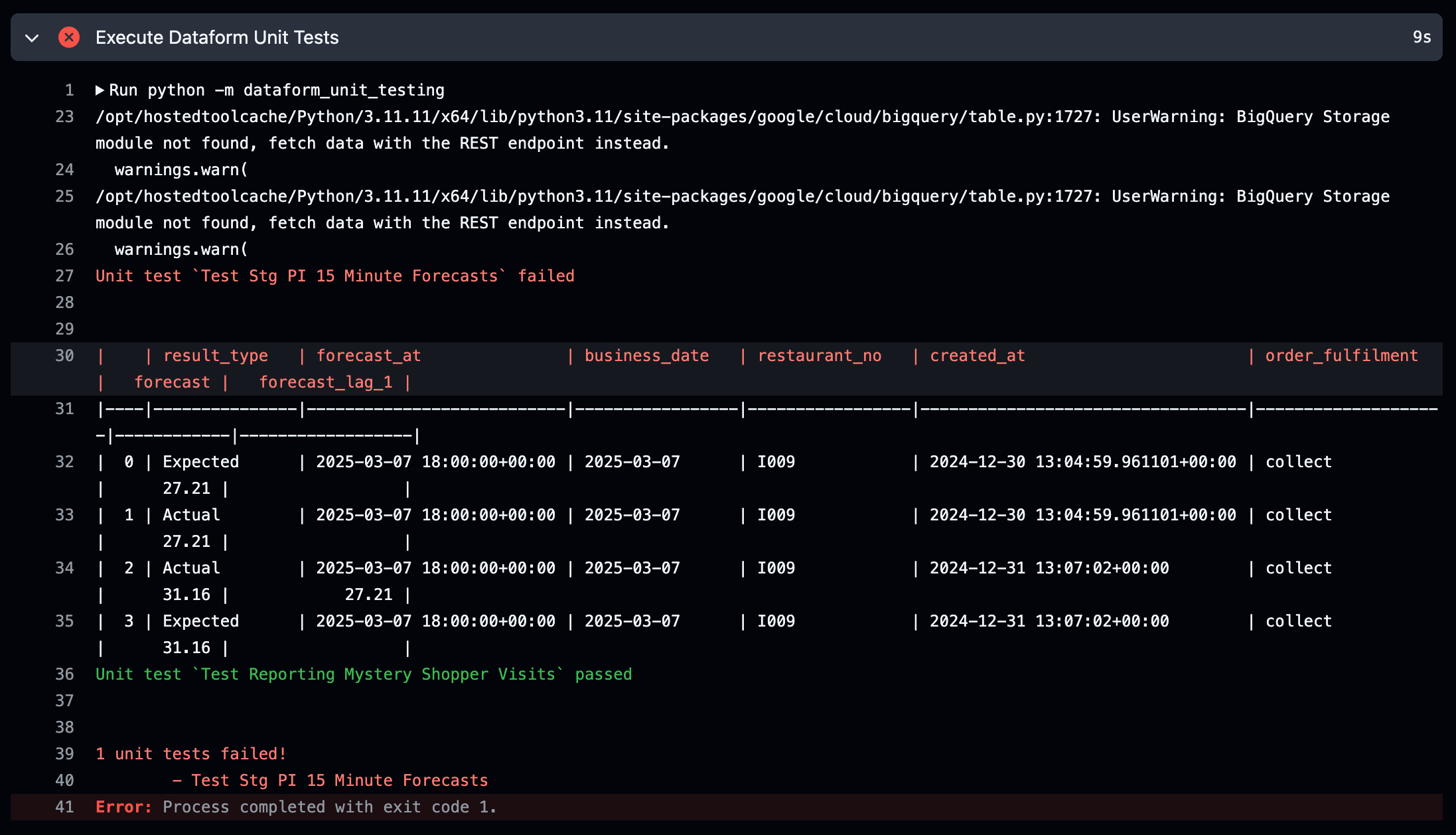
As you can see, it highlights which rows were expected, and which rows were the actual results. This allows you to compare what was different for your unit test to fail so you can correct your code as needed. In the above example, the value null for forecast_lag_1 was expected, but 27.21 was actually produced, and this caused the unit test to fail.
Where do unit tests live?
Your unit tests can exist anywhere within your Dataform file repository. As long as the file naming convention of test_<name of your choosing>.json is used, the framework will discover the test and execute it.
Testing tables that have columns which are RECORDs (i.e. ARRAY<STRUCT<>>)
You may have source tables that have columns which represents a RECORD/ARRAY<STRUCT<>> and you want to test those columns. This is possible by creating a nested record like below:
{
  "name": "Test Staging Customers",
  "description": "Tests the latest address is retrieved for a customer",
  "model_to_test": "staging.customers",
  "input_data": {
    "customer.customer_personal_details": [
      {
        "customer_id": "1",
        "customer_first_name": "John",
        "customer_last_name": "Doe",
        "customer_addresses": [
          {
            "address_1": "123 Fake Street",
            "address_2": "Fake Town",
            "city": "Fake City",
            "post_code": "F4 K3"
          },
          {
            "address_1": "456 Another Fake Street",
            "address_2": "Another Fake Town",
            "city": "Another Fake City",
            "post_code": "FF4 KK3"
          }
        ]
      }
    ]
  },
  "expected_output": [
    {
      "customer_id": "1",
      "customer_first_name": "John",
      "customer_last_name": "Doe",
      "customer_latest_address_1": "123 Fake Street",
      "customer_latest_address_2": "Fake Town",
      "customer_latest_city": "Fake City",
      "customer_latest_post_code": "F4 K3"
    }
  ]
}
NULL values
If you want to represent a null, you simply provide null as a value like below:
{
  "name": "Test Staging Customers",
  "description": "Another unit test",
  "model_to_test": "staging.customers",
  "input_data": {
    "customer.customer_personal_details": [
      {
        "customer_id": "1",
        "customer_first_name": "John",
        "customer_last_name": null
      }
    ]
  },
  "expected_output": [
    {
      "customer_id": "1",
      "customer_first_name": "John",
      "customer_last_name": null
    }
  ]
}
If you want to mock an empty table, you can use a null to do so, like below:
{
  "name": "Test Staging Customers",
  "description": "Another unit test",
  "model_to_test": "staging.customers",
  "input_data": {
    "customer.customer_personal_details": [
      {
        "customer_id": "1",
        "customer_first_name": "John",
        "customer_last_name": null
      }
    ],
    "customer.address_history": null
  },
  "expected_output": [
    {
      "customer_id": "1",
      "customer_first_name": "John",
      "customer_last_name": null
    }
  ]
}
Which BigQuery datatypes are handled by Dataform Unit Tests?
The following BigQuery datatypes are handled by this package:
- Basic datatypes (e.g. STRING, FLOAT, NUMERIC, INTEGER, BOOL, etc.)
- RECORDS or ARRAY<STRUCT<>>
- ARRAY - e.g.
"array_column": "[1, 2, 3]" - JSON - e.g.
"json_column": "{\"key1\": \"value1\"}" - BYTES - e.g.
"bytes_column": "q4ah4e9w3/l5WQZ7cjxcJA==" - GEOGRAPHY - e.g.
"geography_column": "POINT(-0.349498 51.48198)"
1 maintainer

Metadata
1 maintainer
Release files for dataform-unit-tests 1.3.0
For a detailed explanation of source distributions (sdists) and built distributions (wheels), please see the package formats documentation.
Source distribution (sdist)
| File | Size | Uploaded | |
|---|---|---|---|
| dataform_unit_tests-1.3.0.tar.gz | 10.7 MB | Details |
Built distribution (wheel)
| File | Interpreter | ABI | Platform | Reset |
|---|---|---|---|---|
| dataform_unit_tests-1.3.0-py3-none-any.whl | Python 3 | none | any | Details |
Total release size: 10.8 MB
Release files / dataform_unit_tests-1.3.0.tar.gz
| Download URL | dataform_unit_tests-1.3.0.tar.gz |
|---|---|
| Size | 10.7 MB |
| Tags | Source |
|
SHA-256 checksum How to use checksums |
d09ad740442bca0267cfd6b876ba7d13f1c7bc8f7b5ac05a58c05f7b170fe4d7
|
|
BLAKE2b-256 checksum How to use checksums |
9217038ff6803047945734ed86ce2760c4b41671f144143e3961099e03968b70
|
| Upload date | |
|
Uploaded using Trusted Publishing? What is trusted publishing? |
No |
| Uploaded via |
twine/6.0.1 CPython/3.11.6
|
Release files / dataform_unit_tests-1.3.0-py3-none-any.whl
| Download URL | dataform_unit_tests-1.3.0-py3-none-any.whl |
|---|---|
| Size | 37.3 kB |
| Tags | Python 3 |
|
SHA-256 checksum How to use checksums |
d8ff23b7eadd289c56f32de21bcf38a04e1c81de9f7cbd0913ce5fc79de2c923
|
|
BLAKE2b-256 checksum How to use checksums |
d0d09b64bb7ea07247a98ff9b55d9044309e22d280b5e5723b14f81e92b5b8dc
|
| Upload date | |
|
Uploaded using Trusted Publishing? What is trusted publishing? |
No |
| Uploaded via |
twine/6.0.1 CPython/3.11.6
|














