
1 Deep Space Trader 1.5.0
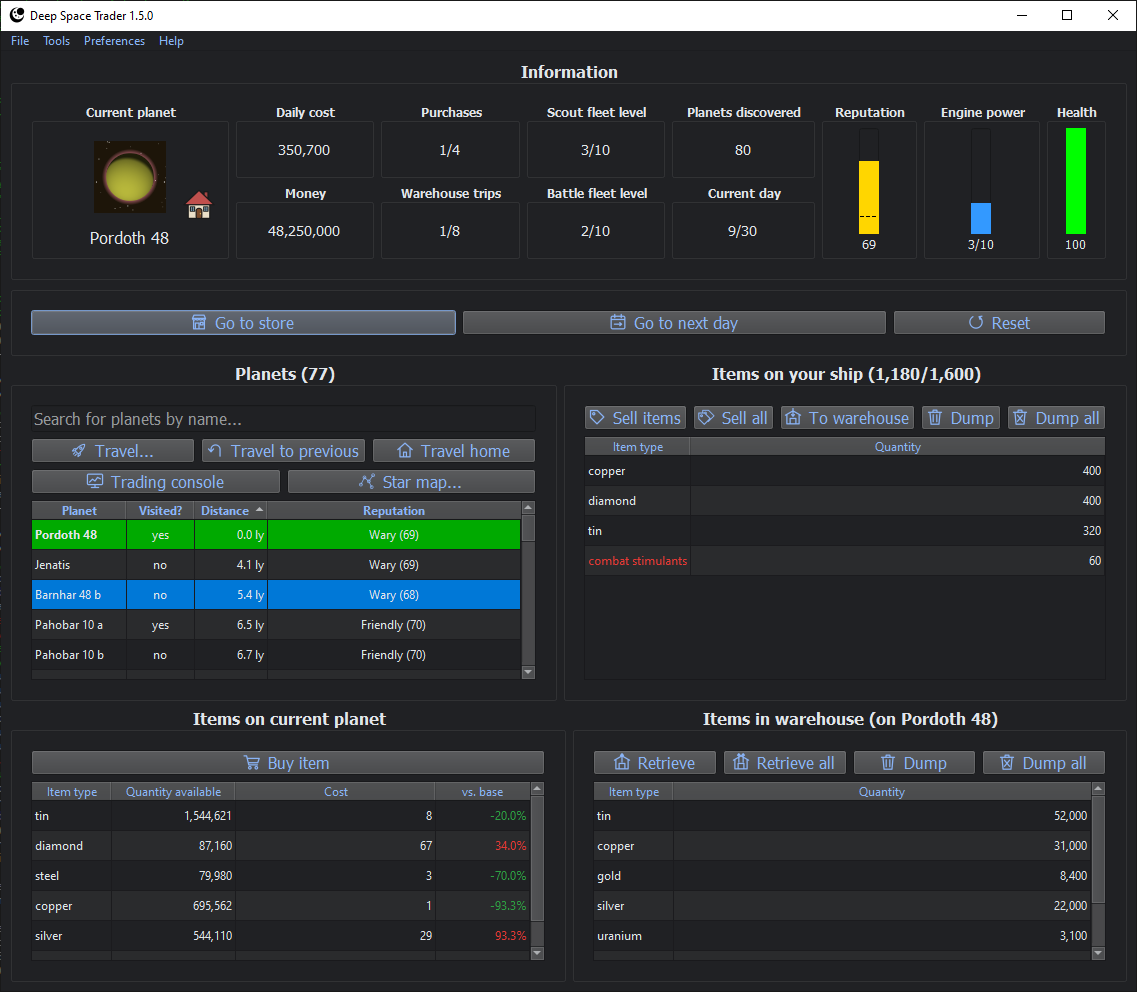
Deep Space Trader is a turn-based space trading game, inspired by the old DOS game “Drugwars”. Buy low, sell high, and do whatever it takes to get rich before your time runs out: trade across a galaxy of thousands of planets, smuggle contraband past customs patrols, fight off pirates, and blow up whole planets for their resources (if you can live with what the neighbours think of you).
1.1 Features at a glance
Trade across a living galaxy: 13 raw materials, with prices that differ from planet to planet and change every day. Planets far from home sell cheaper.
Real distances: planets have positions, grouped in clusters and star systems. Longer trips cost more, and are riskier.
Star map: see every planet you’ve discovered, your whole journey, and where you’re welcome.
Reputation: planets remember what you do near them. Destroy their neighbours and they’ll charge you more, or refuse to trade with you at all; trade with them and they’ll warm to you.
Contraband: five illegal goods worth far more than anything legal, traded only on hidden black markets. Bribe, flee or bluff your way past customs patrols.
Upgrades: a bigger ship, a battle fleet, a scout fleet to discover thousands of new planets, faster engines, a trading console, a hidden cargo hold, and the planet destruction kit.
Danger: pirates, planets that fight back when you try to destroy them, and daily costs that can starve you if you run out of money.
Rumours of price spikes and crashes (not always true).
High scores, which can be shared with other players.
English and Brazilian Portuguese, a dark theme, and sound effects.
1.2 Install
1.2.1 Pre-built windows binary
Download the Windows x64 installer
1.2.2 Python package
Install as a python package (Python 3.11 or newer):
pip install deep_space_trader
And run like so:
python -m deep_space_trader
1.3 Introduction
You start on your home planet, with 2,000 money, a ship that holds 100 items, and 30 days to make as much money as you can. Your score is the money you have at the end.
Around your home planet are 7 more planets, all within 30 light-years. Each planet trades some of the 13 raw materials, at its own prices, which change every day. Buy materials where they’re cheap, and sell them where they’re expensive. Travelling to another planet costs money (more for longer trips) and always takes a day, however far you go.
Your ship can only carry so much, but you also have a warehouse on your home planet, which holds any amount. Moving items between the ship and the warehouse is limited to a few trips per day.
Every day, living costs are taken from your money, and they grow as you buy upgrades that need upkeep. If you run out of money, you’ll start to starve.
Planets remember what the player does near them. Destroying planets makes the planets around them distrust the player, so they charge more and pay less, or even refuse to trade at all, while trading with planets slowly wins them over (see Reputation).
Travelling also brings danger. Once you’re worth over a million, pirates may attack on the way: the more you’re worth, and the longer the trip, the more likely they are. Fight them and you may lose health, or die; surrender and they’ll take your cargo, and maybe your money. And if you carry contraband, customs patrols may stop you (see Contraband).
The store sells upgrades and services, a few purchases per day. They let the player:
Increase the ship’s capacity, so more can be bought and sold at once
Destroy planets altogether, and take all their raw materials (a planet may fight back, which may kill the player)
Buy and upgrade a battle fleet, which increases the chances of winning fights against pirates, and against planets that resist destruction
Buy and upgrade a scout fleet, which allows the player to discover thousands of new planets, further and further from home
Increase engine power, for cheaper travel and more warehouse trips per day
Buy a trading console, to see any planet’s prices without travelling there
Build a hidden cargo hold, to hide contraband from customs searches
1.4 Quick start: your first days
A typical opening, to get a feel for the game:
Look around. The “Items on current planet” table shows what your home planet sells, and the “vs. base” column shows how each price compares to the usual price (negative is cheap). Tools->Material prices (Ctrl-A) lists the usual price of everything.
Make your first trade. Buy something that’s cheap here, travel to a nearby planet (the planets table’s “Distance” column, or the star map, shows what’s close), and sell it if the price there is higher. Short hops are cheap: travel costs 5 per light-year, so a 10 ly trip costs 50. Remember that every trip takes a day.
Grow your ship early. “Increase ship capacity” in the store costs only 250 the first time, and doubles your capacity. Its price doubles each time, but in the first days it’s the best value in the game.
Watch your daily costs. They’re shown at the top of the window (200 per day at the start). Upgrades with upkeep, like fleets and the trading console, add to them.
Keep an eye out for black markets. About 1 planet in 8 is one, and you only find out by visiting. Once you’ve found two that trade the same contraband at different prices, you have a very profitable (and risky) route (see Contraband).
Before your first million, buy a battle fleet. Pirates don’t bother with players worth less than a million, but after that they will.
Mind the clock. Only money counts at the end, so sell everything before your last day ends.
1.5 Strategy guide
1.5.1 Early game
Capacity first. “Increase ship capacity” costs 250, 500, 1,000, 2,000… and doubles your capacity each time (100, 200, 400, 800…). Buy it as often as you can afford it.
Come back to good sources. A planet you’ve bought out is back to half its usual stock in about 5 days, and most of it in two or three weeks.
Trade short hops. With little money, most of your profit comes from small price differences, so keep travel costs low. Planets in the same star system or cluster are usually only a few light-years apart.
Travel is safe while you’re poor. Pirates only attack players worth over 1,000,000 (money plus the value of your cargo; the warehouse doesn’t count).
The trading console (costs 3,000, plus 500 per day) shows any planet’s prices from anywhere, so you can plan routes instead of guessing. It quickly pays for itself.
Contraband is worth 250 to 800 per unit at base price, more than any legal material, and black market prices range from 0.3 to 3 times that. Even a small load can bring in more than a day of legal trading.
1.5.2 Mid game
Planet destruction is the fastest way to get rich. The kit costs 2,000,000 per planet, and all of the planet’s materials go to your warehouse; a planet near home typically holds tens of millions worth. Each planet you destroy at once adds a 5% chance that one of them fights back, so don’t destroy too many at once without a battle fleet.
But destruction has a price. Planets around a destroyed planet think much less of you (see Reputation): they charge more, pay less, and may refuse to trade at all. Sell the materials you get far from where you destroyed them, or on newly discovered planets.
Engine upgrades (costs 50,000 each) make travel 25% cheaper per light-year, and give two more warehouse trips per day, which you’ll need to move the goods from destroyed planets.
Battle fleet. (costs 250,000, plus 100,000 per day per level) The chance of pirates grows with your wealth: 5% per trip when you’re worth over 1,000,000, 15% over 10,000,000, 30% over 50,000,000, and up to 90%, multiplied by up to 3 for long trips (and down to half for short hops). Without a battle fleet you’ll almost always lose a fight. Each upgrade costs twice the last.
Scout fleet. A scout fleet (costs 750,000, plus 50,000 per day per level) lets you buy scout expeditions (50,000,000 each), which discover new planets further from home. Remote planets sell their materials cheaper, and haven’t heard of what you did near home.
1.5.3 Late game
Score bonuses. Reaching 1,000,000,000 adds 5 days (35 in total) and one store purchase per day; reaching 100,000,000,000 adds 5 more days (40) and another purchase (see Score bonuses).
Daily costs add up. A fully upgraded battle fleet costs 1,000,000 per day, and a fully upgraded scout fleet 500,000 per day.
Sell before the end. Your score is your money only: items on your ship and in your warehouse are worth nothing when the game ends. Travelling on the last day ends the game before you can sell anything at the other end.
1.5.4 Staying alive
Health recovers by 15 each day, except the day after a battle. If you have no money left, you lose 15 health per day instead, and starve at 0.
Fight only when you can win. Losing a fight against pirates or a resisting planet kills you. Surrendering to pirates costs you your cargo (and often your money), but not your life.
Customs patrols won’t kill you unless you flee and get caught with little health left.
1.6 Keyboard shortcuts
Shortcut |
Action |
|---|---|
Ctrl-A |
Material prices window |
Ctrl-G |
Star map |
Ctrl-S |
Travel log |
Ctrl-T |
Transaction log |
Ctrl-E |
High scores |
Ctrl-R |
High score sharing |
Ctrl-V |
Turn the dark theme on or off |
Ctrl-P |
Turn tooltips on or off |
Ctrl-M |
Turn sounds on or off |
Ctrl-H |
About |
Ctrl-Q, Escape |
Quit the game (asks first) |
Enter |
In the planets table or the star map: trading console for the selected planet. In the “Items on current planet” table: price history of the selected item |
Double-click |
Planets table or star map: travel. Items on current planet: buy. Items on your ship: sell. Items in warehouse: retrieve |
1.8 Complete Game Reference
This following section describes the functionality of all sections of all game windows in detail. Each game window has its own section in this document, with further document subsections for sections within the game window.
1.8.1 Main window
This section describes the functionality of all sections on the main game window (the largest window, which opens on game startup). Each section in the main game window has its own section in this document.
1.8.1.1 “Information” section

This section describes the functionality of the “Information” section of the main game window. The “Information” section stretches across the entire top of the main game window, and shows useful information about the current state of the game.
“Current Planet”: Shows the name of, and an image of, the current planet the player is on. On the home planet, a little house is shown next to the image, and on a black market, a crate with a red X (see Contraband).
“Daily cost”: Current daily cost of living that gets subtracted from your money on each new day.
“Money”: Shows the amount of money currently held by the player.
“Purchases”: Shows the number of store purchases made by the player so far on the current day, against the total number of store purchases allowed on the current day (see “Store” window for more information).
“Warehouse trips”: Shows the number of trips to the warehouse made by the player so far on the current day, against the total number of warehouse trips allowed on the current day (see “Store” window for more information).
“Reputation”: A bar showing what the current planet thinks of the player, from 0 to 100. Its colour shows the reputation level, like a traffic light: green (Allied), light green (Friendly), yellow (Wary), orange (Hostile) or red (Refuses to trade). The dashed line near the bottom marks where planets start refusing to trade. The number under the bar is the reputation. When tooltips are enabled, hovering over this section shows how much better or worse than normal the prices are (see Reputation).
“Engine power”: A blue bar, next to the health bar, that fills up as the player increases their engine power, up to the maximum of 10 (see “Store” window), with the level (e.g. “3/10”) under it. When tooltips are enabled, hovering over this section shows the current travel cost per light-year.
“Scout fleet level”: Shows the current upgrade level of the players scout fleet, against the maximum possible upgrade level for the players scout fleet. (see “Store” window for more information about upgrading the scout fleet).
“Battle fleet level”: Shows the current upgrade level of the players battle fleet, against the maximum possible upgrade level for the players battle fleet. When tooltips are enabled, hovering over this section shows the chance (percentage) of the player winning a battle, based on current battle fleet upgrade level. (see “Store” window for more information about upgrading the battle fleet).
“Planets discovered”: Shows the total number of planets that have been discovered by the player. This number includes planets that have not been visited by the player, and planets that have been destroyed by the player.
“Current Day”: Shows the current day number, against the total number of days before the game ends.
“Health”: A bar showing the player’s health, from 0 to 100, with the number under it. It turns from green to yellow to red as health runs out.
1.8.1.2 Global buttons section

This section describes the functionality of the 3 large buttons at the top of the main game window, directly underneath the “Information” section.
“Go to store” button: Opens the Store window. See “Store” window for more details.
“Go to next day” button: Advances the current day by 1. Often, the next day is reached by travelling to another planet, but this button advances to the next day without travelling.
“Reset” button: Aborts the current game and starts a new game (Warning: player will lose all progress in the current game. When clicked, this button will first show a prompt, asking the player to confirm that they want to reset the game).
1.8.1.3 “Planets” section
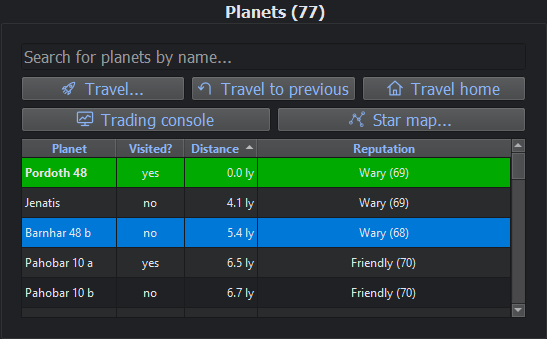
This section describes the functionality of the “Planets” section of the main game window. The “Planets” section is used for travelling between planets, and allows the player to select the planet they want to travel to. The “Planets” section is displayed in the middle left area of the main game window.
“Travel…” button: Causes the player to travel to the selected planet. The player can also travel to a planet by double-clicking on the planet name in the “Planets” section, or on the planet in the “Star map” window. Every planet has a position in the galaxy, and the cost of travelling depends on the distance to the planet, in light-years (ly): 5 per light-year, with a minimum of 10. Engine upgrades make travel cheaper (see “Store” window). The travel prompt shows the distance and the cost. Travelling always advances the current day by 1, however far the player goes. Travelling incurs a risk of encountering a pirate fleet. The risk grows with the player’s wealth, and with the length of the trip: longer trips are riskier, and short hops are safer. When encountered, the player will be given the choice to fight or not. If the player chooses to fight, and wins, then the player can continue their journey without losing any money or items, but will lose some health (and will not recover health on the next day). If winning the fight brings the player’s health down to 0, then the player will die. If the player chooses to fight, and loses, then the player will die. The chance of the player winning a fight against pirates, and the amount of health lost when winning, depend on the upgrade level of the players battle fleet (See “Store” window). If the player chooses not to fight, then they will not die, but the pirates will steal all of the items stored on the players ship. If the players ship had no items on it, the pirates will also steal (almost) all of the players money; otherwise, there is a 20% chance that they will also steal (almost) all of the players money. Items stored in the warehouse cannot be touched by pirates. When the player has contraband on their ship, a trip without pirates may instead be stopped by a customs patrol, and the travel prompt warns of this (see Contraband).
“Travel to previous” button: Causes the player to travel to the planet that they were on directly before the current planet. The cost depends on the distance, as for the “Travel…” button, and travelling advances the current day by 1.
“Travel home” button: Causes the player to travel back to their home planet (the planet the game starts on), where their warehouse is. The cost depends on the distance, as for the “Travel…” button. The home planet can’t be destroyed.
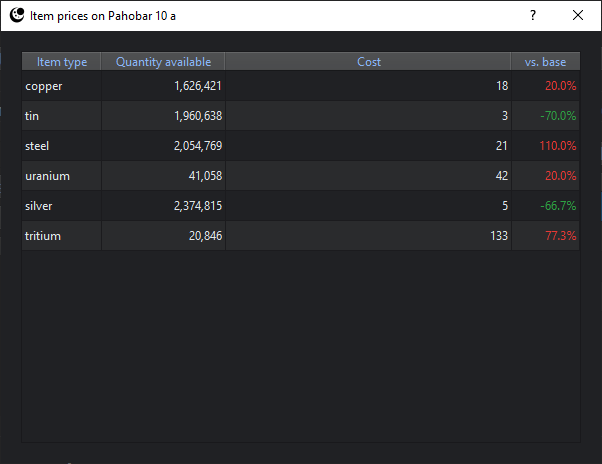
“Trading console” button: Opens the trading console, which allows current item prices on the selected planet to be seen without travelling to the planet. Pressing the Enter key while a planet is selected will also open the trading console. The trading console can only be used if the “Trading console” item has been purchased from the “Store” window.
“Star map…” button: Opens the “Star map” window, which shows where all the planets are.
Planet display table: shows a list of all planets available to the player. Consists of four columns: “Planet” shows the name of the planet, “Visited?” shows “yes” or “no” indicating whether the player has travelled to the planet, “Distance” shows how far the planet is from the current planet, in light-years, and “Reputation” shows what the planet thinks of the player, e.g. “Wary (58)” (see Reputation). Clicking a column’s header sorts the table by that column (e.g. click “Distance” to see the nearest planets first). The home planet is shown in bold. The player can travel to a planet by double-clicking on the planet name within the planet display table. The last 3 planets visited will be colored different shades of green- the current planet will be a bright green, the previous planet a darker green, and the planet before that the darkest green. Black markets the player has found are shown in red text (see Contraband).
1.8.1.4 “Items on current planet” section
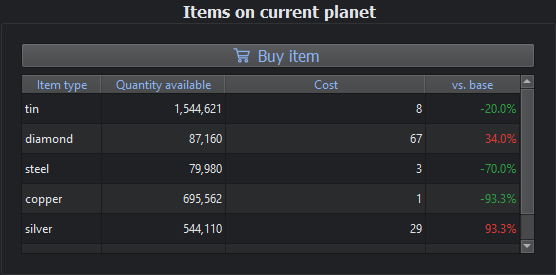
This section describes the functionality of the “Items on current planet” section of the main game window. The “Items on current planet” section is used for browsing & buying items from the planet that the player is currently on. The “Items on current planet” section is displayed in the bottom left area of the main game window.
“Buy item” button: Allows the player to purchase 1 or more of the selected items in the item display table. When clicked, this button will open a new window that allows the player to select the quantity they wish to purchase of the selected item (See “Buy items” window reference section in this document for more details about this window).
Item display table: Displays all items available for purchase on the current planet. Consists of four columns:
“vs. base” shows the difference between the cost of the item on the current planet and the base price of the item (shown in the “Prices” window), as a percentage: green when it’s cheaper than usual, and red when it’s more expensive.
“Cost” shows the cost of 1 item on the current planet. This is the planet’s normal price: what the player actually pays can be higher or lower, depending on the planet’s opinion of the player (see Reputation).
“Quantity available” shows the quantity of an item available for purchase on the current planet. Other traders buy and sell too, so this changes over time: each planet’s stock of each item drifts back towards the amount it started with, a little more each day (half way back in about 5 days), with a little random variation. A planet the player has bought out slowly refills, and one they’ve flooded with an item slowly sells it off.
“Item type” shows the name of the item.
The player can attempt to buy an item by double-clicking on the item name within the item display table. Pressing enter with an item selected will display a new window showing the item price over time, from day 1 until the current day (see Item price history window).
1.8.1.5 “Items on your ship” section
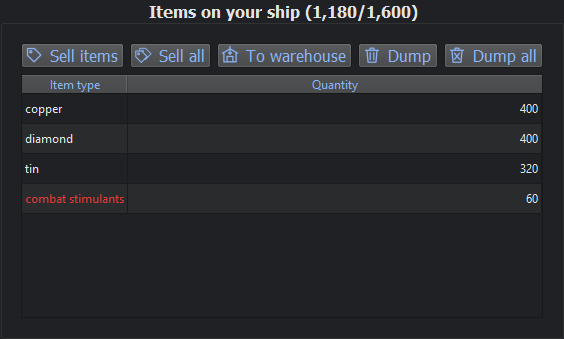
This section describes the functionality of the “Items on your ship” section of the main game window. The “Items on your ship” section is used for browsing / managing items that reside on the players ship, that have either been purchased from a planet or that have been retrieved from the warehouse. The “Items on your ship” section is displayed in the middle right area of the main game window.
“Sell items” button: Allows the player to attempt to sell 1 or more of the selected item to the current planet. When clicked, this button will open a new window that allows the player to select the quantity they wish to sell of the selected item (See “Sell items” window). If the current planet does not already hold any of the selected item, then the player will be asked if they want to provide a free (small quantity) sample of the item. If the player does not provide a free sample, then the item cannot be sold to the current planet. If the player does provide a free sample, then the planet may or may not decide to begin trading in the selected item. Only one free sample of a given item may be given to the same planet in the same day. A planet that accepts a free sample thinks better of the player. A planet that refuses to trade (see Reputation) won’t buy anything, or accept free samples. Contraband (shown in red) can only be sold, or offered as a free sample, on black markets (see Contraband).
“Sell all” button: Allows the player to attempt to sell all items on the ship to the current planet. Only items that the current planet already holds will be sold (free samples can only be provided via the “Sell items” button). Contraband stays on the ship, unless the current planet is a black market that trades it.
“To warehouse” button: Allows the player to move 1 or more of the selected item from their ship to the warehouse. The warehouse is on the player’s home planet, so this only works while the player is there. Unlike the player’s ship, the warehouse has infinite capacity, but only two moves to/from the warehouse per day are allowed (i.e. two trips to the warehouse per day). Additional warehouse trips per day come with engine upgrades from the Store (See “Store” window for more details about the store window). Clicking this button opens a new window that allows the player to select the quantity of the item they want to move to the warehouse (see “Move to warehouse” window).
“Dump” button: Throws away the selected items to free up capacity on the player’s ship. Opens a new window that allows the player to select the quantity they wish to dump of the selected item (See “Dump player items” window).
“Dump all” button: Throws away all items on the players ship.
Item display table: Displays all items stored on the player’s ship. Consists of two columns: The rightmost column, labelled “Quantity”, shows the number of items stored on the player’s ship. The leftmost column, labelled “Item type”, shows the item name. The player can attempt to sell an item by double-clicking on the item name within the item display table.
1.8.1.6 “Items in warehouse” section
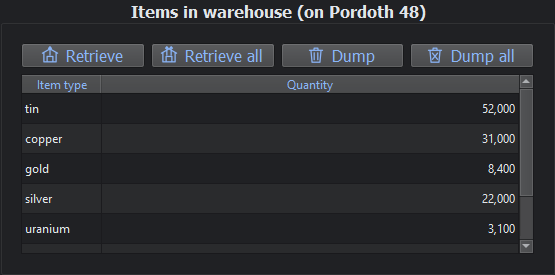
This section describes the functionality of the “Items in warehouse” section of the main game window. The “Items in warehouse” section is used for browsing / managing items that reside in the warehouse. The “Items in warehouse” section is displayed in the bottom right area of the main game window. Its title shows the name of the player’s home planet, which is where the warehouse is. Items can only be moved to or from the warehouse while the player is on their home planet, but items in the warehouse can be dumped from anywhere.
“Retrieve” button: Allows the player to move 1 or more of the selected items from the warehouse to their ship, while the player is on their home planet. Only two moves to/from the warehouse per day are allowed (i.e. two trips to the warehouse per day), unless engine upgrades have been purchased from the Store. Clicking this button opens a new window that allows the player to select the quantity of the item they want to move to their ship (see “Retrieve from warehouse” window).
“Retrieve all” button: Moves all warehouse items (or however many will fit) to the player’s ship, while the player is on their home planet.
“Dump” button: Throws away the selected items from the warehouse. Opens a new window that allows the player to select the quantity they wish to dump of the selected items (see “Dump warehouse items” window).
“Dump all” button: Throws away all items in the warehouse.
Item display table: Displays all items stored in the warehouse. Consists of two columns: The rightmost column, labelled “Quantity”, shows the number of items stored in the warehouse. The leftmost column, labelled “Item type”, shows the item name. The player can move an item to their ship by double-clicking on the item name within the item display table.
1.8.2 “Store” window
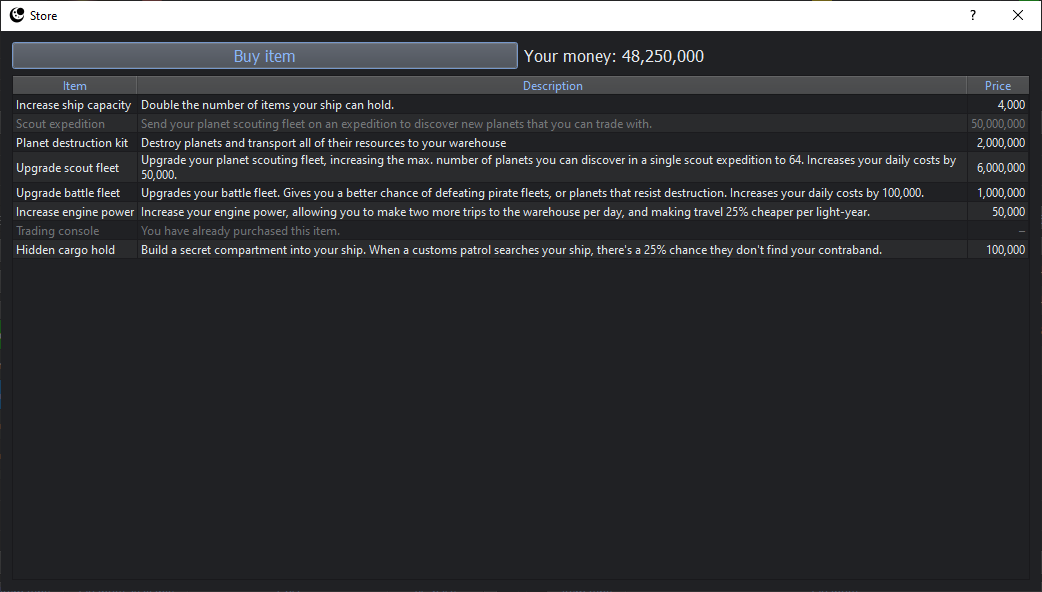
This section describes the functionality of the “Store” window. The store window can be reached by clicking the “Go to store” button in the Global buttons section of the main window. The store window allows the player to exchange money for various upgrades and services. Only 4 store purchases can be made per day, but this number is increased when the player reaches certain scores (see Score bonuses for more information). Items the player can’t afford, or can’t buy anymore, are greyed out.
Increase ship capacity: Buying this item doubles the number of items that can be stored on the players ship. This item can be bought an unlimited number of times.
Scout expedition: Buying this item allows the player to discover new planets (between 4-8 new planets with a level 1 scout fleet), which will become available in the “Planets” section. This item cannot be purchased unless the player has already purchased a scout fleet. More planets, further away, can be discovered per scout expedition by purchasing the “Upgrade scout fleet” store item. Items on remote planets are cheaper: the further a planet is from home, the lower its prices, down to half the usual price at the edge of the largest scout range.
Planet destruction kit: Buying this item allows the player to destroy one or more planets and obtain all of their materials. Destroyed planets will disappear from the “Planets” section and all materials held by them will be transferred to the player’s warehouse. Opens a new window that allows the player to pick which planets they want to destroy (each planet destroyed adds to the price), or optionally destroy all planets at once (except for the current planet). The player’s home planet can never be destroyed, since the warehouse is there. There is a small chance that a single planet may resist destruction and attempt to fight back. The higher number of planets being destroyed, the higher the chance of one planet resisting will be. The player must decide whether to fight, or leave the planet alone. If the player fights and loses, the player will die and the game will be over. If the player fights and wins, then planet destruction will continue normally. The chance of the player winning this fight depends on the player’s battle fleet level. Destroying planets, and fighting planets that resist (whether the player wins or loses), makes nearby planets think less of the player (see Reputation).
Buy/upgrade scout fleet: Buying this item for the first time gives the player a scout fleet that allows the player to discover new planets to trade with. Subsequent purchases of this item upgrade the player’s scout fleet, which increases the number of planets than can be discovered on a single scout expedition, and how far away they can be. Starting planets are up to 30 light-years from home, and a scout fleet at level N finds new planets between 30 and 30 × (N + 1) light-years from home (e.g. 30-60 ly at level 1, and 30-330 ly at level 10). The scout fleet can be upgraded 9 times, from level 1 through level 10.
Scout fleet level 1: between 4 and 8 new planets per scout expedition
Scout fleet level 2: between 8 and 16 new planets per scout expedition
Scout fleet level 3: between 16 and 32 new planets per scout expedition
Scout fleet level 4: between 32 and 64 new planets per scout expedition
Scout fleet level 5: between 64 and 128 new planets per scout expedition
Scout fleet level 6: between 128 and 256 new planets per scout expedition
Scout fleet level 7: between 256 and 512 new planets per scout expedition
Scout fleet level 8: between 512 and 1024 new planets per scout expedition
Scout fleet level 9: between 1024 and 2048 new planets per scout expedition
Scout fleet level 10: between 2048 and 4096 new planets per scout expedition
Buy/upgrade battle fleet: Buying this item for the first time gives the player a battle fleet, which increases the chances of the player winning battles against planets that resist destruction, or when being robbed while travelling between planets. Subsequent purchases of this item upgrade the battle fleet, which increases the chances of the player winning battles against pirates or against planets that resist destruction. The battle fleet can be upgraded 9 times, from level 1 to level 10.
Battle fleet level 0 (no battle fleet): 1% chance of winning battles
Battle fleet level 1: 10% chance of winning battles
Battle fleet level 2: 20% chance of winning battles
Battle fleet level 3: 30% chance of winning battles
Battle fleet level 4: 40% chance of winning battles
Battle fleet level 5: 50% chance of winning battles
Battle fleet level 6: 60% chance of winning battles
Battle fleet level 7: 70% chance of winning battles
Battle fleet level 8: 80% chance of winning battles
Battle fleet level 9: 90% chance of winning battles
Battle fleet level 10: 99% chance of winning battles
Increase engine power: Buying this item will increase by 2 the number of warehouse trips that the player can make in a single day, and will make travel 25% cheaper per light-year. Engine power can be increased 10 times.
Trading console: Buying this item will enable the “Trading console” button in the “Planets” section, allowing you to see current item prices on any planet without travelling. It doesn’t show contraband on black markets the player hasn’t found yet.
Hidden cargo hold: Buying this item builds a secret compartment into the player’s ship. It doesn’t make customs inspections any less likely, but when a customs patrol searches the ship, there’s a chance they don’t find the player’s contraband (see Contraband). It can be bought 3 times:
Level 1 (100,000): 25% chance that a search finds nothing
Level 2 (500,000): 45% chance that a search finds nothing
Level 3 (2,000,000): 60% chance that a search finds nothing
1.8.3 “Buy items” window
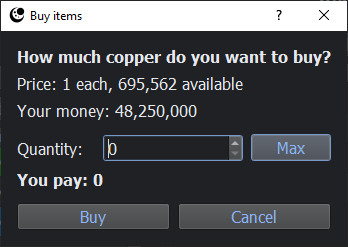
This section describes the functionality of the “Buy” window. The “Buy” window is displayed when the player clicks the “Buy item” button in the “Items on current planet” section.
“Buy” button: Purchases the selected quantity of the item. This button will do nothing when the selected quantity is 0.
“Cancel” button: Cancels the transaction.
“Max” button: Automatically sets the quantity to the maximum number of items available, or the maximum number of items that the player can afford (whichever is smaller).
The window shows the price of one item, how many the planet has, the player’s money, and what the chosen quantity costs (“You pay”). The cost includes the effect of the planet’s opinion of the player (see Reputation). When this makes the price different from the planet’s normal price, the window says so, and shows both prices.
1.8.4 “Sell items” window
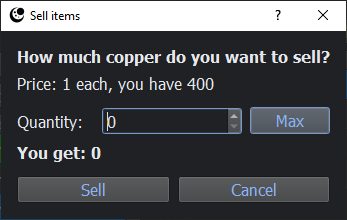
This section describes the functionality of the “Sell” window. The “Sell” window is displayed when the player clicks the “Sell items” button in the “Items on your ship” section.
“Sell” button: Sells the selected quantity of the item. This button will do nothing when the selected quantity is 0.
“Cancel” button: Cancels the transaction.
“Max” button: Automatically sets the quantity to the maximum number of items available to sell.
The window shows the price of one item, how many the player has, and what the chosen quantity sells for (“You get”). What the planet pays includes the effect of its opinion of the player (see Reputation). When this makes the price different from the planet’s normal price, the window says so, and shows both prices.
1.8.5 “Dump player items” window
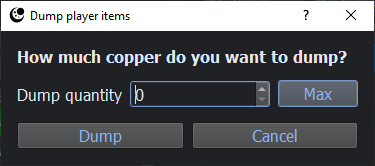
This section describes the functionality of the “Dump player items” window. The “Dump player items” window is displayed when the player clicks the “Dump” button in the “Items on your ship” section.
“Dump” button: Dumps the selected quantity of the item. This button will do nothing when the selected quantity is 0.
“Cancel” button: Cancels the item dump.
“Max” button: Automatically sets the quantity to the maximum number of items available on the players ship.
1.8.6 “Move to warehouse” window
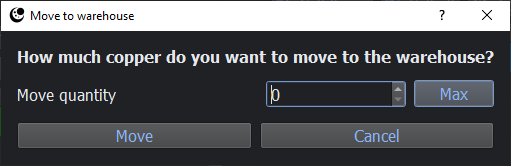
This section describes the functionality of the “Move to warehouse” window. The “Move to warehouse” window is displayed when the player clicks the “To warehouse” button in the “Items on your ship” section.
“Move” button: Moves the selected quantity of the item to the warehouse. This button will do nothing when the selected quantity is 0.
“Cancel” button: Cancels the item move.
“Max” button: Automatically sets the quantity to the maximum number of items available on the players ship.
1.8.7 “Dump warehouse items” window
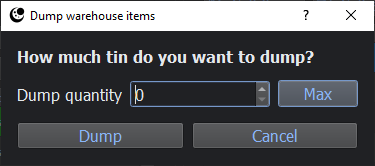
This section describes the functionality of the “Dump warehouse items” window. The “Dump warehouse items” window is displayed when the player clicks the “Dump” button in the “Items in warehouse” section.
“Dump” button: Dumps the selected quantity of the item. This button will do nothing when the selected quantity is 0.
“Cancel” button: Cancels the item dump.
“Max” button: Automatically sets the quantity to the maximum number of items available in the warehouse.
1.8.8 “Retrieve from warehouse” window
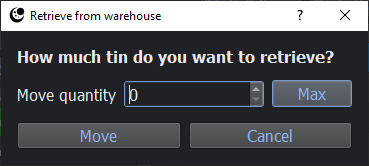
This section describes the functionality of the “Retrieve from warehouse” window. The “Retrieve from warehouse” window is displayed when the player clicks the “Retrieve” button in the “Items in warehouse” section.
“Move” button: Moves the selected quantity of the item to the player’s ship. This button will do nothing when the selected quantity is 0.
“Cancel” button: Cancels the item move.
“Max” button: Automatically sets the quantity to the maximum number of items available in the warehouse, or the maximum number of items that can fit on the player’s ship (whichever is smaller).
1.8.9 Item price history window
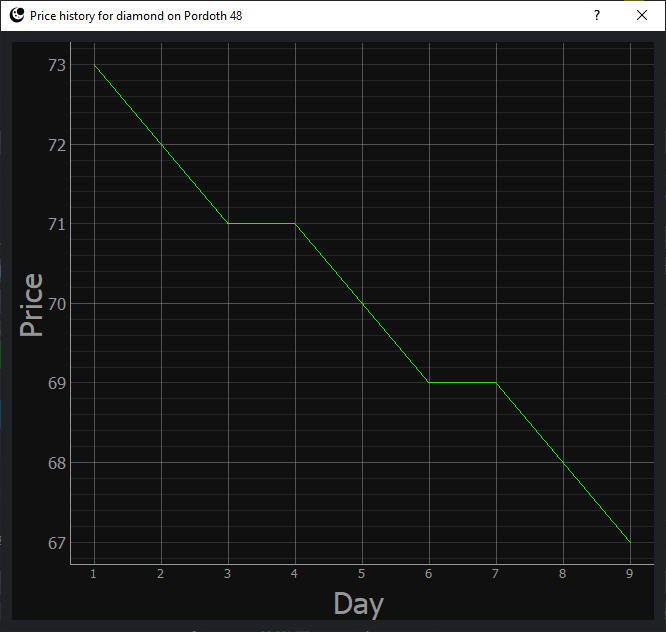
The item price history window shows the changing price of an item on a particular planet over time (from day 1 until the current day). The item price history window is displayed when the player selects an item in the “Items on current planet” section and presses enter.
1.8.10 “High score sharing” window
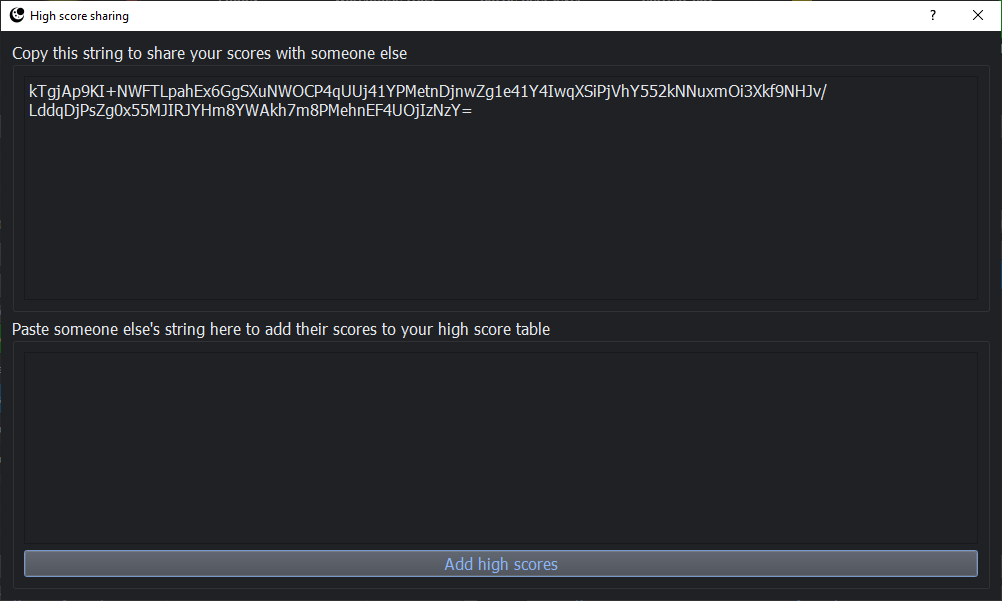
This section describes the functionality of the “High score sharing” window. The “High score sharing” window is displayed when the “High score sharing” option is selected from the “File” menu in the main game window (e.g. File->High score sharing). The “High score sharing” window can also be opened via the keyboard shortcut Ctrl-R.
The “High score sharing” window allows players to share high scores, by copying/sharing an “encrypted” string containing the players high scores. When a player copies another player’s string into their “High score sharing” window, then the scores contained within the string will be added to the player’s own high scores.
To share your high scores with someone else: Copy the string displayed in the top section of the “High score sharing” window, and give it to the other player that you wish to share scores with.
To add someone elses high scores to your game: Paste the string provided by another player into the bottom section of the “High score sharing” window, and click the “Add high scores” button at the bottom of the “High score sharing” window. The other players scores will be added to your high score table.
1.8.11 “Star map” window
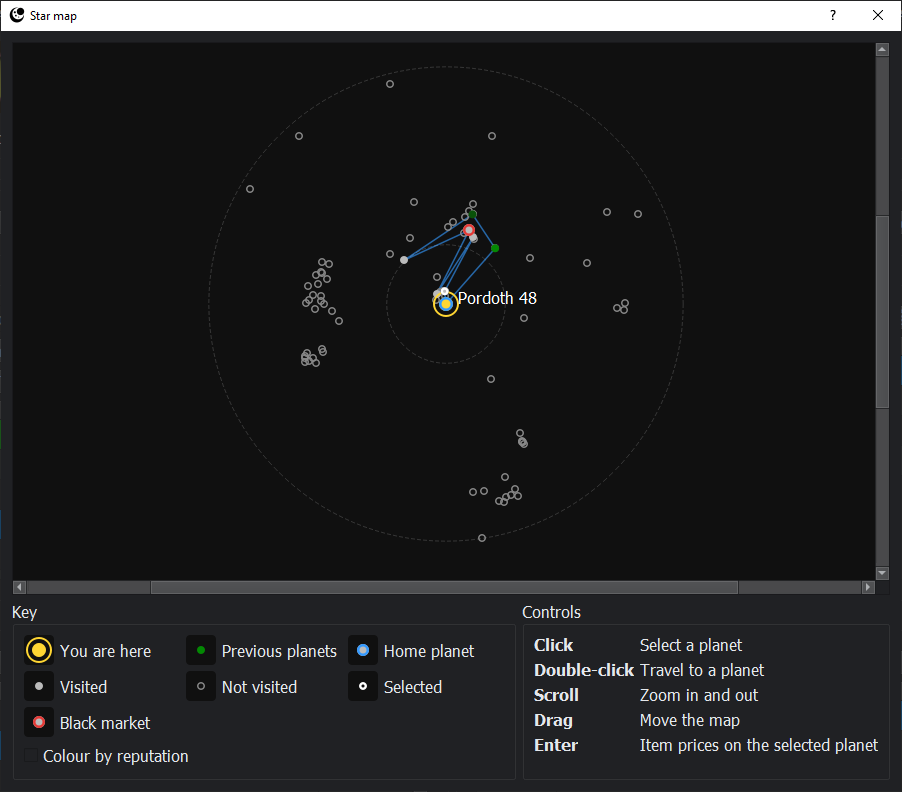
The “Star map” window shows every planet the player has discovered, at its position in the galaxy. Planets tend to be grouped in clusters, and planets with the same name and number but different letters (e.g. “Kandar 12 c” and “Kandar 12 d”) are in the same star system, very close to each other. It is displayed when the “Star map” option is selected from the “Tools” menu in the main game window (e.g. Tools->Star map), or when the “Star map…” button in the “Planets” section is clicked. It can also be opened via the keyboard shortcut Ctrl-G.
The current planet is shown as a large yellow dot with a ring around it, and its name is always shown. The two previous planets are shown in two shades of green.
The home planet has a blue ring.
Visited planets are filled grey dots, and planets not visited yet are hollow grey rings.
The selected planet has a white ring.
Black markets the player has found are larger dots with a red ring (see Contraband).
A blue line joins every planet the player has travelled to, in order, starting from the home planet, showing the player’s whole journey.
Faint dashed circles show the area of the starting planets, and the range of the player’s scout fleet.
While the planets search box has text in it, planets that don’t match are dimmed.
When the “Colour by reputation” box (in the “Key” section) is ticked, the ordinary dots are coloured by what each planet thinks of the player, using the same colours as the reputation bar in the “Information” section (filled dots are still visited planets). This shows at a glance where the player is welcome, and where they aren’t. The box is unticked each time the game is started.
Moving the mouse over (or near) a planet shows its name straight away, and holding the mouse still shows its distance, the cost of travelling there, its reputation, and whether it’s a black market the player has found. Clicking a planet selects it in the “Planets” section, and double-clicking it travels there. Pressing the Enter key opens the trading console for the selected planet, as in the “Planets” section (only if the “Trading console” item has been purchased from the “Store” window). The mouse wheel zooms in and out, and dragging moves the map.
1.8.12 “Prices” window
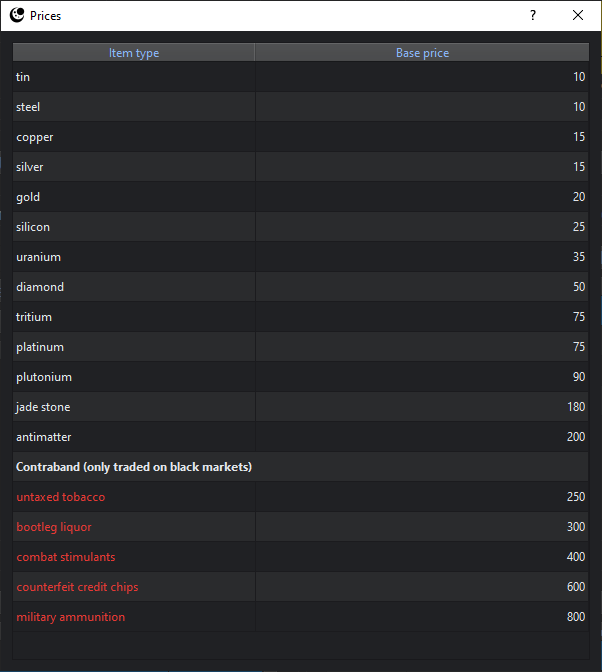
The section describes the functionality of the “Prices” window. The “Prices” window is displayed when the “Material prices” option is selected from the “Tools” menu in the main game window (e.g. Tools->Material prices). The “Prices” window can also be opened via the keyboard shortcut Ctrl-A.
The “Prices” window shows the usual price for all materials, and can be used as a trading reference. Contraband is listed separately, at the bottom (see Contraband). The “Prices” window does not show the exact item prices for any particular planet. Planets will set their own item prices, and the prices in the “Prices” window are merely suggestions for them.
1.8.13 “Travel log” window
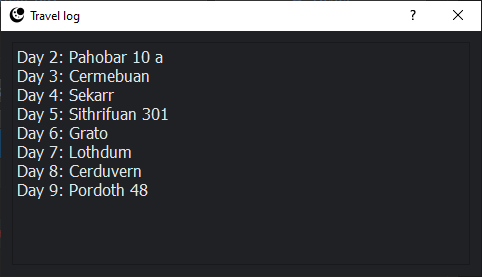
This section describes the functionality of the “Travel log” window. The “Travel log” window is displayed when the “Show travel log” option is selected from the “Tools” menu (e.g. Tools->Show travel log). The “Travel log” window can also be opened via the keyboard shortcut Ctrl-S.
The “Travel log” shows all planets that the player has travelled to, in chronological order, along with the day on which they were travelled to.
1.8.14 “Transaction log” window
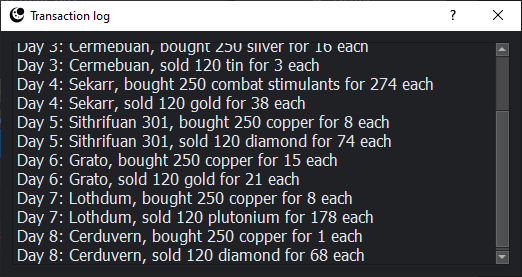
This section describes the functionality of the “Transaction log” window. The “Transaction log” window is displayed when the “Show transaction log” option is selected from the “Tools” menu (e.g. Tools->Show transaction log). The “Transaction log” window can also be opened via the keyboard shortcut Ctrl-T.
The “Transaction log” shows all material sales/purchases made by the player, in chronological order, along with the day on which the transaction occurred and the planet involved in the transaction.
1.8.15 Rumours
A window like this may appear from time to time, informing you of a rumour that a particular item will be unusually expensive or unusually cheap on a particular planet on the following day:
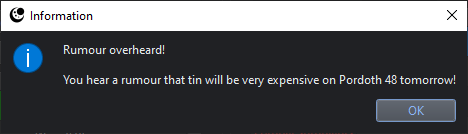
These rumours are sometimes true, and sometimes not. If an item is rumoured to be unusually cheap, then you may want to travel to the planet mentioned and stock up on the cheap item once you arrive. If an item is rumoured to be unusually expensive, you may want to stock up on that item on your current planet, then travel to the planet mentioned and sell off the item once you arrive. Of course, if the rumour turns out to be false, then you will have wasted time/money.
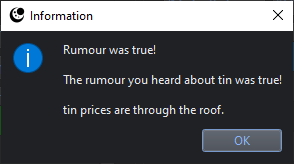
If you choose to follow the rumour, then you will see a window like this after travelling to the mentioned planet, letting you know whether the rumour was true or not:
1.8.16 Miscellaneous details
This section describes miscellaneous functionality that is not necessarily related to any particular game window.
1.8.16.1 Score bonuses
When the player reaches 1,000,000,000 money, the total number of days is increased from 30 to 35, and the number of store purchases allowed per day is increased from 4 to 5.
When the player reaches 100,000,000,000 money, the total number of days is increased from 35 to 40, and the number of store purchases allowed per day is increased from 5 to 6.
1.8.16.2 Reputation
Every planet has an opinion of the player, from 0 to 100, which starts at 70. Each planet’s opinion depends on what the player has done near it: news travels, but fades with distance.
Reputation |
Level |
Effect |
|---|---|---|
85-100 |
Allied |
Up to 10% better prices |
70-84 |
Friendly |
Normal prices (slightly better above 70) |
45-69 |
Wary |
Prices up to about 18% worse |
15-44 |
Hostile |
Prices up to about 39% worse |
0-14 |
Refuses to trade |
No buying, selling or free samples |
“Better prices” means the player pays less when buying, and is paid more when selling; “worse prices” means the opposite. Reputation only changes the price when actually buying or selling (in the “Buy items” window, the “Sell items” window and with the “Sell all” button), and these show both the planet’s normal price and the player’s price. Everywhere else (e.g. the “Cost” column, the trading console and the price history), prices are the planet’s normal prices.
What changes it:
Destroying a planet makes the planets around it think much less of the player. Its neighbours (often in the same cluster) are affected almost as much as if it had happened to them, planets 40 ly away about half as much, and planets more than about 100 ly away hardly at all. Destroying many planets close together adds up quickly, and destroying all planets at once usually leaves most of the galaxy Hostile, or refusing to trade, for a long time. Planets near the player’s home planet can turn against the player too.
Fighting a planet that resists destruction (whether the player wins or loses) makes the planets around it think less of the player.
Selling to a planet (with “Sell items” or “Sell all”) makes it, and the planets close to it, think a little better of the player. This only counts once per planet per day, however many sales are made.
A planet accepting a free sample makes it, and the planets close to it, think better of the player. Selling contraband doesn’t make anyone think better of the player.
Customs inspections (see Contraband) can make planets think less of the player.
Time: every change fades by 7% each day (halving in about 10 days), so a bad reputation is eventually forgotten, and goodwill from trading fades unless the player keeps trading.
A planet that refuses to trade can still be visited, and its prices can still be seen with the trading console.
1.8.16.3 Contraband
Contraband is illegal goods, worth more than anything legal, shown in red in every item table:
Item |
Base price |
|---|---|
untaxed tobacco |
250 |
bootleg liquor |
300 |
combat stimulants |
400 |
counterfeit credit chips |
600 |
military ammunition |
800 |
Black markets. About 1 planet in 8 is a black market, anywhere in the galaxy (never the home planet). Only black markets buy and sell contraband: anywhere else, nobody will touch it. Each black market trades 2 to 4 of the 5 types, in small quantities, and prices vary a lot between black markets (from 0.3 to 3 times the base price), so the profit is in buying cheap on one black market and selling dear on another. Black markets are found by visiting them: on the first visit, a message says so, and from then on the black market is shown in red text in the “Planets” section, and with a red ring on the “Star map” window. Until then, nothing gives it away: the trading console, rumours and the planet destruction window leave out its contraband.
Customs inspections. On a trip with contraband on the ship (and no pirates), a customs patrol may stop the player. The chance is 10%, plus 2% for every 100 contraband items on the ship, and up to twice that where the destination doesn’t like the player (below Friendly), with a maximum of 60%. The travel prompt shows the chance. When stopped, the player chooses:
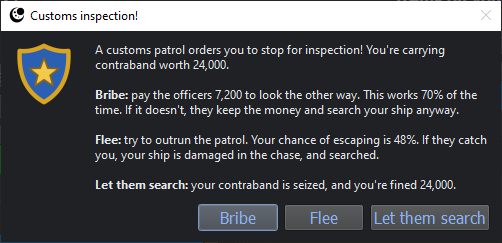
Bribe: pay the officers 30% of the contraband’s value. This works 70% of the time (more where the destination likes the player, less where it doesn’t). If it doesn’t, the officers keep the money, search the ship, and the destination thinks less of the player.
Flee: escape 30% of the time, plus 6% for each engine power level (up to 90%). If the player gets away, they keep everything, but the destination thinks less of them. If they’re caught, the ship is damaged as in a lost battle (the player can die), it’s searched, and the news spreads as far as news of destroyed planets.
Let them search.
When the ship is searched, all contraband on it is seized, and the player is fined its value (or all their money, if that’s less). With a hidden cargo hold (see “Store” window), there’s a chance the search finds nothing. If the player lets them search and they find contraband, the destination thinks a little less of the player. Contraband is valued at the destination’s prices if it’s a black market that trades it, and at base prices otherwise. The player always arrives at their destination afterwards. Contraband in the warehouse is always safe.
1.9 FAQ
- How does the game end?
When the last day ends: by travelling, or with the “Go to next day” button, on the last day (day 30, or 35 or 40 with Score bonuses). It also ends if you die, or if you press “Reset”.
- What’s my score?
The money you have when the game ends. Items on your ship and in your warehouse don’t count. If it’s one of your 10 best, you can enter your name in the high score table.
- What happens when I die?
The game ends, and a new one starts. Your money at the time of death still counts as a score. You can die by losing a fight (against pirates or a planet resisting destruction), by being caught fleeing a customs patrol with too little health, or by starving when you have no money.
- Why won’t a planet trade with me?
Its reputation of you is below 15, usually because you destroyed planets near it (see Reputation). Reputation recovers over time, by 7% of the damage each day.
- Why can’t I sell my contraband here?
Only black markets trade contraband (see Contraband).
- Why can’t I use the warehouse?
The warehouse is on your home planet, so you have to be there, and you only get a few warehouse trips per day (more with engine upgrades).
- Is my progress saved when I close the game?
No, only high scores are saved. Each game is played in one sitting.
- Where are my high scores?
In the config file (see Menus and settings). To move them to another computer, or to compare with friends, use File->High score sharing.
1.10 Development
1.10.1 Running from source
You’ll need Python 3.11 or newer. From the project folder:
python -m venv venv
venv\Scripts\activate            (on Windows; elsewhere: source venv/bin/activate)
pip install -r requirements-dev.txt
python -m deep_space_trader
requirements.txt has what the game needs to run, and requirements-dev.txt adds the tools for testing and building (pytest, rst2pdf and pyinstaller).
Most of the game’s numbers (starting money, prices, chances, costs) are in deep_space_trader/constants.py, which is the place to experiment with the game’s balance. FORCE_LANGUAGE in the same file plays the game in a given language, whatever the system language.
1.10.2 Running the tests
python -m pytest
The tests run without showing any windows, and take under a minute. They use the default values in constants.py, so changing those (e.g. for more starting money) can make some fail.
1.10.3 Translations
All text shown to the player is marked for translation (with tr() or translate()), and the translations are in deep_space_trader/translations:
deep_space_trader_pt_BR.ts: Brazilian Portuguese.
deep_space_trader_en.ts: only English plural forms (e.g. “1 planet”, “2 planets”); the English text itself comes from the code.
After changing any text in the code, update both .ts files (pylupdate5 comes with PyQt5):
python -m PyQt5.pylupdate_main -noobsolete deep_space_trader/*.py -ts deep_space_trader/translations/deep_space_trader_en.ts
python -m PyQt5.pylupdate_main -noobsolete deep_space_trader/*.py -ts deep_space_trader/translations/deep_space_trader_pt_BR.ts
Then translate the new text (with Qt Linguist, or by editing the .ts file), and build the .qm files the game loads, with lrelease from Qt’s Linguist tools (it isn’t included with PyQt5):
lrelease deep_space_trader/translations/*.ts
To add a language, run pylupdate5 as above with a new file name, e.g. deep_space_trader_de.ts for German, and set its language attribute (e.g. <TS version="2.1" language="de">). The game loads it automatically on systems in that language. The tests check that every .ts file is up to date, and that translations keep placeholders like {0} and formatting tags.
1.10.4 Images and PDF manual
The screenshots in this README are made by a script, which sets up a game part-way through and captures every window. Run it on a desktop (it captures windows with their title bars):
python scripts/make_readme_images.py                  # all images, saved in images/
python scripts/make_readme_images.py --only store star_map
python scripts/make_readme_images.py --language pt_BR     # in Portuguese, saved in images/pt_BR/
The icons shown for pirates, customs patrols, black markets and the home planet, and on the main window’s buttons, are PNG files in deep_space_trader/images (event_*.png, home.png and button_*.png, 256x256 pixels). The button icons are white line drawings, which the game tints to the colour of the button text, so they suit both the dark and light themes. They’re drawn by a script, which is only needed to change them; they can also be edited, or replaced, in any image editor:
python scripts/make_icons.py
The PDF version of this README is built with rst2pdf:
./generate_pdf_manual.sh
1.10.5 Windows installer
Build the game with PyInstaller, which puts it in dist/Deep Space Trader (-y replaces the previous build without asking first; check that the build gets to the end, or the installer will contain the previous build):
pyinstaller -y deep_space_trader.spec
Compile setup.iss with Inno Setup 6.0 or newer, which makes the installer in Output/. Its paths are relative to the project folder, so it works from any copy of the project. The installer is in English and Brazilian Portuguese (it uses the Windows language), installs the 64-bit game into “Program Files”, and lets players choose to install just for themselves, without administrator rights.
The installer’s images and its copy of the license (in installer/) are made by python scripts/make_installer_files.py, which is only needed to change them (e.g. after changing LICENSE).
For a new version, update the version number in deep_space_trader/__init__.py, in setup.iss (AppVersion and OutputBaseFilename), and in the title of this README.
1 maintainer

Metadata
1 maintainer
Release files for deep-space-trader 1.5.0
For a detailed explanation of source distributions (sdists) and built distributions (wheels), please see the package formats documentation.
Built distribution (wheel)
| File | Interpreter | ABI | Platform | Actions Reset |
|---|---|---|---|---|
| deep_space_trader-1.5.0-py3-none-any.whl | Python 3 | none | any | Details for deep_space_trader-1.5.0-py3-none-any.whl |
Release files / deep_space_trader-1.5.0-py3-none-any.whl
| Download URL | deep_space_trader-1.5.0-py3-none-any.whl |
|---|---|
| Size | 6.9 MB |
| Tags | Python 3 |
|
SHA-256 checksum How to use checksums |
97b7882a9a3a61cbb5cae89f9a7c016d77db5681ca1b16274039448d64401076
|
|
BLAKE2b-256 checksum How to use checksums |
0a99d82e56879a4e3369854abdbd8ad0b09aed8c30151867379c03bb38c40a6f
|
| Upload date | |
|
Uploaded using Trusted Publishing? What is trusted publishing? |
No |
| Uploaded via |
twine/7.0.0 CPython/3.11.0
|
Security for deep-space-trader 1.5.0
Provenance
Provenance describes where a file came from. On PyPI, provenance is shared via attestations, which provide a verifiable record of the build or publishing details. View details, limitations and caveats.
No provenance found
None of the files in this release were uploaded with provenance metadata.
A note on package security
PyPI is a repository for distributing packages, not a service for auditing them. While third-party security researchers and our staff do their best to detect and remove malicious packages, PyPI cannot guarantee the quality, security or suitability of any given package.
To learn more about protecting yourself from malicious actors, visit our package security documentation.














