

Run your scripts in the background. Watch them from your browser.
desto is a self-hosted web dashboard for launching, monitoring and scheduling bash and Python scripts in tmux sessions.
No more ssh → tmux attach → scroll back to see whether your job finished.








Live demo · Quick start · Features · Screenshots · Security · Terminal UI · CLI · Docs
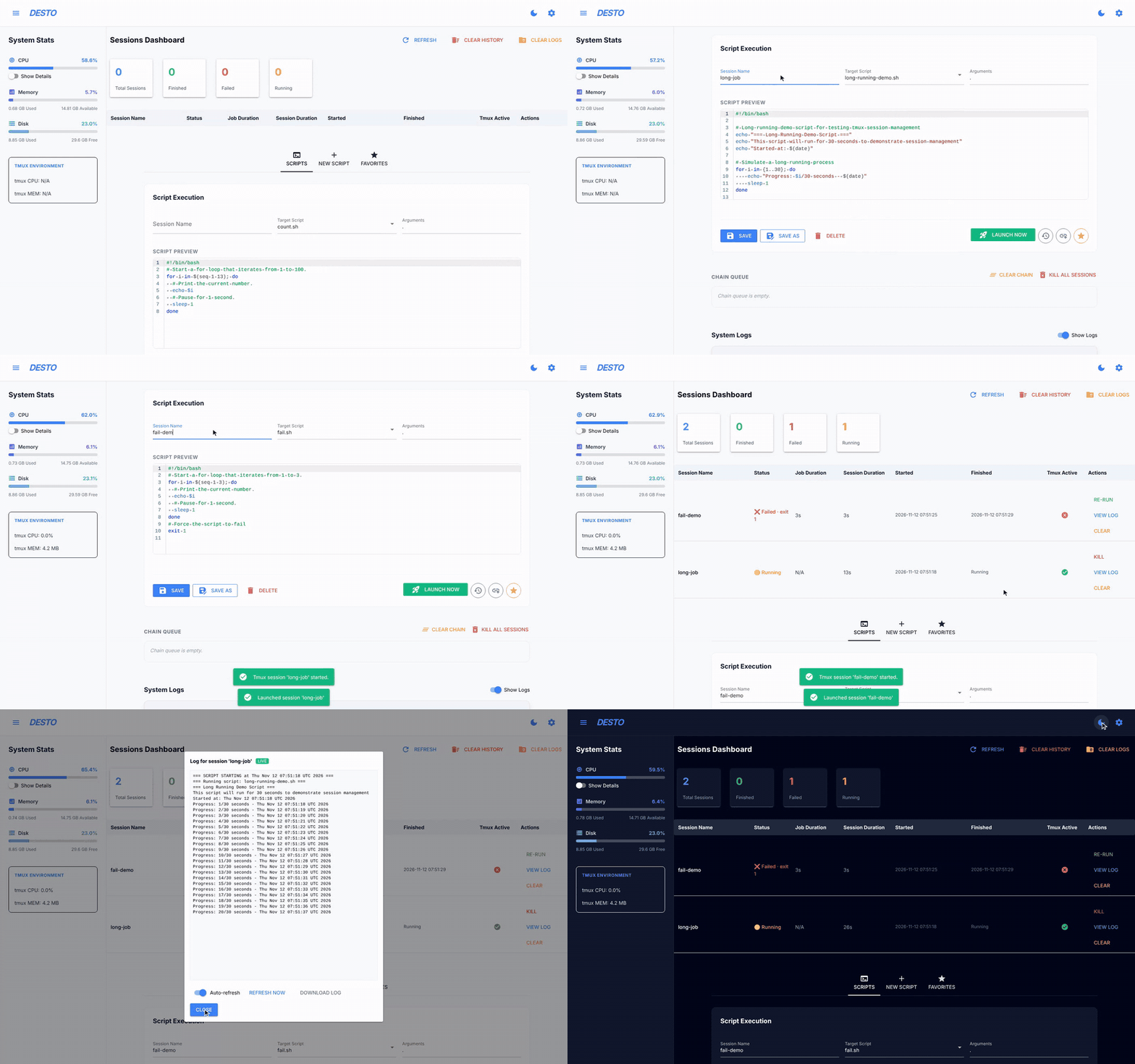
Want to click around yourself? Open the interactive demo in your browser. It runs on simulated data, so nothing is installed or executed.
🤔 Why desto?
You have a box somewhere (a home server, a VPS, a lab workstation, your laptop) and scripts that take a while: a model training run, a nightly backup, a scraper, a data pipeline. Running them in tmux works, but checking on them means logging in, finding the right session and scrolling through output.
desto puts all of that in one page:
- Start a script in two clicks. Pick it, name the session, hit Launch. It keeps running in
tmuxafter you close the tab. - See everything at a glance. Running, finished and failed sessions with exit codes, durations and live system stats.
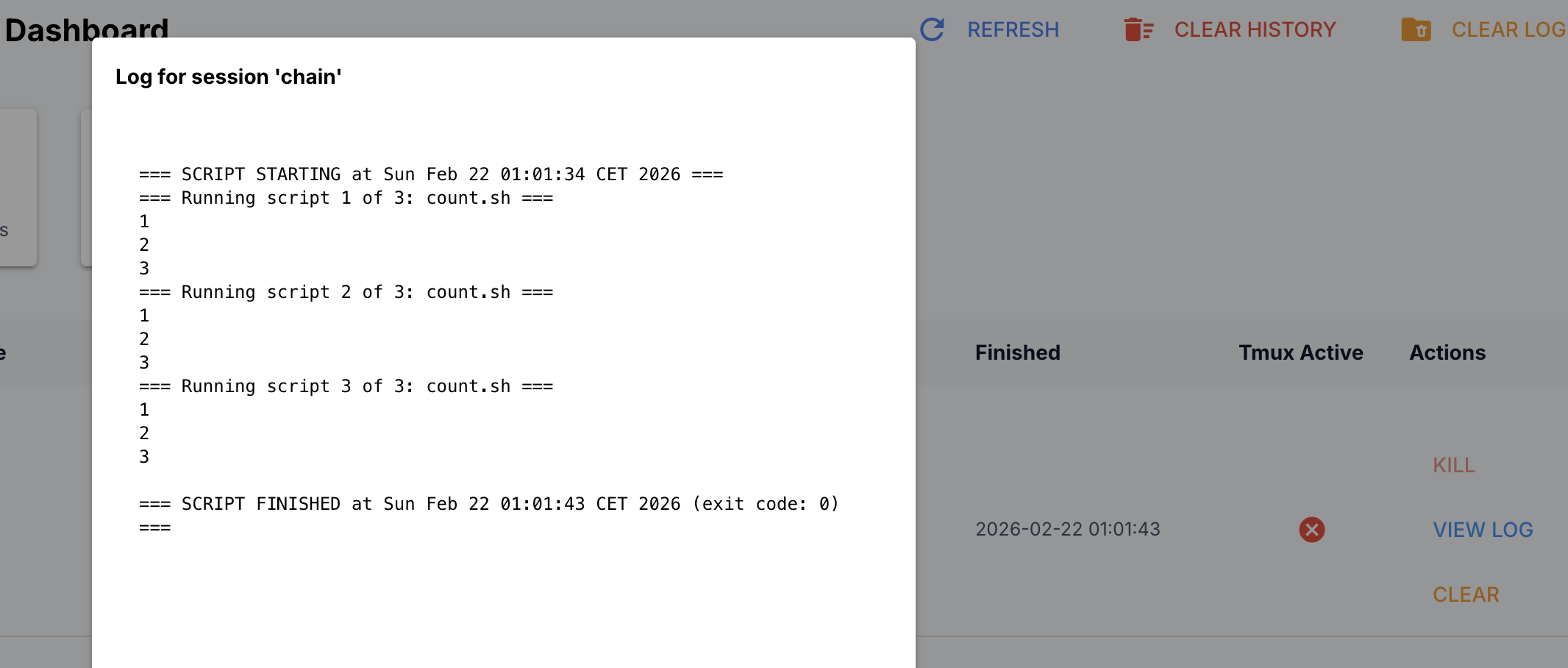
- Read logs as they happen. Open any session's output while it is still running, or long after it finished.
- Automate the boring parts. Chain scripts, schedule them for later or on repeat, and get a phone notification when they're done.
⚡ Quick start
Just looking? Try the live demo first. It's a click-through copy of the dashboard with simulated sessions, so you can launch a script, watch one fail and switch to dark mode without installing anything.
Pick one way to install. Each comes with its matching uninstall.
🚀 One-line installer (Linux and macOS)
Sets up everything desto needs (tmux, at, Redis, uv) and then desto itself. Read the script first if you like.
curl -LsSf https://raw.githubusercontent.com/kalfasyan/desto/main/install.sh | sh
Uninstall: uv tool uninstall desto
🐳 Docker Compose
Everything runs in containers, Redis included. You only need Docker.
git clone https://github.com/kalfasyan/desto.git && cd desto
docker compose up -d
Use the terminal UI or CLI inside the container: docker compose exec dashboard uv run desto-tui
Uninstall, from inside the desto folder (copy out any scripts you want to keep first):
docker compose down -v --rmi all && cd .. && sudo rm -rf desto
🐍 With uv or pip
First install Python 3.11+, tmux, at and Redis, and make sure Redis is running. On Debian/Ubuntu that's sudo apt install tmux at redis-server. Then:
uv tool install desto # or: pip install desto
Uninstall: uv tool uninstall desto (or pip uninstall desto)
▶️ Run it
desto        # web dashboard at http://localhost:8809
desto-tui    # the same, in your terminal
desto creates desto_scripts/ and desto_logs/ in the current directory. Drop your .sh and .py files into desto_scripts/ and they show up.
Installing from source, other distros, and what each uninstall leaves behind are in the installation guide.
🔄 Start desto automatically on boot (systemd)
For non-Docker installs, the CLI can install a systemd service:
# As a user service (recommended)
desto-cli service install

# Or as a system service
sudo desto-cli service install --system
Docker Compose users don't need this: the containers' restart policy already starts desto on boot.
🐳 Handy Docker Compose commands
docker compose logs -f           # follow the logs
docker compose up -d --build     # rebuild after pulling changes
docker compose down              # stop and remove the containers
✨ Features
| 🚀 Run | Launch bash (.sh) and Python (.py) scripts as tmux sessions. Pass arguments, re-run finished jobs, or kill running ones. |
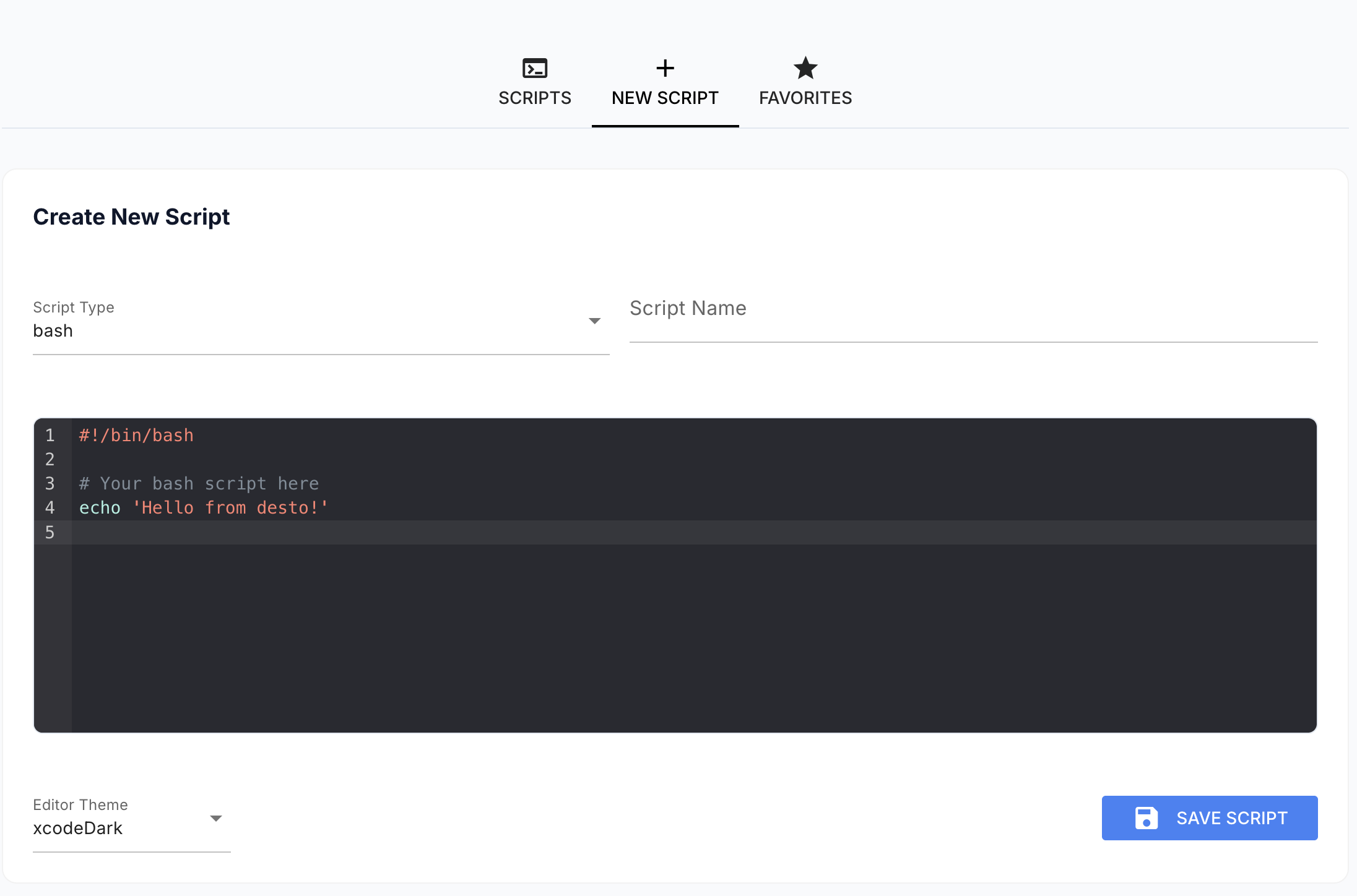
| ✍️ Write | Create, edit, save and delete scripts in a built-in editor with syntax highlighting and bash/Python templates. Or paste what your favorite LLM wrote. 😉 |
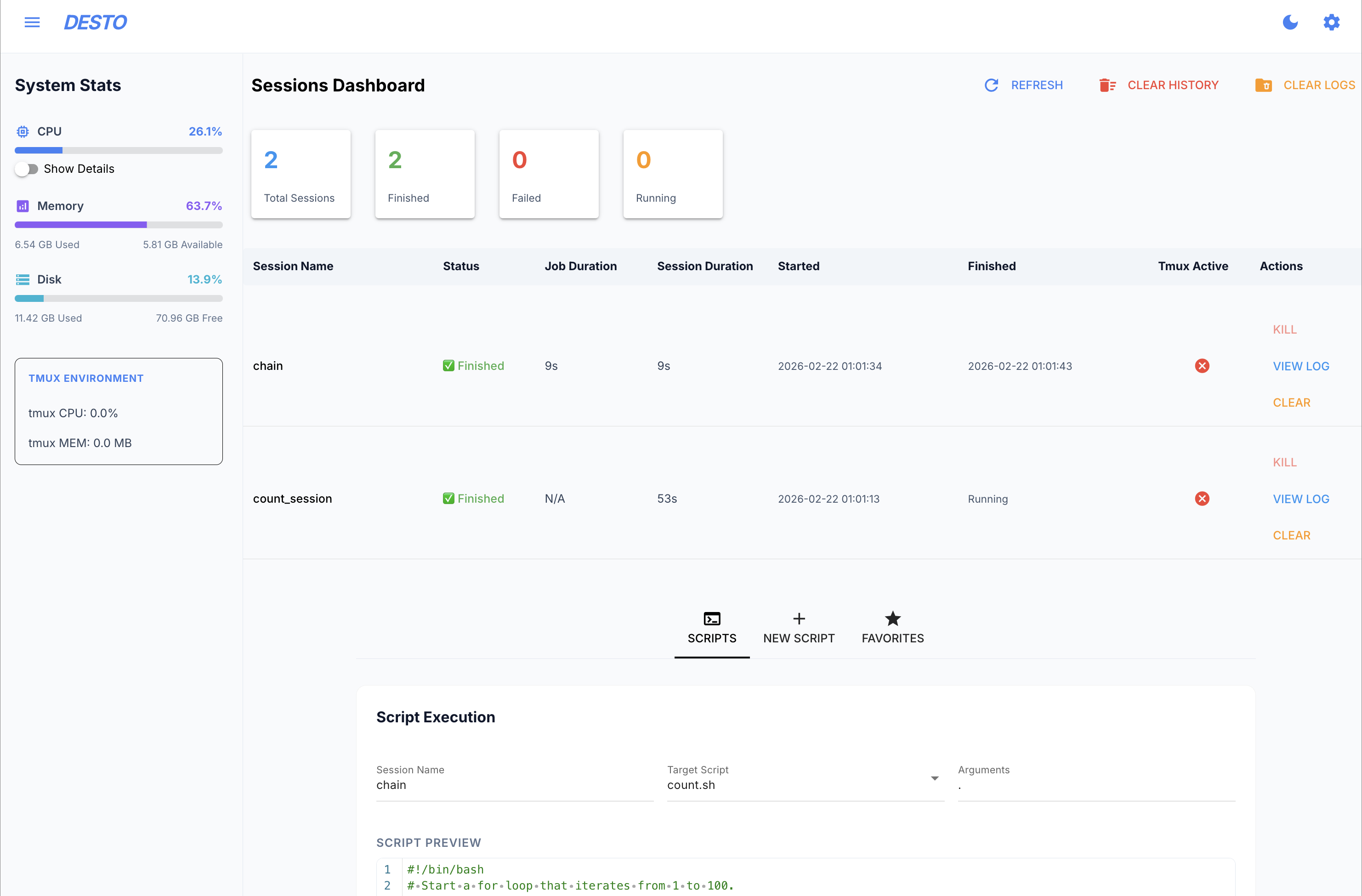
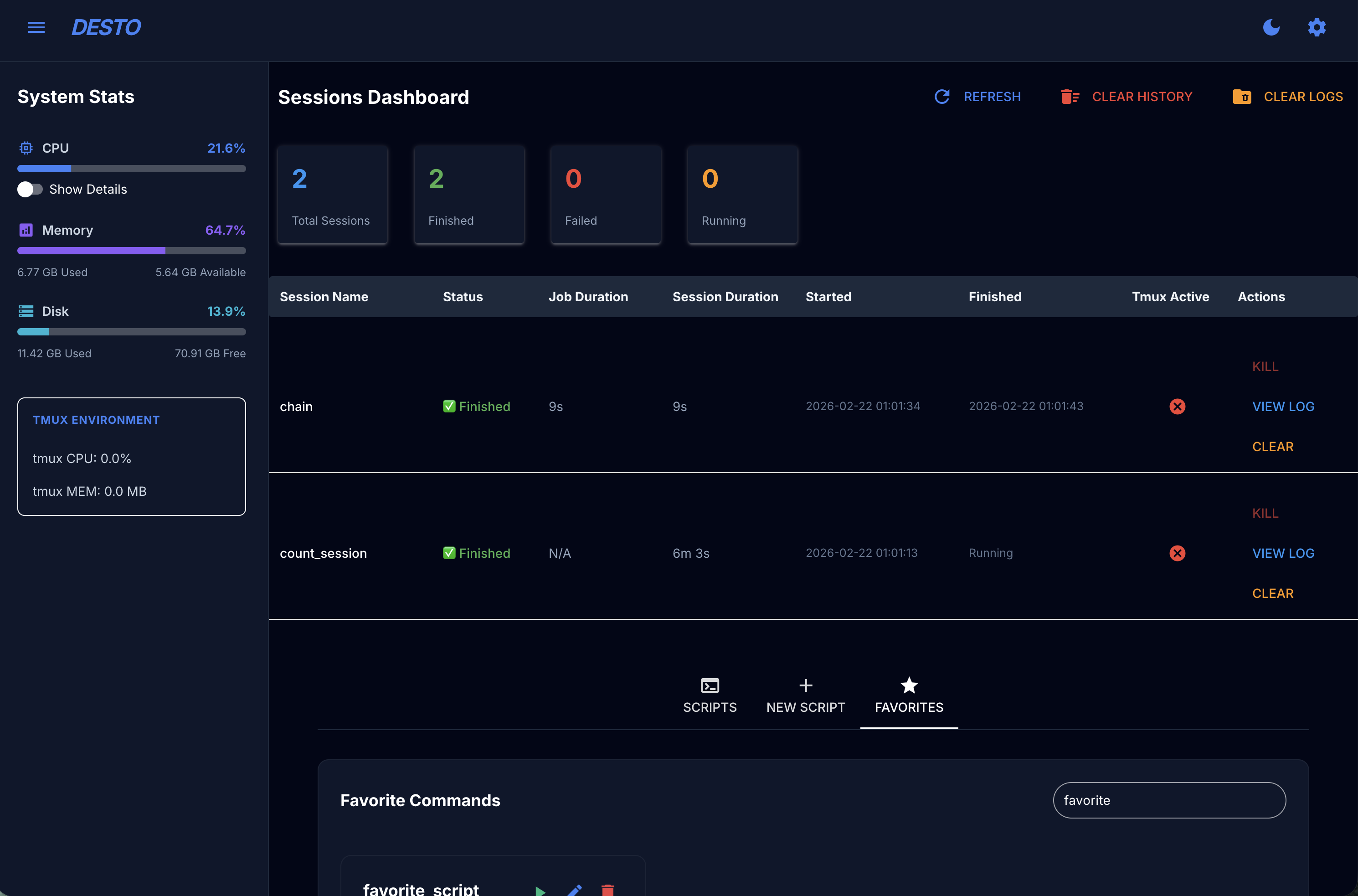
| 👀 Monitor | A live sessions table with status, exit code, job and session duration, plus CPU, memory and disk usage of the host. |
| 📜 Logs | Live-updating log viewer for every session, with download. Logs are kept on disk after the session ends. |
| 🔗 Chain | Queue several scripts to run one after another in a single session. |
| ⏰ Schedule | Launch a script or chain at a set date and time, once or every N minutes, hours, days or weeks. Cancel scheduled jobs with one click. Learn more → |
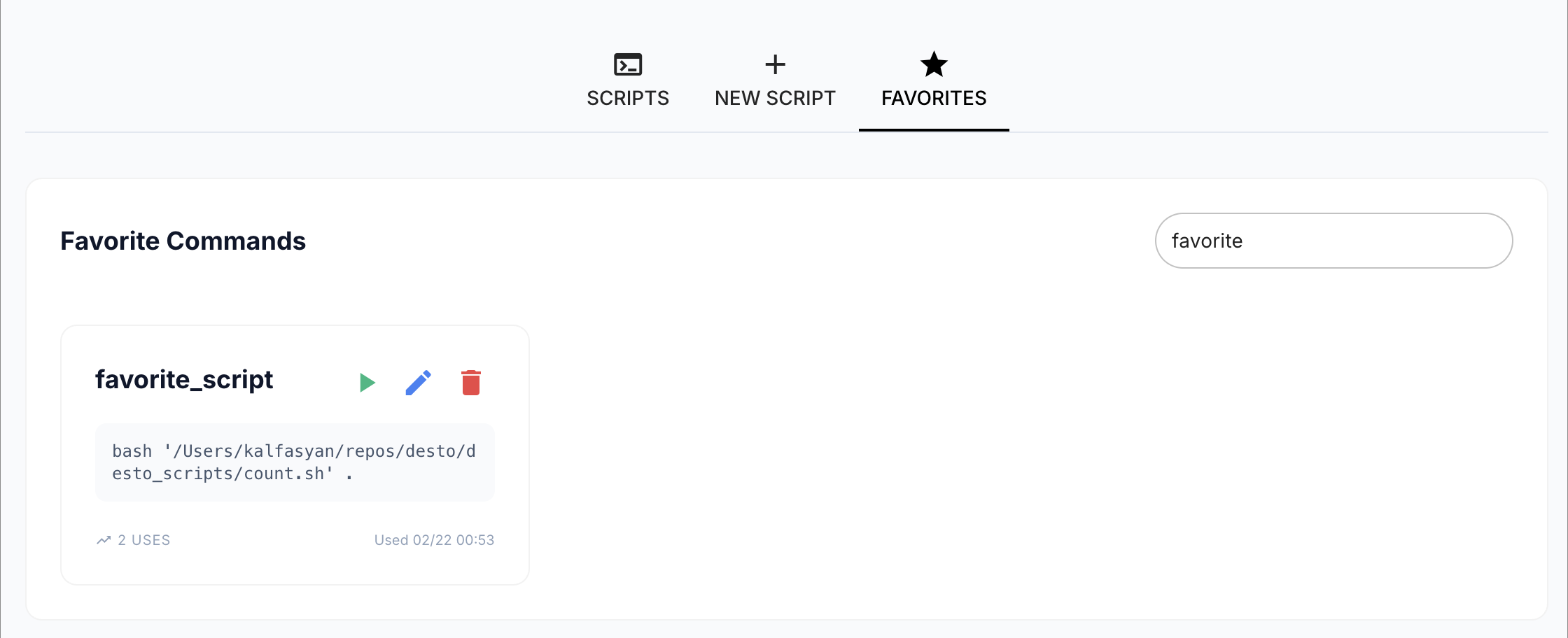
| ⭐ Favorites | Save frequently used commands, search them, and see how often you run each one. Learn more → |
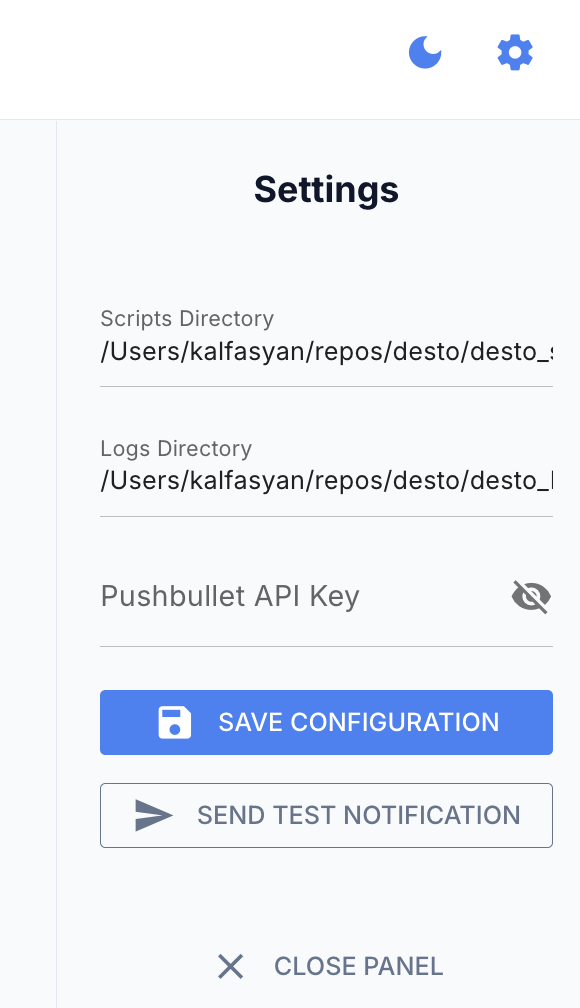
| 🔔 Notify | Optional Pushbullet push to your phone or desktop when a job finishes, with its exit code. Set DESTO_PUSHBULLET_API_KEY or add the key in Settings. |
| 🗄️ History | Session tracking in Redis, plus an optional SQLite store that keeps history forever. Learn more → |
| 🔒 Secure | Listens on localhost by default, with an optional password login. See Security. |
| ⌨️ Terminal UI | The whole dashboard in your terminal with desto-tui, great over ssh. See below. |
| 🖥️ CLI | Scriptable commands with desto-cli. See below. |
| 🌙 Dark mode | One click, top right. |
📸 Screenshots
👀 Dashboard
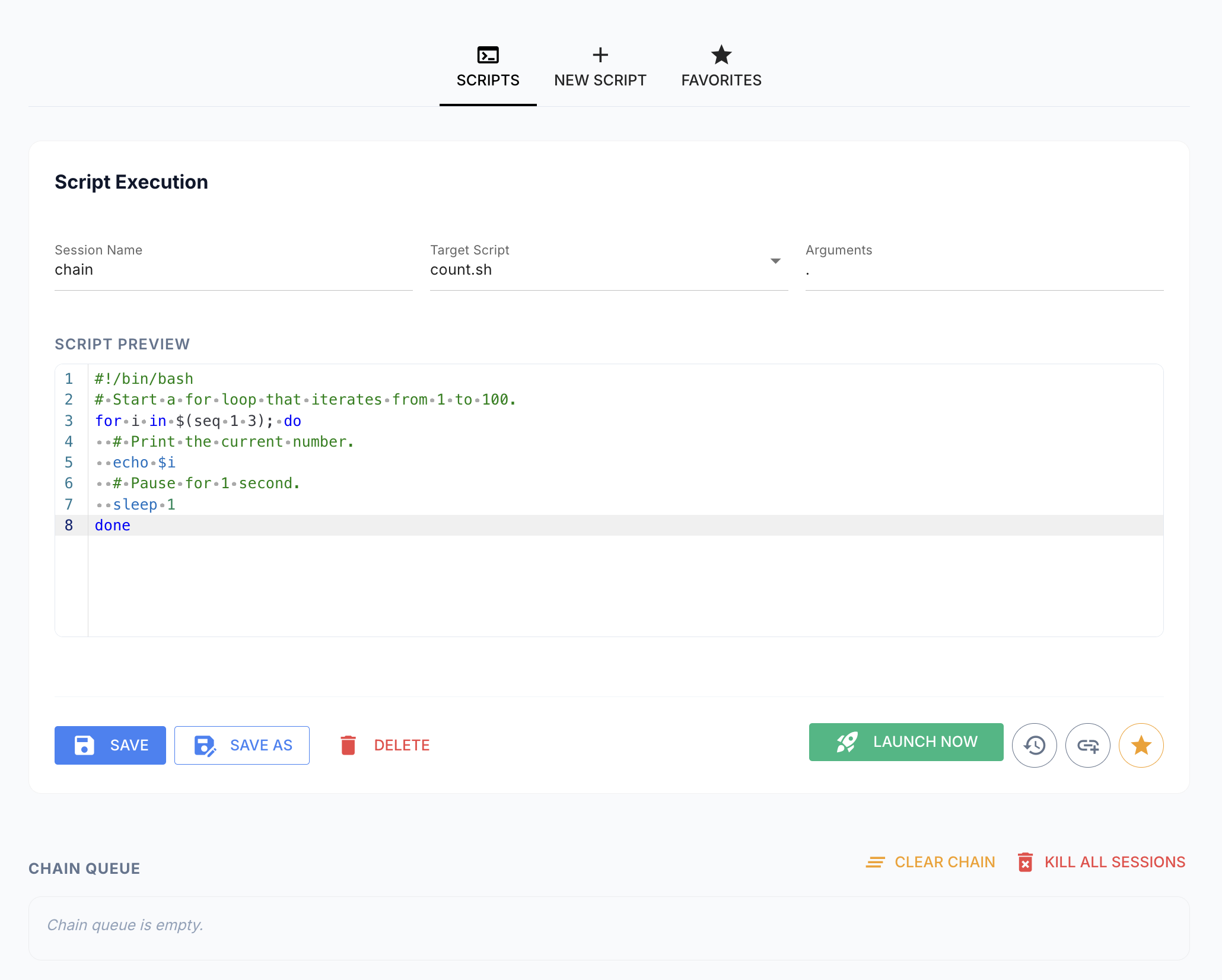
🚀 Launch a script
Name the session, pick a script, optionally edit it, and click Launch.
✍️ Write a new script
📜 View logs
⭐ Favorite commands
⚙️ Settings
🌙 Dark mode
🔒 Security
desto can run any command on the machine it runs on, so treat the dashboard like a shell.
- Localhost by default. The dashboard listens on
127.0.0.1. SetDESTO_HOST=0.0.0.0to accept connections from other machines. (Earlier versions listened on all interfaces, so set this to keep that behavior after upgrading.) - Password login. Set
DESTO_PASSWORDto require a password for every page. A log-out button appears in the header. - Startup warning. desto logs a warning when it is reachable from the network without a password.
- Use TLS on the internet. The dashboard serves plain HTTP. Put it behind a reverse proxy that terminates TLS before exposing it beyond your network.
Docker Compose sets DESTO_HOST=0.0.0.0 inside the container but publishes port 8809 (and Redis on 6380) on 127.0.0.1 only. To open the dashboard to other machines, change the mapping to "8809:8809" and uncomment DESTO_PASSWORD in docker-compose.yml.
⚙️ Configuration
The most common settings, all set through environment variables:
| Variable | Default | Description |
|---|---|---|
DESTO_HOST |
127.0.0.1 |
Interface to listen on. Use 0.0.0.0 for all interfaces. |
DESTO_PORT |
8809 |
Port to listen on. |
DESTO_PASSWORD |
(unset) | Turns on the login page when set. |
DESTO_STORAGE_SECRET |
(random per start) | Signs the session cookie. Set a fixed value to stay logged in across restarts. |
DESTO_SCRIPTS_DIR |
./desto_scripts |
Where your scripts live. |
DESTO_LOGS_DIR |
./desto_logs |
Where session logs are written. |
REDIS_HOST / REDIS_PORT |
localhost / 6379 |
Redis server to connect to. |
SQLITE_ENABLED |
false |
Keep session history in SQLite as well, so it outlives Redis's 7-day expiry. |
DESTO_PUSHBULLET_API_KEY |
(unset) | Pushbullet key for finish/fail notifications. |
See the configuration reference for the full list.
⌨️ Terminal UI
Prefer the terminal? desto-tui is the dashboard as a keyboard-driven terminal app: launch, chain and schedule scripts, follow logs live, attach to a session's tmux, kill, re-run and manage favorites, all without a browser. It works on the same sessions as the web dashboard, so you can use both.
desto-tui
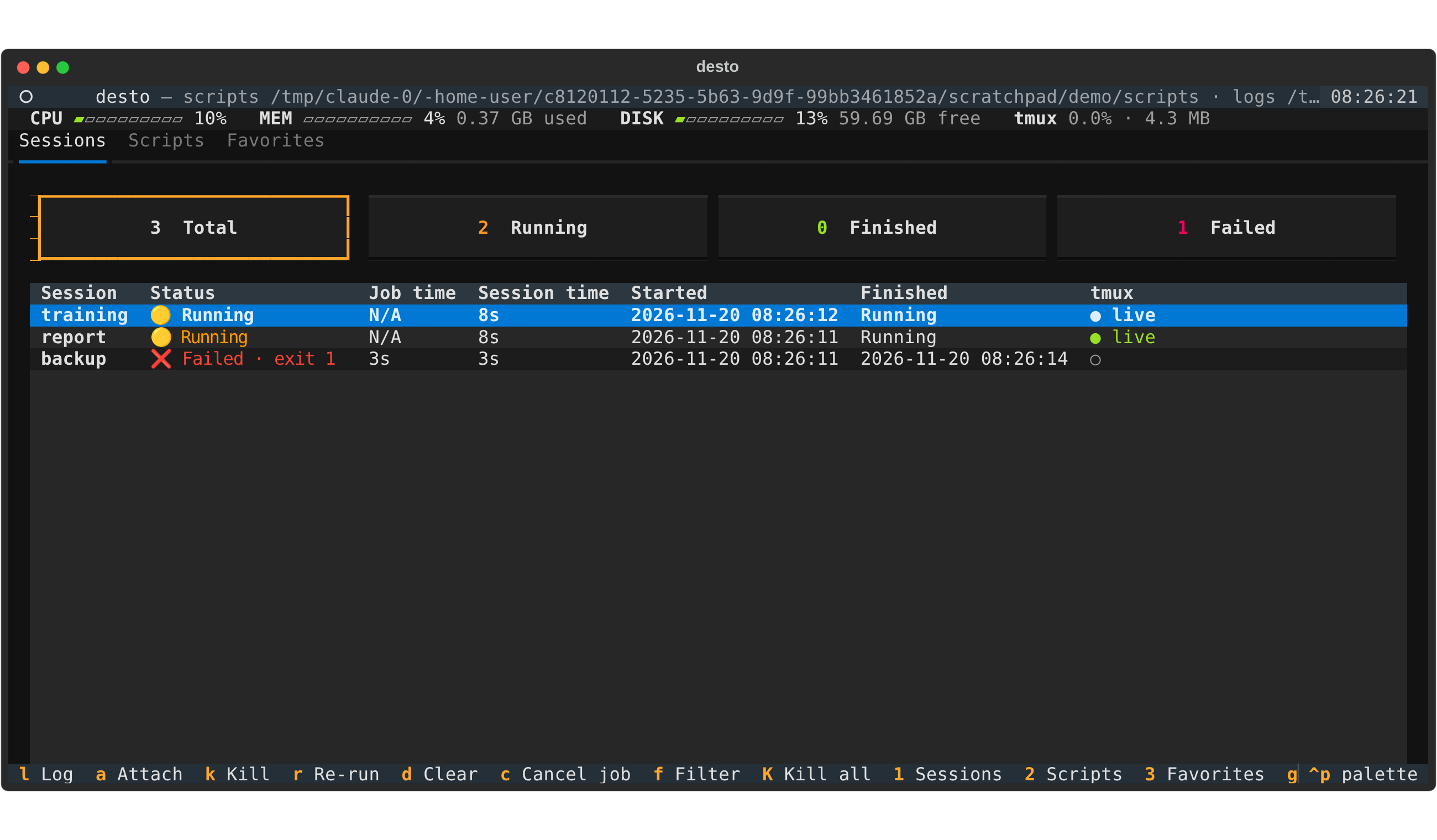
Press 1 2 3 to switch between Sessions, Scripts and Favorites, and ? to see every key. 📖 Terminal UI guide →
🖥️ Command-line interface
desto-cli gives you the dashboard's features in the terminal, with rich formatting and live log following.

desto-cli doctor                                         # check tmux, Python and Redis
desto-cli sessions list                                  # list sessions
desto-cli sessions start "my-task" "python my_script.py" # start a command in a new session
desto-cli sessions logs "my-task"                        # view its logs
desto-cli sessions kill "my-task"                        # stop it

desto-cli scripts list                                   # list your scripts
desto-cli scripts create "my_script" --type python       # create a new script
desto-cli scripts edit "my_script"                       # open it in $EDITOR
desto-cli scripts run "my_script"                        # run it in a tmux session
desto-cli scripts run "my_script" --direct               # or run it right here
🗺️ Roadmap
- Pause and resume processes running inside a session
Have an idea? Open an issue.
🤝 Contributing
Contributions are welcome! Have a look at CONTRIBUTING.md to get started, and please report security issues as described in SECURITY.md.
☕ Support
If desto saves you some terminal gymnastics, you can buy me a coffee.
📄 License

This work is licensed under a Creative Commons Attribution 4.0 International License.
1 maintainer

Metadata
1 maintainer
Release files for desto 0.9.1
For a detailed explanation of source distributions (sdists) and built distributions (wheels), please see the package formats documentation.
Source distribution (sdist)
| File | Size | Uploaded | Provenance | Actions |
|---|---|---|---|---|
| desto-0.9.1.tar.gz | 6.5 MB | With provenance | Details for desto-0.9.1.tar.gz |
Built distribution (wheel)
| File | Interpreter | ABI | Platform | Actions Reset |
|---|---|---|---|---|
| desto-0.9.1-py3-none-any.whl | Python 3 | none | any | Details for desto-0.9.1-py3-none-any.whl |
Total release size: 6.7 MB
Release files / desto-0.9.1.tar.gz
| Download URL | desto-0.9.1.tar.gz |
|---|---|
| Size | 6.5 MB |
| Tags | Source |
|
SHA-256 checksum How to use checksums |
5e80b5269e6d1d0df994365250675724ac9414b592df4684ae8faa49fbe06b84
|
|
BLAKE2b-256 checksum How to use checksums |
223853abdd46596fbcbe2fecf152a63a9b56e85eb0b194bbb945f6a6911f5fa1
|
| Upload date | |
|
Uploaded using Trusted Publishing? What is trusted publishing? |
Yes |
| Uploaded via |
twine/7.0.0 CPython/3.13.16
|
Provenance
Provenance describes where a file came from. On PyPI, provenance is shared via attestations, which provide a verifiable record of the build or publishing details. View details, limitations and caveats.


PyPI Publish Attestation
PyPI verified that this artifact, at this checksum, originated from the publisher listed below.
Signed by GitHub Actions, verified by PyPI on Nov 23, 2026.
Transparency logRelease files / desto-0.9.1-py3-none-any.whl
| Download URL | desto-0.9.1-py3-none-any.whl |
|---|---|
| Size | 138.5 kB |
| Tags | Python 3 |
|
SHA-256 checksum How to use checksums |
6727d0ba25c0d660cb2daa123daccbf9ea5065910eebc8192a7ab4a5b87e845f
|
|
BLAKE2b-256 checksum How to use checksums |
d7bc9571bc195a9f2be6a5b0ad6fbef9f262338c4b434974d3e251331decbc6b
|
| Upload date | |
|
Uploaded using Trusted Publishing? What is trusted publishing? |
Yes |
| Uploaded via |
twine/7.0.0 CPython/3.13.16
|
Provenance
Provenance describes where a file came from. On PyPI, provenance is shared via attestations, which provide a verifiable record of the build or publishing details. View details, limitations and caveats.
PyPI Publish Attestation
PyPI verified that this artifact, at this checksum, originated from the publisher listed below.
Signed by GitHub Actions, verified by PyPI on Nov 23, 2026.
Transparency logSecurity for desto 0.9.1
Provenance
Provenance describes where a file came from. On PyPI, provenance is shared via attestations, which provide a verifiable record of the build or publishing details. View details, limitations and caveats.
Full provenance
Both files in this release have been uploaded with provenance metadata.
Attestation for desto-0.9.1.tar.gz
PyPI Publish Attestation
PyPI verified that this artifact, at this checksum, originated from the publisher listed below.
Signed by GitHub Actions, verified by PyPI on Nov 23, 2026.
Transparency logA note on package security
PyPI is a repository for distributing packages, not a service for auditing them. While third-party security researchers and our staff do their best to detect and remove malicious packages, PyPI cannot guarantee the quality, security or suitability of any given package.
To learn more about protecting yourself from malicious actors, visit our package security documentation.














