
Python REPL/API for accessing dimensions.ai.

Project description
- Dimcli
Dimcli
In a nutshell
Dimcli is a Python client for accessing the Dimensions Analytics API. It makes it easier to authenticate against the API, send queries to it and process the JSON data being returned.
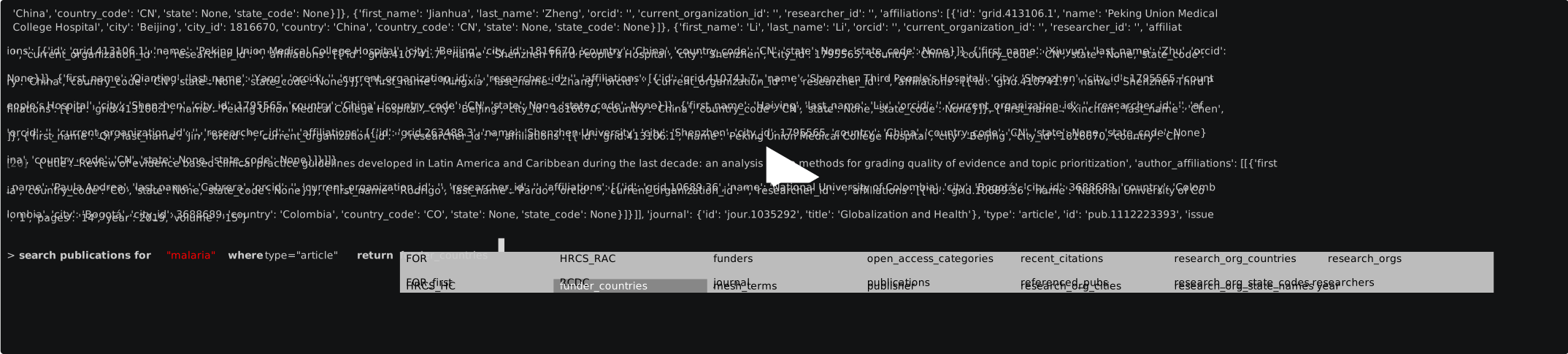
Dimcli includes also a command line interface (CLI) that aims at simplifying the process of learning the grammar of the Dimensions Search Language (DSL). Calling dimcli from the terminal opens an interactive query console with syntax autocomplete, persistent history across sessions, pretty-printing and preview of JSON results, export to HTML and CSV, and more.
Current version: see pypi homepage. Source code hosted on github.
Installation
Install / upgrade the package as follows:
$ pip install dimcli -U
Then you can check if the installation worked with
$ dimcli --help
Anaconda users
There's been reports of Dimcli failing to install on Anacoda. This can be solved by updating manually a couple of libraries Dimcli relies on:
pip install prompt-toolkit -Upip install ipython -U
Authentication
After installation it's strongly advised to create a configuration file with your Dimensions account credentials. This can be done only once, and it'll save you from having to type in credentials each time you use DimCli. E.g.
>>> import dimcli
>>> dimcli.login() # config file is picked up automatically
If you can't create a configuration file you can explicitly provide log in credentials as follows (see also the Python section for more options).
>>> import dimcli

# you can specify endpoint, which by default is set to "https://app.dimensions.ai"
>>> dimcli.login(user="mary.poppins",
                 password="chimneysweeper",
                 endpoint="https://app.dimensions.ai")
Creating a credentials file using the helper script (recommended)
The easiest way to set up the authentication file is to use the command line helper:
$ dimcli --init
The helper will guide you through the process of creating this file, which will be safely stored in your computer home folder. That's it - you're ready to hit the API! See below for more info on how to do that.
Creating a credentials file manually
This section provides more details about where DimCli expects credentials data to be found, in case you want to set this up manually.
The credentials file must be called dsl.ini and located in your user directory in the .dimensions folder. If you want to set this up manually, this is what you'd do on unix systems:
$ mkdir ~/.dimensions
$ touch ~/.dimensions/dsl.ini
Then open dsl.ini with a text editor. Its contents should look like this:
[instance.live]
url=https://app.dimensions.ai
login=user@mail.com
password=yourpasswordhere
In most situations you can simply copy/paste the text above and change the login and password as needed.
Note: you must always have an entry in the configuration called
[instance.live]
Overriding credentials at runtime (e.g. with Jupyter Notebooks)
If you are using DimCli within a Jupyter notebook and you do not want (or can) set up credentials at the user level, you can simply put a dsl.ini file in the current working directory (= where the notebook is located).
The file should look like this:
[instance.live]
url=https://app.dimensions.ai
login=user@mail.com
password=yourpasswordhere
Note: the same-directory credentials will take precedence over any system-level credentials previously defined.
Using multiple API endpoints (for advanced users)
If you have access to multiple Dimensions API endpoints (or instances), you can just add more entries to the credentials file.
You can add details for more than one instance but make sure you give them unique names. So for example you can add another entry like this:
[instance.private]
url=https://private-instance.dimensions.ai
login=user@mail.com
password=yourpasswordhere
Then when running the CLI you can select which instance to use just by passing its name as argument eg
$ dimcli private
Dimcli as a Command Line Interface
DimCli includes a handy Command Line Interface (CLI) which lets you query the Dimensions API interactively. The CLI has several features but, most importantly, it allows to use the TAB key to autocomplete your queries (based on the latest API syntax and fields), which makes it an ideal tool for both newbies and expert users.
Run the command line application by typing
$ dimcli
That'll launch the DimCli console, where you can hit help in case you need more support :-)

Dimcli with Jupyter Notebooks
DimCli includes a number of features that simplify working with the Dimensions API within a Jupyter notebook.
For example, it contains a couple of magic commands that make it super easy to hit the API from a notebook, or to explore the documentation.
For more information and examples see the notebooks available in the official Dimensions API Lab repository.
Dimcli as a Python module
Dimcli can be used as a wrapper around the Dimensions API within a Python program. It makes it easier to authenticate, query the Dimensions endpoint and handle the results, normally returned as JSON.
>>> import dimcli

# if you have already set up the credentials file (see above), no need to pass log in details
>>> dimcli.login()

# otherwise you can authenticate by passing your login details as arguments
>>> dimcli.login(user="mary.poppins", password="chimneysweeper")

# you can specify endpoint, which by default is set to "https://app.dimensions.ai"
>>> dimcli.login(user="mary.poppins", password="chimneysweeper", ednpoint="https://nannies-research.dimensions.ai")
Once logged in, you can get a query object and try some queries:
>>> dsl = dimcli.Dsl()

# queries always return a Result object (subclassing IPython.display.JSON)
>>> dsl.query("search grants for \"malaria\" return publications")
<dimcli.dimensions.Result object>

# use the .data method to get the JSON
>>> dsl.query("search grants for \"malaria\" return publications").data
{'errors': {'query': {'header': 'Semantic Error',
   'details': ["Semantic errors found:\n\tFacet 'publications' is not present in source 'grants'. Available facets are: FOR,FOR_first,HRCS_HC,HRCS_RAC,RCDC,active_year,funder_countries,funders,funding_org_acronym,funding_org_city,funding_org_name,language,research_org_cities,research_org_countries,research_org_name,research_org_state_codes,research_orgs,researchers,start_year,title_language"],
   'query': 'search grants for "malaria" return publications'}}}

# now a good query
>>> res = dsl.query("search grants for \"malaria\" return researchers")
>>> print(res.data)
{'researchers': [{'id': 'ur.01332073522.49',
   'count': 75,
   'last_name': 'White',
   'first_name': 'Nicholas J'},
  {'id': 'ur.01343654360.43',
   'count': 59,
   'last_name': 'Marsh',
   'first_name': 'Kevin'},
  .............
  ],
 '_stats': {'total_count': 8735}}

# JSON keys are available also as dict attributes
>>> res['researchers'][0]
{'id': 'ur.01332073522.49',
 'count': 75,
 'last_name': 'White',
 'first_name': 'Nicholas John'}
# note: res.['researchers'] is also allowed!

# so now let's pull out all names and surnames
>>> [x['first_name'] + " " + x['last_name'] for x in res['researchers']]
['Nicholas John White',  'Kevin Marsh',
 'Nicholas Philip John Day', 'Takafumi Tsuboi',
 'Malcolm Edward Molyneux', 'Kazuyuki Tanabe',
 'Stephen Lev Hoffman', 'Toshihiro Horii',
 'Louis H Miller', 'Francois Henri Nosten',
 'Motomi Torii', 'Alan Frederick Cowman',
 'Patrick Emmet Duffy', 'Satoru Kawai',
 'Alister Gordon Craig', 'Fumihiko Kawamoto',
 'Makoto Hirai', 'Marcelo Urbano Ferreira',
 'Osamu Kaneko', 'Yusuke Wataya']
Comments, bug reports
Dimcli lives on Github. You can file issues or pull requests there. Suggestions, pull requests and improvements welcome!
Release history Release notifications | RSS feed


Download files
Download the file for your platform. If you're not sure which to choose, learn more about installing packages.
Source Distribution
Built Distribution
Filter files by name, interpreter, ABI, and platform.
If you're not sure about the file name format, learn more about wheel file names.
Copy a direct link to the current filters
File details
Details for the file dimcli-0.5.8.1.tar.gz.
File metadata
- Download URL: dimcli-0.5.8.1.tar.gz
- Upload date:
- Size: 54.4 kB
- Tags: Source
- Uploaded using Trusted Publishing? No
- Uploaded via: twine/1.13.0 pkginfo/1.5.0.1 requests/2.21.0 setuptools/41.0.1 requests-toolbelt/0.9.1 tqdm/4.31.1 CPython/3.7.4
File hashes
| Algorithm | Hash digest | |
|---|---|---|
| SHA256 |
8df8992b52c12a749e540ee2f642bfe9747971a14f36a6bc0922ae5ae65f7720
|
|
| MD5 |
cdbd582da36e3d4fb040fc1a31ba06b2
|
|
| BLAKE2b-256 |
d5292bdb3e5a09930c4690df235bf10027b8d6cc68267cfe80c7c93d705f5028
|
File details
Details for the file dimcli-0.5.8.1-py2.py3-none-any.whl.
File metadata
- Download URL: dimcli-0.5.8.1-py2.py3-none-any.whl
- Upload date:
- Size: 114.5 kB
- Tags: Python 2, Python 3
- Uploaded using Trusted Publishing? No
- Uploaded via: twine/1.13.0 pkginfo/1.5.0.1 requests/2.21.0 setuptools/41.0.1 requests-toolbelt/0.9.1 tqdm/4.31.1 CPython/3.7.4
File hashes
| Algorithm | Hash digest | |
|---|---|---|
| SHA256 |
662af6051932f4bb9e8fc0063d75c9bce6259948dee2215463756df7de0400db
|
|
| MD5 |
fadb2fc69cf7f1ab9f0f7fbfcf90be32
|
|
| BLAKE2b-256 |
80d405a3fae60b006937e51b40d02826488c20969ba2462a2902e0eca9b1d01c
|






