
A modern Django dashboard built with DaisyUI

Project description
Django Daisy

Live Demo https://hypy13-django-daisy.hf.space/en/admin/
Username: demo
Password: demo
for RTL mode: https://hypy13-django-daisy.hf.space/fa/admin/

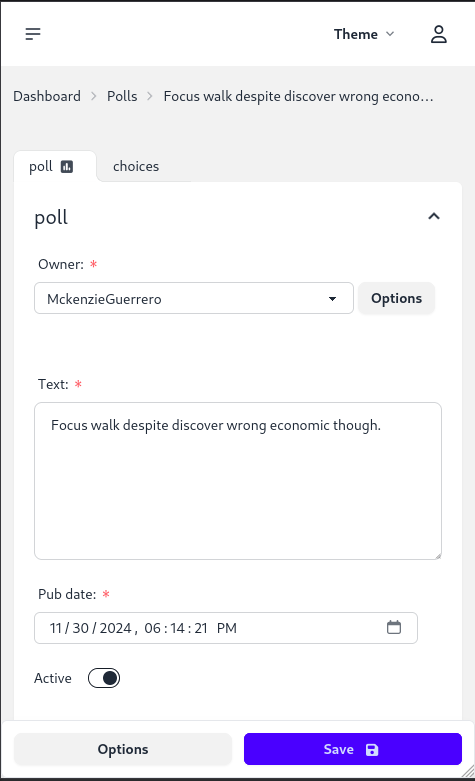
Django Daisy is a modern, sleek, and highly responsive admin dashboard built with DaisyUI and TailwindCSS. It brings a polished and user-friendly interface that scales beautifully across devices, from mobile to desktop, making your admin experience fast and efficient.
Documentation:
https://hypy13.github.io/django-daisy-docs/
✨ Key Features
- 🌍 Responsive Design: Perfectly adapts to all screen sizes, ensuring a seamless user experience across mobile, tablet, and desktop devices.
- 🔄 RTL Support: Complete right-to-left language support, with a clean and consistent layout for RTL users.
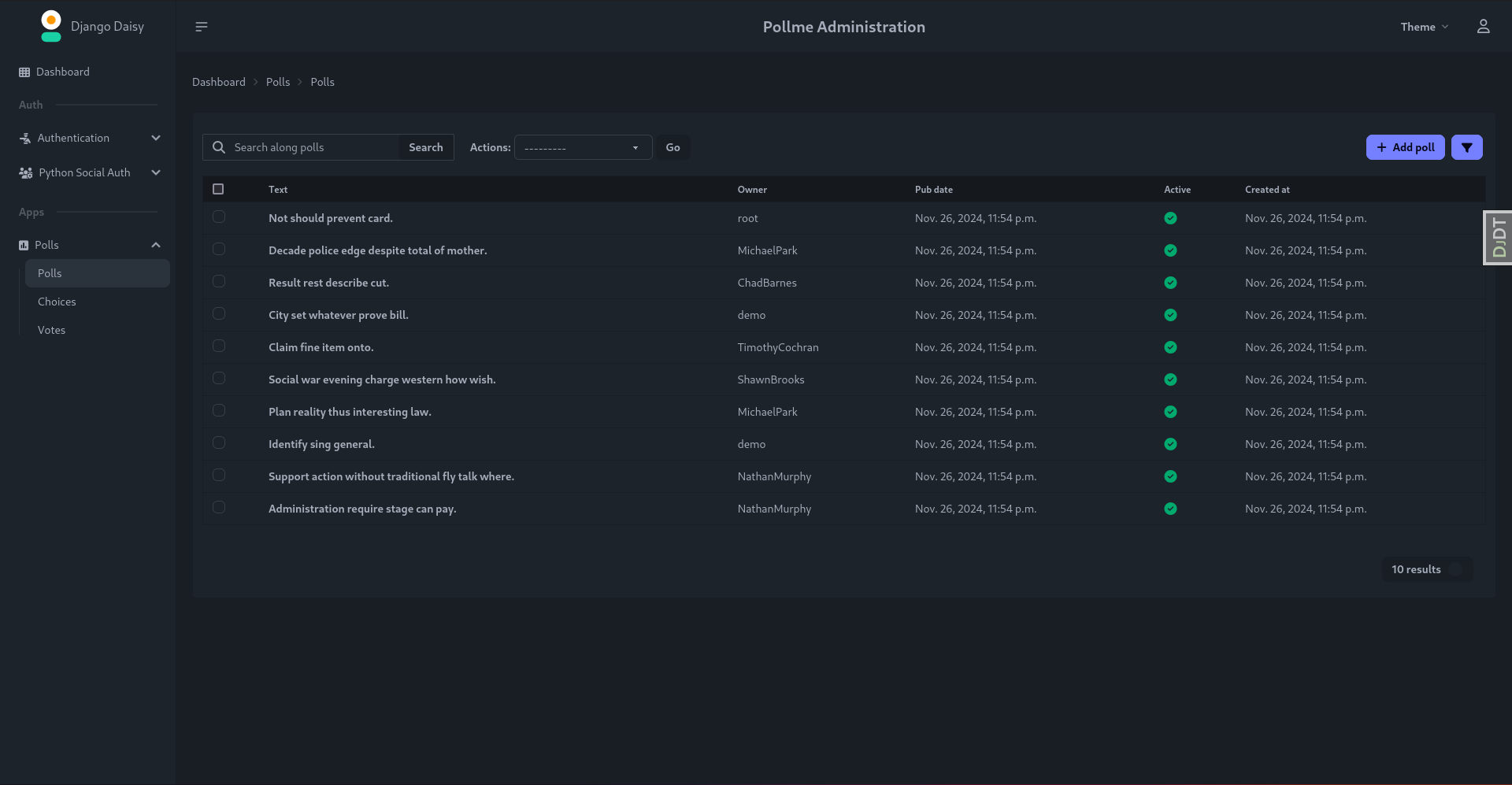
- 🎨 Multi-Theme Support: Effortlessly switch between themes to match your brand identity or personal style.
- 🚀 Enhanced UX/UI: Experience an optimized interface with tabbed inline admin panels for better organization and usability.
- 📝 Tabbed Inline Admin: Manage related data more efficiently with tabbed inline admin sections, improving organization and accessibility.
- 🔍 Advanced Admin Filtering: Utilize multi-value filters for fast and precise navigation through admin lists.
⚙️ Compatibility
- Django 3.2 - 5.1.1 are fully supported.
🚧 Upcoming Features
Stay tuned! Continuous improvements and new features are regularly added to enhance your experience.
📦 Installation
Option 1: Install via PyPi
pip install django-daisy
Option 2: Install as an editable GitHub source
pip install -e git+https://github.com/hypy13/django-daisy.git#egg=django-daisy
After installation, add django_daisy to your INSTALLED_APPS in the Django settings file.
INSTALLED_APPS = [
    'django_daisy',
    'django.contrib.admin',
    ...
]
Once you've made these changes, enjoy the fresh new theme!
Project Customizations
1. App Configuration in apps.py
You can configure app-specific settings in the apps.py file for each application within your Django project. Below is an example of how to customize the Polls app:
class PollsConfig(AppConfig):
    name = 'polls'  # The name of the app
    icon = 'fa fa-square-poll-vertical'  # FontAwesome icon for the app (optional)
    divider_title = "Apps"  # Title of the section divider in the sidebar (optional)
    priority = 0  # Determines the order of the app in the sidebar (higher values appear first, optional)
    hide = False  # Set to True to hide the app from the sidebar menu (optional)
Explanation:
- name: The name of the app.
- icon: An optional FontAwesome icon to display next to the app name in the sidebar.
- divider_title: The title for the section divider, grouping similar apps together (optional).
- priority: An optional setting that controls the order of apps in the sidebar; higher values appear at the top.
- hide: If set to
True, the app will be hidden from the sidebar menu.
2. Global Customizations in settings.py
You can define various project-wide settings for customizing the Django admin interface in your settings.py file using the DAISY_SETTINGS dictionary. Below is an example configuration:
DAISY_SETTINGS = {
    'SITE_TITLE': 'Django Admin',  # The title of the site
    'SITE_HEADER': 'Administration',  # Header text displayed in the admin panel
    'INDEX_TITLE': 'Hi, welcome to your dashboard',  # The title for the index page of dashboard
    'SITE_LOGO': '/static/admin/img/daisyui-logomark.svg',  # Path to the logo image displayed in the sidebar
    'EXTRA_STYLES': [],  # List of extra stylesheets to be loaded in base.html (optional)
    'EXTRA_SCRIPTS': [],  # List of extra script URLs to be loaded in base.html (optional)
    'LOAD_FULL_STYLES': False,  # If True, loads full DaisyUI components in the admin (useful if you have custom template overrides)
    'SHOW_CHANGELIST_FILTER': False,  # If True, the filter sidebar will open by default on changelist views
    'DONT_SUPPORT_ME': False, # Hide github link in sidebar footer
    'SIDEBAR_FOOTNOTE': '', # add footnote to sidebar
    'APPS_REORDER': {
        # Custom configurations for third-party apps that can't be modified directly in their `apps.py`
        'auth': {
            'icon': 'fa-solid fa-person-military-pointing',  # FontAwesome icon for the 'auth' app
            'name': 'Authentication',  # Custom name for the 'auth' app
            'hide': False,  # Whether to hide the 'auth' app from the sidebar (set to True to hide)
            'divider_title': "Auth",  # Divider title for the 'auth' section
        },
        'social_django': {
            'icon': 'fa-solid fa-users-gear',  # Custom FontAwesome icon for the 'social_django' app
        },
    },
}
Explanation:
- SITE_TITLE: Sets the title of your site (visible in the browser tab).
- SITE_HEADER: The header displayed at the top of the Django admin interface.
- INDEX_TITLE: The title shown on the dashboard page of the admin panel.
- SITE_LOGO: Specifies the path to a logo image that appears in the sidebar.
- EXTRA_STYLES: A list of additional CSS files to be loaded into the admin interface (useful for custom styling).
- EXTRA_SCRIPTS: A list of additional JavaScript files to be loaded into the admin interface.
- LOAD_FULL_STYLES: If set to
True, loads the full DaisyUI library for styling, which can be useful if you have overridden the admin templates. - SHOW_CHANGELIST_FILTER: Controls whether the changelist filter sidebar is shown by default.
- DONT_SUPPORT_ME: Hide github link in sidebar footer.
- SIDEBAR_FOOTNOTE: Add footnote to sidebar.
- APPS_REORDER: This allows you to reorder, customize, and modify third-party apps. For example, you can change the name of the
authapp tousers, provide a custom icon, or hide it from the sidebar entirely.
Using Tabbed Inline Admin
To create a tabbed inline admin interface in your Django project, follow these steps:
-
Import the necessary modules: import NavTabMixin in your
admin.pyfile:from django_daisy.mixins import NavTabMixin
-
Extend
NavTabMixinin yourInlineAdminclass: Create your inline admin class by extendingNavTabMixinalong withadmin.TabularInlineoradmin.StackedInlinefor a different layout:class ChoiceInline(admin.TabularInline, NavTabMixin): # or admin.StackedInline for a different layout model = Choice extra = 1
-
Register your inline admin class: Use the inline admin class in your
ModelAdminclass:@admin.register(Poll) class PollAdmin(admin.ModelAdmin): inlines = [ChoiceInline]
🌐 Enabling Language Change in Admin Panel
To enable language switching directly from the admin panel, follow these steps:
-
Include Django's
set_languageURL
Add the following line to yoururls.pyfile:urlpatterns = [ ..., path("i18n/", include("django.conf.urls.i18n")), # Add this line ]
-
Ensure
LocaleMiddlewareis Enabled
Confirm that the following middleware is included in yourMIDDLEWAREsettings:MIDDLEWARE = [ ..., 'django.middleware.locale.LocaleMiddleware', ... ]
-
Define Supported Language
Specify the languages your application supports insettings.py:LANGUAGES = [ ('en', 'English'), ('fa', 'Farsi'), # Add other languages as needed ]
🤝 Contributing
We welcome contributions from the community! Feel free to submit any issues, suggestions, or pull requests to help improve Django Daisy.
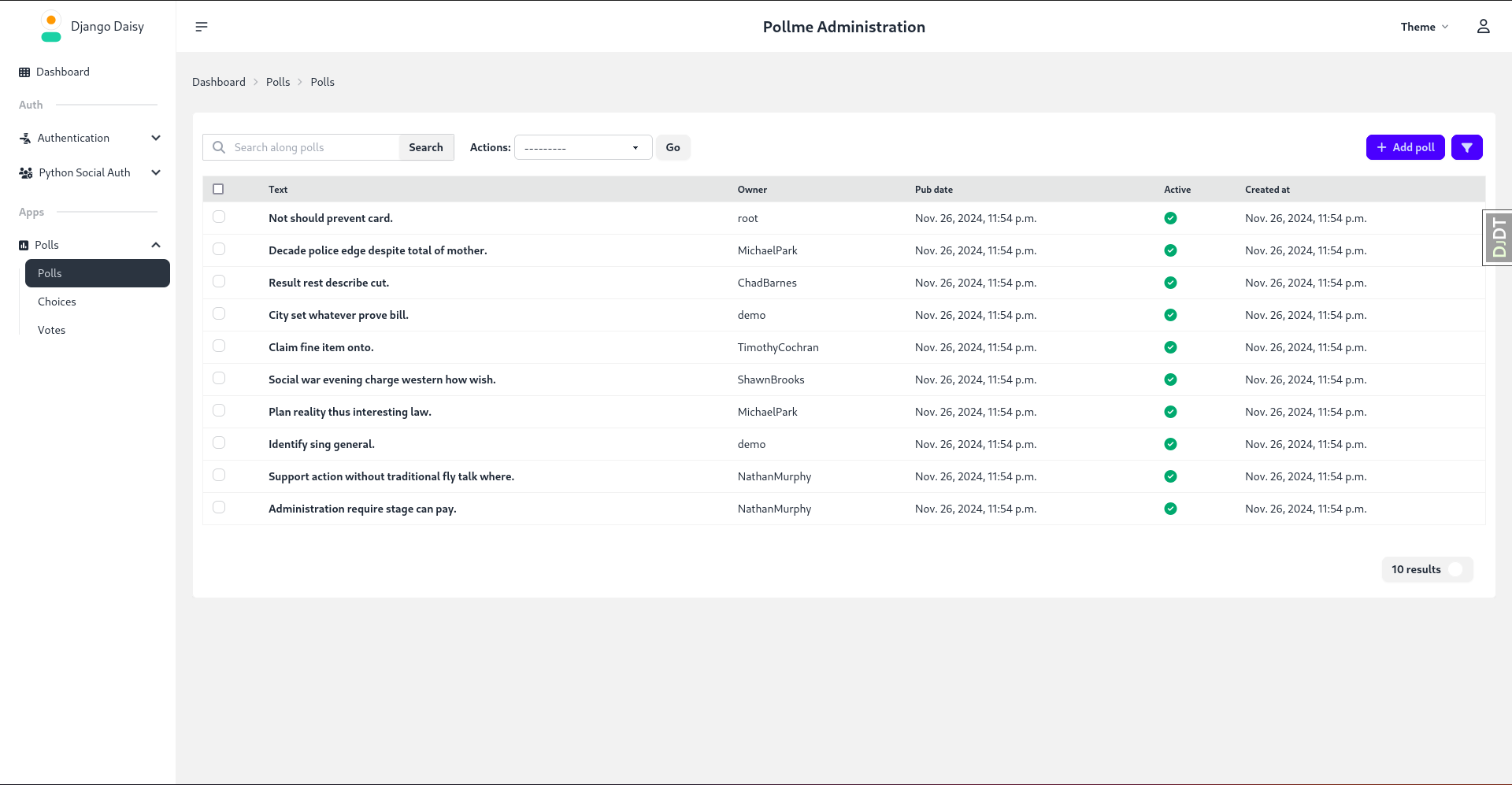
📸 Screenshots
Listing View:
Change Form:
Mobile Responsive:
Dark Theme:
Acknowledgments
Special thanks to Cloud With Django for featuring my theme in their video. Your support means a lot!
Demo Video: https://www.youtube.com/watch?v=WEKTXu1la9M
Release history Release notifications | RSS feed


Download files
Download the file for your platform. If you're not sure which to choose, learn more about installing packages.
Source Distribution
Built Distribution
Filter files by name, interpreter, ABI, and platform.
If you're not sure about the file name format, learn more about wheel file names.
Copy a direct link to the current filters
File details
Details for the file django_daisy-1.0.15.tar.gz.
File metadata
- Download URL: django_daisy-1.0.15.tar.gz
- Upload date:
- Size: 8.3 MB
- Tags: Source
- Uploaded using Trusted Publishing? No
- Uploaded via: twine/6.1.0 CPython/3.13.2
File hashes
| Algorithm | Hash digest | |
|---|---|---|
| SHA256 |
a521355568f76a7d6214ede2be96659019d9762b7fe5fbceba88a96699aad86b
|
|
| MD5 |
db6395480e339f132ce57b1c90905d9e
|
|
| BLAKE2b-256 |
80ebb5dca5a68dc5af5bab9d525228aaafd8294f308f6edd78969f4d31312fe0
|
File details
Details for the file django_daisy-1.0.15-py3-none-any.whl.
File metadata
- Download URL: django_daisy-1.0.15-py3-none-any.whl
- Upload date:
- Size: 8.1 MB
- Tags: Python 3
- Uploaded using Trusted Publishing? No
- Uploaded via: twine/6.1.0 CPython/3.13.2
File hashes
| Algorithm | Hash digest | |
|---|---|---|
| SHA256 |
6980b7d8da39467f58e16a3b366774b842232201e3def0b7a886cc945ef5efc0
|
|
| MD5 |
f0e123db9a005d39366ece39ba0b78ea
|
|
| BLAKE2b-256 |
8b083a049597a5384cd21684baaba383659cec54d11a9bfd1d0936b55813fa5b
|






