
A simple database backup/restore for Django (Postgres/SQLite + Dropbox)

Project description
Django Cloud DB Backup
A database backup and restore utility for Django applications. It supports SQLite and PostgreSQL, with storage backends for the Local Filesystem and Dropbox.
Core Features
- Atomic Restores: Uses PostgreSQL single-transaction mode and automatic pre-restore safety snapshots to prevent data loss during failures.
- Checksum Validation: Cryptographically verifies backup file integrity (SHA-256) before attempting a restore.
- Audit Logging: Tracks every restore operation with detailed, step-by-step console logs visible in the Django Admin.
- Docker Ready: Can automatically execute database dumps inside a running Docker container from the host.
- Chunked Uploads: Safely uploads multi-gigabyte databases to Dropbox using chunked sessions to prevent memory exhaustion and timeouts.
- Async Admin UI: Upload and restore large backups in the background without browser timeouts.
⚠️ Caution
This package is a very minimal implementation intended to solve a simple backup and restore workflow that works for my personal use case.
Database backups and restores are a complex and critical subject, and different environments may require additional safeguards, validation, and testing. This package may not be production-ready for every project.
Before using it in your project, please review the code carefully, test it thoroughly, and ensure it meets your reliability and recovery requirements.
Use this package at your own risk. I am not responsible for any data loss, corruption, or other issues that may occur from its use.
Installation
- Install the package:
pip install django-db-backups
- Add to your
INSTALLED_APPSinsettings.py:
INSTALLED_APPS = [
    # ... other apps ...
    'django_db_backups',
]
- Run migrations to create the audit log tables:
python manage.py migrate
Configuration Scenarios
Add the DJANGO_DB_BACKUP dictionary to your settings.py. Below are the three most common configurations.
Scenario 1: SQLite Only (Local Storage)
This is the simplest setup. It requires no external dependencies.
import os
from pathlib import Path

BASE_DIR = Path(__file__).resolve().parent.parent

DJANGO_DB_BACKUP = {
    "STORAGE": "local",
    "BACKUP_DIR": BASE_DIR / "backups",
    "RETENTION_MAX_COUNT": 5,         # Keep the last 5 backups
    "RETENTION_MAX_AGE_DAYS": 30,     # Delete backups older than 30 days
    "SQLITE_COMPRESS": True,          # Zip the sqlite dump
}
Scenario 2: PostgreSQL Only (Local Storage)
This requires the PostgreSQL client tools to be installed on your server (see the Binary Paths section below).
DJANGO_DB_BACKUP = {
    "STORAGE": "local",
    "BACKUP_DIR": BASE_DIR / "backups",
    "RETENTION_MAX_COUNT": 10,
    "DATABASES": ["default"],         # List of database aliases to backup
    "PG_DUMP_FORMAT": "c",            # 'c' for custom format (required for pg_restore)
}
Scenario 3: PostgreSQL with Dropbox
This is the recommended production setup. It creates the backup locally, uploads it to Dropbox, and then cleans up the local file.
import os

DJANGO_DB_BACKUP = {
    "STORAGE": "dropbox",
    "BACKUP_DIR": BASE_DIR / "backups", # Used temporarily during the upload process
    "DATABASES": ["default"],

    # Dropbox OAuth2 Refresh Flow (Recommended for Production)
    "DROPBOX_APP_KEY": os.getenv("DROPBOX_APP_KEY"),
    "DROPBOX_APP_SECRET": os.getenv("DROPBOX_APP_SECRET"),
    "DROPBOX_REFRESH_TOKEN": os.getenv("DROPBOX_REFRESH_TOKEN"),
    "DROPBOX_FOLDER": "/production-database-backups",
    "DROPBOX_RETENTION_MAX_COUNT": 14,  # Keep 2 weeks of daily backups
}
Dropbox Setup (Easy Way)
This package includes a helper command to generate your Refresh Token automatically.
- Create an App in the Dropbox Console.
- Run the helper command:
python manage.py get_dropbox_token
- Follow the prompts. It will print the exact configuration you need to copy into
settings.py.
Automated Scheduling (Linux/Mac)
The package can automatically manage the OS crontab for you.
-
Set the interval in
settings.py:DJANGO_DB_BACKUP = { "AUTO_BACKUP_INTERVAL_DAYS": 7, # Backup every 7 days }
-
Run the update command:
python manage.py update_backup_cron
This adds a daily job to your crontab that runs
dbbackup --auto. The command itself handles the 7-day logic. -
To remove the job:
python manage.py update_backup_cron --remove
Understanding PostgreSQL Binary Paths
To backup and restore PostgreSQL, this package relies on the pg_dump and pg_restore command-line utilities.
1. Standard Linux / Ubuntu Servers
If your Django application runs directly on a Linux server, you must install the client tools:
sudo apt-get update
sudo apt-get install postgresql-client
Configuration needed: None. The package automatically searches the system $PATH. On Ubuntu, the installation places the binaries in /usr/bin/pg_dump, which Python will find automatically.
2. Django on Host, Postgres in Docker (Local Development)
If you are developing on Windows or Mac, and your database runs inside a Docker container, you do not need to install PostgreSQL on your host machine. Tell the package your container's name, and it will route commands through docker exec.
DJANGO_DB_BACKUP = {
    # ...
    "POSTGRES_CONTAINER_NAME": "my_postgres_container",
}
3. Custom Installation Paths (Windows)
PostgreSQL is typically installed in Program Files. You must use raw strings (r"...") to handle backslashes.
DJANGO_DB_BACKUP = {
    # ...
    # Adjust the version number (16) to match your installation
    "PG_DUMP_PATH": r"C:\Program Files\PostgreSQL\16\bin\pg_dump.exe",
    "PG_RESTORE_PATH": r"C:\Program Files\PostgreSQL\16\bin\pg_restore.exe",
}
4. Custom Installation Paths (Ubuntu / Linux Users)
If you installed via apt, the binaries are usually in /usr/bin/ or /usr/lib/postgresql/.
DJANGO_DB_BACKUP = {
   # ...
    # Standard location for apt-installed postgresql-client
    "PG_DUMP_PATH": "/usr/bin/pg_dump",
    "PG_RESTORE_PATH": "/usr/bin/pg_restore",

    # OR if using a specific version (e.g., Postgres 14)
    # "PG_DUMP_PATH": "/usr/lib/postgresql/14/bin/pg_dump",
    # "PG_RESTORE_PATH": "/usr/lib/postgresql/14/bin/pg_restore",
}
Usage Instructions
Management Commands (CLI)
Ideal for Cron jobs or CI/CD pipelines.
# Create a backup of all configured databases
python manage.py dbbackup

# Restore a specific backup file
python manage.py dbrestore path/to/backup.zip
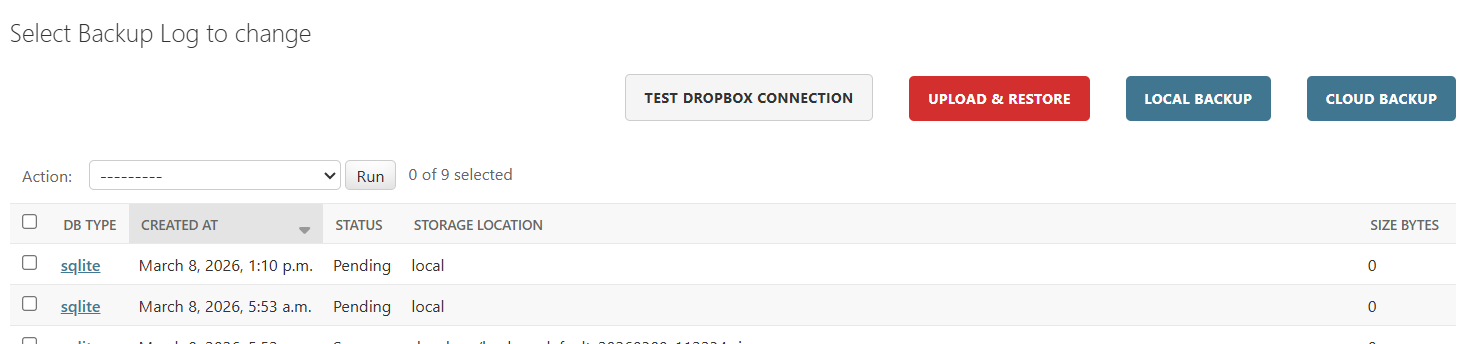
Django Admin Interface
- Navigate to Database Backups > Backup Logs.
- Trigger Backup: Click the button in the top right to safely generate a backup in the background.
- Upload & Restore: Click the button to upload a
.zipfile from your computer. The system synchronously validates the checksum, then replaces the database asynchronously. - Navigate to Restore Logs to view detailed audit trails of every restore operation.
Dropbox Setup Manual Guide (Refresh Token Flow)
Dropbox access tokens expire after 4 hours. For automated backups, you must use a Refresh Token.
- Go to the Dropbox App Console and create a new app.
- Grant the app
files.content.writeandfiles.content.readpermissions. - Get your App Key and App Secret.
- Generate an authorization code by visiting this URL in your browser (replace
YOUR_APP_KEY):https://www.dropbox.com/oauth2/authorize?client_id=YOUR_APP_KEY&token_access_type=offline&response_type=code - Click "Allow" and copy the provided code.
- Exchange the code for a Refresh Token using your terminal:
curl https://api.dropbox.com/oauth2/token \
    -d code=THE_CODE_YOU_COPIED \
    -d grant_type=authorization_code \
    -u YOUR_APP_KEY:YOUR_APP_SECRET
- The JSON response will contain a
refresh_token. Save this in your environment variables.
Local Development Guide (For Maintainers)
This project uses uv for fast, reliable dependency management and virtual environments.
Initial Setup
# Clone the repository
git clone <repository-url>
cd django_DJANGO_DB_BACKUP

# Create a virtual environment and sync dependencies using uv
uv venv
uv sync

# Activate the virtual environment
# On Windows:
.venv\Scripts\activate
# On Linux/Mac:
source .venv/bin/activate
Running the Test Suite
The test suite uses pytest and pytest-django. It is designed to adapt to the database configured in testproject/settings.py.
# Run all tests with verbose output
uv run pytest -v

# Run a specific test file
uv run pytest tests/test_restore.py -v
Testing the Admin UI Locally
A dummy Django project (testproject) is included to test the Admin interface and management commands.
# Apply migrations to the local SQLite test database
uv run python manage.py migrate

# Create a superuser to access the admin panel
uv run python manage.py createsuperuser

# Start the development server
uv run python manage.py runserver
Visit http://127.0.0.1:8000/admin/ to test the UI.
Building and Publishing
To release a new version to PyPI:
# Build the source distribution and wheel
uv run python -m build

# Upload to PyPI (requires credentials)
uv run twine upload dist/*


Download files
Download the file for your platform. If you're not sure which to choose, learn more about installing packages.
Source Distribution
Built Distribution
Filter files by name, interpreter, ABI, and platform.
If you're not sure about the file name format, learn more about wheel file names.
Copy a direct link to the current filters
File details
Details for the file django_db_backups-0.1.2.tar.gz.
File metadata
- Download URL: django_db_backups-0.1.2.tar.gz
- Upload date:
- Size: 102.2 kB
- Tags: Source
- Uploaded using Trusted Publishing? No
- Uploaded via: twine/6.2.0 CPython/3.12.11
File hashes
| Algorithm | Hash digest | |
|---|---|---|
| SHA256 |
c52aa9e92c76d49c6e01ae256bb1889eade5053ba75291ef37311745b8048c47
|
|
| MD5 |
7623543a57075dfa43e9dba0a103e88b
|
|
| BLAKE2b-256 |
d6b9bda9c1257bd6d87ff2f1a5595a5e97157c07ee13d5a40f742e4775e57abb
|
File details
Details for the file django_db_backups-0.1.2-py3-none-any.whl.
File metadata
- Download URL: django_db_backups-0.1.2-py3-none-any.whl
- Upload date:
- Size: 30.1 kB
- Tags: Python 3
- Uploaded using Trusted Publishing? No
- Uploaded via: twine/6.2.0 CPython/3.12.11
File hashes
| Algorithm | Hash digest | |
|---|---|---|
| SHA256 |
515c35711f8c86efcdd10efccffe44cfd77b022855535606090a2facf9417add
|
|
| MD5 |
0b37b682520515c65cc545786a88899d
|
|
| BLAKE2b-256 |
21f2f1f6e1f6479af978bac6b9656ff4371e46ac4bd91af221751aaf7f2608af
|






