
DockedUp 🐳
htop for your Docker Compose stack.



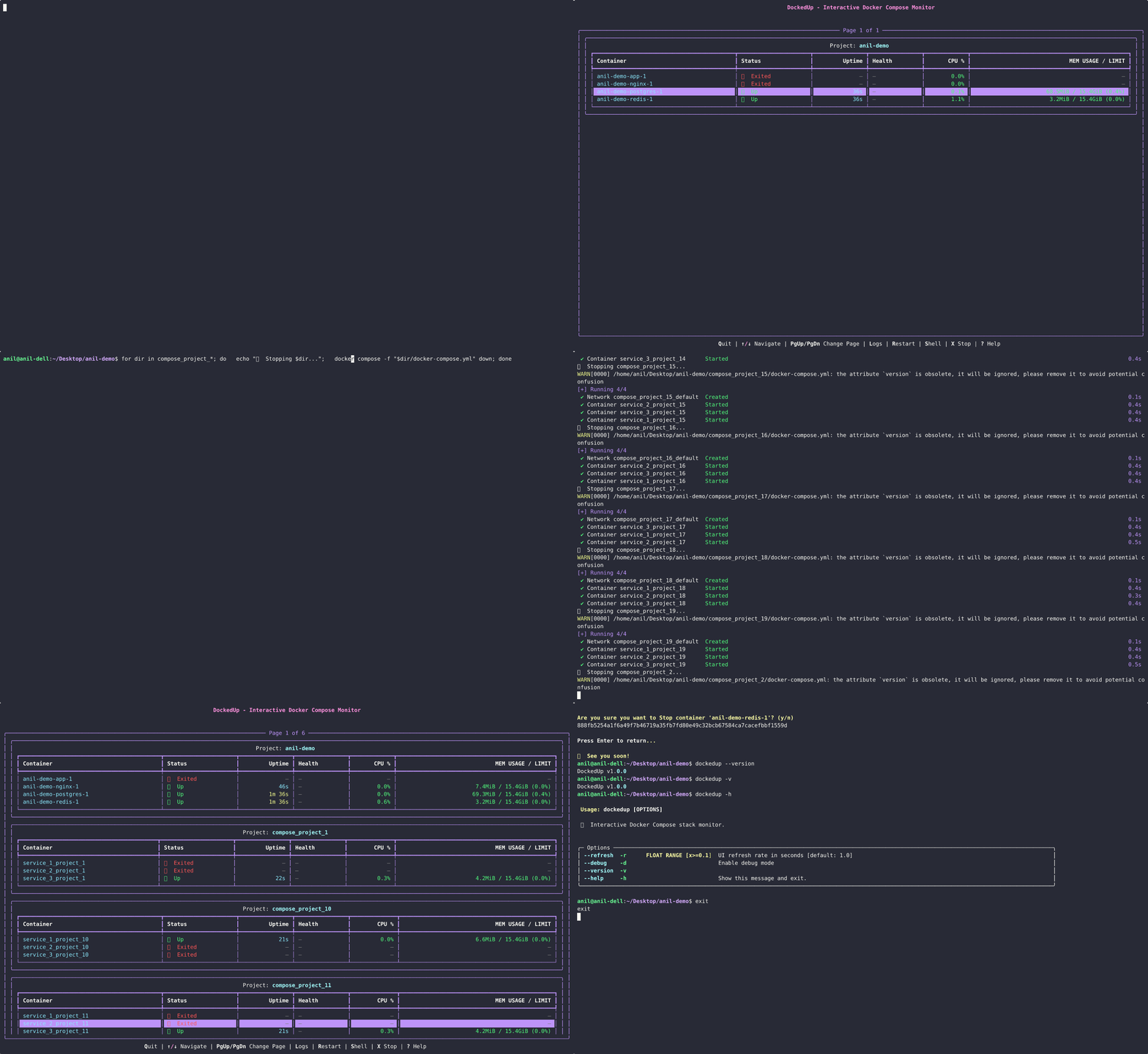
DockedUp is an interactive command-line tool that provides a live, beautiful, and human-friendly monitor for your Docker containers. It's designed for developers and DevOps engineers who want a quick, real-time overview of their containerized environments without the noise of docker ps and the hassle of switching terminals.
Key Features
- Real-Time Monitoring: Live-updating data for status, uptime, CPU, and Memory.
- Compose Project Grouping: Automatically groups containers by their
docker-composeproject. - Emoji + Colors: Clearly shows container status (
Up,Down,Restarting) and health (Healthy,Unhealthy) with visual cues. - Interactive Controls: Select containers with arrow keys and use hotkeys to:
l→ View live logs (docker logs -f).r→ Restart a container (with confirmation).x→ Stop a container (with confirmation).s→ Open a shell (/bin/sh) inside a container.
- PyPI Package: Simple one-liner installation.
Problem It Solves
docker stats and docker ps are functional, but fall short when you need to:
- Monitor container status, health, and resource usage in one unified view.
- Act on a container (view logs, restart, shell in) without breaking your workflow.
- Understand a complex
docker-composestack at a glance.
DockedUp solves these problems by presenting your container information in a continuously updating, color-coded, and interactive dashboard right in your terminal.
Installation
DockedUp is available on PyPI. It is highly recommended to install CLI tools in an isolated environment using pipx.
pipx install dockedup
Alternatively, you can use pip:
pip install dockedup
From Source
git clone https://github.com/anilrajrimal1/dockedup.git
cd dockedup
pip install -e .
📋 Requirements
- Python 3.10+
- Docker Engine (local or remote)
- Terminal with color support
Usage
Basic Usage
# Start DockedUp with default settings
dockedup

# Custom refresh rate (0.5 seconds)
dockedup --refresh 0.5

# Enable debug mode
dockedup --debug
Command Line Options
dockedup [OPTIONS]

Options:
  -r, --refresh FLOAT    UI refresh rate in seconds (0.1-60.0) [default: 1.0]
  -d, --debug           Enable debug mode with verbose logging
  -v, --version         Show version and exit
  -h, --help            Show help message and exit
Interactive Controls
Once DockedUp is running, use these keyboard shortcuts:
| Key | Action |
|---|---|
↑/↓ or k/j |
Navigate up/down |
PgUp/PgDn |
Scroll through projects |
/ |
Filter by container or project name |
p |
Toggle project mode (act on a whole project at once) |
l |
View live logs |
r |
Restart container, or whole project in project mode (with confirmation) |
s |
Open shell session |
x |
Stop container, or whole project in project mode (with confirmation) |
i |
Show full container details (image, mounts, networks...) |
? |
Show help screen |
q or Ctrl+C |
Quit DockedUp |
🖥️ Interface
DockedUp displays containers grouped by Docker Compose project:
┌─────────────────────────────────────────────────────────────────────┐
│                DockedUp - Interactive Docker Compose Monitor         │
└─────────────────────────────────────────────────────────────────────┘

┌─ Project: anil-demo ──────────────────────────────────────────────────┐
│ Container    │ Status      │ Uptime │ Health    │ CPU %  │ Memory   │
│ anil-demo-web   │ ✅ Up       │ 2h 15m │ 🟢 Healthy│ 15.2%  │ 245M/1G  │
│ anil-demo-db    │ ✅ Up       │ 2h 15m │ —         │ 5.1%   │ 180M/2G  │
│ anil-demo-redis │ ❌ Down     │ —      │ —         │ —      │ —        │
└────────────────────────────────────────────────────────────────────┘

Q)uit | ↑/↓ Navigate | L)ogs | R)estart | S)hell | X) Stop | ?) Help
Status Icons
- ✅ Up - Container is running
- ❌ Down - Container is stopped/exited
- 🔁 Restarting - Container is restarting
- ⏸️ Paused - Container is paused
- 💀 Dead - Container is dead
- 📦 Created - Container created but not started
Health Icons
- 🟢 Healthy - Health check passing
- 🔴 Unhealthy - Health check failing
- 🟡 Starting - Health check starting
- — No health check defined
Configuration
Environment Variables
| Variable | Description | Default |
|---|---|---|
DOCKER_HOST |
Docker daemon socket | unix:///var/run/docker.sock |
DOCKER_CERT_PATH |
Path to Docker certificates | — |
DOCKER_TLS_VERIFY |
Enable TLS verification | 0 |
Docker Context
DockedUp respects your Docker context configuration:
# Use a specific Docker context
docker context use myremote
dockedup

# Or temporarily override
DOCKER_HOST=tcp://remote-docker:2376 dockedup
Troubleshooting
Docker Connection Issues
Error: Failed to connect to Docker
-
Docker Desktop not running (macOS/Windows):
# Start Docker Desktop, then test:
docker ps
-
Permission denied (Linux):
# Add user to docker group:
sudo usermod -aG docker $USER
# Then logout and login again
-
Docker daemon not running (Linux):
# Check status:
sudo systemctl status docker

# Start if needed:
sudo systemctl start docker
Performance Issues
If DockedUp feels slow:
# Reduce refresh rate
dockedup --refresh 2.0

# Check Docker daemon performance
docker system df
docker system prune  # Clean up unused resources
Debug Mode
Enable debug logging to troubleshoot issues:
dockedup --debug
🤝 Contributing
We welcome contributions! Please see our Contributing Guide for details.
Developer's Guide
Interested in contributing or running the project locally?
Prerequisites:
- Git
- Python 3.10+
- Poetry
Setup:
- Clone the repository:
git clone https://github.com/anilrajrimal1/dockedup.git
cd dockedup
- Install dependencies:
poetry install - Run the application locally:
poetry run dockedup
- Run the tests:
poetry run pytest
License
This project is licensed under the MIT License - see the LICENSE file for details.
Acknowledgments
- Inspired by htop and lazydocker
- Built with Rich and Typer
Made with ❤️ by Anil for the Docker community
1 maintainer

Download files
Download the file for your platform. If you're not sure which to choose, learn more about installing packages.
Source Distribution
Built Distribution
Filter files by name, interpreter, ABI, and platform.
If you're not sure about the file name format, learn more about wheel file names.
Copy a direct link to the current filters
File details
Details for the file dockedup-1.1.0.tar.gz.
File metadata
- Download URL: dockedup-1.1.0.tar.gz
- Upload date:
- Size: 28.7 kB
- Tags: Source
- Uploaded using Trusted Publishing? No
- Uploaded via: poetry/2.4.1 CPython/3.10.20 Linux/6.17.0-1020-azure
File hashes
| Algorithm | Hash digest | |
|---|---|---|
| SHA256 |
cbd445263a292c373d8622e9e76300517f9060d002e68a7cb48c5f8edc9b1edf
|
|
| MD5 |
01177a833ac54160d2cd54fb0fe45ab6
|
|
| BLAKE2b-256 |
1046e8d83f050b782172f04a2579c215ca67f92e45c0bc27a6e7b76d62fff16c
|
File details
Details for the file dockedup-1.1.0-py3-none-any.whl.
File metadata
- Download URL: dockedup-1.1.0-py3-none-any.whl
- Upload date:
- Size: 21.2 kB
- Tags: Python 3
- Uploaded using Trusted Publishing? No
- Uploaded via: poetry/2.4.1 CPython/3.10.20 Linux/6.17.0-1020-azure
File hashes
| Algorithm | Hash digest | |
|---|---|---|
| SHA256 |
459240bd6cb6cadc3a945b8f312190cff6f973aaaddc2451ef85ff6f3f1257c8
|
|
| MD5 |
c7e484037f705018c1ecbf676d2b8210
|
|
| BLAKE2b-256 |
7aead068fa365ce930dd0e129fbac6ef6600334bd930c1f3704db14671416af0
|







