
文件翻译工具

Project description

DocuTranslate





DocuTranslate is a file translation tool that combines advanced document analysis engines (such as docling and minerU) with large language models (LLMs). It can accurately translate documents in a wide variety of formats.
The new version's architecture adopts Workflow as its core, providing a highly configurable and extensible solution for various types of translation tasks.
- ✅ Supports a wide variety of formats: Capable of translating files such as
pdf,docx,xlsx,md,txt,json,epub,srt, etc. - ✅ Recognition of tables, formulas, and code: Utilizes
doclingandmineruto recognize and translate tables, formulas, and code commonly found in academic papers. - ✅ JSON translation: Supports specifying values within JSON that need translation through JSON paths (following the
jsonpath-ngsyntax specification). - ✅ High-fidelity translation for Word/Excel: Supports translation of
docxandxlsxfiles (currently does not supportdocandxlsfiles) while preserving the original formatting. - ✅ Support for multiple AI platforms: Compatible with most AI platforms, enabling high-performance parallel AI translation with custom prompts.
- ✅ Asynchronous support: Designed for high-performance scenarios, offering full asynchronous support and implementing a service interface capable of multitask parallel processing.
- ✅ Interactive web interface: Provides an out-of-the-box Web UI and RESTful API for easy integration and use.
When translating
QQ Discussion Group: 1047781902
UI Interface:

Paper Translation:

Novel Translation:

Integrated Packages
For users who want to get started quickly, we provide integrated packages on GitHub Releases. Simply download, unzip, and enter your AI platform's API key to start using.
- DocuTranslate: The standard version, which uses the online
minerUengine to parse documents. Recommended for most users. - DocuTranslate_full: The full version, which includes the
doclinglocal parsing engine. Suitable for offline scenarios or those with higher data privacy requirements.
Installation
Using pip
# Basic installation
pip install docutranslate

# If using the docling local parsing engine
pip install docutranslate[docling]
Using uv
# Initialize the environment
uv init

# Basic installation
uv add docutranslate

# Install docling extension
uv add docutranslate[docling]
Using git
# Initialize the environment
git clone https://github.com/xunbu/docutranslate.git

cd docutranslate

uv sync
Core Concept: Workflow
The core of the new version of DocuTranslate is the Workflow. Each workflow is a complete end-to-end translation pipeline designed for a specific file type. Instead of interacting with large classes as before, you will select and configure the appropriate workflow according to the file type.
The basic usage steps are as follows:
- Select a Workflow: Choose a workflow based on the input file type (e.g., PDF/Word or TXT). For example,
MarkdownBasedWorkfloworTXTWorkflow. - Build Configuration: Create a configuration object corresponding to the selected workflow (such as
MarkdownBasedWorkflowConfig). This configuration object contains all the necessary sub-configurations, such as:- Converter Config: Defines how to convert the original file (e.g., PDF) to Markdown.
- Translator Config: Defines the LLM to use, API-Key, target language, etc.
- Exporter Config: Defines specific options for the output format (e.g., HTML).
- Instantiate the Workflow: Create an instance of the workflow using the configuration object.
- Execute Translation: Call the workflow's
.read_*()method and.translate()/.translate_async()method. - Export/Save Results: Call the
.export_to_*()method or.save_as_*()method to retrieve or save the translation results.
Available Workflows
| Workflow | Application Scenario | Input Format | Output Format | Core Configuration Class |
|---|---|---|---|---|
MarkdownBasedWorkflow |
Process rich text documents such as PDF, Word, and images. Flow: File -> Markdown -> Translation -> Export. |
.pdf, .docx, .md, .png, .jpg, etc. |
.md, .zip, .html |
MarkdownBasedWorkflowConfig |
TXTWorkflow |
Process plain text documents. Flow: txt -> Translation -> Export. |
.txt and other plain text formats |
.txt, .html |
TXTWorkflowConfig |
JsonWorkflow |
Process json files. Flow: json -> Translation -> Export. |
.json |
.json, .html |
JsonWorkflowConfig |
DocxWorkflow |
Process docx files. Flow: docx -> Translation -> Export. |
.docx |
.docx, .html |
docxWorkflowConfig |
XlsxWorkflow |
Process xlsx files. Flow: xlsx -> Translation -> Export. |
.xlsx |
.xlsx, .html |
XlsxWorkflowConfig |
SrtWorkflow |
Process srt files. Flow: srt -> Translation -> Export. |
.srt |
.srt, .html |
SrtWorkflowConfig |
EpubWorkflow |
Process epub files. Flow: epub -> Translation -> Export. |
.epub |
.epub, .html |
EpubWorkflowConfig |
HtmlWorkflow |
Process html files. Flow: html -> Translation -> Export. |
.html, .htm |
.html |
HtmlWorkflowConfig |
The interactive interface allows export in pdf format.
Starting the Web UI and API Service
For ease of use, DocuTranslate provides a feature-rich web interface and RESTful API.
Starting the Service:
# Start the service, which monitors port 8010 by default
docutranslate -i

# Start with a specified port
docutranslate -i -p 8011

# You can also specify the port using an environment variable
export DOCUTRANSLATE_PORT=8011
docutranslate -i
- Interactive Interface: After starting the service, access
http://127.0.0.1:8010(or the specified port) in your browser. - API Documentation: The complete API documentation (Swagger UI) is available at
http://127.0.0.1:8010/docs.
Usage
Example 1: Translating a PDF File (Using MarkdownBasedWorkflow)
This is the most common use case. Convert the PDF to Markdown using the minerU engine and translate it with an LLM. Here, we use the asynchronous method as an example.
import asyncio
from docutranslate.workflow.md_based_workflow import MarkdownBasedWorkflow, MarkdownBasedWorkflowConfig
from docutranslate.converter.x2md.converter_mineru import ConverterMineruConfig
from docutranslate.translator.ai_translator.md_translator import MDTranslatorConfig
from docutranslate.exporter.md.md2html_exporter import MD2HTMLExporterConfig


async def main():
    # 1. Build translator configuration
    translator_config = MDTranslatorConfig(
        base_url="https://open.bigmodel.cn/api/paas/v4",  # Base URL of the AI platform
        api_key="YOUR_ZHIPU_API_KEY",  # API Key of the AI platform
        model_id="glm-4-air",  # Model ID
        to_lang="English",  # Target language
        chunk_size=3000,  # Text chunk size
        concurrent=10  # Number of concurrent executions
    )

    # 2. Build converter configuration (using minerU)
    converter_config = ConverterMineruConfig(
        mineru_token="YOUR_MINERU_TOKEN",  # Your minerU Token
        formula_ocr=True  # Enable formula recognition
    )

    # 3. Build main workflow configuration
    workflow_config = MarkdownBasedWorkflowConfig(
        convert_engine="mineru",  # Specify the parsing engine
        converter_config=converter_config,  # Pass the converter configuration
        translator_config=translator_config,  # Pass the translator configuration
        html_exporter_config=MD2HTMLExporterConfig(cdn=True)  # HTML export configuration
    )

    # 4. Instantiate the workflow
    workflow = MarkdownBasedWorkflow(config=workflow_config)

    # 5. Load the file and execute translation
    print("Starting file loading and translation...")
    workflow.read_path("path/to/your/document.pdf")
    await workflow.translate_async()
    # Or use the synchronous method
    # workflow.translate()
    print("Translation completed!")

    # 6. Save the results
    workflow.save_as_html(name="translated_document.html")
    workflow.save_as_markdown_zip(name="translated_document.zip")
    workflow.save_as_markdown(name="translated_document.md")  # Markdown with embedded images
    print("Files saved to the ./output folder.")

    # Or directly get the content string
    html_content = workflow.export_to_html()
    html_content = workflow.export_to_markdown()
    # print(html_content)


if __name__ == "__main__":
    asyncio.run(main())
Example 2: Translating TXT Files (Using TXTWorkflow)
For pure text files, the process is simpler as there is no need for document parsing (conversion). Here is an example using the asynchronous method.
import asyncio
from docutranslate.workflow.txt_workflow import TXTWorkflow, TXTWorkflowConfig
from docutranslate.translator.ai_translator.txt_translator import TXTTranslatorConfig
from docutranslate.exporter.txt.txt2html_exporter import TXT2HTMLExporterConfig


async def main():
    # 1. Build the translator configuration
    translator_config = TXTTranslatorConfig(
        base_url="https://api.openai.com/v1/",
        api_key="YOUR_OPENAI_API_KEY",
        model_id="gpt-4o",
        to_lang="中文",
    )

    # 2. Build the main workflow configuration
    workflow_config = TXTWorkflowConfig(
        translator_config=translator_config,
        html_exporter_config=TXT2HTMLExporterConfig(cdn=True)
    )

    # 3. Instantiate the workflow
    workflow = TXTWorkflow(config=workflow_config)

    # 4. Read the file and execute translation
    workflow.read_path("path/to/your/notes.txt")
    await workflow.translate_async()
    # Or use the synchronous method
    # workflow.translate()

    # 5. Save the result
    workflow.save_as_txt(name="translated_notes.txt")
    print("TXT file saved.")

    # You can also export the translated plain text
    text = workflow.export_to_txt()


if __name__ == "__main__":
    asyncio.run(main())
Example 3: Translating a JSON file (using JsonWorkflow)
Here, we show an example using the asynchronous method. In the json_paths item of JsonTranslatorConfig, you need to specify the JSON paths to be translated (following the jsonpath-ng syntax rules).
Only the values matching the JSON paths will be translated.
import asyncio

from docutranslate.exporter.js.json2html_exporter import Json2HTMLExporterConfig
from docutranslate.translator.ai_translator.json_translator import JsonTranslatorConfig
from docutranslate.workflow.json_workflow import JsonWorkflowConfig, JsonWorkflow


async def main():
    # 1. Build the translator configuration
    translator_config = JsonTranslatorConfig(
        base_url="https://api.openai.com/v1/",
        api_key="YOUR_OPENAI_API_KEY",
        model_id="gpt-4o",
        to_lang="Chinese",
        json_paths=["$.*", "$.name"]  # Compliant with the jsonpath-ng path syntax; all values matching the path will be translated
    )

    # 2. Build the main workflow configuration
    workflow_config = JsonWorkflowConfig(
        translator_config=translator_config,
        html_exporter_config=Json2HTMLExporterConfig(cdn=True)
    )

    # 3. Instantiate the workflow
    workflow = JsonWorkflow(config=workflow_config)

    # 4. Read the file and execute translation
    workflow.read_path("path/to/your/notes.json")
    await workflow.translate_async()
    # Or use the synchronous method
    # workflow.translate()

    # 5. Save the results
    workflow.save_as_json(name="translated_notes.json")
    print("The JSON file has been saved.")

    # You can also export the translated json text
    text = workflow.export_to_json()


if __name__ == "__main__":
    asyncio.run(main())
Example 4: Translating a docx File (Using DocxWorkflow)
Here, the asynchronous method is shown as an example.
import asyncio

from docutranslate.exporter.docx.docx2html_exporter import Docx2HTMLExporterConfig
from docutranslate.translator.ai_translator.docx_translator import DocxTranslatorConfig
from docutranslate.workflow.docx_workflow import DocxWorkflowConfig, DocxWorkflow


async def main():
    # 1. Build the translator configuration
    translator_config = DocxTranslatorConfig(
        base_url="https://api.openai.com/v1/",
        api_key="YOUR_OPENAI_API_KEY",
        model_id="gpt-4o",
        to_lang="日本語",
        insert_mode="replace",  # Optional: "replace", "append", "prepend"
        separator="\n",  # Separator used in "append" and "prepend" modes
    )

    # 2. Build the main workflow configuration
    workflow_config = DocxWorkflowConfig(
        translator_config=translator_config,
        html_exporter_config=Docx2HTMLExporterConfig(cdn=True)
    )

    # 3. Instantiate the workflow
    workflow = DocxWorkflow(config=workflow_config)

    # 4. Load the file and execute translation
    workflow.read_path("path/to/your/notes.docx")
    await workflow.translate_async()
    # Or use the synchronous method
    # workflow.translate()

    # 5. Save the result
    workflow.save_as_docx(name="translated_notes.docx")
    print("The docx file has been saved.")

    # You can also export the translated docx as binary
    text_bytes = workflow.export_to_docx()


if __name__ == "__main__":
    asyncio.run(main())
Example 5: Translating an xlsx file (using XlsxWorkflow)
Here, we will use the asynchronous method as an example.
import asyncio

from docutranslate.exporter.xlsx.xlsx2html_exporter import Xlsx2HTMLExporterConfig
from docutranslate.translator.ai_translator.xlsx_translator import XlsxTranslatorConfig
from docutranslate.workflow.xlsx_workflow import XlsxWorkflowConfig, XlsxWorkflow


async def main():
    # 1. Build the translator configuration
    translator_config = XlsxTranslatorConfig(
        base_url="https://api.openai.com/v1/",
        api_key="YOUR_OPENAI_API_KEY",
        model_id="gpt-4o",
        to_lang="日本語",
        insert_mode="replace",  # Optional: "replace", "append", "prepend"
        separator="\n",  # Separator used in "append" and "prepend" modes
    )

    # 2. Build the main workflow configuration
    workflow_config = XlsxWorkflowConfig(
        translator_config=translator_config,
        html_exporter_config=Xlsx2HTMLExporterConfig(cdn=True)
    )

    # 3. Instantiate the workflow
    workflow = XlsxWorkflow(config=workflow_config)

    # 4. Load the file and execute translation
    workflow.read_path("path/to/your/notes.xlsx")
    await workflow.translate_async()
    # Or use the synchronous method
    # workflow.translate()

    # 5. Save the result
    workflow.save_as_xlsx(name="translated_notes.xlsx")
    print("The XLSX file has been saved.")

    # You can also export the binary data of the translated XLSX
    text_bytes = workflow.export_to_xlsx()


if __name__ == "__main__":
    asyncio.run(main())
Detailed Explanation of Prerequisites and Settings
1. Obtaining a Large Language Model API Key
The translation function relies on a large language model, and you need to obtain the base_url, api_key, and model_id from the corresponding AI platform.
Recommended models: Volcano Engine's
doubao-seed-1-6-250615,doubao-seed-1-6-flash-250715, Zhipu'sglm-4-flash, Alibaba Cloud'sqwen-plus,qwen-turbo, DeepSeek'sdeepseek-chat, etc.
| Platform Name | Method to Obtain API Key | baseurl |
|---|---|---|
| ollama | http://127.0.0.1:11434/v1 | |
| lm studio | http://127.0.0.1:1234/v1 | |
| openrouter | Click to Obtain | https://openrouter.ai/api/v1 |
| openai | Click to Obtain | https://api.openai.com/v1/ |
| gemini | Click to Obtain | https://generativelanguage.googleapis.com/v1beta/openai/ |
| deepseek | Click to Obtain | https://api.deepseek.com/v1 |
| 智譜ai | Click to Obtain | https://open.bigmodel.cn/api/paas/v4 |
| 騰訊混元 | Click to Obtain | https://api.hunyuan.cloud.tencent.com/v1 |
| 阿里云百煉 | Click to Obtain | https://dashscope.aliyuncs.com/compatible-mode/v1 |
| 火山引擎 | Click to Obtain | https://ark.cn-beijing.volces.com/api/v3 |
| 硅基流動 | Click to Obtain | https://api.siliconflow.cn/v1 |
| DMXAPI | Click to Obtain | https://www.dmxapi.cn/v1 |
2. Obtaining minerU Token (Online Parsing)
If you select mineru as the document parsing engine (convert_engine="mineru"), you need to apply for a free Token.
- Visit the minerU official website, register, and apply for the API.
- Create a new API Token on the API Token management page.
Note: The minerU Token is valid for 14 days. If it expires, please recreate it.
3. Configuring the docling Engine (Local Parsing)
If you select docling as the document parsing engine (convert_engine="docling"), the required models will be downloaded from Hugging Face during the first use.
Solutions for Network Issues:
- Setting up a Hugging Face Mirror (Recommended):
- Method A (Environment Variable): Set the system environment variable
HF_ENDPOINTand restart your IDE or terminal.
HF_ENDPOINT=https://hf-mirror.com
- Method B (Setting in Code): Add the following code at the beginning of your Python script.
import os

os.environ['HF_ENDPOINT'] = 'https://hf-mirror.com'
- Offline Use (Download Model Packages in Advance):
- Download
docling_artifact.zipfrom GitHub Releases. - Extract it to your project directory.
- Specify the model path in the configuration:
from docutranslate.converter.x2md.converter_docling import ConverterDoclingConfig

converter_config = ConverterDoclingConfig(
    artifact="./docling_artifact",  # Specify the extracted folder
    code_ocr=True,
    formula_ocr=True
)
FAQ
Q: What should I do if port 8010 is occupied?
A: Specify a new port using the -p parameter or set the DOCUTRANSLATE_PORT environment variable.
Q: Is translation of scanned documents supported?
A: Yes, it is supported. Please use the mineru parsing engine, which is equipped with powerful OCR capabilities.
Q: Why is it slow on first use?
A: When using the docling engine, the model needs to be downloaded from Hugging Face during the first run. To speed up this process, refer to the "Solutions for Network Issues" section above.
Q: How can it be used in an intranet (offline) environment? A: It is completely possible. The following two conditions need to be met:
- Local Parsing Engine: Use the
doclingengine and download the model package in advance according to the "Offline Use" guide above. - Local LLM: Deploy a language model locally using tools such as Ollama or LM Studio, and enter the
base_urlof the local model inTranslatorConfig.
Q: How does the caching mechanism work?
A: MarkdownBasedWorkflow automatically caches the results of document parsing (conversion from files to Markdown) to avoid wasting time and resources on repeated parsing. The cache is stored in memory by default and records the most recent 10 parsing operations. The number of cached items can be changed via the DOCUTRANSLATE_CACHE_NUM environment variable.
Q: How can I use the software via a proxy?
A: The software does not use a proxy by default. Set the DOCUTRANSLATE_PROXY_ENABLED environment variable to true to enable communication via a proxy.
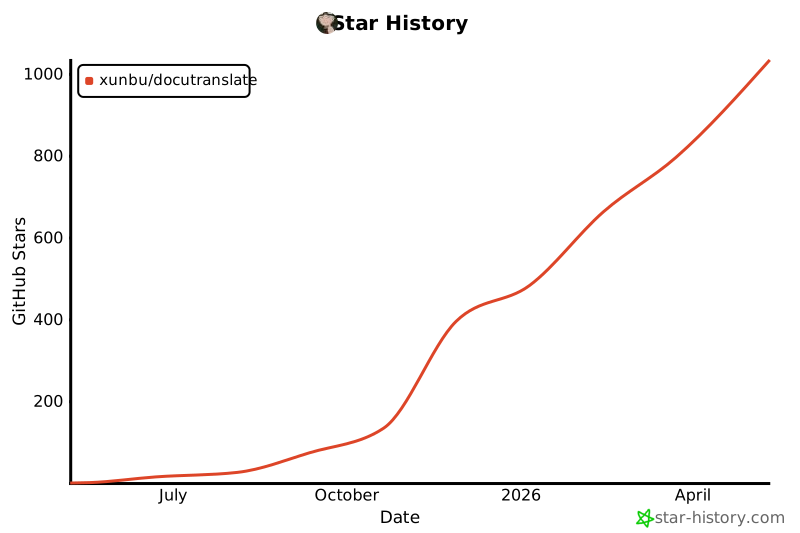
Star History
Release history Release notifications | RSS feed


Download files
Download the file for your platform. If you're not sure which to choose, learn more about installing packages.
Source Distribution
Built Distribution
Filter files by name, interpreter, ABI, and platform.
If you're not sure about the file name format, learn more about wheel file names.
Copy a direct link to the current filters
File details
Details for the file docutranslate-1.2.5.tar.gz.
File metadata
- Download URL: docutranslate-1.2.5.tar.gz
- Upload date:
- Size: 3.7 MB
- Tags: Source
- Uploaded using Trusted Publishing? No
- Uploaded via: uv/0.6.14
File hashes
| Algorithm | Hash digest | |
|---|---|---|
| SHA256 |
8f183264195bf07c29590f391cc4402eb38b0c0a0d7cf7d6911c5a34f3911d93
|
|
| MD5 |
8aed3ad34a9ef1ce1da0548351bb1ce3
|
|
| BLAKE2b-256 |
fab03f7c53ee0dd647c12430ea98758cfc95aeceb828a3d853bf20b0431226d6
|
File details
Details for the file docutranslate-1.2.5-py3-none-any.whl.
File metadata
- Download URL: docutranslate-1.2.5-py3-none-any.whl
- Upload date:
- Size: 4.5 MB
- Tags: Python 3
- Uploaded using Trusted Publishing? No
- Uploaded via: uv/0.6.14
File hashes
| Algorithm | Hash digest | |
|---|---|---|
| SHA256 |
1e623f12e25e05e36a18dbb1d643b521f02e84bebcac895359483b2190dd8510
|
|
| MD5 |
8d682360afb2f4581deba67c9511130a
|
|
| BLAKE2b-256 |
1b4f476927c6b102dcab4cfe77674f6a787a40220abd4e422281666a895eb060
|






