
downsweep
Sort a messy Downloads folder into neat folders with one command. Turn on auto mode and forget about it. Make your own rules. Changed your mind? Undo it.


Your Downloads folder is full of PDFs, installers, screenshots and zip files all mixed together. downsweep sorts them into Images, PDFs, Documents, Programs and more in a few seconds. It can keep sorting new downloads by itself, lets you add your own rules, and lets you reverse it if you don't like the result.
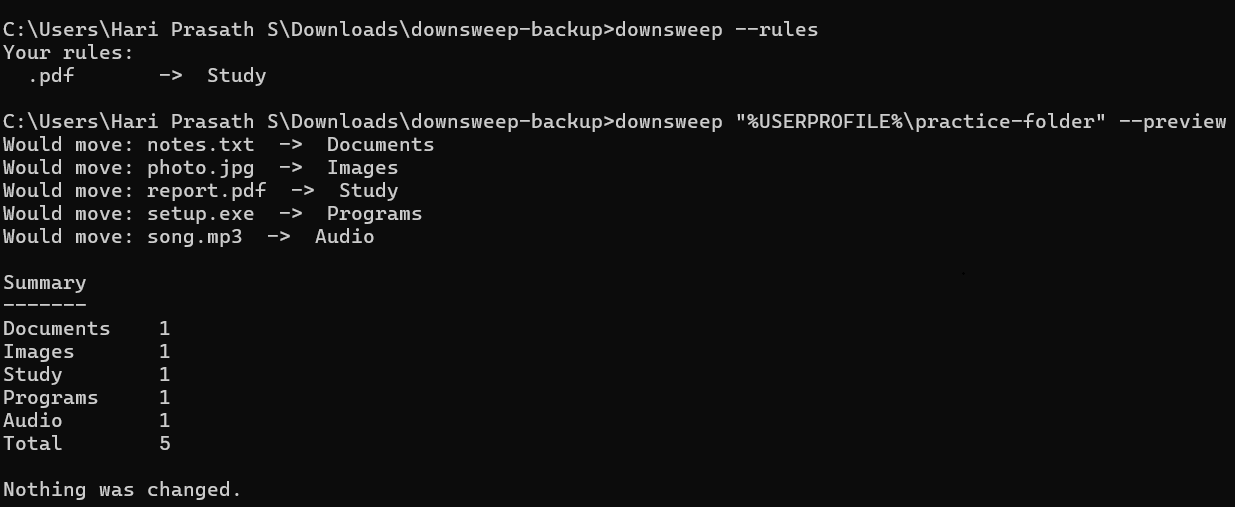
See it in action
Install
pip install downsweep
Command not recognised?
On some Windows computers, the downsweep command isn't found right after installing. This happens because Windows doesn't know where pip put it. It's not a problem with your files, and there's an easy fix: start it through Python instead.
python -m downsweep --preview
If python isn't recognised either, try:
py -m downsweep --preview
Everything works the same way, for example python -m downsweep --undo or python -m downsweep --rules.
If pip says something like "defaulting to user installation" or "not writeable" while installing, that is normal and harmless. It only means pip installed downsweep for your user account.
Quick start
See what would happen first. Nothing is moved:
downsweep --preview
Clean your Downloads folder:
downsweep
Changed your mind? Move everything back:
downsweep --undo
Clean any other folder:
downsweep "C:\path\to\folder"
Auto mode (Windows)
Turn it on once and downsweep keeps your Downloads folder tidy in the background, with no window:
downsweep --auto on
It starts by itself every time you log in to Windows. Check on it, or turn it off:
downsweep --auto status
downsweep --auto off
- A file is only moved after it has stopped changing for about 10 seconds, so downloads that are still in progress are never touched.
- Files already sitting in the folder are sorted too, a few seconds after you turn it on.
- To reverse what auto mode sorted, turn it off first (
downsweep --auto off), then rundownsweep --undo. - Want to watch it work in a window instead? Run
downsweep --watchand press Ctrl+C to stop. This also works on Linux and Mac.
Your own rules
Want all your PDFs in a folder called Study? Save a rule once and downsweep remembers it:
downsweep --add-rule .pdf Study
See your rules:
downsweep --rules
Forget a rule:
downsweep --remove-rule .pdf
Your rules always win over the built-in sorting, and undo cleans up your custom folders too.
Linux and Mac
downsweep is plain Python, so sorting, preview, undo, custom rules and downsweep --watch also work on Linux and Mac. Only --auto on (starting at login) is Windows-only for now.
- If pip says "externally managed environment", install it with pipx:
pipx install downsweep - If your Downloads folder has a different name, give the folder yourself, for example
downsweep ~/Downloads
Features
| Feature | What it does |
|---|---|
| Preview mode | Shows what would move, changes nothing |
| Auto mode | Sorts new downloads in the background (Windows), or in a window with --watch |
| Custom rules | Send any file type to a folder you choose |
| Undo | Moves the last cleanup's files back where they were |
| Summary | Prints how many files went into each folder |
| Safe by design | Never overwrites a file, adds (1), (2) to duplicate names |
| Download-aware | Skips files still downloading, like .crdownload and .part |
| Zero dependencies | Only uses Python's standard library |
Folders it creates
Images, Videos, Audio, PDFs, Documents, Archives, Programs, Code and Other, plus any folders from your own rules.
Good to know
- Undo reverses the last cleanup of a folder. After auto mode, it reverses what auto mode sorted since your last undo (up to the last 500 files).
- After a cleanup, a small file called
.downsweep_log.jsonis saved inside the folder. That is how undo remembers what moved. Please don't delete it if you want to undo. - Your rules are saved in a small file called
.downsweep_rules.jsonin your home folder, and they apply to every folder you clean. - A rule's folder is created inside the folder being cleaned, so use a simple name like Study, not a full path.
- Only files directly inside the folder are sorted. Existing sub-folders are left alone.
License
MIT
1 maintainer

Metadata
1 maintainer
Release files for downsweep 0.4.0
For a detailed explanation of source distributions (sdists) and built distributions (wheels), please see the package formats documentation.
Source distribution (sdist)
| File | Size | Uploaded | |
|---|---|---|---|
| downsweep-0.4.0.tar.gz | 11.5 kB | Details |
Built distribution (wheel)
| File | Interpreter | ABI | Platform | Reset |
|---|---|---|---|---|
| downsweep-0.4.0-py3-none-any.whl | Python 3 | none | any | Details |
Total release size: 21.4 kB
Release files / downsweep-0.4.0.tar.gz
| Download URL | downsweep-0.4.0.tar.gz |
|---|---|
| Size | 11.5 kB |
| Tags | Source |
|
SHA-256 checksum How to use checksums |
150b8e388e5664e90a7761bbaf55db6f96f68ea81a53481963682e2758fb0341
|
|
BLAKE2b-256 checksum How to use checksums |
f0776bcd2a8d1ace7e67c7bceeb8cf0b2c9d7d1751540a7dc30b56d2e13cbcf9
|
| Upload date | |
|
Uploaded using Trusted Publishing? What is trusted publishing? |
No |
| Uploaded via |
twine/7.0.0 CPython/3.14.6
|
Release files / downsweep-0.4.0-py3-none-any.whl
| Download URL | downsweep-0.4.0-py3-none-any.whl |
|---|---|
| Size | 10.0 kB |
| Tags | Python 3 |
|
SHA-256 checksum How to use checksums |
993ed5dbcf34e0710586266291d46ee3d3ef6dd5082559963572054cb1dcb937
|
|
BLAKE2b-256 checksum How to use checksums |
aace3e387abb44efe384183588bd9508267ef276844c4a844053ce7c431c88a8
|
| Upload date | |
|
Uploaded using Trusted Publishing? What is trusted publishing? |
No |
| Uploaded via |
twine/7.0.0 CPython/3.14.6
|














