
DRACS — Dell Rack & Asset Control System







DRACS is a self-contained web application and CLI toolkit for managing fleets of Dell bare-metal systems. It tracks warranty expiration, monitors firmware and BIOS versions, drives iDRAC operations (firmware updates, power control, TSR collection, configuration), and provides browser-based VNC and IPMI serial console access — all backed by a portable SQLite database with no external dependencies.
- 🚀 Features
- 🛠️ Prerequisites
- 📦 Installation
- ⚙️ Configuration
- 🌐 Web Interface
- Inventory Table
- Multi-Site Support
- Role-Based Access Control
- Admin Toolbar
- Firmware & BIOS Management
- VNC Browser Console
- IPMI Serial Over LAN (SOL)
- iDRAC Configuration
- SSL Certificate Management
- Virtual Media (Remote ISO)
- Job Queue
- Scheduled Tasks
- Google OAuth2 / SSO
- User Management
- Sites Management
- 📖 dracs CLI
- 📡 dracs-client
- 📋 Audit Logging
- 💾 Firmware Image Setup
- 💾 BIOS Image Setup
- 🌐 Web Proxy (nginx)
- 📝 Tips & Troubleshooting
🚀 Features
Inventory & Warranty
- Warranty tracking via Dell TechDirect API — automatic expiration date retrieval by Service Tag
- Hardware discovery via SNMP — polls iDRAC for BIOS version, iDRAC firmware version, and model
- Version comparison filters: find all hosts with BIOS less than X, iDRAC greater than or equal to Y, etc.
- JSON output for automation and scripting
Multi-Site
- Single DRACS instance manages multiple independent sites (data centers, environments, labs)
- Per-site iDRAC credentials, VNC configuration, and QUADS integration
- Per-site role-based access: a user can be a regular user globally but an admin for one site
- Site selector in the web UI header;
?site=URL parameter for bookmarking and API calls
Web Interface
- Full-featured inventory dashboard with sortable columns, pagination, search, and multi-select
- Light and dark themes
- Color-coded firmware and BIOS versions (green = latest in fleet, yellow = one behind, red = two or more behind)
- Color-coded warranty status (red = expired, yellow = expiring within configured threshold)
iDRAC Operations
- Firmware and BIOS updates via HTTP delivery to iDRAC (racadm)
- One-click download of latest firmware/BIOS from Dell catalog with SHA-256 verification
- Power control: power on/off, graceful/hard shutdown, graceful/hard reboot
- iDRAC job queue view and bulk-clear
- Tech Support Report (TSR) collection, listing, and download
- iDRAC configuration collector: Redfish-based collection of SSL cert status, BIOS settings, IPMI status
- Bulk iDRAC configuration editor: apply racadm settings across a host selection
- SSL certificate upload to iDRAC with per-site scheduling and per-host overrides
- Virtual media: mount and unmount ISO images to iDRAC virtual media via racadm
Console Access
- Browser-based VNC console via websockify — single host, multi-host grid, and QUADS-filtered views
- Optional x11vnc sharing proxy for multi-user read-write sessions on the same iDRAC VNC server
- IPMI Serial Over LAN (SOL) via conserver with TLS-encrypted authentication —
dracs-client sol -t HOSTconnects from any machine
Authentication & Access Control
- Superadmin bootstrap account via config file (cannot be deleted or locked out)
- Database users with bcrypt-hashed passwords
- Google OAuth2 / SSO with auto-provisioning
- Bearer token authentication for the remote CLI (
dracs-client) - Five access tiers: superadmin, admin, user, quads, unauthenticated
- QUADS integration:
quads-role users see only their allocated hosts and can only power/VNC those hosts
Automation
- SQLite-backed async job queue with bounded worker pool
- Cron-like scheduler: daily/weekly tasks for TSR collection, refresh, iDRAC job queue cleanup, VNC reset, SSL cert deployment
dracs-clientremote CLI for scripting against a DRACS server over HTTPS- Structured audit log of all admin actions with user attribution and source IP
Deployment
- RPM packages for Fedora/RHEL via COPR (
kambiz/dracs) - Systemd service, nginx config, logrotate — all included
- No external database required; SQLite handles everything
- First-install RPM post-scriptlet handles user creation, TFTP, firewall, self-signed cert, and nginx setup automatically
🛠️ Prerequisites
Server (python3-dracs RPM or manual install):
- Python 3.12+
- Dell TechDirect API credentials (Client ID + Secret from techdirect.dell.com)
- SNMP enabled on target iDRAC interfaces (default community:
public, port 161) - DNS reachability to iDRAC interfaces (configured via
DRACS_DNS_STRING/DRACS_DNS_MODE) nginx— TLS termination and static file servingsshpass— SSH-based racadm operationsconserver+ipmitool— for IPMI SOL console (optional, required ifSOL_ENABLE=true)python3-websockify— for VNC browser console (optional, required ifVNC_ENABLE=true)x11vnc— for shared multi-user VNC sessions (optional)idracadm7— for SSL certificate upload to iDRAC (optional)- TFTP server — for TSR export from iDRAC (configured automatically by RPM)
Remote client (dracs-client RPM or manual install):
consolebinary fromconserver-clientpackage — required fordracs-client sol
📦 Installation
1. RPM Installation (Preferred for Fedora 43, Fedora 44, and rawhide)
sudo dnf copr enable kambiz/dracs

# Full server install (webapp, dracs CLI, nginx configs, systemd service)
sudo dnf install python3-dracs

# Start and enable the web application
sudo systemctl enable --now dracs-webapp
The RPM post-install script automatically:
- Creates the
dracssystem user and group - Copies example config files to
/etc/dracs/ - Generates a random
FLASK_SECRET_KEYin/etc/dracs/dracs.conf - Deploys nginx configs with your hostname substituted
- Generates a self-signed TLS certificate at
/etc/pki/tls/certs/<hostname>.{pem,key} - Configures TFTP for TSR export and sets the required SELinux booleans
- Opens firewall ports 80, 443, 69 (TFTP), 3109, and 3110
# Remote client only (no server dependencies needed)
sudo dnf install dracs-client
2. GitHub Clone (Developer)
git clone https://github.com/kambiz-aghaiepour/dracs.git
cd dracs

# Install with uv (recommended)
uv sync
source .venv/bin/activate

# Or include dev tools (pytest, black, etc.)
uv sync --group dev
source .venv/bin/activate
3. Install from PyPI
mkdir -p ~/dracs && cd ~/dracs
python3 -m venv venv
source venv/bin/activate
pip install dracs
dracs init
cp .env.example .env
# Edit .env with your credentials
dracs-webapp    # start the web interface
dracs init copies three example files into the current directory: .env.example, drac-passwords.ini.example, and BIOS-filename.ini.example.
⚙️ Configuration
Environment Variables
DRACS reads configuration from environment variables. For RPM installs these live in /etc/dracs/dracs.conf; for manual installs, in a .env file in the working directory.
Required
| Variable | Description |
|---|---|
CLIENT_ID |
Dell TechDirect API client ID |
CLIENT_SECRET |
Dell TechDirect API client secret |
TOKEN_URL |
Dell OAuth token URL (default: https://apigtwb2c.us.dell.com/auth/oauth/v2/token) |
DRACS_DNS_STRING |
String added to hostname to build iDRAC FQDN (e.g. mgmt- or -mm) |
DRACS_DNS_MODE |
prefix or suffix — how DRACS_DNS_STRING is applied |
DNS mode examples:
Prefix: "mgmt-" + "host01.example.com" → "mgmt-host01.example.com"
Suffix: "host01" + "-mm" + ".example.com" → "host01-mm.example.com"
Security
| Variable | Default | Description |
|---|---|---|
FLASK_SECRET_KEY |
(none) | Signs session cookies — generate with python3 -c "import secrets; print(secrets.token_hex(32))" |
WEBADMIN_USER |
admin |
Superadmin username |
WEBADMIN_PASSWORD |
admin |
Superadmin password — change before deploying |
DRACS_TOKEN_EXPIRY |
36000 |
Bearer token idle-expiry in seconds (default: 10 hours) |
Database & Logging
| Variable | Default | Description |
|---|---|---|
DRACS_DB |
warranty.db |
SQLite path (RPM default: /var/lib/dracs/warranty.db) |
DRACS_LOG_DIR |
logs/ |
Log directory (RPM default: /var/log/dracs) |
DEBUG |
false |
Enable debug logging |
Web UI Display
| Variable | Default | Description |
|---|---|---|
REFRESH_FREQUENCY |
10 |
Auto-refresh interval in seconds (0 to disable) |
HIGHLIGHT_EXPIRED |
true |
Highlight expired warranties in red |
HIGHLIGHT_EXPIRING |
30 |
Highlight warranties expiring within N days in yellow |
DEFAULT_PAGE_SIZE |
20 |
Default rows per page |
HIGHLIGHT_FIRMWARE |
true |
Color-code iDRAC firmware versions by recency |
HIGHLIGHT_BIOS |
true |
Color-code BIOS versions by recency |
Gunicorn & Networking
| Variable | Default | Description |
|---|---|---|
DRACS_BIND |
127.0.0.1:1888 |
Gunicorn bind address |
SNMP_COMMUNITY |
public |
SNMP community string |
Firmware & BIOS Image Server
| Variable | Default | Description |
|---|---|---|
DRACS_FIRMWARE_SERVER |
System FQDN | Hostname serving firmware .d9 files |
DRACS_FIRMWARE_URI |
/firmware/ |
URI path for firmware images |
DRACS_BIOS_SERVER |
System FQDN | Hostname serving BIOS .EXE files |
DRACS_BIOS_URI |
/bios/ |
URI path for BIOS images |
VNC Console
| Variable | Default | Description |
|---|---|---|
VNC_ENABLE |
false |
Enable browser-based VNC console |
VNC_TIMEOUT |
30 |
Session idle timeout in seconds |
VNC_MAX_SESSIONS |
20 |
Maximum concurrent VNC sessions |
VNC_WEBSOCKIFY_PORT |
6080 |
websockify listen port |
VNC_CONSOLE_SIZE |
800x600 |
Browser console dimensions (WxH) |
VNC_PROXY_ENABLE |
false |
Launch x11vnc sharing proxy per session (requires x11vnc) |
SOL (conserver)
| Variable | Default | Description |
|---|---|---|
SOL_ENABLE |
false |
Enable IPMI SOL via conserver |
SOL_CONSERVER_CF |
/etc/dracs/conserver.cf |
conserver config file path |
SOL_CONSERVER_PASSWD |
/etc/dracs/conserver.passwd |
conserver password file path |
SOL_CONSERVER_LOGDIR |
/var/log/dracs/conserver |
conserver log directory |
SOL_CONSERVER_PORT |
3109 |
conserver primary port |
SOL_CONSERVER_SLAVE_PORT |
3110 |
conserver slave port |
SOL_SSL_CERT |
(auto-detected) | Path to TLS cert — auto-detected from /etc/pki/tls/certs/<hostname>.pem |
SOL_SSL_KEY |
(auto-detected) | Path to TLS key — auto-detected from /etc/pki/tls/certs/<hostname>.key |
SOL_SSL_CA |
(none) | CA cert for private/self-signed certificates |
Job Queue & Scheduler
| Variable | Default | Description |
|---|---|---|
JOB_MAX_WORKERS |
50 |
Maximum concurrent job processor threads |
JOB_PURGE_DAYS |
7 |
Days to retain completed jobs |
DRACS_SCHEDULE_CONFIG |
/etc/dracs/schedule.ini |
Scheduler INI config path |
Google OAuth2
| Variable | Default | Description |
|---|---|---|
GOOGLE_AUTH |
false |
Enable Google SSO login |
GOOGLE_CLIENT_SECRET_PATH |
/etc/dracs/google_client_secret.json |
Path to Google OAuth2 client secret JSON |
iDRAC Credentials (drac-passwords.ini)
DRACS uses SSH to connect to iDRACs for firmware updates, TSR collection, power control, and other operations. Credentials are stored in a site-prefixed INI file.
For RPM installs: /etc/dracs/drac-passwords.ini
For manual installs: drac-passwords.ini in the working directory
[SiteName-DEFAULTS]
username = root
password = calvin
vnc_port = 5900
vnc_password = calvin
conserver_password = (auto-generated on first start)

[SiteName-host01.example.com]
username = admin
password = secretpass
Each site has its own [SiteName-DEFAULTS] section. Per-host overrides use [SiteName-hostname] sections. The conserver_password is auto-generated on first startup if not set and written back to the file.
BIOS Filename Map (BIOS-filename.ini)
Maps BIOS version strings to Dell EXE filenames for each model. Updated automatically when BIOS is downloaded via the web UI.
[R660]
2.10.1 = BIOS_G93PH_WN64_2.10.1.EXE
2.9.2 = BIOS_G93PH_WN64_2.9.2.EXE

[R650]
2.8.3 = BIOS_TN0P3_WN64_2.8.3.EXE
🌐 Web Interface
Start the web interface with dracs-webapp (from the directory containing your .env or dracs.conf), or via systemd: systemctl start dracs-webapp.
Inventory Table
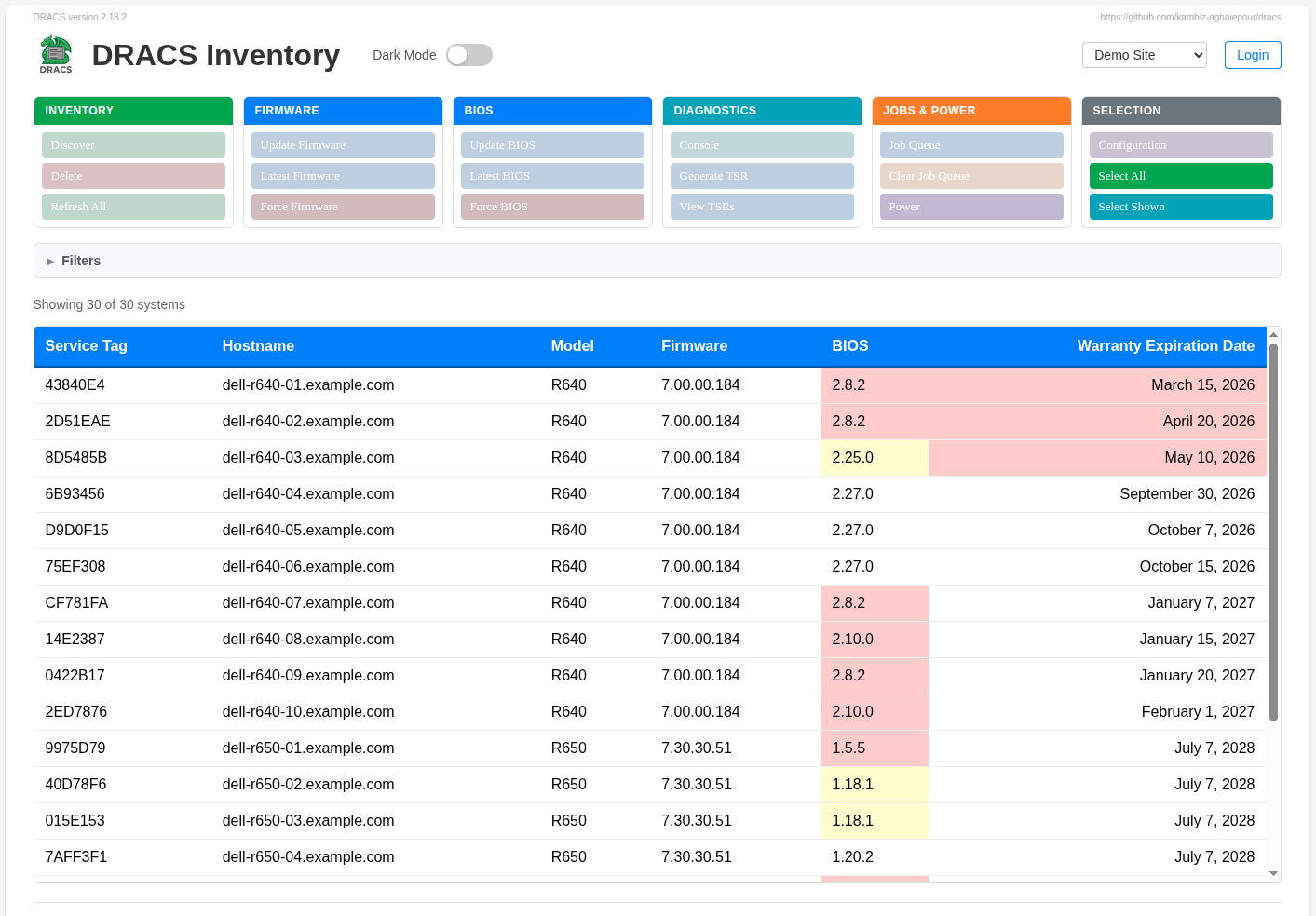
The main inventory page is accessible without authentication and shows all systems for the active site.
Light theme, anonymous user:
Dark theme, anonymous user:
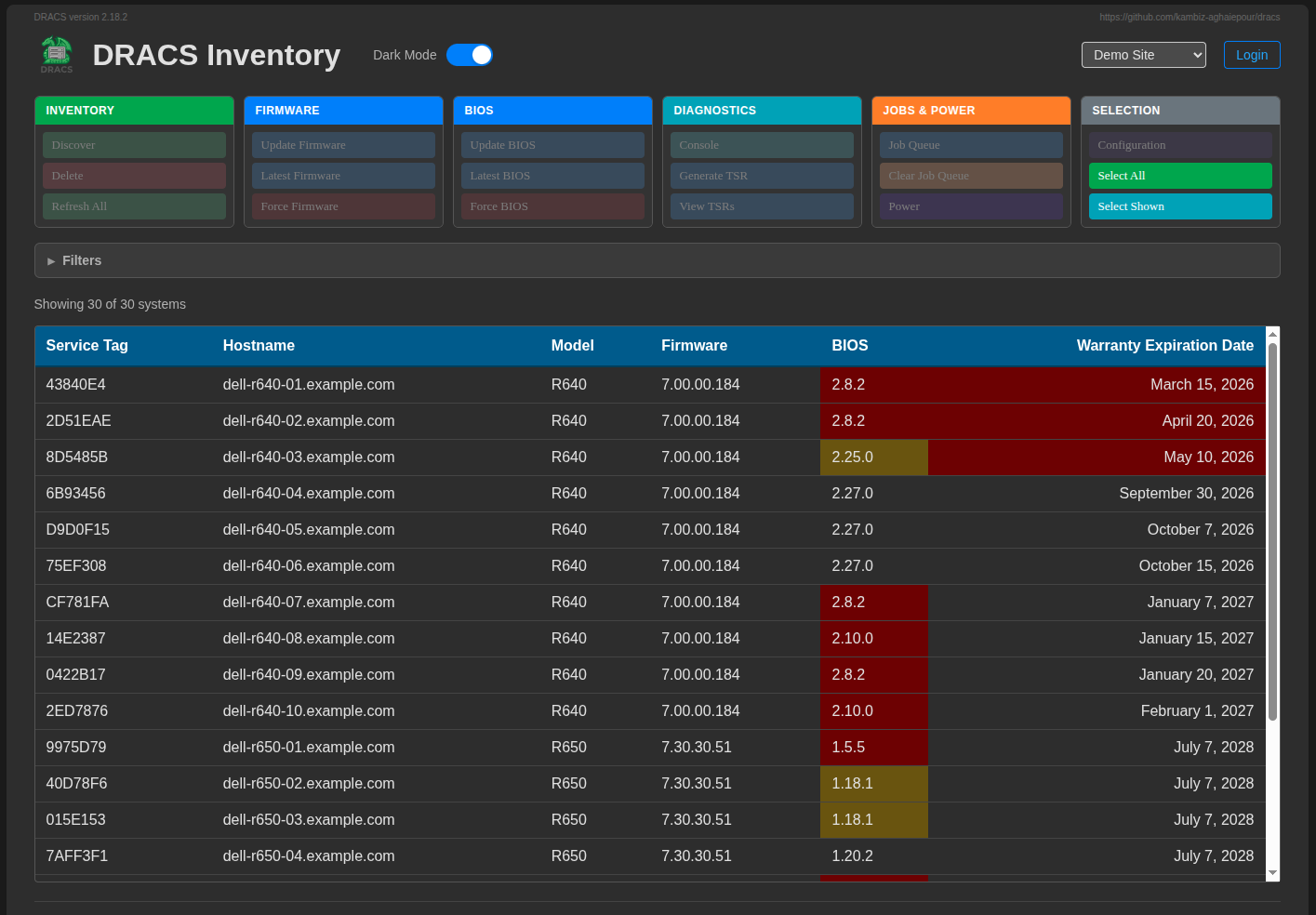
The inventory table shows: hostname, service tag, model, iDRAC firmware version, BIOS version, and warranty expiration date. Columns are sortable; the table supports pagination and hostname search. The dark/light theme toggle is in the header.
Warranty highlighting:
- Red background — warranty has expired
- Yellow background — warranty expires within the configured threshold (default: 30 days)
Multi-Site Support
A single DRACS instance manages multiple independent sites — separate data centers, environments, or host groupings — each with its own inventory, credentials, and access controls.
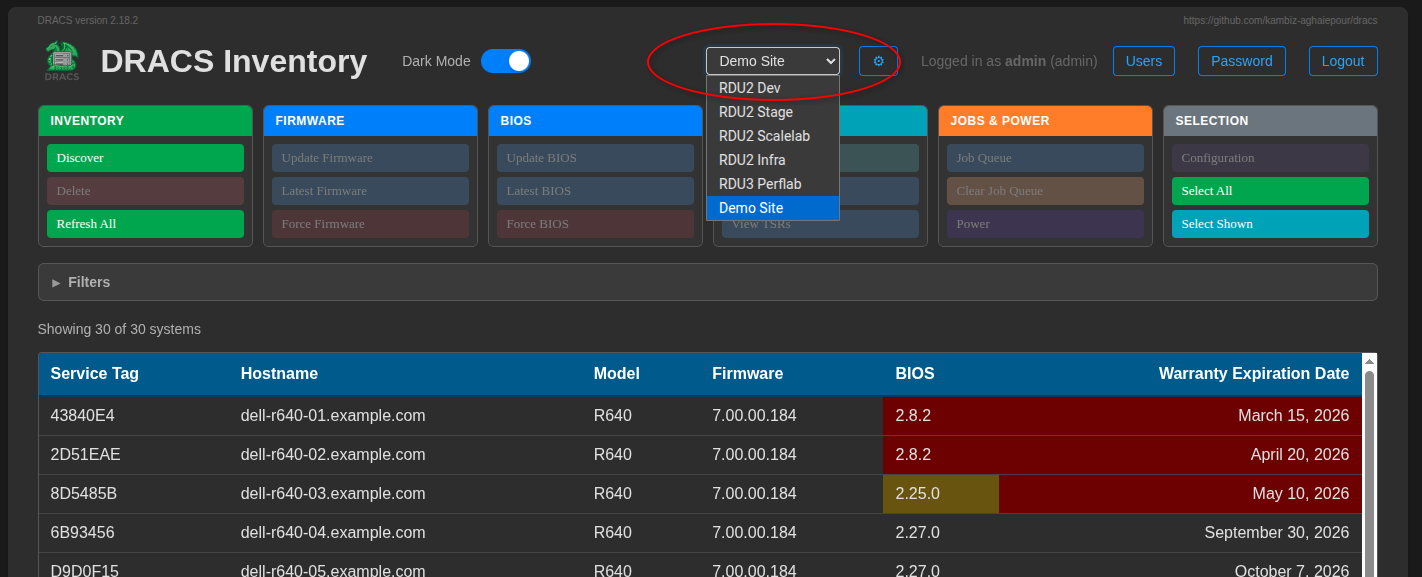
The site selector in the header switches context. All pages and API calls accept a ?site=<name> parameter, making site-specific views bookmarkable and scriptable.
Site configuration (managed per-site in drac-passwords.ini and the Sites UI):
- Default iDRAC username/password
- VNC port and password
- QUADS API URL and enable/disable toggle
- conserver password
- Per-host credential overrides
One site is designated the primary site and is shown by default when no ?site= parameter is present. Site creation, deletion, renaming, and reordering require the superadmin role. See Sites Management for the web UI and dracs sites for the CLI.
Role-Based Access Control
DRACS has five access tiers. Roles can be assigned globally (applying to all sites) or per-site (applying to one site only). The effective role for any request is the higher of the user's global role and their site-specific role.
| Role | Scope | Capabilities |
|---|---|---|
| superadmin | Global | Full access: site CRUD, all host operations, user management. Configured via WEBADMIN_USER/WEBADMIN_PASSWORD — not stored in the database |
| admin | Global or per-site | All host operations (refresh, firmware/BIOS, power, TSR, config, job queue, VNC, SOL), user management within their sites |
| user | Global or per-site | View inventory, list/download TSRs, generate TSRs, check TSR status, VNC console access, SOL access |
| quads | Per-site | Inventory filtered to QUADS-allocated hosts only; power status/action and VNC limited to owned hosts |
| unauthenticated | — | Read-only inventory view, TSR listing and download |
Permission summary:
| Action | superadmin | admin | user | quads | anon |
|---|---|---|---|---|---|
| View inventory | ✓ | ✓ | ✓ | ✓ (own hosts) | ✓ |
| View / download TSRs | ✓ | ✓ | ✓ | — | ✓ |
| Generate TSR | ✓ | ✓ | ✓ | — | — |
| VNC console | ✓ | ✓ | ✓ | ✓ (own hosts) | — |
| SOL console | ✓ | ✓ | ✓ | — | — |
| Firmware / BIOS updates | ✓ | ✓ | — | — | — |
| Power operations | ✓ | ✓ | — | ✓ (own hosts) | — |
| System refresh | ✓ | ✓ | — | — | — |
| iDRAC config collect/edit | ✓ | ✓ | — | — | — |
| SSL cert upload | ✓ | ✓ | — | — | — |
| Virtual media (ISO) | ✓ | ✓ | — | — | — |
| Job queue management | ✓ | ✓ | — | — | — |
| User management | ✓ | ✓ | — | — | — |
| Site CRUD | ✓ | — | — | — | — |
Self-service password change: All authenticated users (including the superadmin) can change their own password via the Change Password link in the header. The superadmin password is written back to dracs.conf; all other passwords are updated in the database.
Admin Toolbar
When logged in as an admin with one or more hosts selected, an action toolbar appears above the inventory table.
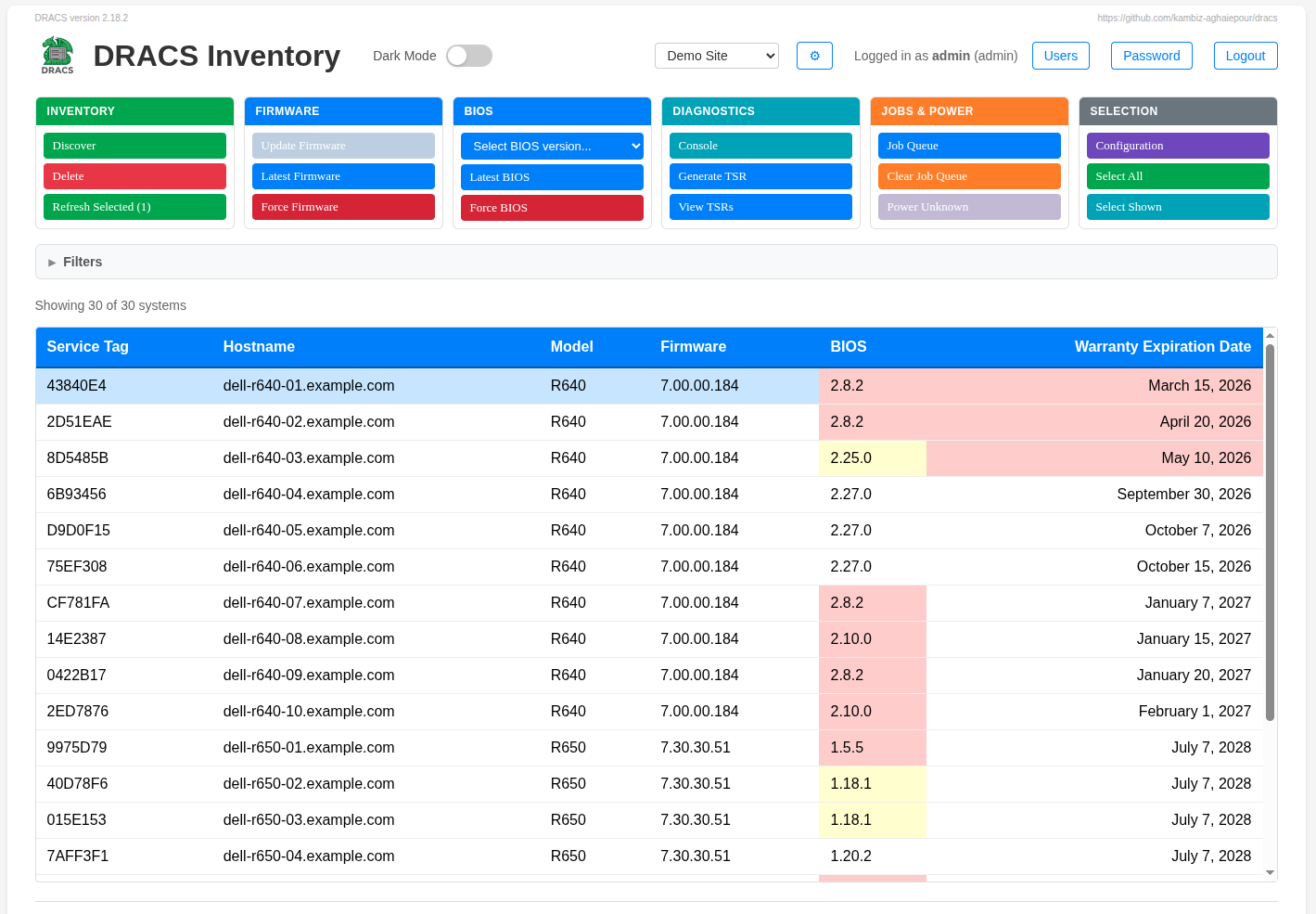

| Button | Description |
|---|---|
| Refresh Selected | Re-query SNMP + Dell API for selected hosts |
| Refresh All | Refresh all hosts in the site |
| Discover | DNS-check then SNMP-discover and add new hosts |
| Update Firmware | Queue firmware update for selected hosts (shows versions newer than current) |
| Update BIOS | Queue BIOS update for selected hosts (shows versions newer than current) |
| Latest Firmware | Download the latest iDRAC firmware from Dell catalog for the selected host's model |
| Latest BIOS | Download the latest BIOS from Dell catalog for the selected host's model |
| Force Firmware | Apply any available firmware version to a single host (including downgrades) |
| Force BIOS | Apply any available BIOS version to a single host (including downgrades) |
| Generate TSR | Trigger a Tech Support Report collection on the selected host |
| View TSRs | Browse and download collected TSR archives for the selected host |
| Power | Power on/off, graceful shutdown, hard shutdown, graceful reboot, hard reboot |
| Mount ISO | Mount or unmount an ISO image to iDRAC virtual media |
| Job Queue | View the iDRAC internal job queue for the selected host |
| Clear Job Queue | Delete all non-applied iDRAC jobs for selected hosts |
| VNC | Launch browser-based VNC console for the selected host |
| SOL | Show dracs-client sol connection command for the selected host |
| Config | Go to the iDRAC Configuration page for the selected host |
| Users | Open the user management panel |
Multi-select: Click a row to select it, Shift-click to range-select, Ctrl-click to toggle. The toolbar updates dynamically based on how many hosts are selected (some actions require exactly one host).
Firmware & BIOS Management
DRACS tracks installed iDRAC firmware and BIOS versions across the entire fleet and compares them against versions available on disk.
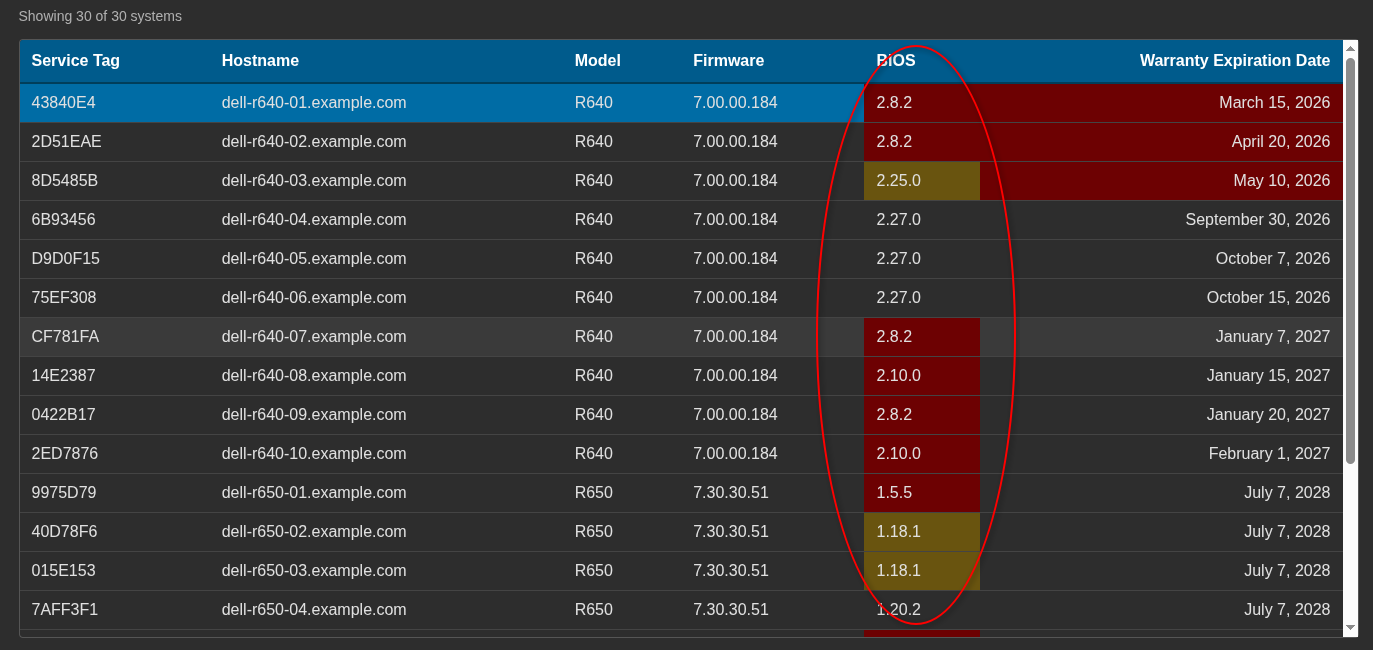
Version color coding in the inventory table:
- No highlight — latest version observed in the fleet for that model
- Yellow — one version behind the fleet-latest
- Red — two or more versions behind the fleet-latest
Note: "fleet-latest" means the most recent version installed on any host of that model in DRACS, not necessarily the latest version available from Dell.
Updating firmware and BIOS via the web UI:
- Select one or more hosts in the inventory table
- Click Update Firmware or Update BIOS — a dropdown shows versions newer than the host's current version
- Select the target version and confirm — DRACS enqueues an
racadm updatejob for each host
Downloading the latest version from Dell:
- Select a host of the relevant model
- Click Latest Firmware or Latest BIOS — DRACS fetches the Dell catalog, downloads the image with SHA-256 verification, archives any existing version, and stores the new file
- The BIOS filename map (
BIOS-filename.ini) is updated automatically
Force-apply allows applying any available version (including downgrades) to a single selected host.
For manual firmware and BIOS image setup, see Firmware Image Setup and BIOS Image Setup.
VNC Browser Console
DRACS provides browser-based VNC console access to iDRAC interfaces using websockify as a WebSocket-to-TCP bridge.
Enable VNC in dracs.conf:
VNC_ENABLE=true
VNC_WEBSOCKIFY_PORT=6080   # default
VNC_TIMEOUT=30             # session idle timeout in seconds
VNC_MAX_SESSIONS=20        # max concurrent sessions
VNC_CONSOLE_SIZE=1024x768  # browser console dimensions
Multi-host console grid:
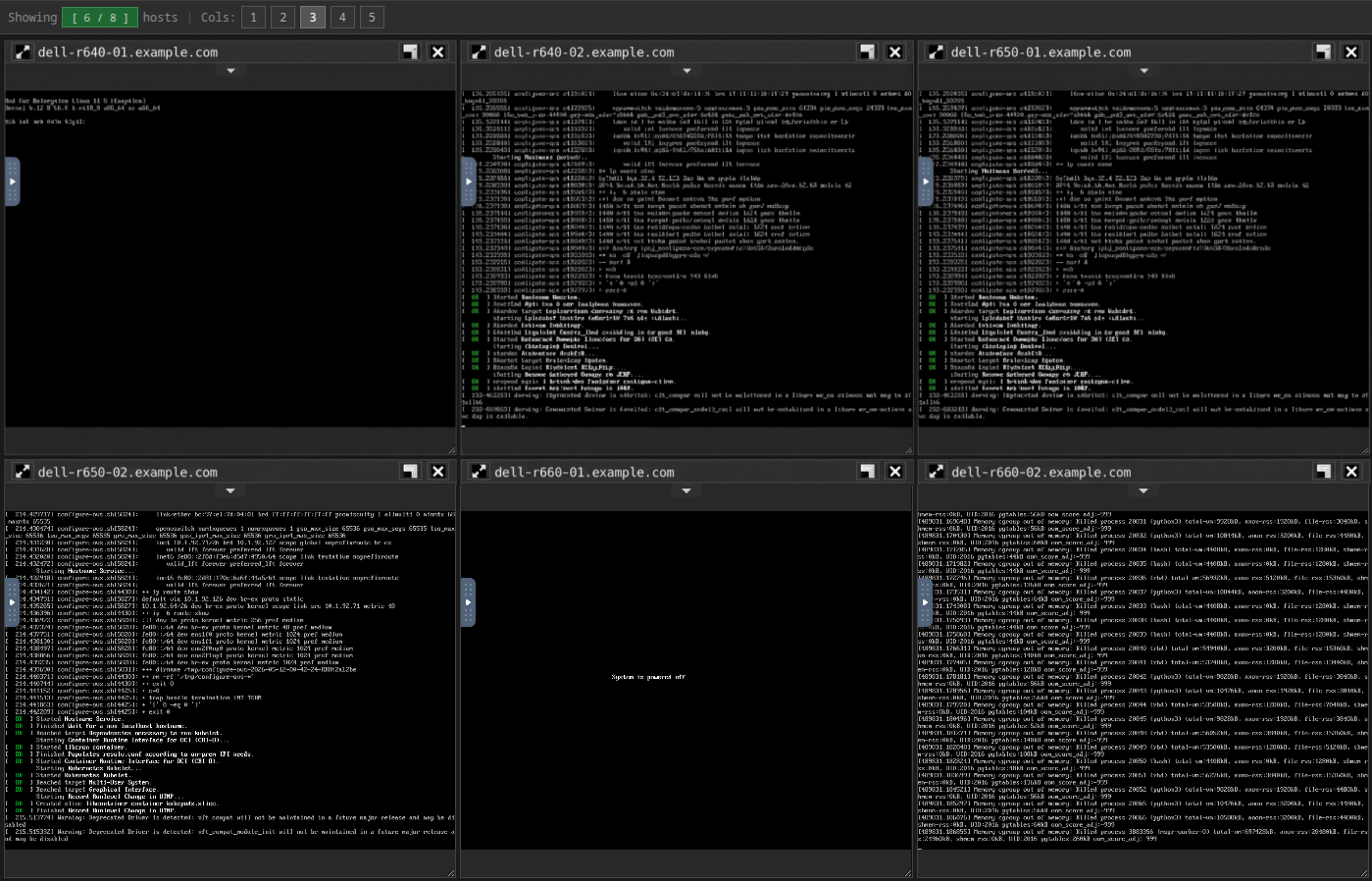
Three console views are available:
- Single host — launched from the admin toolbar for a selected host
- Multi-host grid (
/console-multi) — select multiple hosts; each appears in a tiled grid - QUADS-filtered grid (
/console-quads) — shows only hosts allocated to the logged-in QUADS user
Shared sessions (x11vnc proxy): When VNC_PROXY_ENABLE=true, DRACS launches an x11vnc -reflect process per session so multiple DRACS users can connect to the same iDRAC VNC session simultaneously (read-write sharing). Requires x11vnc to be installed.
IPMI Serial Over LAN (SOL)
DRACS manages a conserver instance that provides authenticated, TLS-encrypted IPMI Serial Over LAN access to all managed hosts. The dracs-client sol command on any machine connects directly via the console client binary.
Enable SOL in dracs.conf:
SOL_ENABLE=true
DRACS auto-detects the TLS certificate and key from the standard nginx path (/etc/pki/tls/certs/<hostname>.{pem,key}) — the same files used by the DRACS nginx configuration — so no additional SSL configuration is needed on a standard RPM deployment. The conserver authentication channel is encrypted with the same certificate that protects the web interface.
If your certificates are in a non-standard location, set SOL_SSL_CERT and SOL_SSL_KEY explicitly. For self-signed or private-CA certificates, set SOL_SSL_CA to the CA certificate path.
Required packages (server): conserver, ipmitool
Required packages (client): conserver-client (provides the console binary; included as a dependency of the dracs-client RPM)
Connecting:
# From dracs-client on any machine
dracs-client sol -t host01.example.com

# Or from the server directly
dracs sol -t host01.example.com
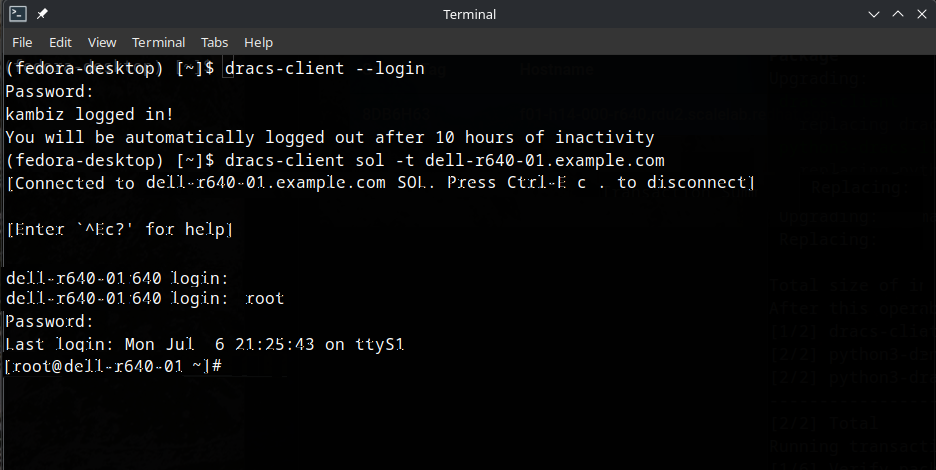
Press Ctrl-E c . to disconnect from a SOL session.
iDRAC Configuration
The Configuration page (/config) collects and displays Redfish-based configuration data for all managed hosts in a site, and allows bulk-applying iDRAC settings across a selection of hosts.
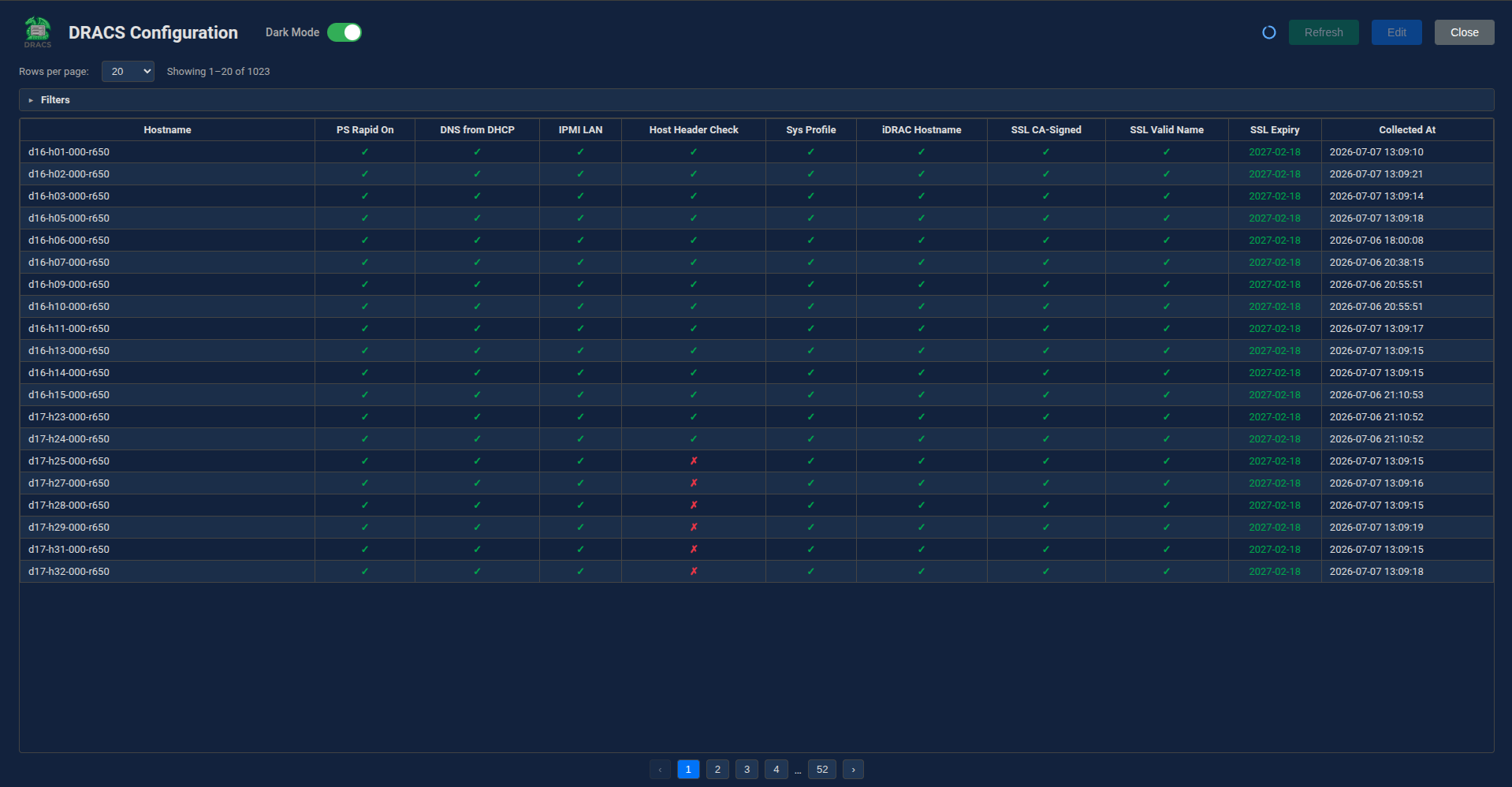
Data collected per host (via Redfish):
- SSL certificate status, issuer, and expiry
- BIOS settings (selected attributes — configurable per site)
- IPMI-over-LAN status
- iDRAC hostname
Bulk configuration apply: Select hosts in the configuration table and choose settings to apply. DRACS enqueues racadm_config jobs which SSH into each iDRAC and apply:
- DNS-from-DHCP setting
- IPMI LAN enable/disable
- Host header check
- Power supply rapid-on mode
- System profile setting
- iDRAC hostname update
After applying settings, DRACS automatically re-collects Redfish data for the affected hosts.
Configuring collection attributes: Superadmins can configure which Redfish attributes are collected per site via the site configuration API (PUT /api/sites/<name>/config-collection).
SSL Certificate Management
DRACS can manage SSL certificates on iDRAC interfaces across the fleet — uploading a site-wide certificate/key pair (or per-host overrides) and keeping iDRAC certs in sync with a configurable schedule.
Requirements: idracadm7 must be installed on the DRACS server.
Setup (via web UI — superadmin):
- Navigate to the Sites management page
- Select a site and open its SSL configuration
- Upload a PEM-encoded certificate and private key
- Set a deployment schedule:
daily,weekly,biweekly,monthly, orquarterly
DRACS stores the certificate in the database (key is stored; PEM content is never returned to the UI after upload). On each scheduled tick, DRACS compares the certificate fingerprint already on each iDRAC against the stored certificate and uploads only if they differ.
Per-host overrides: Individual hosts can be assigned their own certificate/key pair via the site SSL overrides API. Useful for hosts with unique iDRAC hostnames or special certificate requirements.
Manual sweep: Trigger an immediate cert upload to all hosts in a site via the SSL Sweep button in the Sites UI, bypassing the schedule.
Virtual Media (Remote ISO)
DRACS can mount and unmount ISO images to iDRAC virtual media via racadm over SSH.
Setup: Place ISO files in /var/lib/dracs/web/iso/ on the DRACS server. They will be served by nginx and listed in the Mount ISO dialog.
Usage:
- Select a host in the inventory table
- Click Mount ISO in the toolbar
- Select an ISO from the list (or view the currently mounted image) and confirm
The ISO URL delivered to iDRAC uses the DRACS server's FQDN: http://<dracs-server>/iso/<filename>.iso.
Job Queue
All long-running operations (firmware updates, TSR collection, refresh, config apply, SSL cert upload) are executed asynchronously via a SQLite-backed job queue. One gunicorn worker holds a file lock and runs the job processor thread pool.
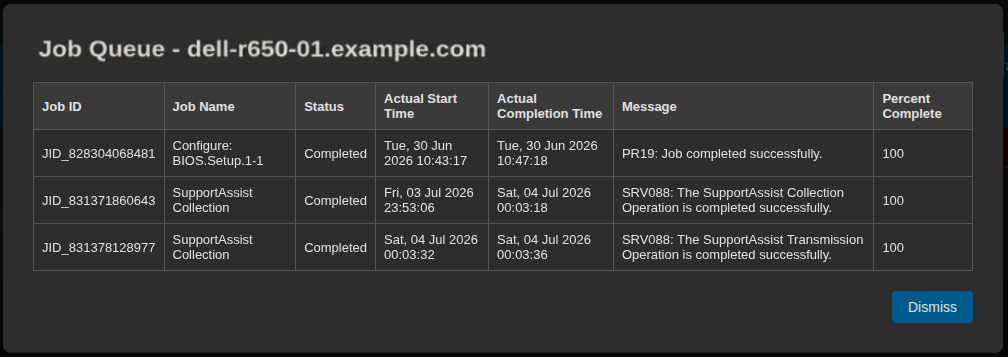
Viewing jobs:
- Web UI: click the Job Queue button in the admin toolbar (after selecting a host — shows iDRAC job queue) or navigate to the DRACS internal job queue via the Jobs section
- CLI:
dracs jobs --listordracs-client jobs --list
Job states: pending → running → completed / failed
Batch jobs: Operations on multiple hosts (refresh all, firmware update for a selection) create a parent job with per-host child jobs. The parent status rolls up as children complete.
Stale recovery: Jobs stuck in running state (e.g., after a crash) are automatically reset to pending on startup.
Job types:
| Type | Triggered by | Description |
|---|---|---|
refresh |
UI, CLI | Re-query SNMP + Dell API for a host |
tsr |
UI, CLI | SSH racadm TSR collection, TFTP export, file staging |
firmware_update |
UI, CLI | racadm update -f <model>-<ver>.d9 -l http://… |
bios_update |
UI, CLI | racadm update -f <file>.EXE -l http://… |
discover |
UI | SNMP-discover and add a host |
racadm_config |
UI | Apply racadm settings to an iDRAC |
config_collect |
UI, auto | Redfish config re-collection |
ssl_cert_upload |
Scheduler, UI | Upload site cert to iDRAC via idracadm7 |
clear_job_queue |
UI, CLI | racadm jobqueue delete --all on an iDRAC |
vnc_reset |
Scheduler, UI | Cycle VNC server on iDRAC (disable → configure → enable) |
Scheduled Tasks
DRACS supports cron-like scheduled tasks via an INI configuration file. Create /etc/dracs/schedule.ini (RPM) or schedule.ini in the working directory:
[tsr-weekly]
type = tsr
schedule = weekly
day = sunday
time = 02:00
target = all
site = MySite
keep_max = 4          # retain only the 4 most recent TSRs per host

[refresh-daily]
type = refresh
schedule = daily
time = 04:00
target = all

[vnc-reset-weekly]
type = vnc_reset
schedule = weekly
day = saturday
time = 01:00
target = all

[clear-idrac-weekly]
type = clear_job_queue
schedule = weekly
day = saturday
time = 01:30
target = all

[refresh-r660-only]
type = refresh
schedule = daily
time = 03:00
target = model:R660
site = LabSite
Supported job types: tsr, refresh, clear_job_queue, vnc_reset
Schedule options: daily (with time = HH:MM) or weekly (with day = <weekday> and time = HH:MM)
Target options:
all— all hosts in the sitemodel:<MODEL>— all hosts matching a model (e.g.model:R660)- A specific hostname
Optional keys:
site = <name>— target a specific site (default: all sites)keep_max = <N>— fortsrtasks: prune older TSRs, retaining only the N most recent per host
SSL certificate schedules are configured per-site in the Sites UI (not in schedule.ini) and support daily, weekly, biweekly, monthly, and quarterly intervals.
Google OAuth2 / SSO
DRACS supports Google OAuth2 for single sign-on. SSO users are auto-provisioned on first login with no initial role — an admin must assign roles after first login.
Setup:
- Create an OAuth2 web application in Google Cloud Console
- Add your DRACS URL as an authorized redirect URI:
https://dracs.example.com/auth/google/callback - Download the client secret JSON file
- Place it at
/etc/dracs/google_client_secret.json(or setGOOGLE_CLIENT_SECRET_PATH) - Set
GOOGLE_AUTH=trueindracs.conf - Restart dracs-webapp
When enabled, a Sign in with Google button appears on the login page. The superadmin account always uses local password authentication regardless of GOOGLE_AUTH setting.
SSO users cannot change their password within DRACS (the password field is replaced with an SSO indicator).
User Management
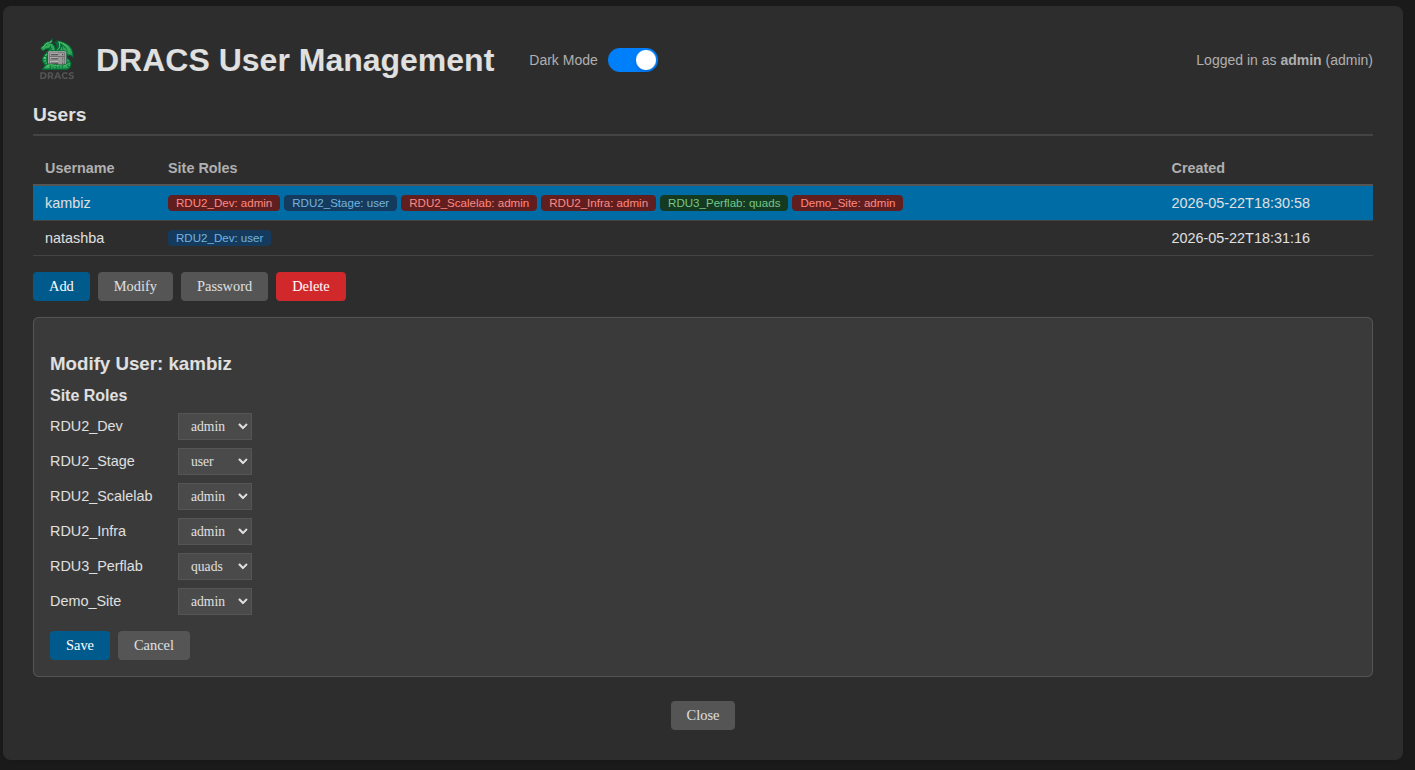
Admin users can manage accounts via the Users panel in the web UI (header link) or via the dracs user / dracs-client user CLI commands.
From the web UI, admins can:
- View all users, their global role, and per-site roles
- Add users with a username, password, and optional role
- Delete users
- Change user roles (global or per-site)
- Change user passwords
- Assign per-site roles (e.g.,
adminfor one site,userfor another)
Superadmin account: The WEBADMIN_USER / WEBADMIN_PASSWORD in dracs.conf is the bootstrap superadmin. It cannot be modified or deleted via the UI or CLI — only by editing dracs.conf directly. This ensures a recovery path even if all database users are deleted.
Sites Management
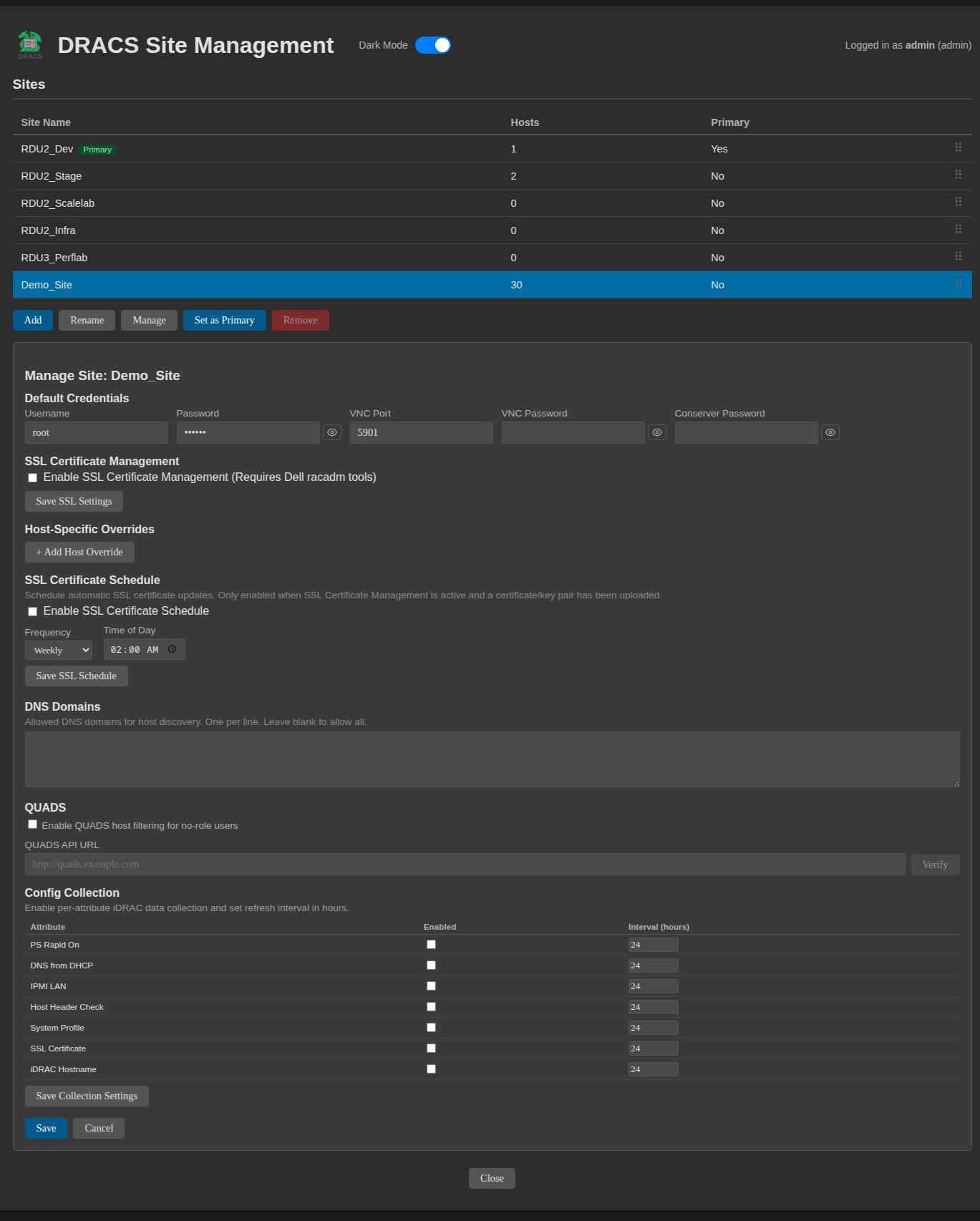
Superadmins can create, delete, rename, and reorder sites via the Sites page (/sites). Each site's configuration (iDRAC credentials, VNC settings, QUADS integration, SSL certificates) is managed from this page.
QUADS integration: Enable per-site QUADS support by providing the QUADS API URL and setting quads_enabled = true. DRACS fetches host allocations from QUADS every 24 hours. Users with the quads role for that site see only their allocated hosts and can only power/VNC those hosts. The connection can be tested from the Sites UI before enabling.
📖 dracs CLI (Server-Side Superadmin Tool)
The dracs binary is the server-side CLI. It reads configuration from /etc/dracs/dracs.conf (RPM) or .env (manual install) and operates directly on the local database and iDRAC interfaces. All write operations are logged to the audit log.
Global flags (apply to all commands):
| Flag | Description |
|---|---|
-h, --help |
Show help |
-d, --debug |
Debug output (includes SQL, SNMP OIDs, API details) |
-v, --verbose |
Verbose/INFO output |
-w PATH |
Custom SQLite database path (default: warranty.db) |
--site NAME |
Target a specific site (default: primary site) |
add (alias: a)
Add a system to the database by polling iDRAC via SNMP for BIOS/firmware versions and the Dell API for warranty expiry.
dracs add --svctag ABC1234 --target server01.example.com --model R660

# Using alias and verbose output
dracs -v a -s ABC1234 -t server01.example.com -m R660
discover (alias: d)
Discover service tag and model via SNMP, then optionally add to the database.
# Discover a single host (prompts before adding)
dracs discover --target server01.example.com

# Auto-add without prompting
dracs discover --target server01.example.com --add

# Batch discovery from a host list file
dracs discover --host-list hosts.txt --add

# Show what SNMP returned without adding
dracs discover -t server01 --show-discovered
--host-list FILE reads one hostname per line and discovers all hosts in parallel.
list (alias: li)
List and filter the inventory. Results are sorted by hostname.
dracs list                              # all hosts
dracs list --model R660                 # filter by model
dracs list --expired                    # expired warranties only
dracs list --expires_in 30             # expiring within 30 days
dracs list --regex "rack05%"           # SQL LIKE hostname filter
dracs list --svctag ABC1234            # find by service tag
dracs list --target server01           # find by hostname

# Version filters (operators: lt, le, gt, ge, eq)
dracs list --bios_lt 2.5.1             # BIOS older than 2.5.1
dracs list --idrac_ge 6.10.30.00       # iDRAC 6.10.30.00 or newer

# Output formats
dracs list --json                       # JSON for automation
dracs list --host-only                  # one hostname per line (for scripting)
dracs list --model R650 --host-only | xargs -I{} dracs refresh -t {}
lookup (alias: l)
Retrieve detailed information about a single system.
dracs lookup --svctag ABC1234 --full
dracs lookup --target server01.example.com --bios   # BIOS version only
dracs lookup -s ABC1234 --idrac                      # iDRAC version only
edit (alias: e)
Update fields in the database, optionally re-polling hardware for current versions.
dracs edit --target server01 --bios --idrac    # refresh both versions from SNMP
dracs edit --svctag ABC1234 --model R650       # correct the model
dracs edit -t server01 --bios                  # refresh BIOS only
refresh (alias: rf)
Re-query SNMP (firmware/BIOS versions) and Dell API (warranty) for one or more hosts. Single-host runs immediately; model/all enqueues batch jobs.
dracs refresh --svctag ABC1234
dracs refresh --target server01.example.com
dracs refresh --model R660               # enqueues jobs for all R660 hosts
dracs refresh --all                      # enqueues jobs for all hosts
dracs -v rf -s ABC1234
remove (alias: r)
Delete a system from the database.
dracs remove --svctag ABC1234
dracs remove --target server01.example.com
init (alias: i)
Copy bundled example configuration files to the current directory. Run once after installation to get started.
dracs init
# Creates: .env.example, drac-passwords.ini.example, BIOS-filename.ini.example
tsr (alias: t)
Manage Dell Tech Support Reports.
dracs tsr --list -t host01.example.com          # list all TSRs
dracs tsr --list -t host01.example.com --last 3 # list 3 most recent
dracs tsr --download -t host01.example.com      # download most recent zip
dracs tsr --generate -t host01.example.com      # queue TSR collection job
dracs tsr --status -t host01.example.com        # poll collection status
fw
List installed vs. available iDRAC firmware versions and enqueue update jobs.
dracs fw --list                              # all models
dracs fw --list -m R660                      # R660 only

# Apply a firmware version (prompts for confirmation)
dracs fw --apply --version 7.10.50 -t host01.example.com

# Skip confirmation
dracs fw --apply --version 7.10.50 -t host01.example.com --yes

# Force-apply a version not yet installed on any host
dracs fw --apply --version 6.10.80 -t host01.example.com --force --yes
bios
List installed vs. available BIOS versions and enqueue update jobs.
dracs bios --list
dracs bios --list -m R660
dracs bios --apply --version 2.10.1 -t host01.example.com --yes
dracs bios --apply --version 3.0.0 -t host01.example.com --force --yes
jobs (alias: j)
Manage the internal DRACS job queue.
dracs jobs --list              # pending and running jobs
dracs jobs --list --all        # include completed and failed
dracs jobs --list --failed     # failed jobs only
dracs jobs --cancel 42         # cancel a pending job by ID
dracs jobs --clear             # delete completed jobs older than 7 days
idracjobs (alias: ij)
View and clear the iDRAC's internal racadm job queue via SSH.
dracs idracjobs --list -t host01.example.com
dracs ij --clear -t host01.example.com        # prompts for confirmation
dracs ij --clear -m R660                      # all R660 hosts
dracs ij --clear --all                        # all hosts
dracs ij --clear --all -f                     # skip confirmation
vnc
Manage VNC console sessions.
dracs vnc -t host01.example.com --connections   # active viewer count
dracs vnc -t host01.example.com --reset         # cycle VNC on iDRAC via racadm
dracs vnc --active                              # list all hosts with active viewers
sol
Connect to a host's IPMI serial console via conserver. Requires SOL_ENABLE=true and the console binary.
dracs sol -t host01.example.com
# Press Ctrl-E c . to disconnect
user (alias: u)
Manage database user accounts.
dracs user --list
dracs user --add --username jsmith --role user   # prompts for password
dracs user --add --username jsmith --role admin
dracs user --update --username jsmith --role admin
dracs user --update --username jsmith           # change password (prompts)
dracs user --remove --username jsmith
Roles: admin, user, quads (quads requires --site), none (removes global role)
# Assign per-site role
dracs user --update --username jsmith --role quads --site LabSite
sites
Manage site configuration from the CLI.
dracs sites --list
dracs sites --add --name NewSite
dracs sites --delete --name OldSite
dracs sites --rename --name OldName --new-name NewName
dracs sites --config --name MySite           # display site INI config
dracs sites --set-config --name MySite \
    --username root --password calvin \
    --vnc-port 5900 --vnc-password calvin \
    --quads-url https://quads.example.com \
    --quads-enabled true
📡 dracs-client (Remote CLI)
dracs-client is a lightweight CLI for querying a remote DRACS server over HTTPS. It does not require local database access or server dependencies. The dracs-client RPM depends only on conserver-client.
Configuration
Create ~/.dracsrc:
dracs_server: dracs.example.com
dracs_user: jsmith
Or specify the server per command: dracs-client -s dracs.example.com <command>
Global flags:
| Flag | Description |
|---|---|
-s / --server FQDN |
DRACS server hostname |
--no-verify / --insecure |
Disable SSL certificate verification |
--login |
Authenticate and store token |
--logout |
Revoke token |
--user USERNAME |
Override username for login |
--site NAME |
Select site for this request |
Authentication
dracs-client --login                  # prompts for password
dracs-client --login --user jsmith
dracs-client --logout
The bearer token is cached at ~/.config/dracs/login_token. It is refreshed on every request. Token idle-expiry is configured by DRACS_TOKEN_EXPIRY on the server (default: 10 hours).
The superadmin account cannot authenticate via dracs-client — it is restricted to the web interface and the local dracs CLI.
The --help output adapts to your current role — subcommands you don't have access to are hidden.
Unauthenticated / All roles
# Inventory listing (same filters as dracs list)
dracs-client list
dracs-client list --model R660 --json
dracs-client list --expired --host-only
dracs-client list --bios_lt 2.5.1

# TSR listing and download
dracs-client tsr --list -t host01.example.com
dracs-client tsr --list -t host01.example.com --last 3
dracs-client tsr --download -t host01.example.com

# List sites
dracs-client sites

# Use a specific site
dracs-client --site LabSite list
User role (additional)
dracs-client tsr --generate -t host01.example.com
dracs-client tsr --status -t host01.example.com

# SOL serial console (requires console binary from conserver-client)
dracs-client sol -t host01.example.com
Admin role (additional)
# System refresh
dracs-client refresh -t host01.example.com
dracs-client refresh --all

# Discover hosts
dracs-client discover -t newhost.example.com
dracs-client discover -f host-list.txt

# Firmware and BIOS
dracs-client fw --list -m R660
dracs-client fw --apply --version 7.10.50 -t host01.example.com -m R660
dracs-client bios --list -m R660
dracs-client bios --apply --version 2.10.1 -t host01.example.com -m R660

# Power management
dracs-client power --status -t host01.example.com
dracs-client power --action graceshutdown -t host01.example.com
dracs-client power --action powerup -t host01.example.com
# Actions: powerup, powerdown, graceshutdown, hardreset, powercycle

# Job queue
dracs-client jobs --list
dracs-client jobs --list --all
dracs-client jobs --clear
dracs-client idracjobs --list -t host01.example.com
dracs-client idracjobs --clear -t host01.example.com

# VNC session info
dracs-client vnc -t host01.example.com --connections
dracs-client vnc -t host01.example.com --reset
dracs-client vnc --active

# User management
dracs-client user --list
dracs-client user --add --username newuser --role user
dracs-client user --update --username jsmith --role admin
dracs-client user --remove --username olduser
📋 Audit Logging
DRACS logs all administrative actions to an audit log for accountability and compliance.
Log location:
- RPM:
/var/log/dracs/audit.log - Manual:
logs/audit.log(relative to working directory, or$DRACS_LOG_DIR/audit.log)
Log format — space-separated key=value pairs:
2026-05-22T14:30:45.123456Z user=admin source=10.0.0.5 action=firmware_update target=server01 result=success details=version=7.10.60.00,model=R660
2026-05-22T14:31:02.654321Z user=admin source=10.0.0.5 action=power_action target=server02 result=success details=graceshutdown
2026-05-22T14:31:15.000000Z user=jsmith source=10.0.0.5 action=tsr_collect target=server03 result=success
2026-05-22T14:32:00.000000Z user=baduser source=10.0.0.5 action=login target=- result=denied
2026-05-22T14:35:00.000000Z user=root source=cli action=add target=server04 result=success details=svctag=ABC1234
Audited actions:
| Action | Source | Details captured |
|---|---|---|
login / logout |
webapp | username, result (success/denied) |
firmware_update |
webapp, cli | hostname, version, model |
bios_update |
webapp, cli | hostname, version, model |
power_action |
webapp | hostname, action type |
tsr_collect |
webapp, cli | hostname |
refresh / refresh_all |
webapp, cli | target, count |
clear_job_queue |
webapp, cli | hostnames |
vnc_session_create / vnc_session_delete |
webapp | hostname, token |
ssl_cert_upload |
scheduler, webapp | hostname, site |
config_edit |
webapp | hostname, settings applied |
user_create / user_delete / user_update |
webapp, cli | username, role |
site_create / site_delete / site_rename |
webapp, cli | site name |
add / edit / remove |
cli | hostname, service tag |
fw_apply / bios_apply |
cli | hostname, version |
Log rotation:
The RPM installs /etc/logrotate.d/dracs:
- Weekly rotation, 52 weeks retention, compressed,
copytruncate(no service restart needed)
For non-RPM installs, a built-in RotatingFileHandler rotates at 10 MB with 5 backup files.
💾 Firmware Image Setup
iDRAC firmware images (.d9 files) are served by nginx from /var/lib/dracs/web/firmware/ and pushed to iDRACs via racadm update.
-
Download the desired iDRAC firmware from Dell support (e.g.
iDRAC-with-Lifecycle-Controller_Firmware_924YT_WN64_7.30.10.50_A00.EXE) -
Extract the
.d9payload:unzip iDRAC-with-Lifecycle-Controller_Firmware_924YT_WN64_7.30.10.50_A00.EXE -d fw_extracted # The payload is at fw_extracted/payload/firmimgFIT.d9
-
Copy to the DRACS firmware directory using the
<MODEL>-<VERSION>.d9naming convention:cp fw_extracted/payload/firmimgFIT.d9 /var/lib/dracs/web/firmware/R660-7.30.10.50.d9 chmod 444 /var/lib/dracs/web/firmware/R660-7.30.10.50.d9
-
Install the firmware on at least one host manually so DRACS can discover the version:
ssh admin@mgmt-host01.example.com
racadm update -f R660-7.30.10.50.d9 -l http://dracs.example.com/firmware/
-
Refresh that host in DRACS (
dracs refresh -t host01.example.com). The version now appears in Update Firmware dropdowns for all R660 hosts.
Alternatively, use the Latest Firmware button in the web UI to have DRACS download and stage the image from Dell automatically.
Custom Image Server
By default DRACS tells iDRACs to fetch images from the DRACS host itself. Override if images are served from a separate server:
DRACS_FIRMWARE_SERVER=images.example.com
DRACS_FIRMWARE_URI=/dell/firmware/
This produces: racadm update -f R660-7.10.50.d9 -l http://images.example.com/dell/firmware/
💾 BIOS Image Setup
BIOS images (.EXE files) are served by nginx from /var/lib/dracs/web/bios/ and pushed to iDRACs via racadm update.
-
Download the desired BIOS image from Dell support (e.g.
BIOS_G93PH_WN64_2.10.1.EXE) -
Copy to the DRACS BIOS directory:
cp BIOS_G93PH_WN64_2.10.1.EXE /var/lib/dracs/web/bios/
chmod 444 /var/lib/dracs/web/bios/BIOS_G93PH_WN64_2.10.1.EXE
-
Register the filename mapping in
BIOS-filename.ini:[R660] 2.10.1 = BIOS_G93PH_WN64_2.10.1.EXE
-
Install the BIOS on at least one host so DRACS can discover the version, then refresh:
ssh admin@mgmt-host01.example.com
racadm update -f BIOS_G93PH_WN64_2.10.1.EXE -l http://dracs.example.com/bios/
# Connect to system console and reboot to let the BIOS update complete
dracs refresh -t host01.example.com
Alternatively, use the Latest BIOS button in the web UI to download and stage the image automatically (BIOS-filename.ini is updated automatically).
🌐 Web Proxy (nginx)
DRACS binds to 127.0.0.1:1888 by default. Use nginx for TLS termination and to serve static files.
Sample nginx configurations are in the nginx/ directory:
dracs.conf.example— HTTP → HTTPS redirectdracs_ssl.conf.example— HTTPS reverse proxy to127.0.0.1:1888; also proxies websockify at127.0.0.1:6080for VNC; serves/firmware,/bios,/tsr, and/isoas static file aliases
For non-RPM installs:
cp nginx/dracs.conf.example /etc/nginx/conf.d/dracs.conf
cp nginx/dracs_ssl.conf.example /etc/nginx/conf.d/dracs_ssl.conf
# Edit both files: replace dracs.example.com with your hostname
# Update ssl_certificate and ssl_certificate_key paths
nginx -t && systemctl reload nginx
The RPM configures nginx automatically during installation.
The standard TLS certificate path used by both nginx and DRACS SOL conserver:
/etc/pki/tls/certs/<hostname>.pem   (certificate)
/etc/pki/tls/certs/<hostname>.key   (private key)
📝 Tips & Troubleshooting
Always use -v when running commands interactively:
dracs -v add -s ABC1234 -t server01 -m R660
SNMP connectivity:
- Verify the iDRAC interface is reachable via
DRACS_DNS_STRING/DRACS_DNS_MODEnaming - Default community is
public— configure viaSNMP_COMMUNITY - Port 161 must be accessible from the DRACS host
Dell API issues:
- Verify
CLIENT_IDandCLIENT_SECRETindracs.conf - Service tags must be 5–7 alphanumeric characters
- Systems must have an active Dell warranty or support contract
SSH / racadm failures:
- Verify iDRAC SSH is enabled and the credentials in
drac-passwords.iniare correct - Test with:
dracs -d refresh -t host01.example.comto see SSH details - Ensure
sshpassis installed:which sshpass
VNC console not loading:
- Confirm
VNC_ENABLE=trueindracs.confanddracs-webappwas restarted - Check nginx proxies
/websockifyto127.0.0.1:6080(seedracs_ssl.conf.example) - Port 6080 must be reachable from nginx (loopback only)
SOL connection failing:
- Confirm
SOL_ENABLE=trueand port 3109 is reachable from client - Check that cert permissions are correct:
ls -la /etc/pki/tls/certs/<hostname>.{pem,key}— both should beroot:dracs 640(fixed automatically onsystemctl restart dracs-webapp) - Verify
conserverandipmitoolare installed on the server - Verify
console(conserver-client) is installed on the client
Database location:
- RPM default:
/var/lib/dracs/warranty.db - Custom:
-w /path/to/custom.dbflag orDRACS_DBenv var - Database is created automatically on first use
Debug mode:
dracs -d add -s ABC1234 -t server01 -m R660
# Shows: SQL queries, SNMP OID requests/responses, Dell API request/response details
Check job queue for stuck operations:
dracs jobs --list --all
dracs jobs --list --failed
Logrotate for non-RPM installs:
The built-in handler rotates at 10 MB with 5 backups. For production, configure system logrotate pointing at $DRACS_LOG_DIR/audit.log.
1 maintainer

Metadata
1 maintainer
Release files for dracs 2.19.0
For a detailed explanation of source distributions (sdists) and built distributions (wheels), please see the package formats documentation.
Source distribution (sdist)
| File | Size | Uploaded | |
|---|---|---|---|
| dracs-2.19.0.tar.gz | 3.5 MB | Details |
Built distribution (wheel)
| File | Interpreter | ABI | Platform | Reset |
|---|---|---|---|---|
| dracs-2.19.0-py3-none-any.whl | Python 3 | none | any | Details |
Total release size: 4.1 MB
Release files / dracs-2.19.0.tar.gz
| Download URL | dracs-2.19.0.tar.gz |
|---|---|
| Size | 3.5 MB |
| Tags | Source |
|
SHA-256 checksum How to use checksums |
0c3d16e24e009f0a02a2eca58fceb5f06db2c3ce88f7491c7a8a5c547780f226
|
|
BLAKE2b-256 checksum How to use checksums |
4ff25e1f07de5ad8385355bf10f684e971e492f302c7f0cfab0e7341eb5fecc1
|
| Upload date | |
|
Uploaded using Trusted Publishing? What is trusted publishing? |
Yes |
| Uploaded via |
twine/6.1.0 CPython/3.13.13
|
Provenance
Provenance describes where a file came from. On PyPI, provenance is shared via attestations, which provide a verifiable record of the build or publishing details. View details, limitations and caveats.


PyPI Publish Attestation
PyPI verified that this artifact, at this checksum, originated from the publisher listed below.
Signed by GitHub Actions, verified by PyPI on Jul 9, 2026.
Transparency logRelease files / dracs-2.19.0-py3-none-any.whl
| Download URL | dracs-2.19.0-py3-none-any.whl |
|---|---|
| Size | 642.2 kB |
| Tags | Python 3 |
|
SHA-256 checksum How to use checksums |
9dc25c9a0fad8dad0722031db8633b957bb0799a84e8b97fc3c6490372620bab
|
|
BLAKE2b-256 checksum How to use checksums |
bca884f0b4514035185e51c51dfe6c006d6de6fca6873cf2211a86902683c00c
|
| Upload date | |
|
Uploaded using Trusted Publishing? What is trusted publishing? |
Yes |
| Uploaded via |
twine/6.1.0 CPython/3.13.13
|
Provenance
Provenance describes where a file came from. On PyPI, provenance is shared via attestations, which provide a verifiable record of the build or publishing details. View details, limitations and caveats.
PyPI Publish Attestation
PyPI verified that this artifact, at this checksum, originated from the publisher listed below.
Signed by GitHub Actions, verified by PyPI on Jul 9, 2026.
Transparency log













