
dtop - Docker Terminal UI



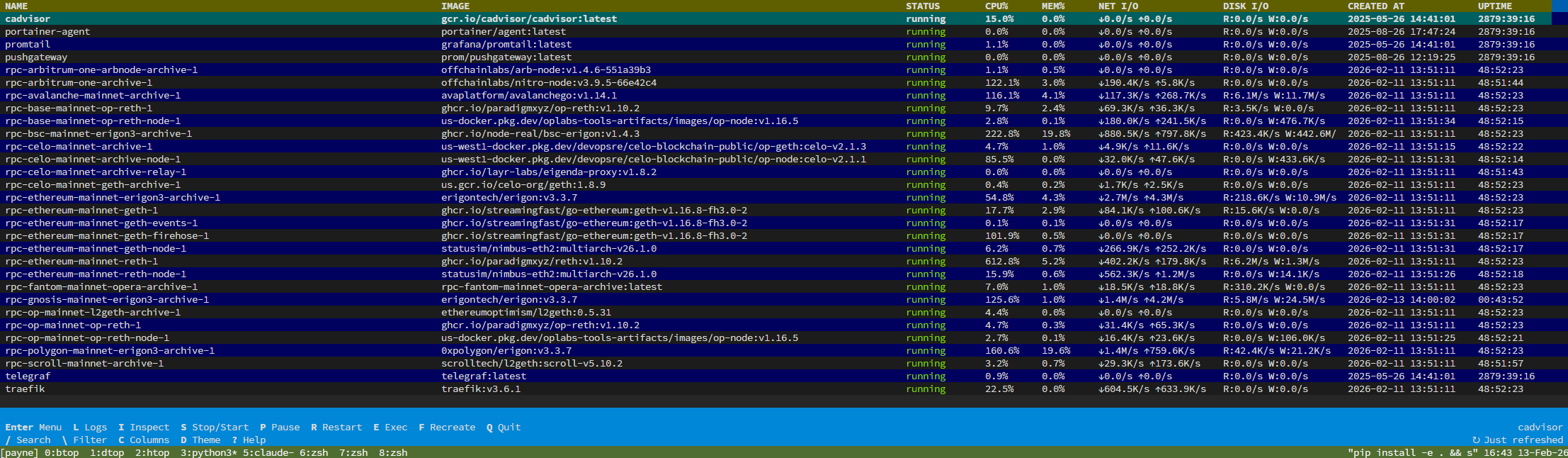
A terminal UI for managing and monitoring Docker containers. Real-time stats, advanced log viewing, container lifecycle control, and full keyboard-driven workflow.
Features
- Real-time stats — CPU, memory, network I/O, and disk I/O with parallel streaming collection
- Container control — Start, stop, pause, restart, exec shell, remove, and recreate (with docker-compose support)
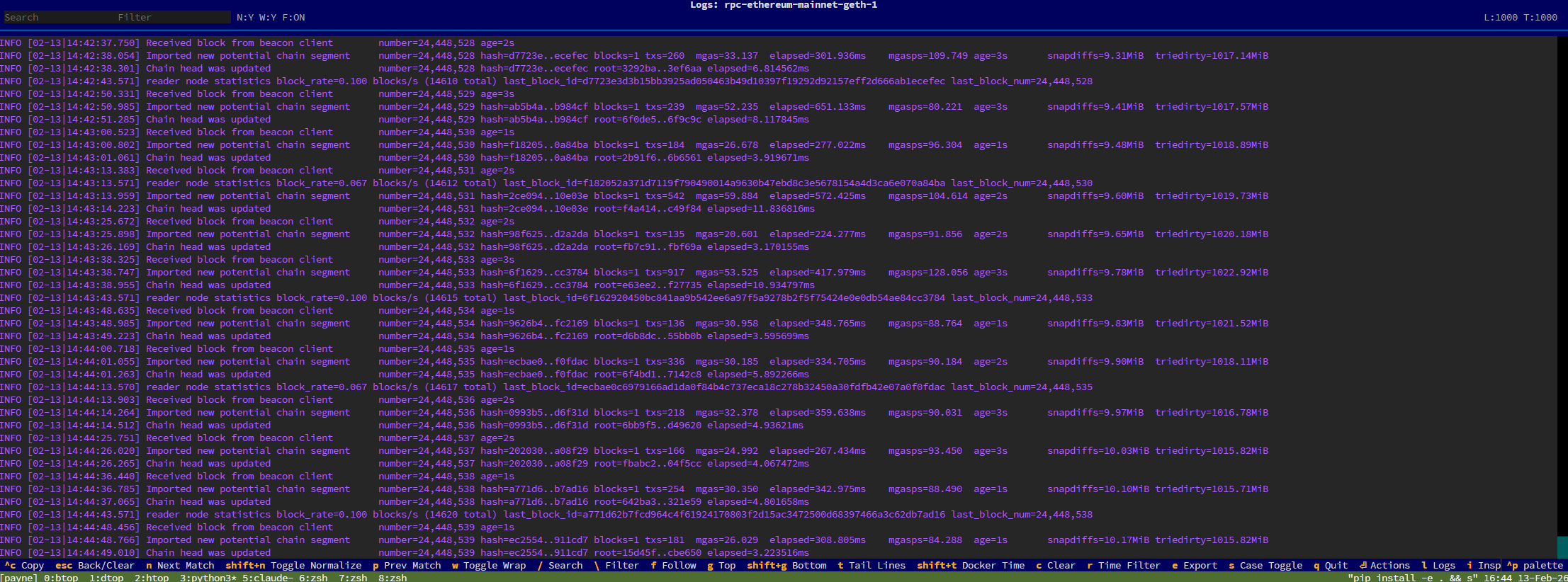
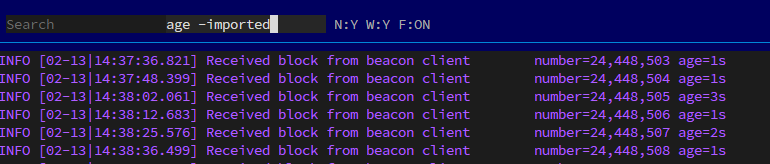
- Advanced log viewer — Search, filter (AND/OR/NOT expressions), follow mode, time-range filtering, normalization, and export
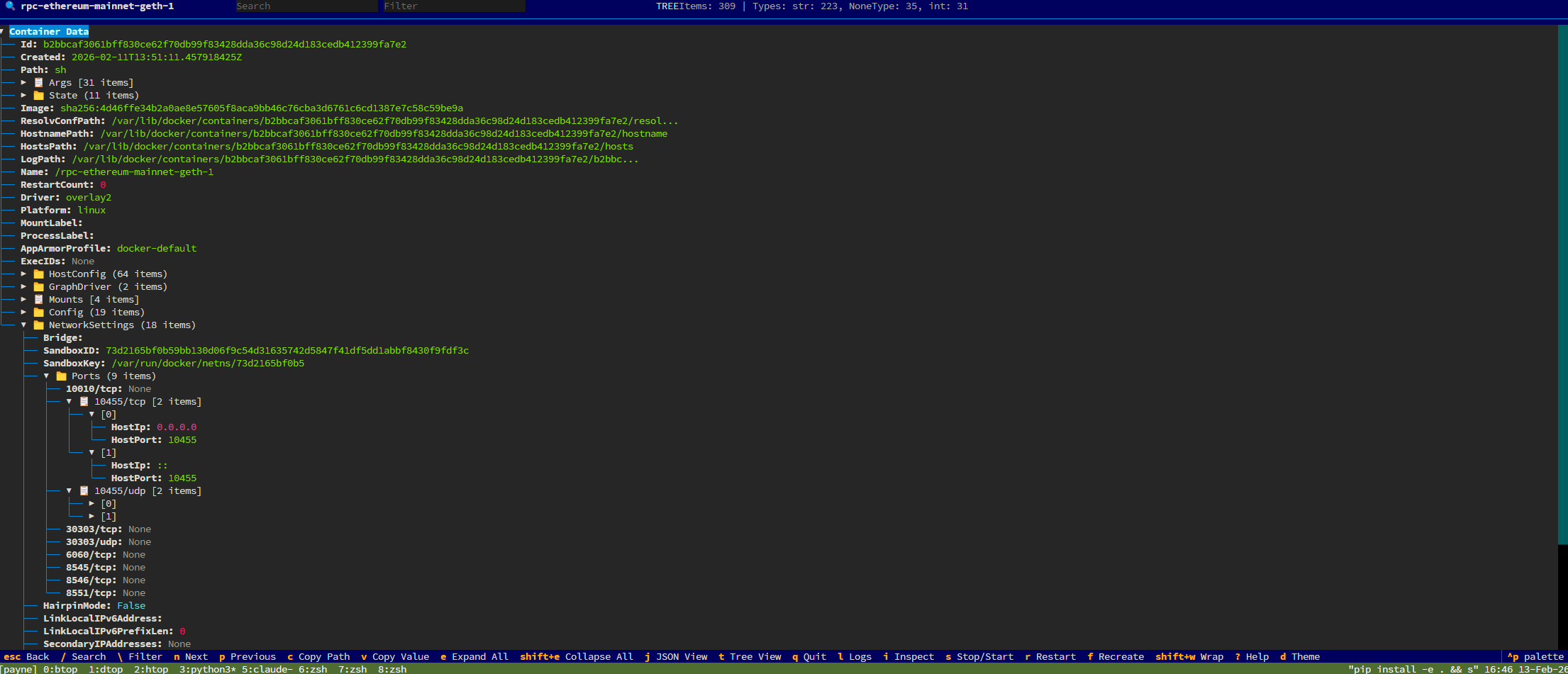
- Container inspector — Tree and JSON views with search, expand/collapse, and path/value copy
- Keyboard-first — Every action has a shortcut; mouse is fully supported too
- Customizable columns — Adjust widths, set min/max, reorder via config or the built-in editor
- Preset + custom themes — Cycle presets or define fully custom palettes and semantic colors
- Responsive layout — Columns auto-size to terminal width based on weight
- Persistent config — Column settings saved to
~/.docker_tui.json - Legacy mode — Falls back to a curses interface with
--legacy
Installation
Requirements: Python 3.8+, Docker daemon running, access to /var/run/docker.sock
# PyPI (recommended)
pip install dtop

# Latest from GitHub
pip install git+https://github.com/StakeSquid/dtop.git

# Quick install script
sudo bash -c "$(curl -fsSL https://raw.githubusercontent.com/StakeSquid/dtop/main/scripts/install.sh)"

# Development
git clone https://github.com/StakeSquid/dtop && cd dtop && pip install -e .
Upgrading
If you have a previous version installed, make sure to upgrade:
pip install --upgrade dtop
Usage
dtop              # Textual UI (default)
dtop --legacy     # Curses interface
dtop --debug      # Debug mode with full tracebacks
Keyboard Shortcuts
Main View
| Key | Action |
|---|---|
Enter |
Open actions menu for selected container |
L |
View logs |
I |
Inspect container |
S |
Stop / Start (toggle) |
P |
Pause / Unpause (toggle) |
R |
Restart |
E |
Exec shell |
F |
Recreate |
/ |
Search containers |
\ |
Filter containers |
N |
Next search match |
Escape |
Clear search/filter |
C |
Column settings |
D |
Cycle theme presets (includes custom theme when configured) |
T |
Open theme editor (edit/save custom theme in-app) |
? |
Help |
Q |
Quit |
Click any column header to sort. Click again to reverse.
Container Actions Menu
When the modal is open, press any shortcut key directly:
| Key | Action |
|---|---|
L |
View logs |
I |
Inspect |
S |
Stop / Start |
P |
Pause / Unpause |
R |
Restart |
E |
Exec shell |
F |
Recreate |
Escape / Q |
Close menu |
Log Viewer
| Key | Action |
|---|---|
F |
Toggle follow mode (auto-scroll) |
/ |
Search |
\ |
Filter (supports AND/OR/NOT expressions) |
N / P |
Next / previous match |
S |
Toggle case-sensitive search |
Shift+N |
Toggle log normalization |
W |
Toggle line wrapping |
T |
Set tail line count |
Shift+T |
Toggle Docker timestamps |
R |
Time-range filter |
E |
Export logs to file |
G / Shift+G |
Jump to top / bottom |
C |
Clear log display |
Escape |
Back (clears active filter first) |
Inspector
| Key | Action |
|---|---|
/ |
Search keys and values |
\ |
Filter |
N / P |
Next / previous match |
C |
Copy current match path |
V |
Copy current match value |
E / Shift+E |
Expand / collapse all |
J |
JSON view |
T |
Tree view |
Escape |
Back |
Log Filter Syntax
The log viewer supports complex filter expressions:
error                        # lines containing "error"
+error                       # explicit include
-error  or  !error           # exclude
"exact phrase"               # quoted multi-word term
error AND warning            # both terms required
error OR warning             # either term
(error OR warning) AND -debug  # grouped with exclusion
Configuration
Settings are stored in ~/.docker_tui.json. Press C in the main view to open the column editor.
Each column has: name, width, min_width, max_width, weight, and align.
{
  "columns": [
    { "name": "NAME",    "width": 25, "min_width": 15, "max_width": null, "weight": 3, "align": "left" },
    { "name": "IMAGE",   "width": 30, "min_width": 15, "max_width": 50,   "weight": 2, "align": "left" },
    { "name": "STATUS",  "width": 12, "min_width": 8,  "max_width": 20,   "weight": 1, "align": "left" },
    { "name": "CPU%",    "width": 8,  "min_width": 7,  "max_width": 10,   "weight": 0, "align": "right" },
    { "name": "MEM%",    "width": 8,  "min_width": 7,  "max_width": 10,   "weight": 0, "align": "right" },
    { "name": "NET I/O", "width": 20, "min_width": 16, "max_width": 26,   "weight": 0, "align": "right" },
    { "name": "DISK I/O","width": 20, "min_width": 16, "max_width": 26,   "weight": 0, "align": "right" },
    { "name": "CREATED AT","width": 21,"min_width": 19, "max_width": 30,   "weight": 0, "align": "left" },
    { "name": "UPTIME",  "width": 12, "min_width": 8,  "max_width": 16,   "weight": 0, "align": "right" }
  ]
}
Columns with a higher weight expand first when the terminal is wide. Columns with weight: 0 stay at their minimum unless extra space allows growth.
Custom Theme Configuration
You can define a fully custom Textual theme plus semantic runtime colors (status labels, search highlights, log severity colors, etc.) in the same config file.
Set "theme": "dtop-custom" to activate it, then provide custom_theme:
{
  "theme": "dtop-custom",
  "custom_theme": {
    "primary": "#3b82f6",
    "secondary": "#22c55e",
    "warning": "#f59e0b",
    "error": "#ef4444",
    "success": "#10b981",
    "accent": "#06b6d4",
    "foreground": "#e5e7eb",
    "background": "#0b1020",
    "surface": "#121a2f",
    "panel": "#1a2542",
    "boost": "#0f172a",
    "dark": true,
    "luminosity_spread": 0.15,
    "text_alpha": 0.95,
    "semantic_colors": {
      "status_running": "green",
      "status_stopped": "red",
      "status_paused": "yellow",
      "connection_ok": "green",
      "connection_error": "red",
      "warning_text": "yellow",
      "error_text": "red",
      "info_text": "blue",
      "muted_text": "dim",
      "timestamp_text": "dim cyan",
      "inspect_bool": "cyan",
      "inspect_number": "magenta",
      "inspect_string": "green",
      "search_highlight": "reverse yellow",
      "search_highlight_case": "reverse bold yellow"
    }
  }
}
If custom_theme is invalid or missing required values, dtop safely falls back to built-in themes.
Tip: you can edit and save these values directly inside dtop with T.
Troubleshooting
# Docker not connecting
sudo systemctl status docker
ls -la /var/run/docker.sock
sudo usermod -aG docker $USER   # then logout/login

# Terminal not restoring after exit
reset

# Textual UI issues — fall back to curses
dtop --legacy
Detailed Documentation
Container Recreate
The recreate feature supports two modes:
Docker-Compose mode — Automatically detects compose metadata from container labels (com.docker.compose.project, com.docker.compose.service, com.docker.compose.project.working_dir). Opens a file browser to select or confirm the compose file, then runs docker compose up -d --force-recreate --no-deps <service>.
Simple mode — For standalone containers without compose. Extracts the full container config (image, env vars, volumes, ports, network mode, restart policy, user, working directory, entrypoint) and recreates with identical settings.
Stats Collection
Stats are collected via the Docker API using streaming mode (primary) with polling fallback. Up to 30 concurrent connections are maintained. Streams auto-refresh every 60 seconds and reconnect up to 3 times on failure. Stale data is cleaned up after 5 minutes. Rates (network, disk) are calculated from deltas between samples.
Status Colors
| Status | Color |
|---|---|
| Running | Green |
| Exited / Stopped | Red |
| Paused | Yellow |
Log Viewer Status Bar
The log header shows compact indicators:
N:Y/N— Normalization on/offW:Y/N— Wrap on/offF:ON/OFF— Follow modeL:nnn— Total raw log linesT:nnn— Tail limitF:nnn— Filtered line countM:x/y— Search match position[CS]— Case-sensitive search active[TIME]— Time filter active
Log Export
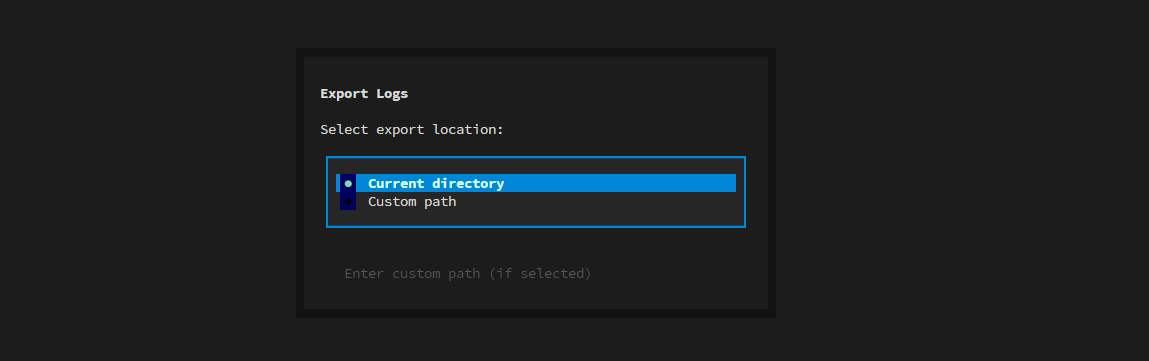
Press E in the log viewer to export. The output file includes a metadata header (container name, export timestamp, active filters, total lines) followed by the log content. Files are saved as <container>_logs_<timestamp>.txt.
Project Structure
dtop/
├── dtop/
│   ├── __main__.py                # Package entry point
│   ├── main.py                    # CLI entry point (--legacy, --debug)
│   ├── core/
│   │   ├── textual_docker_tui.py  # Main Textual UI, table, modals, footer
│   │   ├── textual_stats.py       # Async stats streaming/polling
│   │   ├── docker_tui.py          # Legacy curses interface
│   │   └── stats.py               # Legacy stats collection
│   ├── views/
│   │   ├── textual_log_view.py    # Log viewer (search, filter, follow, export)
│   │   ├── textual_inspect_view.py # Container inspector (tree + JSON)
│   │   ├── log_view.py            # Legacy log viewer
│   │   └── inspect_view.py        # Legacy inspector
│   ├── actions/
│   │   └── container_actions.py   # Legacy container operations
│   └── utils/
│       ├── config.py              # Column config load/save
│       ├── utils.py               # Formatting helpers
│       └── normalize_logs.py      # Log normalization script
├── scripts/
│   ├── install.sh
│   └── uninstall.sh
├── pyproject.toml
└── requirements.txt
Dependencies
| Package | Version | Purpose |
|---|---|---|
docker |
>= 6.0.0 | Docker SDK |
textual |
>= 0.47.0 | TUI framework |
rich |
>= 13.0.0 | Terminal formatting |
aiohttp |
>= 3.8.0 | Async stats collection |
License
MIT — see LICENSE.
Author
1 maintainer

Metadata
1 maintainer
Release files for dtop 2.3.5
For a detailed explanation of source distributions (sdists) and built distributions (wheels), please see the package formats documentation.
Source distribution (sdist)
| File | Size | Uploaded | Provenance | |
|---|---|---|---|---|
| dtop-2.3.5.tar.gz | 107.5 kB | With provenance | Details |
Built distribution (wheel)
| File | Interpreter | ABI | Platform | Reset |
|---|---|---|---|---|
| dtop-2.3.5-py3-none-any.whl | Python 3 | none | any | Details |
Total release size: 212.5 kB
Release files / dtop-2.3.5.tar.gz
| Download URL | dtop-2.3.5.tar.gz |
|---|---|
| Size | 107.5 kB |
| Tags | Source |
|
SHA-256 checksum How to use checksums |
4fac2146484faf87b86951ef9d3ff0c13d726a9b8fe077607d84d1d195338572
|
|
BLAKE2b-256 checksum How to use checksums |
3898695c2ee5bb375a21ec072c2dc7d01f8d8e2f662b24c3791d438331702c78
|
| Upload date | |
|
Uploaded using Trusted Publishing? What is trusted publishing? |
Yes |
| Uploaded via |
twine/6.1.0 CPython/3.13.7
|
Provenance
Provenance describes where a file came from. On PyPI, provenance is shared via attestations, which provide a verifiable record of the build or publishing details. View details, limitations and caveats.


PyPI Publish Attestation
PyPI verified that this artifact, at this checksum, originated from the publisher listed below.
Signed by GitHub Actions, verified by PyPI on Mar 24, 2026.
Transparency logRelease files / dtop-2.3.5-py3-none-any.whl
| Download URL | dtop-2.3.5-py3-none-any.whl |
|---|---|
| Size | 105.0 kB |
| Tags | Python 3 |
|
SHA-256 checksum How to use checksums |
a89f3b4ca897d3ff95dbe407f4195a437b5501ec8c467d4f093543d8fa554a64
|
|
BLAKE2b-256 checksum How to use checksums |
9ea273eaa977c7cd704de77779d7ae3ce59acee38f8162352c97993301538e4f
|
| Upload date | |
|
Uploaded using Trusted Publishing? What is trusted publishing? |
Yes |
| Uploaded via |
twine/6.1.0 CPython/3.13.7
|
Provenance
Provenance describes where a file came from. On PyPI, provenance is shared via attestations, which provide a verifiable record of the build or publishing details. View details, limitations and caveats.
PyPI Publish Attestation
PyPI verified that this artifact, at this checksum, originated from the publisher listed below.
Signed by GitHub Actions, verified by PyPI on Mar 24, 2026.
Transparency logSecurity for dtop 2.3.5
Provenance
Provenance describes where a file came from. On PyPI, provenance is shared via attestations, which provide a verifiable record of the build or publishing details. View details, limitations and caveats.
Full provenance
All 2 files in this release have been uploaded with provenance metadata.
Attestation for dtop-2.3.5.tar.gz
PyPI Publish Attestation
PyPI verified that this artifact, at this checksum, originated from the publisher listed below.
Signed by GitHub Actions, verified by PyPI on Mar 24, 2026.
Transparency logA note on package security
PyPI is a repository for distributing packages, not a service for auditing them. While third-party security researchers and our staff do their best to detect and remove malicious packages, PyPI cannot guarantee the quality, security or suitability of any given package.
To learn more about protecting yourself from malicious actors, visit our package security documentation.














