

A snappy, keyboard-centric terminal user interface for interacting with large language models.
Chat with Claude 3, ChatGPT, and local models like Llama 3, Phi 3, Mistral and Gemma.
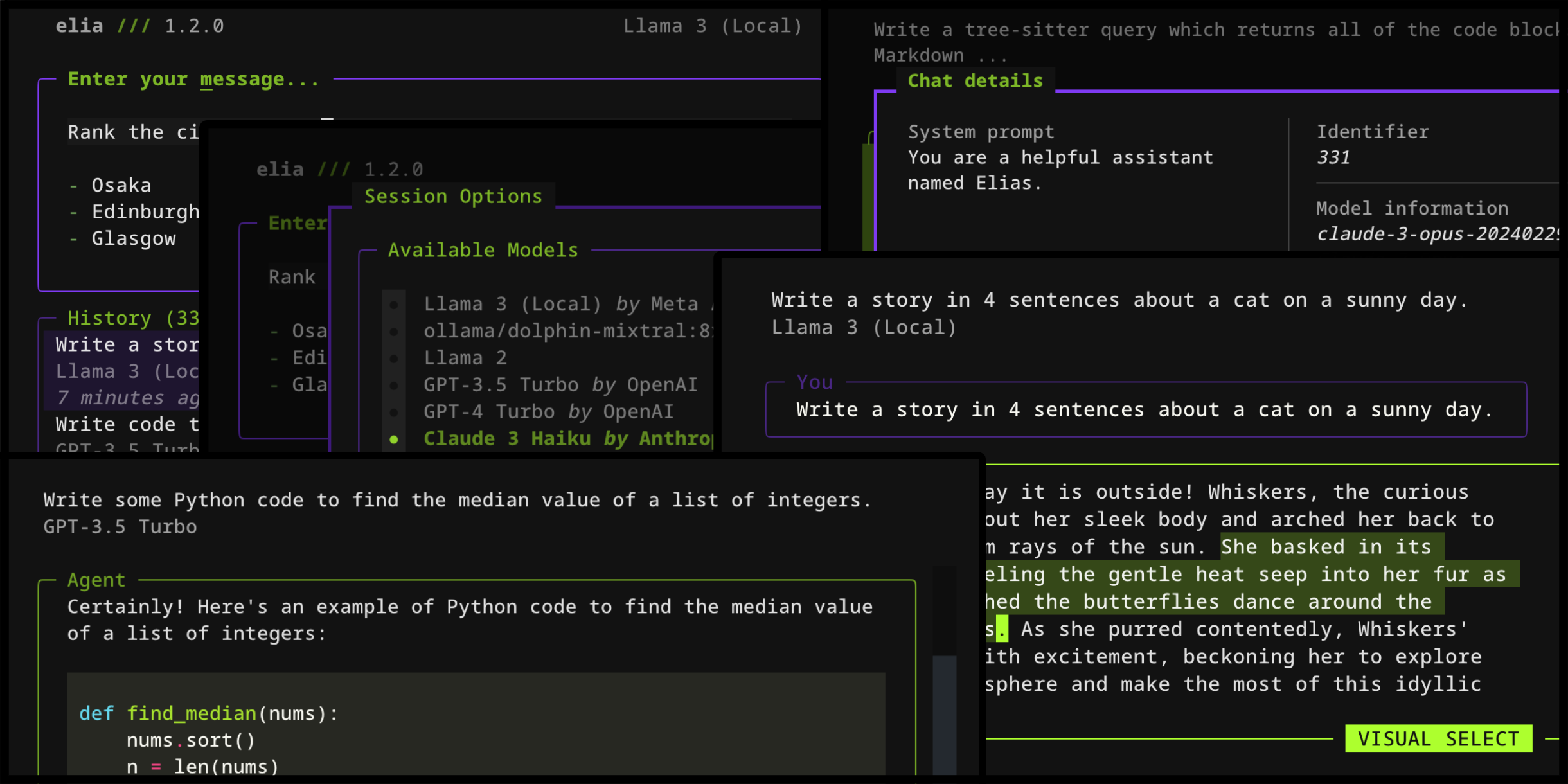
Introduction
elia is an application for interacting with LLMs which runs entirely in your terminal, and is designed to be keyboard-focused, efficient, and fun to use!
It stores your conversations in a local SQLite database, and allows you to interact with a variety of models.
Speak with proprietary models such as ChatGPT and Claude, or with local models running through ollama or LocalAI.
Installation
Install Elia with pipx:
pipx install elia-chat
Depending on the model you wish to use, you may need to set one or more environment variables (e.g. OPENAI_API_KEY, ANTHROPIC_API_KEY, GEMINI_API_KEY etc).
Quickstart
Launch Elia from the command line:
elia
Launch a new chat inline (under your prompt) with -i/--inline:
elia -i "What is the Zen of Python?"
Launch a new chat in full-screen mode:
elia "Tell me a cool fact about lizards!"
Specify a model via the command line using -m/--model:
elia -m gpt-4o
Options can be combined - here's how you launch a chat with Gemini 1.5 Flash in inline mode (requires GEMINI_API_KEY environment variable).
elia -i -m gemini/gemini-1.5-flash-latest "How do I call Rust code from Python?"
Running local models
- Install
ollama. - Pull the model you require, e.g.
ollama pull llama3. - Run the local ollama server:
ollama serve. - Add the model to the config file (see below).
Configuration
The location of the configuration file is noted at the bottom of
the options window (ctrl+o).
The example file below shows the available options, as well as examples of how to add new models.
# the ID or name of the model that is selected by default on launch
default_model = "gpt-4o"
# the system prompt on launch
system_prompt = "You are a helpful assistant who talks like a pirate."

# choose from "nebula", "cobalt", "twilight", "hacker", "alpine", "galaxy", "nautilus", "monokai", "textual"
theme = "galaxy"

# change the syntax highlighting theme of code in messages
# choose from https://pygments.org/styles/
# defaults to "monokai"
message_code_theme = "dracula"

# example of adding local llama3 support
# only the `name` field is required here.
[[models]]
name = "ollama/llama3"

# example of a model running on a local server, e.g. LocalAI
[[models]]
name = "openai/some-model"
api_base = "http://localhost:8080/v1"
api_key = "api-key-if-required"

# example of add a groq model, showing some other fields
[[models]]
name = "groq/llama2-70b-4096"
display_name = "Llama 2 70B"  # appears in UI
provider = "Groq"  # appears in UI
temperature = 1.0  # high temp = high variation in output
max_retries = 0  # number of retries on failed request

# example of multiple instances of one model, e.g. you might
# have a 'work' OpenAI org and a 'personal' org.
[[models]]
id = "work-gpt-3.5-turbo"
name = "gpt-3.5-turbo"
display_name = "GPT 3.5 Turbo (Work)"

[[models]]
id = "personal-gpt-3.5-turbo"
name = "gpt-3.5-turbo"
display_name = "GPT 3.5 Turbo (Personal)"
Custom themes
Add a custom theme YAML file to the themes directory.
You can find the themes directory location by pressing ctrl+o on the home screen and looking for the Themes directory line.
Here's an example of a theme YAML file:
name: example  # use this name in your config file
primary: '#4e78c4'
secondary: '#f39c12'
accent: '#e74c3c'
background: '#0e1726'
surface: '#17202a'
error: '#e74c3c'  # error messages
success: '#2ecc71'  # success messages
warning: '#f1c40f'  # warning messages
Changing keybindings
Right now, keybinds cannot be changed. Terminals are also rather limited in what keybinds they support. For example, pressing Cmd+Enter to send a message is not possible (although we may support a protocol to allow this in some terminals in the future).
For now, I recommend you map whatever key combo you want at the terminal emulator level to send \n.
Here's an example using iTerm:

With this mapping in place, pressing Cmd+Enter will send a message to the LLM, and pressing Enter alone will create a new line.
Import from ChatGPT
Export your conversations to a JSON file using the ChatGPT UI, then import them using the import command.
elia import 'path/to/conversations.json'
Wiping the database
elia reset
Uninstalling
pipx uninstall elia-chat
1 maintainer

Metadata
1 maintainer
Release files for elia-chat 1.10.0
For a detailed explanation of source distributions (sdists) and built distributions (wheels), please see the package formats documentation.
Source distribution (sdist)
| File | Size | Uploaded | Provenance | |
|---|---|---|---|---|
| elia_chat-1.10.0.tar.gz | 112.4 kB | Without provenance | Details |
Built distribution (wheel)
| File | Interpreter | ABI | Platform | Reset |
|---|---|---|---|---|
| elia_chat-1.10.0-py3-none-any.whl | Python 3 | none | any | Details |
Total release size: 160.6 kB
Release files / elia_chat-1.10.0.tar.gz
| Download URL | elia_chat-1.10.0.tar.gz |
|---|---|
| Size | 112.4 kB |
| Tags | Source |
|
SHA-256 checksum How to use checksums |
bbcb35fc056b611dcedf22d45f625eea29fc1f79a1ba41453422f7e6274e6dd8
|
|
BLAKE2b-256 checksum How to use checksums |
2bfc7b4ae37fa37831d1f4aaa778f41e3d8801038190b83115473ec68c8634d9
|
| Upload date | |
|
Uploaded using Trusted Publishing? What is trusted publishing? |
No |
| Uploaded via |
twine/5.1.1 CPython/3.8.19
|
Release files / elia_chat-1.10.0-py3-none-any.whl
| Download URL | elia_chat-1.10.0-py3-none-any.whl |
|---|---|
| Size | 48.2 kB |
| Tags | Python 3 |
|
SHA-256 checksum How to use checksums |
c5000e7dd4187d7d6d68a79575b5911a7916d8913a47e1f9e4bffd35d5876702
|
|
BLAKE2b-256 checksum How to use checksums |
65d063ac316af3fe5a00b1d9834ecb5ecc4b7f20a61292750f3dde00414e8dc8
|
| Upload date | |
|
Uploaded using Trusted Publishing? What is trusted publishing? |
No |
| Uploaded via |
twine/5.1.1 CPython/3.8.19
|
Security for elia-chat 1.10.0
Provenance
Provenance describes where a file came from. On PyPI, provenance is shared via attestations, which provide a verifiable record of the build or publishing details. View details, limitations and caveats.
No provenance found
None of the files in this release were uploaded with provenance metadata.
A note on package security
PyPI is a repository for distributing packages, not a service for auditing them. While third-party security researchers and our staff do their best to detect and remove malicious packages, PyPI cannot guarantee the quality, security or suitability of any given package.














