
Simulating an attack defense CTF competition using the game engine and services provided by Enowars

Project description







About
This software can be used to simulate an attack/defense cybersecurity competition using the game engine and services provided by Enowars. For further information on how to use it, please refer to the documentation.
Getting Started
Prerequisites
- Download and install the latest versions of Python and Pip.
- Download and install the latest version of Terraform.
- Download and install the latest version of Packer.
- Create an account with your preferred cloud provider (currently supporting Microsoft Azure and Hetzner Cloud).
- If you are using Windows, make sure to install Git Bash and add
C:\Program Files\Git\binto your PATH environment variable to be able to run shell scripts.
Setup
Pip
-
Install the package via pip:
pip install --user enosimulator
-
Start the simulation with the following command:
enosimulator -c /path/to/config.json -s /path/to/secrets.json -v
Manual
-
Clone the repository to your local machine as follows:
git clone https://github.com/ashiven/enosimulator.git
-
Install the necessary dependencies:
pip install --user -r requirements.txt
-
Start the program (paths to the configuration files can also be defined in the environment variables
ENOSIMULATOR_CONFIGandENOSIMULATOR_SECRETS):python enosimulator -c /path/to/config.json -s /path/to/secrets.json
-
Navigate to the frontend directory and start the frontend:
cd ./frontend && npm install && npm run build && npm run start
-
A graphical user interface is available at
http://localhost:3000to monitor the simulation. (It may take up to 20 minutes for the simulation to start.)
Docker
-
Clone the repository to your local machine as follows:
git clone https://github.com/ashiven/enosimulator.git
-
Create an SSH key pair in the config directory:
ssh-keygen -f ./enosimulator/config/simkey
-
Specify simulation details in enosimulator/config/config.json and enosimulator/config/secrets.json with the following SSH key paths.
{
   "vm-secrets": {
      "ssh-public-key-path": "/app/enosimulator/config/simkey.pub",
      "ssh-private-key-path": "/app/enosimulator/config/simkey"
   }
}
{
   "setup": {
      "ssh-config-path": "/app/enosimulator/config/simconfig"
   }
}
-
Start the docker containers:
docker compose up -d
-
A graphical user interface is available at
http://localhost:3000to monitor the simulation. (It may take up to 20 minutes for the simulation to start.)
Configuration
There are two configuration files that need to be supplied before launching the simulation (examples can be found here).
secrets.json
{
   "vm-secrets": {
      "github-personal-access-token": "<string> <required> <a github personal access token that will be used on machines to pull repositories>",
      "ssh-public-key-path": "<string> <required> <path to the public key that will be stored on machines>",
      "ssh-private-key-path": "<string> <required> <path to the matching private key that will be used to connect to machines>"
   },
   "cloud-secrets": {
      "azure-service-principal": {
         "subscription-id": "<string> <required> <the azure subscription id>",
         "client-id": "<string> <required> <the azure service principal client id>",
         "client-secret": "<string> <required> <the azure service principal client secret>",
         "tenant-id": "<string> <required> <the azure service principal tenant id>"
      },
      "hetzner-api-token": "<string> <required> <the hetzner api token>"
   }
}
config.json
{
   "setup": {
      "ssh-config-path": "<string> <required> <the path, including filename, where the ssh config for the simulation should be saved locally>",
      "location": "<string> <required> <'local' or the name of the cloud provider to be used for the simulation setup>",
      "vm-sizes": {
         "vulnbox": "<string> <required> <the size of the vms that should be used for the vulnboxes>",
         "checker": "<string> <required> <the size of the vms that should be used for the checkers>",
         "engine": "<string> <required> <the size of the vms that should be used for the engine>"
      },
      "vm-image-references": {
         "vulnbox": "<string> <optional> <a vm image that should be used for vulnboxes>",
         "checker": "<string> <optional> <a vm image that should be used for checkers>",
         "engine": "<string> <optional> <a vm image that should be used for the engine>"
      }
   },
   "settings": {
      "duration-in-minutes": "<int> <required> <the duration of the simulation in minutes>",
      "teams": "<int> <required> <the number of teams that should participate in the simulation>",
      "services": "<List(string)> <required> <the repository names of the services that should be used for the simulation>",
      "checker-ports": "<List(int)> <required> <the port numbers of the service checkers. the order should be the same as in services>",
      "simulation-type": "<string> <required> <the type of simulation to run. choose between 'realistic', 'basic-stress-test', 'stress-test' and 'intensive-stress-test'>",
      "scoreboard-file": "<string> <optional> <the path to a scoreboard file in json format from a past competition that will be used to derive a team experience distribution for the simulation>"
   },
   "ctf-json": {
      "title": "<string> <required> <the title of the ctf>",
      "flag-validity-in-rounds": "<int> <required> <the number of rounds a flag is valid>",
      "checked-rounds-per-round": "<int> <required> <the number of rounds checked per round>",
      "round-length-in-seconds": "<int> <required> <the length of a round in seconds>"
   }
}
Packer Images
The deployment process can be sped up considerably by using virtual machine images that were created with Packer. The following steps describe how to create such images.
-
Navigate to the packer directory for your chosen cloud provider. For example, for Hetzner Cloud:
cd ./packer/hetzner
-
Install the Hetzner plugin for Packer:
packer plugins install github.com/hashicorp/hcloud
-
Modify the available provisioning scripts and build templates to your liking. For example, you can add the specific services to be played during the simulation.
-
Make sure to also add your GitHub Personal Access Token to the provisioning script so it can be used to pull repositories from GitHub. For this, modify the following line in the provisioning script:
pat="<insert-your-token-here>"
-
Build the image:
packer build -var 'hcloud_token=<insert-your-token-here>' your-packer-template.json
Monitoring
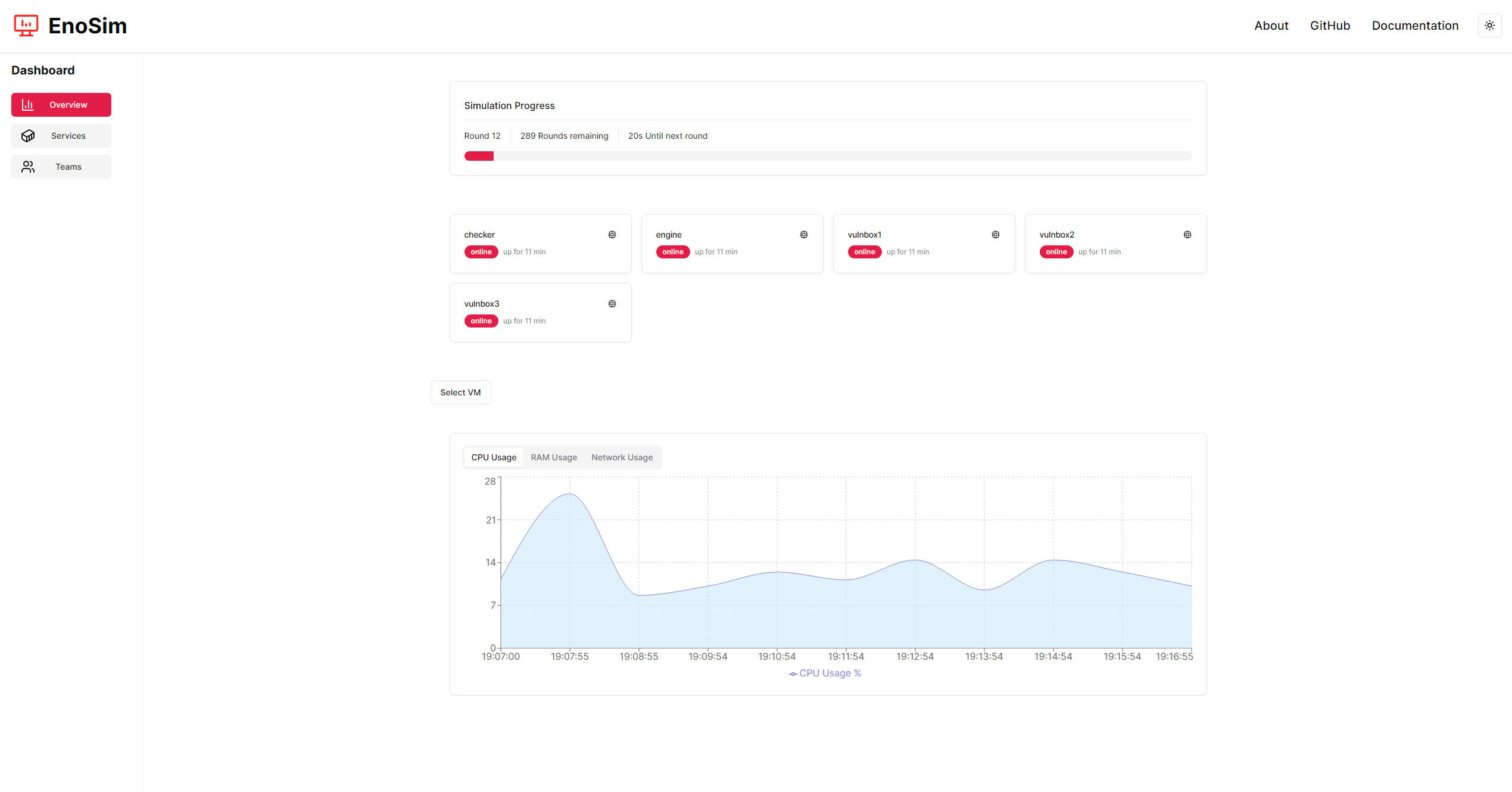
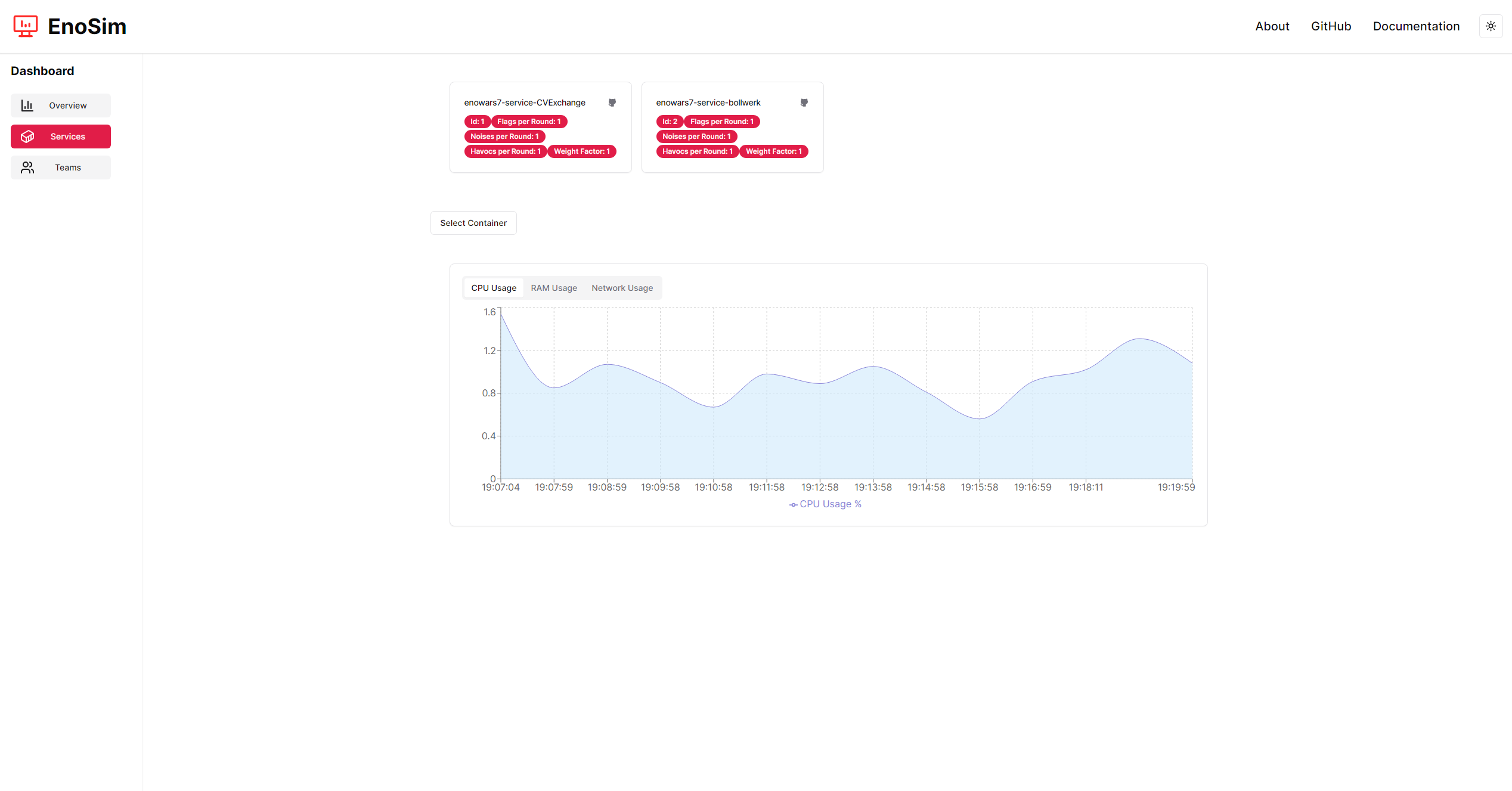
Browser UI
There is a browser UI available at http://localhost:3000 that can be used to monitor the simulation.
CLI
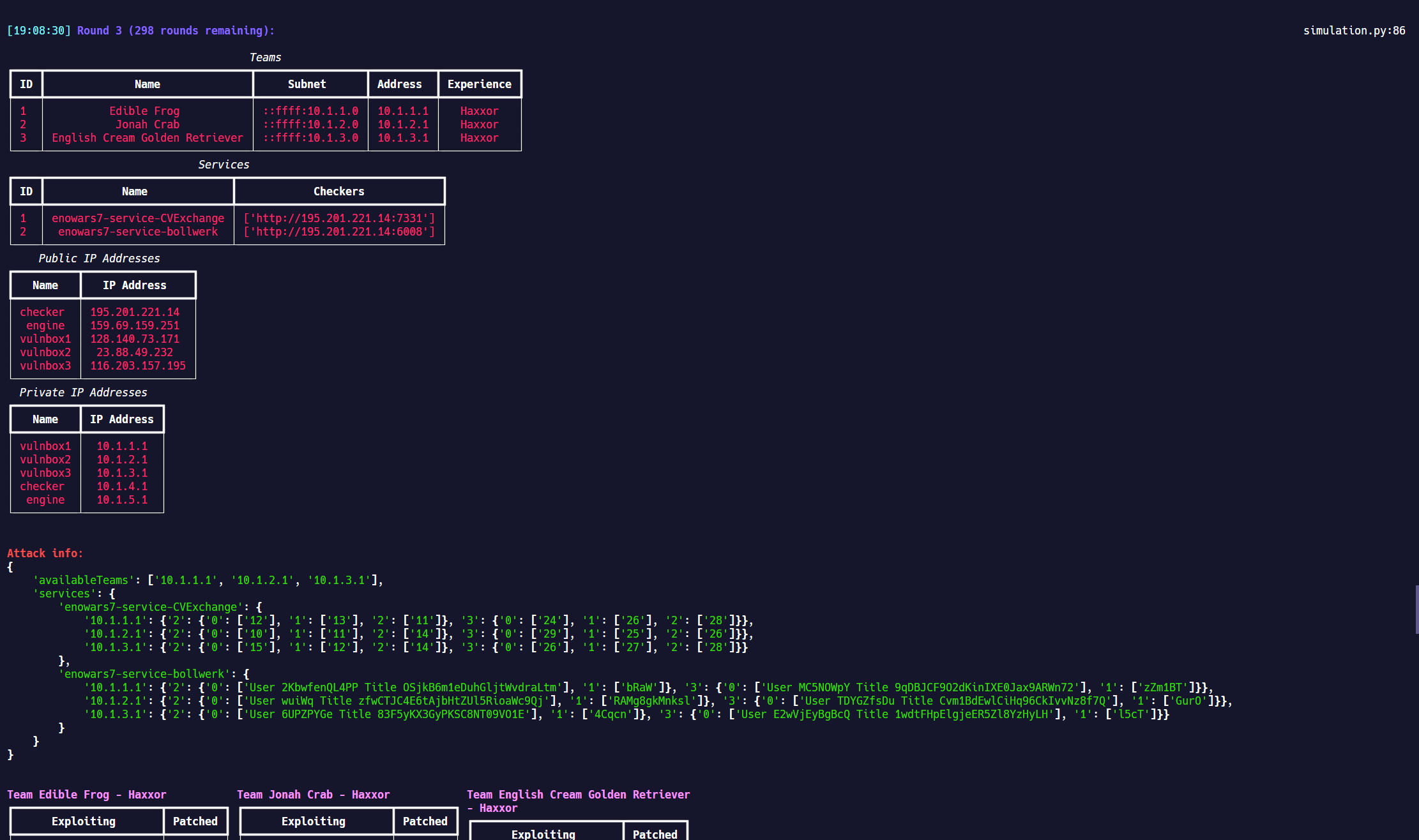
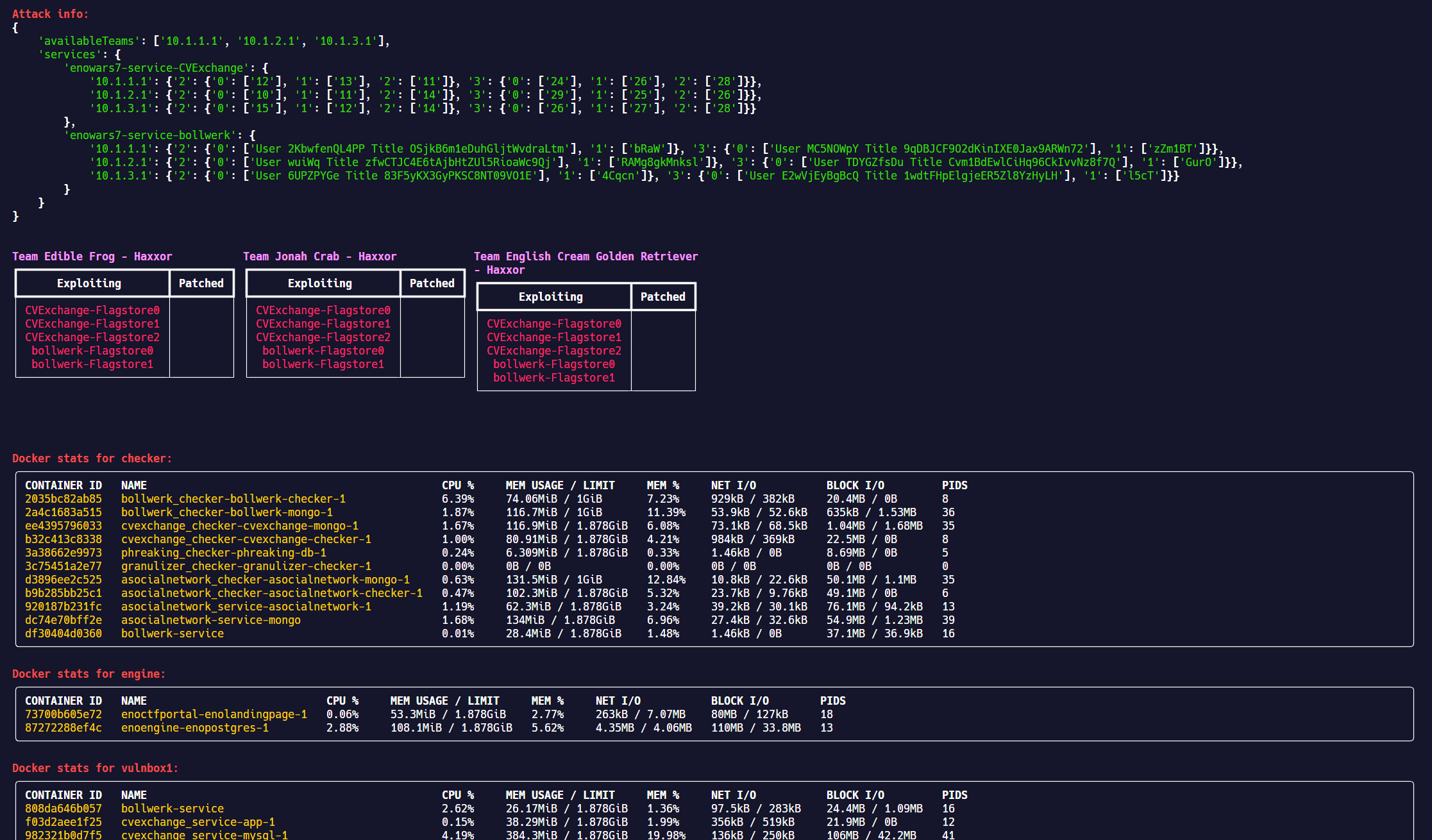
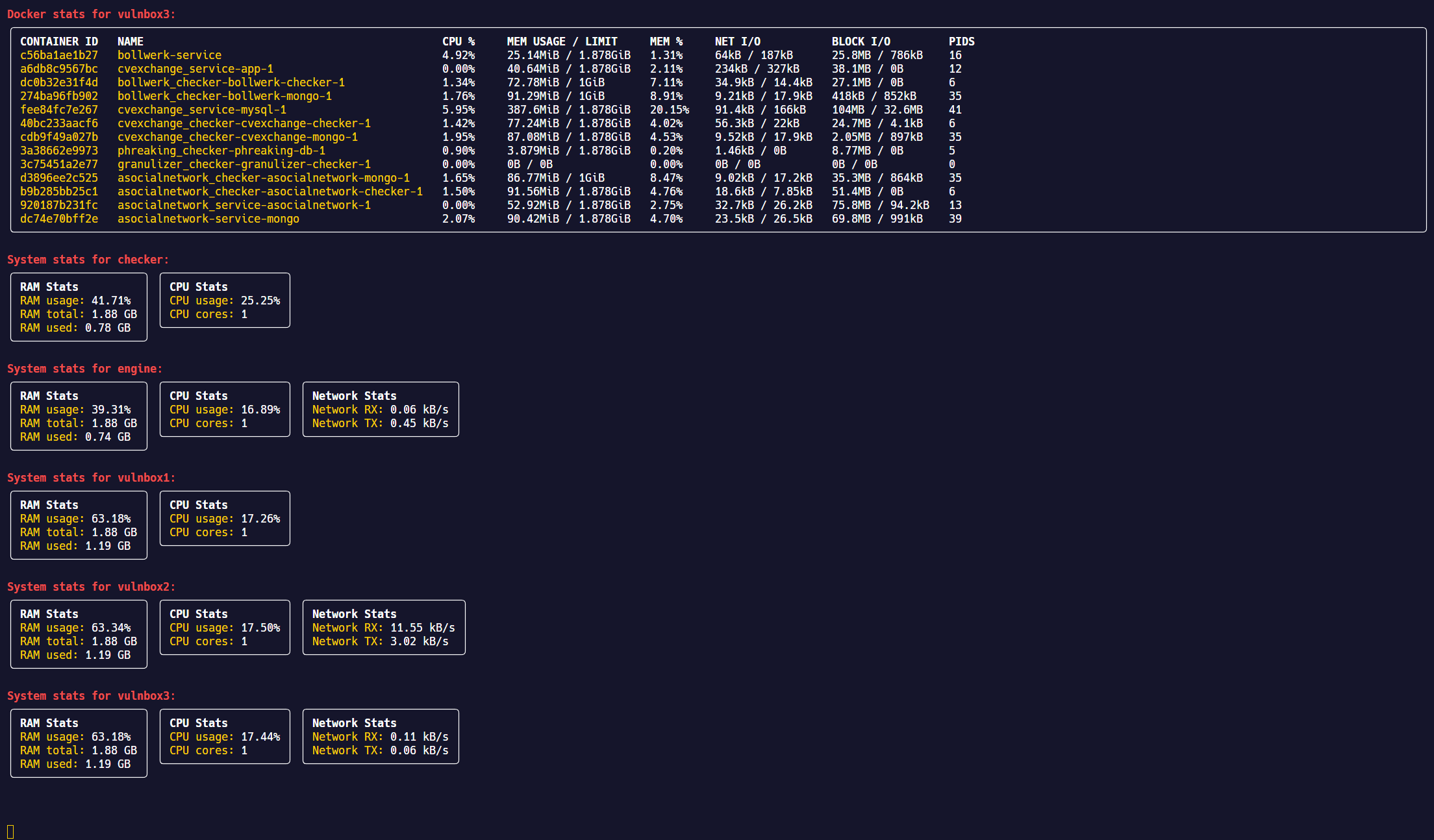
To receive detailed information about the current state of the simulation in the CLI, start the program with the -v flag. The following command should be used:
python enosimulator -c /path/to/config.json -s /path/to/secrets.json -v
Scoreboard
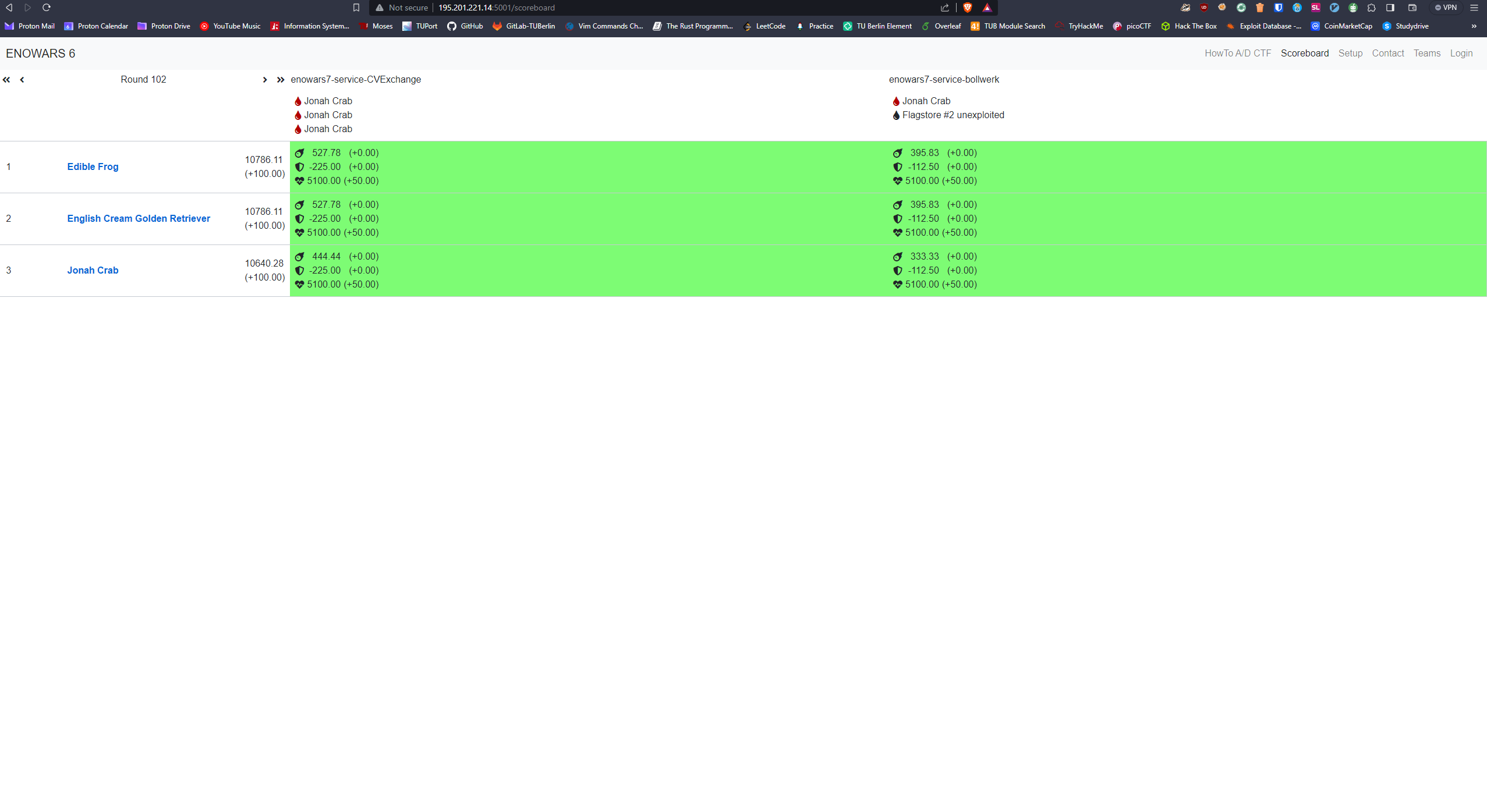
The current state of the scoreboard can be monitored via the public IP address of the engine VM. It is available at http://<engine-ip>:5001/scoreboard.
Direct connections via SSH
During the process of building the simulation infrastructure, an SSH configuration file will be generated in the location specified inside config.json. To connect to a specific VM via SSH, use the following command:
ssh -F /path/to/simconfig <vm-name>
Release history Release notifications | RSS feed


Download files
Download the file for your platform. If you're not sure which to choose, learn more about installing packages.
Source Distribution
Built Distribution
Filter files by name, interpreter, ABI, and platform.
If you're not sure about the file name format, learn more about wheel file names.
Copy a direct link to the current filters
File details
Details for the file enosimulator-0.3.4.tar.gz.
File metadata
- Download URL: enosimulator-0.3.4.tar.gz
- Upload date:
- Size: 58.4 kB
- Tags: Source
- Uploaded using Trusted Publishing? No
- Uploaded via: twine/5.0.0 CPython/3.12.2
File hashes
| Algorithm | Hash digest | |
|---|---|---|
| SHA256 |
02d3186610bcaac53c3b6712bf5d6a433316f8c60798e9f34f665f54878197dd
|
|
| MD5 |
1f5f520a7286debc7ad14608bfb3f979
|
|
| BLAKE2b-256 |
f7bc0a72aab6877409bc0a5b97b2e5f2c7a9c634e703a994536965512881e7fa
|
File details
Details for the file enosimulator-0.3.4-py3-none-any.whl.
File metadata
- Download URL: enosimulator-0.3.4-py3-none-any.whl
- Upload date:
- Size: 79.8 kB
- Tags: Python 3
- Uploaded using Trusted Publishing? No
- Uploaded via: twine/5.0.0 CPython/3.12.2
File hashes
| Algorithm | Hash digest | |
|---|---|---|
| SHA256 |
738e8a3a5a9125bb8b499f8a2ba7450e6c82c7c08eb113eb213d3a7a2f69355b
|
|
| MD5 |
56fa17f91e57c2f4e1b1ac293b69f1b5
|
|
| BLAKE2b-256 |
b44abd16ade19f994ab77e0196bf9acd7f8192505215b778c73dd2c990c9965d
|






