
EPUB Browser
Read EPUB and PDF in one polished web library—either as a self-contained static site or as a private, multi-user reading service.
README: English | 简体中文 | 繁體中文 | 日本語 | 한국어 | Español | Deutsch | Français | Русский | Italiano | Português (Brasil) | العربية | Bahasa Indonesia | हिन्दी | Tiếng Việt | ไทย | Bahasa Melayu
Interface languages (17): English, 简体中文, 繁體中文, 日本語, 한국어, Español, Deutsch, Français, Русский, Italiano, Português (Brasil), العربية, Bahasa Indonesia, हिन्दी, Tiếng Việt, ไทย, and Bahasa Melayu.



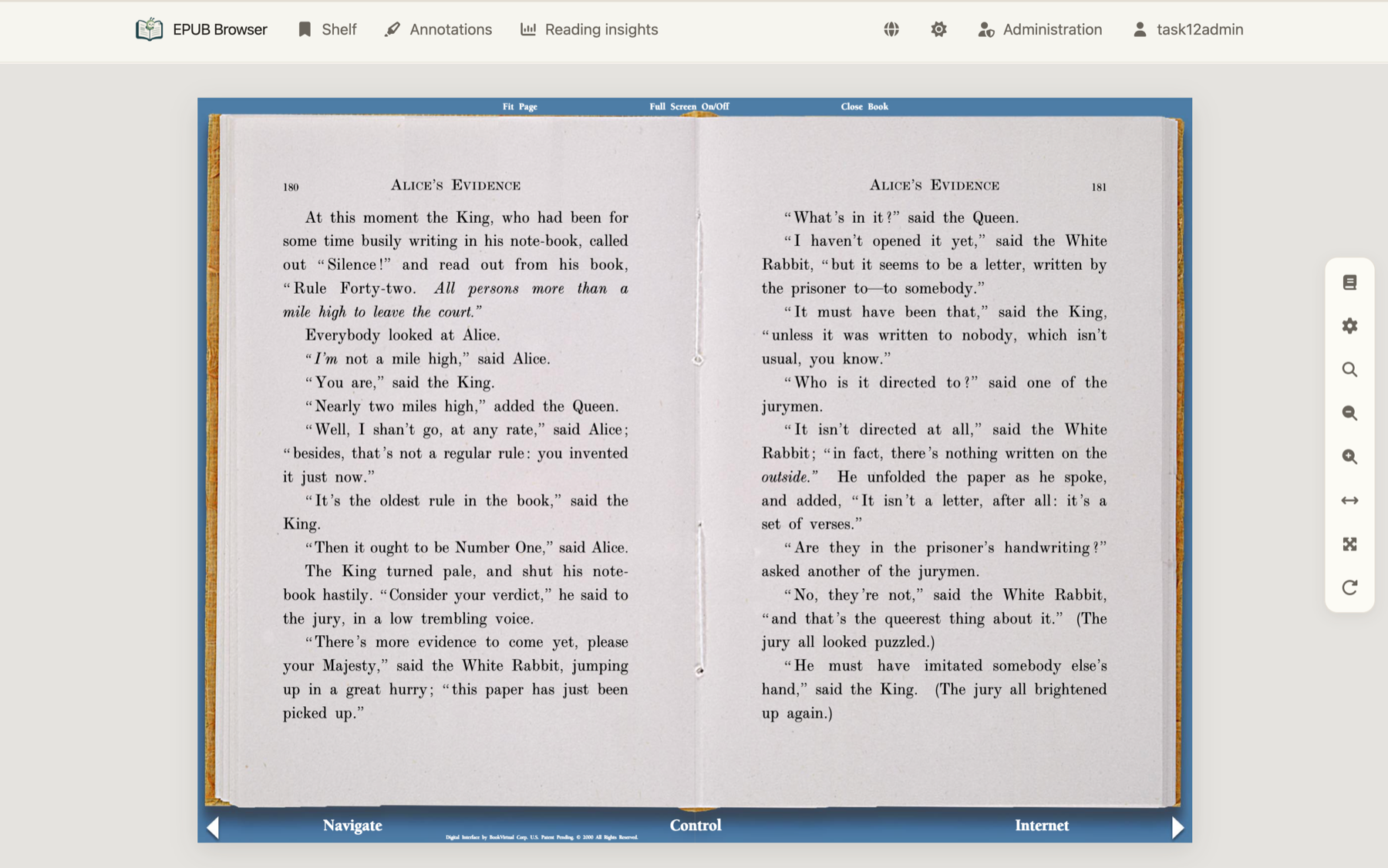
EPUB Browser accepts .epub and .pdf books. It gives both formats the same
Library, book page, table of contents, reading modes, themes, progress tracking,
and annotation workflow. PDF is not opened in a separate download or browser
preview: every PDF page becomes a reader chapter, rendered locally by PDF.js
inside the existing reading experience.
Contents
- Project overview
- Get started
- Formats and reading
- Deployment
- Reference and operations
- Development and license
- Documentation hub
Project overview
Why EPUB Browser
- EPUB and PDF, one reader: EPUB chapters and PDF pages use the same navigation, responsive layout, themes, fullscreen mode, search, bookshelf, progress, reading time, and book-detail surfaces.
- Three reading behaviors: Scroll one chapter at a time, read continuously with a bounded rendering window, or turn pages. PDF adds fit-width, fit-page, and arbitrary zoom without leaving the reading stage.
- AI-native reading, grounded in the text: In Server mode, chapter guides, evidence-linked explanations, vocabulary help, mind maps, reflection prompts, and private Ask AI conversations stay beside the EPUB text—not in a detached generic summary.
- Annotations where you read: Highlight text, add notes, browse or export annotations, and use Dictionary or Encyclopedia actions. Text-based PDFs reuse the same selection popup; image-only PDFs degrade explicitly.
- Private reading insights: See active reading time, activity calendars, trends, sessions, and most-read books. Server mode keeps every insight private to the signed-in account.
- A real personal library: Covers, metadata, tags, ratings, reviews, nested shelves, search, and reading history stay connected by a stable book ID—even when a Server source temporarily leaves a watched folder.
- A private, governable Server: Accounts, book permissions, per-member AI access, synchronized reading data, administration, OpenAPI, and WebHooks are available when a persistent service is wanted.
- Bring your own single sign-on: Server mode connects to a generic OIDC Provider such as Authelia, Authentik, or Keycloak. Readers can safely link an existing account or be provisioned as members without duplicating reading data.
- Self-contained at runtime: Application assets, fonts, icons, PDF.js, and rich-text renderers are served locally. Reading never depends on a CDN.
- 17 interface languages: English, 简体中文, 繁體中文, 日本語, 한국어, Español, Deutsch, Français, Русский, Italiano, Português (Brasil), العربية, Bahasa Indonesia, हिन्दी, Tiếng Việt, ไทย, and Bahasa Melayu.
- Kindle minimal mode: A dependency-free, e-ink-friendly reading surface
(
--kindlefor both SSG and Server) with theme and font controls, a 17-language UI, table-of-contents navigation, and per-account reading progress on the Server.
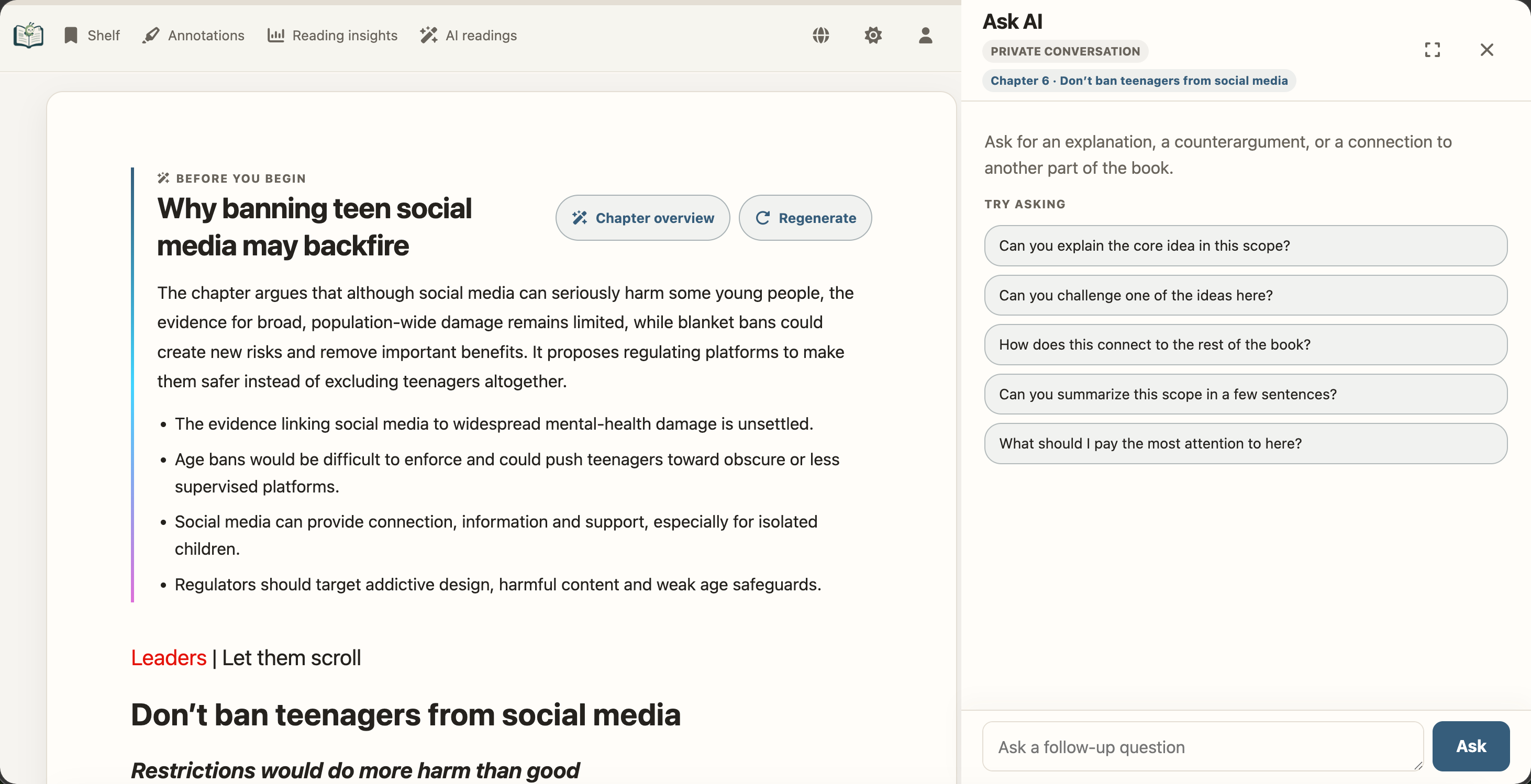
AI-native guidance and private questions stay anchored to the original book.
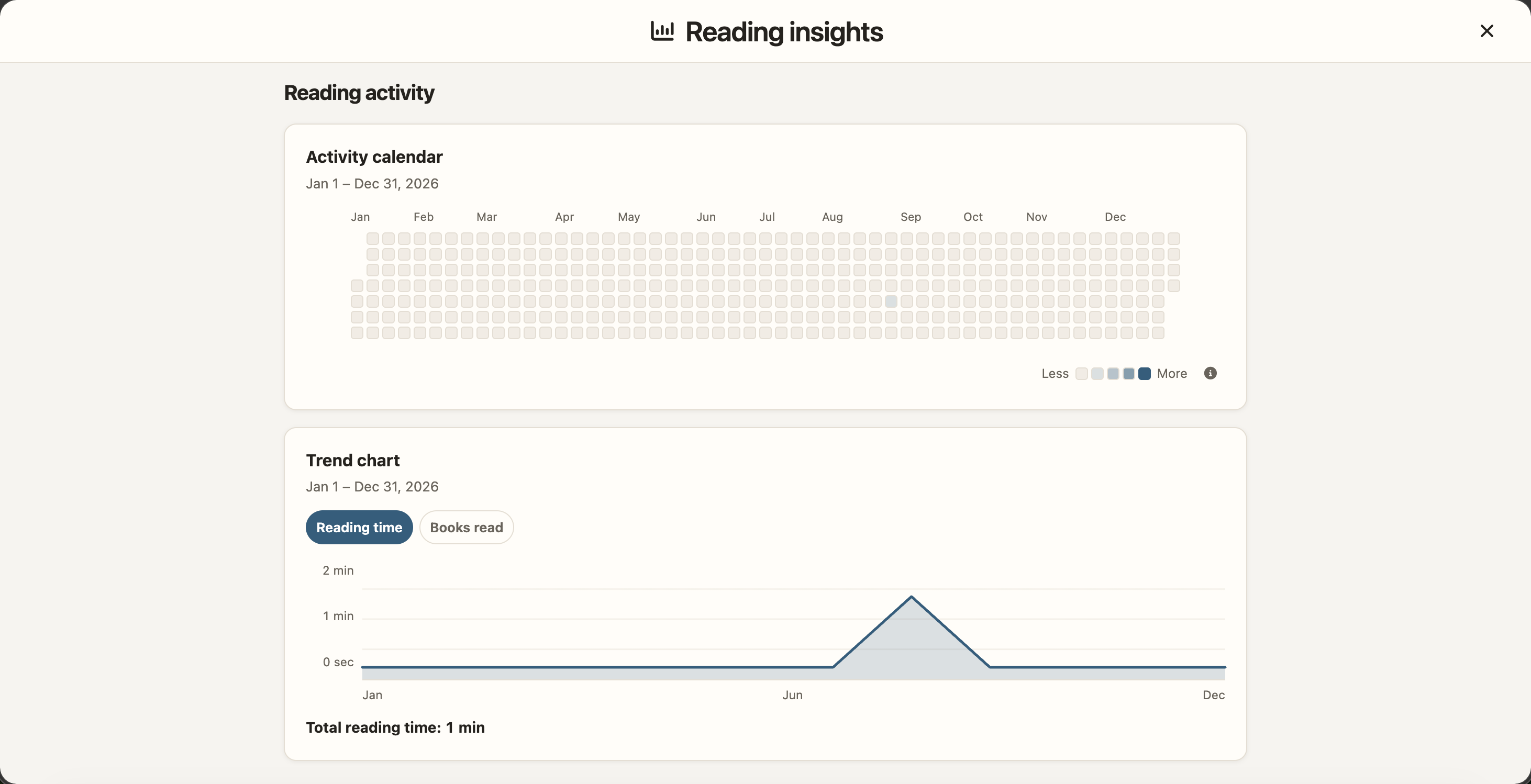
Reading insights turn active reading into a private history you can understand.
Technology stack
EPUB Browser deliberately uses a small, server-rendered web stack. The installed application has no SPA framework and does not require a Node.js runtime:
| Layer | Technology | Role |
|---|---|---|
| Frontend | Semantic HTML, CSS, Vanilla JavaScript with ES modules and browser APIs | One shared responsive UI for SSG and Server |
| CLI and Server | Python 3.9+, Starlette, Uvicorn | Conversion commands, authenticated pages, APIs, and background work |
| Data | SQLite plus rebuildable JSON content caches | User state remains separate from derived EPUB/PDF content |
| Book formats | lxml, pypdf, pypdfium2, PDF.js | Unified strict-first EPUB parsing/sanitisation, PDF metadata/covers, local browser rendering |
| Offline and assets | Service Worker, hashed immutable assets, locked vendored dependencies | Self-contained delivery without a runtime CDN |
| Distribution | PyPI, Docker, ordinary static hosting | The same codebase ships as SSG or a persistent Server |
| Optional AI | OpenAI-compatible APIs with locally rendered Markdown, KaTeX, and Mermaid | EPUB learning layers in Server mode only |
Node.js is used only by maintainers for browser-side tests; it is not part of the reader's production runtime.
Choose SSG or Server
The same source processing and page templates power two explicit deployment modes. Choose by where reading data should live, not by book format:
| Capability | ssg |
server |
|---|---|---|
| EPUB and PDF | Yes | Yes |
| Delivery | Atomic static HTML/assets for Pages, object storage, or Nginx | Dynamic authenticated pages backed by a replaceable content cache |
| Accounts and access control | None | Administrator/member accounts, restricted-book grants, sessions, and CSRF protection |
| OIDC single sign-on | Not included | Generic Provider, existing-account linking, and optional member provisioning |
| Progress, annotations, shelf | Stored in the current browser | Synchronized per authenticated account in SQLite |
| Ratings, reviews, reading sessions | Not emitted | Private per-account records and reading insights |
| Source updates | Run ssg again |
Restart, rescan, or use --watch |
| Administration, tags, OpenAPI, WebHooks | Not included | Included |
| AI reading and Ask AI | Not included | Available for EPUB when configured and explicitly permitted; hidden for PDF |
| Runtime database | None | Required for persistent mode |
| Best fit | Public/static hosting, offline bundles, simple personal publishing | A private library, multiple devices or readers, automation, and managed access |
Use ssg when the result must be ordinary static files. Use server when readers need accounts, cross-device data, access control, or automatic source reconciliation.
Live demos
- SSG mode: epub-browser-test.yuhan.tech
- Server mode: epub.yuhan.tech — sign in with username
demoand passworddemo.
AI-native reading (Server only)
For EPUB books, Server mode can add chapter guides, evidence-linked explanations, mind maps, reflective questions, and a private Ask AI drawer without taking the reader away from the original text. Results remain governed by book permissions; members must be explicitly authorized, and SSG contains none of the AI controls, jobs, account data, or provider configuration. PDF intentionally hides AI reading and Ask AI.
See the AI-native reading guide for the complete interaction model and the local rich-text renderer notes for the rendering and network-safety boundary.
Kindle minimal mode
Legacy e-Ink Kindles (and any constrained browser) get a dependency-free minimal
reading surface. Enable it with --kindle:
- SSG:
epub-browser ssg --kindle -o output/ SOURCE... - Server:
epub-browser server --kindle --server-dir data SOURCE...
Each EPUB book (PDF books are excluded) gains three extra pages:
- the minimal shelf
/kindle-library.html - the book page
/book/<id>/kindle.html - the chapter page
/book/<id>/kindle_chapter_N.html
These pages are tuned for e-Ink: minimal markup, CSS-only theming, ES5-compatible scripts, no Service Worker, and no framework. You can read without any JavaScript; theme switching (Light / Sepia / Dark), font sizing (A- / A+), and the 17-language UI are lightweight inline scripts layered on top of the plain HTML.
Every page offers theme and font controls (in the header, and again in the chapter footer), table-of-contents navigation, previous/next chapter, and a "Continue reading" link that resumes from saved progress.
Reading progress differs by mode:
- SSG: progress is stored in the current browser's cookies — local, no account.
- Server: progress and reading heartbeats are synchronized per signed-in account in SQLite. The Kindle surfaces are read/report-only: they record the current chapter and report heartbeats, render a read-only shelf, and never expose insights or content management.
Access control is enforced on every Kindle surface. A restricted-visibility book returns 403 to unauthorized users on the minimal shelf (omitted), the book and chapter pages, and the progress API.
Supported browsers (UA containing Kindle/, Arora/, etc.) are redirected from the
full reader to the minimal pages automatically; the URLs above also work directly.
This makes the minimal mode a graceful fallback for low-power or JavaScript-limited
devices.
Get started
Choose an installation
EPUB Browser supports two installation paths. Both accept one or more .epub
or .pdf files, nested directories, or a Calibre-style library directory.
| Installation | Use it for | Host requirement |
|---|---|---|
| PyPI | SSG or Server mode | Python 3.9 or newer |
| Docker | Persistent Server mode | Docker Engine; Python is included in the image |
PyPI (SSG or Server)
Install the command-line application:
pip install epub-browser
Show the mode-specific command reference:
epub-browser --help
epub-browser ssg --help
epub-browser server --help
Docker (Server)
The published dfface/epub-browser
image runs Server mode and does not require Python on the host:
docker pull dfface/epub-browser:latest
Use latest to evaluate the current release; pin a numbered release tag for a
repeatable production deployment. See Docker for the required book
and state mounts, a Compose quick start, first-run setup, and network guidance.
Quick start
Generate a static site
epub-browser ssg /path/to/books \
  --output-dir /path/to/dist
Serve dist/ over HTTP. Opening generated pages directly through file:// is not supported because browser storage, modules, manifests, and Service Workers require an HTTP origin.
For a site hosted below a URL prefix, set the public path separately from the filesystem destination:
epub-browser ssg /path/to/books \
  --output-dir /path/to/dist \
  --base-path /my-repository/
--base-path changes generated URLs, not where files are written. With /my-repository/, links, icons, manifests, book metadata, and Service Worker entries all use that prefix while the files remain directly inside dist/.
Run a persistent Server library
epub-browser server /path/to/books \
  --server-dir /path/to/epub-browser-state \
  --watch
Open http://127.0.0.1:8000/. On first access, EPUB Browser prompts you to create the initial administrator. The library is not scanned or exposed until this one-time setup finishes.
If you chose Docker, skip the Python command above and continue with the Docker Compose quick start.
Formats and reading
Sources and stable book identity
Every positional SOURCE may be an EPUB file, a PDF file, or a directory.
Directories are searched recursively. Multiple sources can be passed to one command:
epub-browser server book.epub /srv/library /srv/periodicals \
  --server-dir /srv/epub-browser \
  --watch
Each book receives a stable book_id, also exposed as book_hash in generated URLs and browser data. The general CLI default is:
--book-id-storage sidecar
Sidecar mode writes a visible identity file beside the EPUB, such as BOOK.epub.epub-browser.json, and leaves the EPUB bytes unchanged. The sidecar contains the stable ID and a verified SHA-256 source fingerprint.
To place the ID in OPF metadata instead, select embedded storage for the entire invocation:
--book-id-storage embedded
Embedded mode can rebuild the EPUB ZIP, so the source must be writable and safe to modify. EPUB Browser does not silently fall back to a database-only identity. It stops when IDs disagree, active sources duplicate an ID, a carrier is invalid, or a required carrier cannot be written.
When migrating storage modes, the existing ID is copied to the selected carrier; the other valid carrier is retained. An existing embedded ID from v2.0.4 is copied to the default sidecar without rewriting the EPUB. For PDF, --book-id-storage embedded always falls back to the adjacent sidecar (for example, BOOK.pdf.epub-browser.json): a PDF is an immutable document and EPUB Browser cannot write an ID into its bytes. This fallback applies only to PDF; existing EPUB embedded/sidecar semantics are unchanged.
PDF: one page, one chapter
PDF is supported by both deployment modes. The reader treats each PDF page as an ordinary EPUB Browser chapter, so the existing Book page, chapter navigation, TOC, pagination, continuous reading, progress, reading sessions, annotations, Dictionary, and Encyclopedia remain the single shared UI and data model:
| PDF concept | SSG | Server |
|---|---|---|
| Page 1 URL | chapter_0.html |
/book/<book-id>/chapter_0.html |
| Page N URL | chapter_{N-1}.html |
/book/<book-id>/chapter_{N-1}.html |
| Page labels and TOC | Generated locally; every page is listed | Rendered from the PDF metadata cache; every page is listed |
| Embedded outline | A marker on its destination page's TOC entry | The same marker, without removing or reordering page entries |
| Scrolling and pagination/turning | Static chapter shells and local PDF.js | Dynamic shared chapter shells and local PDF.js |
| Highlights, notes, Dictionary, Encyclopedia | Shared browser-local components when a text layer exists | Shared authenticated components when a text layer exists |
| Raw PDF bytes | One document.pdf in the static book output |
Session-only range-capable route for the cached document |
Page numbers are one-based in the visible label and PDF.js; chapter indices are
zero-based in URLs, state, APIs, and SQLite. Thus PDF page 1 is always
chapter_0.html. The normalized TOC keeps one Page N entry for every page;
embedded PDF outline titles are attached as outline markers to their destination
entry, including multiple markers on one page.
SSG writes one single document.pdf and one chapter_<index>.html shell per
page. SSG output contains no Session scripts, /api/* calls, synchronized
annotation data, or Server dependencies. Server stores the complete,
byte-identical source as book/<book-id>/pdf/document.pdf and never splits or
rewrites it. Server renders the same chapter shells dynamically from PDF
metadata, and a changed source invalidates and fully refreshes the PDF cache
(document, metadata, and derived cover) rather than mixing old and new pages.
The Server raw-document endpoint is Session-only:
GET/HEAD /api/books/<book-id>/document. It checks authentication, book
visibility, PDF format, and source/cache fingerprints, then supports bounded
single-range responses with ETag, Accept-Ranges, private caching,
nosniff, and inline PDF disposition. It does not expose an absolute path, is
not available to PAT authentication, and is not listed in the PAT/OpenAPI
surface. SSG has only its local document.pdf and no raw-document API.
PDFs with a usable PDF.js text layer reuse the exact existing selection popup and annotation component for Highlight and Note, plus Dictionary and Encyclopedia. Annotation storage, ownership, export, listing, and deep links remain shared; there is no PDF-specific annotation table or settings UI. Scanned or image-only PDFs remain readable, but selection-based Highlight, Note, Dictionary, Encyclopedia, and document search are explicitly unavailable when no usable text layer exists. A selection spanning pages may still be copied, while annotation and lookup actions show the localized unsupported message; page-local selection continues to work.
PDF.js is not a second viewer shell. Before building or publishing, hydrate and verify the locked third-party assets:
python3 tools/sync_vendor_assets.py fetch
python3 tools/sync_vendor_assets.py verify
The application then serves local hashed PDF.js module and worker assets at runtime; it never fetches them from a CDN. Image lightboxes use the locked GLightbox dependency; Fancyapps/Fancybox is not a runtime or redistributed dependency. See third_party/README.md for the locked asset and release workflow.
Deployment
SSG
SSG builds a complete snapshot in a sibling staging directory, validates it, and then replaces the destination. If any conversion fails, the previous destination remains unchanged. Generated output contains no Server database, migration state, account page, or runtime cache metadata.
SSG behavior is intentionally local and account-free:
- Reading progress and annotations use browser storage on the current origin.
- The bookshelf supports local JSON Import and Export; it has no cloud Sync action.
- Login, account settings, Server APIs, and user-dependent controls are absent.
- The storage destination is fixed to local browser storage and is not presented as a setting.
- Static output includes the Service Worker required for offline-capable assets.
All required application JavaScript, CSS, fonts, and icons are included in the output. See Self-contained and network behavior for the only optional network request.
Server
Initial setup, accounts, and permissions
On a fresh persistent state directory, normal pages redirect to /setup. APIs, event streams, generated assets, and books return a setup-required response until the initial administrator is created. Complete setup over loopback or another trusted private path before exposing the port: the first successful setup submission claims the administrator account.
After setup:
- Public registration is closed. Administrators create and manage users.
- Accounts have either the
administratorormemberrole. - Ordinary books are visible to every authenticated account.
- Restricted books are visible only to administrators and explicitly selected users.
- Each user owns their bookshelf, progress, annotations, and active sessions.
- Users can change their password and revoke their sessions.
- Administrators can manage users, roles, passwords, sessions, and book grants.
- Sessions use an HttpOnly cookie, CSRF protection, and a 30-day sliding lifetime.
OIDC single sign-on and account linking
Server mode can use one generic OpenID Connect (OIDC) Provider, including
Authelia, Keycloak, Authentik, and compatible services. In Administration →
OIDC login, enter the Provider name shown to readers, issuer URL, client ID,
client secret, exact redirect URI, scopes, and username claim. EPUB Browser
uses discovery plus the Authorization Code flow with S256 PKCE, validates the
signed ID token, and identifies an external account only by (issuer, sub);
email and username claims are display/provisioning hints, never identity keys.
Register this exact callback at the Provider, including scheme and host:
https://reader.example.com/auth/oidc/callback
Existing users can sign in locally and connect the Provider from Account settings. An unknown external identity is otherwise asked once for an existing local username and password. Optional automatic provisioning creates a passwordless member; it never imports an administrator role. Let existing users bind first: enabling automatic provisioning too early can create duplicate local accounts. The local administrator password login always remains available even if local member password login is disabled. Keep that recovery credential tested and protected. Provider logout is not performed, and Provider access/refresh tokens are not stored.
For Authelia, configure a confidential client in its OIDC Provider section. The following excerpt uses deliberately fake values and assumes Authelia's required provider keys and policies are already configured. Store a hash of a strong random client secret in Authelia, then enter the corresponding raw secret once in EPUB Browser:
identity_providers:
  oidc:
    clients:
      - client_id: 'epub-browser'
        client_name: 'EPUB Browser'
        client_secret: '<AUTHELIA_HASH_OF_A_RANDOM_SECRET>'
        public: false
        authorization_policy: 'two_factor'
        require_pkce: true
        pkce_challenge_method: 'S256'
        redirect_uris:
          - 'https://reader.example.com/auth/oidc/callback'
        scopes: ['openid', 'profile', 'email']
        response_types: ['code']
        grant_types: ['authorization_code']
        token_endpoint_auth_method: 'client_secret_basic'
In EPUB Browser use issuer https://auth.example.com, client ID
epub-browser, scopes openid profile email, and username claim
preferred_username. Save performs live discovery and capability validation;
on failure the previous configuration remains active.
Configure and govern AI reading
Administrators configure AI reading in Administration, immediately after
user management and before book management. The page stores an
OpenAI-compatible Base URL, API key, model, timeout, context budget,
concurrency cap, and default daily provider-call limit in the Server SQLite
database. AI starts disabled for members; an administrator must grant access per
member and may set an individual daily limit (0 means unlimited).
Chapter learning layers and book-level reviews are shared per eligible language, while follow-up conversations remain private to each account. Results, task state, custom tags, book reading classification, and private follow-ups are stored in SQLite. Old results remain available after a model configuration change until an administrator explicitly regenerates them.
When a reader requests an AI guide or asks a question, selected EPUB text and the compressed conversation context are sent to the configured external provider. Do not enable the feature unless readers are permitted to send that content to the provider. The API key is never returned to a browser or exposed by an API; protect the Server state directory accordingly.
For unattended first start, provide a username and password file:
epub-browser server /path/to/books \
  --server-dir /path/to/state \
  --admin-username admin \
  --admin-password-file /run/secrets/epub-browser-admin-password \
  --no-browser
The password file should be mode 0600. EPUB Browser removes one trailing newline, stores an Argon2id hash, and never prints the secret. An incomplete configuration, empty file, or unreadable file stops startup. Once setup is complete, subsequent starts do not read the bootstrap secret.
Environment equivalents are EPUB_BROWSER_ADMIN_USERNAME and EPUB_BROWSER_ADMIN_PASSWORD_FILE. EPUB_BROWSER_ADMIN_PASSWORD is a plaintext fallback only when no password file is configured. A CLI password-file path has priority over environment password sources.
Browser launch and logging
By default, Server tries to open the operating system's default browser after the HTTP listener has started. --no-browser prevents that local launch. It does not disable the web interface or browser access; it only suppresses the local webbrowser.open(...) call. Use it for Docker, systemd, SSH sessions, headless machines, and scripts.
By default (--log-level error), the CLI only emits errors so terminal progress displays are not interrupted by routine messages or warnings. An interactive terminal prints the bound URL once; non-interactive Docker and service runs otherwise remain quiet. Use --log-level warning to include warnings, --log-level info for operational and HTTP access logging, or --log-level debug for the most detail. --log remains a compatibility alias for --log-level info.
Initial and watch scans appear in the web interface rather than terminal tqdm. A successful summary closes automatically; failures stay visible until dismissed. With --watch, fixing or replacing a source starts another scan without a manual retry action.
Persistent and ephemeral state
Persistent Server mode requires --server-dir. For a disposable run, use --ephemeral instead:
epub-browser server book.epub --ephemeral
Ephemeral state is deleted at shutdown. Because its database is new on every run, setup also repeats unless unattended bootstrap credentials are supplied.
Persistent layout:
<server-dir>/
├── .server.lock                 # reusable process-lock metadata
├── data/
│   ├── epub-browser.db          # authoritative accounts, books, grants, reading data
│   ├── migration-state.json     # restart-safe migration state
│   └── backups/                 # verified pre-migration database copies
└── cache/
    ├── catalog.json             # generated-cache status
    ├── public/                  # served application and converted books
    └── staging/                 # replaceable conversion work
Only data/ is authoritative. cache/ may be deleted and will be rebuilt. Preserve data/ across upgrades and container replacement. An operating-system lock controls exclusivity; .server.lock may remain after a normal shutdown as diagnostic metadata.
Store persistent data/epub-browser.db on a local filesystem. Shared or network filesystems are unsupported for WAL concurrency. Verified backups remain under data/backups/ and include all committed WAL data.
LAN and reverse proxy
Server binds to 127.0.0.1:8000 by default. For a trusted LAN:
epub-browser server /path/to/books \
  --server-dir /path/to/state \
  --watch \
  --host 0.0.0.0 \
  --port 8080 \
  --no-browser
Do not expose the built-in HTTP server directly to the public internet. Terminate TLS at a reverse proxy, apply network controls, and enable secure cookies.
To record real client IPs in active sessions and login-rate limits behind a reverse proxy, configure its direct socket network (not public client ranges):
epub-browser server /path/to/books \
  --server-dir /path/to/state \
  --watch \
  --host 0.0.0.0 \
  --trusted-proxy-cidr 172.32.11.1/32 \
  --trusted-proxy-cidr 10.42.0.0/16 \
  --cookie-secure \
  --no-browser
Repeat --trusted-proxy-cidr once for each direct proxy address or network. Only requests whose direct peer belongs to one of these CIDRs can supply X-Forwarded-For; all other peers record only their direct address. Uvicorn forwarded-address processing is disabled, so Forwarded and FORWARDED_ALLOW_IPS cannot expand this trust boundary. Use --cookie-secure only when the browser reaches the service through HTTPS.
Docker
The image runs persistent Server mode with these defaults:
/app/Libraryas the source/app/EpubBrowserFilesas persistent state--watch--no-browser--host 0.0.0.0 --port 80--book-id-storage embedded
Because embedded identity may rewrite an EPUB, mount the library read-write. Mount Server state read-write and keep it across container replacement:
docker run -d \
  --name epub-browser \
  -p 127.0.0.1:8080:80 \
  -v /path/to/books:/app/Library:rw \
  -v /path/to/epub-browser-state:/app/EpubBrowserFiles \
  dfface/epub-browser:latest
Visit http://127.0.0.1:8080/setup before changing the port binding or proxy rules.
Docker Compose
The repository includes a docker-compose.yml for users who prefer Compose. From a checkout, create Library/, put EPUB or PDF books there, then run:
docker compose up -d --build
It publishes only 127.0.0.1:8080, keeps source EPUB/PDF books in ./Library, and persists Server state in ./EpubBrowserFiles. The complete Server command is intentionally visible in the file, so deployment-specific flags can be added without replacing an implicit image default. Complete the one-time setup at http://127.0.0.1:8080/setup. For remote access, keep this loopback binding and place an authenticated TLS reverse proxy in front of it.
For unattended setup:
docker run -d \
  --name epub-browser \
  -p 127.0.0.1:8080:80 \
  -v /path/to/books:/app/Library:rw \
  -v /path/to/epub-browser-state:/app/EpubBrowserFiles \
  -e EPUB_BROWSER_ADMIN_USERNAME=admin \
  -e EPUB_BROWSER_ADMIN_PASSWORD_FILE=/run/secrets/epub-browser-admin-password \
  --mount type=bind,src=/path/to/admin-password,dst=/run/secrets/epub-browser-admin-password,readonly \
  dfface/epub-browser:latest
After the first successful start, the one-time secret mount may be removed. A read-only library works only when every EPUB already contains a matching valid embedded ID. Existing sidecars are retained when their IDs are embedded.
Mount /app/SyncData:ro only while importing legacy bookshelf JSON:
-v /path/to/legacy-sync:/app/SyncData:ro
The loopback published port in the examples keeps the container behind the host boundary. For remote access, use a TLS reverse proxy, configure its actual container-network CIDR, and add --cookie-secure.
Reference and operations
Command reference
epub-browser ssg SOURCE [SOURCE ...]
| Option | Meaning |
|---|---|
--output-dir DIR, -o DIR |
Required destination for the atomic static snapshot. |
--base-path PATH |
Public URL prefix; default /. It must begin and end with /. |
--book-id-storage sidecar|embedded |
Stable identity carrier for every selected source; default sidecar. |
--kindle |
Generate dependency-free minimal pages for legacy e-Ink Kindles and redirect Kindle WebKit browsers to them; off by default. |
--log |
Compatibility alias for --log-level info. |
--log-level debug|info|warning|error |
Operational log verbosity; default error, which keeps routine conversion output and warnings quiet. |
epub-browser server SOURCE [SOURCE ...]
Exactly one of --server-dir and --ephemeral is required.
| Option | Meaning |
|---|---|
--server-dir DIR |
Persistent authoritative data and replaceable cache root. |
--ephemeral |
Use disposable state; mutually exclusive with --server-dir. |
--watch, -w |
Watch sources and reconcile additions, updates, moves, and deletions. |
--host ADDRESS |
Bind address; default 127.0.0.1. |
--port PORT, -p PORT |
Bind port; default 8000. |
--no-browser |
Do not launch the local default browser. The web UI remains available. |
--log |
Compatibility alias for --log-level info. |
--log-level debug|info|warning|error |
Operational log verbosity; default error. HTTP access logs are enabled at info and debug. |
--legacy-sync-dir DIR |
Read legacy bookshelf JSON during startup migration. |
--book-id-storage sidecar|embedded |
Stable identity carrier for every selected source; default sidecar. |
--admin-username NAME |
Initial unattended administrator; fallback EPUB_BROWSER_ADMIN_USERNAME. |
--admin-password-file FILE |
Preferred initial secret file; fallback EPUB_BROWSER_ADMIN_PASSWORD_FILE, then EPUB_BROWSER_ADMIN_PASSWORD when no file is set. |
--trusted-proxy-cidr CIDR |
Repeatable direct-proxy network trust boundary for safe X-Forwarded-For client-IP parsing. |
--cookie-secure |
Send the session cookie only over browser-facing HTTPS. |
--kindle |
Serve dependency-free minimal pages for legacy e-Ink Kindles and redirect Kindle WebKit browsers to them; off by default. |
Legacy v1 syntax
Legacy syntax is supported throughout the v2 major line:
| v1 command | v2 mapping |
|---|---|
epub-browser BOOKS |
epub-browser server BOOKS --ephemeral |
epub-browser BOOKS --output-dir STATE |
epub-browser server BOOKS --server-dir STATE |
epub-browser BOOKS --no-server --output-dir DIST |
epub-browser ssg BOOKS --output-dir DIST |
--sync-dir DIR |
server --legacy-sync-dir DIR |
Legacy-only --keep-files retains a temporary Server directory. Persistent Server directories are already permanent. With --log, the compatibility adapter prints the equivalent v2 command; otherwise it remains quiet.
Reading data and feature placement
- Recursive EPUB/PDF and Calibre-library discovery, metadata tags, search, and pinyin search
- Responsive Library, book detail, and chapter-reading interfaces
- Scrolling, page turning, continuous reading, adjustable content width, fonts, custom CSS, themes, and pure reading mode
- Highlights, notes, annotation browsing, nested bookshelf groups, tags, and JSON Import/Export
- Interface locale support for English, Simplified Chinese, Traditional Chinese, Korean, Japanese, Spanish, German, French, Russian, Italian, Brazilian Portuguese, Arabic, Indonesian, Hindi, Vietnamese, Thai, and Malay
- E-reader-friendly behavior for Kindle/Silk browsers; browser-heavy features may be reduced
| Data | SSG | Server |
|---|---|---|
| Reading progress | Browser-local | Authenticated user's SQLite record |
| Highlights and notes | Browser-local | Authenticated user's SQLite records |
| Private ratings, reviews, and reading-session history | Not present | Authenticated user's SQLite records |
| Bookshelf | Browser-local; Import/Export | Authenticated user's versioned cloud document; automatic save |
| Accounts and sessions | Not present | SQLite under <server-dir>/data |
| Book grants | Not present | SQLite under <server-dir>/data |
Server does not offer a local/cloud storage selector: authenticated reading data is always stored on the Server. Detailed private reading-session history is never emitted by SSG. SSG never probes Server APIs and always uses the current browser origin's local storage.
Self-contained and network behavior
The application is self-contained for reading: required JavaScript, CSS, fonts, icons, manifests, and converted EPUB resources are served locally. There are no CDN runtime dependencies. Blocking outbound internet access does not prevent setup, login, browsing, reading, annotations, progress, bookshelf use, administration, or source conversion.
The footer may make an optional request to the GitHub Releases API to discover a newer EPUB Browser version. Failure, blocking, or offline use only suppresses that update hint.
SSG publishes a static Service Worker. Server deliberately disables and retires the origin-wide Service Worker so one account cannot receive another account's cached protected content.
Server API and WebHooks
Server accounts can create scoped personal access tokens in Account settings. External clients use Authorization: Bearer <PAT> with the versioned /api/v1/* API; browser cookies do not authenticate these routes. The API covers visible books and chapter content, the token owner's bookshelf, progress, annotations and reviews, plus read-only cross-user data for administrator PATs with admin:data:read.
The OpenAPI 3.1 document is available at /openapi.json; signed-in users can browse the local reference at /api-docs. For example: curl -H 'Authorization: Bearer …' https://reader.example/api/v1/books. Chapter detail returns sanitized HTML by default and plain text with ?format=text.
Administrators manage WebHook endpoints in Administration. Secrets are shown only on creation or rotation. Deliveries are signed, durable, retried for non-2xx responses, and book-review events contain IDs and action timestamps but never rating or review text.
Data safety and migration
Before upgrading persistent Server installations, back up the source EPUB/PDF books and <server-dir>/data. Keep the same persistent state volume during container replacement.
Startup migration is automatic and restart-safe. It verifies legacy databases, creates a backup, upgrades a copy, imports eligible legacy bookshelf/progress/annotation data into the pending initial administrator, and retires only replaceable legacy public artifacts after successful checkpoints. Ordinary requests never scan legacy sync directories. Corrupt databases, invalid password hashes, ambiguous legacy databases, and conflicting IDs fail closed instead of being guessed or overwritten.
A migrated root epub-browser.db or annotations.db is retained as a sensitive, non-authoritative recovery copy; data/epub-browser.db is authoritative and Server requests do not use the retained root file. Keep the recovery copy private. Remove it manually only while Server is stopped, after verifying the authoritative database and recorded backup, and only when v1 rollback is no longer needed. EPUB Browser never deletes it automatically.
If both epub-browser.db and annotations.db exist at a legacy root, startup stops and leaves them untouched. See Migrating to v2 for backup, rollback, cache rebuilding, and conflict recovery.
Troubleshooting
The command started, but no browser opened
Remove --no-browser when running on a graphical local machine, or open the printed/bound URL manually. In Docker, systemd, SSH, and non-interactive sessions, opening the URL yourself is expected.
The CLI appears quiet
Quiet operation is intentional without --log, especially in non-interactive environments. Add --log for operational and access detail. Server scan progress is shown in the web interface.
Docker cannot write a stable ID
The image defaults to embedded identity. Mount /app/Library read-write or pre-embed valid matching IDs. Use a custom command with --book-id-storage sidecar only if a writable sidecar carrier is preferable.
A generated SSG site has broken links below a subpath
Regenerate it with a normalized --base-path, such as /reader/, and configure the static host to serve the output at that same prefix.
Server refuses to start after an upgrade
Read the first logged migration or validation error, preserve the data and source files, and consult docs/migration-v2.md. Do not delete the authoritative data/ directory to work around an error.
Development and license
Contributing
Issues and pull requests are welcome at dfface/epub-browser. A useful report includes the exact command, browser/device, reproduction steps, relevant logs, and the EPUB or PDF when it can be shared legally.
Maintainer architecture contract
Read AGENTS.md before changing content processing, page templates, caches, permissions, assets, or deployment behavior. It defines the EPUB/PDF format boundary, SSG/Server ownership, independent cache revisions, runtime i18n requirements, security checks, and required verification. Shared product terms such as reader chapter, reading window, reading stage, and content cache are defined in CONTEXT.md.
The short version is: keep one reader UI, keep Server-only data out of SSG, keep EPUB and PDF derived caches separate from SQLite user data, and never add a runtime CDN dependency. A change that affects a shared surface must be tested with both formats and both deployment modes where applicable.
Development from a source checkout
Third-party browser files are generated build inputs, not project source, so
epub_browser/assets/vendor/ is intentionally absent from Git. Hydrate the
exact locked versions explicitly before developing or building, then verify
them offline:
python3 tools/sync_vendor_assets.py fetch
python3 tools/sync_vendor_assets.py verify
python3 -m unittest tests.test_vendor_assets -v
python3 -m build
fetch is the only command above that downloads browser vendor assets. The
lock records immutable npm tarballs, file digests, allowlists, and licenses;
verify, tests, builds from a hydrated checkout, and the installed reader do
not download browser assets. The standard isolated python3 -m build command
may still consult a Python package index for build requirements. For a fully
network-disabled build, hydrate the vendor tree and preinstall build,
setuptools, and wheel before disconnecting, then run
PIP_NO_INDEX=1 python3 -m build --no-isolation. Wheels, source distributions,
Docker images, and generated SSG sites contain the verified files and have no
runtime CDN dependency. See third_party/README.md for
the update, release, and repository-hygiene workflow.
License
1 maintainer

Metadata
1 maintainer
Release files for epub-browser 2.9.11
For a detailed explanation of source distributions (sdists) and built distributions (wheels), please see the package formats documentation.
Source distribution (sdist)
| File | Size | Uploaded | |
|---|---|---|---|
| epub_browser-2.9.11.tar.gz | 4.5 MB | Details |
Built distribution (wheel)
| File | Interpreter | ABI | Platform | Reset |
|---|---|---|---|---|
| epub_browser-2.9.11-py3-none-any.whl | Python 3 | none | any | Details |
Total release size: 8.8 MB
Release files / epub_browser-2.9.11.tar.gz
| Download URL | epub_browser-2.9.11.tar.gz |
|---|---|
| Size | 4.5 MB |
| Tags | Source |
|
SHA-256 checksum How to use checksums |
4d780cc9a881976103337b3cbebd101470154a84842ed8d83063c081d7ad72d0
|
|
BLAKE2b-256 checksum How to use checksums |
34ce00efe6ce4398b67aa400713f26835abaff42c0002e2b0b003b409344d13e
|
| Upload date | |
|
Uploaded using Trusted Publishing? What is trusted publishing? |
No |
| Uploaded via |
twine/7.0.0 CPython/3.14.7
|
Release files / epub_browser-2.9.11-py3-none-any.whl
| Download URL | epub_browser-2.9.11-py3-none-any.whl |
|---|---|
| Size | 4.3 MB |
| Tags | Python 3 |
|
SHA-256 checksum How to use checksums |
cd824f5d6eb53a62372adab0b796c99e86fabaccc4e702b576aa990429ff82df
|
|
BLAKE2b-256 checksum How to use checksums |
89940170ed42c07df154df83b635cb7685f3f0e1c3f4b08ba45bd2a4771e6cce
|
| Upload date | |
|
Uploaded using Trusted Publishing? What is trusted publishing? |
No |
| Uploaded via |
twine/7.0.0 CPython/3.14.7
|














