
Erys: Terminal Interface for Jupyter Notebooks.

Erys is a tool for opening, creating, editing, running, interacting with, and
saving Jupyter Notebooks in the terminal as well as other text files. It uses Textual
for creating the interface and jupyter_client for executing code with kernel managers and clients.
Table of Contents
- Installation
- Using Erys
- App Features
- Cell Functionalities
- Key Bindings
- Coming Features
- Contributing
- License
Installation:
The best way to install Erys is using uv:
$ uv tool install erys
will install it as a system wide executable tool.
Similarly, pipx can also be used to install Erys on the system,
$ pipx install erys
Using Erys
Calling $ erys in the terminal without any arguments launches the application with an empty notebook.
Using the directory tree docked on the left, notebooks and other files can be loaded into the app.
backspace will take you up a directory and enter will go into a directory.
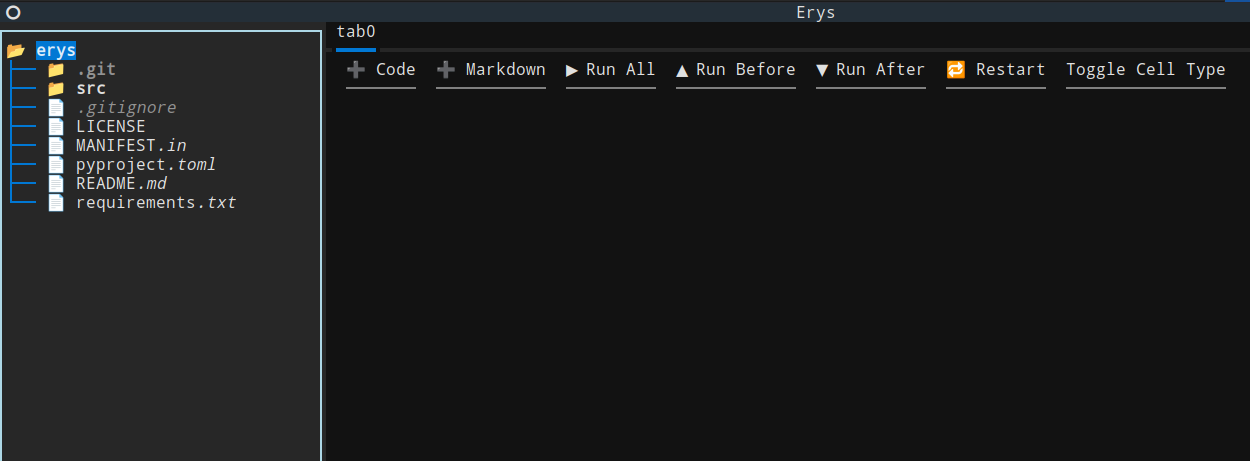
Look at the Key Bindings section to see how to open, save, save as, and close notebooks and files.
Erys can also be called with arguments in the command line. These arguments should be paths to files. The app will
load each valid file path. If the file does not exist but the parent directory does, a new file will be opened with the
provided name.
When saving a notebook as new, the following screen is opened:
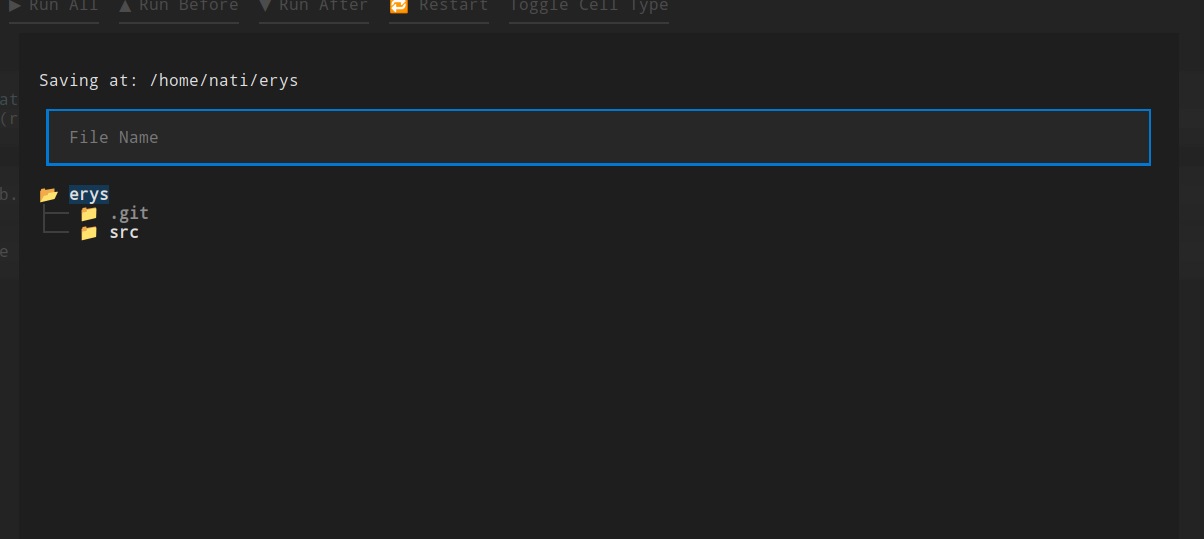
- The directory that the file is being saved in is stated on the top.
- The input field can be used to write the file name.
- The input field is validated on submission. Any file names that don't have the
.ipynbextension are not accepted.
- The input field is validated on submission. Any file names that don't have the
- The directory tree can be used to change what directory to the save file in.
- Selecting a file in the directory tree will update the input field to have the selected file name and updates the path as well.
Use the up and down arrow keys within a notebook to traverse the cells. Pressing enter will focus
on the text area of the cell. escape will blur out of the text area and focus on the parent cell.
Cells have more functionality which are stated in the Cell Key Bindings section.
Erys must be launched in a python environment with ipykernel installed to execute code cells.
Here is a simple environment in which Erys can be used to execute code:
$ python -m venv .erys_env
$ . .erys_env/bin/activate
$ pip install ipykernel
$ erys
SSH consideration
If using Erys over ssh, use X11 forwarding to get the rendered images and html. These two
outputs use the separate windows for rendering.
Features:
Opening Exising Notebooks
Erys Erys can open various notebook format versions and saves notebooks using format version 4.5.
Do share problems with loading different notebook formats :)
NB Format: https://nbformat.readthedocs.io/en/latest/format_description.html
Creating Notebooks
Erys can create, edit, and save Jupyter Notebooks.
Code Execution
Erys can execute Python source code in code cells. The Python environment in which the source code
is executed is the one in which the Erys is opened. Also, if ipykernel is not found in the
Python environment, code cells can not be executed. However, the notebook can still be edited and saved.
Each notebook has its own kernel manager and kernel client. Hence, there is no leaking environment from
notebook to notebook within the application. However, all notebook opened in the same Erys process
are in the same Python environment.
A running code cell can be interrupted by pressing the interrupt button □ on the left.
Rendering
Erys handles terminal rendering for:
- Markdown: Rendered with
Markdownwidget fromTextual. - JSON: Rendered with
Prettywidget fromTextual*. - Errors: Rendered with
Staticwidget fromTextualandrich.Text*.- ansi escaped string is converted to markup. (Some background coloring is difficult to read)
* When these are rendered as outputs from code execution, focus on them to get the plain text output. The plain text output supports copying content.

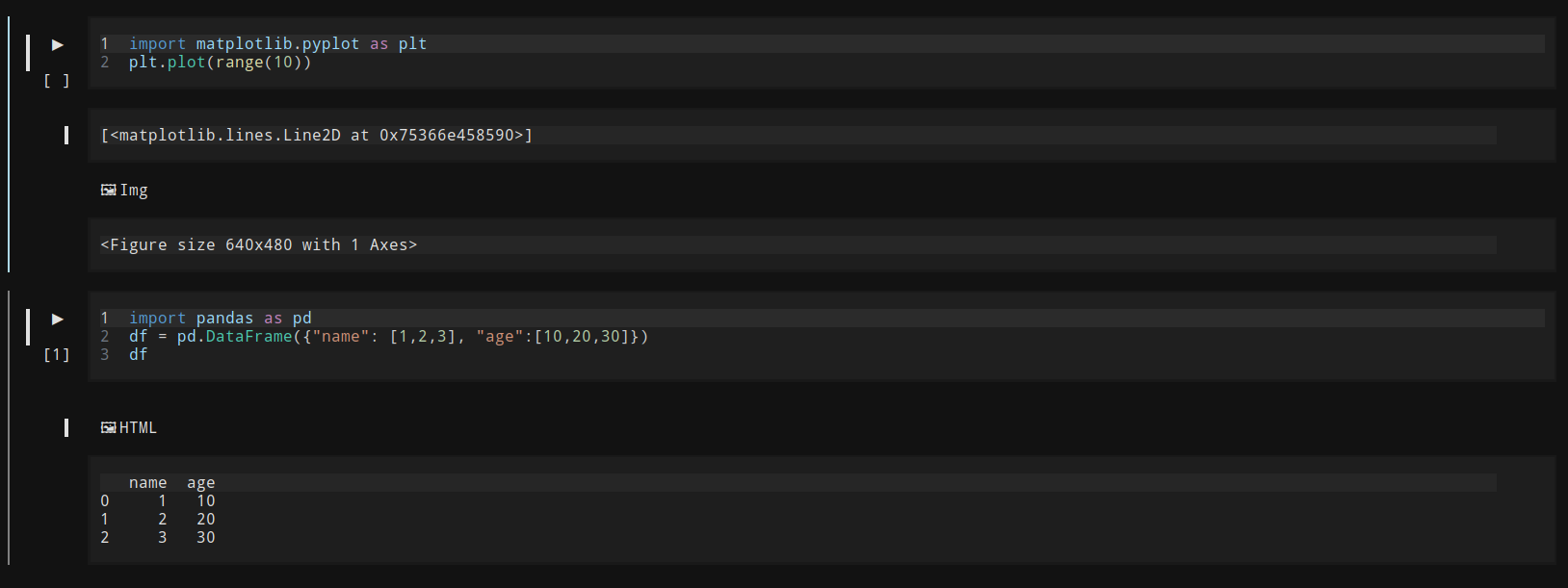
Erys parses image/png and text/html outputs from code cell execution and renders them outside of the
terminal. Press on the 🖼 IMG and 🖼 HTML buttons to render them respectively. Images are rendered
using Pillow and html is rendered in the default browser using webbrowser.

Syntax Highlighting
Erys has python and markdown syntax highlighting through textual for the notebooks.
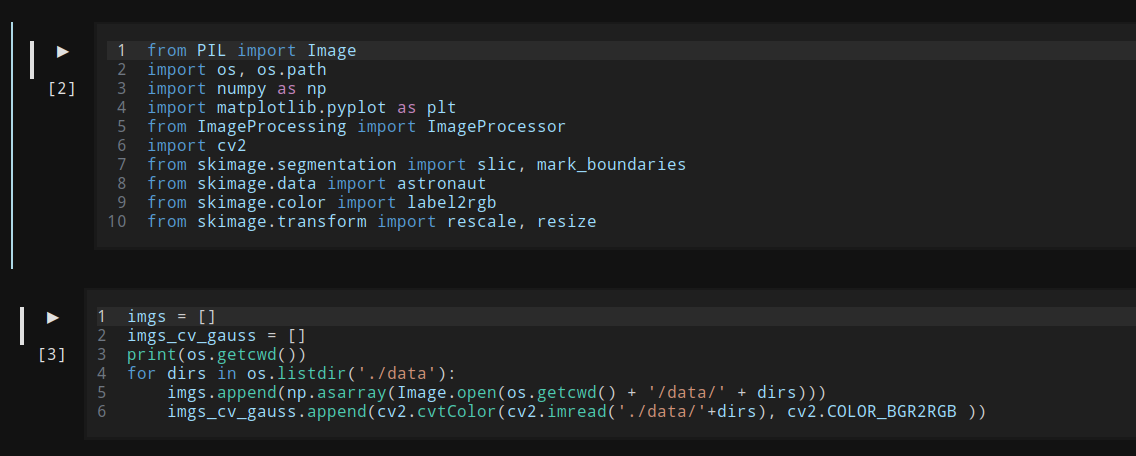
It also supports syntax highlighting via tree-sitter for when opening and editing files with the following extensions:
| Extension | Language |
|---|---|
| .py | Python |
| .md | Markdown |
| .yaml | Yaml |
| .sh | Bash |
| .css | Css |
| .go | Go |
| .html | Html |
| .java | Java |
| .js | Javascript |
| .json | Json |
| .rs | Rust |
| .toml | Toml |
| .xml | Xml |
Cell Functionalities:
The Markdown and Code cells have useful features:
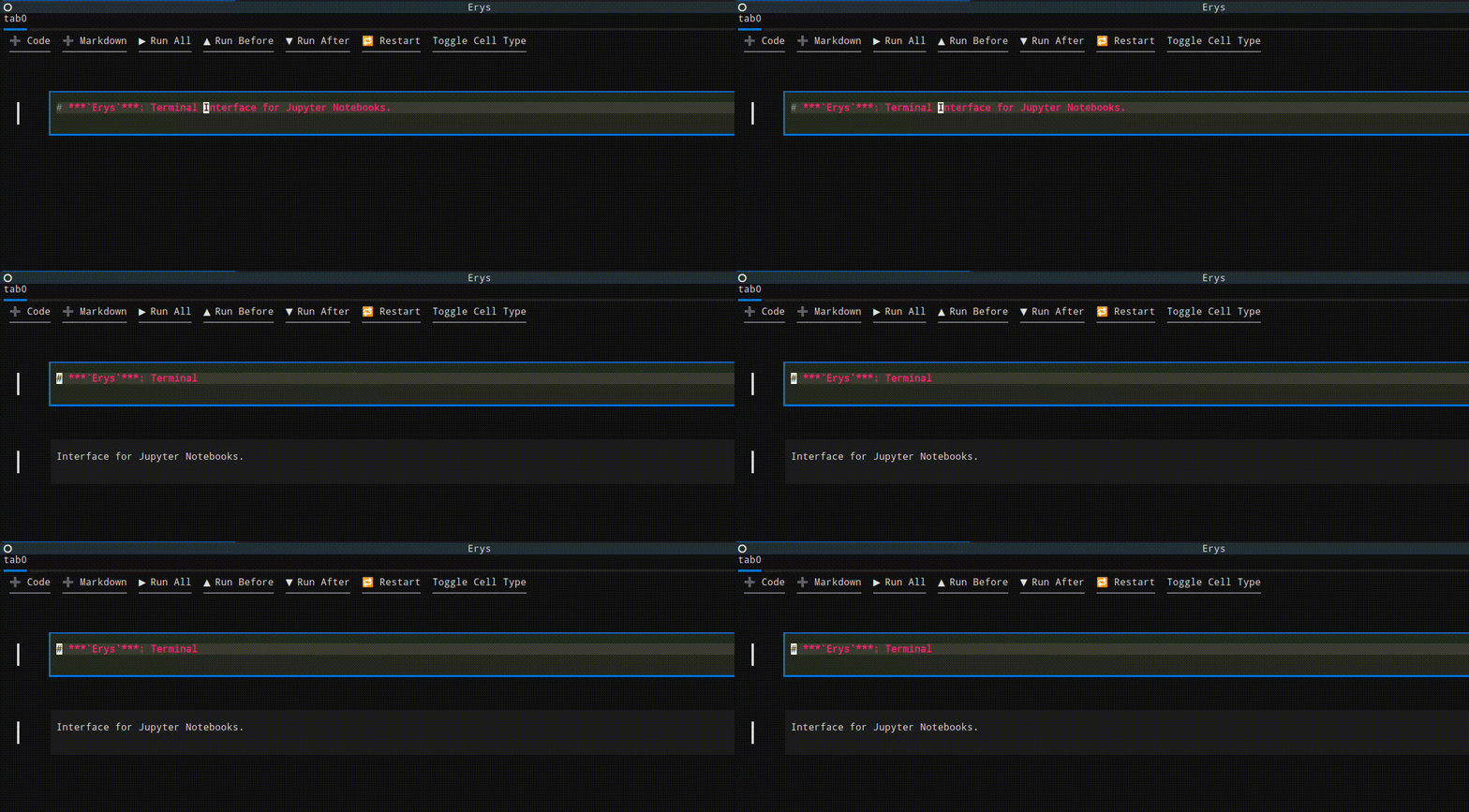
- Splitting: A cell will be split with the text up to the cursor's position (not inclusive) kept in the current cell and the text starting from the cursor's position (inclusive) used to create a new cell.
-
Joining with cell before and after: A cell can be joined with the cell before or after it.
-
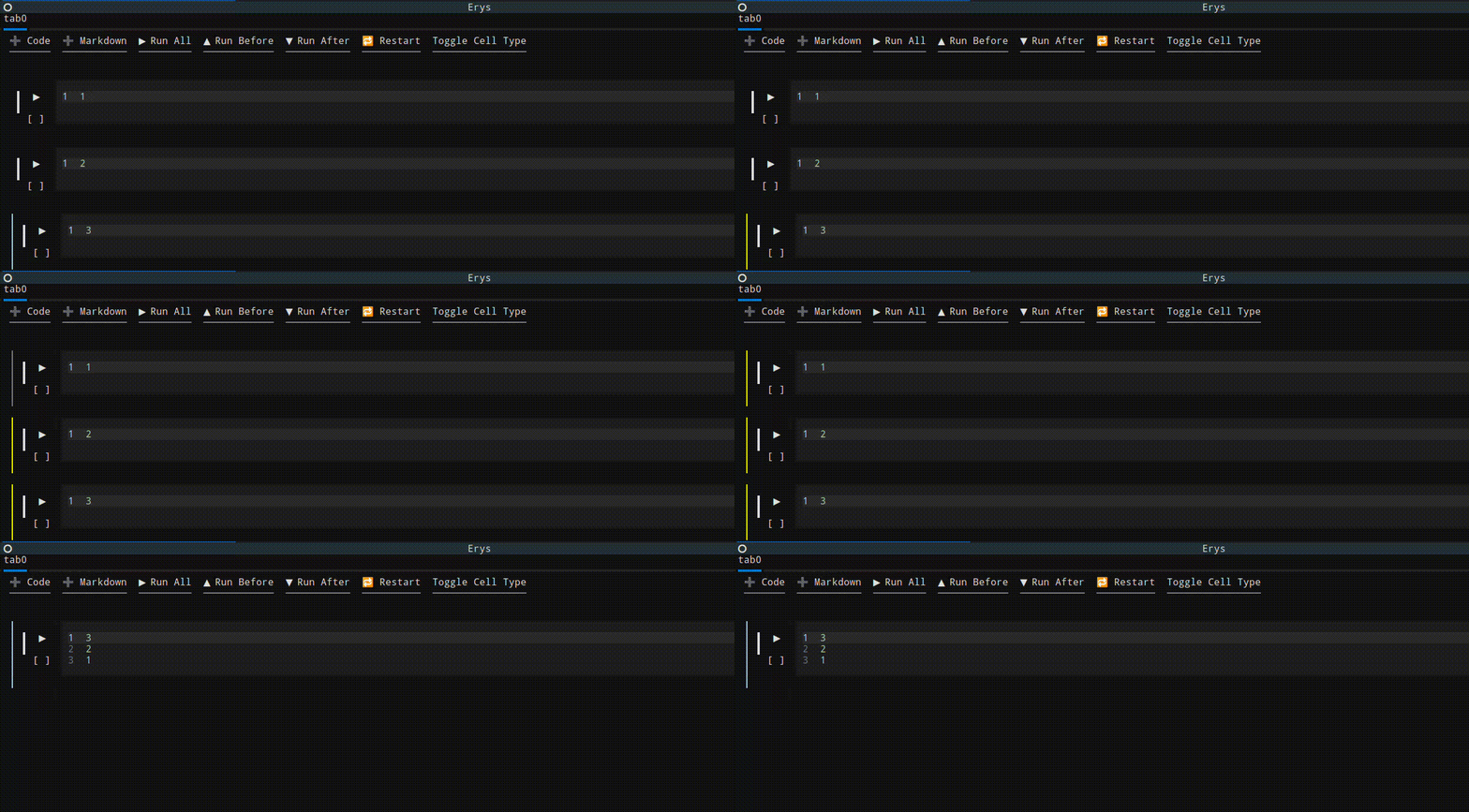
Merging: Multiple cells can be merged into one. Select the cells in the order they should appear in the merge by holding down
ctrland selecting with the mouse. The content of first selected cell will appear first in the final merged cell. The resulting cell wil be of the same type as the first selected cell. The cells selected for merging will be highlighted.
-
Toggle cell type: The cell types can be swtiched back and forth.
-
Collapsing: Both cell types can be collapsed to take up less space. The
Codecell's output can also be collapsed. -
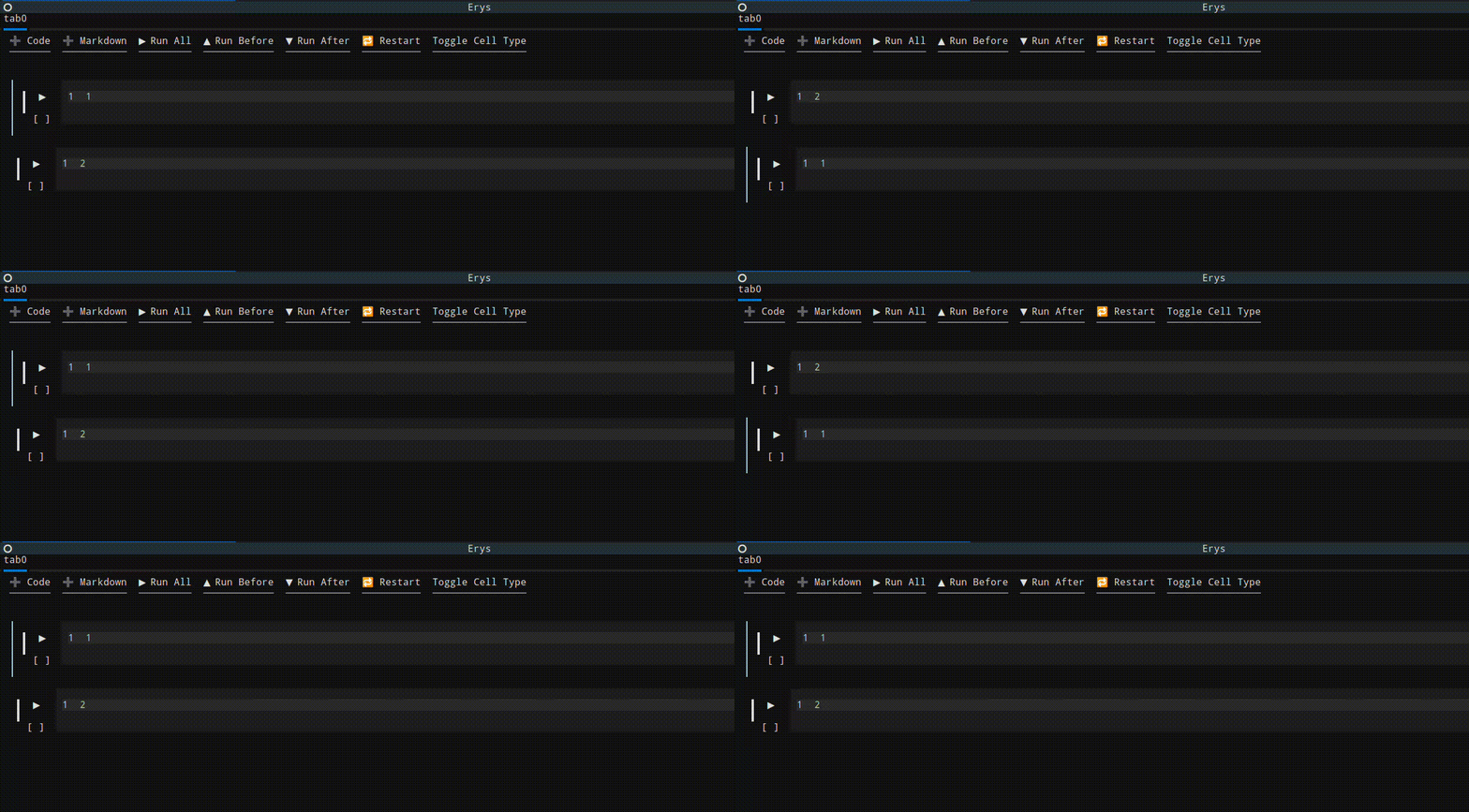
Moving: A cell can be moved up and down the notebook.
-
Copy/Cut Paste: A cell can be copied or cut and pasted. It is pasted after the currently focused cell. The new cell will have a different id than the original. Cut can be undone.
-
Deleting: A cell can be deleted. Deletion can be undone.
Key Bindings:
Erys has different sets on key bindings depending on what is in focus.
App Key Bindings:
| Key Binding | Function |
|---|---|
| ctrl+n | New Notebook |
| ctrl+k | Close Notebook |
| ctrl+l | Clear Tabs |
| d | Toggle Directory Tree |
| ctrl+q | Quit |
Notebook Key Bindings:
| Key Binding | Function |
|---|---|
| a | Add Cell After |
| b | Add Cell Before |
| t | Toggle Cell Type |
| ctrl+d | Delete Cell * |
| ctrl+u | Undo Delete * |
| ctrl+up | Move Cell Up |
| ctrl+down | Move Cell Down |
| M | Merge Cells |
| ctrl+c | Copy Cell |
| ctrl+x | Cut Cell |
| ctrl+v | Paste Cell |
| ctrl+s | Save |
| ctrl+w | Save As |
* A maximum of 20 deletes can be undone at a time. The stack keeping track of the deleted cells has a maximum size of 20.
Cell Key Bindings:
| Key Binding | Function |
|---|---|
| c | Collapse Cell |
| ctrl+pageup | Join with Before |
| ctrl+pagedown | Join with After |
Additionally, for code cell
| Key Binding | Function |
|---|---|
| ctrl+r | Run Code Cell |
Text Area Bindings:
| Key Binding | Function |
|---|---|
| ctrl+backslash | Split Cell |
| ctrl+r | Run Code Cell * |
* Only for
CodeCell.
Coming Features
- Execution time duration for code cell
- Read config for themes and key bindings?
- Attaching to user selected kernels
- Raw cells
- Saving progress backup
- Opening from cached backup
- Ask to save editted files on exit
- Mime output types rendering
Contributing
Pull requests and feedback are welcome! Create issues and PRs that can help improve and grow the project.
License
This project is licensed under the Apache-2.0 License.
1 maintainer

Metadata
1 maintainer
Release files for erys 0.2.10
For a detailed explanation of source distributions (sdists) and built distributions (wheels), please see the package formats documentation.
Source distribution (sdist)
| File | Size | Uploaded | |
|---|---|---|---|
| erys-0.2.10.tar.gz | 33.8 kB | Details |
Built distribution (wheel)
| File | Interpreter | ABI | Platform | Reset |
|---|---|---|---|---|
| erys-0.2.10-py3-none-any.whl | Python 3 | none | any | Details |
Total release size: 76.2 kB
Release files / erys-0.2.10.tar.gz
| Download URL | erys-0.2.10.tar.gz |
|---|---|
| Size | 33.8 kB |
| Tags | Source |
|
SHA-256 checksum How to use checksums |
21b77084176489a85c3964e5b4644d013f4182b3b11627f2001d37bdcdef10e3
|
|
BLAKE2b-256 checksum How to use checksums |
61adfcd62ea8a55de4282af20b571f81bce1cb202f3eb2b041ac760dd050d1ed
|
| Upload date | |
|
Uploaded using Trusted Publishing? What is trusted publishing? |
No |
| Uploaded via |
twine/6.2.0 CPython/3.12.11
|
Release files / erys-0.2.10-py3-none-any.whl
| Download URL | erys-0.2.10-py3-none-any.whl |
|---|---|
| Size | 42.5 kB |
| Tags | Python 3 |
|
SHA-256 checksum How to use checksums |
be0c5363abebd23d91f540666553ca1286d37d8b5186d82dacb545c8ecb9be29
|
|
BLAKE2b-256 checksum How to use checksums |
ad6a5ac9a8224135045ae5f8590cf4d9dcfaf143186c27ea388bd0154e83f747
|
| Upload date | |
|
Uploaded using Trusted Publishing? What is trusted publishing? |
No |
| Uploaded via |
twine/6.2.0 CPython/3.12.11
|














