
FastAPI + HTMX + Jinja2 admin interface framework — a modern replacement for Flask-Admin

Project description
fasthx-admin
A modern admin interface framework for FastAPI built with HTMX, Jinja2, and Bootstrap 5. Designed as a drop-in replacement for Flask-Admin with full control over rendering.
Screenshots
Dashboard
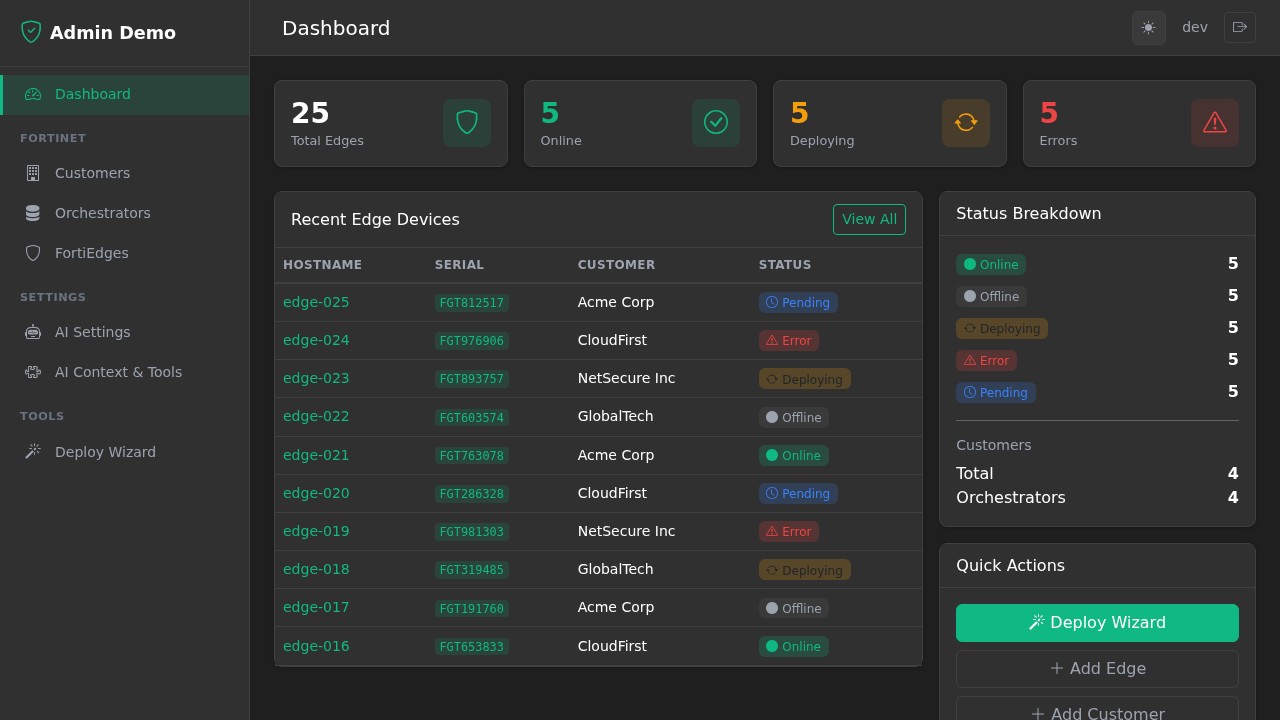
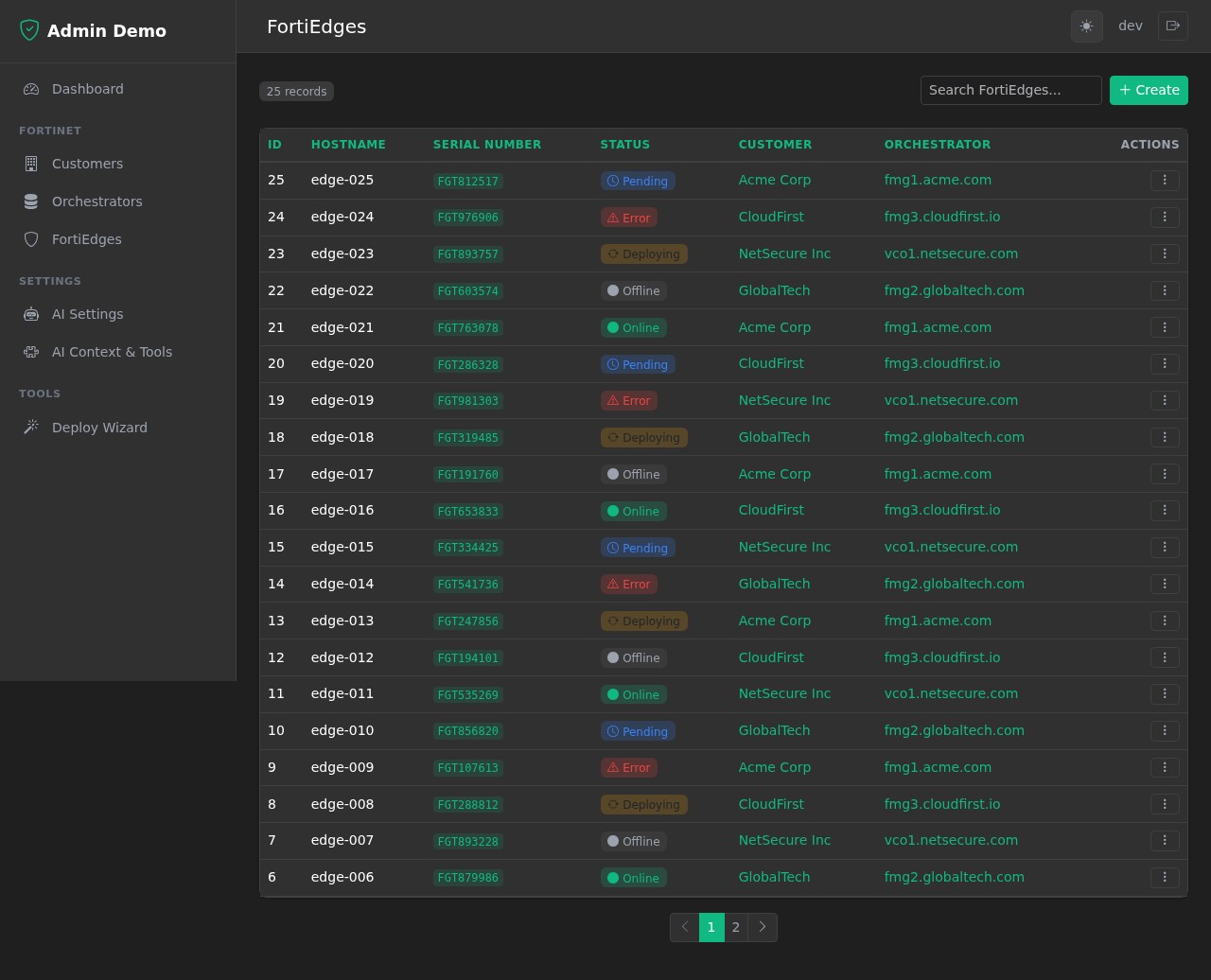
List View
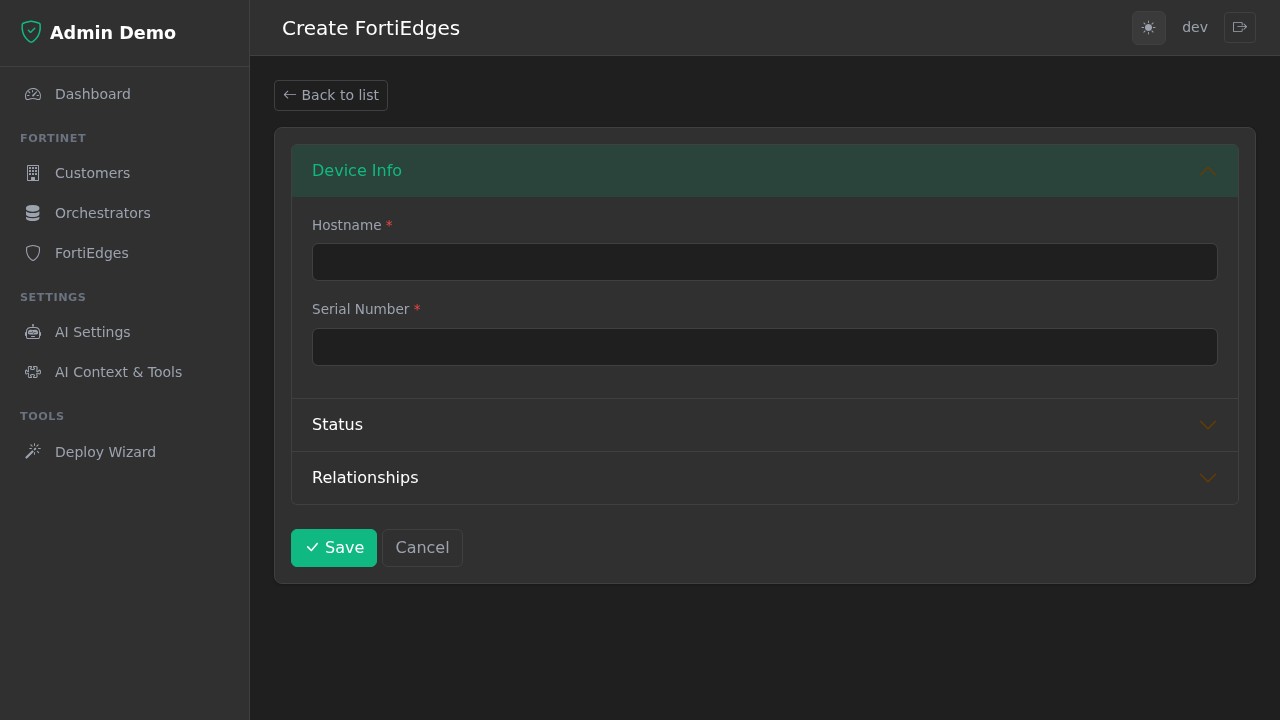
Form with Sections
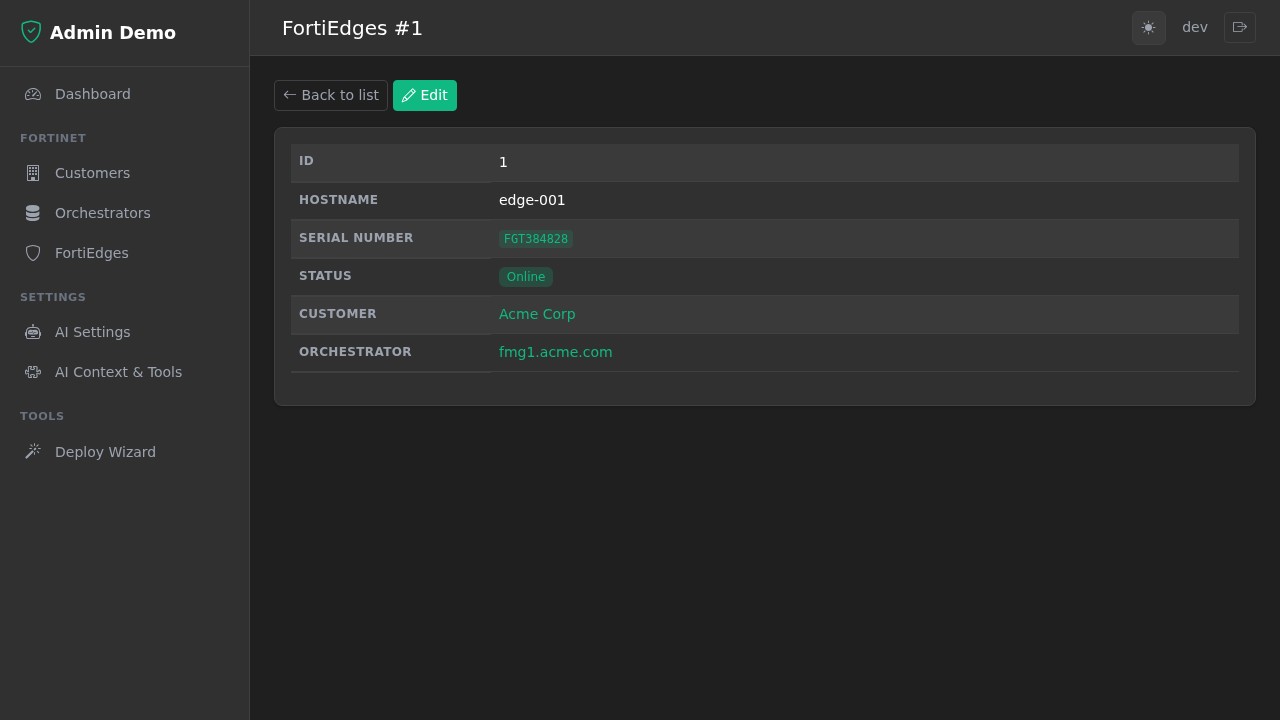
Detail View
Toast Notifications
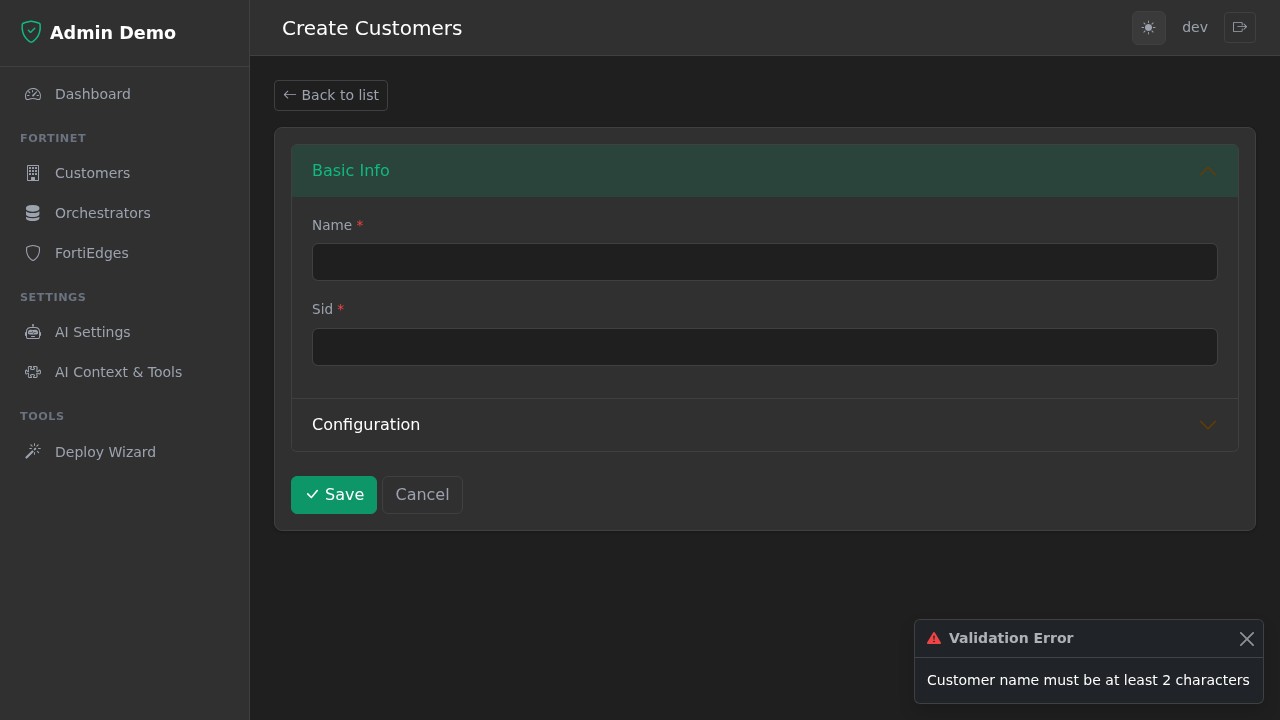
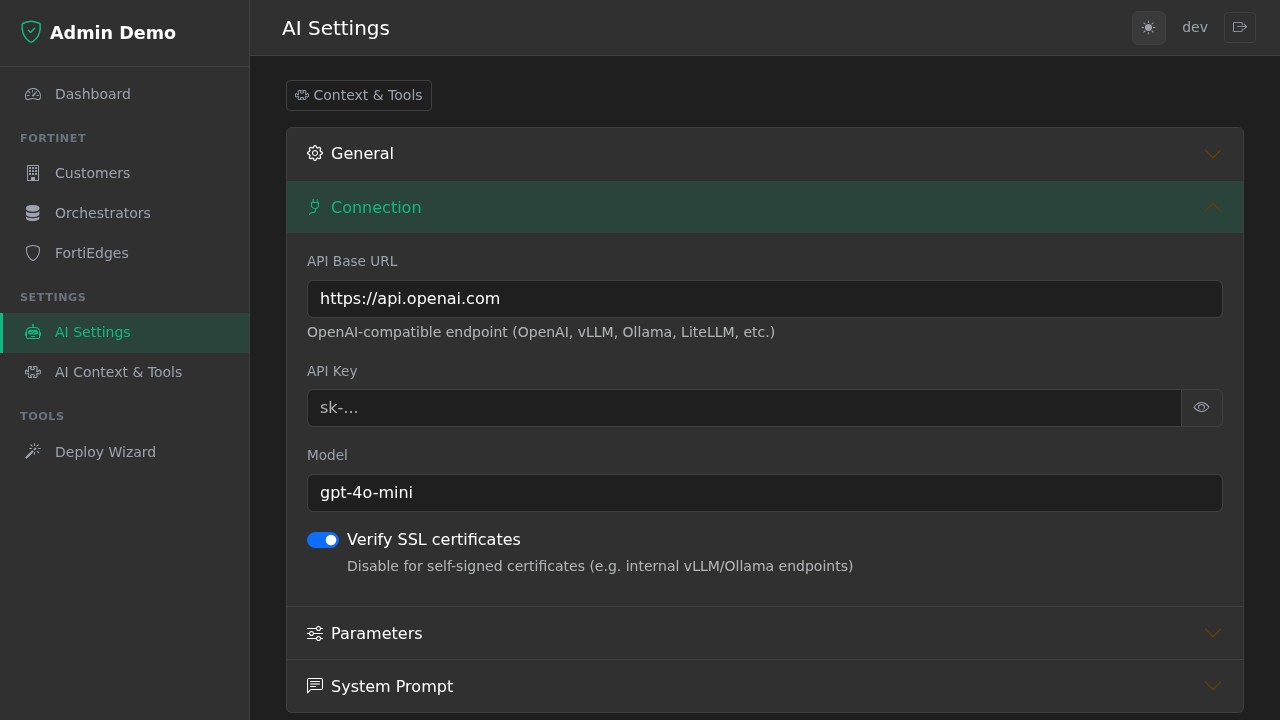
AI Settings
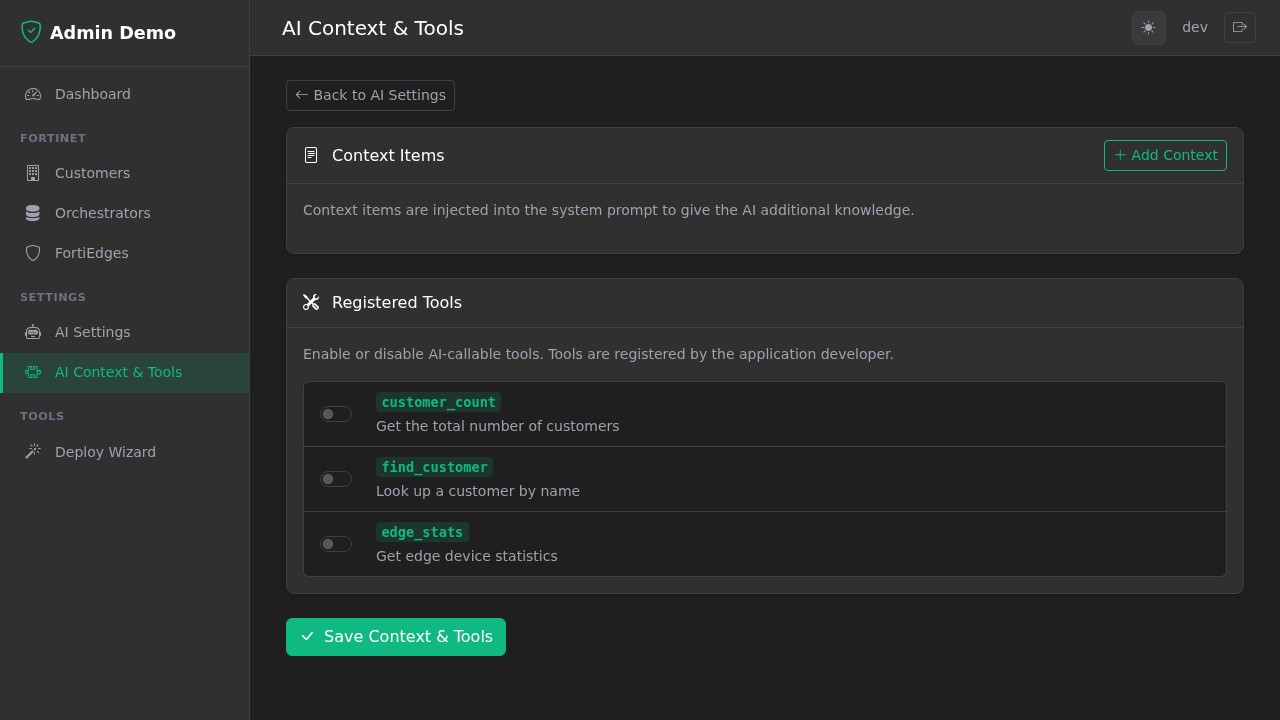
AI Context & Tools
AI Chat Widget
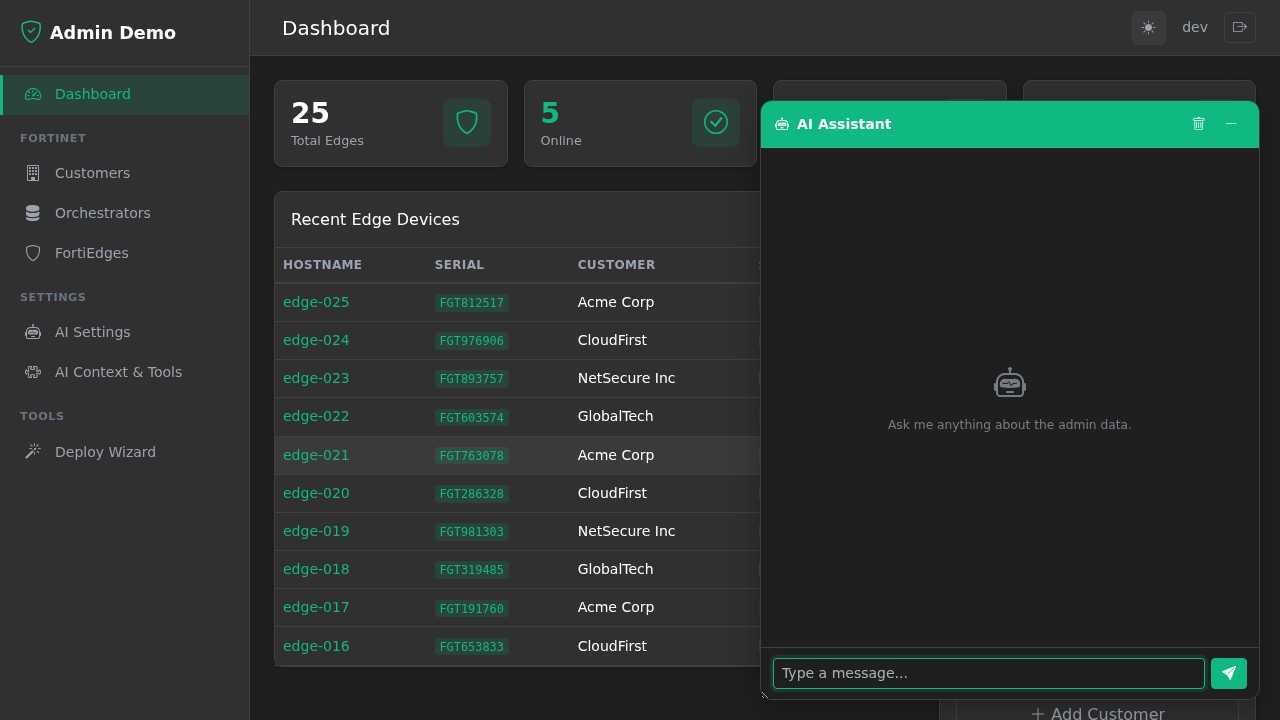
Table of Contents
- Features
- Installation
- Quick Start
- Architecture Overview
- Database Setup
- Defining Models
- The Admin Class
- CRUDView Configuration
- Custom Endpoints
- Dependent Dropdowns
- Toast Notifications
- Modals
- Validation
- Progress Bar
- Authentication
- AI Chat (Optional)
- Custom Pages (Dashboard, Wizard, etc.)
- Custom Navigation Links
- Templates
- Theming
- Icons
- Auto-Generated Routes
- Environment Variables
- Flask-Admin Migration Guide
- Running the Demo
- Tech Stack
Features
- Auto-generated CRUD -- list, detail, create, edit, delete routes from SQLAlchemy models
- Dark/light theme -- toggle with localStorage persistence, no flash on load
- HTMX-powered -- live search, sortable columns, auto-polling status cells, dependent dropdowns, progress bars
- Accordion form sections -- group form fields into collapsible sections
- Custom column formatters -- render badges, links, icons, code blocks in table cells
- Custom row actions -- per-row buttons with HTMX (deploy, build, reset, etc.)
- Collapsible sidebar categories -- click category headers to collapse/expand, state persisted in localStorage, active category auto-expands
- Responsive sidebar -- auto-grouped from model metadata, collapses on mobile
- View-level permissions -- restrict sidebar visibility of views and links by user or group (
allowed_users,allowed_groups) - OIDC/Keycloak auth -- Resource Owner Password Credentials flow with group-based access
- Dev mode -- set
AUTH_DISABLED=1to bypass auth entirely - Foreign key dropdowns -- auto-populated from related models
- AJAX select fields -- searchable, paginated foreign key selects via HTMX (replaces Flask-Admin's
form_ajax_refs) - Pagination -- configurable page size with prev/next navigation
- Built-in templates -- 7 page templates + 8 partials, all customizable
- AI chat widget (optional) -- pluggable LLM-powered assistant with tool calling, settings UI, and OpenAI-compatible provider
Installation
pip install fasthx-admin
With AI chat support (adds httpx):
pip install fasthx-admin[ai]
With development extras (uvicorn, pytest, httpx):
pip install fasthx-admin[dev]
Quick Start
A minimal working app in one file:
import os
from contextlib import asynccontextmanager

from fastapi import FastAPI
from sqlalchemy import Column, Integer, String
from starlette.middleware.sessions import SessionMiddleware

from fasthx_admin import Admin, CRUDView, Base, init_db

# 1. Initialise the database
engine = init_db("sqlite:///./app.db", connect_args={"check_same_thread": False})

# 2. Define a model
class Customer(Base):
    __tablename__ = "customers"
    id = Column(Integer, primary_key=True)
    name = Column(String(100), nullable=False)
    email = Column(String(200))

    __admin_category__ = "CRM"
    __admin_icon__ = "people"
    __admin_name__ = "Customers"

    def __repr__(self):
        return f"<Customer {self.name}>"

# 3. Create the app with lifespan
@asynccontextmanager
async def lifespan(app):
    Base.metadata.create_all(bind=engine)
    yield

app = FastAPI(lifespan=lifespan)
app.add_middleware(SessionMiddleware, secret_key=os.environ.get("SESSION_SECRET", "change-me"))

# 4. Create admin and register views
admin = Admin(app, title="My Admin")

class CustomerView(CRUDView):
    model = Customer
    column_list = ["id", "name", "email"]

admin.add_view(CustomerView)
Run it:
AUTH_DISABLED=1 uvicorn app:app --reload
# Open http://127.0.0.1:8000/customers
This gives you a full CRUD interface with list/detail/create/edit/delete, search, sorting, pagination, and a sidebar -- all from 30 lines of code.
Architecture Overview
fasthx_admin/
├── __init__.py       # Public API exports
├── database.py       # init_db(), get_db(), Base
├── auth.py           # OIDC login, get_current_user, AUTH_DISABLED
├── crud.py           # CRUDView base class + Admin factory
├── templates/        # Jinja2 templates (base, list, form, detail, wizard, partials)
└── static/           # CSS (dark/light theme) + JS (theme toggle, HTMX hooks)
How it works:
- You define SQLAlchemy models inheriting from
Base - You subclass
CRUDViewfor each model, setting class-level configuration - The
Adminfactory instantiates your views, introspects the models, and auto-registers FastAPI routes - Built-in Jinja2 templates render list tables, detail pages, and forms
- HTMX handles dynamic interactions (search, polling, dropdowns) without page reloads
Database Setup
fasthx_admin uses a configurable database via init_db(). Call it once at startup before creating tables.
from fasthx_admin import init_db, Base

# SQLite (development)
engine = init_db(
    "sqlite:///./app.db",
    connect_args={"check_same_thread": False}
)

# PostgreSQL (production)
engine = init_db("postgresql://user:pass@localhost/mydb")

# Create tables
Base.metadata.create_all(bind=engine)
Available functions
| Function | Description |
|---|---|
init_db(url, **kwargs) |
Create engine + session factory. Returns the engine. kwargs are passed to create_engine(). |
get_db() |
FastAPI dependency that yields a database session. Auto-closes when done. |
get_engine() |
Returns the current engine (raises RuntimeError if init_db not called). |
Base |
SQLAlchemy declarative base -- use this for all your models. |
Defining Models
Models are standard SQLAlchemy models that inherit from Base. Add optional metadata attributes to control how they appear in the admin sidebar:
from sqlalchemy import Column, Integer, String, ForeignKey, Boolean, Enum as SAEnum
from sqlalchemy.orm import relationship
from fasthx_admin import Base
import enum

class DeviceStatus(str, enum.Enum):
    ONLINE = "online"
    OFFLINE = "offline"
    ERROR = "error"

class Device(Base):
    __tablename__ = "devices"

    id = Column(Integer, primary_key=True, index=True)
    hostname = Column(String(100), nullable=False)
    ip_address = Column(String(45))
    status = Column(SAEnum(DeviceStatus), default=DeviceStatus.OFFLINE)
    site_id = Column(Integer, ForeignKey("sites.id"))

    site = relationship("Site", back_populates="devices")

    # --- Admin UI metadata ---
    __admin_category__ = "Network"     # Sidebar group heading
    __admin_icon__ = "router"          # Bootstrap Icons name (https://icons.getbootstrap.com)
    __admin_name__ = "Devices"         # Display label in sidebar

    def __repr__(self):
        return f"<Device {self.hostname}>"
Model metadata attributes
| Attribute | Purpose | Default |
|---|---|---|
__admin_category__ |
Groups this model under a sidebar heading | "Other" |
__admin_icon__ |
Bootstrap Icons icon name | "table" |
__admin_name__ |
Display name in the sidebar and page titles | Table name, title-cased |
The __repr__ method is used to display items in foreign key dropdowns, so make it human-readable.
The Admin Class
Admin is the central factory that ties everything together.
from fasthx_admin import Admin

admin = Admin(
    app,                                    # Your FastAPI app (required)
    title="My Admin",                       # Brand name in sidebar + page titles
    static_url="/static/fasthx-admin",      # Where package CSS/JS are served
    mount_statics=True,                     # Auto-mount built-in static files
    public_pages={"login.html"},            # Templates that skip auth check
)
Parameters
| Parameter | Type | Default | Description |
|---|---|---|---|
app |
FastAPI |
required | Your FastAPI application instance |
templates |
Jinja2Templates |
None |
Custom templates (uses built-in if None) |
title |
str |
"Admin" |
Brand name shown in sidebar header and page titles |
static_url |
str |
"/static/fasthx-admin" |
URL path where static assets are mounted |
mount_statics |
bool |
True |
Whether to auto-mount built-in CSS/JS |
public_pages |
set[str] |
{"login.html"} |
Template names that don't require authentication |
ai_chat |
bool |
False |
Enable the AI chat widget and settings pages (requires fasthx-admin[ai]) |
extra_templates_dirs |
list[str] |
None |
Additional template directories to search before the built-in ones (for overriding or extending templates) |
settings_admin_groups |
list[str] |
None |
Keycloak group DNs allowed to see the Settings sidebar category (e.g. ["/Edge-Admins"]) |
settings_admin_users |
list[str] |
None |
Usernames allowed to see the Settings sidebar category (e.g. ["admin"]) |
Methods
| Method | Description |
|---|---|
admin.add_view(ViewClass) |
Instantiate a CRUDView subclass and register its routes. Returns the instance. |
admin.get_view("name") |
Look up a registered view by its name attribute. |
admin.add_link(name, url, display_name, icon="link", category="Other") |
Add a custom navigation link to the sidebar (non-CRUD). |
admin.get_nav_categories() |
Returns the sidebar navigation structure as a dict. |
admin.templates |
The Jinja2Templates instance -- use for rendering custom pages. |
What Admin does automatically
- Mounts static files -- CSS and JS at the configured
static_url - Sets up Jinja2 templates -- uses the package's built-in templates
- Wraps TemplateResponse -- every template automatically gets:
current_user-- the logged-in user (or mock user if auth disabled)nav_categories-- sidebar navigation built from all registered viewsstatic_url-- path to static assetsadmin_title-- the configured title- Auth redirect -- non-public pages redirect to
/loginif unauthenticated
CRUDView Configuration
CRUDView is the heart of fasthx-admin. Subclass it and set class-level attributes to configure each model's admin interface.
Basic Attributes
class DeviceView(CRUDView):
    model = Device                  # Required: SQLAlchemy model class
    name = "devices"                # URL prefix (default: model.__tablename__)
    display_name = "Network Devices"  # Sidebar + page title (default: model.__admin_name__)
    category = "Network"            # Sidebar group (default: model.__admin_category__)
    icon = "router"                 # Bootstrap Icons name (default: model.__admin_icon__)
    page_size = 25                  # Records per page (default: 20)
Column Configuration
Control which columns appear in the list table:
class DeviceView(CRUDView):
    model = Device

    # Option A: Explicitly list columns to show (in order)
    column_list = ["id", "hostname", "ip_address", "status", "site_id"]

    # Option B: Exclude specific columns (show everything else)
    column_exclude = ["deploy_progress"]

    # If neither is set, all model columns are shown

    # Rename column headers
    column_labels = {
        "site_id": "Site",
        "ip_address": "IP Address",
    }

    # Restrict which columns are searchable (default: all String columns)
    column_searchable = ["hostname", "ip_address"]

    # Restrict which columns are sortable (default: all columns)
    column_sortable = ["id", "hostname", "status"]
Column Formatters
Column formatters are functions that transform raw values into HTML for display. They receive (value, obj) where value is the column value and obj is the full SQLAlchemy model instance.
def format_status_badge(value, obj):
    """Render an enum value as a coloured badge."""
    colors = {
        DeviceStatus.ONLINE: "success",
        DeviceStatus.OFFLINE: "secondary",
        DeviceStatus.ERROR: "danger",
    }
    color = colors.get(value, "secondary")
    label = value.value.title() if hasattr(value, "value") else str(value)
    return f'<span class="badge bg-{color}">{label}</span>'

def format_ip_code(value, obj):
    """Render a value in monospace."""
    return f'<code>{value}</code>'

def format_site_link(value, obj):
    """Render a foreign key as a clickable link to the related item."""
    if obj.site:
        return f'<a href="/sites/{obj.site.id}">{obj.site.name}</a>'
    return str(value) if value else ""

def format_external_link(value, obj):
    """Render a URL as a clickable external link."""
    return f'<a href="https://{value}" target="_blank">{value} <i class="bi bi-box-arrow-up-right"></i></a>'

class DeviceView(CRUDView):
    model = Device
    column_formatters = {
        "status": format_status_badge,
        "ip_address": format_ip_code,
        "site_id": format_site_link,
    }
Formatters return raw HTML strings. The templates render them with | safe so Bootstrap classes, icons, and links all work.
Form Configuration
Control which fields appear in create/edit forms:
class DeviceView(CRUDView):
    model = Device

    # Explicitly list form fields (default: all columns except 'id')
    form_columns = ["hostname", "ip_address", "status", "site_id"]
Field types are auto-detected from the SQLAlchemy column type:
| SQLAlchemy Type | HTML Input Type |
|---|---|
Integer, Float |
<input type="number"> |
String, VARCHAR |
<input type="text"> |
Text |
<textarea> |
Boolean |
<input type="checkbox"> (toggle switch) |
DateTime |
<input type="datetime-local"> |
Date |
<input type="date"> |
Enum |
<select> with enum values |
| Foreign Key | <select> auto-populated from related model |
Form Sections (Accordion Groups)
Group form fields into collapsible accordion sections:
class DeviceView(CRUDView):
    model = Device
    form_sections = {
        "Device Info": ["hostname", "ip_address"],
        "Status": ["status"],
        "Relationships": ["site_id"],
    }
The first section is expanded by default. If form_sections is None, all fields render in a flat list.
Form Widget Overrides
Customize individual form fields with extra attributes or replace their type entirely. Any key in the override dict is merged into the field metadata, so you can change field types, add attributes, or tweak behavior per field.
Supported override keys:
| Key | Description | Example |
|---|---|---|
type |
Change the HTML input type. Use "select" for dropdowns, "textarea" for multi-line text, "checkbox" for booleans, or any HTML input type ("text", "number", "email", "date", etc.) |
"type": "select" |
choices |
List of (value, label) tuples for select fields |
"choices": [("v1", "Version 1")] |
label |
Override the auto-generated field label | "label": "Firmware" |
required |
Override whether the field shows as required | "required": False |
placeholder |
Placeholder text for text inputs | "placeholder": "e.g. edge-001" |
hx_get |
HTMX hx-get URL for dependent dropdowns |
"hx_get": "/api/options" |
hx_target |
HTMX hx-target selector |
"hx_target": "#other_field" |
hx_trigger |
HTMX hx-trigger event (defaults to "change") |
"hx_trigger": "change" |
hx_swap |
HTMX hx-swap strategy (defaults to "innerHTML") |
"hx_swap": "outerHTML" |
depends_on |
Field key of a checkbox — this field is only visible when that checkbox is checked | "depends_on": "is_ha" |
Examples:
class EdgeView(CRUDView):
    model = Edge
    form_widget_overrides = {
        # Turn a text field into a select with static choices
        "firmware_version": {
            "type": "select",
            "choices": [
                ("6.4", "Version 6.4"),
                ("7.2", "Version 7.2"),
                ("7.4", "Version 7.4"),
            ],
        },
        # Override the label and make a field optional
        "serial_number": {
            "label": "S/N",
            "required": False,
        },
        # Add placeholder text
        "hostname": {
            "placeholder": "e.g. edge-001",
        },
        # Change a text field to a textarea
        "notes": {
            "type": "textarea",
        },
        # Add HTMX attributes to trigger dependent dropdowns
        "customer_id": {
            "hx_get": "/api/orchestrators-for-customer",
            "hx_target": "#orchestrator_id",
        },
    }
Conditional field visibility:
Use depends_on to show fields only when a checkbox is checked. This is useful for toggling optional sections like HA (High Availability) settings:
class LaunchPadView(CRUDView):
    model = LaunchPad
    form_widget_overrides = {
        # These fields are hidden unless the "is_ha" checkbox is checked
        "ha_mode": {
            "depends_on": "is_ha",
            "type": "select",
            "choices": [("active-standby", "Active-Standby"), ("active-active", "Active-Active")],
        },
        "ha_switch_mode": {
            "depends_on": "is_ha",
            "type": "select",
            "choices": [("manual", "Manual"), ("automatic", "Automatic")],
        },
    }
When is_ha is unchecked, the ha_mode and ha_switch_mode fields are hidden. When the user toggles it on, the fields appear instantly (no server round-trip).
AJAX Select (Searchable Foreign Keys)
For foreign key fields with large option sets, use form_ajax_refs to replace the standard dropdown with a searchable, paginated select powered by HTMX. This is the fasthx-admin equivalent of Flask-Admin's form_ajax_refs.
from myapp.models import Offering, Server

class OfferingView(CRUDView):
    model = Offering

    form_ajax_refs = {
        "serverid": {
            "model": Server,           # The related SQLAlchemy model
            "fields": ["hostname"],     # Columns to search against (ilike)
            "placeholder": "Please select uCPE",  # Search input placeholder
            "page_size": 10,            # Results per page (default: 10)
        }
    }
How it works:
- The form renders a text search input above a multi-row
<select>(instead of a single dropdown with all options) - As the user types, HTMX fires a
GET /{view}/ajax/{field}?q=<term>request after a 300ms debounce - The endpoint filters the target model using
ilikeon the configuredfieldsand returns paginated<option>HTML fragments - If more results exist beyond
page_size, an "infinite scroll" trigger auto-loads the next page when the user scrolls to the bottom of the select list (usinghx-trigger="intersect once") - On edit forms, the currently selected value is pre-populated in the select
Configuration options:
| Key | Type | Default | Description |
|---|---|---|---|
model |
SQLAlchemy model | (required) | The related model to search |
fields |
list[str] |
[] |
Model columns to search with ilike |
placeholder |
str |
"Type to search..." |
Placeholder text for the search input |
page_size |
int |
10 |
Number of results per HTMX request |
Auto-registered endpoint:
Each form_ajax_refs entry registers a GET /{view_name}/ajax/{field_key} route that accepts:
q-- search term (optional)page-- page number (default: 1)
Row Actions
Add custom action buttons to each row in the list table:
class EdgeView(CRUDView):
    model = FortiEdge
    row_actions = [
        {
            "label": "Deploy",              # Button text
            "icon": "rocket",               # Bootstrap Icons name
            "hx_post": "/edges/{id}/deploy",  # HTMX POST URL ({id} is replaced per row)
            "hx_target": "closest tr",      # HTMX target element
            "hx_swap": "afterend",          # HTMX swap strategy
            "class": "btn-outline-success", # Bootstrap button class
        },
        {
            "label": "Reset",
            "icon": "arrow-counterclockwise",
            "hx_post": "/edges/{id}/reset",
            "hx_target": "closest tr",
            "hx_swap": "outerHTML",
            "class": "btn-outline-warning",
            "confirm": "Reset this edge device?",  # Confirmation dialog
        },
    ]
Every row also gets View and Edit buttons automatically (based on permissions), plus a Delete button with confirmation.
Link-based row actions (file downloads, navigation)
For actions that should trigger a file download or navigate to a URL (instead of an HTMX swap), use href instead of hx_post:
class EdgeView(CRUDView):
    model = FortiEdge
    row_actions = [
        {
            "label": "Template",
            "icon": "download",
            "href": "/edges/{id}/template",   # Regular link ({id} replaced per row)
            "confirm": "Download onboarding template?",
        },
    ]
This renders a standard <a> link instead of an HTMX button, so the browser handles the response natively — essential for file downloads where the endpoint returns a StreamingResponse with Content-Disposition: attachment.
Row action fields
| Field | Description |
|---|---|
label |
Button text |
icon |
Bootstrap Icons name (optional) |
hx_post |
HTMX POST URL. {id} is replaced with the row's primary key. |
hx_target |
HTMX target selector (default: "closest tr") |
hx_swap |
HTMX swap strategy (default: "afterend") |
href |
Regular link URL. Use instead of hx_post for downloads or navigation. {id} is replaced with the row's primary key. |
download |
If true, adds the download attribute to the link (optional, use with href) |
target |
Link target (e.g., "_blank") for opening in a new tab (optional, use with href) |
class |
CSS class for the button (default: "btn-outline-primary") |
confirm |
If set, shows a confirmation dialog before executing |
HTMX Polling Columns
Auto-refresh specific table cells at an interval. The framework auto-generates GET endpoints that return the current value.
class EdgeView(CRUDView):
    model = FortiEdge
    htmx_columns = {
        "status": {
            "url": "/edges/{id}/status",    # Polling URL ({id} replaced per row)
            "trigger": "every 5s",          # HTMX trigger interval
        },
    }
This auto-generates a GET /edges/{item_id}/status endpoint that returns the current status value rendered through partials/status_cell.html. No custom endpoint code needed.
You can combine this with column formatters -- the initial render uses your formatter, and polling updates use the status_cell partial.
Permissions
Control which operations are available:
class AuditLogView(CRUDView):
    model = AuditLog
    can_create = False    # Hide "Create" button
    can_edit = False      # Hide "Edit" button on each row
    can_delete = False    # Hide "Delete" button on each row
All default to True.
Sidebar Visibility
Restrict which users or groups can see a view in the sidebar. By default all views are visible to everyone. When allowed_users or allowed_groups is set, only matching users see the view in the sidebar.
class InternalToolsView(CRUDView):
    model = InternalTool
    allowed_users = ["admin", "devops"]         # Only these usernames see this view

class NetworkView(CRUDView):
    model = NetworkDevice
    allowed_groups = ["/Edge-Admins", "/NOC"]    # Only members of these groups see this view
| Attribute | Type | Default | Description |
|---|---|---|---|
allowed_users |
list[str] |
None |
Usernames that can see this view in the sidebar. None = visible to all. |
allowed_groups |
list[str] |
None |
Group DNs that can see this view. None = visible to all. |
If both are set, matching either list grants visibility. This only controls sidebar visibility — it does not block direct URL access to the routes.
The same allowed_users and allowed_groups parameters are available on admin.add_link() for custom navigation links:
admin.add_link("debug", "/debug", "Debug Tools", icon="bug", category="Dev",
               allowed_users=["admin"])
Note: The Settings category (AI Settings) uses a separate mechanism — settings_admin_users and settings_admin_groups on the Admin constructor. Unlike views, Settings is hidden by default and requires an explicit allow list to be visible:
admin = Admin(app, ai_chat=True, settings_admin_users=["admin"])
Column Filters
Add dropdown filters to any list view with the column_filters attribute:
class CustomerView(CRUDView):
    model = Customer
    column_filters = ["currentstatus", "region"]
This renders filter dropdowns above the table, populated with distinct values from each column. Labels come from column_labels if set. Features:
- Filters apply alongside search and sorting
- Active filters carry through pagination, search, sort, and export links
- A "Clear" button appears when any filter is active
- Filter params use the format
?flt_columnname=valuein the URL - Enum columns are supported — values are converted automatically
class ServerView(CRUDView):
    model = Server
    column_filters = ["status", "datacenter", "os_type"]
    column_labels = {
        "status": "Status",
        "datacenter": "Data Center",
        "os_type": "OS Type",
    }
    export_types = ["csv"]  # export respects active filters
Export
Add CSV and/or XLSX export buttons to any list view with the export_types attribute:
class CustomerView(CRUDView):
    model = Customer
    export_types = ["csv", "xlsx"]
This adds an "Export" dropdown next to the Create button in the list view. The export:
- Uses the columns defined in
column_listwith labels fromcolumn_labelsas headers - Respects the current search query and sort order
- Downloads all matching records (not just the current page)
Supported formats:
| Format | Dependency |
|---|---|
csv |
None (built-in) |
xlsx |
openpyxl (pip install openpyxl) |
The export endpoint is at /{name}/export/{format} and accepts the same q, sort, and order query params as the list view.
Custom Endpoints
Add custom routes to a CRUDView using the @CRUDView.endpoint decorator. These are registered alongside the auto-generated CRUD routes.
Endpoint Decorator (Recommended)
Decorate methods directly on the class. Use {name} in the path — it's automatically replaced with self.name at init time.
from fastapi import Request, Depends
from fastapi.responses import HTMLResponse
from sqlalchemy.orm import Session
from fasthx_admin import CRUDView, get_db

class OrchestratorView(CRUDView):
    model = Orchestrator

    # Custom action: trigger a build
    @CRUDView.endpoint("/{name}/{item_id}/build", methods=["POST"], response_class=HTMLResponse)
    async def build(self, request: Request, item_id: int, db: Session = Depends(get_db)):
        orch = db.query(self.model).filter(self.model.id == item_id).first()
        if not orch:
            return HTMLResponse("Not found", status_code=404)
        orch.build_status = BuildStatus.BUILDING
        db.commit()
        # HX-Redirect tells HTMX to do a full page navigation
        return HTMLResponse("", headers={"HX-Redirect": f"/{self.name}"})

    # Custom API: return filtered options for a dependent dropdown
    # For non-{name} paths, use the literal path string
    @CRUDView.endpoint("/api/devices-for-site", methods=["GET"], response_class=HTMLResponse)
    async def devices_for_site(self, request: Request, site_id: int = 0, db: Session = Depends(get_db)):
        options = []
        if site_id:
            devices = db.query(Device).filter(Device.site_id == site_id).all()
            options = [{"id": d.id, "label": d.hostname} for d in devices]
        return self.templates.TemplateResponse("partials/dropdown_options.html", {
            "request": request,
            "options": options,
            "selected": None,
        })
Key points:
{name}in the path is replaced with the view'snameattributemethods=["POST"]ormethods=["GET"]— defaults to["GET"]if omitted- Any extra kwargs (e.g.
response_class) are passed to FastAPI'sadd_api_route selfgives direct access toself.model,self.name,self.templates, etc.
setup_endpoints Override (Legacy)
The older setup_endpoints() override still works and can be used alongside decorators:
class MyView(CRUDView):
    model = MyModel

    def setup_endpoints(self):
        @self.router.post(f"/{self.name}/{{item_id}}/action", response_class=HTMLResponse)
        async def action(request: Request, item_id: int, db: Session = Depends(get_db)):
            ...
Instance State in Custom Endpoints
If your view needs to track state (like deployment progress), add it in __init__:
class EdgeView(CRUDView):
    model = FortiEdge

    def __init__(self, templates):
        self.deploy_progress = {}   # Must be set BEFORE super().__init__
        super().__init__(templates)

    @CRUDView.endpoint("/{name}/{item_id}/deploy", methods=["POST"], response_class=HTMLResponse)
    async def deploy(self, request: Request, item_id: int, db: Session = Depends(get_db)):
        self.deploy_progress[item_id] = {"progress": 0, "status": "deploying"}
        # ... start deployment logic
Dependent Dropdowns
A common pattern: selecting a value in one dropdown filters the options in another. This uses HTMX + form_widget_overrides + a custom endpoint.
Single Target
Step 1: Configure the trigger dropdown
class DeviceView(CRUDView):
    model = Device
    form_widget_overrides = {
        "site_id": {
            "hx_get": "/api/devices-for-site",   # Endpoint to call on change
            "hx_target": "#device_id",            # Target <select> to update
        },
    }
Step 2: Create the endpoint
    @CRUDView.endpoint("/api/devices-for-site", methods=["GET"], response_class=HTMLResponse)
    async def devices_for_site(self, request: Request, site_id: int = 0, db: Session = Depends(get_db)):
        options = []
        if site_id:
            items = db.query(Device).filter(Device.site_id == site_id).all()
            options = [{"id": d.id, "label": d.hostname} for d in items]
        return self.templates.TemplateResponse("partials/dropdown_options.html", {
            "request": request,
            "options": options,
            "selected": None,
        })
The partials/dropdown_options.html template renders <option> tags that replace the target <select>'s contents.
Multiple Targets
To update multiple dropdowns from a single trigger, use dropdown_options_multi.html with HTMX out-of-band swaps. The primary target is updated normally, and additional targets are updated via hx-swap-oob.
Step 1: Configure the trigger dropdown (same as single target — hx_target points to the primary target)
class EdgeView(CRUDView):
    model = Edge
    form_widget_overrides = {
        "customer_id": {
            "hx_get": "/api/options-for-customer",
            "hx_target": "#orchestrator_id",          # Primary target
        },
    }
Step 2: Create the endpoint with oob_targets
    @CRUDView.endpoint("/api/options-for-customer", methods=["GET"], response_class=HTMLResponse)
    async def options_for_customer(self, request: Request, customer_id: int = 0, db: Session = Depends(get_db)):
        orch_options = []
        region_options = []
        if customer_id:
            orchs = db.query(Orchestrator).filter(Orchestrator.customer_id == customer_id).all()
            orch_options = [{"id": o.id, "label": o.name} for o in orchs]
            regions = db.query(Region).filter(Region.customer_id == customer_id).all()
            region_options = [{"id": r.id, "label": r.name} for r in regions]
        return self.templates.TemplateResponse("partials/dropdown_options_multi.html", {
            "request": request,
            "options": orch_options,              # Primary target options
            "selected": None,
            "oob_targets": [                      # Additional targets (out-of-band)
                {"id": "region_id", "options": region_options, "selected": None},
                # Add more targets as needed:
                # {"id": "another_field", "options": other_options, "selected": None},
            ],
        })
The response updates #orchestrator_id directly and swaps #region_id (and any other entries in oob_targets) out-of-band. TomSelect is automatically re-synced on all updated selects.
Toast Notifications
fasthx-admin includes a built-in toast notification system powered by Bootstrap toasts and HTMX triggers. Toasts appear in the bottom-right corner and auto-dismiss after 5 seconds.
toast_response helper
Use toast_response() in custom endpoints to show a toast after an action:
from fasthx_admin import CRUDView, toast_response

class EdgeView(CRUDView):
    model = FortiEdge

    @CRUDView.endpoint("/{name}/{item_id}/deploy", methods=["POST"])
    async def deploy(self, request: Request, item_id: int, db: Session = Depends(get_db)):
        edge = db.query(self.model).filter(self.model.id == item_id).first()
        if not edge:
            return toast_response("Edge not found", type="danger", status_code=404)

        # ... start deployment ...
        return toast_response("Deployment started!", type="success", redirect=f"/{self.name}")
Parameters:
| Parameter | Description |
|---|---|
message |
The toast message text |
type |
"success", "danger", "warning", or "info" (default) |
title |
Optional title (defaults to capitalised type) |
redirect |
Optional URL — adds HX-Redirect header for page navigation after toast |
status_code |
HTTP status code (default 200) |
JavaScript API
You can also trigger toasts from client-side JavaScript:
showToast({ message: "Saved!", type: "success" });
showToast({ message: "Something went wrong", type: "danger", title: "Error" });
Modals
fasthx-admin includes a built-in modal system using Bootstrap 5 modals and HTMX. Use modals to preview content, confirm actions, or display data without leaving the list view — ideal for file previews, detail popups, and download confirmations.
modal_response helper
Use modal_response() in custom endpoints to display content in a modal:
from fasthx_admin import CRUDView, modal_response

class EdgeView(CRUDView):
    model = FortiEdge

    row_actions = [
        {
            "label": "Template",
            "icon": "download",
            "hx_get": "/edges/{id}/template",   # Uses hx_get — modal_response handles targeting
        },
    ]

    @CRUDView.endpoint("/{name}/{item_id}/template", methods=["GET"])
    async def template_preview(self, request: Request, item_id: int, db: Session = Depends(get_db)):
        item = db.query(self.model).filter(self.model.id == item_id).first()
        if not item:
            return HTMLResponse("Not found", status_code=404)

        template_text = "# Generated config for " + item.hostname
        return modal_response(
            title=f"Template — {item.hostname}",
            body=f"<pre>{template_text}</pre>",
            actions=[
                {
                    "label": "Download",
                    "icon": "download",
                    "href": f"/edges/{item_id}/template/download",
                    "css_class": "btn btn-primary",
                },
            ],
            size="modal-lg",
        )
The modal opens automatically when the response arrives. A "Close" button is always included in the footer.
Parameters
| Parameter | Description |
|---|---|
title |
Modal header title (auto-escaped) |
body |
HTML string for the modal body (trusted, not escaped — same as column_formatters) |
actions |
Optional list of action button dicts (see below) |
size |
Optional modal size: "modal-sm", "modal-lg", or "modal-xl" (default: standard) |
status_code |
HTTP status code (default 200) |
Action buttons
Each action in the actions list is a dict:
| Field | Description |
|---|---|
label |
Button text |
icon |
Bootstrap Icons name (optional) |
href |
Link URL — renders as <a> (use for downloads, navigation) |
hx_post |
HTMX POST URL — renders as <button> |
hx_get |
HTMX GET URL — renders as <button> |
css_class |
CSS classes (default: "btn btn-secondary") |
How it works
- A row action with
hx_getsends a GET request to your endpoint modal_response()returns HTML for the modal content withHX-RetargetandHX-Reswapheaders that redirect the response into#admin-modal .modal-content- An
HX-Trigger: showModalheader tells the client JS to open the modal - The JS applies any size class and calls
bootstrap.Modal.show()
Because modal_response() uses HX-Retarget, it works regardless of what hx_target is set on the triggering element — the response always ends up in the modal.
JavaScript API
You can also open the modal from client-side JavaScript:
showModal();                        // Open with current content
showModal({ size: 'modal-lg' });    // Open with large size
Validation
Override the validate() method on a CRUDView to add custom validation to create and edit forms. When validation fails, the form re-renders with the user's values preserved and a danger toast is shown.
from fasthx_admin import CRUDView, ValidationError

class CustomerView(CRUDView):
    model = Customer

    def validate(self, item, form_data, is_new):
        if not item.name or len(item.name.strip()) < 2:
            raise ValidationError("Customer name must be at least 2 characters")
        if is_new and not item.sid:
            raise ValidationError("SID is required for new customers")
How it works:
- User submits the create or edit form
_apply_form_data()sets values on the model instancevalidate(item, form_data, is_new)is called- If
ValidationErroris raised, the form re-renders with values intact and a toast shows the error - If no error, the item is saved and the user is redirected
You can also raise ValidationError from _apply_form_data() if you need to validate during data transformation:
class OfferingView(CRUDView):
    model = Offering

    def _apply_form_data(self, item, form_data):
        super()._apply_form_data(item, form_data)
        if item.serverid and not item.ipaddress:
            raise ValidationError("IP address is required when a server is selected")
Progress Bar
fasthx-admin includes a built-in progress bar partial (partials/progress_bar.html) that uses HTMX auto-polling to show real-time deployment or task progress. The progress bar appears inline in the list table, polls the server every 500ms, and stops polling automatically when it reaches 100%.
How it works
- A row action button sends an HTMX POST to start the operation
- The POST endpoint returns the
progress_bar.htmlpartial, which is inserted after the row (hx-swap="afterend") - The progress bar contains
hx-getandhx-trigger="every 500ms"-- HTMX auto-polls the server - Each poll response returns an updated progress bar (with a higher percentage)
- When progress reaches 100%, the template removes the
hx-get/hx-triggerattributes, stopping polling
Step 1: Add instance state
Your view needs a dictionary to track in-progress operations. Set it before calling super().__init__():
from typing import Dict

class EdgeView(CRUDView):
    model = FortiEdge

    def __init__(self, templates):
        self.deploy_progress: Dict[int, dict] = {}  # {item_id: {"progress": int, "status": str}}
        super().__init__(templates)
Step 2: Add a row action button
Configure a "Deploy" button that triggers the operation. The key settings are hx_swap: "afterend" and hx_target: "closest tr" -- this inserts the progress bar as a new row directly below the clicked row.
class EdgeView(CRUDView):
    model = FortiEdge
    row_actions = [
        {
            "label": "Deploy",
            "icon": "rocket",
            "hx_post": "/edges/{id}/deploy",   # {id} is replaced with the row's primary key
            "hx_swap": "afterend",             # Insert the progress bar AFTER this row
            "hx_target": "closest tr",         # Target the current table row
            "class": "btn-outline-success",
        },
    ]
Step 3: Create the deploy endpoint
This endpoint starts the operation, initializes tracking state, and returns the initial progress bar (at 0%). Use get_colspan() to make the progress bar span the full table width.
import time
from fastapi import Request, Depends
from fastapi.responses import HTMLResponse
from sqlalchemy.orm import Session
from fasthx_admin import get_db

class EdgeView(CRUDView):
    model = FortiEdge

    def setup_endpoints(self):
        view = self
        model = self.model
        templates = self.templates

        @self.router.post(f"/{self.name}/{{item_id}}/deploy", response_class=HTMLResponse)
        async def deploy(request: Request, item_id: int, db: Session = Depends(get_db)):
            # 1. Update the database record
            item = db.query(model).filter(model.id == item_id).first()
            if not item:
                return HTMLResponse("Not found", status_code=404)
            item.status = "deploying"
            item.deploy_progress = 0
            db.commit()

            # 2. Initialize in-memory progress tracking
            view.deploy_progress[item_id] = {
                "progress": 0,
                "status": "deploying",
                "started": time.time(),
            }

            # 3. Return the progress bar partial (starts auto-polling)
            return templates.TemplateResponse("partials/progress_bar.html", {
                "request": request,
                "edge_id": item_id,
                "progress": 0,
                "status": "Starting...",
                "colspan": view.get_colspan(),  # Spans all table columns
            })
Step 4: Create the progress polling endpoint
This endpoint is called automatically by HTMX every 500ms. It increments the progress, and when done, updates the database and marks the operation complete.
        @self.router.get(f"/{self.name}/{{item_id}}/progress", response_class=HTMLResponse)
        async def progress(request: Request, item_id: int, db: Session = Depends(get_db)):
            state = view.deploy_progress.get(item_id, {"progress": 0, "status": "unknown"})

            # Increment progress (replace with your real logic)
            if state["progress"] < 100:
                state["progress"] = min(100, state["progress"] + random.randint(5, 15))
                view.deploy_progress[item_id] = state

            # When complete, update the database
            if state["progress"] >= 100:
                item = db.query(model).filter(model.id == item_id).first()
                if item:
                    item.status = "online"
                    item.deploy_progress = 100
                    db.commit()
                state["status"] = "Complete"

            return templates.TemplateResponse("partials/progress_bar.html", {
                "request": request,
                "edge_id": item_id,
                "progress": state["progress"],
                "status": state.get("status", "deploying"),
                "colspan": view.get_colspan(),
            })
How the template works
The partials/progress_bar.html template renders a <tr> element with a Bootstrap progress bar inside. Here's what makes it tick:
<tr class="progress-row" id="progress-{{ edge_id }}"
    {% if progress < 100 %}
    hx-get="/edges/{{ edge_id }}/progress"
    hx-trigger="every 500ms"
    hx-swap="outerHTML"
    {% endif %}>
    <td colspan="{{ colspan | default(8) }}">
        <!-- Progress bar with animated stripes while in progress -->
        <div class="progress" style="height: 20px;">
            <div class="progress-bar progress-bar-striped
                 {% if progress < 100 %}progress-bar-animated{% endif %}
                 {% if progress >= 100 %}bg-success{% endif %}"
                 style="width: {{ progress }}%">
                {{ progress }}%
            </div>
        </div>
        <!-- Status badge: "deploying" while running, "Complete" when done -->
        <span class="badge {% if progress >= 100 %}bg-success{% else %}bg-primary{% endif %}">
            {% if progress >= 100 %}Complete{% else %}{{ status }}{% endif %}
        </span>
    </td>
</tr>
Key details:
hx-get+hx-trigger="every 500ms"-- HTMX polls the progress endpoint twice per secondhx-swap="outerHTML"-- each poll response replaces the entire<tr>, updating the progress bar{% if progress < 100 %}-- when progress reaches 100%, thehx-getandhx-triggerattributes are omitted, which stops polling automaticallyprogress-bar-animated-- Bootstrap's animated striped effect while in progress, removed on completionbg-success-- the bar turns green when completecolspan-- spans all table columns so the progress bar stretches across the full row width
Template variables
| Variable | Type | Description |
|---|---|---|
edge_id |
int |
The item's primary key (used in the polling URL and element ID) |
progress |
int |
Current progress percentage (0-100) |
status |
str |
Status text shown in the badge (e.g. "deploying", "Complete") |
colspan |
int |
Number of table columns to span (use view.get_colspan()) |
Optional: Reset / cleanup
Add a reset endpoint to cancel or clean up after a deployment:
        @self.router.post(f"/{self.name}/{{item_id}}/reset", response_class=HTMLResponse)
        async def reset(request: Request, item_id: int, db: Session = Depends(get_db)):
            item = db.query(model).filter(model.id == item_id).first()
            if not item:
                return HTMLResponse("Not found", status_code=404)
            item.status = "pending"
            item.deploy_progress = 0
            db.commit()
            # Remove from in-memory tracking
            view.deploy_progress.pop(item_id, None)
            # Redirect to refresh the list page
            return HTMLResponse("", headers={"HX-Redirect": f"/{view.name}"})
Using the progress bar in a wizard
The progress bar can also be used outside list tables. In the demo's deploy wizard, step 4 triggers a deployment and shows progress inline:
# In the wizard step handler, start deployment:
edge_view = admin.get_view("edges")
edge_view.deploy_progress[edge_id] = {
    "progress": 0,
    "status": "deploying",
    "started": time.time(),
}

# Then poll a separate wizard-specific endpoint:
@app.get("/wizard/deploy-status/{edge_id}", response_class=HTMLResponse)
async def wizard_deploy_status(request: Request, edge_id: int, db: Session = Depends(get_db)):
    state = admin.get_view("edges").deploy_progress.get(edge_id, {"progress": 0})

    if state["progress"] < 100:
        state["progress"] = min(100, state["progress"] + random.randint(3, 10))

    if state["progress"] >= 100:
        # Update DB and show completion UI
        return HTMLResponse("""
            <div class="text-center">
                <i class="bi bi-check-circle-fill text-success" style="font-size: 3rem;"></i>
                <h5 class="mt-2 text-success">Deployment Complete!</h5>
            </div>
        """)

    # Show inline progress (polled via hx-get + hx-trigger="every 1s")
    return HTMLResponse(f"""
        <div hx-get="/wizard/deploy-status/{edge_id}" hx-trigger="every 1s" hx-swap="outerHTML">
            <div class="progress" style="height: 20px;">
                <div class="progress-bar progress-bar-striped progress-bar-animated"
                     style="width: {state['progress']}%">{state['progress']}%</div>
            </div>
        </div>
    """)
Replacing simulated progress with real logic
The demo uses random.randint(5, 15) to simulate progress. In a real application, replace this with actual task tracking:
# Example: Track a background task
import asyncio

async def real_deploy(item_id: int, view: EdgeView):
    """Run the actual deployment steps and update progress."""
    steps = ["Uploading config", "Applying policies", "Verifying connectivity"]
    for i, step in enumerate(steps):
        await do_deployment_step(item_id, step)  # Your real logic
        progress = int((i + 1) / len(steps) * 100)
        view.deploy_progress[item_id] = {"progress": progress, "status": step}

# In the deploy endpoint, kick off the background task:
@self.router.post(f"/{self.name}/{{item_id}}/deploy", response_class=HTMLResponse)
async def deploy(request: Request, item_id: int, db: Session = Depends(get_db)):
    view.deploy_progress[item_id] = {"progress": 0, "status": "Starting..."}
    asyncio.create_task(real_deploy(item_id, view))  # Runs in background
    return templates.TemplateResponse("partials/progress_bar.html", {
        "request": request,
        "edge_id": item_id,
        "progress": 0,
        "status": "Starting...",
        "colspan": view.get_colspan(),
    })
The polling endpoint then just reads the current state -- no need to increment it since the background task handles that.
Authentication
fasthx-admin includes OIDC/Keycloak authentication out of the box.
Development mode (no auth server needed)
AUTH_DISABLED=1 uvicorn app:app --reload
When AUTH_DISABLED=1, all requests get a mock user {"username": "dev", "groups": ["/Edge-Admins"]}.
Production mode (Keycloak)
- Create a
client_secrets.jsonin your project root:
{
  "web": {
    "token_uri": "https://keycloak.example.com/realms/myrealm/protocol/openid-connect/token",
    "userinfo_uri": "https://keycloak.example.com/realms/myrealm/protocol/openid-connect/userinfo",
    "client_id": "my-admin-client",
    "client_secret": "your-client-secret"
  }
}
- Add login/logout routes to your app:
from fasthx_admin import get_current_user, oidc_login, AuthError

@app.get("/login", response_class=HTMLResponse)
async def login_page(request: Request):
    if get_current_user(request):
        return RedirectResponse("/dashboard", status_code=303)
    return admin.templates.TemplateResponse("login.html", {
        "request": request,
        "error": None,
        "username": None,
    })

@app.post("/login", response_class=HTMLResponse)
async def login_submit(request: Request):
    form = await request.form()
    username = form.get("username", "").strip()
    password = form.get("password", "")

    try:
        user = oidc_login(username, password)
    except AuthError as e:
        return admin.templates.TemplateResponse("login.html", {
            "request": request,
            "error": str(e),
            "username": username,
        })

    request.session["user"] = user
    return RedirectResponse("/dashboard", status_code=303)

@app.get("/logout")
async def logout(request: Request):
    request.session.clear()
    return RedirectResponse("/login", status_code=303)
Auth functions
| Function | Description |
|---|---|
get_current_user(request) |
Returns user dict from session, or mock user if AUTH_DISABLED |
oidc_login(username, password) |
Exchanges credentials via Keycloak, returns {"username": ..., "groups": [...]} |
AuthError |
Exception raised on auth failure (invalid creds, wrong group, network error) |
AUTH_DISABLED |
Boolean, True when AUTH_DISABLED env var is set |
Configuring allowed groups
By default, users must be in one of these Keycloak groups:
from fasthx_admin.auth import ALLOWED_GROUPS

# Modify at startup to match your Keycloak groups
ALLOWED_GROUPS.clear()
ALLOWED_GROUPS.extend(["/my-admin-group", "/superusers"])
AI Chat (Optional)
fasthx-admin ships with an optional AI chat widget that adds a floating assistant to every page. It supports any OpenAI-compatible API (OpenAI, vLLM, Ollama, LiteLLM, etc.), a decorator-based tool registry so the AI can call your Python functions, and a settings UI stored in the database.
Enabling AI Chat
Pass ai_chat=True when creating the Admin instance:
from fasthx_admin import Admin

admin = Admin(app, title="My Admin", ai_chat=True)
This automatically:
- Creates a
fasthx_admin_ai_settingstable in your database - Mounts chat API endpoints under
/ai/ - Adds "AI Settings" and "AI Context & Tools" links in the sidebar under a "Settings" category
- Includes the chat widget on every page (once enabled in settings)
Installing the AI Dependency
The AI chat uses httpx for async HTTP calls to the LLM API. Install it via the ai extra:
pip install fasthx-admin[ai]
If you already have httpx installed (e.g. from the dev extra), no additional install is needed.
Registering Tools
Tools let the AI call your Python functions to answer questions with live data. Use the @tool_registry.tool() decorator:
from fasthx_admin import tool_registry

@tool_registry.tool(description="Get the total number of customers")
def customer_count(db=None):
    """Returns the total number of customers."""
    count = db.query(Customer).count()
    return f"There are {count} customers."

@tool_registry.tool(description="Look up a customer by name")
def find_customer(name: str, db=None):
    """Find a customer by name (partial match)."""
    results = db.query(Customer).filter(Customer.name.ilike(f"%{name}%")).all()
    if not results:
        return f"No customers found matching '{name}'."
    return "\n".join(f"- {c.name} (SID: {c.sid})" for c in results)

@tool_registry.tool(description="Get edge device statistics")
async def edge_stats(db=None):
    """Returns edge device status breakdown."""
    total = db.query(FortiEdge).count()
    return f"Total edges: {total}"
Key points:
dbparameter -- if your function accepts adbparameter, it automatically receives the current SQLAlchemy session- Async support -- tools can be
async defor regulardef - Type hints -- parameter types (str, int, float, bool) are extracted and sent to the AI in OpenAI function-calling format
- Return a string -- the return value is sent back to the AI as the tool result
- Tools must be enabled in the settings UI before the AI can use them
Configuring via the Settings UI
After enabling ai_chat=True, navigate to Settings > AI Settings in the sidebar. The settings page has four sections:
| Section | Fields | Description |
|---|---|---|
| General | Enable/disable toggle | Master switch for the chat widget |
| Connection | Base URL, API key, model | Your LLM endpoint (e.g. https://api.openai.com, http://localhost:11434) |
| Parameters | Temperature, max tokens, timeout | Generation parameters |
| System Prompt | Large text area | Base instructions for the AI |
The Context & Tools page (linked from the settings page) lets you:
- Add context items -- named text segments injected into the system prompt (e.g. business rules, schema descriptions)
- Toggle context items on/off
- Enable/disable registered tools individually
All settings are stored in the fasthx_admin_ai_settings database table as key-value pairs.
How It Works
User types message in chat widget
    → POST /ai/chat {message: "..."}
    → Load settings from DB (cached 30s)
    → Build system prompt (base + enabled context items)
    → Load session history (in-memory, keyed by cookie)
    → Call LLM provider with messages + enabled tools
    → If AI requests tool calls:
        → Execute tools via registry (with DB session)
        → Send tool results back to AI
        → Get final response
    → Save to session history (max 50 messages)
    → Return {response, tool_calls_made}
- Session history is stored in-memory on the server, keyed by a
fasthx_chat_sidcookie - History persists across page navigations but resets on server restart
- The chat widget renders markdown responses using
marked.js+DOMPurify(loaded from CDN) - Widget size and expanded/minimized state persist in
localStorage
Custom Providers
The built-in OpenAICompatibleProvider works with any API that speaks the OpenAI chat completions format. To integrate a different API, subclass AIProvider:
from fasthx_admin import AIProvider

class MyCustomProvider(AIProvider):
    name = "my_provider"

    async def chat(self, messages, tools=None, **kwargs):
        # Call your LLM API here
        # Must return: {"response": str, "tool_calls": list | None}
        ...

    def get_config_fields(self):
        # Return list of settings fields for the UI
        return [
            {"key": "api_key", "label": "API Key", "type": "password", "default": ""},
        ]
AI Chat API Endpoints
All endpoints are mounted under /ai/:
| Method | Path | Description |
|---|---|---|
POST |
/ai/chat |
Send a message, get AI response (JSON) |
POST |
/ai/clear |
Clear the current session's chat history |
GET |
/ai/history |
Get the current session's message history (JSON) |
GET |
/ai/settings |
AI settings page (HTML) |
POST |
/ai/settings |
Save AI settings |
GET |
/ai/settings/context |
Context & tools settings page (HTML) |
POST |
/ai/settings/context |
Save context items and tool toggles |
The POST /ai/chat endpoint expects JSON {"message": "..."} and returns:
{
    "response": "The AI's markdown response",
    "tool_calls": [
        {"name": "customer_count", "arguments": {}, "result": "There are 4 customers."}
    ]
}
Custom Pages (Dashboard, Wizard, etc.)
The auto-generated CRUD views handle model pages. For custom pages like dashboards, wizards, or tools, add standard FastAPI routes and use admin.templates for rendering.
Dashboard example
The built-in dashboard.html template is fully data-driven. It renders four optional sections — summary cards, a recent items table, a status breakdown panel, and quick action buttons — all configured entirely from Python. Each section only renders if you pass the corresponding context variable, so you can mix and match.
@app.get("/dashboard", response_class=HTMLResponse)
async def dashboard(request: Request, db: Session = Depends(get_db)):
    total = db.query(Device).count()
    online = db.query(Device).filter(Device.status == "online").count()
    error = db.query(Device).filter(Device.status == "error").count()

    return admin.templates.TemplateResponse("dashboard.html", {
        "request": request,
        "active_page": "dashboard",
        "dashboard_cards": [...],       # summary cards
        "dashboard_table": {...},       # recent items table
        "dashboard_stats": {...},       # status breakdown sidebar
        "dashboard_actions": [...],     # quick action buttons
    })
Set active_page to match a sidebar link's name to highlight it.
Summary cards (dashboard_cards)
A list of dicts. Each card is a clickable link with a large value, label, and icon. Cards are rendered in a 4-column grid (col-md-3) and wrap automatically.
| Key | Required | Description |
|---|---|---|
label |
yes | Card title text (e.g. "Total Devices") |
value |
yes | The number or text to display prominently |
icon |
yes | Bootstrap Icons name without the bi- prefix (e.g. "shield", "check-circle") |
link |
yes | URL the card links to when clicked |
color |
no | CSS class for the value text (e.g. "text-success", "text-danger") |
icon_color |
no | CSS class for the icon (e.g. "text-warning"). Defaults to "text-primary" |
bg |
no | CSS class for the icon background (e.g. "bg-success-subtle"). Defaults to "bg-primary-subtle" |
dashboard_cards = [
    {
        "label": "Total Devices",
        "value": total,
        "icon": "shield",
        "link": "/devices",
    },
    {
        "label": "Online",
        "value": online,
        "color": "text-success",
        "icon": "check-circle",
        "icon_color": "text-success",
        "bg": "bg-success-subtle",
        "link": "/devices?q=online",
    },
    {
        "label": "Errors",
        "value": error,
        "color": "text-danger",
        "icon": "exclamation-triangle",
        "icon_color": "text-danger",
        "bg": "bg-danger-subtle",
        "link": "/devices?q=error",
    },
]
Recent items table (dashboard_table)
A dict that defines the table title, columns, and data. No template override needed — columns and rendering are configured from Python.
| Key | Required | Description |
|---|---|---|
title |
no | Table header text. Defaults to "Recent Items" |
link |
no | URL for the "View All" button |
link_text |
no | Button text. Defaults to "View All" |
columns |
yes | List of column definitions (see below) |
rows |
yes | List of dicts or SQLAlchemy model instances to display as rows |
Column definition keys:
| Key | Required | Description |
|---|---|---|
key |
yes | Attribute name or dict key to read from each item |
label |
yes | Column header text |
link |
no | URL template with {id} placeholder — renders the cell as a clickable link (e.g. "/devices/{id}") |
code |
no | If true, renders the value in <code> tags |
status |
no | If true, renders the value as a colored status badge via partials/status_cell.html |
If none of link, code, or status are set, the value renders as plain text.
dashboard_table = {
    "title": "Recent Devices",
    "link": "/devices",
    "columns": [
        {"key": "name", "label": "Name", "link": "/devices/{id}"},
        {"key": "serial", "label": "Serial", "code": True},
        {"key": "region", "label": "Region"},
        {"key": "status", "label": "Status", "status": True},
    ],
    "rows": db.query(Device).order_by(Device.id.desc()).limit(10).all(),
}
Items can be dicts or SQLAlchemy model objects — the template handles both. When using model objects, make sure the key values match the model's attribute names. For computed or relationship values, pass dicts instead:
dashboard_table = {
    "title": "Recent Orders",
    "link": "/orders",
    "columns": [
        {"key": "id", "label": "Order #", "link": "/orders/{id}"},
        {"key": "customer_name", "label": "Customer"},
        {"key": "total", "label": "Total"},
        {"key": "status", "label": "Status", "status": True},
    ],
    "rows": [
        {
            "id": o.id,
            "customer_name": o.customer.name,
            "total": f"${o.total:.2f}",
            "status": o.status.value,
        }
        for o in db.query(Order).order_by(Order.id.desc()).limit(10).all()
    ],
}
Status breakdown and counters (dashboard_stats)
A dict that populates the sidebar panel with status badges and summary counters.
| Key | Required | Description |
|---|---|---|
title |
no | Panel header text. Defaults to "Status Breakdown" |
status_breakdown |
no | Dict of {status_name: count} — each entry renders as a status badge with a count |
counters_title |
no | Heading above the counters section |
counters |
no | List of {"label": "...", "value": ...} dicts shown below the breakdown |
dashboard_stats = {
    "title": "Status Breakdown",
    "status_breakdown": {
        "online": 12,
        "deploying": 3,
        "error": 1,
    },
    "counters_title": "Summary",
    "counters": [
        {"label": "Total Customers", "value": db.query(Customer).count()},
        {"label": "Total Regions", "value": db.query(Region).count()},
    ],
}
The status_breakdown keys are rendered using partials/status_cell.html, which maps known status names to colored badges (online = green, deploying = yellow, error = red, etc.). Unknown status names render as a grey badge with the name as-is.
Quick actions (dashboard_actions)
A list of dicts. Each entry renders as a button in the sidebar.
| Key | Required | Description |
|---|---|---|
label |
yes | Button text |
url |
yes | URL the button links to |
icon |
no | Bootstrap Icons name without the bi- prefix |
class |
no | CSS class for the button. Defaults to "btn-outline-secondary" |
dashboard_actions = [
    {"label": "Deploy Wizard", "url": "/wizard", "icon": "magic", "class": "btn-primary"},
    {"label": "Add Device", "url": "/devices/create", "icon": "plus-lg"},
    {"label": "Add Customer", "url": "/customers/create", "icon": "plus-lg"},
]
Full example
Putting it all together:
@app.get("/dashboard", response_class=HTMLResponse)
async def dashboard(request: Request, db: Session = Depends(get_db)):
    total = db.query(Customer).count()
    active = db.query(Customer).filter(Customer.status == "active").count()

    return admin.templates.TemplateResponse("dashboard.html", {
        "request": request,
        "active_page": "dashboard",
        "dashboard_cards": [
            {"label": "Total", "value": total, "icon": "people", "link": "/customers"},
            {"label": "Active", "value": active, "icon": "check-circle",
             "color": "text-success", "icon_color": "text-success",
             "bg": "bg-success-subtle", "link": "/customers?q=active"},
        ],
        "dashboard_table": {
            "title": "Recent Customers",
            "link": "/customers",
            "columns": [
                {"key": "name", "label": "Name", "link": "/customers/{id}"},
                {"key": "email", "label": "Email"},
                {"key": "status", "label": "Status", "status": True},
            ],
            "rows": db.query(Customer).order_by(Customer.id.desc()).limit(10).all(),
        },
        "dashboard_stats": {
            "status_breakdown": {"active": active, "inactive": total - active},
            "counters": [{"label": "Total Customers", "value": total}],
        },
        "dashboard_actions": [
            {"label": "Add Customer", "url": "/customers/create", "icon": "plus-lg", "class": "btn-primary"},
        ],
    })
Root redirect
@app.get("/")
async def root():
    return RedirectResponse("/dashboard")
Custom Navigation Links
Use admin.add_link() to add non-CRUD links to the sidebar. These appear alongside your CRUDView entries, grouped by category.
admin.add_link("reports", "/reports", "Reports", icon="graph-up", category="Analytics")
admin.add_link("docs", "/docs", "API Docs", icon="book", category="Tools")
| Parameter | Type | Default | Description |
|---|---|---|---|
name |
str |
required | Unique identifier for the link |
url |
str |
required | URL the link points to |
display_name |
str |
required | Text shown in the sidebar |
icon |
str |
"link" |
Bootstrap Icons name |
category |
str |
"Other" |
Sidebar category group |
allowed_users |
list[str] |
None |
Usernames that can see this link. None = visible to all. |
allowed_groups |
list[str] |
None |
Group DNs that can see this link. None = visible to all. |
Sidebar categories are collapsible -- click a category header to collapse/expand its items. The collapse state is persisted in localStorage. Categories containing the currently active page auto-expand.
Templates
fasthx-admin ships with these built-in templates:
| Template | Purpose |
|---|---|
base.html |
Main layout -- sidebar, topbar, theme toggle, content area |
login.html |
Standalone login page with Keycloak SSO branding |
dashboard.html |
Summary cards, recent items table, status breakdown, quick actions |
list.html |
CRUD list view with search, sortable columns, pagination, row actions |
detail.html |
Read-only detail view showing all fields |
form.html |
Create/edit form with optional accordion sections |
wizard.html |
Multi-step wizard container |
Partials (HTMX targets and includes)
| Partial | Purpose |
|---|---|
partials/table_body.html |
Table rows (HTMX target for live search) |
partials/row_actions.html |
View/Edit/Delete + custom action buttons |
partials/status_cell.html |
Status badge renderer (online/offline/deploying/error/etc.) |
partials/_form_field.html |
Single form field renderer (text/select/checkbox/textarea) |
partials/dropdown_options.html |
<option> tags for single-target dependent dropdown responses |
partials/dropdown_options_multi.html |
<option> tags with OOB swaps for multi-target dependent dropdowns |
partials/progress_bar.html |
Animated deployment progress bar with auto-polling |
partials/_wizard_indicators.html |
Wizard step progress indicators |
partials/wizard_step.html |
Wizard step content (all 4 steps) |
Using custom templates
Use extra_templates_dirs to add directories that are searched before the built-in ones. Templates in your directories override built-in templates with the same name:
admin = Admin(app, extra_templates_dirs=["my_templates"])
Alternatively, pass your own Jinja2Templates instance for full control:
from fastapi.templating import Jinja2Templates

templates = Jinja2Templates(directory="my_templates")
admin = Admin(app, templates=templates, mount_statics=True)
Template context variables
Every template rendered through admin.templates.TemplateResponse() automatically receives:
| Variable | Description |
|---|---|
current_user |
Dict with username and groups, or None |
nav_categories |
Sidebar navigation structure |
active_page |
Which sidebar item to highlight |
static_url |
URL prefix for static assets |
admin_title |
The configured admin title |
ai_chat_enabled |
Whether the AI chat widget is active |
Theming
The built-in CSS supports dark and light themes via Bootstrap's data-bs-theme attribute. Dark is the default.
Color palette
| Variable | Dark | Light |
|---|---|---|
--accent |
#10b981 (emerald green) |
same |
--bg-base |
#1f1f1f |
#f3f4f6 |
--bg-surface |
#303030 |
#ffffff |
--text |
#ffffff |
#1f1f1f |
--danger |
#ef4444 |
same |
--warning |
#f59e0b |
same |
--info |
#3b82f6 |
same |
Theme is toggled via the sun/moon button in the topbar and persisted in localStorage.
Icons
fasthx-admin uses Bootstrap Icons 1.11.3 loaded via CDN. Over 2,000 icons are available.
Setting icons on models
Use the __admin_icon__ attribute on your SQLAlchemy model:
class Device(Base):
    __tablename__ = "devices"
    __admin_icon__ = "router"       # Any Bootstrap Icons name
Setting icons on views
Override the icon at the view level with the icon class attribute:
class DeviceView(CRUDView):
    model = Device
    icon = "hdd-network"            # Overrides model's __admin_icon__
The default icon is "table" if neither the model nor view specifies one.
Finding icon names
Browse the full icon set at icons.getbootstrap.com. Use the name shown on each icon's page (e.g., "people", "gear", "cart", "shield-lock").
Auto-Generated Routes
For each registered CRUDView, these routes are created automatically:
| Method | URL | Description |
|---|---|---|
GET |
/{name} |
List view with search, sort, pagination |
GET |
/{name}/create |
Create form |
POST |
/{name}/create |
Submit new record |
GET |
/{name}/{id} |
Detail view |
GET |
/{name}/{id}/edit |
Edit form |
POST |
/{name}/{id}/edit |
Submit edit |
POST |
/{name}/{id}/delete |
Delete record |
Plus for each htmx_columns entry:
| Method | URL | Description |
|---|---|---|
GET |
/{name}/{id}/{field} |
Returns current field value (for polling) |
Example: A view with name = "devices" generates:
GET /devices-- list all devicesGET /devices/create-- show create formPOST /devices/create-- create a deviceGET /devices/42-- show device #42GET /devices/42/edit-- edit form for device #42POST /devices/42/edit-- save editsPOST /devices/42/delete-- delete device #42
Environment Variables
| Variable | Purpose | Default |
|---|---|---|
AUTH_DISABLED |
Set to 1, true, or yes to bypass authentication |
auth enabled |
SESSION_SECRET |
Secret key for session cookie signing | set in your app |
OIDC_SECRETS |
Path to Keycloak client_secrets.json |
./client_secrets.json |
Flask-Admin Migration Guide
fasthx-admin is designed as a drop-in conceptual replacement for Flask-Admin. Here's how the concepts map:
| Flask-Admin | fasthx-admin | Notes |
|---|---|---|
ModelView |
CRUDView subclass |
Same pattern: subclass + class attributes |
admin.add_view(MyView(Model, db.session)) |
admin.add_view(MyView) |
No session arg needed; uses get_db dependency |
column_formatters |
column_formatters |
Same API: {col: fn(value, obj) -> html} |
column_list |
column_list |
Identical |
column_labels |
column_labels |
Identical |
column_searchable_list |
column_searchable |
Renamed |
column_sortable_list |
column_sortable |
Renamed |
column_exclude_list |
column_exclude |
Renamed |
form_columns |
form_columns |
Identical |
form_create_rules + FieldSet() |
form_sections |
Dict instead of list of rules |
form_args |
form_widget_overrides |
Renamed, supports HTMX attrs |
form_ajax_refs |
form_ajax_refs |
Same concept; uses HTMX instead of Select2 |
column_extra_row_actions |
row_actions |
List of dicts with HTMX attrs |
column_filters |
column_filters |
List of column names for filter dropdowns |
column_export_list |
export_types |
List of format strings (["csv", "xlsx"]) |
@expose() custom endpoints |
setup_endpoints() override |
Define on self.router |
Markup() in formatters |
Raw HTML strings | Templates use | safe filter |
Running the Demo
The package includes a full demo application in examples/demo/:
git clone https://github.com/talbiston/fasthx-admin.git
cd fasthx-admin
pip install -e .[dev]       # install from project root
cd examples/demo
AUTH_DISABLED=1 uvicorn app:app --reload
The demo includes:
- 3 CRUD views -- Customers, Orchestrators, FortiEdges
- Dashboard -- summary cards, recent items, status breakdown
- Deploy Wizard -- 4-step wizard with dependent dropdowns and live progress
- Custom formatters -- status badges, links, monospace serial numbers
- Row actions -- Build, Deploy, Reset with HTMX
- HTMX polling -- live status updates on build_status and edge status columns
- 25 seed records -- auto-generated on first startup
Tech Stack
| Layer | Technology |
|---|---|
| Backend | FastAPI |
| ORM | SQLAlchemy |
| Templates | Jinja2 |
| Frontend | HTMX 2.0 (CDN) |
| CSS | Bootstrap 5.3 (CDN) |
| Icons | Bootstrap Icons (CDN) |
| Auth | OIDC / Keycloak (via requests) |
| AI Chat | httpx (optional [ai] extra) + marked.js / DOMPurify (CDN) |
| Server | Uvicorn (dev dependency) |
| Selects | Tom Select 2.4 (CDN) -- searchable dropdowns |
| JavaScript | Minimal -- theme toggle + HTMX event hooks + Tom Select init + AI chat widget |
Release history Release notifications | RSS feed


Download files
Download the file for your platform. If you're not sure which to choose, learn more about installing packages.
Source Distribution
Built Distribution
Filter files by name, interpreter, ABI, and platform.
If you're not sure about the file name format, learn more about wheel file names.
Copy a direct link to the current filters
File details
Details for the file fasthx_admin-0.4.5.tar.gz.
File metadata
- Download URL: fasthx_admin-0.4.5.tar.gz
- Upload date:
- Size: 615.1 kB
- Tags: Source
- Uploaded using Trusted Publishing? No
- Uploaded via: twine/6.2.0 CPython/3.10.14
File hashes
| Algorithm | Hash digest | |
|---|---|---|
| SHA256 |
f6bee157d93e8d3d08da4b5b4d3d9ce9aef47e9a70c27e39f2ae3d4020b453a2
|
|
| MD5 |
c9777d32f387704940438cd3e126b55a
|
|
| BLAKE2b-256 |
0edd36343939e57dc1375b80f27edecb3375cee3a0d90dbbb6f4b11be7b27182
|
File details
Details for the file fasthx_admin-0.4.5-py3-none-any.whl.
File metadata
- Download URL: fasthx_admin-0.4.5-py3-none-any.whl
- Upload date:
- Size: 83.6 kB
- Tags: Python 3
- Uploaded using Trusted Publishing? No
- Uploaded via: twine/6.2.0 CPython/3.10.14
File hashes
| Algorithm | Hash digest | |
|---|---|---|
| SHA256 |
f92b2d5bb5d7e656b4a356ba622073e9ae20a5c9ece6e2d470f25efda2b25f17
|
|
| MD5 |
ef1c7b4e28c62f861e2b5f1a4b9a43f3
|
|
| BLAKE2b-256 |
e73f4915d7c0d6fd59e77d80f4e5713735a5b7a5694841b4e27d8dd754a13d6b
|






