
FastPix Python SDK




A robust, type-safe Python SDK designed for seamless integration with the FastPix API platform.
The FastPix Python SDK is a type-safe Python client for the FastPix video API. From any Python application you can upload and manage videos, run live streams and simulcasts, create and secure playback IDs, manage playlists and signing keys, pull video analytics (views, metrics, dimensions, and errors), and drive in-video AI features such as subtitles, chapters, summaries, and content moderation.
Supported Python: 3.9.2 and later
Package: fastpix-python
Authentication: HTTP Basic Authentication
Clients: Synchronous and asynchronous
📖 Docs: https://fastpix.com/docs/language-sdks/python-sdk · 🚀 Free account: https://dashboard.fastpix.com
Jump to
Skip straight to a section without scrolling:
Start here
If you are using the FastPix Python SDK for the first time, follow these steps in order:
- Check your Python version
- Create a Python project
- Install the SDK
- Verify the installation
- Configure authentication
- Initialize the FastPix client
- Make your first API request
- Verify the API response
- Understand the media workflow
Do not skip the verification step. If installation or authentication fails, troubleshoot that problem before continuing to the next API operation.
Before you begin
To use the SDK make sure you have:
- Python 3.9.2 or later.
- Internet access.
- A FastPix account.
- A FastPix Access Token.
- A FastPix Secret Key.
FastPix uses Basic Authentication:
| SDK value | FastPix credential |
|---|---|
username |
Access Token |
password |
Secret Key |
You can obtain your credentials from the FastPix Dashboard. Follow the steps in the Authentication with Basic Auth guide to obtain your credentials.
1. Check your Python version
python3 --version
Output is similar to:
Python 3.9.2
or a later version.
If your Python version is earlier than 3.9.2, install a supported version before continuing.
2. Create a Python project
a. Create a new directory for your FastPix application:
mkdir fastpix-python-demo
cd fastpix-python-demo
b. Create a virtual environment:
python3 -m venv .venv
c. Activate the virtual environment.
macOS and Linux
source .venv/bin/activate
Windows
.venv\Scripts\activate
d. Verify that the virtual environment is active:
python --version
3. Install the SDK
Using pip
pip install fastpix-python
Using uv
uv add fastpix-python
Using Poetry
poetry add fastpix-python
4. Verify the installation
Before making an API request, verify that Python can import the SDK:
python -c "import fastpix_python; print('FastPix SDK installed successfully')"
Output is similar to:
FastPix SDK installed successfully
If this command fails, do not continue to API calls.
Check:
- The virtual environment is active.
fastpix-pythonis installed.- The Python interpreter belongs to the expected virtual environment.
- Your Python version is supported.
You can verify the installed package with:
pip show fastpix-python
5. Configure authentication
FastPix uses Basic Authentication.
Set the Access Token and Secret Key as environment variables:
macOS and Linux
export FASTPIX_USERNAME="<YOUR_ACCESS_TOKEN>"
export FASTPIX_PASSWORD="<YOUR_SECRET_KEY>"
Windows PowerShell
$env:FASTPIX_USERNAME="<YOUR_ACCESS_TOKEN>"
$env:FASTPIX_PASSWORD="<YOUR_SECRET_KEY>"
The SDK maps these variables as follows:
FASTPIX_USERNAME → Access Token
FASTPIX_PASSWORD → Secret Key
Verify the credentials are set
Do not print the actual credential values.
Instead, run:
python -c "import os; print('Access Token:', 'set' if os.getenv('FASTPIX_USERNAME') else 'missing'); print('Secret Key:', 'set' if os.getenv('FASTPIX_PASSWORD') else 'missing')"
Output is similar to:
Access Token: set
Secret Key: set
Security
Never:
- Commit credentials to Git.
- Put credentials directly into source code.
- Include credentials in screenshots, logs, or bug reports.
- Print authentication headers during debugging in production.
Use environment variables or a secure credential-management system.
6. Initialize the FastPix client
a. Create a file named example.py:
import os
from fastpix_python import Fastpix, models

fastpix = Fastpix(
    security=models.Security(
        username=os.getenv("FASTPIX_USERNAME"),
        password=os.getenv("FASTPIX_PASSWORD"),
    ),
)

print("FastPix client initialized")
b. Run:
python example.py
Output is similar to:
FastPix client initialized
What this code does
Fastpix is the top-level SDK client.
models.Security contains the credentials used to authenticate API requests.
The SDK client does not make an API request simply because it is initialized.
An API request occurs when you call an operation such as:
fastpix.input_video.create_media(...)
7. Make your first API request
The easiest way to verify the complete integration is to create media from a publicly accessible video URL.
FastPix provides a sample video URL:
https://static.fastpix.com/fp-sample-video.mp4
a. Replace the contents of example.py with:
import json
import os
from fastpix_python import Fastpix, models

with Fastpix(
    security=models.Security(
        username=os.getenv("FASTPIX_USERNAME"),
        password=os.getenv("FASTPIX_PASSWORD"),
    ),
) as fastpix:
    response = fastpix.input_video.create_media(
        inputs=[
            {
                "type": "video",
                "url": "https://static.fastpix.com/fp-sample-video.mp4",
            },
        ],
        access_policy="public",
        metadata={
            "source": "fastpix-python-demo",
        },
    )

    print(
        json.dumps(
            response.model_dump(
                mode="json",
                by_alias=True,
                exclude_unset=True,
            ),
            indent=2,
        )
    )
b. Save the file and run:
python example.py
8. Verify the API response
A successful request returns a response containing a media ID.
The response has the following general structure:
{
  "success": true,
  "data": {
    "id": "..."
  }
}
The value of:
data.id
is the unique ID assigned to the media.
Save the media ID
You will need the media ID for subsequent media operations.
For example:
MEDIA_ID=<value returned in data.id>
Do not confuse a media_id with a playback_id.
They identify different resources and are used for different operations.
9. Understand the media workflow
Creating media is usually the first operation in an on-demand video workflow.
The basic workflow is:
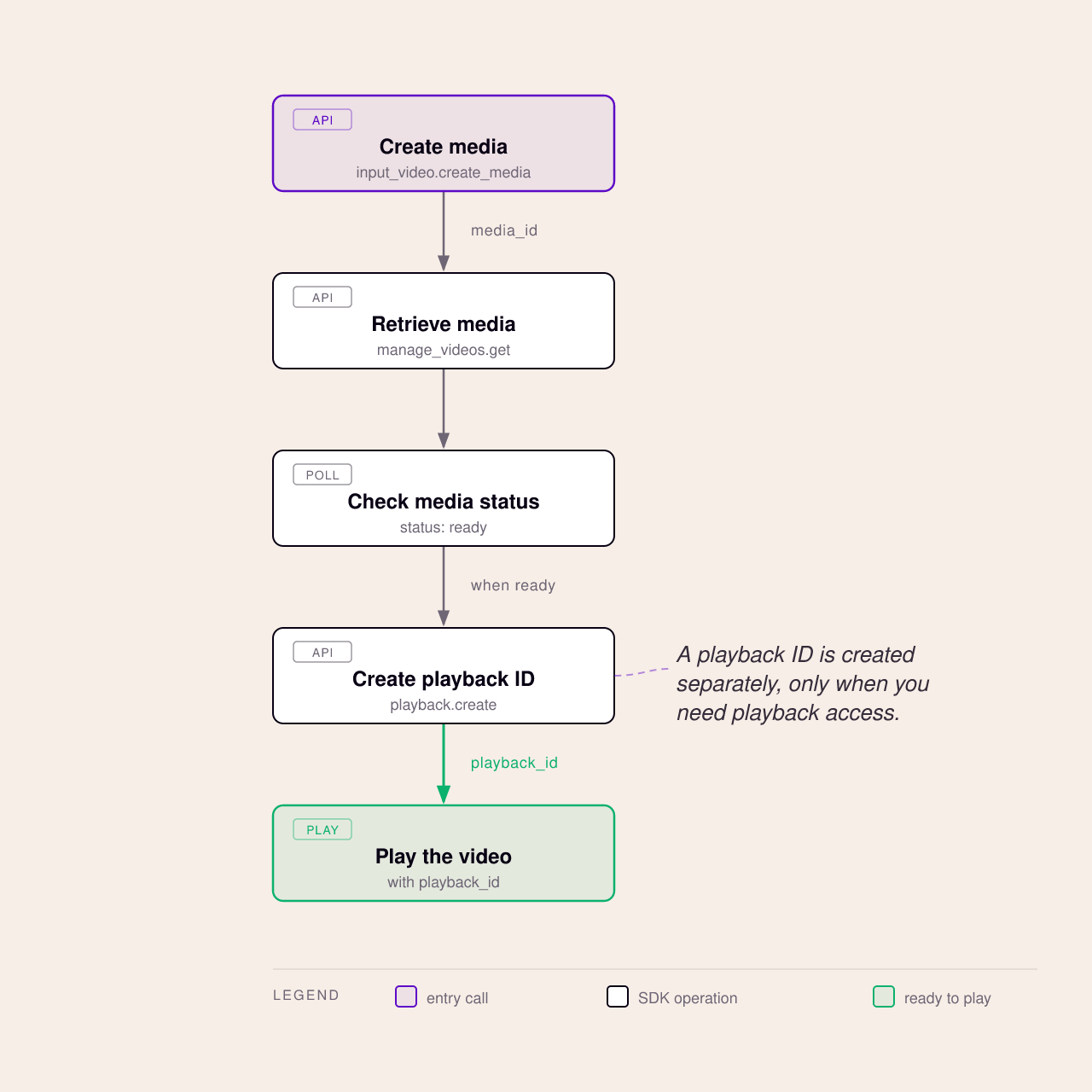
The media ID is the identifier you carry from one operation to the next.
A playback ID is created separately when you need playback access.
More examples: For runnable, end-to-end flows (direct upload, live streaming, playlists, analytics, and more), see the
examples/directory in the repo.
Common tasks
Create media
Goal: Create a FastPix media asset from a video URL.
SDK method:
fastpix.input_video.create_media(...)
Required information:
- Video URL.
- Access policy.
Example:
response = fastpix.input_video.create_media(
    inputs=[
        {
            "type": "video",
            "url": "https://static.fastpix.com/fp-sample-video.mp4",
        },
    ],
    access_policy="public",
)
Result:
Save the media ID from:
response.data.id
Next steps
After verifying your integration, you can use the SDK to:
- Manage media — list, retrieve, update, and delete media.
- Create playback IDs — generate playback access for your media.
- Manage live streams — create and manage live streaming sessions.
- Create playlists — organize media into playlists.
- Manage signing keys — create and manage keys for secure playback.
- Analyze video performance — retrieve metrics, views, dimensions, and errors.
- Use in-video AI — generate subtitles, summaries, chapters, and named entities.
- Manage media tracks — add, update, and delete audio or subtitle tracks.
See Available Resources and Operations for the complete list.
Available Resources and Operations
Comprehensive Python SDK for FastPix platform integration with full API coverage.
Media API
Upload, manage, and transform video content with comprehensive media management capabilities.
For detailed documentation, see FastPix Video on Demand Overview.
Input Video
- Create from URL - Upload video content from external URL
- Upload from Device - Upload video files directly from device
Manage Videos
- List All Media - Retrieve complete list of all media files
- Get Media by ID - Get detailed information for specific media
- Update Media - Modify media metadata and settings
- Delete Media - Remove media files from library
- Cancel Upload - Stop ongoing media upload process
- Get Input Info - Retrieve detailed input information
- Get Summary - Retrieve AI-generated video summary
- List Uploads - Get all available upload URLs
Playback
- Create Playback ID - Generate secure playback identifier
- Delete Playback ID - Remove playback access
- Get Playback ID - Retrieve playback configuration details
- List Playback IDs - Get all playback IDs for a media
- Update Domain Restrictions - Configure domain-based access control
- Update User-Agent Restrictions - Configure user-agent-based access control
Playlist
- Create Playlist - Create new video playlist
- List Playlists - Get all available playlists
- Get Playlist - Retrieve specific playlist details
- Update Playlist - Modify playlist settings and metadata
- Delete Playlist - Remove playlist from library
- Add Media - Add media items to playlist
- Reorder Media - Change order of media in playlist
- Remove Media - Remove media from playlist
Signing Keys
- Create Key - Generate new signing key pair
- List Keys - Get all available signing keys
- Delete Key - Remove signing key from system
- Get Key - Retrieve specific signing key details
DRM Configurations
- List DRM Configs - Get all DRM configuration options
- Get DRM Config - Retrieve specific DRM configuration
Live API
Stream, manage, and transform live video content with real-time broadcasting capabilities.
For detailed documentation, see FastPix Live Stream Overview.
Start Live Stream
- Create Stream - Initialize new live streaming session with DVR mode support
Manage Live Stream
- List Streams - Retrieve all active live streams
- Get Viewer Count - Get real-time viewer statistics
- Get Stream - Retrieve detailed stream information
- Delete Stream - Terminate and remove live stream
- Update Stream - Modify stream settings and configuration
- Enable Stream - Activate live streaming
- Disable Stream - Pause live streaming
- Complete Stream - Finalize and archive stream
- List Live Clips - Get all clips of a live stream
Live Playback
- Create Playback ID - Generate secure live playback access
- Delete Playback ID - Revoke live playback access
- Get Playback ID - Retrieve live playback configuration
- Update Domain Restrictions - Configure domain-based access control
- Update User-Agent Restrictions - Configure user-agent-based access control
Simulcast Stream
- Create Simulcast - Set up multi-platform streaming
- Delete Simulcast - Remove simulcast configuration
- Get Simulcast - Retrieve simulcast settings
- Update Simulcast - Modify simulcast parameters
Video Data API
Monitor video performance and quality with comprehensive analytics and real-time metrics.
For detailed documentation, see FastPix Video Data Overview.
Metrics
- List Breakdown Values - Get detailed breakdown of metrics by dimension
- List Overall Values - Get aggregated metric values across all content
- Get Timeseries Data - Retrieve time-based metric trends and patterns
- List Comparison Values - Compare metrics across different time periods
Views
- List Video Views - Get comprehensive list of video viewing sessions
- Get View Details - Retrieve detailed information about specific video views
- List Top Content - Find your most popular and engaging content
Dimensions
- List Dimensions - Get available data dimensions for filtering and analysis
- List Filter Values - Get specific values for a particular dimension
Errors
- List Errors - Retrieve playback errors and issues
Transformations
Transform and enhance your video content with powerful AI and editing capabilities.
In-Video AI Features
Enhance video content with AI-powered features including moderation, summarization, and intelligent categorization.
- Update Summary - Create AI-generated video summaries
- Create Chapters - Automatically generate video chapter markers
- Extract Entities - Identify and extract named entities from content
- Enable Moderation - Activate content moderation and safety checks
Media Clips
- Get Media Clips - Retrieve all clips associated with a source media
Subtitles
- Generate Subtitles - Create automatic subtitles for media
Media Tracks
- Add Track - Add audio or subtitle tracks to media
- Update Track - Modify existing audio or subtitle tracks
- Delete Track - Remove audio or subtitle tracks
Access Control
- Update Source Access - Control access permissions for media source
Format Support
- Update MP4 Support - Configure MP4 download capabilities
Retries
Some of the endpoints in this SDK support retries. If you use the SDK without any configuration, it will fall back to the default retry strategy provided by the API. However, the default retry strategy can be overridden on a per-operation basis, or across the entire SDK.
To change the default retry strategy for a single API call, simply provide a RetryConfig object to the call:
import os
import json
from fastpix_python import Fastpix, models
from fastpix_python.utils import BackoffStrategy, RetryConfig


with Fastpix(
    security=models.Security(
        username="your-access-token",
        password="your-secret-key",
    ),
) as fastpix:

    res = fastpix.input_video.create_media(
        inputs=[
            {
                "type": "video",
                "url": "https://static.fastpix.com/fp-sample-video.mp4",
            },
        ],
        access_policy="public",
        metadata={
            "key1": "value1",
        },
        retries=RetryConfig(
            "backoff",
            BackoffStrategy(1, 50, 1.1, 100),
            False
        ),
    )

    print(json.dumps(res.model_dump(mode="json", by_alias=True, exclude_unset=True), indent=2))
If you'd like to override the default retry strategy for all operations that support retries, you can use the retry_config optional parameter when initializing the SDK:
import os
import json
from fastpix_python import Fastpix, models
from fastpix_python.utils import BackoffStrategy, RetryConfig


with Fastpix(
    retry_config=RetryConfig(
        "backoff",
        BackoffStrategy(1, 50, 1.1, 100),
        False
    ),
    security=models.Security(
        username="your-access-token",
        password="your-secret-key",
    ),
) as fastpix:

    res = fastpix.input_video.create_media(
        inputs=[
            {
                "type": "video",
                "url": "https://static.fastpix.com/fp-sample-video.mp4",
            },
        ],
        access_policy="public",
        metadata={
            "key1": "value1",
        },
    )

    print(json.dumps(res.model_dump(mode="json", by_alias=True, exclude_unset=True), indent=2))
Error Handling
FastpixError is the base class for all HTTP error responses. It has the following properties:
| Property | Type | Description |
|---|---|---|
err.message |
str |
Error message |
err.status_code |
int |
HTTP response status code eg 404 |
err.headers |
httpx.Headers |
HTTP response headers |
err.body |
str |
HTTP body. Can be empty string if no body is returned. |
err.raw_response |
httpx.Response |
Raw HTTP response |
Example
import os
import json
from fastpix_python import Fastpix, errors, models


with Fastpix(
    security=models.Security(
        username="your-access-token",
        password="your-secret-key",
    ),
) as fastpix:
    try:
        res = fastpix.input_video.create_media(
            inputs=[
                {
                    "type": "video",
                    "url": "https://static.fastpix.com/fp-sample-video.mp4",
                },
            ],
            access_policy="public",
            metadata={
                "key1": "value1",
            },
        )
        print(json.dumps(res.model_dump(mode="json", by_alias=True, exclude_unset=True), indent=2))
    except errors.FastpixError as e:
        print(e.message)
        print(e.status_code)
        print(e.body)
        print(e.headers)
        print(e.raw_response)
Error Classes
Primary error:
FastpixError: The base class for HTTP error responses.
Less common errors (5)
Network errors:
httpx.RequestError: Base class for request errors.httpx.ConnectError: HTTP client was unable to make a request to a server.httpx.TimeoutException: HTTP request timed out.
Inherit from FastpixError:
ResponseValidationError: Type mismatch between the response data and the expected Pydantic model. Provides access to the Pydantic validation error via thecauseattribute.
Server Selection
Override Server URL Per-Client
The default server can be overridden globally by passing a URL to the server_url: str optional parameter when initializing the SDK client instance. For example:
import os
import json
from fastpix_python import Fastpix, models


with Fastpix(
    server_url="https://api.fastpix.com/v1/",
    security=models.Security(
        username="your-access-token",
        password="your-secret-key",
    ),
) as fastpix:

    res = fastpix.input_video.create_media(
        inputs=[
            {
                "type": "video",
                "url": "https://static.fastpix.com/fp-sample-video.mp4",
            },
        ],
        access_policy="public",
        metadata={
            "key1": "value1",
        },
    )

    print(json.dumps(res.model_dump(mode="json", by_alias=True, exclude_unset=True), indent=2))
Custom HTTP Client
The Python SDK makes API calls using the httpx HTTP library. In order to provide a convenient way to configure timeouts, cookies, proxies, custom headers, and other low-level configuration, you can initialize the SDK client with your own HTTP client instance.
Depending on whether you are using the sync or async version of the SDK, you can pass an instance of HttpClient or AsyncHttpClient respectively, which are Protocol's ensuring that the client has the necessary methods to make API calls.
This allows you to wrap the client with your own custom logic, such as adding custom headers, logging, or error handling, or you can just pass an instance of httpx.Client or httpx.AsyncClient directly.
For example, you could specify a header for every request that this SDK makes as follows:
from fastpix_python import Fastpix, models
import httpx

http_client = httpx.Client(headers={"x-custom-header": "someValue"})
s = Fastpix(
    client=http_client,
    security=models.Security(
        username="your-access-token",
        password="your-secret-key",
    ),
)
Or you could wrap the client with your own custom logic:
from fastpix_python import Fastpix, models
from fastpix_python.httpclient import AsyncHttpClient
import httpx
from typing import Union, Optional, Any

class CustomClient(AsyncHttpClient):
    client: AsyncHttpClient

    def __init__(self, client: AsyncHttpClient):
        self.client = client

    async def send(
        self,
        request: httpx.Request,
        *,
        stream: bool = False,
        auth: Union[
            httpx._types.AuthTypes, httpx._client.UseClientDefault, None
        ] = httpx.USE_CLIENT_DEFAULT,
        follow_redirects: Union[
            bool, httpx._client.UseClientDefault
        ] = httpx.USE_CLIENT_DEFAULT,
    ) -> httpx.Response:
        request.headers["Client-Level-Header"] = "added by client"

        return await self.client.send(
            request, stream=stream, auth=auth, follow_redirects=follow_redirects
        )

    def build_request(
        self,
        method: str,
        url: httpx._types.URLTypes,
        *,
        content: Optional[httpx._types.RequestContent] = None,
        data: Optional[httpx._types.RequestData] = None,
        files: Optional[httpx._types.RequestFiles] = None,
        json: Optional[Any] = None,
        params: Optional[httpx._types.QueryParamTypes] = None,
        headers: Optional[httpx._types.HeaderTypes] = None,
        cookies: Optional[httpx._types.CookieTypes] = None,
        timeout: Union[
            httpx._types.TimeoutTypes, httpx._client.UseClientDefault
        ] = httpx.USE_CLIENT_DEFAULT,
        extensions: Optional[httpx._types.RequestExtensions] = None,
    ) -> httpx.Request:
        return self.client.build_request(
            method,
            url,
            content=content,
            data=data,
            files=files,
            json=json,
            params=params,
            headers=headers,
            cookies=cookies,
            timeout=timeout,
            extensions=extensions,
        )

s = Fastpix(
    async_client=CustomClient(httpx.AsyncClient()),
    security=models.Security(
        username="your-access-token",
        password="your-secret-key",
    ),
)
Debugging
You can setup your SDK to emit debug logs for SDK requests and responses.
You can pass your own logger class directly into your SDK.
from fastpix_python import Fastpix, models
import logging

logging.basicConfig(level=logging.DEBUG)
s = Fastpix(
    debug_logger=logging.getLogger("fastpix_python"),
    security=models.Security(
        username="your-access-token",
        password="your-secret-key",
    ),
)
You can also enable a default debug logger by setting an environment variable FASTPIX_DEBUG to true.
FAQ
How do I install the FastPix Python SDK?
Run pip install fastpix-python (or uv add fastpix-python / poetry add fastpix-python). See Start here.
How do I authenticate the SDK?
FastPix uses Basic Auth: pass your access token as username and your secret key as password in models.Security when constructing the client. See Before you begin.
How do I upload a video in Python?
Create media from a URL or a direct upload through fastpix.input_video, for example fastpix.input_video.create_media(...). See Create media and Available Resources and Operations.
Does the SDK support async? Yes - it provides both synchronous and asynchronous clients. See Custom HTTP Client.
How do I start a live stream? Use the Live API resources to create and manage streams, simulcasts, and live playback IDs. See Available Resources and Operations.
How do I get video analytics and metrics in Python? The Video Data API exposes metrics, views, dimensions, and errors for quality-of-experience monitoring. See Available Resources and Operations.
How do I handle API errors?
Wrap calls in try/except and catch errors.FastpixError, which exposes the message, status code, headers, and body. See Error Handling.
How do I configure automatic retries?
Pass a RetryConfig per call or at client initialization to control the backoff strategy. See Retries.
How do I use a custom HTTP client, proxy, or timeout?
Pass your own httpx client (sync or async) to configure timeouts, proxies, and custom headers. See Custom HTTP Client.
How do I enable debug logging?
Pass a logger to the client or set the FASTPIX_DEBUG environment variable. See Debugging.
Which Python versions are supported? Python 3.9.2 and above. See Before you begin.
Which FastPix SDK should I use?
FastPix publishes a server SDK for every major backend language, each generated from the same API specification:
| Language | Repo | Install |
|---|---|---|
| Python (this repo) | fastpix-python | pip install fastpix-python |
| Node.js / TypeScript | node-sdk | npm install @fastpix/fastpix-node |
| PHP | fastpix-php | composer require fastpix/sdk |
| Go | fastpix-go | go get github.com/FastPix/fastpix-go |
| Java | fastpix-java | io.fastpix:sdk (Maven/Gradle) |
| C# / .NET | fastpix-sdk-csharp | dotnet add package Fastpix |
| Ruby | fastpix-ruby | gem install fastpixapi |
To upload and play the media these SDKs create, use the FastPix browser libraries: web-uploads-sdk, react-web-uploader, and web-player-component. Browse everything in the FastPix organization.
Development
This Python SDK is programmatically generated from our API specifications. Any manual modifications to internal files will be overwritten during subsequent generation cycles.
We value community contributions and feedback. Feel free to submit pull requests or open issues with your suggestions, and we'll do our best to include them in future releases.
Detailed Usage
For comprehensive understanding of each API's functionality, including detailed request and response specifications, parameter descriptions, and additional examples, please refer to the FastPix API Reference.
The API reference offers complete documentation for all available endpoints and features, enabling developers to integrate and leverage FastPix APIs effectively.
1 maintainer

Metadata
1 maintainer
Release files for fastpix-python 1.2.0
For a detailed explanation of source distributions (sdists) and built distributions (wheels), please see the package formats documentation.
Source distribution (sdist)
| File | Size | Uploaded | |
|---|---|---|---|
| fastpix_python-1.2.0.tar.gz | 205.9 kB | Details |
Built distribution (wheel)
| File | Interpreter | ABI | Platform | Reset |
|---|---|---|---|---|
| fastpix_python-1.2.0-py3-none-any.whl | Python 3 | none | any | Details |
Total release size: 519.0 kB
Release files / fastpix_python-1.2.0.tar.gz
| Download URL | fastpix_python-1.2.0.tar.gz |
|---|---|
| Size | 205.9 kB |
| Tags | Source |
|
SHA-256 checksum How to use checksums |
b22771b8b0dcfebfaf4066bf0ea1f6e57fc9ea38655ed29af838c7e9655329f5
|
|
BLAKE2b-256 checksum How to use checksums |
42fba34e3e6238055a0a0ee2b69acb11c60b0fa6339ded712e08c7e7135b22b4
|
| Upload date | |
|
Uploaded using Trusted Publishing? What is trusted publishing? |
No |
| Uploaded via |
twine/7.0.0 CPython/3.14.7
|
Release files / fastpix_python-1.2.0-py3-none-any.whl
| Download URL | fastpix_python-1.2.0-py3-none-any.whl |
|---|---|
| Size | 313.1 kB |
| Tags | Python 3 |
|
SHA-256 checksum How to use checksums |
89da8d7afc6cfb157c8ebf224341b8a26ab46bf01524c2b10d9765faec8e6d33
|
|
BLAKE2b-256 checksum How to use checksums |
9afa619788cc2d898f0c2de71263581d7be4487b10b79b23e67a0bbb44870410
|
| Upload date | |
|
Uploaded using Trusted Publishing? What is trusted publishing? |
No |
| Uploaded via |
twine/7.0.0 CPython/3.14.7
|














