
FIT File Faker







A Python tool to modify FIT files and upload them to Garmin Connect.
☕ Enjoying this tool? If FIT File Faker saves you time or enhances your training workflow, consider buying me a coffee. Your support helps maintain and improve this project!
Edit FIT files to appear as if they came from a Garmin device (70+ modern devices supported, including Edge 1050, Fenix 8, Forerunner 965), enabling Training Effect calculations and other Garmin features for activities from platforms like:
Upload edited files directly to Garmin Connect, or run in monitor mode for automatic uploads.
📖 Documentation
For comprehensive documentation, visit: https://jat255.github.io/Fit-File-Faker/
Quick references:
⚡ Quick Start
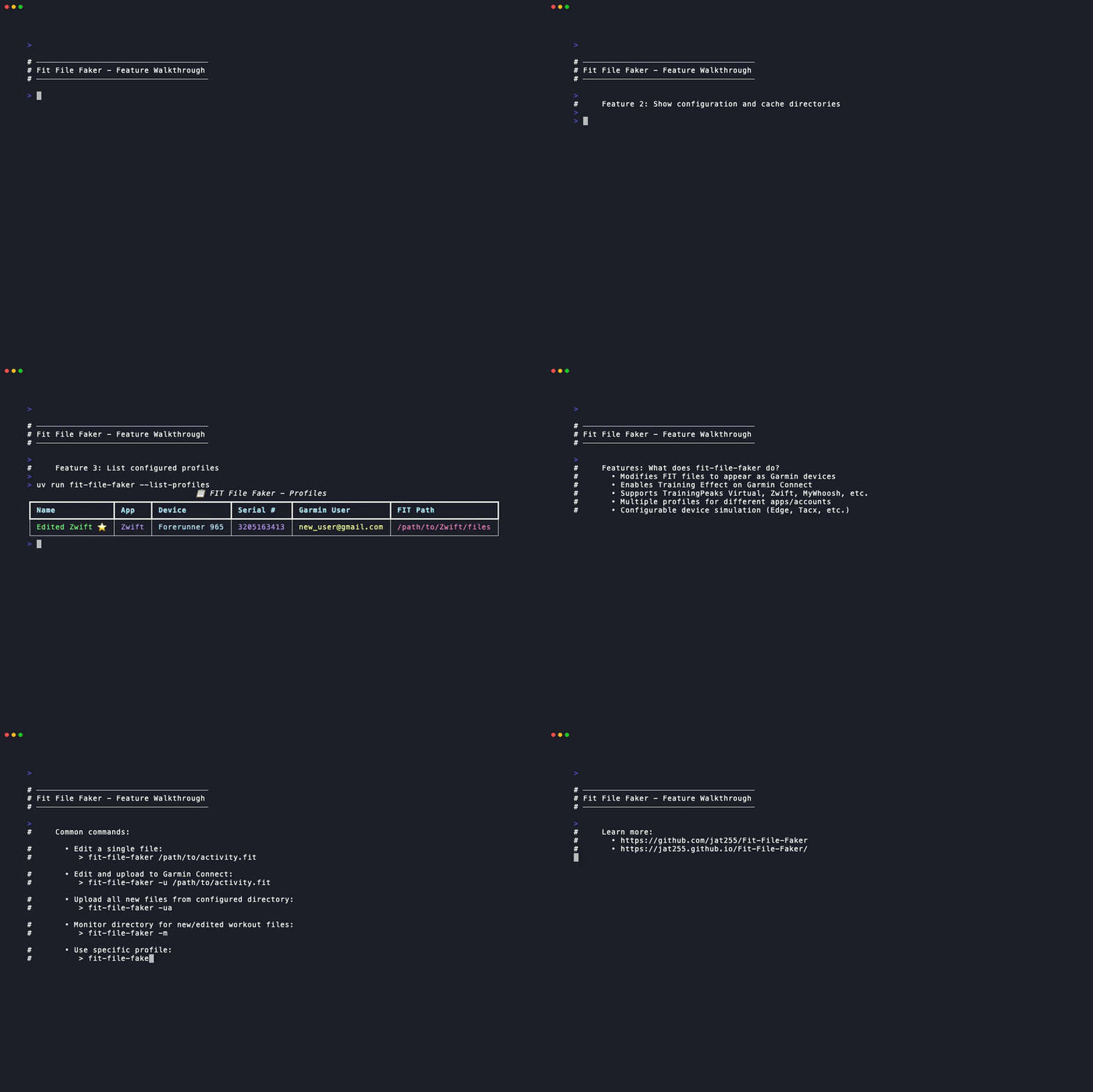
Install
# Using uv (recommended)
uv tool install fit-file-faker

# Or using pipx
pipx install fit-file-faker

# Or using pip
pip install fit-file-faker
Configure
# Interactive profile management menu
fit-file-faker --config-menu
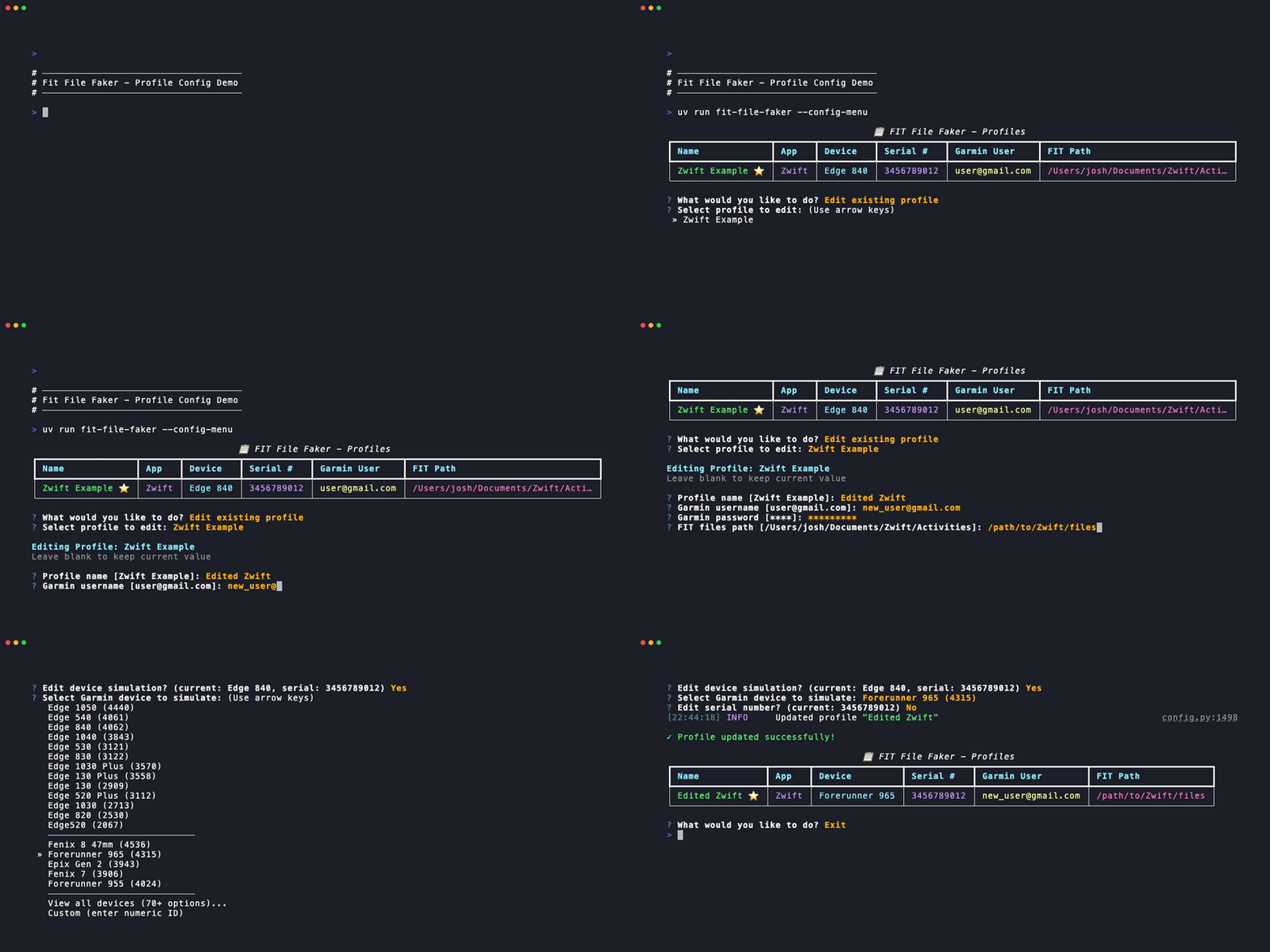
Creating a new profile with the interactive menu
Edit & Upload
# Edit and upload a single FIT file
fit-file-faker -u path/to/file.fit

# Upload all files in configured directory
fit-file-faker -ua

# Monitor directory for new files
fit-file-faker -m
See the documentation for detailed usage instructions.
🔐 Multi-Profile Support
FIT File Faker supports multiple profiles, allowing you to manage different Garmin accounts and trainer apps:
# Launch interactive profile management menu
fit-file-faker --config-menu

# List all profiles
fit-file-faker --list-profiles

# Show directories used for configuration and cache
fit-file-faker --show-dirs

# Use a specific profile
fit-file-faker --profile my-profile -ua

# Monitor with a specific profile
fit-file-faker --profile zwift -m
Editing an existing profile configuration
Each profile can have:
- Different Garmin accounts (credentials are isolated per profile)
- Different trainer apps (TrainingPeaks Virtual, Zwift, MyWhoosh)
- Different FIT file directories
- Different Garmin device simulation (Edge 830, Edge 1030, Tacx, etc.)
Example workflow for multiple accounts:
# Create profiles
fit-file-faker --config-menu
# Select "Create new profile" and follow prompts for each trainer app

# Daily usage
fit-file-faker --profile tpv -ua      # Upload TPV files to work account
fit-file-faker --profile zwift -ua    # Upload Zwift files to personal account
See the profiles guide for comprehensive multi-profile documentation.
⚠️ Important: Device Serial Numbers/Unit IDs
For Garmin Connect to correctly recognize an activity as coming from a specific device (which affects Training Status, challenges, badges, and other features), both the device ID and serial number (Unit ID) must match a valid Garmin device. This is a bit confusing on Garmin's implementation, since they call the value "serial number" in the FIT file, but it actually needs to be your device's Unit ID, not the serial number. To find the Unit ID, you can look either on your device (may vary depending on your device) or in the Garmin Connect app:
Garmin Connect app

Finding your device's Unit ID in the Garmin Connect Android app
Go to "Devices → [Your Device] → System → About" to see the Unit ID
On an Edge device

Finding your device's Unit ID on an Edge 1040 device
Go to "Menu → System → About → Copyright Info" to see the Unit ID
Why This Matters
Garmin Connect uses server-side validation to ensure that (so far as we know):
- The device product ID (e.g., Edge 1050, Fenix 8) is legitimate
- The Unit ID is valid for that specific device type
- The combination of device ID + Unit ID represents a real device
If the Unit ID doesn't match the device type, Garmin Connect may:
- Not apply Training Effect calculations correctly
- Not count the activity toward challenges or badges
- Not update Training Status or training load metrics
- Display the activity with incorrect device information
Recommendations
Option 1: Use Your Real Garmin Device Unit ID (Recommended)
If you own a Garmin device and want your activities to count properly for all Garmin Connect features:
- Find your device's Unit ID:
- On the device: Settings → About → Copyright Info → Unit ID
- On Garmin Connect: Device settings page
- On the device packaging or receipt
- During profile setup, choose to customize the serial number
- Enter your actual device's Unit ID as the serial number
- Select the matching device model (e.g., if you have an Edge 830, select Edge 830)
Option 2: Accept Limited Functionality
If you don't own a Garmin device or don't need full Garmin Connect integration:
- The tool will generate a random serial number automatically
- Activities will upload successfully to Garmin Connect
- Basic activity data (distance, time, power, heart rate) will display correctly
- However, advanced features may not work as expected
What We Don't Know
The mapping of Unit ID ranges to specific device models is proprietary Garmin information and not publicly documented. This means:
- We cannot automatically generate valid Unit IDs/serial numbers for specific devices
- Random Unit IDs/serial numbers may or may not be accepted by Garmin Connect
- The only guaranteed way to ensure full functionality is to use a real device's Unit ID
Finding Your Unit ID
When you customize the serial number/Unit ID during profile creation, the tool will show you where to find it:
fit-file-faker --config-menu
# Select "Create new profile" → customize device → customize serial number
🤝 Contributing
Contributions are welcome! Here's how to get started:
git clone https://github.com/jat255/Fit-File-Faker.git
cd Fit-File-Faker
uv sync
uv run pre-commit install
Run tests and checks:
python3 run_tests.py          # Run tests with coverage
python3 run_tests.py --html   # Generate HTML coverage report
ruff check . && ruff format . # Lint and format code
See the developer guide for much more detail on development practices and expectations.
👥 Contributors
- jat255 — Primary author
- benjmarshall — Bug fixes, monitor mode
- Kellett — Zwift support
- lrybak — Hammerhead Karoo support
- dermarzel — MyWhoosh support
📄 License
MIT License — see LICENSE for details.
⚠️ Disclaimer
This tool is provided as-is for personal use. The FIT format and Garmin Connect are registered trademarks of Garmin Ltd. This tool is not affiliated with or endorsed by Garmin or any other platform owners.
Have questions or found an issue? Open an issue on GitHub.
1 maintainer

Metadata
1 maintainer
Release files for fit-file-faker 2.2.1
For a detailed explanation of source distributions (sdists) and built distributions (wheels), please see the package formats documentation.
Source distribution (sdist)
| File | Size | Uploaded | |
|---|---|---|---|
| fit_file_faker-2.2.1.tar.gz | 224.5 kB | Details |
Built distribution (wheel)
| File | Interpreter | ABI | Platform | Reset |
|---|---|---|---|---|
| fit_file_faker-2.2.1-py3-none-any.whl | Python 3 | none | any | Details |
Total release size: 514.6 kB
Release files / fit_file_faker-2.2.1.tar.gz
| Download URL | fit_file_faker-2.2.1.tar.gz |
|---|---|
| Size | 224.5 kB |
| Tags | Source |
|
SHA-256 checksum How to use checksums |
7e40898d0706ac799b03eb434662d212d294d3addeee780b766caafdcd95f8a1
|
|
BLAKE2b-256 checksum How to use checksums |
0e85bef9e4a1f73d69306ae09742bba6ee66fec965ee70bccbeb0bbb082141bd
|
| Upload date | |
|
Uploaded using Trusted Publishing? What is trusted publishing? |
Yes |
| Uploaded via |
twine/6.1.0 CPython/3.13.12
|
Provenance
Provenance describes where a file came from. On PyPI, provenance is shared via attestations, which provide a verifiable record of the build or publishing details. View details, limitations and caveats.


PyPI Publish Attestation
PyPI verified that this artifact, at this checksum, originated from the publisher listed below.
Signed by GitHub Actions, verified by PyPI on Jul 10, 2026.
Transparency logRelease files / fit_file_faker-2.2.1-py3-none-any.whl
| Download URL | fit_file_faker-2.2.1-py3-none-any.whl |
|---|---|
| Size | 290.1 kB |
| Tags | Python 3 |
|
SHA-256 checksum How to use checksums |
bd5ed16e8ca46c20006c474afdc85b7f26a6634001fcd85dd00088a6b007d37f
|
|
BLAKE2b-256 checksum How to use checksums |
a73bcfd08ba8764e9a24feefd040b0f9e4bac246b2c7e7f42e688d55079be354
|
| Upload date | |
|
Uploaded using Trusted Publishing? What is trusted publishing? |
Yes |
| Uploaded via |
twine/6.1.0 CPython/3.13.12
|
Provenance
Provenance describes where a file came from. On PyPI, provenance is shared via attestations, which provide a verifiable record of the build or publishing details. View details, limitations and caveats.
PyPI Publish Attestation
PyPI verified that this artifact, at this checksum, originated from the publisher listed below.
Signed by GitHub Actions, verified by PyPI on Jul 10, 2026.
Transparency log













