

中文 | English
FlowLine is an automated system for GPU resource management and concurrent command stream scheduling, supporting both Command Line Interface (CLI) and Web Graphical User Interface (GUI) interaction modes. It is suitable for multi-task experiments, deep learning training, or high-concurrency computing environments.
- 📘 API Documentation: See API Docs
- 🧩 System Design Overview: See Design Overview
- 🏗️ System Architecture Details: See Architecture Documentation
The system was designed to replace the inefficient manual process of monitoring GPU status and executing commands sequentially. In traditional workflows, users need to continuously monitor GPU VRAM availability and usage to manually launch Python scripts or terminate processes, which is particularly cumbersome in multi-task experimental scenarios. This project addresses these issues through automation, improving experimental efficiency and resource utilization.
Core Features
- Real-time GPU status monitoring: Automatically detects available GPU count, VRAM usage, process information, and selects the most appropriate GPU.
- Command scheduling & resource control: Supports configuring conditions per command (required GPU count, minimum VRAM, max concurrency, etc.).
- Dynamic control mechanisms: Allows manual termination or restarting of processes for flexible task queue management.
- Concurrent multi-task execution: Supports task priority queues, failure retry policies, suitable for batch experiments.
- Dual interaction modes: CLI for scripted control and batch deployment on Linux servers; Web GUI for visual task monitoring, status tracking, and real-time intervention.
🚀 Quick Start Guide
For a concise demonstration, see example.sh which provides all usage examples.
🖥️ Using Command Line Interface (CLI Mode)
1. Installation
You can directly reference the flowline folder by copying it to your project root, or install it into your Python environment:
- Install via pip:
pip install fline
- Or install from source:
pip install -e <path_to_flowline_repository>
Note: Ensure you have installed basic dependencies from
requirements.txt(pandas,psutil,openpyxl, etc.).
2. Create Task Control Sheet
The system uses a list file (.xlsx、 .csv or .json format) to define task parameters. This is the only input method for all tasks. Each row represents an independent task, and each column corresponds to a parameter that will be automatically mapped to --key value CLI format.
Example and Explanation
Example files: test/example1_todo.xlsx, test/example1_todo.csv,test/example1_todo.json, which can be constructed using the example program test/task_builder.py.
| name | lr | batch_size | run_num | need_run_num | cmd |
|---|---|---|---|---|---|
| baseline1 | 0.01 | 64 | 0 | 1 | train_main |
| baseline2 | 0.001 | 128 | 0 | 2 | train_alt |
Field descriptions:
run_num: Current execution count (automatically maintained by system, default=0).need_run_num: Total desired executions (system controls repeats based on this, default=1).name: Task identifier. Auto-generated asTask:{row_number}if unspecified.cmd: Reserved field (can be empty or specify main command liketrain_main). Can be used with customfunclogic.- Other fields can be freely defined and will be passed to the command constructor.
Note: If reserved fields are missing, the system will auto-complete them during loading to ensure valid structure.
The flexible task sheet structure supports everything from parameter tuning to complex grid search automation.
3. Define Task Constructor func(dict, gpu_id)
You need to define a custom function that constructs the final command string using the task parameters dict (from Excel row) and allocated gpu_id.
Example and Explanation
Example:
from flowline.api import run_cli

if __name__ == "__main__":
    def func(param_dict, gpu_id):
        cmd = "CUDA_VISIBLE_DEVICES=" + str(gpu_id) + " python -u test/test.py "
        args = " ".join([f"--{k} {v}" for k, v in param_dict.items()])
        return cmd + args

    run_cli(func, "test/example1_todo.xlsx")
param_dict: Dictionary built from current Excel row (keys=column names, values=cell content)gpu_id: Dynamically allocated GPU ID (ensures no conflicts)- Returned command string executes as a subprocess (equivalent to direct CLI execution)
- Can be adapted for shell scripts, conda environments, or main command variants
About Output and python -u
💡 About python -u:
Using -u flag (python -u ...) enables unbuffered mode:
stdout/stderrflush immediately- Essential for real-time log viewing (especially when output is redirected)
- FlowLine saves each task's output to
log/directory:
log/
├── 0.out    # stdout for task 0
├── 0.err    # stderr for task 0
├── 1.out
├── 1.err
...
Always use -u to ensure real-time log writing to these files.
4. Enter run to start the task flow
FlowLine CLI Command Reference Table
| Command | Parameter | Description |
|---|---|---|
run |
None | Toggles the task processing loop state (start/stop) |
gpu <id> |
<id>: GPU ID |
Toggles the availability of the specified GPU (available/unavailable) |
killgpu <id> |
<id>: GPU ID |
Terminates all processes running on the specified GPU |
kill <id> |
<id>: Process ID |
Terminates the process with the specified process ID |
ls |
None | Lists all running processes, showing process ID, PID, task ID, GPU ID, status, and command |
gpus |
None | Displays the status of all GPUs, including utilization, memory usage, temperature, power consumption, etc. |
min <num> |
<num>: Memory size (MB) |
Sets the minimum required memory for processes |
max <num> |
<num>: Process count |
Sets the maximum number of concurrent processes |
task |
None | Lists the pending task queue, showing task ID, name, run count, etc. |
exit |
None | Exits the program (equivalent to Ctrl+D) |
help or ? |
None | Displays help information |
Command Usage Examples
# Start the task processing loop
> run

# Check GPU status
> gpus

# View running processes
> ls

# Set the maximum number of concurrent processes to 4
> max 4

# Set the minimum memory requirement to 2048 MB
> min 2048

# Disable GPU 1
> gpu 1

# Terminate all processes on GPU 0
> killgpu 0

# View pending tasks
> task

# Exit the program
> exit
🌐 Using Web Interface (Visual Task Management)
No extra configuration needed - Works directly in SSH environments
Besides CLI, you can use the Web GUI for real-time monitoring and dynamic intervention.
1. Start Backend API Service
Run the Flask backend:
python test/example_server.py
Note: Web interface uses
from flowline.api.routes import get_appto import routes.
2. Start Frontend Service
Launch static file server:
cd web
python -m http.server 8000
Access the frontend at http://localhost:8000. The interface communicates with backend via RESTful APIs.


🛑 Disclaimer
This project provides automated detection and utilization of idle GPUs for resource-constrained environments (e.g., labs), enabling rapid task initiation without manual polling.
📌 Important Notes
- This tool does NOT forcibly terminate others' tasks or bypass permission/scheduling systems.
- Default operation is limited to devices where user has access permissions. Comply with institutional policies.
- DO NOT misuse to monopolize shared resources or disrupt others' research.
🚨 Risk Statement
Potential risks include but not limited to:
- Resource conflicts from concurrent scheduling
- Violation of lab/platform policies if abused
Developers shall not be liable for any direct/indirect losses including resource conflicts, account restrictions, or data loss resulting from script usage.
💐 Contributions
We welcome everyone to contribute code, fix bugs, or improve the documentation for this template!
- If you have any suggestions or questions, please submit an issue.
- Pull requests are welcome.
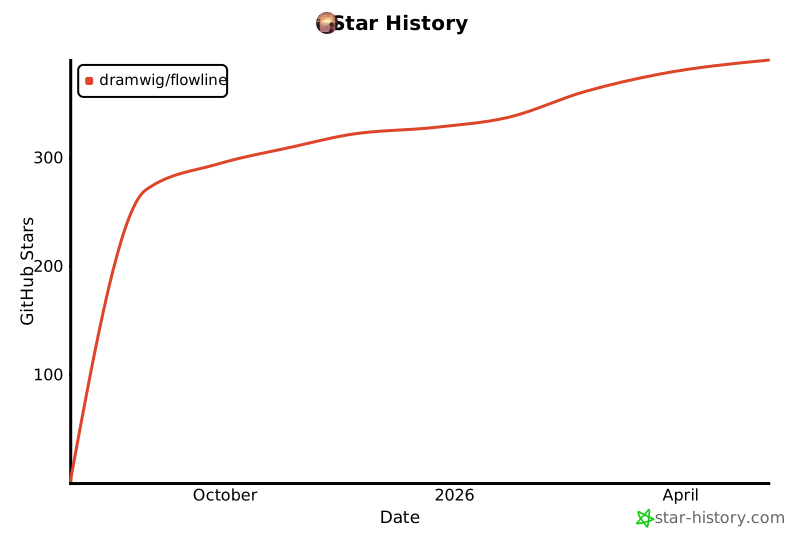
[!TIP] If this project is helpful to you, please give it a Star!
Thanks to all contributors!

1 maintainer

Metadata
1 maintainer
Release files for fline 0.1.3
For a detailed explanation of source distributions (sdists) and built distributions (wheels), please see the package formats documentation.
Source distribution (sdist)
| File | Size | Uploaded | |
|---|---|---|---|
| fline-0.1.3.tar.gz | 22.3 kB | Details |
Built distribution (wheel)
| File | Interpreter | ABI | Platform | Reset |
|---|---|---|---|---|
| fline-0.1.3-py3-none-any.whl | Python 3 | none | any | Details |
Total release size: 48.0 kB
Release files / fline-0.1.3.tar.gz
| Download URL | fline-0.1.3.tar.gz |
|---|---|
| Size | 22.3 kB |
| Tags | Source |
|
SHA-256 checksum How to use checksums |
36957cf642dbb378648e5a57071e2b748c0f685a3889075ba6dbcd13acd6c1f7
|
|
BLAKE2b-256 checksum How to use checksums |
44377f43a2168cd99561dcb57bf613eaca05a372da049c29355b481d9375d9f6
|
| Upload date | |
|
Uploaded using Trusted Publishing? What is trusted publishing? |
Yes |
| Uploaded via |
twine/6.1.0 CPython/3.12.8
|
Provenance
Provenance describes where a file came from. On PyPI, provenance is shared via attestations, which provide a verifiable record of the build or publishing details. View details, limitations and caveats.


PyPI Publish Attestation
PyPI verified that this artifact, at this checksum, originated from the publisher listed below.
Signed by GitHub Actions, verified by PyPI on Oct 22, 2025.
Transparency logRelease files / fline-0.1.3-py3-none-any.whl
| Download URL | fline-0.1.3-py3-none-any.whl |
|---|---|
| Size | 25.7 kB |
| Tags | Python 3 |
|
SHA-256 checksum How to use checksums |
ca1249cf484bc09ba80d059206565030f7bbb39bd648abd2046733ef7360b4c6
|
|
BLAKE2b-256 checksum How to use checksums |
2ce7cbb78b4e209ee77530ae64ac094974ee0c753f2ee1054c65d3d36b312bd3
|
| Upload date | |
|
Uploaded using Trusted Publishing? What is trusted publishing? |
Yes |
| Uploaded via |
twine/6.1.0 CPython/3.12.8
|
Provenance
Provenance describes where a file came from. On PyPI, provenance is shared via attestations, which provide a verifiable record of the build or publishing details. View details, limitations and caveats.
PyPI Publish Attestation
PyPI verified that this artifact, at this checksum, originated from the publisher listed below.
Signed by GitHub Actions, verified by PyPI on Oct 22, 2025.
Transparency log













