
Visual workflow builder for automation with OpenAI Responses integration, featuring a Flask backend, React UI, and Windows executable export.

Project description
Flowvian
Visual workflow builder for automation with OpenAI Responses integration, featuring a Flask backend, React UI, and Windows executable export.
https://github.com/rprado1/workflow-exe
Tech stack
| Layer | Technology |
|---|---|
| Backend | Python 3.9+, Flask 3.1, SQLite |
| Frontend | React 19, Vite 8, React Flow v11 |
| UI components | shadcn/ui + Tailwind CSS v3 |
| Code generation | PyInstaller 6 (--onefile) |
Requirements
- End users (PyPI install): Python 3.9+ (Node.js is not required to run)
- Contributors (source code mode): Python 3.9+, Node.js 18+, npm
PyPI installation (end users)
Install and run:
pip install flowvian
wbui start
Optional port:
wbui start -p 5007
Open http://localhost:5007 in your browser.
Runtime note:
wbui startuses Waitress (production WSGI server) by default.- To force Flask development server for debugging, set
WBUI_USE_FLASK_DEV_SERVER=1. - HTTP request logs are enabled by default. To disable them, set
WBUI_HTTP_LOG=0.
Data and output directories
By default, Flowvian stores runtime data in a per-user folder:
- Windows:
%APPDATA%\\WorkflowBuilder\\dataand%APPDATA%\\WorkflowBuilder\\output - Linux:
~/.config/workflow-builder/dataand~/.config/workflow-builder/output - macOS:
~/Library/Application Support/WorkflowBuilder/dataand~/Library/Application Support/WorkflowBuilder/output
You can override these locations with:
WBUI_DATA_DIRWBUI_OUTPUT_DIR
Migration note:
- The app starts with a clean per-user storage model and does not auto-copy data from repo-local folders.
- To force a clean start, remove
%APPDATA%\\WorkflowBuilder.
Environment variables
The application supports the following environment variables.
| Variable | Description | Default |
|---|---|---|
WBUI_PORT |
Server port used by wbui start when -p is not provided. |
5007 |
WBUI_DATA_DIR |
Custom data directory (SQLite files and workflow metadata). | OS-specific user directory |
WBUI_OUTPUT_DIR |
Custom output directory (generated scripts/build artifacts/logs). | OS-specific user directory |
WBUI_USE_FLASK_DEV_SERVER |
Use Flask development server (1) instead of Waitress. |
0 (Waitress) |
WBUI_HTTP_LOG |
HTTP request logging toggle (1 enabled, 0 disabled). |
1 |
WBUI_METADATA_1 |
Master key for encrypting/decrypting secret values in workflow config. Required when using encrypted secrets. | Not set |
Examples:
# Use a custom port
WBUI_PORT=5010 wbui start

# Use a custom data/output location
WBUI_DATA_DIR="C:/wbui-data" WBUI_OUTPUT_DIR="C:/wbui-output" wbui start

# Use Flask dev server and disable HTTP logs
WBUI_USE_FLASK_DEV_SERVER=1 WBUI_HTTP_LOG=0 wbui start

# Run with explicit CLI port (takes precedence over WBUI_PORT)
WBUI_PORT=5007 wbui start -p 5055
Windows PowerShell examples:
$env:WBUI_PORT = "5010"
wbui start

$env:WBUI_DATA_DIR = "C:\wbui-data"
$env:WBUI_OUTPUT_DIR = "C:\wbui-output"
wbui start
Installation
1. Clone the repository and enter the directory:
git clone <repo-url>
cd workflow-exe
2. Create and activate the Python virtual environment:
python -m venv .venv

# Windows (PowerShell)
.venv\Scripts\Activate.ps1

# Windows (CMD)
.venv\Scripts\activate.bat
3. Install Python dependencies:
pip install -r requirements.txt
Running the app
1. Build the React frontend (required after cloning — dist/ is not committed):
cd frontend
npm install
npm run build
cd ..
2. Start Flask:
python run.py
Open http://localhost:5007 in your browser.
Always run from the project root with the venv active.
Frontend development
To work on the React source with hot module replacement:
1. Install Node dependencies (first time only):
cd frontend
npm install
2. Start Vite dev server and Flask simultaneously:
# Terminal 1 — backend
python run.py

# Terminal 2 — frontend
cd frontend
npm run dev
Open http://localhost:5173. Vite proxies /api/* requests to Flask on :5007.
3. Build for production (required for Flask to serve the app at :5007):
cd frontend
npm run build
This writes the bundle to app/static/dist/. Flask serves the assets via dedicated routes:
/→dist/index.html/assets/*→dist/assets/(JS and CSS chunks)- Other root-level files → served from
dist/if they exist
Interface
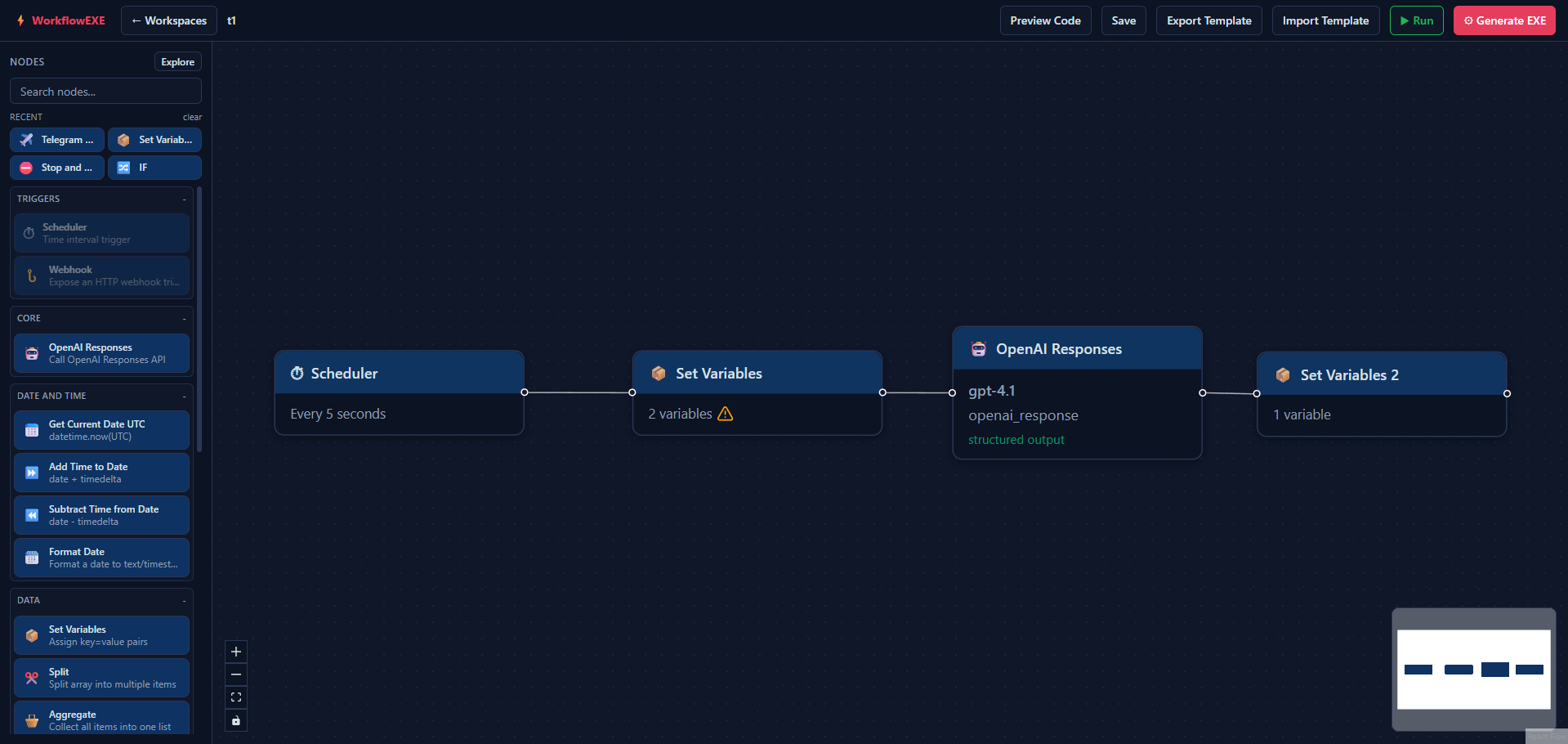
Top bar
| Element | Description |
|---|---|
| Workflow name | Click to rename |
| Preview Code | Shows the generated Python code |
| Save | Saves the graph manually (auto-save also runs 800 ms after any change) |
| Export Template | Exports current workflow graph as a reusable JSON template |
| Import Template | Imports a template JSON and creates a new workspace from it |
| ▶ Run | Executes the workflow and displays per-node input/output in the results panel |
| ⚙ Generate EXE | Compiles the workflow to a standalone .exe via PyInstaller |
Left sidebar
- Workflow list — create, select, delete
- Node palette — drag nodes onto the canvas
Right panel
Opens when clicking a node. Shows the configuration form for that node. Close with × or press Delete to remove the selected node.
Run results panel
Appears after clicking ▶ Run. Displays:
- A per-node execution table (
items_in/items_outand status) - Final Output (by terminal branch), where each terminal branch is returned separately
Available nodes
⏱ Scheduler
Runs the workflow in a loop with a configurable pause between iterations. Only one Scheduler per workflow is allowed.
| Field | Type | Description |
|---|---|---|
| Interval | number | Pause between iterations |
| Unit | seconds / minutes / hours | Interval unit |
_sleep_seconds = 60.0
while True:
    # rest of the workflow
    time.sleep(_sleep_seconds)
📦 Set Variables
Assigns key=value pairs to the workflow context.
| Field | Description |
|---|---|
| key | Valid Python variable name |
| scope | Local (default) or Global |
| mode | Literal, Template (${VAR}), or Path |
| value | Source value (typed by configured type) |
my_variable = 'value'
Notes:
- Local variables are available as item variables via
${VAR}. - Global variables can be referenced from any node via
@{VAR}. - Secret placeholders remain
#{SECRET}.
📅 Get Current Date UTC
Captures the current UTC date/time into a variable.
| Field | Description |
|---|---|
| Output variable name | Name of the result variable |
current_date_utc = datetime.now(timezone.utc)
⏩ Add Time to Date
Adds days, hours, minutes, and/or seconds to an existing datetime variable.
| Field | Description |
|---|---|
| Input datetime variable | Variable holding the source datetime |
| Days / Hours / Minutes / Seconds | Amount to add |
| Output variable name | Name of the result variable |
new_date = source_date + timedelta(days=1, hours=2)
⏪ Subtract Time from Date
Subtracts days, hours, minutes, and/or seconds from an existing datetime variable.
| Field | Description |
|---|---|
| Input datetime variable | Variable holding the source datetime |
| Days / Hours / Minutes / Seconds | Amount to subtract |
| Output variable name | Name of the result variable |
new_date = source_date - timedelta(minutes=30)
⬡ Merge
Combines multiple incoming branches explicitly using strategy append.
| Field | Description |
|---|---|
| Strategy | Fixed to append |
| Branches to combine | Number of incoming handles required (branch_count, minimum 2) |
| Output property | Variable name where appended items are stored (output_var) |
Notes:
- Only
mergenodes can have multiple incoming edges. - Each incoming handle (
in-0,in-1, ...) accepts a single connection. - Validation fails if incoming connections do not match
branch_count.
🌐 HTTP Request
Executes HTTP requests per item in the current flow.
Supported methods:
GETPOST
Capabilities:
- Custom URL
- Explicit query params for GET
- Custom headers (key/value)
- Raw JSON body for POST
- Variable interpolation in URL/headers/body using
${NOMBRE_VARIABLE} - Configurable timeout (
1..120seconds)
Node output fields:
http_okhttp_status_codehttp_response_headershttp_response_bodyhttp_error_messagehttp_methodhttp_url_resolved
🪝 Webhook
Creates an HTTP endpoint that triggers the workflow when called.
Supported modes:
GETPOSTBOTH
Capabilities:
- Configurable
host,port, andpath - Input parameter schema (
name,source,type,required) - Input extraction from
query,body, orheader - Type coercion for
string,number,boolean,object, andarray - Response mapping from workflow variables:
- body variable
- status code variable
- headers variable
Runtime notes:
- Webhook node is an entry trigger (
inputs: 0) and cannot have incoming edges. - Only one Webhook node is allowed per workflow.
- Webhook and Scheduler cannot be used together in the same workflow.
POST /api/workflows/{id}/rundoes not execute webhook listeners; use Build/Preview and call the generated endpoint.
Portal Run behavior for webhook workflows:
POST /api/workflows/{id}/runnow starts a one-shot webhook listener in debug mode.- The run waits for a single incoming request (default: 90 seconds), processes it, returns HTTP response, then exits.
- Node traces and final output are returned in the Run panel for debugging.
- While Run is waiting/listening, the top bar
Runbutton changes toStopand sendsPOST /api/workflows/{id}/run/stop. - The portal can poll
GET /api/workflows/{id}/run/stateto showwaiting_webhook,executing_workflow,stopped, ordonephases during debug runs.
🧮 Calculator
Runs one or multiple math calculations per item and stores each result in a named output variable.
Supported operations:
sumsubtractmultiplydivideabsmaxminfloorceilx2
Rules:
- Binary operations (
sum,subtract,multiply,divide,max,min) use two operands. - Unary operations (
abs,floor,ceil,x2) use one operand. - Operands accept numeric literals,
${VAR}, and#{SECRET}. - Each calculation writes to its
output_keyin the item output.
🤖 OpenAI Responses
Calls OpenAI POST /responses for each item in the flow.
Required config:
base_urlapi_keymodelmessage(JSON array sent asinput)instructionstemperatureoutput_json_schema(optional JSON object for structured outputs)
Notes:
messagesupports placeholders${VAR}and secrets#{SECRET}.api_keycan use secrets via#{OPENAI_API_KEY}.- When
output_json_schemais set, request includestext.formatwithtype: json_schema,name,strict, andschema. - Output is stored in
output_var(default:openai_response) with:okstatus_coderesponsetexterror_message
✈️ Telegram Send Message
Sends a message using Telegram Bot API POST /bot{access_token}/sendMessage.
Required config:
base_url(default:https://api.telegram.org)access_tokenchat_id(recommended as flow variable${TELEGRAM_CHAT_ID})message
Optional config:
disable_notificationssl_mode(strictdefault, orinsecure)output_var(default:telegram_result)
Notes:
access_token,chat_id, andmessagesupport placeholders${VAR}and secrets#{SECRET}.chat_idis treated as workflow data (not environment variable).- Output is stored in
output_varwith:okstatus_codetelegram_okmessage_idchat_idresponseerror_messagetls_mode
ssl_mode=insecuredisables TLS certificate validation. Use only as a temporary workaround.- Recommended future hardening for inspected networks: support/use a Custom CA bundle approach.
Node naming
When a node is added to the canvas, it receives a unique name automatically:
- First instance:
Set Variables - Second instance:
Set Variables 2 - Third instance:
Set Variables 3 - If an instance is deleted, its name slot is reused by the next node of that type.
Execution model
Nodes are sorted topologically (Kahn's BFS). Independent nodes at the same depth are grouped into waves and executed in parallel using ThreadPoolExecutor. The Scheduler node acts as a loop boundary:
- Nodes before the Scheduler run once at startup (setup code).
- Nodes after the Scheduler run on every loop iteration.
Dataflow semantics:
- Branches remain isolated by predecessor path.
- Branches are only combined at explicit
mergenodes. - Final workflow output is computed by terminal branches (nodes with no outgoing edges).
Final output contract:
{
  "mode": "by_terminal_branch",
  "branches": {
    "<terminal_node_id>": [ ...items... ]
  },
  "terminals": [
    {"id":"...", "label":"...", "type":"..."}
  ],
  "legacy_items": [ ...flattened items... ]
}
When using Scheduler, each loop tick starts with a fresh execution context (executionId, executionDate) and prints the same structured final_output format.
Generate EXE
- Design the workflow and connect the nodes
- Click ⚙ Generate EXE
- Choose one option:
- Download without debug: standard build and download
- Download with debug: standard build plus runtime debug logging
- Wait for compilation (may take ~1 minute the first time due to PyInstaller analysis)
- Download the
.exefrom the result dialog
When built with debug, each executed node appends a JSON line immediately to <workflow_name>_debug.log next to the executable, including node id/label/type, status, input (items_in), and output (items_out/outputs) or error details. In Scheduler workflows, an additional per-iteration summary line is appended with the full results_table.
The executable is standalone (--onefile) and does not require Python installed on the target machine.
Project structure
workflow-exe/
├── run.py                     # Entry point — starts Flask on :5007
├── requirements.txt           # flask, pyinstaller
├── frontend/                  # React source (Vite)
│   ├── src/
│   │   ├── main.jsx
│   │   ├── App.jsx
│   │   ├── api.js             # Fetch helper
│   │   ├── index.css          # Tailwind + CSS custom properties
│   │   ├── context/
│   │   │   └── WorkflowContext.jsx
│   │   ├── hooks/
│   │   │   └── useBuild.js
│   │   ├── nodes/             # React Flow node components + PropsForm
│   │   └── components/        # TopBar, Sidebar, Canvas, PropsPanel, RunPanel, modals
│   ├── vite.config.js
│   ├── tailwind.config.js
│   └── package.json
├── app/
│   ├── main.py                # Flask app — serves dist/ at /
│   ├── api/
│   │   ├── workflows.py       # Workflow CRUD and graph endpoints
│   │   └── builder.py         # Validate / preview / build / run / download
│   ├── db/
│   │   └── manager.py         # SQLite: main.db + {id}.db per workflow
│   ├── nodes/
│   │   ├── base.py            # Abstract BaseNode
│   │   ├── scheduler.py
│   │   ├── set_variables.py
│   │   ├── get_current_date.py
│   │   ├── add_time_to_date.py
│   │   ├── merge.py
│   │   └── subtract_time_from_date.py
│   ├── codegen/
│   │   └── generator.py       # Topological waves + parallel code generation
│   └── static/
│       └── dist/              # Built React app (generated — do not edit)
├── data/                      # SQLite databases (generated at runtime)
└── output/                    # Compiled .py scripts and .exe files (generated at runtime)
REST API
| Method | Endpoint | Description |
|---|---|---|
| GET | /api/workflows/ |
List all workflows |
| POST | /api/workflows/ |
Create a workflow |
| GET | /api/workflows/{id} |
Get metadata + graph |
| PUT | /api/workflows/{id} |
Rename / update metadata |
| DELETE | /api/workflows/{id} |
Delete workflow and its DB |
| GET | /api/workflows/{id}/graph |
Get nodes and edges |
| POST | /api/workflows/{id}/graph |
Save nodes and edges |
| GET | /api/workflows/{id}/template/export |
Export workflow as template JSON |
| POST | /api/workflows/template/import |
Import template JSON and create workflow |
| POST | /api/workflows/{id}/validate |
Validate graph without compiling |
| POST | /api/workflows/{id}/preview |
Return the generated Python code |
| POST | /api/workflows/{id}/build |
Start async EXE compilation (returns job_id) |
| GET | /api/workflows/{id}/build/status/{job_id} |
Poll build job status |
| GET | /api/workflows/{id}/download |
Download the compiled .exe |
| POST | /api/workflows/{id}/run |
Execute workflow and return per-node traces |
POST /run response includes:
traces: per-node execution traceoutput: raw stdout/stderrfinal_output: terminal-branch structured output (mode,branches,terminals,legacy_items)
POST /build accepts optional JSON body:
debug(boolean, defaultfalse): whentrue, generated EXE writes real-time per-node debug logs (items_in/items_out) and per-iteration summaries for Scheduler workflows.
Adding new nodes
1. Backend — create the node class
# app/nodes/my_node.py
from __future__ import annotations
from typing import Optional
from app.nodes.base import BaseNode

class MyNode(BaseNode):
    NODE_TYPE = "my_node"

    def validate(self) -> list:
        errors = []
        if not self.config.get("my_field"):
            errors.append("my_field is required")
        return errors

    def to_code(self, indent: int = 0) -> str:
        value = self.config.get("my_field", "")
        return self._indent(f"# my logic: {value}", indent)
2. Register in the code generator
# app/codegen/generator.py
from app.nodes.my_node import MyNode
NODE_REGISTRY["my_node"] = MyNode
3. Frontend — create the React node component
frontend/src/nodes/MyNode.jsx
Export a default canvas component and a named MyNodePropsForm component. Follow the pattern of any existing node.
4. Register in frontend/src/nodes/index.js
Add the node type to nodeTypes and its metadata to NODE_META (label, icon, inputs, outputs, defaultConfig, PropsForm).
5. Rebuild the frontend
cd frontend && npm run build
Database
Each workflow uses its own SQLite file (data/{id}.db) with two tables:
- nodes — id, type, label (instance name), position, JSON config
- edges — source/target node ids and handle ids
A central file data/main.db maintains the registry of all workflows (id, name, description, timestamps).
save_workflow_graph() does a full replace (DELETE + INSERT) — it is not a merge.
Deactivate the virtual environment
deactivate
Release history Release notifications | RSS feed

Download files
Download the file for your platform. If you're not sure which to choose, learn more about installing packages.
Source Distribution
Built Distribution
Filter files by name, interpreter, ABI, and platform.
If you're not sure about the file name format, learn more about wheel file names.
Copy a direct link to the current filters
File details
Details for the file flowvian-1.0.0.tar.gz.
File metadata
- Download URL: flowvian-1.0.0.tar.gz
- Upload date:
- Size: 293.3 kB
- Tags: Source
- Uploaded using Trusted Publishing? No
- Uploaded via: twine/6.2.0 CPython/3.13.5
File hashes
| Algorithm | Hash digest | |
|---|---|---|
| SHA256 |
2b8179d38f1efb46d150d0e0bb5ae5d61b6536ac0a0e7c31ae80502c3c09ea18
|
|
| MD5 |
f6dc15730eddb61ad35a656ba41be79d
|
|
| BLAKE2b-256 |
a899dbc71d63d120651d1b8740ad749bf6641d854ec8b22bcfe990c194aea75b
|
File details
Details for the file flowvian-1.0.0-py3-none-any.whl.
File metadata
- Download URL: flowvian-1.0.0-py3-none-any.whl
- Upload date:
- Size: 300.9 kB
- Tags: Python 3
- Uploaded using Trusted Publishing? No
- Uploaded via: twine/6.2.0 CPython/3.13.5
File hashes
| Algorithm | Hash digest | |
|---|---|---|
| SHA256 |
a2b3c59abc9e371d90dd2dbe4ac603f4f96f81bbcdbf4e9bcdee2e87737fe715
|
|
| MD5 |
3650bca55b8e07ff1ae242a18250cfed
|
|
| BLAKE2b-256 |
25d52af91b2113675464e4343e318891906da3c16c8068f6f9885f6e90ddd2e7
|






